



How to Keep Content Safe for Work (SFW) in Your WYSIWYG Editor

As users and developers of various applications, we all recognize that user-generated content is everywhere. From blog comments and social media posts to streaming platforms, people constantly share their thoughts, preferences, and ideas. While this self-expression is necessary, it creates a challenge: how do we ensure shared content stays professional and safe for work (SFW)? The solution is simple: use a WYSIWYG editor with a built-in SFW checker for uploaded images and videos. But how does it actually work? In this article, I’ll show you how to integrate SFW-checking capabilities into your application using a WYSIWYG HTML editor.
Key Takeaways
- Enhance your application’s community experience by checking whether content is safe for work or not
- Use Filestack within Froala Editor to easily check for and handle NSFW content
- Dynamically manage uploaded content using the ‘filestack.uploadedToFilestack‘ event
- Enable SFW checking by getting a Filestack API key, a Base64-encoded policy, and a signature (all from the Filestack dashboard)
- Use Filestack Workflows for an even easier way to implement SFW checking
The Importance of SFW Content in WYSIWYG Editors
Nowadays, keeping inappropriate content out of applications is essential for protecting users, maintaining brand reputation, and fostering a safe community experience. For example, let’s say that an unmoderated social media platform inadvertently displays offensive or inappropriate content. This could prevent users from using the app further because of how uncomfortable their experience was. In turn, this might reduce engagement and revenue in your application. Additionally, this could also lead to legal issues or compliance violations, which could tarnish your company’s credibility. It could even expose vulnerable users, especially children, to trauma or other serious consequences. Such scenarios highlight the need for content moderation that prioritizes the community’s safety and well-being.
For us developers, this responsibility extends to ensuring that tools like WYSIWYG editors support flagging or filtering NSFW content. More than just compliance or risk mitigation, it’s about fostering trust and safety as well as providing users with a positive experience that keeps them engaged. Now that we know just how important content regulation is in applications, let’s see how we can implement it in our applications.
How to Use a WYSIWYG Editor to Keep Uploaded Content Safe for Work
Just over a decade ago, it would have been near impossible or really difficult to implement SFW checking. Thanks to machine learning and computer vision models being better and more accessible today, it’s now a lot easier. Still, if you want to upload media through a WYSIWYG editor, you could still find some trouble implementing it. That’s why in this guide, we’ll use an editor that has built-in SFW checking. Let’s start!
Preparing the HTML File
First, create an HTML file and insert the following code:
<!DOCTYPE html>
<html lang="en">

<head>
    <meta charset="UTF-8" />
    <meta http-equiv="X-UA-Compatible" content="IE=edge" />
    <meta name="viewport" content="width=device-width, initial-scale=1.0" />

    <title>SFW Checker Using Froala and Filestack</title>
    <link href="https://cdn.jsdelivr.net/npm/bootstrap@5.3.2/dist/css/bootstrap.min.css" rel="stylesheet" integrity="sha384-T3c6CoIi6uLrA9TneNEoa7RxnatzjcDSCmG1MXxSR1GAsXEV/Dwwykc2MPK8M2HN" crossorigin="anonymous">
    <link href="https://cdn.jsdelivr.net/npm/froala-editor@latest/css/froala_editor.pkgd.min.css" rel="stylesheet" type="text/css" />
    <link rel="stylesheet" href="https://static.filestackapi.com/transforms-ui/2.x.x/transforms.css" />
</head>

<body>
    <div class="container-fluid vh-100">
	<div class="row h-100">
            <div class="col-md-6 mx-auto my-auto">
                <div id="froala-editor"></div>
            </div>
        </div>
    </div>
    <div class="modal fade" id="SFWModal" data-bs-backdrop="static" data-bs-keyboard="false" tabindex="-1" aria-labelledby="SFWModalLabel" aria-hidden="true">
        <div class="modal-dialog modal-dialog-centered">
            <div class="modal-content">
                <div class="modal-header">
                    <h1 class="modal-title fs-5" id="SFWModalLabel">SFW Scan Results</h1>
                </div>
                <div class="modal-body">
                    <p id="SFWResult"></p>
                </div>
                <div class="modal-footer">
                    <button type="button" class="btn btn-secondary" data-bs-dismiss="modal">Close</button>
                </div>
            </div>
        </div>
    </div>

    <script src="https://cdn.jsdelivr.net/npm/bootstrap@5.3.2/dist/js/bootstrap.bundle.min.js" integrity="sha384-C6RzsynM9kWDrMNeT87bh95OGNyZPhcTNXj1NW7RuBCsyN/o0jlpcV8Qyq46cDfL" crossorigin="anonymous"></script>
    <script src="https://static.filestackapi.com/filestack-js/3.32.0/filestack.min.js"></script>
    <script src="https://static.filestackapi.com/filestack-drag-and-drop-js/1.1.1/filestack-drag-and-drop.min.js"></script>
    <script src="https://static.filestackapi.com/transforms-ui/2.x.x/transforms.umd.min.js"></script>
    <script type="text/javascript" src="https://cdn.jsdelivr.net/npm/froala-editor@latest/js/froala_editor.pkgd.min.js"></script>
    <script src="js/index.js"></script>
</body>
</html>
Here, we create a div element with the ID “froala-editor.” This is where we’ll initialize the editor later on. Note that we also have a modal called “SFWModal” that displays the result of the scan. The last notable part here is the set of Filestack and Froala scripts, which we need in our application. Once we have the HTML file ready, let’s initialize the editor.
Setting up Froala Editor
In your JS file, initialize Froala Editor using the following code:
new FroalaEditor('#froala-editor',{
    filestackOptions: {
        filestackAPI: 'YourFilestackAPIKey',
        uploadToFilestackOnly: true,
        pickerOptions: {
            accept: ['image/*', 'video/*'],
            fromSources: ['local_file_system']
        }
    },
    toolbarButtons: {
        'moreRich': {
            'buttons': ['openFilePickerImageOnly', 'openFilePickerVideoOnly', 'openFilePicker', 'insertLink', 'insertTable', 'emoticons', 'specialCharacters', 'insertHR'],
            'buttonsVisible': 3
        },

        'moreText': {
            'buttons': ['bold', 'italic', 'underline', 'fontFamily', 'fontSize', 'textColor', 'backgroundColor', 'clearFormatting']
        },

        'moreParagraph': {
            'buttons': ['alignLeft', 'alignCenter', 'formatOLSimple', 'alignRight', 'alignJustify', 'formatOL', 'formatUL', 'paragraphFormat', 'paragraphStyle', 'lineHeight', 'outdent', 'indent', 'quote']
        },
        'moreMisc': {
            'buttons': ['undo', 'redo', 'fullscreen', 'selectAll', 'html', 'help'],
            'align': 'right',
            'buttonsVisible': 2
        }
    },
    events: {
        'filestack.uploadedToFilestack': function (response) {
            console.log("Callback is triggered for upload to Filestack ",);
            checkSFW(response.filesUploaded[0].url);
        },
        'filestack.filestackPickerOpened': function (response) {
            console.log("Callback is triggered for picker opened ",)
        },
        'filestack.filestackPickerClosed': function (response) {
            console.log("Callback is triggered for picker closed ",)
        },
        'filestack.uploadFailedToFilestack': function (response) {
            console.log(response);
        },
    },
    heightMin: 500,
    heightMax: 1000
});
In this code block, we define Froala Editor and its toolbar buttons, events, and size. We also declare the Filestack options that we need. First is your API key (create a free Filestack account to get one). The second one specifies that the plugin will automatically store uploaded content in your internally managed Filestack S3 bucket. The last option lets the uploader accept images and videos only from the client’s local file system. However, you can change this so that you can also upload via Google Drive or other sources.
Note that for the Froala events, we’ll make use of ‘filestack.uploadedToFilestack’ to determine whether content is SFW or not. Under this event, we’ll insert “checkSFW(response.filesUploaded[0].url);” to pass down the URL of the uploaded content as a parameter of our checkSFW function, which we’ll create shortly.
Generating Policy and Signature in Filestack
To use Filestack’s SFW checker, we first need to generate a policy and a signature. To do this, go to your Filestack dashboard. Under “Security,” click “Policy & Signature.” You should see some input fields that ask for an expiration date and some permissions. For this tutorial, we’ll enable all permissions. After setting both the expiration date and permissions, scroll down a bit. You’ll see your generated policy in both JSON and Base64-encoded formats and your signature in hex format. We’ll use both the Base64-encoded policy and the signature in the following section.
Checking Content Safety after Every Upload
Let’s go back to our codes. To start checking content safety, insert the following function into your JS file:
function checkSFW(fileUrl) {
    const policy = 'yourPolicyHere';
    const signature = 'yourSignatureHere';
    const sfwUrl = `https://cdn.filestackcontent.com/security=policy:${policy},signature:${signature}/sfw/${fileUrl}`;

    fetch(sfwUrl).then(response => response.json()).then(data => {
        if(data.sfw) {
            document.getElementById('SFWResult').innerHTML = 'This file is safe for work.</span>';
        }
        else {
            document.getElementById('SFWResult').innerHTML = 'This file is NOT safe for work!';
        }
        new bootstrap.Modal(document.querySelector("#SFWModal")).show();
    }).catch(error => console.error('Error checking SFW status:', error));
}
First, let’s define our policy and signature. Copy the values from your Filestack dashboard and paste them into your codes as constants. Afterwards, define the SFW URL by inserting the policy, signature, and directory/URL of the file into Filestack’s SFW checker CDN. Once these are set, we’ll make a call to the SFW checker with the prior parameters and process the fetched result. If the data is SFW, we’ll change the contents of the modal to confirm that the file is appropriate. Otherwise, we’ll flag it as NSFW. Note that in your actual application, you might want to handle NSFW content better by explaining to the user why it was flagged and by providing some actions that they can take. Finally, we’ll show the modal. We’re now ready to run the application.
Running the Application
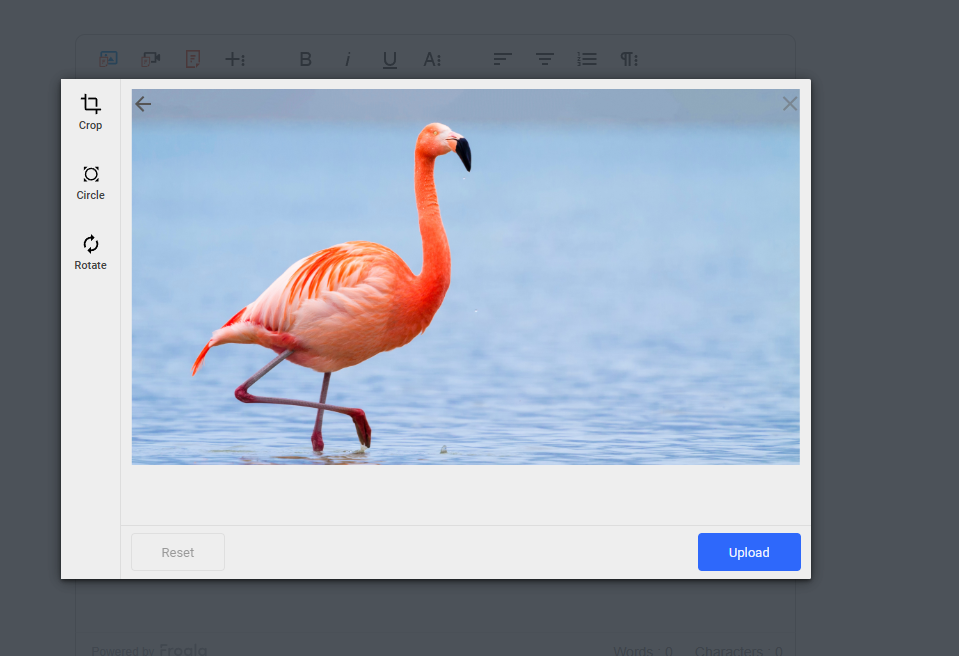
Run the application and click on the Filestack icon. Upload an image of your choice (in this case, a flamingo) and click “Upload.” Afterwards, Filestack should return a true or false response corresponding to the content’s safety.
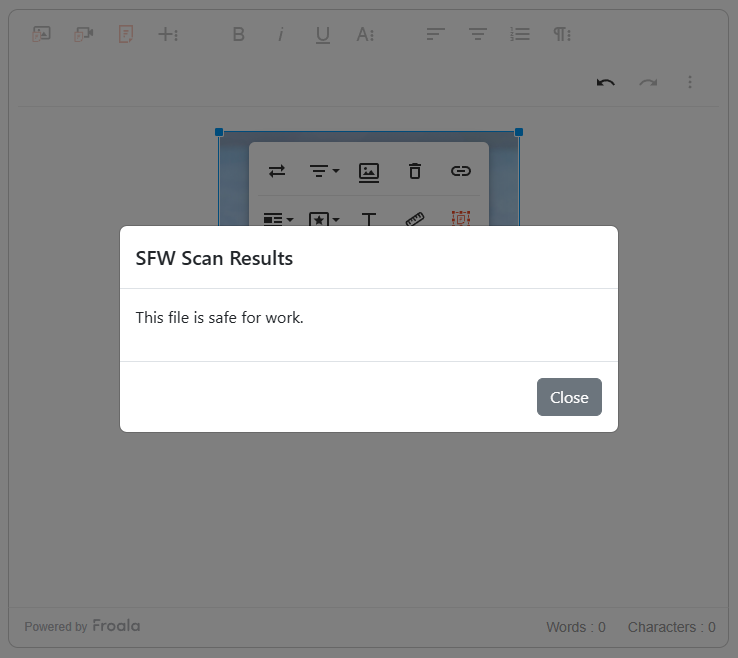
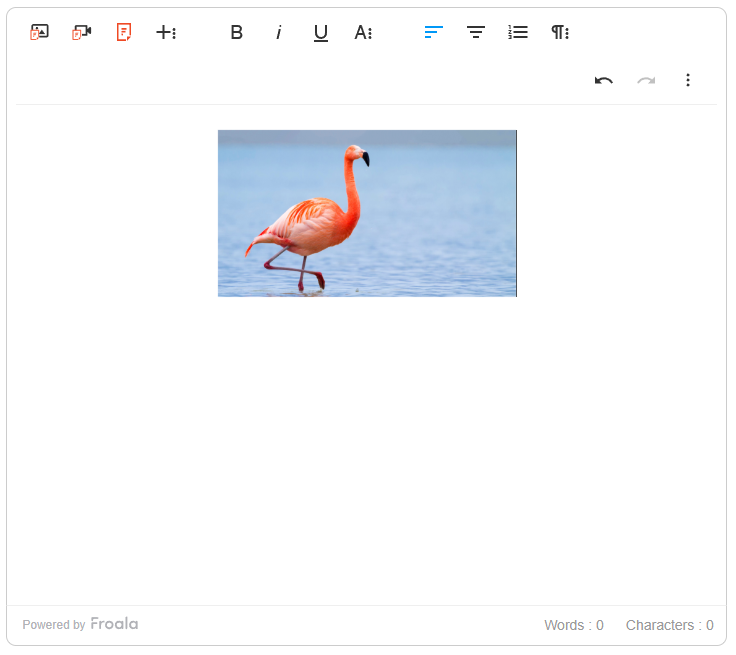
The image above shows the modal that we created earlier together with the result of the SFW scan. In this case, Filestack flagged the flamingo photo as safe for work. Now, you’re free to handle the image, whether SFW or not, based on your requirements. In this case, we’ll just leave the flamingo image inside the editor:
Another Easy Approach: Filestack Workflows
If you want an even easier way to do this, you can with Filestack Workflows. This feature allows you to set up and chain certain events or tasks. In this case, we want to use the SFW checker. After checking the content, Filestack should store it if it’s SFW and remove it otherwise.
To do this, go to “Workflows” in your Filestack dashboard and create a new workflow. Click the “+” button to see a list of tasks. Search for and choose “sfw” under the “Intelligence” tab and click “Save.” Next, add another task to your workflow and look for and select “remove” under the “Transform” tab. Add a condition and specify “Path” as “sfw” and “Condition” as “eq” (as in equals). For the value field, enter “false” since we want the workflow to remove the content if it’s NSFW. Afterwards, click “Save” and do the same for SFW results (look for the “store” task instead of the “remove” one). This time, set “Value” to “true” and click the save button.
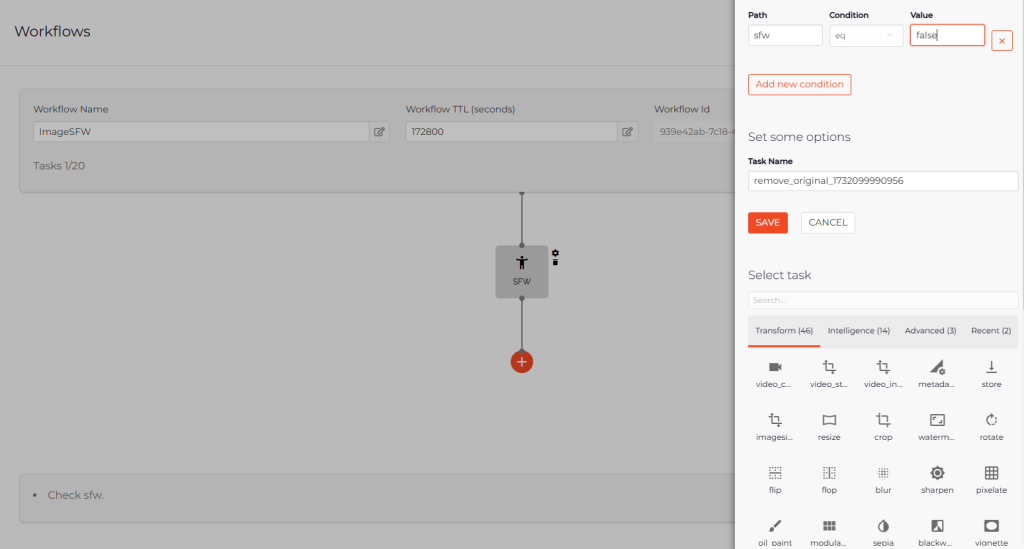
When you’re done configuring your workflow, click “Picker configuration” to see how the workflow will fit into your code. To learn more about setting SFW checking using Filestack Workflows, read this documentation or watch this tutorial.
Conclusion
Ensuring a safe, professional, and user-friendly environment is crucial to most applications nowadays. By integrating SFW-checking features into your WYSIWYG editor, you take a proactive step toward regulating user-uploaded content better. With tools like Froala Editor and the natively integrated Filestack, you can seamlessly filter NSFW content while promoting a positive and engaging user experience. The steps that we delved into today are just the beginning. Empower your application and its community by prioritizing safety and trust, one upload at a time.
Get your Filestack API here for free.







No comment yet, add your voice below!