



Creating Custom Table Styles and Templates for Brand Consistency in Rich Text Editors

Tables power much of the structured content on the internet. Whether you’re compiling a feature comparison, presenting project timelines, or displaying structured content, tables provide an easy-to-understand grid-based format. However, despite their utility and importance, tables often get overlooked in terms of visual branding.
In many applications, developers insert default or inconsistently styled tables that clash with the rest of the content’s design. This could lead to not only worse aesthetics but also poorer UX and even brand mistrust. For example, users might not like if an entirely dark-themed web app suddenly has brightly colored or white tables.
This is where custom table styles come into play. Integrating these into rich text editors allows teams to build and reuse tables without manual formatting or starting from scratch. Through careful design, testing, and configuration, developers can make every table follow a uniform look that reinforces their brand identity.
Key Takeaways
- Consistent table design builds trust and improves UX.
- When designing tables, consider table borders, colors, font choices, cell spacing, and responsiveness.
- Rich text editors come with manual table styling, in-depth table style customization, and even plugins to aid you with consistency.
- Implementing custom styles using editors like Froala is as simple as binding existing CSS classes into editor options.
- A little documentation about brand usage and standards goes a long way, especially when designing tables and other page elements.
Why Table Styling Matters in Branded Content
Branding is not just about names, logos, slogans, and color schemes. It also deals with establishing a company’s or product’s identity by creating a consistent and unique experience. Proper table styling, like other aspects of branding, contributes greatly to building a brand that users trust.
Enhancing Readability and Visual Appeal
Good table design starts with readability. By choosing the right colors, spacing, and typography, you can make table content feel more intuitive for the reader’s eyes. In turn, this helps improve user experience and possibly user retention.

Providing clear table styling helps users who skim through content by highlighting or emphasizing important or quick details. At the same time, clear table styling can help users who prefer reading in depth by optimizing layout, colors, and typography to reduce eye strain.
For example, by adding high-contrast header rows, users could easily distinguish between categories and values. Moreover, consistent cell padding helps text, whether long or short, avoid seeming cramped or misaligned. When styling tables, always think of the question, “What should I do to help users easily locate key information?”
Building Trust through Visual Consistency
Visual inconsistencies, even small ones like mismatched table borders or font choices, can break user immersion and trust. When your tables follow a well-defined and recognizable design or theme, they feel like a natural part of your brand. This consistency can help convey your attention to detail to users, building credibility.
This is especially important for rich text editors. For example, when team members contribute to a shared report or blog post, they often use the same editor but with their own formatting instincts. Without predefined table styles, one might use thick gray borders, another might center-align everything, and someone else might use defaults.
Over time, a lack of proper table styling creates a patchwork of formatting that undermines brand cohesion. Users might then think that the organization, product, or service is chaotic because of the inconsistent design and experiences. By baking branded and custom table styles directly into rich text editors, you empower contributors to maintain visual consistency easily.
Reducing Formatting Errors across Teams
When teams create tables manually, styling often gets lost or misapplied, especially if they’re copy-pasting content across different apps. A custom template or preset table style eliminates any guesswork, enabling non-technical users to insert consistently styled tables without CSS. More importantly, it ensures that every table conforms to a central source of truth, your brand’s style guide.
Key Components of Custom Table Styles
When building for brand consistency, you must consider the following components of custom table styles.
Table Borders and Line Weight
Table borders define the visual boundaries between rows and columns. Overly thick ones overwhelm and bury the content, while overly thin or missing ones make data more difficult to separate. Thus, you should standardize border widths and colors to improve uniformity and readability.
Alternatively, you can opt for alternating row backgrounds, which is useful for when you have plenty of rows. In the end, you should find the right table border styling and line weight that make your content more readable.
Background and Header Colors
A good background color can signal hierarchy or provide context. For instance, using a different shade for header rows immediately separates them from data rows. Striped row colors (alternating row backgrounds) make tables with thousands of rows easier to read line by line.

For accessibility and readability, pick the right color choices for maintaining good contrast ratios. Of course, pick out colors that align with your branding as well.
Cell Padding, Spacing, and Alignment
Padding affects both readability and visual spacing. Tight padding might save space, but if overused, it results in a cramped layout. And having plenty of data to display alongside such a layout would result in poor user experience.
Vertical and horizontal alignment also affect how users interpret the data. For instance, common conventions include left-aligning text, right-aligning numbers, and centering headers.
Font Choices and Text Styling
Using brand-specific fonts within tables creates a seamless look across all content components. Beyond typefaces, consistent font sizes, weights (e.g., bold headers), and colors make your tables align visually with other elements.
Responsive Design Considerations
On mobile, traditional table layouts often break or overflow. A responsive table style helps boost readability no matter the device. Consider collapsing columns into expandable sections, using scrollable fixed containers, or reformatting data into card-like displays on smaller viewports.
How Rich Text Editors Support Custom Table Styling
Now that you’ve read about what to look for when building custom table styles, it’s time to explore how rich text editors handle it.
Overview of Built-in Table Tools in Common Rich Text Editors
Most rich text editors, including Froala, TinyMCE, and CKEditor, come with built-in table creation and editing tools. These allow users to insert rows and columns, merge cells, and adjust border styles or background colors. However, some of these only apply a default, often unbranded style.
Thankfully, some rich text editors allow developers to create custom table designs and themes. Along with plugins and extensions, this opens the door for deeper customization, enabling table presets, saved classes, and integrations with external styling.
CSS and Class Integration for Branding
Applying CSS classes is one of the most common methods to control table appearance. Rich text editors typically allow you to define custom classes for table elements. You can create branded styles in your stylesheet (e.g., “.my-table,” “.my-row-alt”) and apply them through the editor’s configuration.
This approach centralizes styling, meaning you only have to update a few CSS classes to reflect any changes later on.
Using Editor Plugins or Extensions for Table Templates
Some rich text editors support custom plugins that insert full table templates with predefined structure and styling. These are especially useful for reusing table types, like comparison charts, contact matrices, or performance trackers. Plugins can also enforce styling rules, helping prevent users from unintentionally creating off-brand tables.
Storing and Reusing Style Presets or Templates
Some editors have built-in support for enabling users to insert table templates with one click to save time while enforcing consistency. These templates typically include prefilled headers, styling, and even instructional placeholder text to guide users. This helps improve productivity and efficiency by promoting a “create and reuse” philosophy on table styling.
Step-by-Step Guide to Creating Custom Table Styles
Designing custom tables may seem like a design-heavy task, but with a structured approach, it turns into a manageable process. This section walks you through implementing custom table styles within your rich text editor.
Define Your Brand Style Guide for Tables
Before writing any code, work with your design or branding team to document how branded tables should look. Define properties like:
- Header background color
- Border thickness and color
- Font and cell alignment
- Row striping behavior
This would then become your blueprint for coding.
Create a Base Table Template in HTML/CSS
Next, translate your style guide into a sample HTML table and accompanying CSS rules. Test it in isolation to ensure it looks right across screen sizes. For example, we have the following HTML example for a table that shows some items on a cart:
<head>
    <!--other head elements-->
    <link href='https://cdn.jsdelivr.net/npm/froala-editor@4.3/css/froala_editor.pkgd.min.css' rel='stylesheet' type='text/css' />
    <link href="styles.css" rel="stylesheet">
</head>
<body>
    <div id="froala-editor">
        <table class="custom-table">
            <thead>
                <tr>
                    <th>Item</th>
                    <th>Quantity</th>
                    <th>Price</th>
                </tr>
            </thead>
            <tbody>
                <tr>
                    <td>Item 1</td>
                    <td>2</td>
                    <td>$1200</td>
                </tr>
                <tr>
                    <td>Item 2</td>
                    <td>3</td>
                    <td>$150</td>
                </tr>
                <tr>
                    <td>Item 3</td>
                    <td>2</td>
                    <td>$500</td>
                </tr>
                <tr>
                    <td>Item 4</td>
                    <td>5</td>
                    <td>$75</td>
                </tr>
                <tr>
                    <td>Item 5</td>
                    <td>1</td>
                    <td>$150</td>
                </tr>
            </tbody>
        </table>
    </div>
    <script type='text/javascript' src='https://cdn.jsdelivr.net/npm/froala-editor@4.3/js/froala_editor.pkgd.min.js'></script>
    <script src="index.js"></script>
</body>
This HTML snippet contains a table without a class. In the table, you have three columns: item, quantity, and price. The sample table already comes with five rows for demo purposes, each of which represents different items in a cart.
In the code, you also have a div element that wraps the table, and this is where you’ll initialize Froala Editor. By doing so, the table will appear within the editor once the page loads. Finally, call your stylesheet (“styles.css” in this case) and JS, as well as Froala’s CSS and JS. Afterwards, open or create “styles.css” and paste in the following code:
.custom-table {
    margin: 2rem auto;
    width: 90%;
    max-width: 800px;
    border-collapse: collapse;
    font-family: 'Inter', sans-serif;
    font-size: 14px;
}

.custom-table th,
.custom-table td {
    padding: 12px 16px;
    text-align: left;
    border-bottom: 1px solid #dee2e6;
}

.custom-table thead {
    background-color: #f8f9fa;
    font-weight: 600;
}

.custom-table tbody tr:nth-child(even) {
    background-color: #f2f2f2;
}

.custom-table td:last-child {
    text-align: right;
}

@media (max-width: 576px) {
    .custom-table {
        font-size: 13px;
    }
}
This script applies several design rules for the “custom-table” class, which we’ll load in the editor later. It sets the properties of the table itself, the cell and header stylings, and responsiveness using media queries as well. Essentially, this turns the table into a modern white and light gray one with alternating background colors.
If you run the code now, you’ll see something similar to the following image.
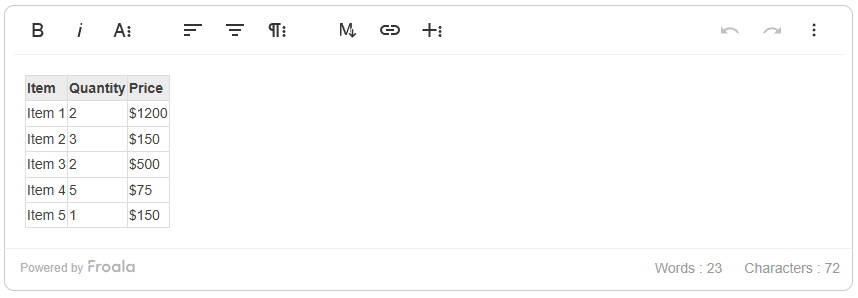
In the image, the table looks cramped, small, and too simple because of the lack of CSS.
Apply Custom Classes in the Editor Configuration
Now, it’s time to load this custom styling into the table using the editor. First, open or create a JS file. Then, insert the following code:
new FroalaEditor('#froala-editor', {
    tableStyles: {
        'custom-table': 'Custom Table Style'
    }
});
This instantiates Froala Editor in the div element with the “froala-editor” ID. Afterwards, this adds the “custom-table” as an available button and option under the “Table Style” menu. Once you’re done, open your browser and run the application.
Preview, Test Responsiveness, and Save as Template
When you run the application, you’ll see the same unstyled table as before. However, if you click or select the table, you’ll see a “Table Style” option on the pop-up toolbar. Click that option and you’ll see “Custom Table Style,” which we defined and linked to the “custom-table” class from CSS.
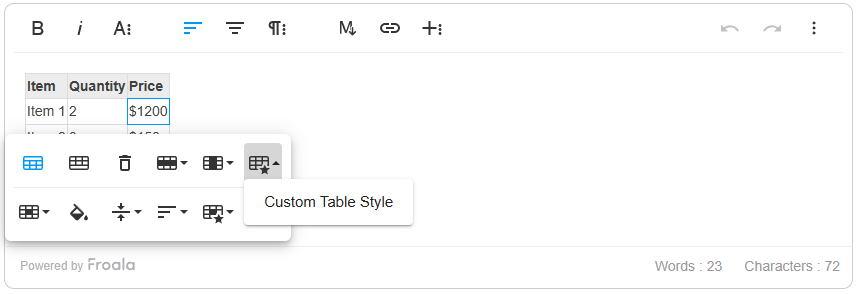
Click the “Custom Table Style” button icon, and you’ll see the table turn into something more modern, responsive, and aesthetic.
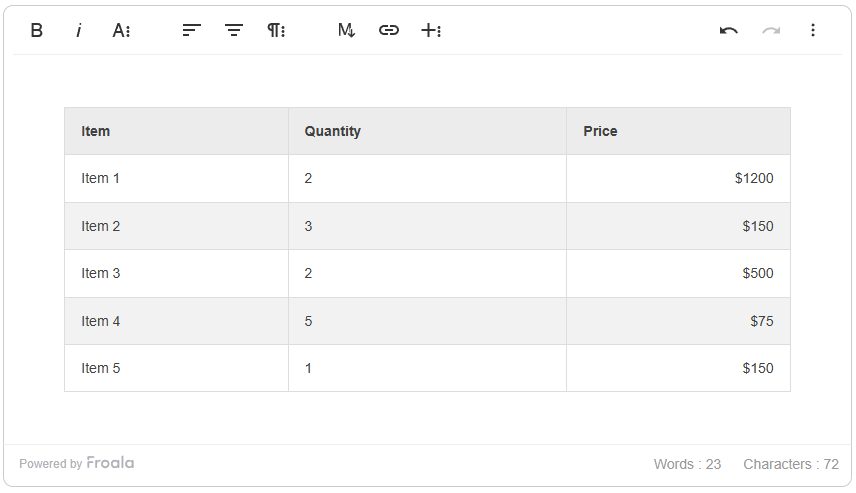
You now have a table theme that your users can directly apply with a single click. You can improve this a lot more by playing around with the CSS to get the specific design that you want. Furthermore, you can do the same by creating custom plugins that generate a stylized table right away instead of applying classes. You can even set up different classes as table styling options in the editor.
Provide Clear Usage Instructions for Team Members
Even the best styling system fails without documentation. Create a short internal guide that shows:
- How to insert tables using the editor
- Which templates to use for specific purposes
- Where to report issues or request updates
With these simple yet effective processes, you’re allowing your team to stay consistent with branding while speeding up their table tasks.
Best Practices for Maintaining Consistency across Teams
To ensure consistent branding in your organization, your teams should also remain consistent when designing components like tables. Here are some strategies that you can implement to help your teams stay aligned with your brand.
Centralizing Templates in the Editor UI
Make styled tables or table templates easy to find in the editor toolbar. You can use clearly named buttons or dropdowns with suitable button icons. If users don’t know where to access the branded or stylized options, they’ll revert to manually styling tables.
Locking or Restricting Unstyled Table Options
Some editors allow you to limit the styling options available to end users. If needed, disable freeform cell styling or inline formatting to reduce the chances of inconsistencies.
Training Content Teams to Use the Predefined Styles
Even non-technical users can follow a structured process with minimal friction, should they receive the right tools and training. Run short onboarding sessions, create intuitive guides, and build standards for promoting predefined table styles.
Periodic Reviews to Update Templates with Brand Changes
Brands, although unique, tend to change and evolve through the years. Hence, you should review your table templates periodically, especially when branding changes significantly. This helps your tables stay consistent with your brand’s visual direction.
Common Mistakes to Avoid
Even with the best intentions, teams often fall into traps that make table styling more chaotic than cohesive. Identifying these common pitfalls helps ensure that table styling serves its purpose: clarity, consistency, and ease of use across teams.
Overcomplicating Styles with Too Many Variants
Having 8 versions of the same table design with minor differences confuses users and increases maintenance overhead. In these scenarios, users will often think, “Did I insert the right table design?”So, if you can, try sticking to a few (e.g., 1 to 3) core table styles.
Ignoring Mobile Optimization
Always test your tables on all screens, especially smaller ones. What looks great on desktop may turn into an unreadable mess when column width shrinks or when rows wrap awkwardly.
Failing to Document Styling Rules Clearly
Lack of documentation leads to inconsistent use. Even developers and designers benefit from a simple list, especially if it has supplementary visuals. Proper design and brand guidelines can help ensure consistency and increase developer or designer efficiency.
Examples of Beautifully Branded Tables
To bring these concepts to life, let’s look at a couple of examples that demonstrate what well-styled tables can look like in practice.
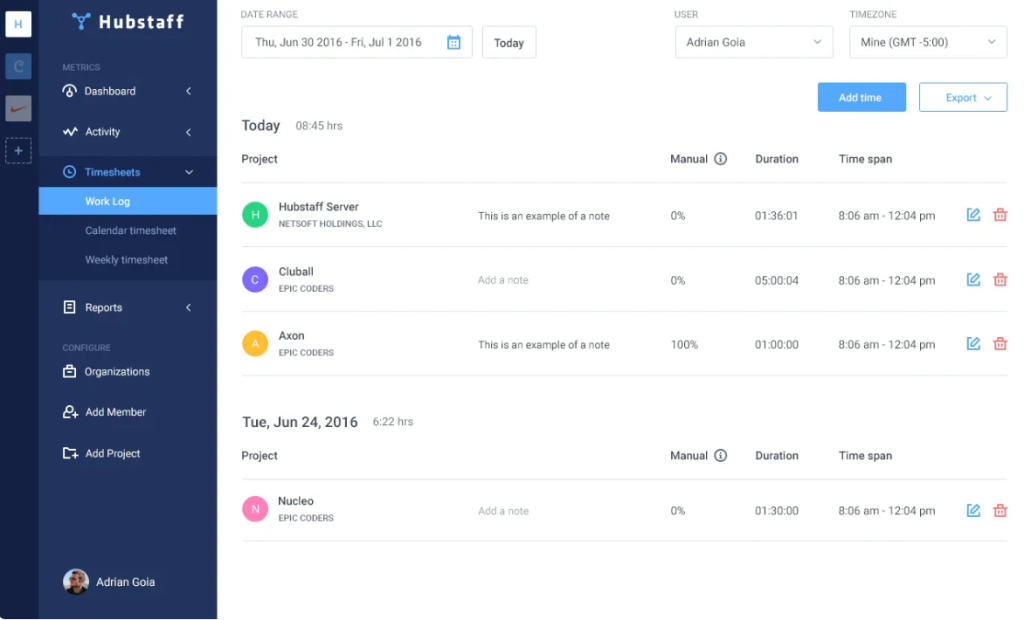
This sample table belongs to Kontrast Interactive, a UI/UX designer on the Dribbble platform. Some of the screenshots of the app that they designed, including this one, display necessary information without being too much. There’s a perfect blend of space efficiency, color context, and expert layout and font execution, all while incorporating the brand.
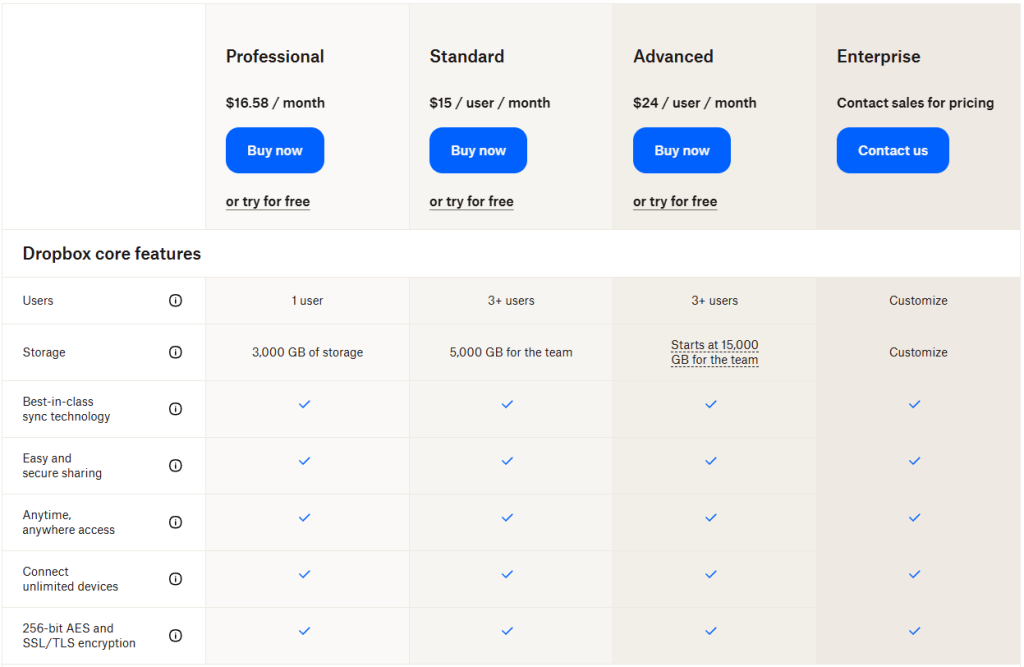
Dropbox’s pricing table is another great example of a well-designed branded table. At one glance, you’ll find a clear division of features and packages. You’ll also notice the differences in background color for each pricing tier, increasing in saturation as the tier becomes higher.
Dropbox also makes good use of icons, using check marks instead of words like “Yes” or “Included.” They also have proper spacing between each cell and around each text or element. Lastly, their table, although simple-looking, matches Dropbox’s branding in terms of colors and fonts.
Tools to Help You Style Tables Efficiently
- Froala Editor Table Customization: Froala offers built-in styling options and plugin hooks to help you easily customize table design for better user experience.
- CSS-in-JS for Branded Applications: If you’re using React or Vue, libraries like styled-components or Emotion CSS let you write CSS styles with JavaScript. This allows you to write scoped, component-friendly styles.
- Design Systems and Component Libraries: Use a centralized design system (like a Figma kit) that includes table design patterns for consistency. You can also opt for and customize component libraries for design, like React-Bootstrap or Material UI.
- Table Styling in Markdown-Rich Environments: If your app supports Markdown (which most modern rich text editors do), look into parser extensions or wrappers that apply consistent styling to tables automatically.
Conclusion
Custom table styles are more than just an aesthetic choice. They directly contribute to reinforcing your brand, reducing formatting errors, and improving overall content usability. By using rich text editors to define and reuse these styles, teams can create consistently branded tables across their platforms.
If you haven’t already, audit how your current tables look across different pieces of content. Then, take the time to define reusable templates and train your teams to use them. A little effort upfront can save hours of cleanup later and make your brand look more unified and professional in the process.







No comment yet, add your voice below!