



How to make an ASP.NET HTML code writer with image resize capabilities

Image resolution is something that we sometimes overlook as developers. Basic functionality, error handling, and intuitiveness come first, after all. However, that doesn’t mean that handling image resolution or size isn’t important. In fact, improper image handling can slow down websites and applications, consume excessive bandwidth, or ruin the UI or UX. One good way to prevent this is by resizing uploaded images before they’re stored. So, let’s discover how we can build an HTML code writer with image resizing using ASP.NET, ImageMagick, and a WYSIWYG HTML editor.
Key Takeaways
- Image resizing boosts performance by reducing load times and bandwidth usage.
- ASP.NET, Froala, and ImageMagick are combined to build a web app with image resizing.
- Froala Editor allows easy image uploads and rich text editing.
- ImageMagick simplifies resizing, ensuring images fit set dimensions.
- Customizable solution with options for validation, enhancement, and more.

Here’s a little demonstration of our HTML code writer’s image resize capability:
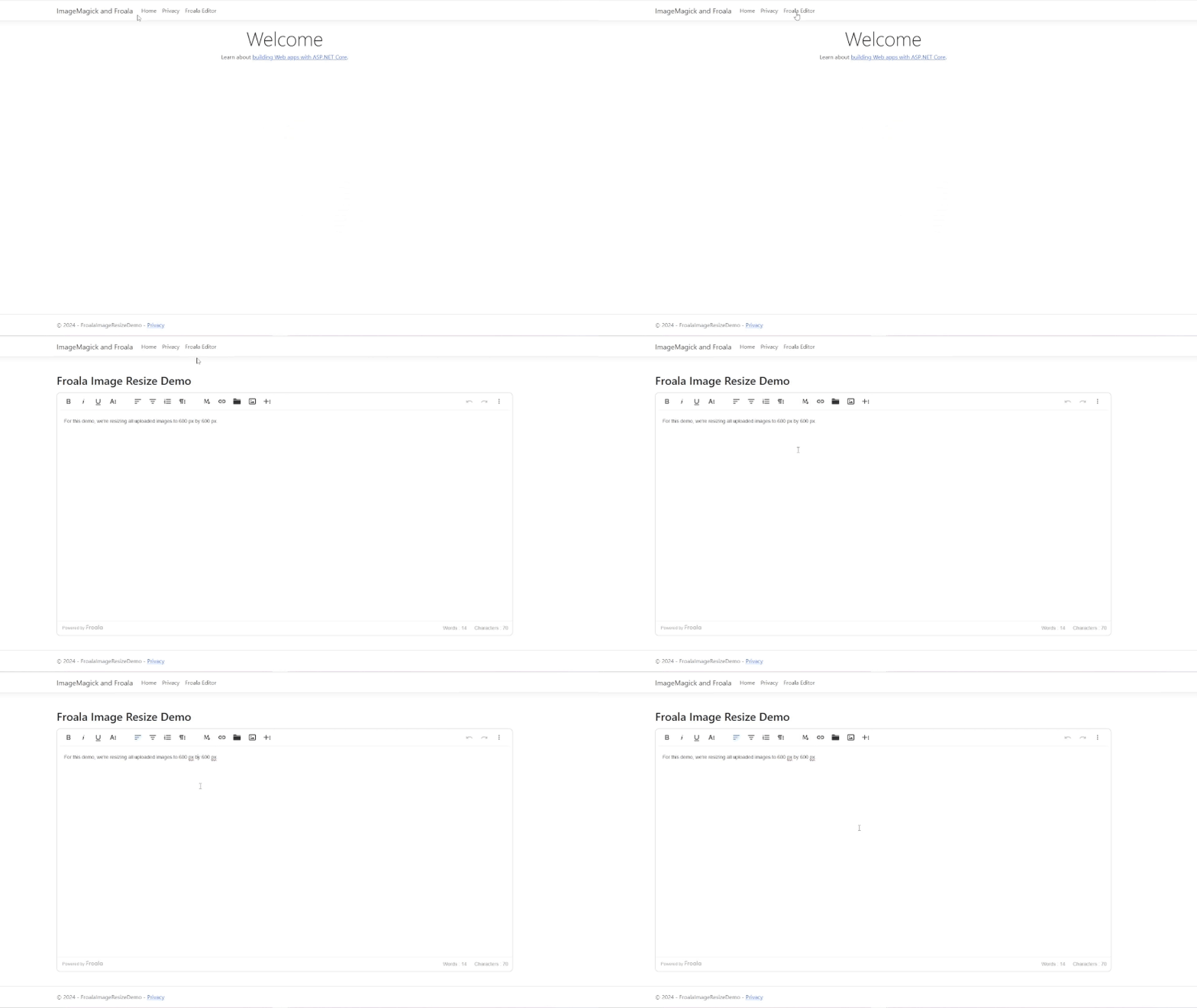
Notice how the 2 sample images had a landscape orientation before being uploaded and how they both changed afterwards. Now, read more to use an ASP.NET-based HTML code writer with image resizing capabilities. For more details, feel free to check our .NET image resize documentation. Now let’s set up the application.
Setting up the application
Before we get to the development part, let’s check out the tools that we’ll be using:
- ASP.NET Core: An open-source web application framework that comes with Visual Studio
- ImageMagick: An extensive open-source software suite for enhancing images
- Froala: A powerful WYSIWYG HTML editor that supports HTML code editing, image uploads, Markdown, and more
Now that we know what we need, let’s do the following steps to create our project:
- Open Visual Studio and create a new project.
- Select the “ASP.NET Core Web App (Razor Pages) template. In our case, the project name is FroalaImageResizeDemo.
- Select “.NET 8.0 (Long Term Support)” as the framework.
- Click “Create”.
Next, let’s add the Froala Editor via CDN:
- Open the “_Layout.cshtml” file under the Pages > Shared directory.
- Add the Froala CDN links inside the <head> section.
<link rel="stylesheet" href="https://cdnjs.cloudflare.com/ajax/libs/froala-editor/4.3.0/css/froala_editor.pkgd.min.css" />
<script src="https://cdnjs.cloudflare.com/ajax/libs/froala-editor/4.3.0/js/froala_editor.pkgd.min.js"></script>
Once we’ve included Froala in our project, we will be installing ImageMagick via NuGet Package Manager.
- In the Solution Explorer, right-click the project name and select “Manage NuGet Packages.”
- Under the “Browse” tab, search for “Magick.NET-Q8-AnyCPU” and click the install button.
Finally, let’s create a folder where we can store the images. In the Solution Explorer, find the “wwwroot” folder. Create a new folder inside it named “images.” Now that we’ve configured our project setup, it’s time to create our image resizing HTML code writer.
Making the HTML code writer
First, let’s create a new page where we can initialize and load Froala Editor.
- Right-click the Pages folder.
- Select Add > New Item > Razor Page.
- Let’s name it “Editor.cshtml.”
Insert the following code to the newly created page:
@page
@model FroalaImageResizeDemo.Pages.EditorModel
@{
    ViewData["Title"] = "Froala Image Resize Demo";
}

<h2 class="mt-5 mb-3">@ViewData["Title"]</h2>

<div id="editor">For this demo, we're resizing all uploaded images to 600 px by 300 px.</div>


<script>
    new FroalaEditor('#editor', {
        imageUploadURL: '',
        heightMin: 600
    });
</script>
This page will contain the Froala editor as well as a header. The <div> with the “editor” ID is the container where we’ll load Froala. On the other hand, imageUploadURL is a Froala image upload option that determines where the upload request is made. For now, let’s leave that option blank, but we’ll get back to it later.
We now have a dedicated page for our HTML code writer. However, it’s still not reachable via navigation, so let’s fix that by adding a link:
- Open “_Layout.cshtml” again.
- Add the following code snippet to the <ul> within the navbar section:
<li class="nav-item">
    <a class="nav-link text-dark" asp-page="/Editor">Froala Editor</a>
</li>
Afterwards, try running the application by pressing F5 or the play button. You should now have a glimpse of the default ASP.NET Core application with a “Froala Editor” link on the navbar. Click on it, and you’ll see Froala in action. You can now edit text, upload images, and perform other rich text actions. All that’s left now is to combine our HTML code writer with ImageMagick for image resizing.
Integrating ImageMagick for resizing images
To include ImageMagick’s resizing feature, we need to first create a new controller:
- Right-click the Controllers folder (create one if it wasn’t generated by the IDE).
- Select Add > New Item.
- Under the ASP.NET Core category, choose “API Controller – Empty.”
- Name it “FroalaApiController.cs” and click the add button.
Next, add the following code to the newly created controller:
using Microsoft.AspNetCore.Mvc;
using ImageMagick;

[Route("api/FroalaApi")]
[ApiController]
public class FroalaApiController : ControllerBase
{
    [HttpPost("UploadImageResize")]
    public IActionResult UploadImageResize()
    {
        // Check if the request contains files
        if (Request.Form.Files.Count == 0)
        {
            return BadRequest("No files were uploaded.");
        }

        var file = Request.Form.Files[0];

        if (file.Length > 0)
        {
            // Define the file path
            var filePath = Path.Combine(Directory.GetCurrentDirectory(),        "wwwroot", "images", file.FileName);

            // Save the file to the server
            using (var stream = new FileStream(filePath, FileMode.Create))
            {
                file.CopyTo(stream);
            }

            // Resize the image
            using (var image = new MagickImage(filePath))
            {
                var resizeGeometry = new MagickGeometry(600, 600)
                {
                    IgnoreAspectRatio = true
                };
                image.Resize(resizeGeometry);
                image.Write(filePath); // Save the resized image
            }

            return Ok(new { link = $"/images/{file.FileName}" });
        }

        return BadRequest("Failed to upload image.");
    }
}
Firstly, make sure to include “using ImageMagick” to enable it. We then check whether a file was successfully uploaded from the request or not. Then, we define the file path where we store our images (in our case, under wwwroot > images). Afterwards, we resize the image by declaring a new MagickImage object with our desired dimensions (600×600 pixels). Lastly, we return an HTTP 200 status code along with the JSON containing the image’s URL on success. Froala will then display the image within the editor, and we’re done!
Conclusion
Resizing images is a vital task for any application. For instance, we might need to limit image resolution for display purposes (e.g., email or blog images). We might also need to minimize image size for efficiency and cost reduction. However, image handling can be a pain sometimes. Fortunately, there are dozens of tools like ImageMagick that can help us easily accomplish that, as I’ve shown you in this HTML code writer demo.
By combining .NET, Froala, and ImageMagick, you can streamline the entire process of implementing image resizing in your applications. For your own projects, using the same tools, you can even take it up a notch. For example, you can add image quality enhancement, file type and size validation, autosaving, and more to make your application more robust. Now, it’s your turn to sprinkle some (Image)magic(K) on your projects!







No comment yet, add your voice below!