



The Developer’s Ultimate Guide to Froala’s Find and Replace Plugin

In the world of web development and text editing, efficiency is key. Whether you’re managing large documents or simply trying to clean up text, having a robust find and replace functionality can save countless hours of manual editing. Enter Froala’s Find and Replace Plugin – a powerful tool designed to streamline text manipulation and enhance user productivity.
This comprehensive guide will walk you through everything you need to know about this essential plugin. We’ll explore:
- How the Find and Replace plugin operates
- Step-by-step installation and setup instructions
- A detailed breakdown of the plugin’s API options and methods
- Practical use cases and implementation strategies
By the end of this article, you’ll have a complete understanding of how to leverage Froala’s Find and Replace Plugin to transform your text editing workflow.
Key Takeaways
- Froala Find and replace plugin allowing user to perform comprehensive text search and replacement functionality
- The plugin supports case-sensitive and whole word matching
- The plugin has a flexible configuration and customization
How the Find and Replace Works
Froala’s Find and Replace plugin offers a user-friendly interface for searching and modifying text within the editor. Users can access the search and replace popup in two ways:
- Through the editor toolbar
- By using the keyboard shortcut (CTRL + F)
Search and Replace Popup Features
The popup provides comprehensive search capabilities, including:
- Search term input field
- Replacement word input field
- Optional match case sensitivity
- Option to match whole words only
Available Actions
Users can choose from three primary actions:
- Find: Locate occurrences of the search term
- Replace: Swap a single matched instance
- Replace All: Substitute all matching instances
Workflow
Initially, only the “Find” button is active. When you click “Find”, the plugin displays the number of matching occurrences and activates the replacement field and buttons. This allows you to to replace the current match or all matches.
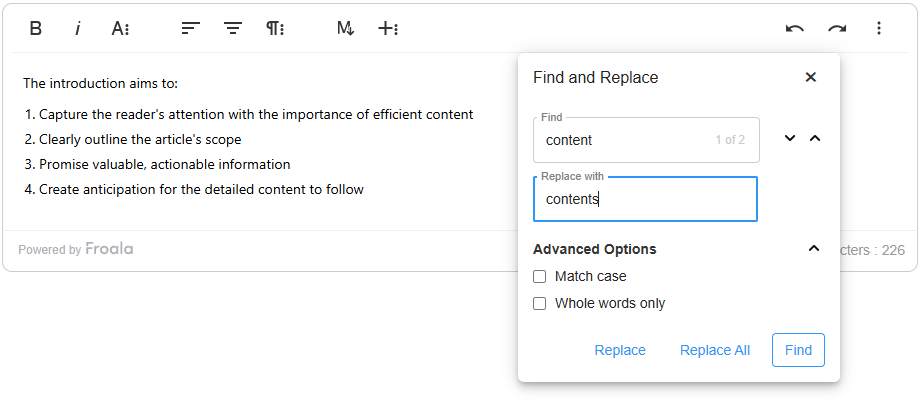
This intuitive design enables efficient text editing with minimal effort.
Installation and Setup of Froala Find and Replace Plugin
Plugin Inclusion
If you’re using the full Froala editor package (`.pkgd`), the Find and Replace plugin is automatically included. For custom implementations, you’ll need to manually add two files:
- JavaScript:
/js/plugins/find_and_replace.min.js - Stylesheet:
/css/plugins/find_and_replace.min.css
Plugin Configuration
Enabling the Plugin
If you’re customizing the editor’s enabled plugins, include findReplace in the pluginsEnabled array to activate the Find and Replace plugin
new FroalaEditor('#editor', {
       pluginsEnabled: ['findReplace', 'fontFamily', 'image', 'link', 'video']
 });
If you’re customizing the editor’s toolbar buttons and want to display the Find and Replace button, add findReplaceButton to your toolbar configuration:
new FroalaEditor('#editor', {
    toolbarButtons: ['findReplaceButton', 'bold', 'italic', 'insertLink']
});
If you are customizing the toolbar buttons for different screen sizes, add findReplaceButton to the used configuration:
toolbarButtonsMD(Medium screens)toolbarButtonsSM(Small screens)toolbarButtonsXS(Extra small screens)
By default, these inherit the buttons from toolbarButtons.
The Find and Replace Plugin Configuration
Froala’s Find and Replace plugin provides flexible configuration options, methods, and events that allow developers to customize the search experience.
Plugin Options
The plugin offers three key configuration settings:
- Case Sensitivity:
- Set
enableMatchCase: trueto make case-sensitive search the default behavior.
- Set
- Word Matching:
- Set
enableMatchWholeWord: trueto match entire words by default.
- Set
- Automatic Popup Display:
- Set
showFindAndReplace: trueto display the Find and Replace popup when the editor initializes.
- Set
These options give developers granular control over the search and replace functionality, enabling a more tailored text editing experience.
Plugin Events
Froala’s Find and Replace plugin provides four key events that give developers precise control over text replacement workflows:
1. findandreplace.beforeClose()
Triggered before the Find and Replace popup closes, allowing for any necessary cleanup or validation.
2. findandreplace.beforeOnReplace()
Fires before a replacement occurs, enabling developers to:
- Validate replacements
- Implement custom validation logic
- Prevent replacements if needed
3. findandreplace.onReplace([{ oldValue, newValue }])
Occurs after a single text replacement, providing:
- The original text (
oldValue) - The replacement text (
newValue)
Useful for:
- Tracking changes
- Logging modifications
- Triggering additional actions
4. findandreplace.onReplaceAll([{ oldValue, newValue }])
Triggered after replacing all matching instances, with similar details to onReplace().
new FroalaEditor('.selector', {
  events: {
    'findandreplace.beforeClose': function () {
      // this is the editor instance.
      console.log(this);
    },
    'findandreplace.beforeOnReplace': function () {
      // Do something here.
      // this is the editor instance.
      console.log(this);
    },
    'findandreplace.onReplace': function (textArray) {
      // Do something here.
      // this is the editor instance.
      console.log(this);
    },
    'findandreplace.onReplaceAll': function (textArray) {
      // Do something here.
      // this is the editor instance.
      console.log(this);
    }
  }
});
These events offer powerful hooks for customizing the Find and Replace plugin’s behavior, enabling developers to create more intelligent and interactive text editing experiences.
Plugin Methods
Froala’s Find and Replace plugin offers a comprehensive set of methods to programmatically control search and replacement functionality:
Search and Match Methods
findReplace.findMatches(searchText)
Locate and highlight all instances of a specific text. Use this when you want to identify all occurrences of a keyword in a document
findReplace.findNextMatch(index)
Navigate to the next matching instance. Allowing to systematically review search results
- Example:
editor.findReplace.findNextMatch(2)moves to the third match
findReplace.findPreviousMatch(index)
Navigate to the previous matching instance in a circular manner. Allowing to Backtrack through search results
- Example:
editor.findReplace.findPreviousMatch(1)moves to the previous match
Replacement Methods
findReplace.replaceMatch(replaceText)
Replace the current matched text. Use it if you want to selectively update specific instances
- Example:
editor.findReplace.replaceMatch("updated term")
findReplace.replaceMatches(replaceText)
Replace all matching instances. Use it to perform bulk text updates
- Example:
editor.findReplace.replaceMatches("new text")
Information and Control Methods
findReplace.getMatchesCount()
Retrieve total number of matches. This helpful to understand search result scope
- Example:
let matchCount = editor.findReplace.getMatchesCount()
findReplace.getCurrentMatch()
Get text of the current match. Use it when you want to inspect current search result
- Example:
let currentText = editor.findReplace.getCurrentMatch()
findReplace.getCurrentMatchIndex()
Get index of current match. Use it to track position in search results
- Example:
let currentIndex = editor.findReplace.getCurrentMatchIndex()
findReplace.showPopup()
Manually display Find and Replace interface. Use it to programmatically trigger search functionality
- Example:
editor.findReplace.showPopup()
findReplace.hidePopup()
Programmatically close Find and Replace popup
- Example:
editor.findReplace.hidePopup()
Each method provides granular control over the Find and Replace functionality, enabling developers to create sophisticated text editing experiences.
Practical Use Cases
1. Large-Scale Documentation Management
Scenario: Technical writers managing extensive documentation repositories
- Example: Replacing an outdated product name across multiple documents
- Leverage case sensitivity and whole word matching for precision
2. Internationalization and Localization
Translating and standardizing text across multilingual content
3. Content Compliance and Style Guide Enforcement
Ensuring consistent language and branding across organizational documents
Advanced Implementation Techniques
Programmatic Search and Replace Workflow
// Example: Systematic document review process
function reviewDocument(editor, searchTerms) {
    searchTerms.forEach(term => {
        const matches = editor.findReplace.findMatches(term);
        if (matches.length > 0) {
            // Trigger review workflow
            openReviewModal(matches);
        }
    });
}
By understanding these practical use cases, developers can leverage Froala’s Find and Replace plugin to create more intelligent, efficient, and robust text editing experiences.
Frequently Asked Questions (FAQ)
Is the Find and Replace plugin included in all Froala Editor versions?
The plugin is automatically included in the full Froala editor package (.pkgd). For custom implementations, you’ll need to manually include the JavaScript and CSS files.
Can I track or log text replacements?
Yes, use event handlers like:
findandreplace.onReplace()findandreplace.onReplaceAll()
These provide details about the replaced text and allow for custom logging or tracking.
How can I add custom validation before text replacement?
Use the findandreplace.beforeOnReplace() event to implement custom validation logic:
editor.events.on('findandreplace.beforeOnReplace', function(oldValue, newValue) {
    // Custom validation logic
    if (containsSensitiveInformation(oldValue)) {
        return false; // Prevent replacement
    }
    return true;
});
Which browsers support the Froala Find and Replace plugin?
The plugin is compatible with all modern browsers, including:
- Google Chrome
- Mozilla Firefox
- Safari
- Microsoft Edge
- Opera
Compatibility is ensured across desktop and mobile platforms.
Is the Find and Replace plugin available in all Froala plans?
Yes, the Find and Replace plugin is available across all Froala licensing plans.
Where can I get additional support?
Conclusion
Froala’s Find and Replace plugin represents a powerful solution for developers and content creators seeking efficient text manipulation. By providing intuitive search capabilities, flexible configuration options, and robust API methods, the plugin transforms text editing from a manual, time-consuming process to a streamlined, programmatic experience.
As web content continues to evolve, tools like Froala’s Find and Replace plugin will remain critical in helping writers maintain accuracy, consistency, and efficiency in their text editing workflows.
Ready to Transform Your Text Editing?
Don’t just read about efficiency—experience it. Froala offers a free trial that lets you explore the Find and Replace plugin and the entire editor ecosystem. Whether you’re a solo developer, part of a team, or managing large-scale documentation, there’s no better time to upgrade your text editing workflow.






No comment yet, add your voice below!