



Step-by-Step Guide to Styling Froala Editor with Custom Skins and Icons
When building modern web applications, every detail of your UI matters—including the editor your users interact with daily. Froala’s WYSIWYG Editor is already known for its clean design and powerful features, but did you know you can take it even further? With customizable skins and icon packs, you can transform the editor’s look and feel to perfectly match your brand or design system.
Whether you want to align it with your company’s style guide, keep up with the latest design trends, or simply create multiple themes you can switch between with ease, Froala makes it possible. From subtle tweaks to complete visual overhauls, the editor becomes a seamless part of your website rather than just an add-on.
In this article, we’ll walk you through two practical, step-by-step examples of customizing both the editor skin and its icons. By the end, you’ll see just how flexible Froala is when it comes to adapting to your design vision—and how these enhancements can elevate the editing experience for your users.
Why Customize Froala Editor Skins and Icons?
The editor isn’t just a utility—it’s a core part of how users interact with your application. When the design of the editor feels disconnected from the rest of your UI, it can break the flow and reduce engagement. By customizing Froala’s skins and icons, you ensure that your editor feels like a natural extension of your product.
Here’s why it matters:
- Brand Alignment: Every brand has its own identity, from colors to typography. Custom skins let you bring that identity into the editor, ensuring a cohesive look across your entire platform.
- Staying on Trend: Design trends evolve quickly. Froala’s flexibility allows you to refresh your editor’s style to stay current with popular design systems such as Material Design, Fluent UI, or Bootstrap themes.
- Improved User Experience: A familiar, polished editor encourages users to focus on content creation without distractions. Consistent icons and intuitive design make the editing process smoother.
- Seamless Integration: Whether your editor is embedded in a CMS, SaaS dashboard, or client-facing portal, customization helps it blend in perfectly with the surrounding interface.
Understanding Froala Skins and Icons
Before jumping into customization, it’s important to understand what skins and icons mean:
Skins: Customizing the Editor’s Appearance
Skins define the overall appearance of the Froala editor. This includes the colors, spacing, typography, borders, and the look of the toolbar, dropdowns, and modals.
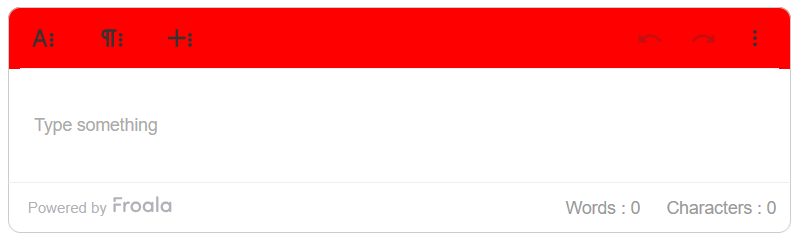
Since Froala is an HTML component, you can change its skin by overriding the default CSS styles. For example, adding the following CSS will change the background color of the top toolbar to red:
.fr-toolbar.fr-top{

  background: red

}
In order to manage multiple skins, Foala has a “themes” feature that lets you easily switch between different skins using the theme configuration option:
- Create a new CSS file, e.g., “my-custom-theme.css”, and add your custom styles.
- Include the stylesheet in your HTML
<link href='../css/my-custom-theme.css' rel='stylesheet' type='text/css' />
- Set the theme configuration when initializing the Froala editor:
new FroalaEditor('#editor', { theme: 'my-custom-theme' }) - This will add the my-custom-theme class to the Froala .fr-box element, allowing you to target your custom styles.
Moreover, there are a few configurations that can be used to customize the editor UI. This includes:
toolbarBottom: Position toolbar at the bottom.direction: Enable right-to-left textheight: Adjust editing area sizedocumentReady: Create a document-like editor interface
Icon Packs:
Icons are the visual language of your editor. Every toolbar button—bold, italic, add link, insert image—is represented by an icon. Froala’s default icons are clean and professional, but you can swap them out with custom SVGs or font-based icons to match your brand or design system.
Froala’s icons are defined in JavaScript. You can select a predefined icon template or create a custom one. An icon template is an HTML structure that represents the icons, with a placeholder variable that will be replaced with the specific icon identifier. For example, the FontAwesome icon template is defined as:
<i class="fa fa-[NAME]" aria-hidden="true"></i>
For each icon, you need to define a NAME attribute that will replace the [NAME] placeholder. For example, for the “bold” button, you would set:
FroalaEditor.ICONS.bold.NAME = "bold"
This will generate the HTML code:
<i class="fa fa-bold" aria-hidden="true"></i>
Froala provides several predefined icon templates, and you can also define your own custom templates using the FroalaEditor.DefineIconTemplate() method.
Available pre-made icon templates in Froala are
FroalaEditor.ICON_TEMPLATES = {

  font_awesome: '<i class="fa fa-[NAME]" aria-hidden="true"></i>,',

  font_awesome_5: '<i class="fas fa-[FA5NAME]" aria-hidden="true"></i>',

  font_awesome_5s: '<i class="far fa-[FA5NAME]" aria-hidden="true"></i>',

  text: '<span style="text-align: center;">[NAME]</span>',

  image: '<img src=[SRC] alt=[ALT] />',

  svgMultiplePath: '<svg class="fr-svg" focusable="false" viewBox="[VIEWBOX]" xmlns="http://www.w3.org/2000/svg">[PATHS]</svg>',

  svg: '<svg viewBox="0 0 24 24" xmlns="http://www.w3.org/2000/svg">[PATH]</svg>'

}
By default, Froala uses the SVG template. You can change the template like
FroalaEditor.ICON_DEFAULT_TEMPLATE = 'material_design';
How skins and icons work together to shape the editing experience
When combined, skins and icons give you total control over how the editor feels. You can opt for a subtle refresh (e.g., just adjusting colors) or a complete overhaul with a new theme and branded icons.
Example 1: Borderless skin with Line Awesome icons pack
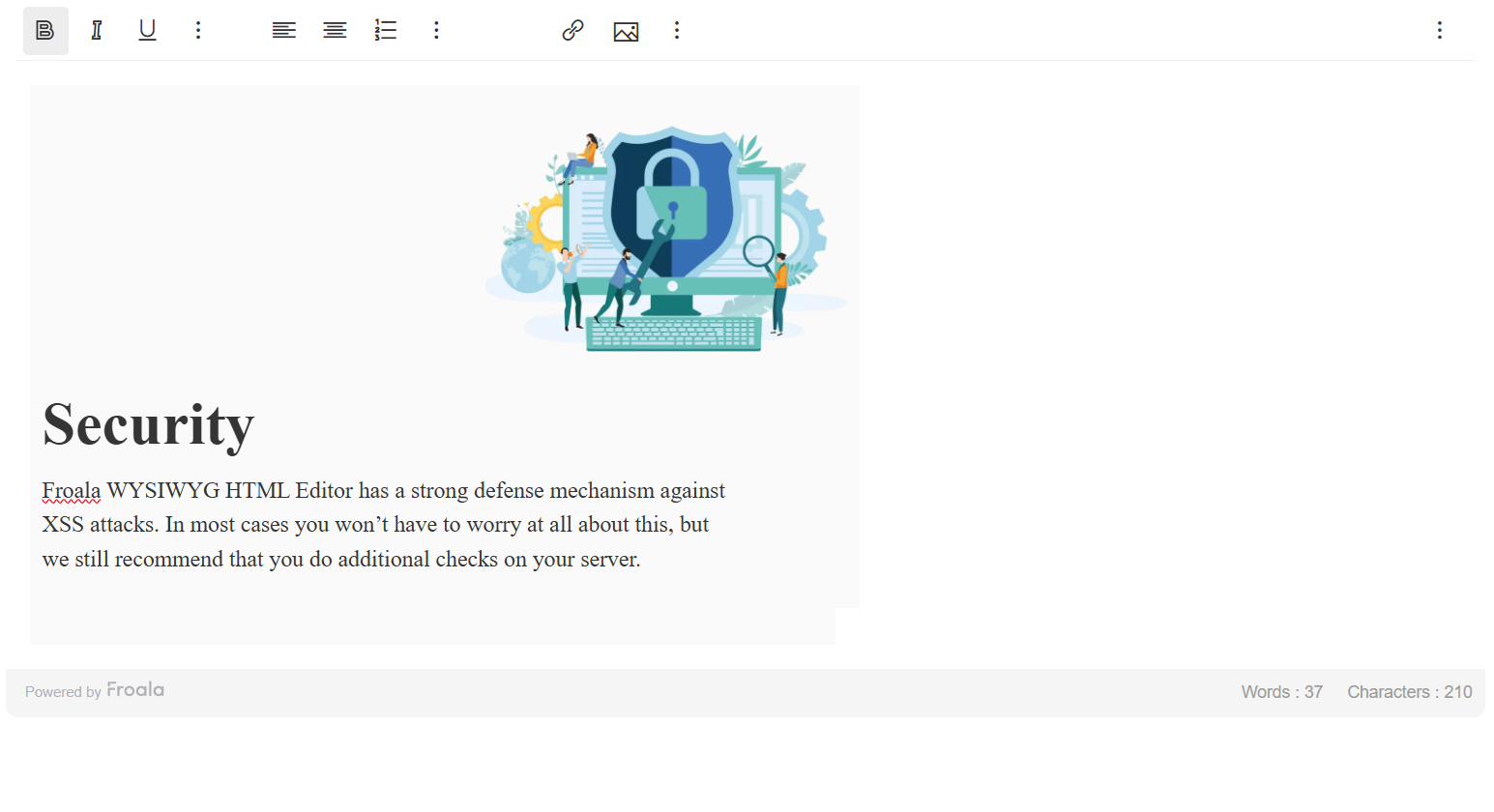
In this example, we modify the editor UI to follow the minimalist design trend by removing the editor outline borders. Also, we will enhance the icon design by replacing the default icons with the Line Awesome icons package.
Create a Borderless Theme
- Create a CSS file named “borderless-theme.css” with these styles:
.borderless-theme .fr-toolbar.fr-top, .borderless-theme .fr-wrapper{ border: unset !important; } .borderless-theme .fr-second-toolbar{ background: #f5f5f5; border-color: #f5f5f5; } .borderless-theme .fr-toolbar .fr-command.fr-btn i, .borderless-theme .fr-popup .fr-command.fr-btn i, borderless-theme .fr-modal .fr-command.fr-btn i{ font-size: 23px !important; - Include the stylesheet in your HTML.
- Set the theme configuration when initializing the Froala editor:
new FroalaEditor('#editor', {

  theme: 'borderless-theme'

})
This will add a borderless design to the Froala editor, removing unnecessary borders and creating a more minimalist interface. The CSS targets the top toolbar, wrapper, and second toolbar, stripping away default border styles. Additionally, it adjusts the icon size to create a cleaner, more modern look.
Implement Line Awesome Icons
Line Awesome are flat line icons made by Icons8 to be an alternative to Font Awesome icons. They are used similar to Font Awesome.
To use them in Froala, add the Line Awesome stylesheet to your HTML:
<link rel= "stylesheet" href= "https://maxst.icons8.com/vue-static/landings/line-awesome/line-awesome/1.3.0/css/line-awesome.min.css" >
In your JavaScript:
- Define a new icon template for Line Awesome
FroalaEditor.ICON_TEMPLATES.line_awesome = '<i class= "las la-[NAME]" ></i>'
- Since they are similar to Font Awesome and have the same name, we will take advantage of that using the NAME placeholder which icons already have so we don’t need to define them again.
- Switch the editor default template
FroalaEditor.ICON_DEFAULT_TEMPLATE = 'line_awesome'
The editor now is packed with the new skin and icons.
Example 2: Classic skin with Iconography icons pack
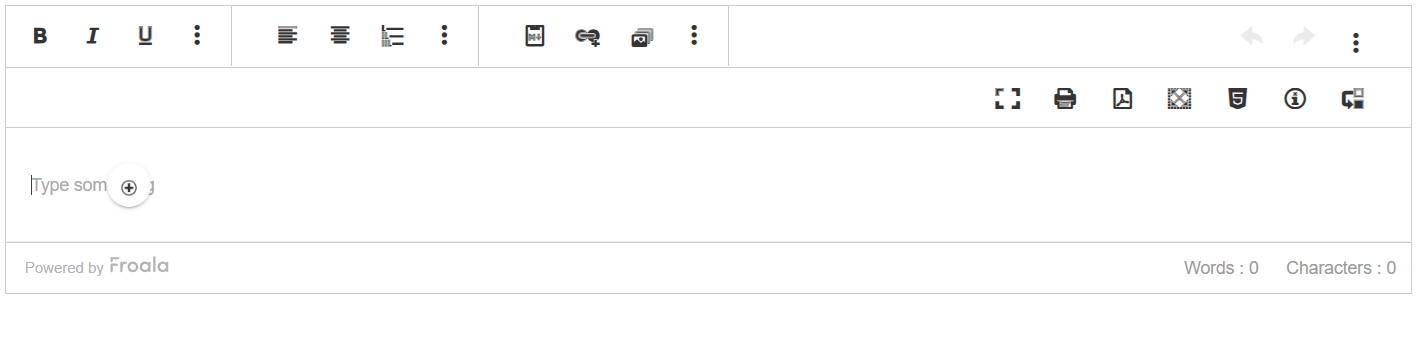
In this example, we modify the editor UI to follow the classic editor design with straight borders. Also, we will enhance the icon design replacing the default icons with the Iconography icons package.
Classic Theme
- Create a new CSS file named classic-theme.css and add these styles to achieve a classic, straight-edged look:
.classic-theme .fr-toolbar.fr-top, .classic-theme .fr-wrapper{ border-radius: 0; border: 1px solid #CCCCCC; } .classic-theme .fr-toolbar .fr-more-toolbar.fr-expanded{ border-top: 1px solid #CCCCCC; } .classic-theme .fr-box .fr-second-toolbar{ border-radius: 0; border: 1px solid #CCCCCC; } .classic-theme .fr-toolbar .fr-btn-grp{ border-right: 1px solid #CCCCCC; } .classic-theme .fr-toolbar .fr-btn-grp.fr-float-right{ border: unset !important; } .classic-theme .fr-desktop .fr-command.fr-selected:not(.fr-table-cell), .fr-desktop .fr-command:active, .fr-desktop .fr-command:hover:not(.fr-table-cell), .fr-desktop .fr-command:focus:not(.fr-table-cell), .fr-desktop .fr-command.fr-btn-hover:not(.fr-table-cell), .fr-desktop .fr-command.fr-expanded:not(.fr-table-cell), .fr-toolbar .fr-command.fr-btn.fr-open:not(:hover):not(:focus):not(:active), .fr-toolbar .fr-more-toolbar{ background: transparent !important } .classic-theme .fr-toolbar .fr-command.fr-btn span, .fr-popup .fr-command.fr-btn span, .fr-modal .fr-command.fr-btn span{ font-size: 19px !important; - Include the stylesheet in your HTML
- Set the theme configuration when initializing the Froala editor:
new FroalaEditor('#editor', {

  theme: 'classic-theme'

});
Iconography Icons
Iconography icons come from the Telerik/Kendo UI design system. They consist of more than 400 unique icons. To use them with Froala:
First, add the Iconography font stylesheet in your HTML:
<link rel="stylesheet" href="https://unpkg.com/@progress/kendo-font-icons/dist/index.css" />
Then, in your JavaScript, create a new icon template named iconography:
FroalaEditor.ICON_TEMPLATES.iconography = '<span class="k-icon k-font-icon k-i-[GNAME]"></span>';
Here [GNAME] is a placeholder for the actual Iconography name. You must set a GNAME value for each icon you customize.
Since some icons are added in recent releases, we provided a small compatibility helper to set GNAME only if the icon exists (helps with newer/older Froala versions):
function setIconGNAME(buttonName, customIcon){

  if (FroalaEditor.ICONS[buttonName] !== undefined) {

    FroalaEditor.ICONS[buttonName].GNAME = customIcon;

  }

}
Apply the GNAME mappings for the icons you want.
setIconGNAME("align", "align-middle");

setIconGNAME("align-center", "align-center");

setIconGNAME("align-justify", "align-justify");

setIconGNAME("align-left", "align-left");

setIconGNAME("align-right", "align-right");

setIconGNAME("autoplay", "play-sm");

setIconGNAME("backgroundColor", "pencil");

setIconGNAME("bold", "bold");

setIconGNAME("cancel", "x-outline");

setIconGNAME("centerTableAlign", "table-position-center");

setIconGNAME("centerTableAlignActive", "table-position-center");

setIconGNAME("clearFormatting", "strip-all-formatting");

setIconGNAME("cloudIcon", "cloud");

setIconGNAME("color", "foreground-color");

setIconGNAME("colorsBack", "level-up");

setIconGNAME("deleteAll", "clean-outline");

setIconGNAME("emoticons", "hand");

setIconGNAME("emoticonsBack", "level-up");

setIconGNAME("fileBack", "level-up");

setIconGNAME("filesByURL", "file-bac");

setIconGNAME("filesEmbed", "file-programming");

setIconGNAME("filesUpload", "file-add");

//setIconGNAME("filestackIcon", "align");

//setIconGNAME("filestackIconAdd", "align");

setIconGNAME("findAndReplaceArrowDown", "chevron-down");

setIconGNAME("findAndReplaceArrowUp", "chevron-up");

setIconGNAME("findReplaceIcon", "replace-single");

setIconGNAME("fontFamily", "font-family");

setIconGNAME("fontSize", "font-size");

setIconGNAME("formatOL", "list-ordered");

setIconGNAME("formatOLSimple", "list-roman-big");

setIconGNAME("formatUL", "list-unordered");

setIconGNAME("fullscreen", "fullscreen");

setIconGNAME("fullscreenCompress", "fullscreen-exit");

setIconGNAME("getPDF", "file-pdf");

setIconGNAME("help", "info-circle");

setIconGNAME("html", "html5");

setIconGNAME("image-align", "image-absolute-position");

setIconGNAME("image-align-center", "table-align-middle-center");

setIconGNAME("image-align-left", "table-align-middle-left");

setIconGNAME("image-align-right", "table-align-middle-right");

setIconGNAME("imageAlign", "image-absolute-position");

setIconGNAME("imageAlt", "toolbar-float");

setIconGNAME("imageBack", "level-up");

setIconGNAME("imageByURL", "link");

setIconGNAME("imageCaption", "comment");

setIconGNAME("imageDisplay", "display-block");

//setIconGNAME("imageFilestackOnly", "align");

setIconGNAME("imageLink", "hyperlink-open");

setIconGNAME("imageManager", "folder-open");

setIconGNAME("imageManagerDelete", "trash");

setIconGNAME("imageManagerInsert", "image-add");

setIconGNAME("imageRemove", "trash");

setIconGNAME("imageReplace", "chart-area-stacked");

setIconGNAME("imageSize", "col-resize");

setIconGNAME("imageStyle", "apply-format");

setIconGNAME("imageTransformations", "scale");

setIconGNAME("imageUpload", "image-add");

setIconGNAME("indent", "indent");

setIconGNAME("inlineClass", "css");

setIconGNAME("inlineStyle", "apply-format");

setIconGNAME("inputBack", "level-up");

setIconGNAME("inputEdit", "inputbox");

setIconGNAME("inputStyle", "css3");

setIconGNAME("insert", "plus");

setIconGNAME("insertAll", "file-add");

setIconGNAME("insertFile", "file-add");

setIconGNAME("insertFiles", "images");

setIconGNAME("insertHR", "horizontal-rule");

setIconGNAME("insertImage", "image-add");

setIconGNAME("insertLink", "link-add");

setIconGNAME("insertTable", "table-add");

setIconGNAME("insertVideo", "file-video");

setIconGNAME("italic", "italic");

setIconGNAME("leftTableAlign", "table-position-start");

setIconGNAME("leftTableAlignActive", "table-position-start");

setIconGNAME("lineHeight", "line-height");

setIconGNAME("linkBack", "level-up");

setIconGNAME("linkEdit", "envelope-link");

setIconGNAME("linkList", "list-unordered-square");

setIconGNAME("linkOpen", "hyperlink-open");

setIconGNAME("linkRemove", "unlink");

setIconGNAME("linkStyle", "link-vertical");

setIconGNAME("markdown", "clipboard-markdown");

setIconGNAME("minimize", "window-minimize");

setIconGNAME("moreMisc", "more-vertical");

setIconGNAME("moreParagraph", "more-vertical");

setIconGNAME("moreRich", "more-vertical");

setIconGNAME("moreText", "more-vertical");

setIconGNAME("outdent", "outdent");

setIconGNAME("paragraphFormat", "paragraph-mark");

setIconGNAME("paragraphStyle", "paragraph-height");

setIconGNAME("print", "print");

setIconGNAME("quickInsert", "plus-outline");

setIconGNAME("quote", "right-double-quotes");

setIconGNAME("redo", "redo");

setIconGNAME("remove", "trash");

setIconGNAME("rightTableAlign", "table-position-end");

setIconGNAME("rightTableAlignActive", "table-position-end");

setIconGNAME("save", "save");

setIconGNAME("selectAll", "select-all");

setIconGNAME("specialCharBack", "level-up");

setIconGNAME("specialCharacters", "transactions");

setIconGNAME("strikeThrough", "strikethrough");

setIconGNAME("subscript", "subscript");

setIconGNAME("superscript", "supscript");

setIconGNAME("tableBack", "level-up");

setIconGNAME("tableCellHorizontalAlign", "align-self-end-alt");

setIconGNAME("tableCellProperties", "table-cell-properties");

setIconGNAME("tableCellStyle", "table-wizard");

setIconGNAME("tableCellVerticalAlign", "align-self-start");

setIconGNAME("tableCells", "table-cell");

setIconGNAME("tableColorRemove", "trash");

setIconGNAME("tableColumns", "columns");

setIconGNAME("tableFooter", "file-footer");

setIconGNAME("tableHeader", "file-header");

setIconGNAME("tablePropertiesIcon", "table-properties");

setIconGNAME("tableRemove", "table-delete");

setIconGNAME("tableRows", "rows");

setIconGNAME("tableSelectorIcon", "arrows-move");

setIconGNAME("textColor", "foreground-color");

setIconGNAME("underline", "underline");

setIconGNAME("undo", "undo");

setIconGNAME("video-align", "align-middle");

setIconGNAME("video-align-center", "align-center");

setIconGNAME("video-align-left", "align-left");

setIconGNAME("video-align-right", "align-right");

setIconGNAME("videoAlign", "align-middle");

setIconGNAME("videoBack", "level-up");

setIconGNAME("videoByURL", "link");

setIconGNAME("videoDisplay", "display-inline-block");

setIconGNAME("videoEmbed", "clipboard-code");

//setIconGNAME("videoFilestackOnly", "align");

setIconGNAME("videoRemove", "trash");

setIconGNAME("videoReplace", "replace-all");

setIconGNAME("videoSize", "handle-resize");

setIconGNAME("videoUpload", "upload");
Some icon entries have a template attribute, which may override your custom icon. To ensure your iconography icons render the way you defined, remove the template attribute from those icons:
const iconsWithTemplate = ['quickInsert', 'tableCellProperties', 'tablePropertiesIcon', 'leftTableAlign', 'leftTableAlignActive', 'centerTableAlign', 'centerTableAlignActive', 'rightTableAlignActive', 'rightTableAlign', 'tableSelectorIcon', 'findReplaceIcon'];

iconsWithTemplate.forEach((icon) => {

 delete FroalaEditor.ICONS[icon].template;

})
Some icons should keep their original SVG instead of using Font/Iconography e.g. Filestack icons. For those, add the SVG template:
//Keep Filestack Icons SVG Template

if (FroalaEditor.ICONS.filestackIcon !== undefined) {

  FroalaEditor.ICONS.filestackIcon.template = "svg";

  FroalaEditor.ICONS.filestackIconAdd.template = "svg";

}
Switch Froala’s default icon template to iconography:
FroalaEditor.ICON_DEFAULT_TEMPLATE = 'iconography';
When you reload the editor, the icons should now use the Iconography set.
Notes and tips:
- You can mix and match: keep some default icons with their templates if you don’t have replacements and fully replace others with Iconography.
Try the demo on this JSFiddle link and experiment with different styles. You’ll see how easy it is to transform the editor into something that feels uniquely yours.
Use Cases
Customization isn’t just about aesthetics—it unlocks practical advantages in real-world scenarios. Here are some common use cases:
- Corporate Branding: Enterprises often need their tools to reflect strict brand guidelines. Custom skins and icons ensure the editor fits perfectly into corporate websites, intranets, or client portals.
- SaaS Dashboards: For SaaS applications, consistency across all modules is key. A tailored Froala editor makes the content editing experience feel integrated with the rest of the dashboard UI.
- White-Label Solutions: Agencies and developers offering white-label platforms can quickly rebrand the editor for different clients. Creating multiple skins and icon packs makes it easy to switch styles without rewriting code.
- Design System Alignment: Many modern apps follow design frameworks like Material, Fluent, or custom systems. Froala’s flexible customization allows you to match the editor’s look to these standards effortlessly.
Conclusion
Froala is more than just a rich text editor—it’s a customizable UI component that can be molded to fit your exact needs. By taking advantage of skins and icons, you can align the editor with your branding, keep pace with modern design trends, and deliver a seamless user experience.
Whether you need a professional corporate look, a playful theme for creative projects, or multiple styles for white-label solutions, Froala’s customization options give you the freedom to design the editor your users will love.
Ready to transform your editor? 🎨✍️
Start a free trial of Froala and experiment with custom skins and icon packs today. No credit card required — try it on your project and see the difference instantly.






No comment yet, add your voice below!