



Add Multilingual Translation to Froala with Translate Plus API from APILayer

Modern apps need to work for users everywhere. If you’re building tools like chat apps or collaborative editors, language barriers can quickly get in the way. People want to read, write, and communicate in their own language — without copying text into external translators.
That’s why adding a Multilingual Translation API directly into your editor can make a huge difference.
In this tutorial, I’ll walk you through how I added real-time translation to my Froala-based chat editor. I used the Translate Plus API from APILayer to build a simple, clean, and one-click translation experience. With this integration, users can understand each other instantly, no matter what language they speak.
Let’s get started.
Exploring a Multilingual Translation API on the APILayer Marketplace
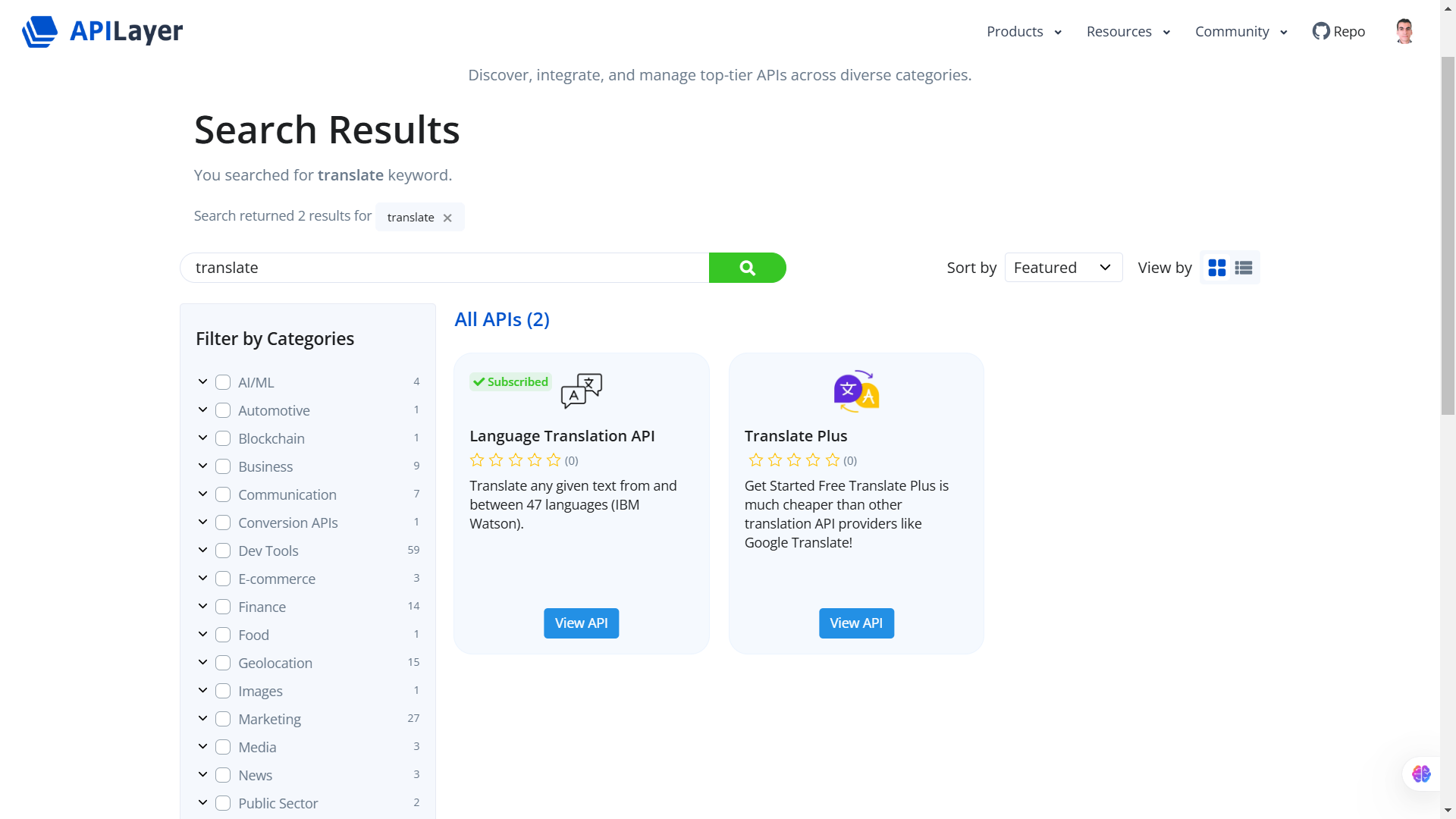
As I was building a new Froala editor demo for a multilingual chatting application, I needed to add high-quality translations to enable users from diverse linguistic backgrounds to communicate with each other. While existing translation tools like the Google Translate API are popular, I wanted to explore alternatives that could offer accurate translations with broader language support at a much lower price.
While exploring the APILayer marketplace, which offers a wide range of APIs to help you build modern, feature-rich applications with real-time translations, I discovered the Translate Plus API, which seemed like the perfect solution to my problem.
What is APILayer?
APILayer is a popular API marketplace that provides access to a wide range of APIs, not limited to translation services. It also offers APIs that integrate with the Google Cloud ecosystem and other technical content service providers.
As a developer, I appreciated the ease of integration for the APIs provided by APILayer, which made it straightforward to incorporate new features into my applications.
Why Choose APILayer?
Utilizing APILayer includes several benefits, such as:
- Wide Variety of APIs: It offers APIs for currency conversion, IP geolocation, weather data, email validation, and much more, catering to a broad spectrum of use cases, including machine translation.
- Ease of Integration: Their APIs are designed to be user-friendly, with straightforward documentation and code samples that allow for quick and seamless integration.
- Cost-Effectiveness: Many of their APIs are affordable and come with tiered pricing models, making it accessible for both startups and enterprises working on large-scale projects.
- Reliability: All the APIs are thoroughly reviewed for high accuracy before they are listed by the APILayer team, ensuring customer satisfaction.
Why Use the Translate Plus API?
The Translate Plus API from APILayer stood out to me as a powerful tool that could seamlessly integrate with the Froala Editor to provide translation capabilities for multiple languages. The language detection feature was particularly impressive, as it could automatically determine the source language.
One of the key features of using the Translate Plus API from the APILayer marketplace is the extensive language support. Unlike some other APIs that are limited in their support for language pairs, this service truly excels.
The Translate Plus API supports over 100 languages, catering to a diverse global audience. This flexibility enables my users to translate content into their preferred languages, ensuring that information is accessible and understandable to all, even when dealing with industry jargon or technical terms.
The comprehensive documentation and intuitive API design made it easy for me to quickly implement the translation feature in my application. Additionally, the competitive pricing and reliable performance of the Translate Plus API were key factors that influenced my decision to leverage this solution over other alternatives.
How the Translation Feature Works
I wanted to make the translation process seamless and intuitive for users. To achieve this, I aimed to add a new toolbar button to the Froala Editor. When users click this button, they’ll see a dropdown menu displaying all the languages supported by the Translate Plus API.
Users can then select their preferred language from the list. Once they make their selection, the API automatically detects the original language of the content and translates it into the user’s chosen language. The editor then instantly updates, displaying the translated text.
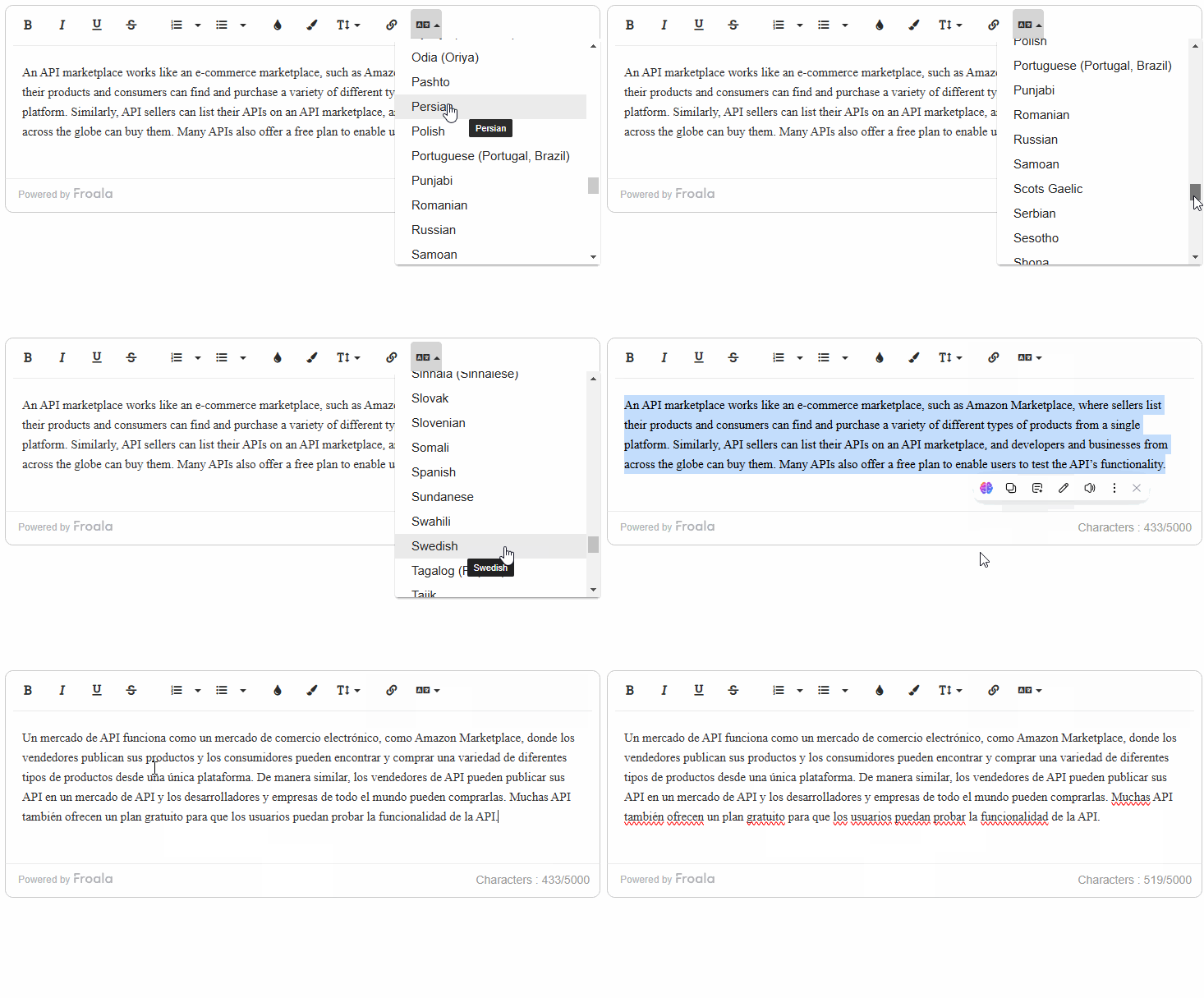
This straightforward interaction allows users to quickly and easily access content in their native tongue, fostering a more inclusive and accessible experience within the chatting application.
Integrating the Translate Plus API into the Froala Editor
Step 1: Get a Translate Plus API Key
I began by signing up for a Translate Plus account (multilingual translation API in APILayer marketplace) and obtaining an API key. This would be required to authenticate my API requests. This process was similar to what you’d experience with other APIs.
Step 2: Create a starter template
Next, I included the necessary Froala scripts and stylesheets in my HTML file. Additionally, I added an HTML element to serve as the editor’s container. This is where the Froala editor would be rendered.
To enhance the visual appeal of the editor’s toolbar, I also included the Font Awesome 5 stylesheet. This allowed me to use the iconic Font Awesome 5 library to represent the toolbar buttons’ icons.
<!DOCTYPE html>
<html>

<head>
    <title>Froala WYSIWYG Editor</title>
    <!-- Include Froala CSS -->
    <link href="{{editor__download__folder}}/css/froala_editor.pkgd.min.css" rel="stylesheet"
        type="text/css" />

    <!-- Include Font Awesome 5 -->
    <link href="https://cdnjs.cloudflare.com/ajax/libs/font-awesome/5.5.0/css/all.min.css" rel="stylesheet"
        type="text/css" />
</head>

<body>

    <!-- HTML element where the editor will be initialized -->
    <div id="editor">
    </div>

    <!-- Include Froala Editor JS files -->
    <script type="text/javascript" src="{{editor__download__folder}}/js/froala_editor.pkgd.min.js"></script>

</body>

</html>
Step 3: Get Translate Plus Multilingual Translation API Supported Languages
var myHeaders = new Headers()
myHeaders.append("X-API-KEY", "b2430***************************19be00")
myHeaders.append("Content-Type", "application/json")

var requestOptions = {
  method: "GET",
  redirect: "follow",
  headers: myHeaders,
}

fetch("https://api.translateplus.io/v1/supported-languages", requestOptions)
  .then((response) => response.json())
  .then((result) => initFroala(result.supported_languages))
  .catch((error) => console.log("error", error))
To get the list of supported languages for the Translate Plus API, I made a GET request to the /supported-languages endpoint. This provided me with a comprehensive list of all the languages that the API supports. I then passed this information to the initFroala function, which I will use to create the translation toolbar button and initialize the Froala Editor.
By obtaining the full list of supported languages, I could ensure that my users would have access to a wide range of translation options, catering to diverse linguistic needs. This flexibility would be a key differentiator for my chatting application, allowing users from all over the world to communicate effectively, regardless of their native tongue.
The straightforward API documentation and intuitive response format made it easy for me to parse and utilize the language data. This streamlined the development process, allowing me to quickly move on to the next steps of creating the custom toolbar button and integrating the translation functionality.
Now, I need to add a new custom button to the editor’s toolbar. When clicked, this button would display a dropdown menu with the list of available translation languages.
The dropdown menu would allow the user to select the desired target language for translation. When a language is selected, I would use the Translate Plus API to fetch the translated content and update the editor’s text accordingly.
To define an icon for the translate toolbar button, I did the following:
  // Set Font Awesome 5 as the default toolbar icon library.
  FroalaEditor.ICON_DEFAULT_TEMPLATE = "font_awesome_5"

  // Set the Font Awesome's language symbole as icon for the "translate" button
  FroalaEditor.DefineIcon("translate", { NAME: "language" })
By using the recognizable language icon, I ensured that users would instantly understand the purpose of the translation button, enhancing the intuitiveness of the feature.
To create the new “translate” button, I defined an object with several key properties:
title
The title represents the label of the button.
title: "translate",
type
The type property defines the button’s behavior. In this case, I set it to “dropdown” since it will open a list of translation options.
type: "dropdown",
options
The options property holds an object containing the supported translation languages, which I obtained from the Translate Plus API in step 3. I can access this object later using the FroalaEditor instance at FroalaEditor.COMMANDS.translate.options.
html
The html property is a method that returns the HTML code for the dropdown menu. Here, I used the FroalaEditor.COMMANDS.translate.options object to dynamically generate a list of the supported translation languages.
    html: function html() {
      var c = '<ul class="fr-dropdown-list" role="presentation">'
      var options = FroalaEditor.COMMANDS.translate.options

      for (var val in options) {
        if (options.hasOwnProperty(val) && val!=="Auto Detect") {
          c += `<li role="presentation"><a class="fr-command fr-title" tabIndex="-1" role="option" data-cmd="translate" data-param1="${this.language.translate(options[val])}" title="${this.language.translate(val)}"> ${this.language.translate(val)} <span class="fr-sr-only">${this.language.translate(val)}</span></a></li>`
        }
      }

      c += "</ul>"
      return c
    },
callback
The callback property defines the action executed when the user selects a language from the dropdown menu.
First, I check if the editor is empty using the core.isEmpty() method. If the editor has content, I select all the text using the commands.selectAll() method and save it to a variable using selection.text().
Then, I call a translate() function, passing the selected text and the user’s chosen language as arguments. This function handles the translation process and returns the translated content. Finally, I update the editor’s content with the translated text using the html.insert() method.
callback: async function callback(cmd, param1) {
    	if(this.core.isEmpty()) return;

      this.commands.selectAll();
      const text = this.selection.text();
      const result = await translate(text, param1);
      this.html.insert(result.translations.translation, true);


    },
Step 4.3 Handling the Translation Process
The translate function receives the current content of the Froala Editor and the desired target language. It then sends a request to the Translate Plus API, passing both parameters.
Importantly, I set the source parameter to "auto". This tells the Translate Plus API to automatically detect the original language of the content. This ensures a seamless translation experience for the user, as they don’t need to worry about specifying the source language.
The API then responds with the translated content, which the translate function returns. Here’s the code:
 async function translate(text, translateTo) {
    var requestOptions = {
      method: "POST",
      redirect: "follow",
      headers: myHeaders,
      body: JSON.stringify({
        text,
        source: "auto",
        target: translateTo,
      }),
    }
    let data = false
    try {
      const response = await fetch(
        "https://api.translateplus.io/v1/translate",
        requestOptions,
      )
      // Check if the response is okay
      if (!response.ok) {
        throw new Error(`HTTP error! Status: ${response.status}`)
      }

      // Parse the response JSON
      data = await response.json()
    } catch (error) {
      console.log("error", error)
    }
    return data
  }
The automatic language detection and the straightforward API response make the translation process effortless for the user, especially when dealing with context-specific content.
Step 5: Initialize The Froala Editor
Finally, I called the FroalaEditor constructor and passed an object with the necessary configurations, including the custom translation button I defined earlier.
new FroalaEditor("#editor", {
    wordCounterCount: false,
  	charCounterMax: 5000,
    toolbarBottom: true,
    toolbarButtons: ["bold", "italic", "underline", "strikeThrough", "|", "formatOL", "formatUL", "|", "textColor", "backgroundColor", "fontSize", "|", "insertLink", "translate"],
  })
}
I set the charCounterMax to 5000, which is the maximum number of characters that can be translated using the Translate Plus API in one call. For larger projects, you might consider implementing batch processing to handle more extensive content.
The translation feature is now seamlessly integrated into the Froala Editor, allowing users to effortlessly translate content within the application. The custom translation button in the toolbar provides a clear and recognizable interface for users to access the translation functionality, further improving the overall usability of the editor. This feature is particularly useful for mobile apps that need to support global audiences.. Try it now.
Conclusion
Adding the Translate Plus API (multilingual translation API in APILayer marketplace) to the Froala Editor gave my app instant multilingual support with just a few lines of code. Users can translate text on the spot, making communication smoother and more inclusive.
If you’re building anything for a global audience — chat apps, editors, dashboards, or internal tools — this is one of the easiest upgrades you can add.
To try it yourself, explore the Translate Plus Multilingual Translation API on the APILayer marketplace and check the Froala documentation to extend your editor even further.
Start integrating multilingual translation today and build apps that speak to everyone.
FAQs
Q1: Does the Multilingual Translation API detect languages automatically?
Yes. The Translate Plus API includes automatic language detection. When you set the source parameter to “auto”, the API identifies the original language automatically and returns the correct translation.
Q2: How many languages does the Translate Plus API support?
The Translate Plus API supports over 100 languages. This includes widely used languages as well as niche and regional languages, making it ideal for global applications.
Q3: Can I translate large documents with Froala?
Yes, but with a limit. Translate Plus allows up to 5,000 characters per request. If you need to translate larger documents, you can split the content into smaller chunks and process them in batches.






No comment yet, add your voice below!