



Creating Custom Buttons with React and Froala Editor
The Froala Editor is a powerful WYSIWYG (What You See Is What You Get) HTML editor that offers a wide range of features for creating and editing content. One of its standout features is the ability to enhance its functionality by creating custom buttons. In this article, we will explore how to create custom toolbar buttons using React and Froala Editor to enhance your experience in creating content. 
Understanding the Integration of Froala Editor and React
Before delving into the creation of custom buttons, let’s briefly examine the integration of Froala Editor with React. Froala Editor is a text editor that offers a seamless and user-friendly interface for editing content. Integrating Froala with React involves wrapping the editor inside a React component, thereby combining the capabilities of both technologies. You can learn more about the integration between React and Froala in the documentation on our website. To get started, you need to install the necessary dependencies for your React project.
npm install react-froala-wysiwyg --save
Once installed, you can import the Froala Editor styles and the React component:
import React from 'react'; import FroalaEditorComponent from 'react-froala-wysiwyg'; import 'froala-editor/css/froala_style.min.css'; import 'froala-editor/css/froala_editor.pkgd.min.css';
Now, you can use the FroalaEditorComponent in your React component’s method:
const App = () => { return ( <div > <FroalaEditorComponent tag="textarea" /> </div> ); }; export default App;
With this integration, you can have a basic Froala Editor running in your React application. However, the true power lies in creating customized buttons to enhance the capabilities of the editor.
The toolbar of the Froala Editor is where users can find options for formatting text, adding images, links, and other elements. Creating custom toolbar buttons using React allows you to enhance this functionality and offer users additional features that are specifically designed for your application’s requirements. Froala Editor allows you to seamlessly integrate custom buttons into its toolbar, providing users with additional functionality tailored to their specific needs. To accomplish this, we will utilize the combination of React and the Froala Editor’s API. On the component file, import Froalaeditor component so we can use it to create the custom buttons
import Froalaeditor from 'froala-editor';
Then add the following code to create ‘Alert’, ‘Clear’, and ‘Insert’ buttons.
Froalaeditor.DefineIcon('alert', {NAME: 'info', SVG_KEY: 'help'}); Froalaeditor.RegisterCommand('alert', { title: 'Hello', focus: false, undo: false, refreshAfterCallback: false, callback: function () { alert('Hello!'); } }); Froalaeditor.DefineIcon('clear', {NAME: 'remove', SVG_KEY: 'remove'}); Froalaeditor.RegisterCommand('clear', { title: 'Clear HTML', focus: false, undo: true, refreshAfterCallback: true, callback: function () { this.html.set(''); this.events.focus(); } }); Froalaeditor.DefineIcon('insert', {NAME: 'plus', SVG_KEY: 'add'}); Froalaeditor.RegisterCommand('insert', { title: 'Insert HTML', focus: true, undo: true, refreshAfterCallback: true, callback: function () { this.html.insert('My New HTML'); } });
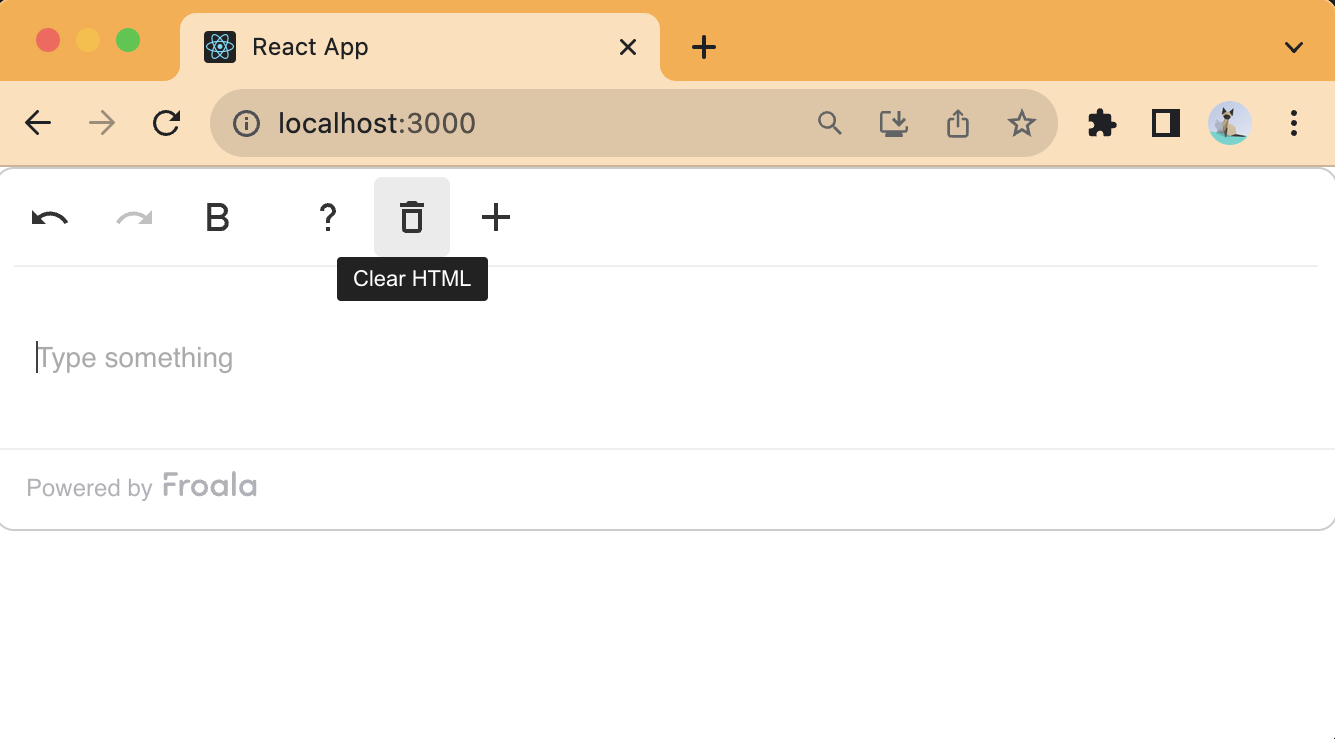
With these custom buttons seamlessly integrated into the Froala Editor, users are empowered to utilize their extended functionalities. Each custom button reveals a unique aspect of improvement. Alert Button: The ‘alert’ button transforms into a messenger, delivering a JavaScript alert that displays the message “Hello!” when summoned with a click. Clear Button: The ‘clear’ button assumes the role of a content guardian, allowing users to remove the editor’s content while maintaining its focus, providing a blank canvas for new creations. Insert Button: The ‘Insert’ button emerges as a vessel of ingenuity, allowing users to infuse the editor’s canvas with the inscription “My New HTML,” enabling rapid creation. These custom buttons embody the essence of a personalized experience, guiding users towards a world of streamlined actions, driven by these customized functionalities.
The culmination of this customization journey occurs when these custom buttons are seamlessly integrated into the Froala Editor’s toolbar, enhancing the process of creating content. React takes center stage here, serving as the conduit for this integration.
import React from 'react'; import FroalaEditorComponent from 'react-froala-wysiwyg'; import 'froala-editor/css/froala_style.min.css'; import 'froala-editor/css/froala_editor.pkgd.min.css'; const App = () => { return ( <div > <FroalaEditorComponent tag="textarea" config={{ toolbarButtons: [['undo', 'redo' , 'bold'], ['alert', 'clear', 'insert']], }} /> </div> ); }; export default App;
In the React component snippet above, the FroalaEditor component is imported and configured with the toolbarButtons prop. The toolbar is meticulously organized into two rows. The first row comprises standard buttons such as ‘undo,’ ‘redo,’ and ‘bold.’ The second row showcases the culmination of our endeavor – the custom buttons: ‘alert,’ ‘clear,’ and ‘insert.’ Below we can see images of the result of the component with the buttons that we saw in the React application. 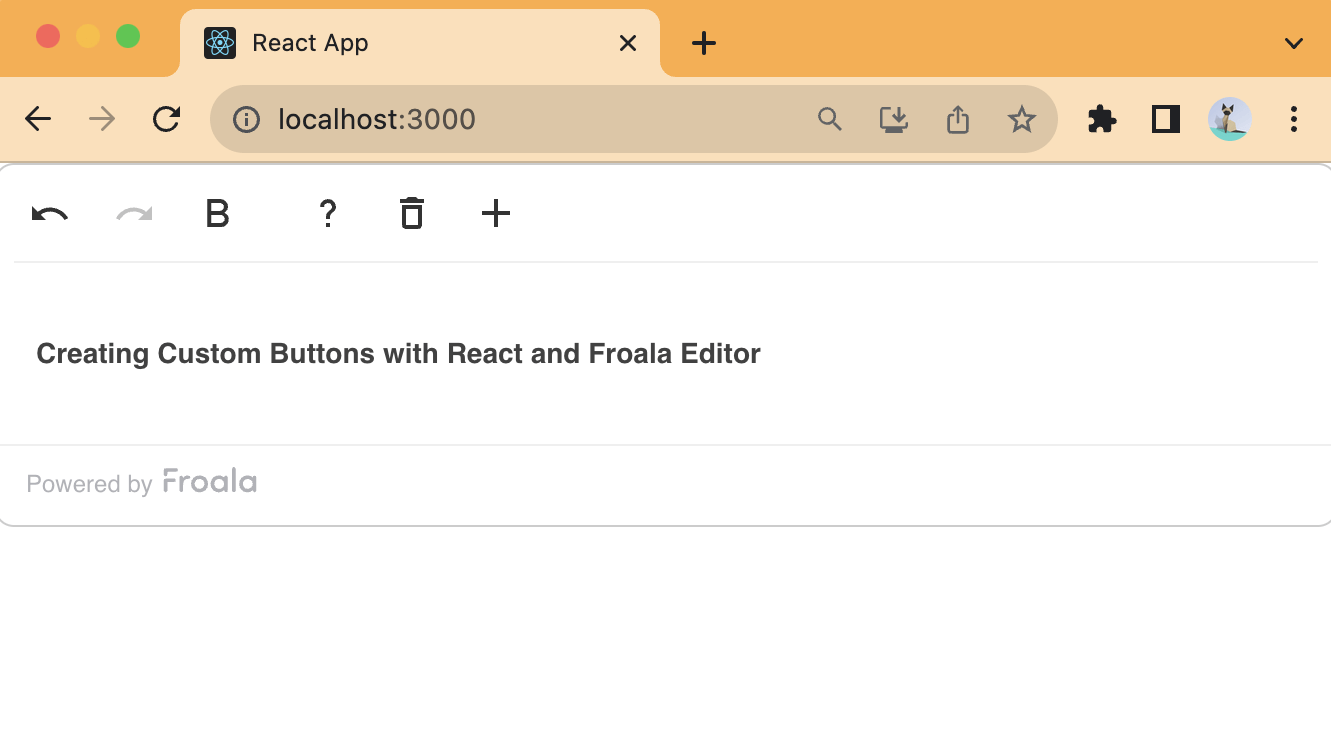
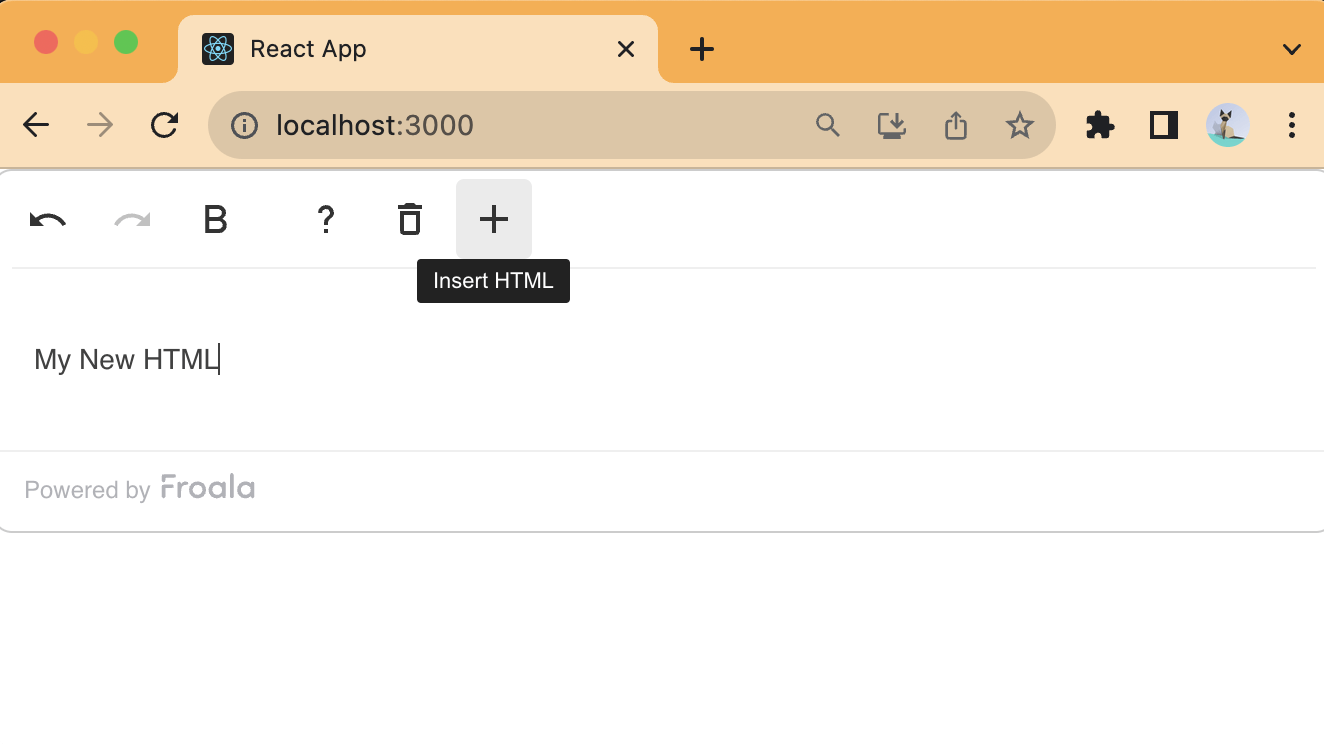
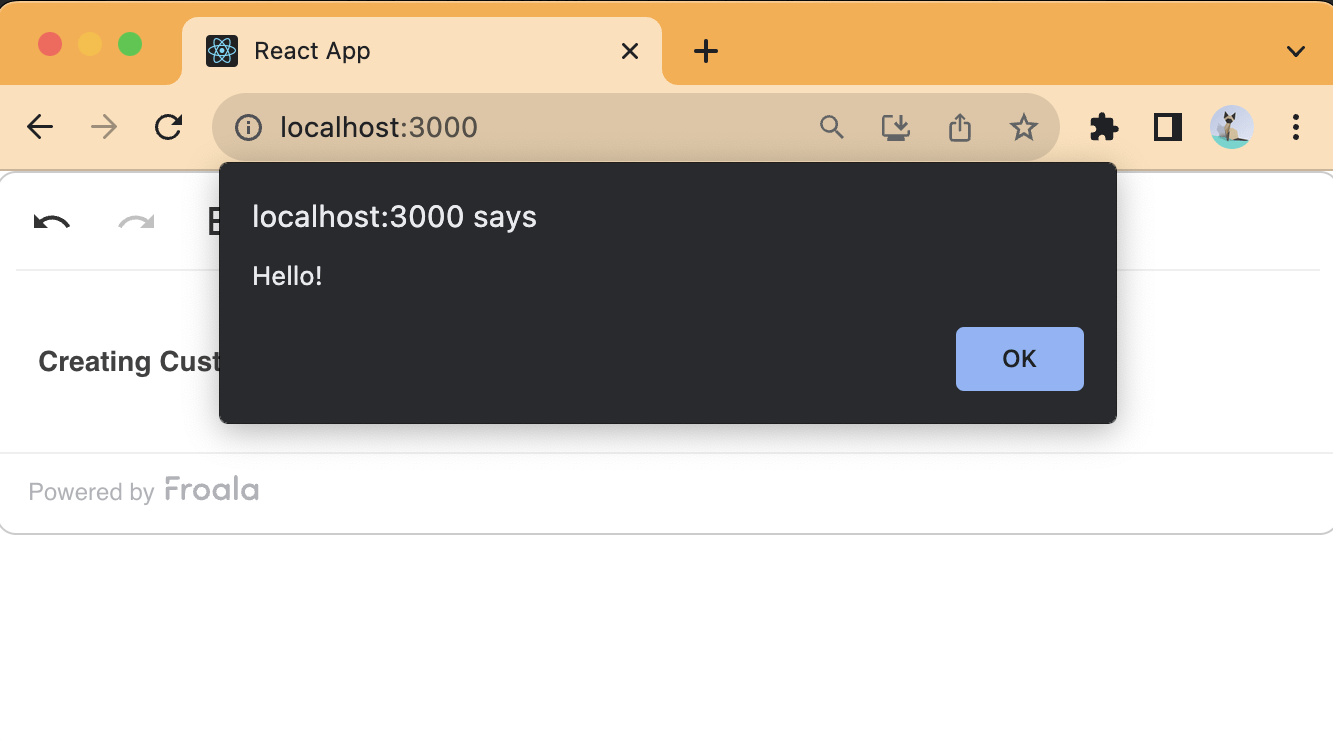 By following these steps, you can seamlessly integrate custom toolbar buttons into the Froala Editor using React. This approach empowers you to enhance the editor’s capabilities beyond its default features and create a more customized editing experience for your users.
Conclusion
Customizing rich text editors such as Froala using React opens up a world of possibilities for creating dynamic and feature-rich content creation experiences. By integrating custom toolbar buttons, you can provide users with specialized functionality that aligns with your application’s requirements. This not only enhances user satisfaction but also showcases your development skills in delivering a seamless and intuitive editing environment. So, go ahead and explore the combination of React and Froala Editor to create the ideal content creation tool for your web application. We have included a working example below that shows the complete code we have discussed.







No comment yet, add your voice below!