



Angular CMS Development: Integrate Froala WYSIWYG Editor

With a Content Management System (CMS), you can easily create, modify, manage, and publish content in a user-friendly way. Starting with HTML to add text, forms, images, navigation bars, and other essential website components is straightforward. That’s why having a secure, intelligent, fast, and robust HTML code writer is crucial.
Froala, the next-generation WYSIWYG HTML code writer, has become a go-to solution for users, enabling them to shape content without diving into intricate code. This editor seamlessly integrates with any framework like React, Vue, Angular, etc., providing rich text editing capabilities for your CMS.
This article will explore how you can use the WYSIWYG HTML code writer to build a feature-rich CMS using Angular and integrate Froala’s HTML code writer for a modern design and more customizable experience.
What is a Content Management System (CMS)?
A CMS is software that helps you create, organize, and modify website content, such as text, images, and videos, without having any technical knowledge. Moreover, it provides tools for user management and collaborative workflows and offers features for version controls and scheduling content publication. Some Popular CMS systems include WordPress, Joomla, Drupal, etc.
HTML Code Writer For Seamless CMS Development
The role of a WYSIWYG HTML editor in CMS development is paramount. WYSIWYG, or What You See Is What You Get, editors are instrumental in simplifying content creation within a CMS. An intuitive WYSIWYG HTML editor is a crucial component of a CMS that allows seamless content creation, enhances user experience, and enables efficient content management without requiring coding skills.
The following section will explore building a CMS using Froala, a WYSIWYG HTML editor. We are choosing Froala for CMS development because its developer-friendly feature makes it easy to integrate with multiple frameworks, including angular, and allows developers to create and modify content with more control.
How to Build a CMS with Froala using Angular?
Make your CMS development easier, flexible, robust, and faster by integrating Froala with Angular. This powerful combination offers a sophisticated platform for building a feature-rich Content Management System, blending Froala’s intuitive design with the robust capabilities of Angular for a seamless development experience with our angular rich text editor.
Prerequisites
Before starting, you will need
- Node.js and npm: Visit Node.js site to get the latest version of Node.js. Note that npm comes as a part of the package with node.js.
- Angular CLI: Launch the command prompt of the terminal to set up the Angular CLI on your machine. Run the command below:
npm install -g @angular/cli
- Visual Studio Code: A text editor for building and compiling the code.
Step 1: Setup the Angular Project
First of all, open the terminal in the Visual Studio Code and set up your AngularJS project by running the following command.
ng new my-app
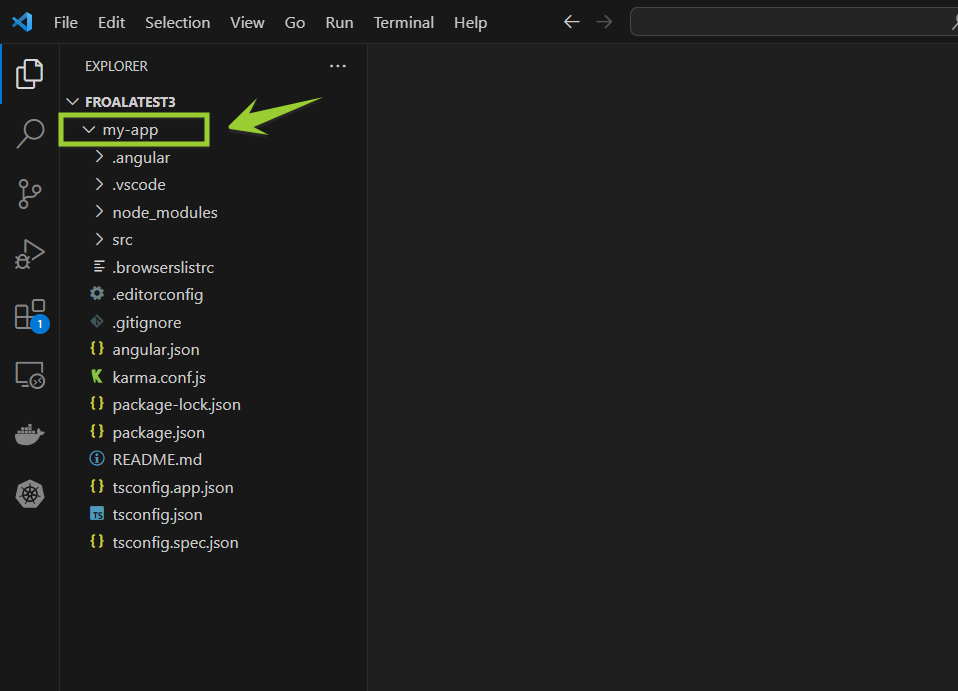
After that, navigate to your app folder.
cd my-app
Step 2: Install and Integrate the Froala Editor
Now, let’s install the Froala Editor.
npm install angular-froala-wysiwyg --save
Once it’s installed, you need to import the Froala Editor module into your Angular module. Open ‘src/app/app.module.ts’ file and add the following code.
import { FroalaEditorModule, FroalaViewModule } from 'angular-froala-wysiwyg';

@NgModule({
declarations: [
// your components here
],
imports: [
FroalaEditorModule.forRoot(),
FroalaViewModule.forRoot(),
// other modules here
],
bootstrap: [AppComponent],
})
export class AppModule {}
Step 3: Create a Content Management System (CMS)
Here we will create a content management system using AngularJS and Flora with the help of multiple components.
Create an Editor Component
In the terminal of VS Code, run the following to create an editor component. This will create a new folder named ‘editor’ with the necessary files.
ng generate component editor
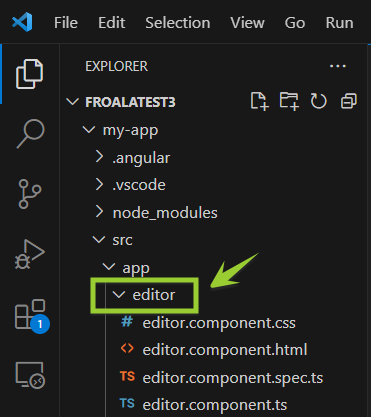
Open ‘src/app/editor/editor.component.html’ and add the Froala Editor.
<div [froalaEditor]></div>
Now, in your ‘src/app/app.component.html’ file, replace the existing content with:
<header>

<div class="header-content">

<h1>Content Management System</h1></div>

</header>

<app-editor></app-editor>
Add the following design code for the header in the ‘src/app/app.component.css’ file.
header {
background-color: #f0f0f0; /* Add your desired background color */
padding: 10px;
}.header-content {
text-align: center;
}h1 {
margin: 0;
}
Create a Service for Data Management
Now, let’s add the ability to save the content entered in the Froala Editor. We’ll create a service to handle data management. First, create a new service.
ng generate service content
This will create a file named ‘content.service.ts’ in the src/app folder.
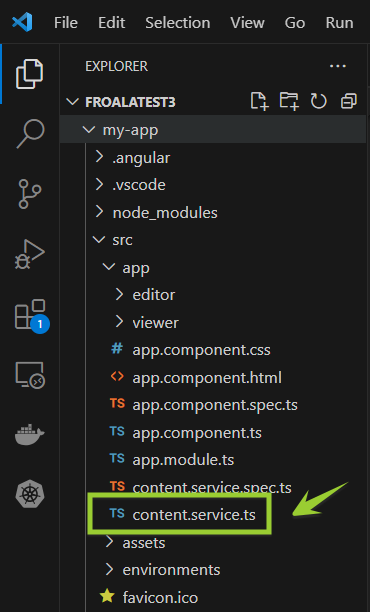
Open ‘src/app/content.service.ts’ and add the following:
import { Injectable } from '@angular/core';
import { BehaviorSubject } from 'rxjs';

@Injectable({
  providedIn: 'root',
})
export class ContentService {
  private contentSubject = new BehaviorSubject<string>('');

  getContent() {
    return this.contentSubject.asObservable();
  }

  updateContent(content: string) {
    this.contentSubject.next(content);
  }
}
Modify Editor Component
Now, let’s modify our ‘editor.component.ts’ to use this service.
import { Component, OnInit } from '@angular/core';
import { ContentService } from '../content.service';

@Component({
  selector: 'app-editor',
  templateUrl: './editor.component.html',
  styleUrls: ['./editor.component.css'],
})
export class EditorComponent implements OnInit {

  content: string = '';

  constructor(private contentService: ContentService) {}

  ngOnInit() {}

  onContentChanged(content: string) {
    this.contentService.updateContent(content);
  }
}
Update ‘editor.component.html’ to pass the content to the service when it changes:
<div [froalaEditor] [(froalaModel)]="content" (froalaModelChange)="onContentChanged($event)"></div>
Create a Viewer Component
Now, let’s create a new component to display the saved content. Run:
ng generate component viewer
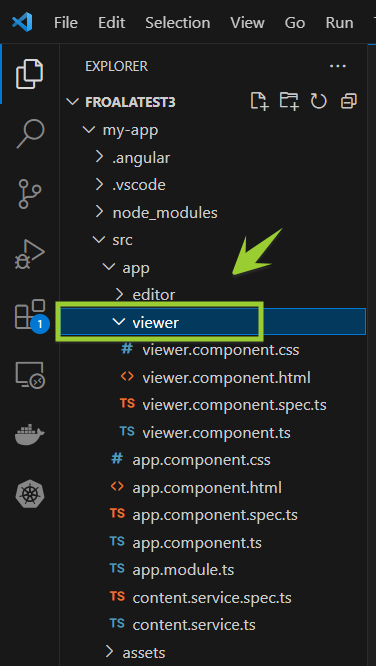
Open ‘src/app/viewer/viewer.component.ts’ and add the following code.
import { Component, OnInit } from '@angular/core';
import { ContentService } from '../content.service';

@Component({
  selector: 'app-viewer',
  templateUrl: './viewer.component.html',
  styleUrls: ['./viewer.component.css'],
})
export class ViewerComponent implements OnInit {
  content: string = '';

  constructor(private contentService: ContentService) {}

  ngOnInit() {
    this.contentService.getContent().subscribe((content) => {
      this.content = content;
    });
  }
}
Update ‘viewer.component.html’ to display the content.
<div [froalaView]="content"></div>
Now, update ‘app.component.html’ to include both the editor and the viewer.
<header>
  <div class="header-content">
  <h1>Content Management System</h1></div>
</header>

<app-editor></app-editor>
<app-viewer></app-viewer>
Step 4: Run the CMS Application
Start your Angular development server using the command:
ng serve
Now go to http://localhost:4200 and check your application running on the following port.
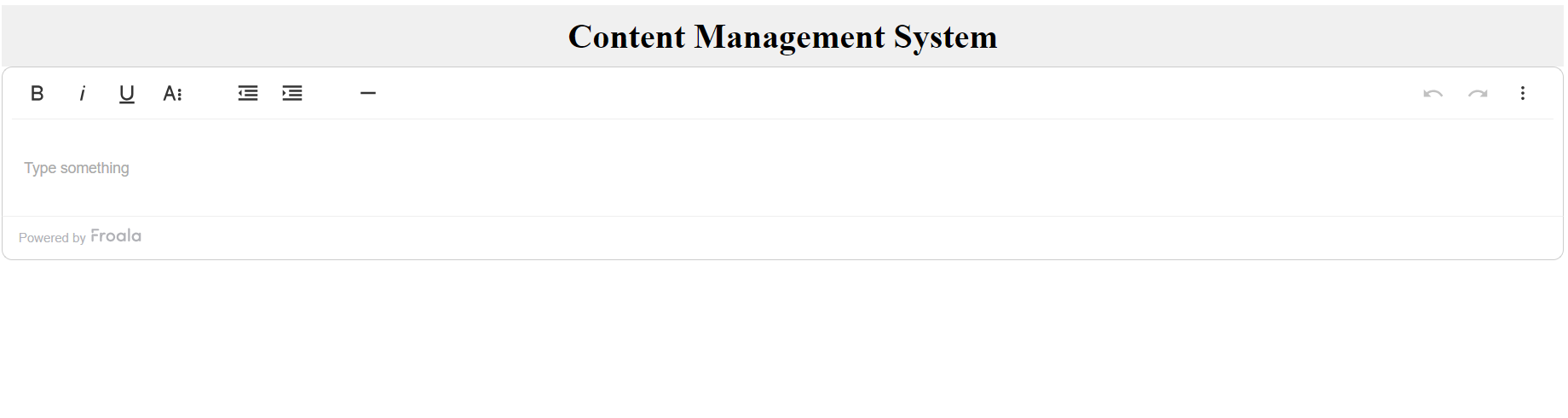
The CMS application has been successfully built and running.
Step 5: Test the Data Management on CMS
To test the data storage and display on the screen using the viewer component, we have to pass some text in the text field shown above in the CMS dashboard. Let’s write some text and test.
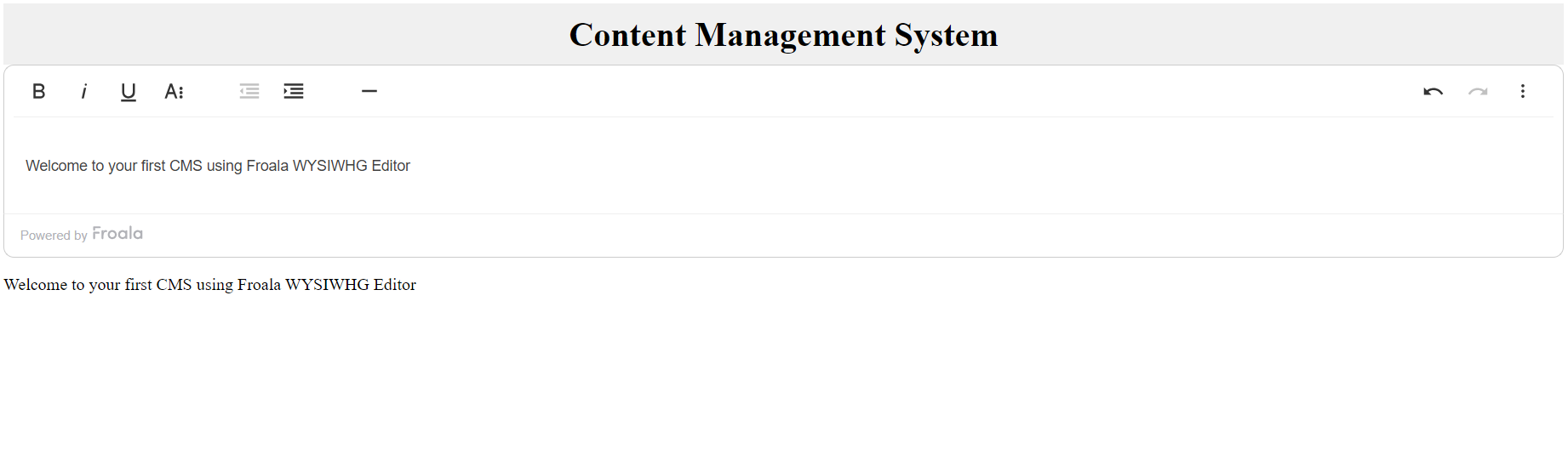
As the data is displayed in the screen below the dashboard, the CMS has been successfully tested and displaying the correct data.
Make CMS Development Fast, Robust, and Secure with Froala WYSIWYG HTML Editor
Froala is a WYSIWYG HTML editor that, when combined with Angular, enables seamless CMS development. This collaboration, combining Froala’s user-friendly interface and rich features with Angular’s capabilities, provides developers with a toolkit for crafting efficient and customizable CMS solutions.
With Froala, you can format text, put in images, and include different things easily. Your CMS becomes more than just plain text—it can have lists, pictures, and more. You can adjust it to fit what you need for your CMS, making it simple and good for users.
Get started with Froala today for seamless CMS development!







No comment yet, add your voice below!