



Froala V5.0.0 Release: Code Snippets, Word Imports, and More

Froala V5.0.0 introduces two major features: code snippet insertion with syntax highlighting, and direct Word document import with formatting preserved. This release also includes table handling improvements and updated styling defaults.
Code Snippet Feature Overview
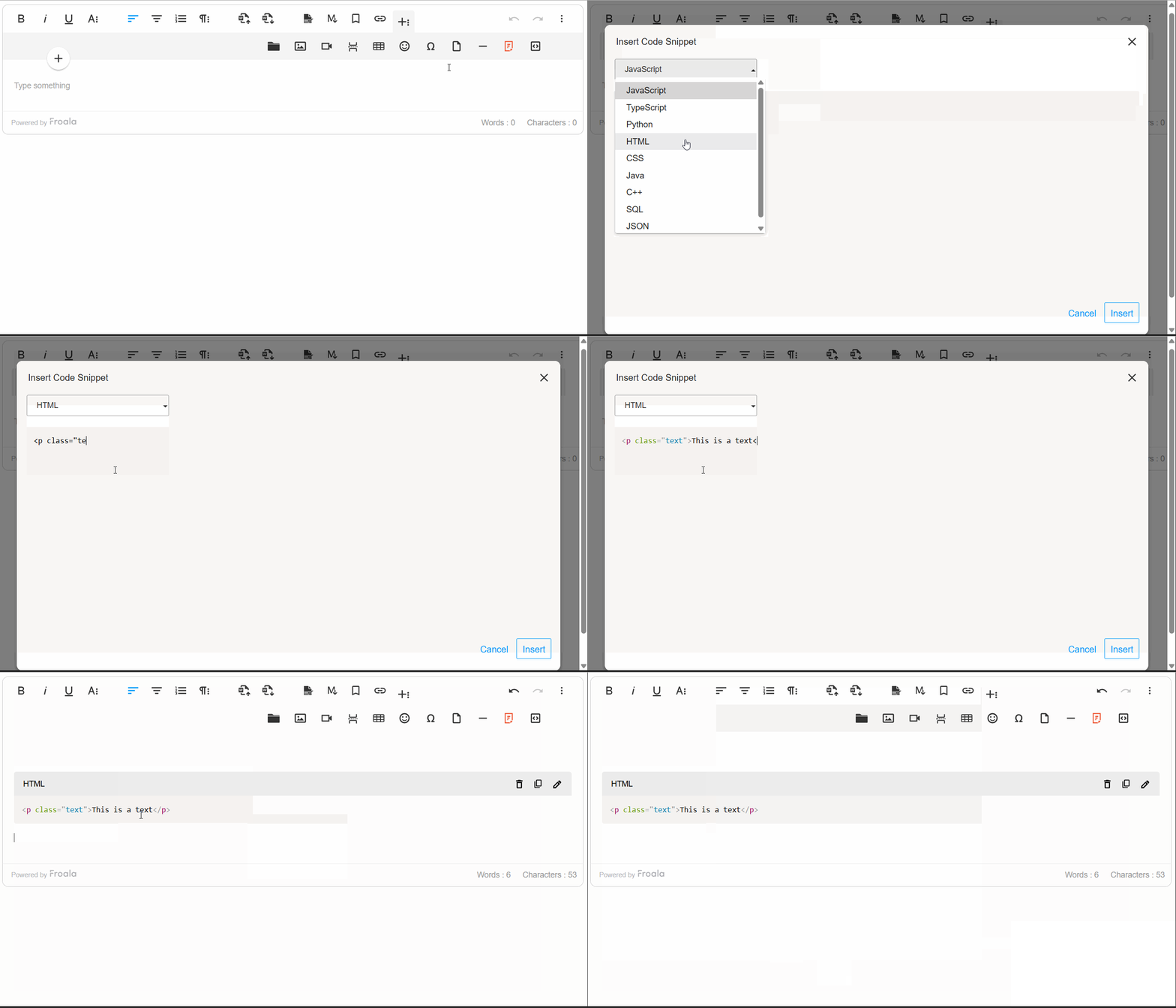
The Code Snippet plugin adds syntax-highlighted code blocks to your editor. Supports JavaScript, Python, HTML, CSS, TypeScript, Java, C++, SQL, and JSON. Works across Chrome, Firefox, Edge, and Safari.
Inserting Code Snippets
Click the “Insert Code Snippet” button in the toolbar to open the code entry modal. Select a programming language from the dropdown and paste or write your code. Syntax highlighting applies automatically.
Code Block Rendering
Code snippets are rendered in a monospace font within styled <pre> and <code> blocks, ensuring precision and consistency. The plugin intelligently preserves indentation and line breaks, maintaining the exact formatting developers intended. By default, code blocks are read-only, protecting formatting integrity while allowing users to view and reference code effortlessly.
Edit, Remove, and Copy with Ease
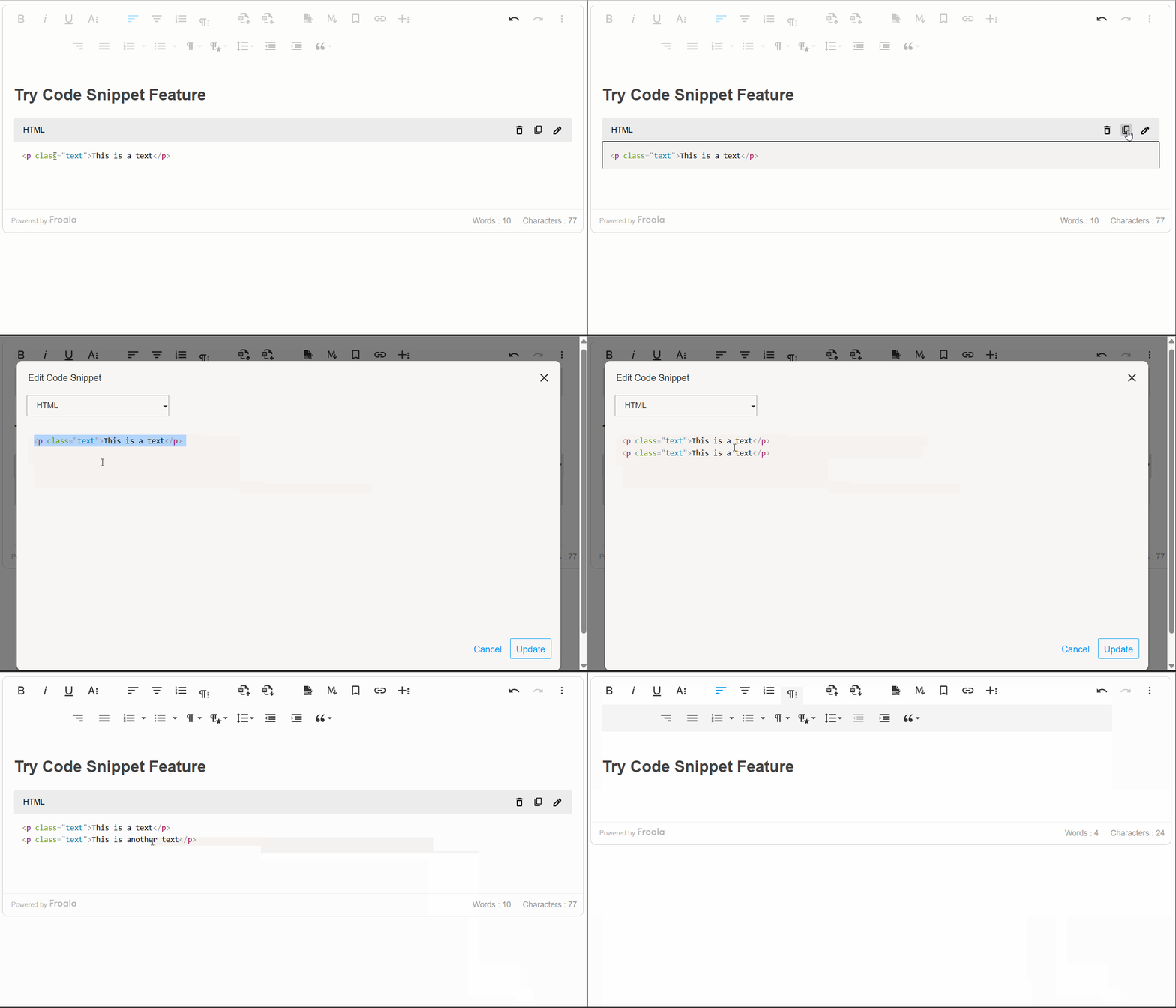
Use the Code Snippet toolbar to edit, remove, or copy code blocks. The “Copy to Clipboard” button copies the code with formatting intact.
Developer Control and Customization
Froala V5.0.0 provides a comprehensive set of options, methods, and events that give developers programmatic control over the code snippet feature.
The plugin configuration options allow developers to customize the code snippet feature according to their needs. Whether you want to limit available programming languages, set a default language preference, or tailor the feature to your specific workflow, these settings give you complete control over the code snippet behavior.
Additionally, there are methods for code snippet insertion, updating, and display. These methods enable you to integrate code snippet functionality seamlessly into your custom workflows and automate code block management.
Moreover, the Code Snippet plugin exposes powerful events that allow you to hook into the code insertion lifecycle. These events enable you to implement custom validation, analytics tracking, and dynamic code processing—giving you fine-grained control over how code snippets are handled within your editor. By leveraging these events, you can build sophisticated workflows that align with your application’s specific requirements and user needs.
new FroalaEditor('.selector', {
  codeSnippetLanguage: {
    'JavaScript': 'javascript',
    'Python': 'python',
    'Ruby': 'ruby',
    'Go': 'go',
    'Rust': 'rust'
  },
  codeSnippetDefaultLanguage: 'Python',
  events: {
    'codeSnippet.beforeInsert': function (code) {

      // Add a comment to all code snippets
      return '// Auto-generated comment\n' + code;
    },
    'codeSnippet.afterInsert': function (code) {

      console.log('Code snippet inserted:', code);

    }

}, function () {
  // Call the method inside the initialized event.
  this.codeSnippet.insert('console.log("Hello World");', 'JavaScript');

});
Import from MS Word Feature Overview
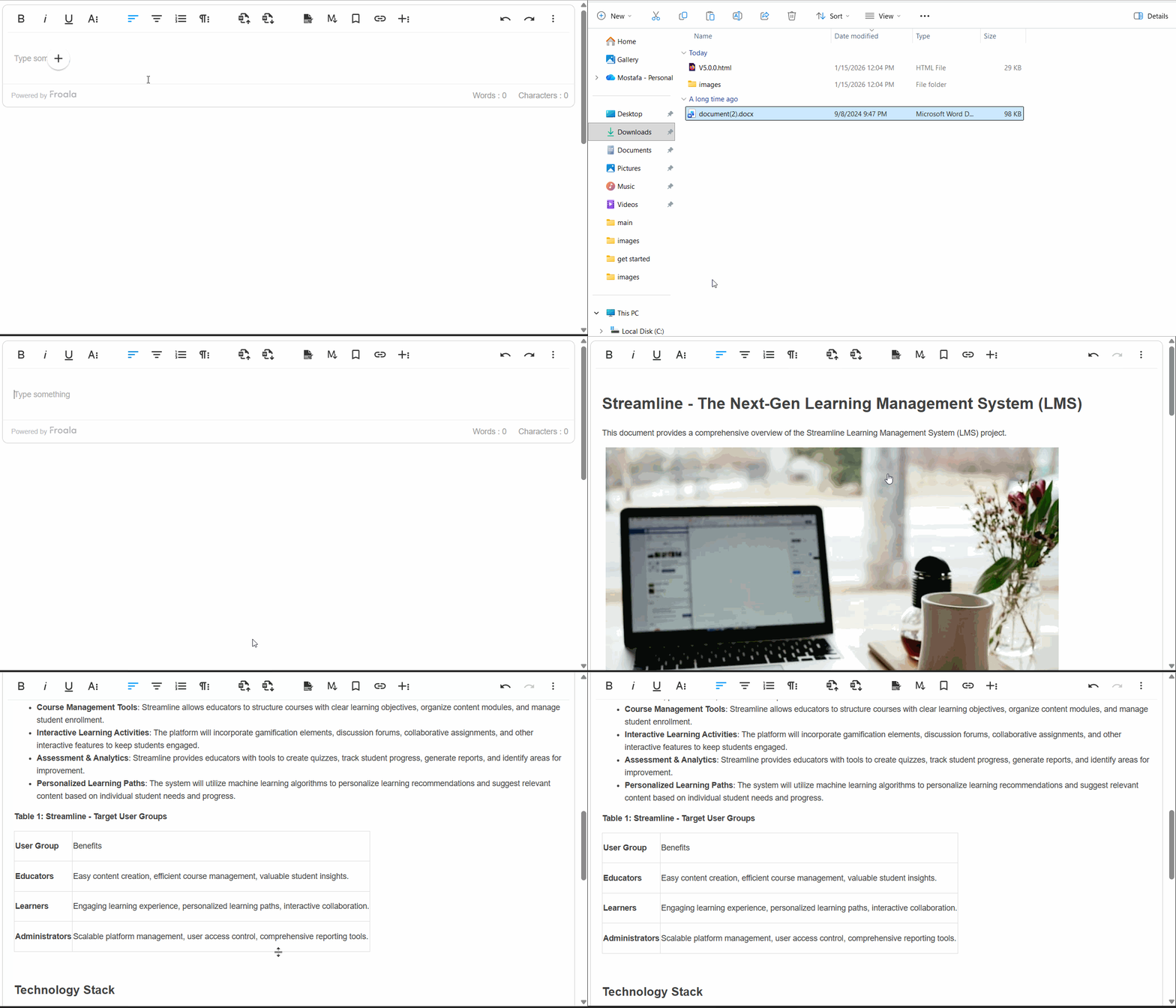
Another powerful addition to Froala V5.0.0 is the ability to seamlessly import content from Microsoft Word documents into the editor while preserving formatting, styles, and structure. This feature simplifies the transition for users who draft content in Word, ensuring compatibility and reducing the need for manual adjustments, enhancing productivity and usability across platforms.
Why This Enhancement Matters
Content creators often work in Microsoft Word due to its familiarity and advanced formatting capabilities. However, moving that polished content into a web editor typically requires tedious manual adjustments—reformatting text, recreating tables, repositioning images, and reapplying styles. The Import from MS Word feature solves this problem entirely, allowing users to upload Word documents and have all their work instantly available in the editor, exactly as intended.
How It Works
Importing Word documents is remarkably simple. Users click the “Import from Word” button on the toolbar, select their .doc or .docx file, and the editor handles the rest. The plugin even supports drag-and-drop importing, allowing users to simply drag Word files directly into the editor for instant import—making the process as intuitive as possible.
Comprehensive Content Preservation
The Import from MS Word feature preserves virtually every element of your Word document:
Text & Formatting: All text formatting is maintained exactly as authored. Headings and paragraphs retain their structure and hierarchy, ensuring your document’s visual organization remains intact.
Lists: The plugin imports lists with complete accuracy, preserving indentation and hierarchy.
Images & Media: Embedded images imported directly into the editor.
Styling & Links: Inline styles such as font color, background color, and text highlights are preserved. Hyperlinks remain functional, allowing your content to maintain its interconnectedness.
Enterprise-Grade Performance
The plugin is engineered to handle real-world document sizes efficiently. It processes large, complex documents, importing smoothly and quickly without freezing the editor or degrading performance.
Robust Error Handling
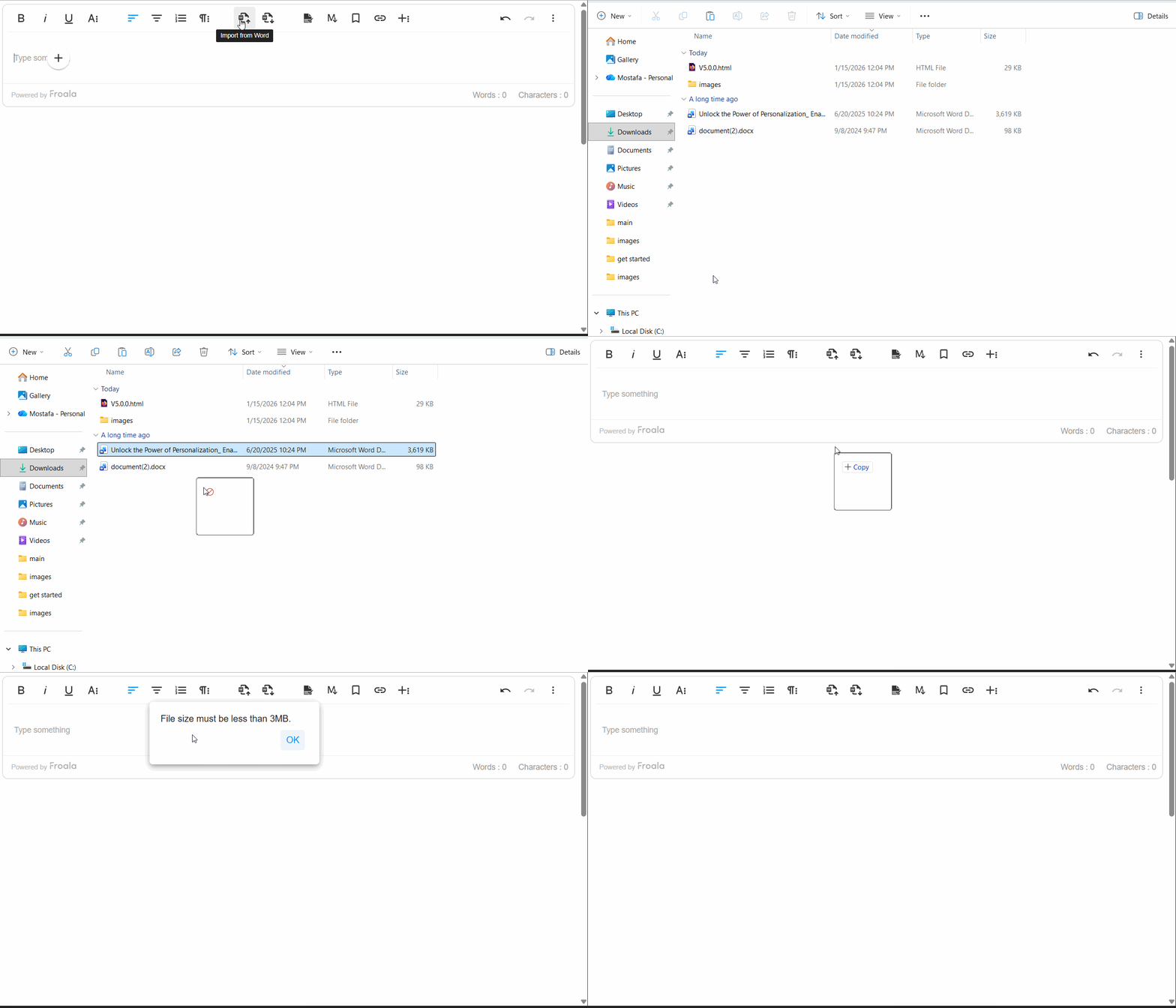
The feature includes intelligent error management. For example, if a Word file size is larger than what specified, users receive a clear, helpful error message explaining the issue.
Developer Control & Customization
Froala V5.0.0 provides developers with comprehensive control over the Import from MS Word feature through powerful configuration options, methods, and events:
Configuration Options
importFromWordMaxFileSize – Control the maximum allowed file size (default: 3 MB). Adjust this setting based on your infrastructure and user needs.
importFromWordFileTypesAllowed – Specify which Word file formats are accepted (default: [‘.docx’]). Enable support for legacy .doc files if required.
importFromWordUrlToUpload – Provide your own server endpoint for processing Word file uploads, giving you complete control over file handling and storage.
importFromWordEnableImportOnDrop – Enable or disable drag-and-drop import functionality (default: true). Disable this if you want to restrict imports to the toolbar button only.
Methods
editor.importFromWord.import() – Programmatically trigger a file selection dialog, or pass a file object directly to import without user interaction. This enables integration with custom file pickers and automation workflows.
Events
word.beforeImport – Hook into the import lifecycle before processing begins. Use this event to validate files, track analytics, or perform custom preprocessing.
word.afterImport – Trigger custom logic after import completes successfully. Implement post-import workflows, update UI elements, or notify other systems that new content has been added.
Import from MS Word Overall
The Import from MS Word feature transforms how teams collaborate and manage content. By eliminating manual reformatting, preserving document fidelity, and providing developers with extensive customization options, this enhancement makes Froala V5.0.0 an even more powerful choice for organizations relying on Microsoft Word in their content workflows. Whether you’re a content creator seeking convenience or a developer building sophisticated workflows, this feature delivers tangible value and productivity gains.
Table Enhancements
Froala V5.0.0 brings meaningful improvements to table editing and management, making it easier for content creators to work with tables while giving developers finer control over table behavior and styling.
Smarter Line Break Handling in Table Cells
Tables are essential for organizing data and content, but managing text wrapping within cells can be tricky. Froala V5.0.0 introduces the retainLineBreaksInCellsOnWrap option, which gives you control over how line breaks are handled when cell content wraps to multiple lines.
What This Means for You
By default, Froala now retains line breaks within table cells when content wraps (retainLineBreaksInCellsOnWrap: true). This is particularly useful for content creators who intentionally format their cell content with line breaks for readability and structure—think of lists, multi-line labels, or formatted addresses within a table. Your carefully structured formatting is now preserved exactly as you intended.
If you prefer the behavior where line breaks are removed during wrapping, you can simply disable this feature by setting retainLineBreaksInCellsOnWrap to false. This flexibility ensures Froala adapts to your specific workflow and content requirements.
Real-World Example
Imagine you’re creating a product comparison table with detailed descriptions in each cell. You might want product features listed on separate lines within a cell for clarity—without line breaks being automatically stripped, your formatting stays intact, resulting in a cleaner, more professional-looking table.
Cleaner Table Styling Defaults
Froala V5.0.0 refines how table styling defaults are applied, giving you more control and preventing unnecessary styling overhead.
What Changed
Two table styling configurations have been updated with improved defaults:
- tableDefaultBorderWidth – Now defaults to an empty string (”) instead of a predefined value
- tableDefaultBorderStyle – Now defaults to an empty string (”) instead of a predefined value
Why This Matters
Previously, Froala suggested default border widths and styles for new tables. While this provided a starting point, it sometimes resulted in unwanted styling being automatically applied—particularly when you wanted complete design flexibility or preferred to apply your own CSS styling.
By changing these defaults to empty strings, Froala now takes a “blank slate” approach: new tables created without enforcing any specific border styling. This means:
✓ More Design Freedom – You have complete control over table appearance from the start
✓ Cleaner HTML – Less unnecessary inline styling clutters your code
✓ Better CSS Integration – Tables integrate seamlessly with your site’s stylesheet without style conflicts
✓ Consistent Branding – Apply your own design system directly through CSS rather than fighting against defaults
For Content Creators
You’ll notice that newly created tables now appear with minimal or no visible borders by default. Don’t worry—borders are easy to add! Using the table toolbar, you can quickly apply border styles that match your content needs. This approach empowers you to design tables intentionally rather than inheriting styling you didn’t ask for.
For Developers
These changes simplify table integration into custom applications. With no default border styling applied, you have complete freedom to:
- Apply your own border styling via CSS frameworks (Bootstrap, Tailwind, etc.)
- Maintain consistent table appearance across your application.
- Avoid CSS specificity conflicts with default styles
If you need the old behavior where borders are suggested by default, you can easily restore it by explicitly setting these configuration options in your Froala initialization.
Result: Tables That Work the Way You Do
These table enhancements reflect Froala’s commitment to balancing powerful functionality with user control. Whether you’re preserving intentional formatting within cells or designing tables with complete styling freedom, Froala V5.0.0 adapts to your workflow rather than imposing rigid defaults. Your tables, your way.
Much More…
This release includes additional improvements and bug fixes. See the complete changelog for details.
How Can I Update?
Update to Froala WYSIWYG Editor 5.0.0 today and experience enhanced editing features and improvements.
Check our getting-started guide to know how to download the latest Froala Editor release and how to include it in your project based on your preferred method.
Try The Latest Froala Editor
Explore a variety of examples that demonstrate the functionality of the Froala HTML Editor.
Support and Feedback
We are dedicated to always offering the best possible experience for all our users. We believe this release, meant to enhance TypeScript support, is a stepping stone towards that commitment. We encourage you to try this improved TypeScript support and give us your valuable feedback. Your input is crucial for delivering continuous enhancement and meeting your evolving needs. Thank you for being a valuable part of our vibrant and growing community.We would like to hear what you think of the latest release! Join us on our GitHub Community to chat with our product manager, developers, and other members of the Froala team.
Change Log
Please visit the release notes for a complete list of changes.
Technical Questions
If you have a technical question, you can check whether we have already answered it in our help center. If not, contact our Support team.





No comment yet, add your voice below!