



How to Control Font Size in Froala Editor: Complete Guide to Pixel-Precise Typography

Precise typography is fundamental to professional document design. Froala’s font sizing controls give you pixel-level accuracy and flexible unit options, ensuring your typography remains consistent and intentional across every page. From responsive layouts that adapt seamlessly to different screens, to accessible contrast ratios that meet accessibility standards, to maintaining visual harmony across devices—Froala delivers the typographic control you need for polished, professional results.
In this article, we’ll explore the Froala editor’s powerful font sizing capabilities—including options, methods, and events that developers can leverage to give end-users precise typographic control.
Whether you’re building a content management system, a blogging platform, or a collaborative writing tool, mastering these features enables you to deliver a seamless, professional editing experience.
Key Takeaways
- Use
fontSizeto define a custom set of sizes aligned with your brand guidelines and design system. - Control units with
fontSizeUnitto ensure responsive, accessible typography across devices. - Display selected text sizes on the toolbar with
fontSizeSelectionfor real-time user feedback. - Leverage
command.beforeandcommand.afterevents to implement custom logic around font size changes. - Ensure the Font Size plugin is enabled and properly configured in your editor setup.
Froala Font Size Options
The Froala editor provides multiple font size options that cater to different design needs and user preferences.
Set Font Sizes
The fontSize option allows developers to define a custom set of font sizes available to end-users in the editor. This gives you precise control over the typographic choices permitted within your application.
By specifying exact pixel values or relative units, you ensure typographic consistency while preventing users from applying arbitrary sizes that could break your design system.
PRO tip: Consider using predefined ranges that align with your brand guidelines—perhaps 12px for body text, 16px for leads, and 24px for headings.
new FroalaEditor('div#froala-editor', {
    fontSize: [12, 18, 32],
 });
Set Font Size Units
The fontSizeUnit option allows you to control the default font size unit used in your editor, whether that’s pixels, points, ems, rems, or percentages for maximum flexibility and responsive design compatibility.
With `fontSizeUnit: ‘rem’`, your typography scales responsively across all devices while maintaining accessible, scalable text sizing throughout your application.
This approach ensures that users can adjust text sizes based on their preferences without compromising the overall design integrity or visual hierarchy of your content documents and layouts.
new FroalaEditor('div#froala-editor', {
    fontSize: [12, 18, 32],
    fontSizeUnit: 'pt',
});
Display Selected Text Font Size On The Editor Toolbar
The fontSizeSelection option enhances usability by displaying the current font size of selected text directly on the editor toolbar. When set to true, users can instantly see what size is applied to their text without hunting through the code view option.
This real-time feedback improves editing efficiency and helps users maintain consistent typography throughout their document.
new FroalaEditor('div#froala-editor', {
    fontSizeSelection: true,
    fontSize: [12, 18, 32],
    fontSizeUnit: 'pt',
});
Set The Default Font Size Of The Editor
Another important option is fontSizeDefaultSelection. This option sets the default font size applied when users begin typing new content or add unstyled text to the editor.
By establishing a sensible baseline font size, developers ensure that new content maintains visual consistency without requiring constant user intervention or manual formatting corrections.
It is important to note that when a user presses Enter to create a new line, the editor automatically inherits the formatting of the previous line. This behavior ensures consistent typography throughout the document without requiring manual formatting adjustments.
new FroalaEditor('div#froala-editor', {
    fontSizeDefaultSelection: "12pt",
    fontSizeSelection: true,
    fontSize: [12, 18, 32],
    fontSizeUnit: 'pt',
});
PRO TIP: Keep Font Size Format When Text Deleted
Froala’s keepFormatOnDelete option preserves text formatting when content is deleted. When enabled, the editor maintains the formatting of deleted text and applies it to any new content you type immediately afterward.
Example: If you format text to 32px, then delete it and begin typing again, the new text automatically inherits the 32px size—even if your default font size is set to a different value.
This feature streamlines editing workflows by eliminating the need to reapply formatting after deletions, ensuring consistent typography throughout your document without manual intervention.
new FroalaEditor('div#froala-editor', {
    fontSizeDefaultSelection: "12pt",
    fontSizeSelection: true,
    fontSize: [12, 18, 32],
    fontSizeUnit: 'px',
    keepFormatOnDelete: true
});
Froala Font Size Methods
Apply Font Size to Text
The `fontSize.apply` method programmatically applies a specific font size value to the selected text withinthe Froala editor instance. This is useful when you need to apply consistent formatting programmatically based on user actions or document requirements within your application. For example, you might automatically set all headings to 28px or ensure body paragraphs maintain a readable 16px baseline throughout.
You can use the command.before and command.after events to execute custom logic before or after font size changes occur. By validating that the triggered command is fontSize, you can intercept these events and implement application-specific behavior.
Before font size changes, use command.before to:
- Validate the current text selection
- Check document constraints or business rules
- Prompt users for confirmation before applying modifications.
After font size changes, use command.after to:
- Update the UI to reflect the new font size.
- Log formatting changes for audit trails
- Trigger validation routines
- Synchronize modifications across collaborative editing sessions
const editor = new FroalaEditor('div#froala-editor', {
  toolbarButtons: ['fontFamily', 'fontSize', 'html'],
  fontSize: [12, 16, 24, 32],
  fontSizeUnit: 'px',
  events: {
    'commands.before': function (cmd, size) {
      // Do something here
      if (cmd === 'fontSize') {
        // this is the editor instance.
        const selectedText = this.selection.text();

        // Enforce business rule: prevent sizes over 24px
        if ( parseInt(size, 10) > 24) {
          alert('Font size cannot exceed 24px per brand guidelines');
          return false;
        }
      }
    },
    'commands.after': function (cmd, size) {

      if (cmd === 'fontSize') {
        // Log the change for audit trail
        console.log('Font size changed to:', size);

        // Update custom UI element
       // document.getElementById('current-size').textContent = size;

        // Trigger validation
        validateDocumentFormatting();

        // Sync to collaborative session (example)
        syncChangesToCollaborators({
          action: 'fontSize',
          value: e.args[0],
          timestamp: new Date(),
        });
      }
    },
  },
});
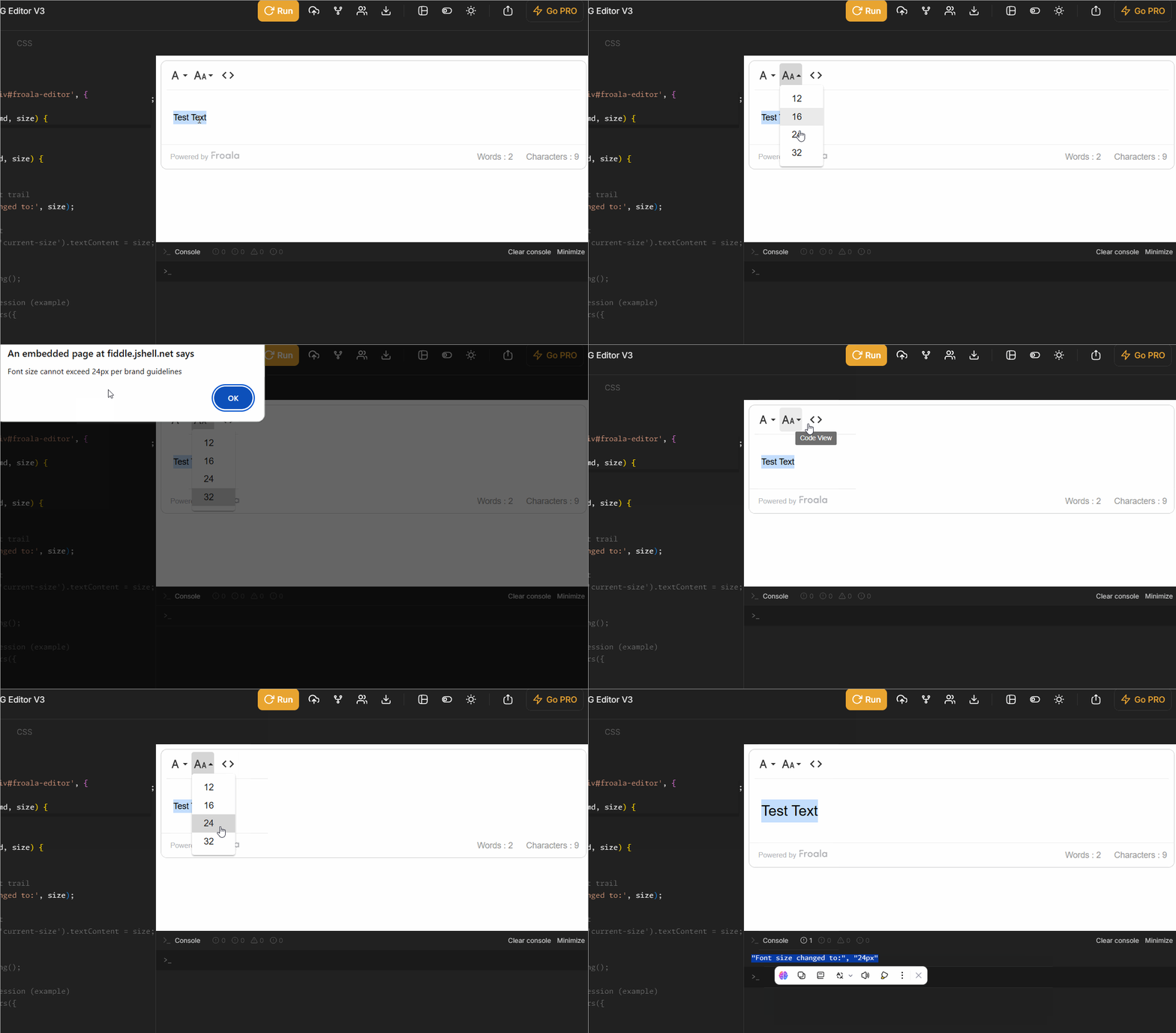
These events give developers the hooks needed to implement custom logic, maintain data integrity, and create a polished editing experience for end-users.
Froala Font Size Plugin
The font sizing options, methods, and events described above are only available when the Font Size plugin is enabled in your Froala editor instance.
Including the Font Size Plugin
If you’re using a custom Froala build (not the pre-packaged .pkgd version), you’ll need to explicitly include the Font Size plugin script:
https://cdn.jsdelivr.net/npm/froala-editor@latest/js/plugins/font_size.min.js
Once included, the plugin activates automatically.
Verifying Your Configuration
If you’re customizing your editor setup, confirm these settings are properly configured:
pluginsEnabled— EnsurefontSizeis included in this arraypluginsDisabled— VerifyfontSizeis not listed heretoolbarButtons— ConfirmfontSizeappears in your toolbar configuration
FAQ
Can I set custom font sizes for different user roles?
Yes. Define your fontSize array with specific values, then conditionally render the editor with different configurations based on user permissions.
What happens if a user’s browser doesn’t support a font size unit I specify?
Modern browsers support px, pt, em, rem, and %. Stick to these standard units and test across your target browsers to ensure compatibility.
Can I prevent users from making text too large or too small?
Yes. Control available sizes by defining your fontSize array with only the sizes you want to permit in your application.
Why isn’t the font size toolbar button appearing?
Verify the Font Size plugin is included, fontSize is in your pluginsEnabled array, and fontSize is listed in your toolbarButtons configuration.
How do I undo a font size change?
Users can press Ctrl+Z (Windows) or Cmd+Z (Mac) to undo formatting changes, just like any other edit.
Conclusion
Mastering Froala’s font sizing capabilities empowers you to deliver professional, accessible typography throughout your application. Whether you’re defining brand-aligned sizes, ensuring responsive scaling, or maintaining consistent formatting across collaborative editing sessions, these tools give you the precision and flexibility needed for polished document design.
Ready to experience seamless typographic control? Try Froala’s editor free today and see how pixel-perfect font sizing transforms your editing experience.






No comment yet, add your voice below!