



Froala Shortcut Secrets That Supercharge Your Productivity

Imagine this: you’re writing, editing, and formatting text — all flowing smoothly — when suddenly you have to grab your mouse just to make text bold or insert a link. That small break? It disrupts your rhythm.
That’s why keyboard shortcuts are pure magic. They keep users in their creative flow, transforming ordinary typing into an effortless experience. And for developers working with editors like Froala, understanding how to create and customize shortcuts can take user productivity to the next level.
This article will explore why users love shortcuts, and more importantly, how you can register and customize them in Froala Rich Text Editor to make your users feel truly intuitive and efficient.

Why Users Love Shortcuts
The Psychology of Speed and Flow
Humans crave efficiency. Every time we remove friction between thought and action, our brains reward us with a sense of momentum. Shortcuts do exactly that — they reduce micro-delays. You don’t need to stop typing to click a toolbar icon. Instead, your thoughts move directly into your work.
This state is called “flow” — that sweet spot where focus, creativity, and speed align. Keeping hands on the keyboard helps sustain that state.
Boosting Productivity and Efficiency
A few seconds saved per action might not sound like much. But multiply that by hundreds of formatting tasks a day, and you’ll see why writers, coders, and designers swear by shortcuts.
Think of simple ones like:
- Ctrl + B for bold
- Ctrl + Z for undo
- Ctrl + K for inserting a link
Small actions that keep you moving — no pauses, no friction.
Accessibility and Inclusivity
Shortcuts aren’t just about speed — they’re also about accessibility. For users with motor limitations or repetitive strain injuries, relying less on mouse interactions makes writing more comfortable.
Well-designed shortcuts make the interface more inclusive, ensuring everyone can use the editor effectively — regardless of how they interact with it.
Customization and User Empowerment
People love tools that adapt to them. Allowing users to customize shortcuts gives them a sense of ownership — they’re not just using the tool; they’re shaping it. For developers, this translates into higher satisfaction, engagement, and loyalty.
How Froala Handles Shortcuts by Default
The Froala Rich Text Editor already includes a variety of built-in shortcuts — for bold, italic, underline, undo, redo, and more. For example:
- Ctrl + B → Bold
- Ctrl + I → Italic
- Ctrl + U → Underline
- Ctrl + Z → Undo
- Ctrl + Y → Redo
These shortcuts are intuitive, consistent across platforms, and designed to match what users expect from other editors like Word or Google Docs.
However, sometimes you’ll want more — a custom command, a unique formatting option, or a plugin action triggered with a keystroke.
That’s where custom shortcut registration comes in.
How To Register Custom Shortcuts in Froala
Let’s walk through how you can register your own shortcuts to make your editor truly yours.
Froala provides a powerful method FroalaEditor.RegisterShortcut() that gives you granular control over keyboard interactions. Let’s break down its parameters:
key: The unique decimal code identifying the keyboard buttoncmd: The editor command to trigger (like ‘bold’, ‘italic’)val→ The name of the option to be triggered In case the command has more than one option.letter→ The character shown in tooltip hints.shift→ Boolean to require Shift key combinationoption→ Boolean to require Alt (⌥ (Option) on Mac) key combination
Practical Examples: Mastering Froala Shortcuts
Let’s explore how to create and modify shortcuts with precision.
Example of a basic shortcut: Bold Shortcut
The classic bold shortcut demonstrates the method’s simplicity:
FroalaEditor.RegisterShortcut(

  FroalaEditor.KEYCODE.B,  // Decimal code for 'B' key

  'bold',                  // Bold command

  null,                    // No specific option

  'B',                     // Tooltip shows 'CTRL + B'

  false,                   // No Shift key required

  false                    // No Alt/Option key required

)
This single line configures Ctrl + B (Windows) or Cmd + B (macOS) to instantly bold selected text.
Shortcut Variations
Want a different combination? Simply adjust the parameters:
For example, the following code makes selected text bold using the shortcut Ctrl + Shift + B (Windows) or Cmd + Shift + B (macOS).
FroalaEditor.RegisterShortcut(

  FroalaEditor.KEYCODE.B,

  'bold',

  null,

  'B',

  true,                   // Shift required

  false

)
While the following shortcut registration code modification changes the shortcut to Ctrl + ALT + B (Windows) or Cmd + Option + B (macOS)
FroalaEditor.RegisterShortcut(

  FroalaEditor.KEYCODE.B,

  'bold',

  null,

  'B',

  false,                  // No Shift required

  true                   // Alt/Option required

)
If we want to use both Shift and Alt/Option, then you should modify the code to
FroalaEditor.RegisterShortcut(

  FroalaEditor.KEYCODE.B,

  'bold',

  null,

  'B',

  true,                  // Shift required

  true                   // Alt/Option required

)
This demonstrates how easily you can customize keyboard interactions. This flexibility allows developers to create intuitive, personalized editing experiences that match specific workflow needs. The ability to fine-tune shortcuts means your Froala editor can feel truly tailored, reducing cognitive load and helping users maintain their creative momentum with minimal friction between thought and action.
Shortcuts for Commands with Multiple Actions
Some commands have multiple actions. For instance, the paragraphFormat offer multiple actions such as H1 for turning the text into heading 1 and H2 for turning the text into heading 2 and so on.
To assign a shortcut for the H1 action, you need to pass H1 as the third parameter in the RegisterShortcut method.
  FroalaEditor.RegisterShortcut(
  72,                         // Decimal code for 'H' key
  'paragraphFormat',          // Command
  'H1',                       // Selected Action
  'H',
  false,
  false
  );
The above code registers Ctrl + H (Windows) or Cmd + H (macOS) to instantly make selected text a heading paragraph.
Similarly, you can create shortcuts for other paragraph formats like H2 or H3 by adjusting the action parameter.
By mapping specific keystrokes to precise formatting actions, you can dramatically reduce the time spent navigating menus and clicking buttons, making the writing process more fluid and intuitive for users across different skill levels and editing preferences.
Disabling Shortcuts
Sometimes, you might want to disable certain default keyboard shortcuts in Froala to prevent conflicts or customize the editing experience. Froala provides a straightforward way to manage this through the shortcutsEnabled configuration option.
How to Disable Specific Shortcuts
You can disable shortcuts by removing their names from the shortcutsEnabled array.
new FroalaEditor('#editor', {

  shortcutsEnabled: ['bold', 'italic'] // Only these shortcuts remain active

});
Completely Disabling Shortcuts
If you want to turn off all default shortcuts:
new FroalaEditor('#editor', {

  shortcutsEnabled: [] // Disables all default shortcuts

});
Why Disable Shortcuts?
Reasons to disable shortcuts might include:
- Preventing accidental formatting
- Resolving conflicts with browser or system-wide keyboard commands
- Creating a more controlled editing environment
By carefully managing shortcuts, you can create a more tailored and user-friendly editing experience.
Shortcut Hints: Guiding Users Intuitively
Understanding Shortcut Hints
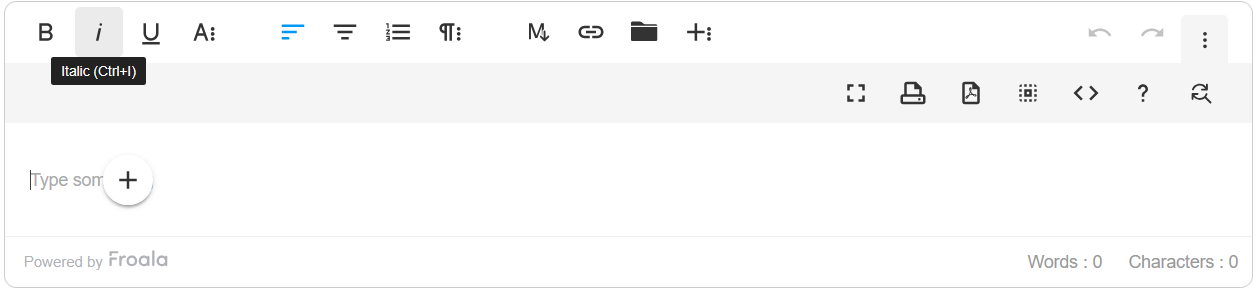
Shortcut hints are small, informative tooltips that appear when users hover over buttons in the Froala Rich Text Editor. These hints reveal the corresponding keyboard shortcut for each action, providing a quick reference that helps users discover and remember keyboard commands.
The Importance of Shortcut Hints
Shortcut hints serve multiple crucial purposes:
- Discoverability: They introduce users to available keyboard shortcuts.
- Learning: Help users quickly memorize keyboard commands
- Accessibility: Provide clear guidance for users who prefer keyboard navigation.
- Efficiency: Encourage users to adopt faster editing techniques
Configuring Shortcut Hints
Froala allows you to control shortcut hints through the shortcutsHint configuration option:
new FroalaEditor('#editor', {

  shortcutsHint: true  // Enables shortcut hints (default)

});
To disable shortcut hints completely:
new FroalaEditor('#editor', {

  shortcutsHint: false  // Disables all shortcut hints

});
Help Modal: Comprehensive Shortcut Reference
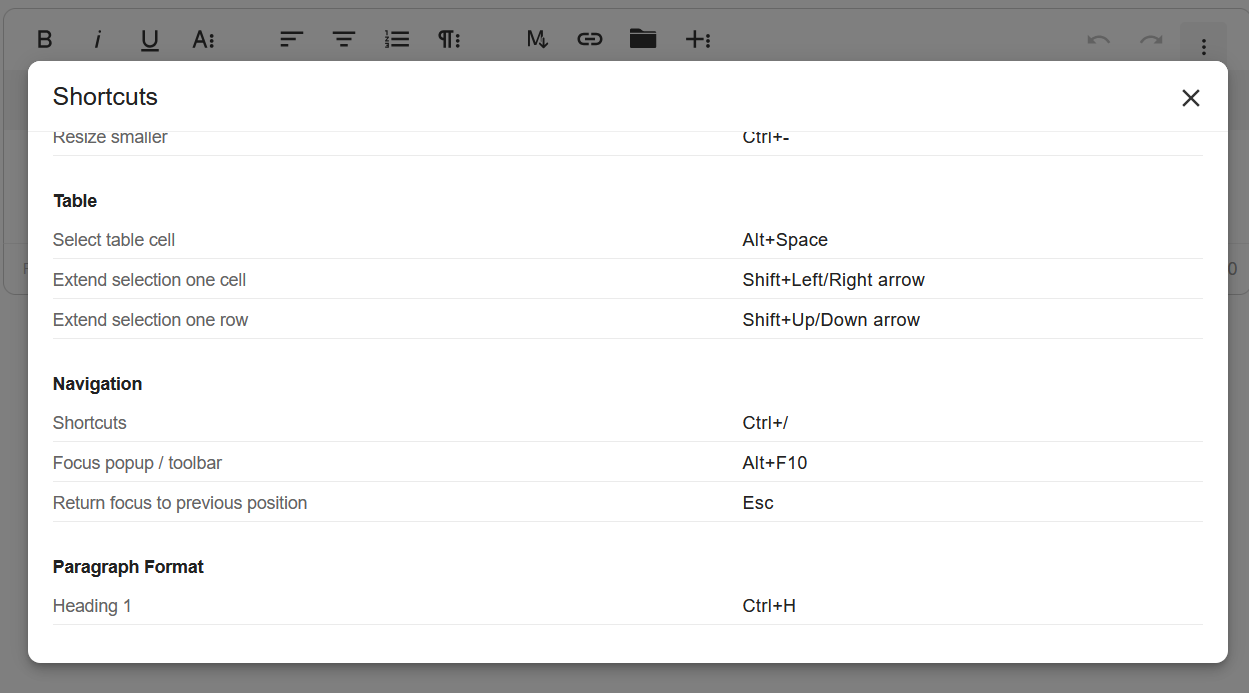
The Help plugin in Froala provides a comprehensive modal that displays all available shortcuts. This modal can be triggered by the help button and offers a complete overview of keyboard shortcuts.
Customizing the Help Modal Content
You can modify the help modal’s content to include custom shortcuts using the helpSets configuration. For example:
const editor = new FroalaEditor('#editor',{
  shortcutsHint: true, //display the shortcut code on hover over the button
}, function(){
  this.opts.helpSets.push({title: "Paragraph Format", commands: [
    {val: "OSkeyH", desc: "Heading 1"},
  ]
  });
});
This adds a “Paragraph Format” section containing the Heading 1 item and its shortcut, CTRL+H.
Best Practices for Shortcut Hints
- Keep hints clear and concise.
- Use standard, intuitive shortcut combinations.
- Ensure hints are visible but not intrusive.
- Provide a way for users to view a complete shortcut list.
By thoughtfully implementing shortcut hints, you create a more intuitive, efficient editing experience that empowers users to work faster and more comfortably.
Cross-Platform Considerations
Froala’s shortcut system automatically adapts to different operating systems. The same registration works seamlessly across Windows, macOS, and Linux, handling modifier key differences behind the scenes.
Best Practices for Designing Shortcuts
Handle Shortcut Conflicts
Sometimes, shortcuts can overlap with browser or OS defaults. For instance, Ctrl + S usually saves the page. To avoid confusion:
- Use combinations less likely to conflict (e.g.,
Alt + Shift+ number keys). - Test across Windows, macOS, and Linux, as key modifiers differ (
CtrlvsCmd).
Keep It Logical and Memorable
If a shortcut’s meaning is obvious, users will remember it.
- “B” for Bold.
- “I” for Italic.
- “L” for Link.
Avoid random or multi-layered key combinations unless absolutely necessary.
Conclusion
Keyboard shortcuts may seem small, but they’re the silent heroes of productivity. They reduce friction, keep users in flow, and turn routine editing into instinctive action.
For developers, Froala’s API makes implementing and customizing shortcuts straightforward — giving you the power to create a truly fluid, user-friendly editing experience.
🚀 Start Free Trial and explore Froala’s full set of customization and productivity tools.
💡 Try it yourself: Experiment with a Froala JSFiddle demo or your local setup.
✨ Final Thought
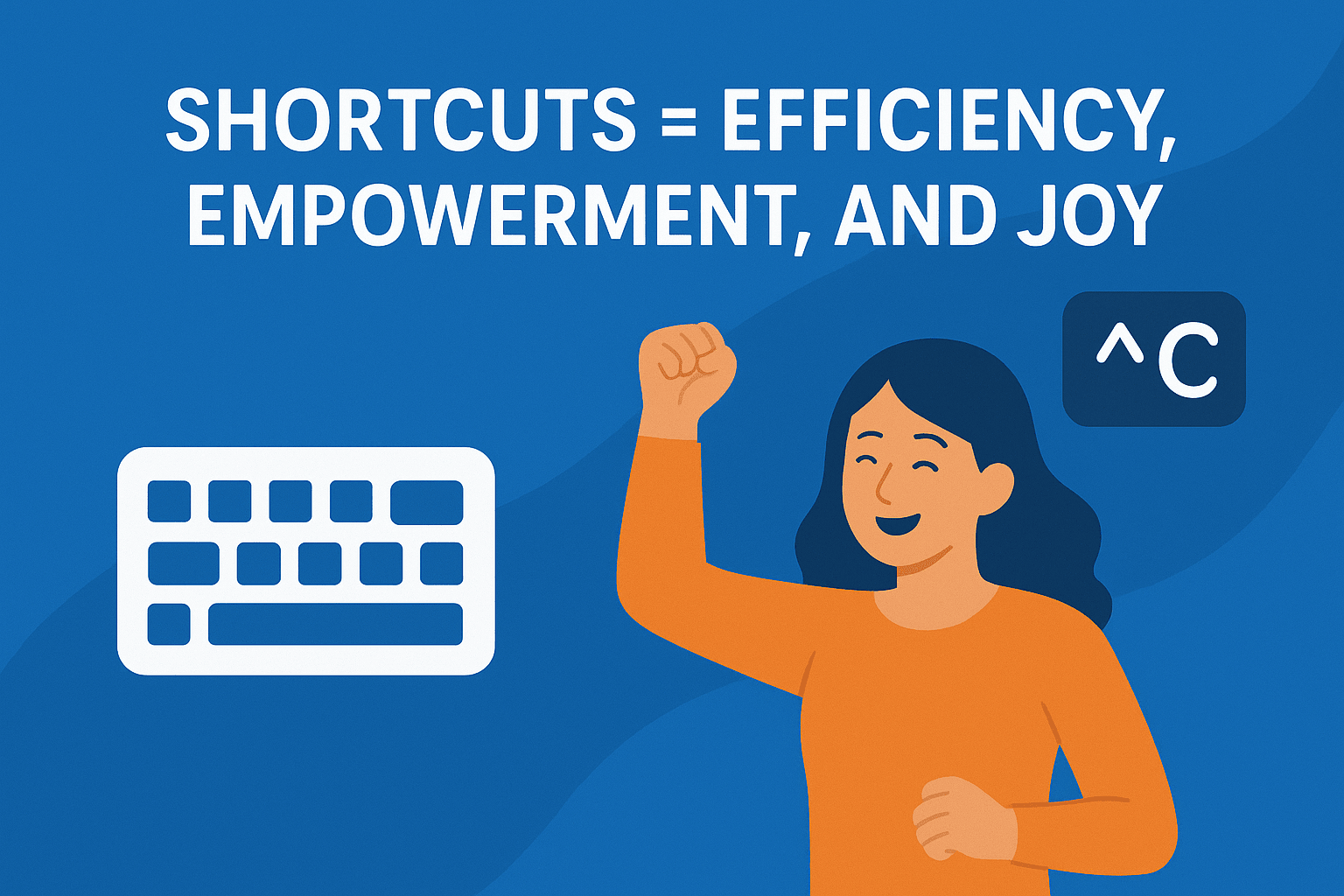
In the end, shortcuts aren’t just about key combinations — they’re about designing efficiency, empowerment, and joy into the user experience. And with Froala, you can deliver exactly that.






No comment yet, add your voice below!