



Elevate Your Delphi Web Application with Seamless Rich Text Editing: Mastering Froala TMS Web Core Integration

As a Delphi developer, you know the importance of building modern, responsive web applications with a great user experience. The TMS WEB Core framework is a powerful tool for creating such apps, but what if you need a robust WYSIWYG (What-You-See-Is-What-You-Get) editor for your content management features?
No worries, the TMS WEB Core framework has a WEB Component for integrating Froala, a powerful WYSIWYG Editor, allowing Delphi web applications to seamlessly incorporate rich text editing capabilities and enhance user experience.
In this step-by-step guide, we’ll walk you through the simple process of integrating the Froala editor into your TMS WEB Core Delphi applications. By leveraging the power of Froala and the flexibility of TMS WEB Core, you can deliver a high-quality content management solution within your Delphi web projects.
Key Takeaways
- TMS WEB Core makes modern Delphi web apps possible, and integrating a WYSIWYG editor like Froala significantly improves content editing and user experience.
- Froala integrates seamlessly with TMS WEB Core through the TMSwebFroalaEditor component, minimizing setup time and reducing custom JavaScript work.
- The integration supports both classic and inline editing modes, giving developers flexibility to tailor the editor experience to different use cases.
- Froala is lightweight yet feature-rich, offering advanced formatting, media handling, and extensibility without compromising performance.
- This guide provides a practical, step-by-step integration path, including setup, demo usage, and source code insights to help you implement Froala confidently in real projects.
Why Use the TMS WEB Core Framework?
The TMS WEB Core framework is the foundation of an exciting new and modern way for creating web client applications from Delphi using a component-based framework. Some key benefits of using TMS WEB Core include:
- Cross-platform compatibility: TMS WEB Core allows you to create web applications that can run on a variety of platforms, including Windows, macOS, and Linux.
- Rapid development: The framework provides a wealth of pre-built components and tools, enabling you to quickly build and deploy feature-rich web applications.
- Seamless integration: TMS WEB Core integrates seamlessly with other Delphi technologies, such as the Froala WYSIWYG Editor, allowing you to create a cohesive and efficient development ecosystem.
- Modern web standards: The framework is built on the latest web technologies, ensuring your applications are up-to-date and provide an optimal user experience.
- The TMS WEB Core web client application is open to work with different server technologies. This includes but is not limited to Embarcadero RAD Server, Node.js, ASP.NET Core microservices.
Why Integrate Froala Editor with TMS WEB Core?
The Froala WYSIWYG HTML Editor is a lightweight WYSIWYG HTML editor. However, it is a feature-rich, customizable editor that allows users to easily format text, insert images, and more, all without needing to write HTML code.
Some key benefits of this integration include:
- Intuitive WYSIWYG editing experience for your users
- Extensive customization options to match your app’s branding and design
- Robust feature set including table manipulation, responsive video embedding, and more
- Seamless integration with the TMS WEB Core framework for a cohesive user experience
Froala TMS Web Core Integration Guide
The TMS WEB Core offers the TMSwebFroalaEditor WEB Component that simplifies the Froala Editor integration with TMS WEB Core framework. The integration process is straightforward, allowing you to quickly set up the Froala editor, saving a lot of development time and effort.
Integrate the Froala WYSIWYG Editor into your TMS WEB Core Delphi application using the TMSwebFroalaEditor component by following these steps:
Step 1: Install the RAD Studio IDE
As a Delphi developer, you may already be using RAD Studio. If not, we recommend installing it. RAD Studio is an advanced IDE for rapidly and visually building high-performance platform-native apps for Windows, Linux, iOS, macOS and Android from a single codebase.
Step 2: Install the TMS WEB Core Framework
The TMS WEB Core is a framework for creating modern web applications in Delphi. You can download and install the latest version of the framework from the official TMS Software website. Download the version compatible with your RAD Studio. The integration requires TMS WEB Core version 1.2.3.0 or newer.
Step 3: Install the TMSwebFroalaEditor Component
-
- Download and install the TMSwebFroalaEditor component from the TMS Software website.
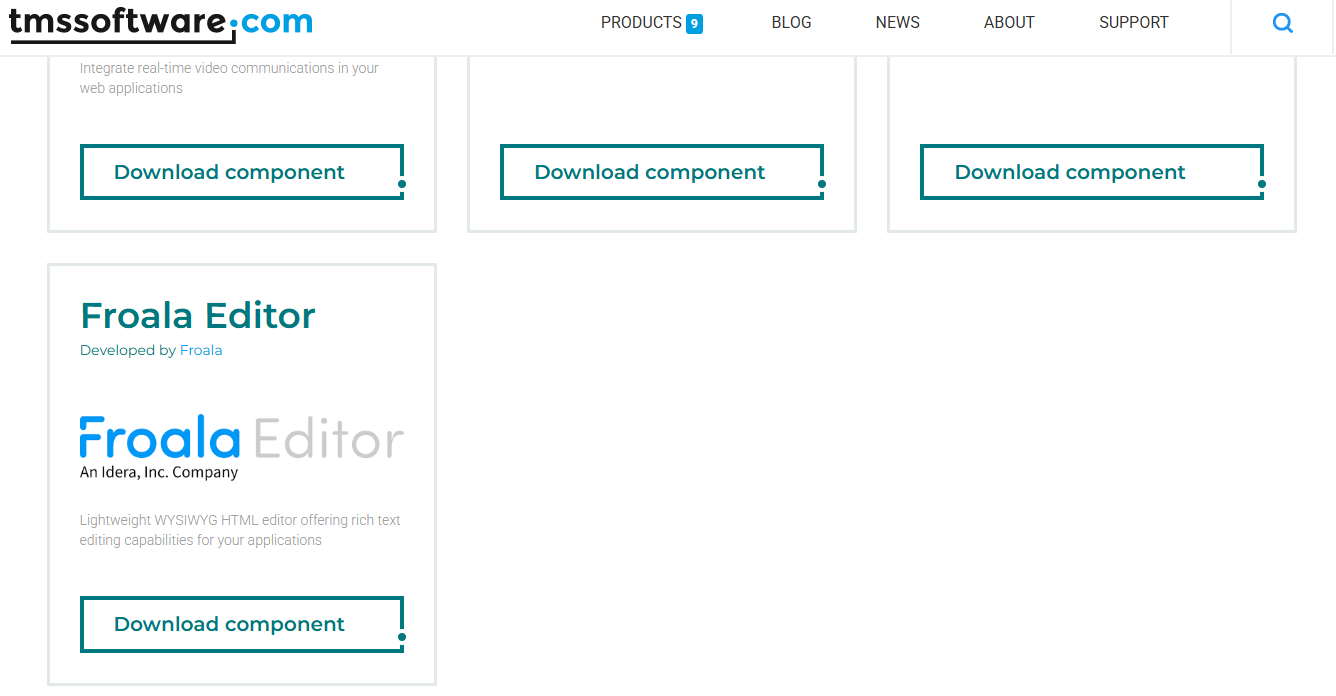
- Download and install the TMSwebFroalaEditor component from the TMS Software website.
- Extract the downloaded ZIP file: it contains the following folders:
- The “Component Library Source” folder,
- The “Core Source” folder.
- The “Demo” folder.
- Add the Library path: Add the “Core Source” folder path to the TMS WEB library path (RAD Studio: Tools > Options > TMS WEB > Library Path). Restart RAD Studio afterwards to ensure changes are applied.
- Install the package file “TMSWEBFroalaEditor”:
- Open the
"Component Library Source/TMSWEBFroalaEditor.dpk"package file in the Rad Studio. - This package requires the
TMSWEBCorePkgLibDXE11.dcplibrary. Update this line if you are using a different TMS WEB Core version. - Compile the package: Right-clicking on the package in the Project Manager and selecting “Compile”.
- Install the package: Right-clicking on the package in the Project Manager and selecting “Install”. Now you are ready to use the component in your project.
- Open the
Step 4: Play with the Demo
The demo illustrates displaying the Froala Editor within your TMS WEB Core Delphi application. To run it, you need to do the following steps:
-
- Open the Demo Project: Locate the
"Demo/FroalaEditor.dpk"package file in the downloaded ZIP folder and open it in your RAD Studio IDE. - Include Froala Editor: Open “Index.html“ file. Note, the code assumes you will download the Froala Editor files and host them on your server. However, you can replace the local Froala stylesheet and JavaScript links with CDN links so we don’t need to download it.
<link href='https://cdn.jsdelivr.net/npm/froala-editor@latest/css/froala_editor.pkgd.min.css' rel='stylesheet' type='text/css' />

<script type='text/javascript' src='https://cdn.jsdelivr.net/npm/froala-editor@latest/js/froala_editor.pkgd.min.js'></script>
- Open the Demo Project: Locate the
-
- Understand the Demo Structure: The demo project likely consists of several files, including:
FroalaEditor.dpr: The main project file.FroalaEditorForm.pas: The main form file, which contains the Froala Editor component and other UI elements.
- Run the Demo: To run the demo application, simply click the “Run” button in your RAD Studio IDE. This will compile and launch the demo, allowing you to interact with the Froala Editor integrated into the TMS WEB Core application.
- Inspect the Code: Once the demo is running, you can inspect the code to understand how the TMSWEBFroalaEditor component is being used. This can provide valuable insights and help you integrate the Froala Editor into your own TMS WEB Core projects.
- Understand the Demo Structure: The demo project likely consists of several files, including:
Understanding the Source Code
By exploring the demo, you’ll get a better understanding of how to use the TMSWEBFroalaEditor component and integrate the Froala Editor into your own TMS WEB Core Delphi applications. The demo serves as a helpful starting point and reference for your own implementation.
For instance, to setup your own Froala Editor, do the following
- Declare an external function so we can use Object Pascal to create the Editor Object.
- Create an object that links the Froala Editor events with the WEB Core event handlers.
- Initialize the Froala Editor
var
  FEvents: TJSObject;
  FFroalaEditor: TJSObject;
  function froalaEditor(s: string; jsObject: TJSObject): TJSObject; overload; external name 'new FroalaEditor';

begin
    FEvents := new([
     'contentChanged', @HandleChanged,
     'initialized', @HandleLoaded,
     'focus', @HandleStartEdit,
     'blur', @HandleEndEdit
     ]);

    FFroalaEditor := froalaEditor('div#' + ElementID,   new([
      'toolbarInline', false,
      'events', FEvents
      ]));
end;
Froala WYSIWYG HTML Editor Modes
Note the demo offers two ways to use the Froala Editor:
Classic: This is the default behavior.
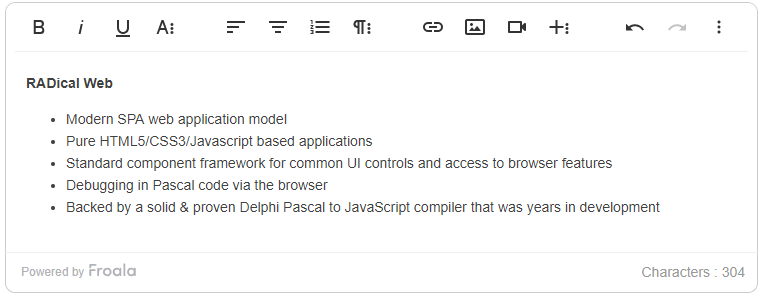
Inline: Show the Editor toolbar upon content selection.
Connect any TWebLabel to the TWebFroalaEditor component to instantly make it editable in the browser.
WebLabel1.EventStopPropagation := [];
WebFroalaEditor1.Visible := False;
WebFroalaEditor1.InlineEditing := True;
WebFroalaEditor1.Editor := WebLabel1;

By now, you have learned how to easily add a powerful, customizable WYSIWYG editing experience to your TMS WEB Core Delphi applications, providing your users with an intuitive and efficient way to manage content.
Live Demo
A live demo of the Froala editor integration is available at https://download.tmssoftware.com/tmsweb/demos/froalaeditor/. Explore the editor’s rich text editing capabilities and view the corresponding HTML code and triggered web core event handlers below the editor.
Conclusion
In this guide, we’ve walked through the seamless process of integrating the Froala Editor into your TMS WEB Core Delphi applications. By leveraging the powerful TMSwebFroalaEditor component, you can quickly add rich text editing capabilities to your web applications.
Integrating Froala WYSIWYG HTML Editor with TMS WEB Core allows Delphi developers to create modern, responsive web apps with an intuitive WYSIWYG interface for managing content. With features like inline editing, table manipulation, and responsive video embedding, the Froala Editor provides a top-notch user experience that will delight your end-users.
With the steps outlined in this guide, you now have the knowledge and tools to integrate the Froala Editor into your own TMS WEB Core Delphi projects. By incorporating this powerful integration, you can deliver exceptional content management capabilities and take your Delphi web applications to new heights.
Get started today and elevate your Delphi web development with the TMS WEB Core Froala Editor integration!
FAQs
What is TMS web Core?
TMS WEB Core is a Delphi-based framework for building modern, responsive web applications. It allows developers to create cross-platform web apps using Object Pascal while leveraging standard web technologies like HTML, CSS, and JavaScript, without needing to learn a new programming language.
Does Froala work natively with TMS WEB Core?
Yes. Froala integrates smoothly with TMS WEB Core using the TMSwebFroalaEditor component, allowing Delphi developers to add rich text editing without manually wiring complex JavaScript logic.
Can I use Froala in both classic and inline editing modes with TMS WEB Core?
Yes. The Froala Editor supports both classic and inline modes when used with TMS WEB Core, giving you flexibility to choose how and where content becomes editable in your Delphi web application.
Do I need to host Froala files locally when using TMS WEB Core?
No. While you can host Froala assets locally, you may also use the Froala CDN to load the editor’s CSS and JavaScript files, which simplifies setup and speeds up development.







No comment yet, add your voice below!