



5 Powerful Table Styles And How To Implement Them In Froala WYSIWYG Editor

Tables are a ubiquitous feature on the web, but their appearances can vary greatly. Some tables look visually unimpressive, while others display a polished, professional design. This article showcases popular and visually stunning table styles that developers can easily integrate as predefined layouts in the Froala WYSIWYG Editor.
This simplifies table styling for users, enabling them to create professional-looking tables with ease, regardless of their HTML or CSS knowledge. This democratization of design ensures that beautiful, professional-looking tables are just a click away.

Key Takeaways
- Table styles go beyond aesthetics; they enhance data communication.
- Froala offers unprecedented customization for table design.
- Choose styles that align with your content’s purpose and audience.
Understanding HTML Table Styles Feature in Froala
Before diving into specific styles, it’s crucial to understand how table styling works in Froala.
Applying Preset Table Styles
The Froala WYSIWYG Editor comes with a selection of pre-designed table styles that users can quickly apply to their tables. These preset styles include a variety of color schemes, border styles, and cell formatting options, allowing users to achieve a polished and consistent look across their tabular content.
This feature is particularly useful for users who want to quickly add visual interest to their tables without having to manually configure each individual styling element. By providing a selection of pre-designed styles, Froala helps users save time and ensure a consistent look and feel across their tabular content.
To apply a preset HTML table style, simply select the table you want to format and click on the “Table Styles” button in the editor’s toolbar. This will open a dropdown menu displaying the available style options. Users can then choose the style that best fits their design needs, and Froala will automatically apply the selected formatting to the table.
Developers can extend this Preset list by:
- Defining CSS classes for table styles
- Registering these styles within the Froala configuration using the tableStyles option. This option is an Object where the key represents the class name and its value is the style name that appears in the dropdown list. It is important to have unique keys otherwise they will not work properly.
For example, to register a table style that creates a striped table.
- Define CSS class
  .class1 tbody tr:nth-child(2n) {

    background: #f9f9f9;

  }
- Register the new style
  new FroalaEditor('div#froala-editor', {

    // Define new table cell styles.

    tableStyles: {

      class1: 'Class 1',

    }

  })
Styling Tables Examples
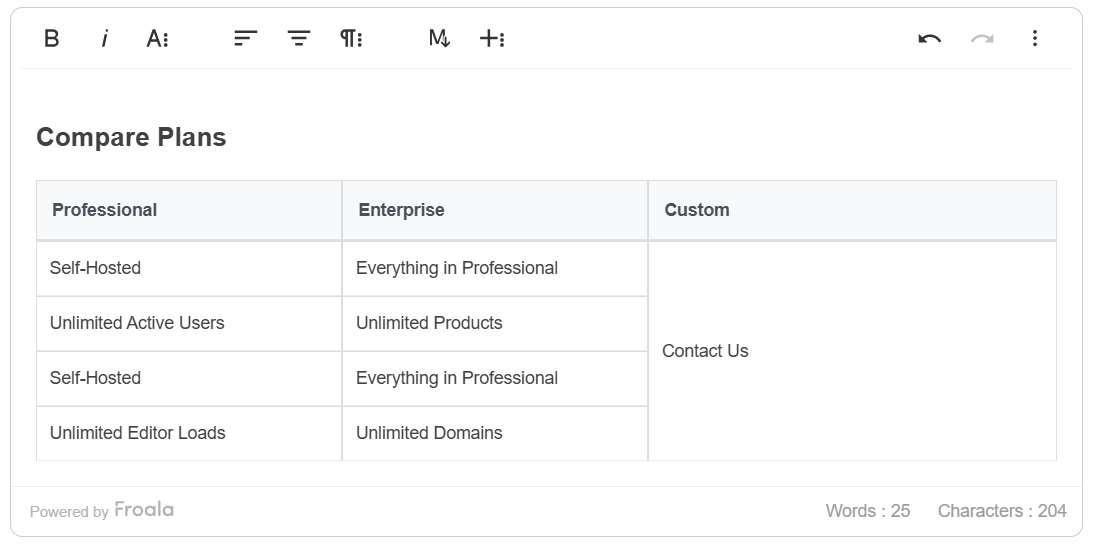
Style 1: Minimalist Professional Grid
Design Philosophy
The Minimalist Professional Grid represents clean, corporate design. It emphasizes clarity and readability through subtle design elements.
Implementation Code
FroalaEditor.DEFAULTS.tableStyles = {

  'fr-table-minimalist-professional': 'Minimalist Professional'

};
CSS Implementation:
.fr-view table.fr-table-minimalist-professional {
  border-collapse: separate;
  border-spacing: 0;
  width: 100%;
}
.fr-view table.fr-table-minimalist-professional th {
  background-color: #f8f9fa;
  border-bottom: 2px solid #dee2e6;
  color: #495057;
  font-weight: 600;
  padding: 12px;
}
.fr-view table.fr-table-minimalist-professional td {
  border-bottom: 1px solid #e9ecef;
  padding: 10px;
  vertical-align: middle;
}
Use Cases
- Financial reports
- Corporate documentation
- Academic presentations
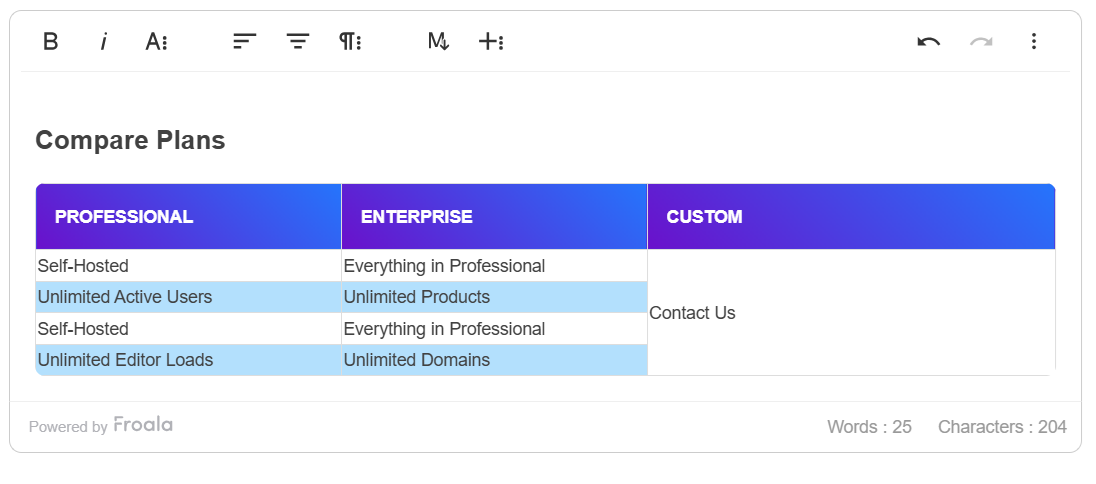
Style 2: Colorful Interactive Grid
Design Philosophy
The Colorful Interactive Grid introduces playful yet professional color gradients that draw attention without overwhelming the data.
Implementation Code
FroalaEditor.DEFAULTS.tableStyles = {

  'fr-table-colorful-interactive': 'Colorful Interactive'

};
CSS Implementation:
.fr-view table.fr-table-colorful-interactive {
  width: 100%;
  border-radius: 8px;
  overflow: hidden;
}
.fr-view table.fr-table-colorful-interactive th {
  background: linear-gradient(45deg, #6a11cb 0%, #2575fc 100%);
  color: white;
  padding: 15px;
  text-transform: uppercase;
}
.fr-view table.fr-table-colorful-interactive tr:nth-child(even) {
  background-color: #b3e0fd;
}
.fr-view table.fr-table-colorful-interactive tr:hover {
  background-color: ##03a9f4;
  transition: background-color 0.3s ease;
}
Use Cases
- Marketing presentations
- Product comparisons
- Educational materials
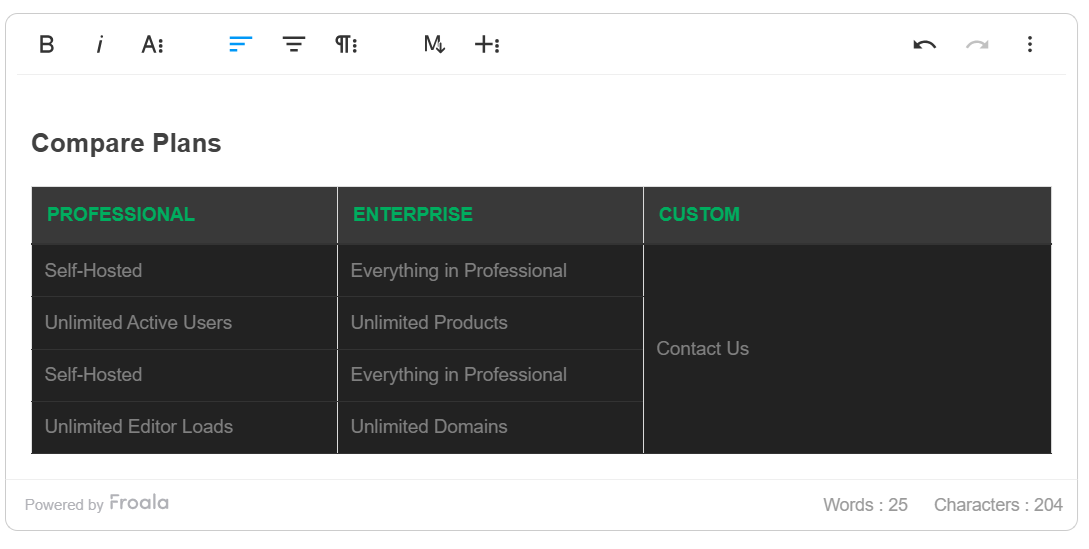
Style 3: Dark Mode Analytics
Design Philosophy
The Dark Mode Analytics style caters to modern HTML table design trends, offering a sleek, contemporary look that reduces eye strain.
Implementation Code
FroalaEditor.DEFAULTS.tableStyles = {

  'fr-table-dark-mode-analytics': 'Dark Mode Analytics'

};
CSS Implementation:
.fr-view table.fr-table-dark-mode-analytics {
  background-color: #121212;
  color: #e0e0e0;
  width: 100%;
}
.fr-view table.fr-table-dark-mode-analytics th {
  border-bottom: 2px solid #333;
  padding: 12px;
  font-size: 15px;
  color: #00ad5f;
  line-height: 1.4;
  text-transform: uppercase;
  background-color: #393939;
}
.fr-view table.fr-table-dark-mode-analytics td {
  border-bottom: 1px solid #333;
  padding: 10px;
  font-size: 15px;
  color: #808080;
  line-height: 1.4;
  background-color: #222222;
}
Use Cases
- Tech presentations
- Developer documentation
- Night mode interfaces
Style 4: Responsive Compact Grid
Design Philosophy
The Responsive Compact Grid prioritizes adaptability across different screen sizes while maintaining readability.
Implementation Code
FroalaEditor.DEFAULTS.tableStyles = {

  'fr-table-responsive-compact': 'Responsive Compact'

};
CSS Implementation:
.fr-view table.fr-table-responsive-compact {
  width: 100%;
  font-size: 0.9em;
}
.fr-view table.fr-table-responsive-compact th,
.fr-view table.fr-table-responsive-compact td {
  padding: 8px;
  text-align: left;
}
@media (max-width: 600px) {
  .fr-view table.fr-table-responsive-compact thead {
    display: none;
  }
  .fr-view table.fr-table-responsive-compact tr {
    display: block;
    margin-bottom: 10px;
  }
  .fr-view table.fr-table-responsive-compact td {
    display: block;
    text-align: right;
  }
}
Use Cases
- Mobile-friendly websites
- Condensed reports
- Adaptive design scenarios
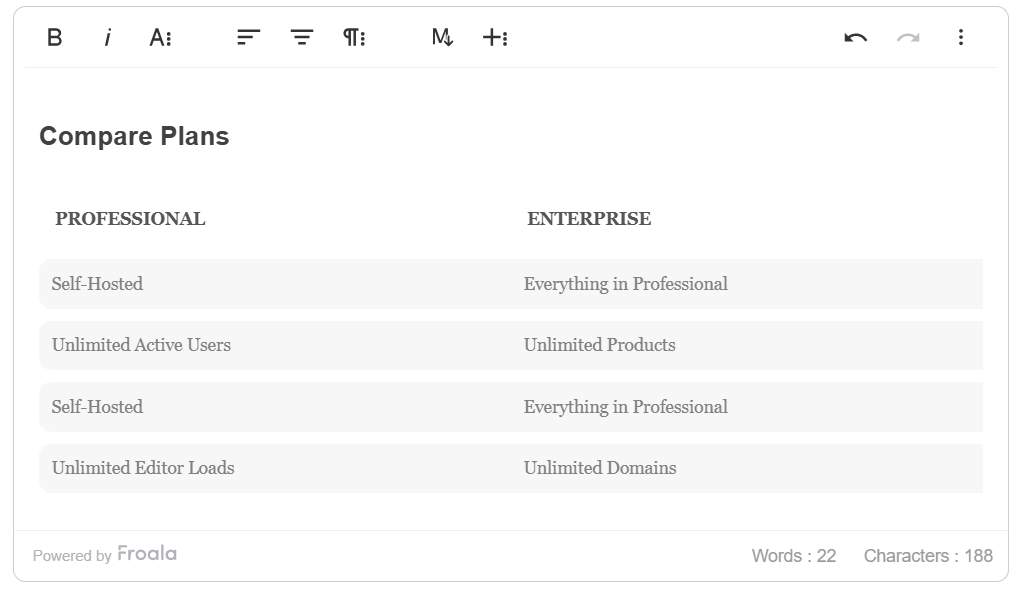
Style 5: Elegant Academic Layout
Design Philosophy
The Elegant Academic Layout draws inspiration from scholarly publications, emphasizing structured, formal presentation.
Implementation Code
FroalaEditor.DEFAULTS.tableStyles = {

  'fr-table-elegant-academic': 'Elegant Academic'

};
CSS Implementation:
.fr-view table.fr-table-elegant-academic {
  border: none;
  width: 100%;
  font-family: "Georgia", serif;
  border-collapse: separate;
  border-spacing: 0 10px;
}
.fr-view table.fr-table-elegant-academic th {
  border: solid 1px transparent;
  padding: 12px;
  text-align: left;
  font-size: 14px;
  color: #555555;
  line-height: 1.4;
  text-transform: uppercase;
  background-color: transparent;
}
.fr-view table.fr-table-elegant-academic td {
  color: #808080;
  line-height: 1.4;
  background-color: #f7f7f7;
  border: none;
  padding: 10px;
}
.fr-view table.fr-table-elegant-academic td:first-child {
  border-left-style: none;
  border-top-left-radius: 10px;
  border-bottom-left-radius: 10px;
}
Use Cases
- Research papers
- Academic journals
- Scientific publications
Table Styles Implementation in Froala
Let’s combine all these styles altogether.
In your stylesheet, add
#froala-editor {
  margin: 20px;
}
.show-placeholder > div > a,
.fr-wrapper > div > a {
  display: none !important;
}

/* Minimalist Professional Grid */
.fr-view table.fr-table-minimalist-professional {
  border-collapse: separate;
  border-spacing: 0;
  width: 100%;
}
.fr-view table.fr-table-minimalist-professional th {
  background-color: #f8f9fa;
  border-bottom: 2px solid #dee2e6;
  color: #495057;
  font-weight: 600;
  padding: 12px;
}
.fr-view table.fr-table-minimalist-professional td {
  border-bottom: 1px solid #e9ecef;
  padding: 10px;
  vertical-align: middle;
}

/*  Colorful Interactive Grid */
.fr-view table.fr-table-colorful-interactive {
  width: 100%;
  border-radius: 8px;
  overflow: hidden;
}
.fr-view table.fr-table-colorful-interactive th {
  background: linear-gradient(45deg, #6a11cb 0%, #2575fc 100%);
  color: white;
  padding: 15px;
  text-transform: uppercase;
}
.fr-view table.fr-table-colorful-interactive tr:nth-child(even) {
  background-color: #b3e0fd;
}
.fr-view table.fr-table-colorful-interactive tr:hover {
  background-color: ##03a9f4;
  transition: background-color 0.3s ease;
}

/* Dark Mode Analytics */
.fr-view table.fr-table-dark-mode-analytics {
  background-color: #121212;
  color: #e0e0e0;
  width: 100%;
}
.fr-view table.fr-table-dark-mode-analytics th {
  border-bottom: 2px solid #333;
  padding: 12px;
  font-size: 15px;
  color: #00ad5f;
  line-height: 1.4;
  text-transform: uppercase;
  background-color: #393939;
}
.fr-view table.fr-table-dark-mode-analytics td {
  border-bottom: 1px solid #333;
  padding: 10px;
  font-size: 15px;
  color: #808080;
  line-height: 1.4;
  background-color: #222222;
}

/* Responsive Compact Grid */
.fr-view table.fr-table-responsive-compact {
  width: 100%;
  font-size: 0.9em;
}
.fr-view table.fr-table-responsive-compact th,
.fr-view table.fr-table-responsive-compact td {
  padding: 8px;
  text-align: left;
}
@media (max-width: 600px) {
  .fr-view table.fr-table-responsive-compact thead {
    display: none;
  }
  .fr-view table.fr-table-responsive-compact tr {
    display: block;
    margin-bottom: 10px;
  }
  .fr-view table.fr-table-responsive-compact td {
    display: block;
    text-align: right;
  }
}

/* Elegant Academic */
.fr-view table.fr-table-elegant-academic {
  border: none;
  width: 100%;
  font-family: "Georgia", serif;
  border-collapse: separate;
  border-spacing: 0 10px;
}
.fr-view table.fr-table-elegant-academic th {
  border: solid 1px transparent;
  padding: 12px;
  text-align: left;
  font-size: 14px;
  color: #555555;
  line-height: 1.4;
  text-transform: uppercase;
  background-color: transparent;
}
.fr-view table.fr-table-elegant-academic td {
  color: #808080;
  line-height: 1.4;
  background-color: #f7f7f7;
  border: none;
  padding: 10px;
}
.fr-view table.fr-table-elegant-academic td:first-child {
  border-left-style: none;
  border-top-left-radius: 10px;
  border-bottom-left-radius: 10px;
}
In your script, initialize Froala editor
new FroalaEditor("div#froala-editor", {
  tableStyles: {
    "fr-table-minimalist-professional": "Minimalist Professional",
    "fr-table-colorful-interactive": "Colorful Interactive",
    "fr-table-dark-mode-analytics": "Dark Mode Analytics",
    "fr-table-responsive-compact": "Responsive Compact",
    "fr-table-elegant-academic": "Elegant Academic",
  },
  tableMultipleStyles: false,
})
The HTML code
   <link href='https://cdn.jsdelivr.net/npm/froala-editor@latest/css/froala_editor.pkgd.min.css' rel='stylesheet'
        type='text/css' />

<div id="froala-editor">
  <h2>Compare Plans</h2>
  <table style="width: 100%;">
    <tbody>
      		<tr>

			<th>
				Professional
			</th>
			<th>
				Enterprise
			</th>
			<th>
				Custom
			</th>
		</tr>
      <tr>
        <td style="width: 25%;">Self-Hosted</td>
        <td style="width: 25%;">Everything in Professional</td>
        <td style="width: 33.3559%;" rowspan="4">
				Contact Us</td>
      </tr>
      <tr>
        <td style="width: 25%;">Unlimited Active Users</td>
        <td style="width: 25%;">Unlimited Products</td>
      </tr>
            <tr>
        <td style="width: 25%;">Self-Hosted</td>
        <td style="width: 25%;">Everything in Professional</td>
      </tr>
      <tr>
        <td style="width: 25%;">Unlimited Editor Loads</td>
        <td style="width: 25%;">Unlimited Domains</td>
      </tr>
    </tbody>
  </table>
</div>
  <script type='text/javascript'
        src='https://cdn.jsdelivr.net/npm/froala-editor@latest/js/froala_editor.pkgd.min.js'></script>
Now, when you open your application, you’ll see a rich, interactive table editing experience with multiple predefined styles. Users can seamlessly switch between different table designs, each optimized for specific contexts and visual requirements. The integrated styles provide a flexible framework for creating professional, responsive, and visually engaging tables that adapt to various design needs and screen sizes, enhancing overall user experience and content presentation.
Frequently Asked Questions
Why is styling tables in Froala important?
Tables are a popular element in web content, used to organize and present data in a structured format. Whether it’s displaying product information, financial reports, or schedule details, tables play a crucial role in effectively communicating information to readers. However, poorly styled tables can detract from the overall user experience, making the content appear cluttered, difficult to scan, and visually unappealing.
This is where the Froala WYSIWYG Editor’s Table Styles feature shines. By providing a user-friendly interface for table formatting, Froala empowers non-technical users to create visually engaging tables that enhance the presentation of their content.
Can I create custom table styles beyond the pre-defined options?
Yes, Froala provides extensive flexibility for creating custom table styles. Developers can define unique CSS classes and register them using the tableStyles configuration option, allowing for virtually unlimited styling possibilities.
How difficult is it to implement custom table styles?
Implementing custom table styles is relatively straightforward. It requires basic knowledge of CSS and JavaScript. The process involves:
- Creating a CSS class with your desired styling
- Registering the style in the Froala configuration
- Applying the style through the editor’s interface
Can I use these styles with dynamic content?
Yes, these table styles work seamlessly with dynamically generated tables. Once registered, the styles can be applied to tables created programmatically or through user input in the Froala editor.
Are there performance implications of using custom table styles?
Custom table styles have minimal performance impact. The CSS classes are lightweight, and Froala is optimized to handle various styling configurations efficiently.
Can I apply multiple table styles simultaneously?
By default, Froala allows you to apply multiple table styles concurrently. However, if you prefer a more controlled approach where only a single style can be active at a time, Froala provides a simple configuration option.
Controlling Style Selection
- Multiple Styles (Default Behavior):
tableMultipleStyles: true // Multiple styles can be applied simultaneously
- Single Style Mode:
tableMultipleStyles: false // Only one style can be selected at a time
Example Scenario
Consider a table with multiple style requirements:
new FroalaEditor('#myEditor', {

  tableMultipleStyles: false,  // Enforce single style selection

  tableStyles: {

    'professional-grid': 'Professional Grid',

    'dark-mode': 'Dark Mode',

    'compact-view': 'Compact View'

  }

});
In this single-style mode, selecting a new style will automatically deselect any previously applied styles, ensuring a clean, focused presentation.
Pro Tip: Use tableMultipleStyles: false when you want to maintain a consistent, uniform look across your tables and prevent style conflicts.
Do these styles work in all browsers?
The styles demonstrated in this article use modern CSS techniques that are supported in all contemporary browsers. However, it’s always recommended to test your specific implementation across different browser versions.
Conclusion
Froala’s table styling capabilities represent a significant leap in content creation technology. By providing developers with flexible, powerful styling options, the editor transforms tables from mere data containers into compelling visual narratives.
Implementing these styles requires thoughtful consideration of your specific use case, target audience, and overall design language. Experiment, iterate, and find the perfect table style that elevates your content.
Download the editor, embrace these table styles, and watch your data tell more engaging, visually stunning stories.







No comment yet, add your voice below!