Days
Hours
Minutes
Seconds
x

New Froala Editor v5.0.0 is here โ€“ Learn More

Skip to content

Elevate Your Delphi Web Application with Seamless Rich Text Editing: Mastering Froala TMS Web Core Integration

logo, icon

As a Delphi developer, you know the importance of building modern, responsive web applications with a great user experience. The TMS WEB Core framework is a powerful tool for creating such apps, but what if you need a robust WYSIWYG (What-You-See-Is-What-You-Get) editor for your content management features?

No worries, the TMS WEB Core framework has a WEB Component for integrating Froala, a powerful WYSIWYG Editor, allowing Delphi web applications to seamlessly incorporate rich text editing capabilities and enhance user experience.

In this step-by-step guide, we’ll walk you through the simple process of integrating the Froala editor into your TMS WEB Core Delphi applications. By leveraging the power of Froala and the flexibility of TMS WEB Core, you can deliver a high-quality content management solution within your Delphi web projects.

Key Takeaways

  • TMS WEB Core makes modern Delphi web apps possible, and integrating a WYSIWYG editor like Froala significantly improves content editing and user experience.
  • Froala integrates seamlessly with TMS WEB Core through the TMSwebFroalaEditor component, minimizing setup time and reducing custom JavaScript work.
  • The integration supports both classic and inline editing modes, giving developers flexibility to tailor the editor experience to different use cases.
  • Froala is lightweight yet feature-rich, offering advanced formatting, media handling, and extensibility without compromising performance.
  • This guide provides a practical, step-by-step integration path, including setup, demo usage, and source code insights to help you implement Froala confidently in real projects.

Why Use the TMS WEB Core Framework?

The TMS WEB Core framework is the foundation of an exciting new and modern way for creating web client applications from Delphi using a component-based framework. Some key benefits of using TMS WEB Core include:

  • Cross-platform compatibility: TMS WEB Core allows you to create web applications that can run on a variety of platforms, including Windows, macOS, and Linux.
  • Rapid development: The framework provides a wealth of pre-built components and tools, enabling you to quickly build and deploy feature-rich web applications.
  • Seamless integration: TMS WEB Core integrates seamlessly with other Delphi technologies, such as the Froala WYSIWYG Editor, allowing you to create a cohesive and efficient development ecosystem.
  • Modern web standards: The framework is built on the latest web technologies, ensuring your applications are up-to-date and provide an optimal user experience.
  • The TMS WEB Core web client application is open to work with different server technologies. This includes but is not limited to Embarcadero RAD Server, Node.js, ASP.NET Core microservices.

Why Integrate Froala Editor with TMS WEB Core?

The Froala WYSIWYG HTML Editor is a lightweight WYSIWYG HTML editor. However, it is a feature-rich, customizable editor that allows users to easily format text, insert images, and more, all without needing to write HTML code.

Some key benefits of this integration include:

  • Intuitive WYSIWYG editing experience for your users
  • Extensive customization options to match your app’s branding and design
  • Robust feature set including table manipulation, responsive video embedding, and more
  • Seamless integration with the TMS WEB Core framework for a cohesive user experience

Froala TMS Web Core Integration Guide

The TMS WEB Core offers the TMSwebFroalaEditor WEB Component that simplifies the Froala Editor integration with TMS WEB Core framework. The integration process is straightforward, allowing you to quickly set up the Froala editor, saving a lot of development time and effort.

Integrate the Froala WYSIWYG Editor into your TMS WEB Core Delphi application using the TMSwebFroalaEditor component by following these steps:

Step 1: Install the RAD Studio IDE

As a Delphi developer, you may already be using RAD Studio. If not, we recommend installing it. RAD Studio is an advanced IDE for rapidly and visually building high-performance platform-native apps for Windows, Linux, iOS, macOS and Android from a single codebase.

Step 2: Install the TMS WEB Core Framework

The TMS WEB Core is a framework for creating modern web applications in Delphi. You can download and install the latest version of the framework from the official TMS Software website. Download the version compatible with your RAD Studio. The integration requires TMS WEB Core version 1.2.3.0 or newer.

Step 3: Install the TMSwebFroalaEditor Component

    1. Download and install the TMSwebFroalaEditor component from the TMS Software website.Froala Editor TMS WEB Core component
  1. Extract the downloaded ZIP file: it contains the following folders:
    • The “Component Library Source” folder,
    • The “Core Source” folder.
    • The “Demo” folder.
  2. Add the Library path: Add the “Core Source” folder path to the TMS WEB library path (RAD Studio: Tools > Options > TMS WEB > Library Path). Restart RAD Studio afterwards to ensure changes are applied.
  3. Install the package file “TMSWEBFroalaEditor”:
    1. Open the "Component Library Source/TMSWEBFroalaEditor.dpk" package file in the Rad Studio.
    2. This package requires the TMSWEBCorePkgLibDXE11.dcp library. Update this line if you are using a different TMS WEB Core version.
    3. Compile the package: Right-clicking on the package in the Project Manager and selecting “Compile”.
    4. Install the package: Right-clicking on the package in the Project Manager and selecting “Install”. Now you are ready to use the component in your project.

Step 4: Play with the Demo

The demo illustrates displaying the Froala Editor within your TMS WEB Core Delphi application. To run it, you need to do the following steps:

    1. Open the Demo Project: Locate the "Demo/FroalaEditor.dpk" package file in the downloaded ZIP folder and open it in your RAD Studio IDE.
    2. Include Froala Editor: Open โ€œIndex.htmlโ€œ file. Note, the code assumes you will download the Froala Editor files and host them on your server. However, you can replace the local Froala stylesheet and JavaScript links with CDN links so we donโ€™t need to download it.ย 
      <link href='https://cdn.jsdelivr.net/npm/froala-editor@latest/css/froala_editor.pkgd.min.css' rel='stylesheet' type='text/css' />
      
      <script type='text/javascript' src='https://cdn.jsdelivr.net/npm/froala-editor@latest/js/froala_editor.pkgd.min.js'></script>

      ย 

    1. Understand the Demo Structure: The demo project likely consists of several files, including:
      • FroalaEditor.dpr: The main project file.
      • FroalaEditorForm.pas: The main form file, which contains the Froala Editor component and other UI elements.
    2. Run the Demo: To run the demo application, simply click the “Run” button in your RAD Studio IDE. This will compile and launch the demo, allowing you to interact with the Froala Editor integrated into the TMS WEB Core application.
    3. Inspect the Code: Once the demo is running, you can inspect the code to understand how the TMSWEBFroalaEditor component is being used. This can provide valuable insights and help you integrate the Froala Editor into your own TMS WEB Core projects.

Understanding the Source Code

By exploring the demo, you’ll get a better understanding of how to use the TMSWEBFroalaEditor component and integrate the Froala Editor into your own TMS WEB Core Delphi applications. The demo serves as a helpful starting point and reference for your own implementation.

For instance, to setup your own Froala Editor, do the following

  • Declare an external function so we can use Object Pascal to create the Editor Object.
  • Create an object that links the Froala Editor events with the WEB Core event handlers.
  • Initialize the Froala Editor
var  
  FEvents: TJSObject;  
  FFroalaEditor: TJSObject;  
  function froalaEditor(s: string; jsObject: TJSObject): TJSObject; overload; external name 'new FroalaEditor';  
  
begin  
    FEvents := new([  
     'contentChanged', @HandleChanged,  
     'initialized', @HandleLoaded,  
     'focus', @HandleStartEdit,  
     'blur', @HandleEndEdit  
     ]);  
  
    FFroalaEditor := froalaEditor('div#' + ElementID,   new([  
      'toolbarInline', false,  
      'events', FEvents  
      ]));  
end;

Froala WYSIWYG HTML Editor Modes

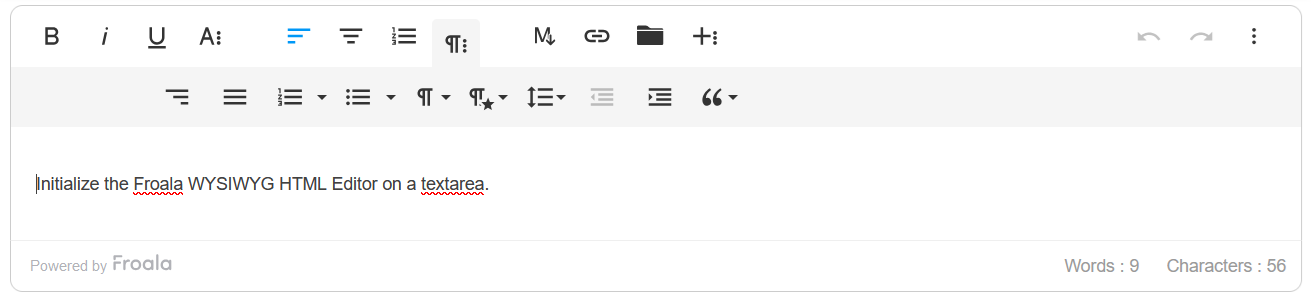
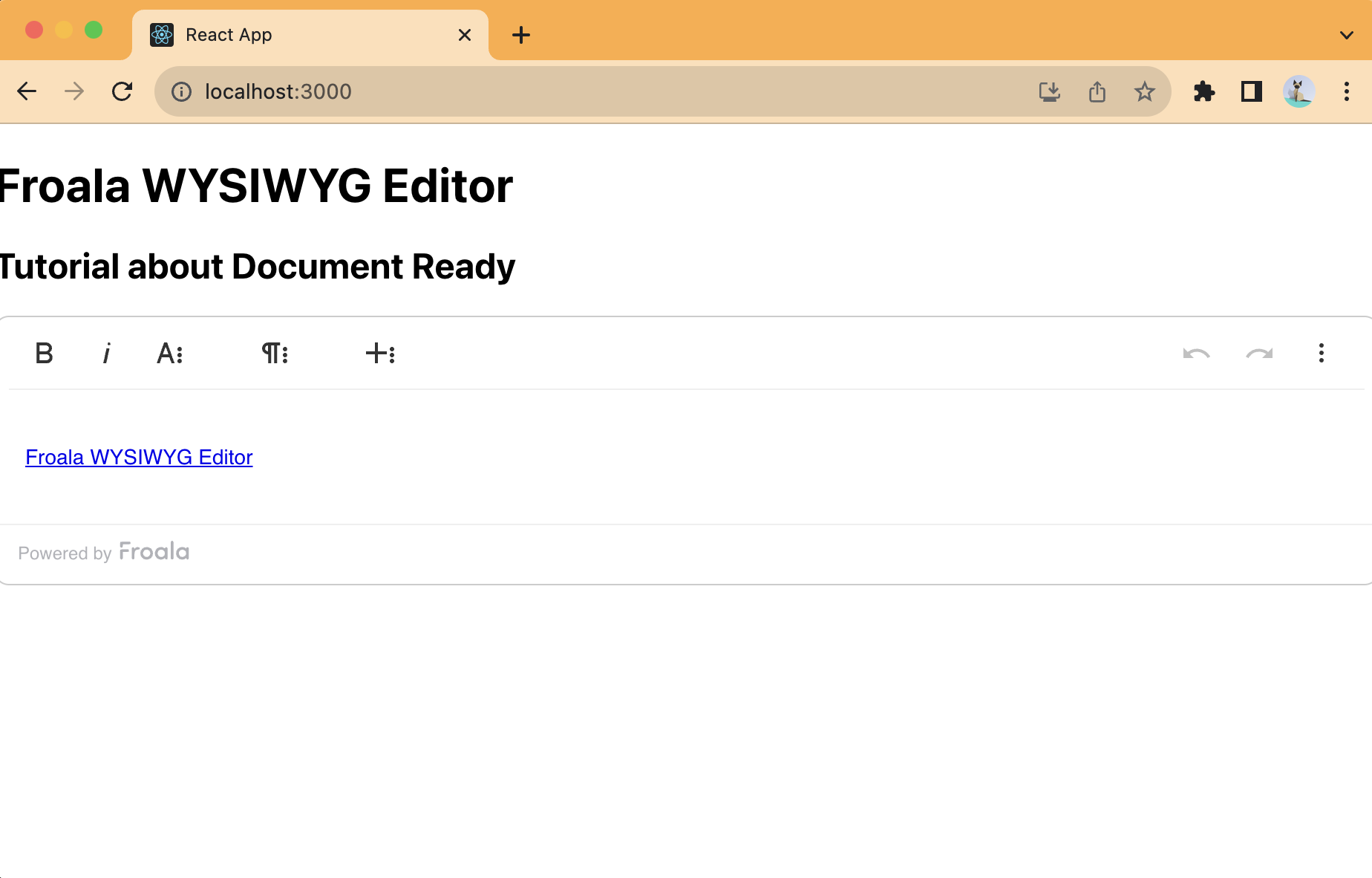
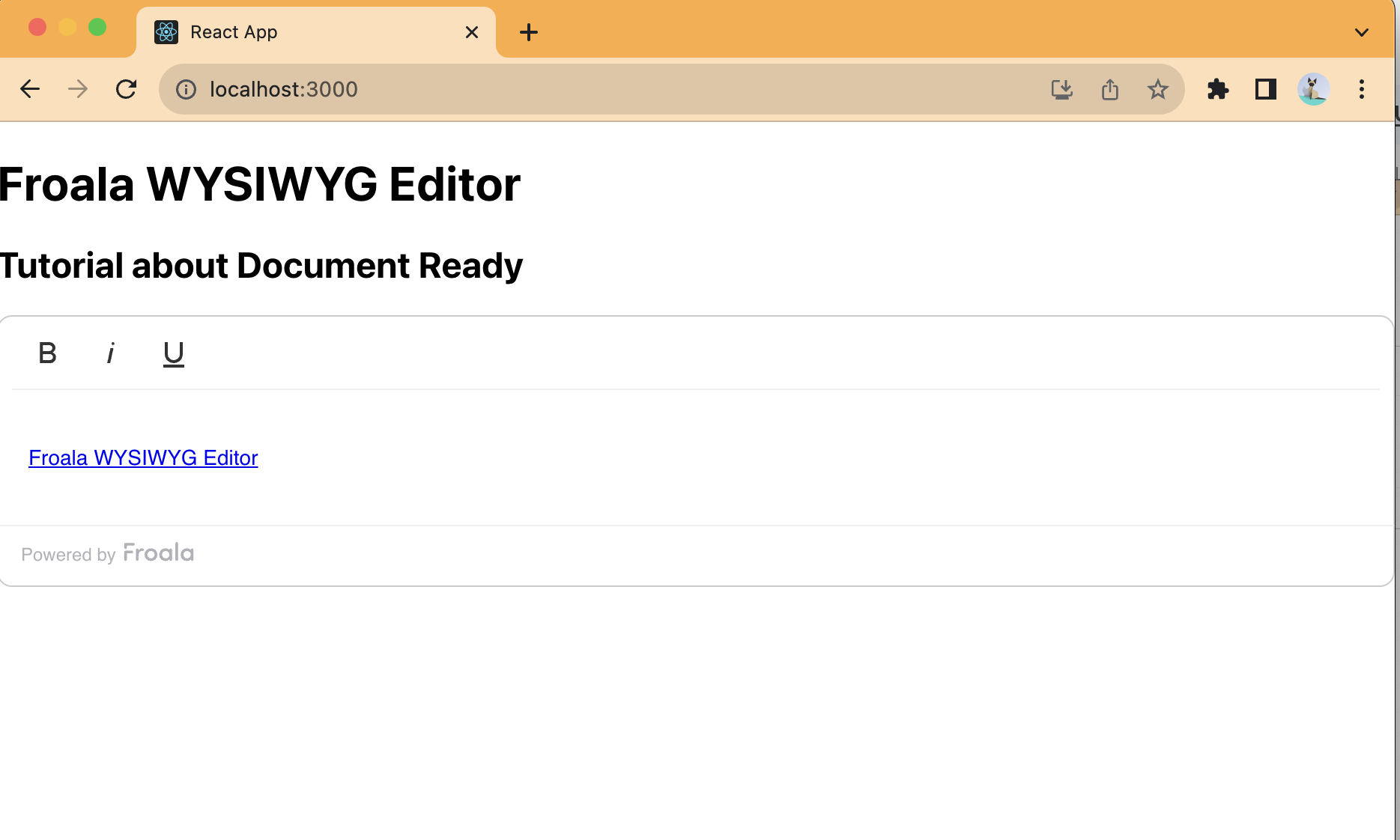
Note the demo offers two ways to use the Froala Editor:

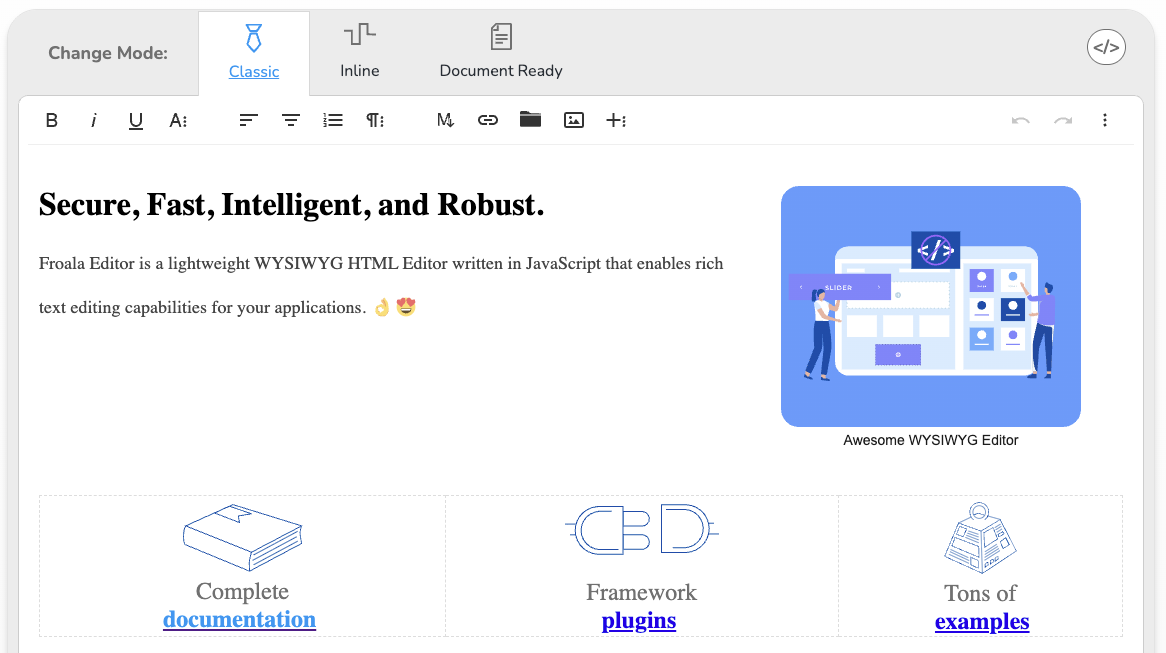
Classic: This is the default behavior.

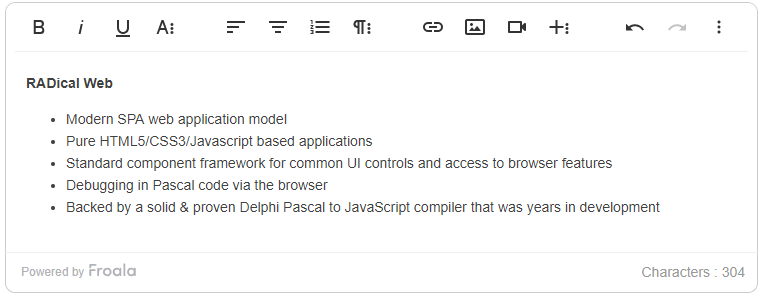
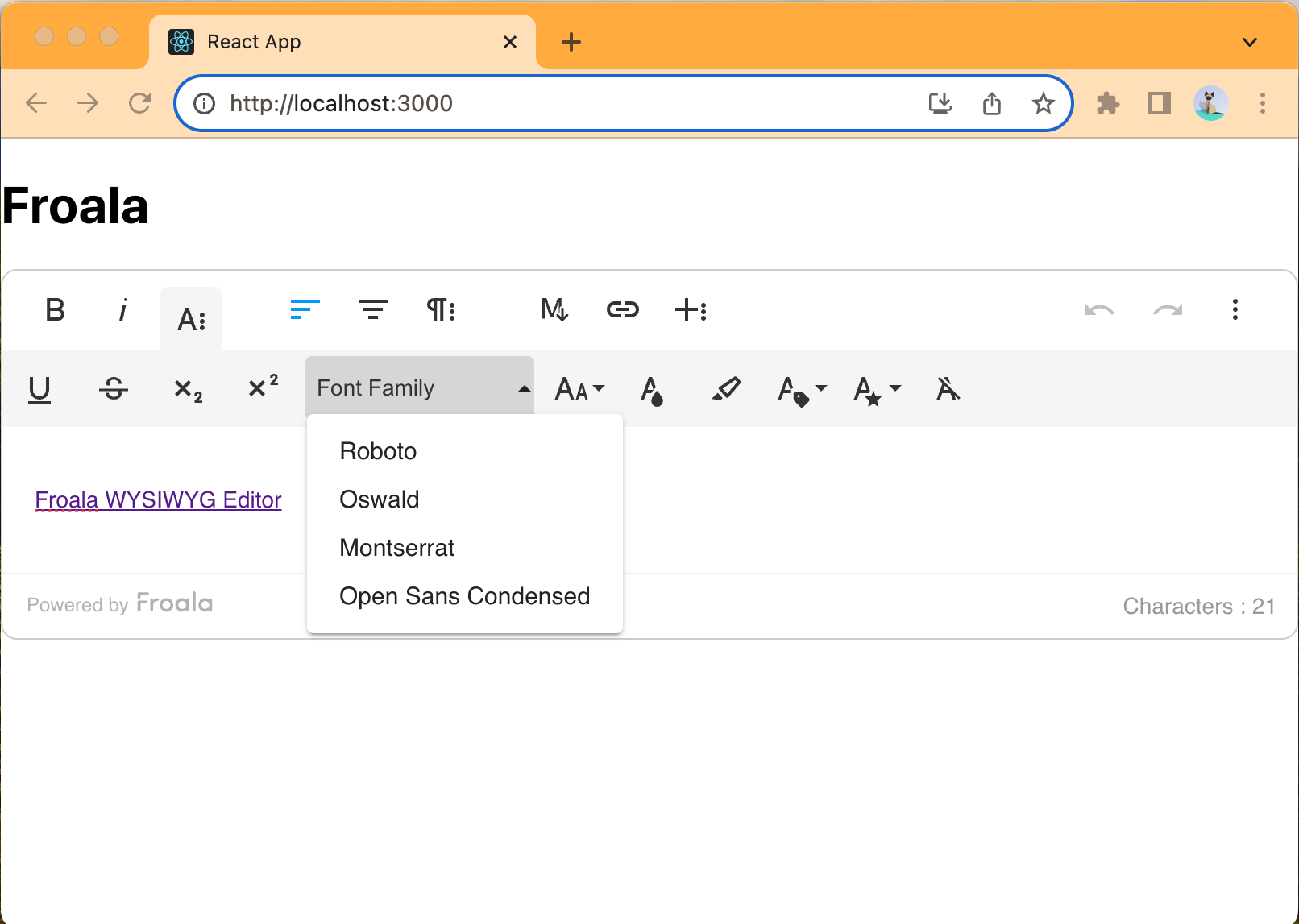
Froala classic editor

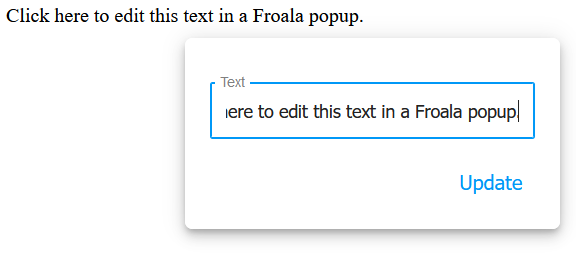
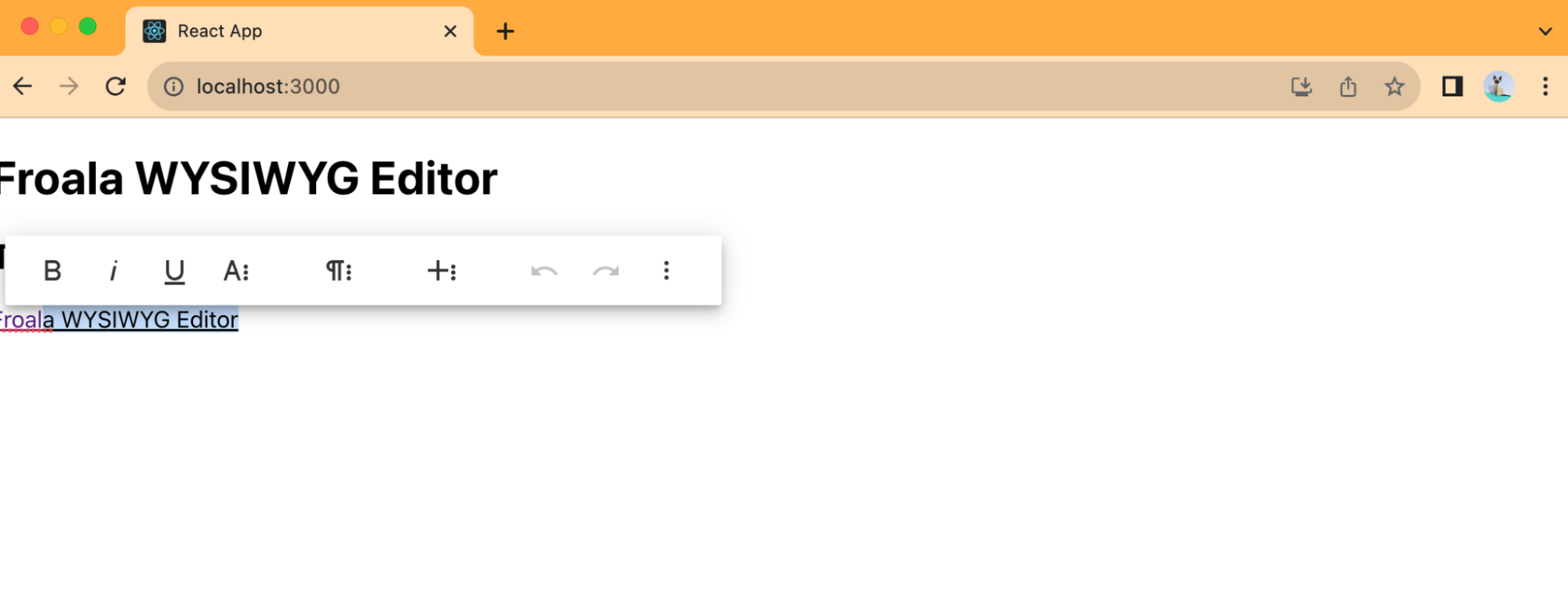
Inline: Show the Editor toolbar upon content selection.

Connect any TWebLabel to the TWebFroalaEditor component to instantly make it editable in the browser.

WebLabel1.EventStopPropagation := [];  
WebFroalaEditor1.Visible := False;  
WebFroalaEditor1.InlineEditing := True;  
WebFroalaEditor1.Editor := WebLabel1;

Froala inline editor

By now, you have learned how to easily add a powerful, customizable WYSIWYG editing experience to your TMS WEB Core Delphi applications, providing your users with an intuitive and efficient way to manage content.

Live Demo

A live demo of the Froala editor integration is available at https://download.tmssoftware.com/tmsweb/demos/froalaeditor/. Explore the editorโ€™s rich text editing capabilities and view the corresponding HTML code and triggered web core event handlers below the editor.

Conclusion

In this guide, we’ve walked through the seamless process of integrating the Froala Editor into your TMS WEB Core Delphi applications. By leveraging the powerful TMSwebFroalaEditor component, you can quickly add rich text editing capabilities to your web applications.

Integrating Froala WYSIWYG HTML Editor with TMS WEB Core allows Delphi developers to create modern, responsive web apps with an intuitive WYSIWYG interface for managing content. With features like inline editing, table manipulation, and responsive video embedding, the Froala Editor provides a top-notch user experience that will delight your end-users.

With the steps outlined in this guide, you now have the knowledge and tools to integrate the Froala Editor into your own TMS WEB Core Delphi projects. By incorporating this powerful integration, you can deliver exceptional content management capabilities and take your Delphi web applications to new heights.

Get started today and elevate your Delphi web development with the TMS WEB Core Froala Editor integration!ย 

FAQs

What is TMS web Core?

TMS WEB Core is a Delphi-based framework for building modern, responsive web applications. It allows developers to create cross-platform web apps using Object Pascal while leveraging standard web technologies like HTML, CSS, and JavaScript, without needing to learn a new programming language.

Does Froala work natively with TMS WEB Core?

Yes. Froala integrates smoothly with TMS WEB Core using the TMSwebFroalaEditor component, allowing Delphi developers to add rich text editing without manually wiring complex JavaScript logic.

Can I use Froala in both classic and inline editing modes with TMS WEB Core?

Yes. The Froala Editor supports both classic and inline modes when used with TMS WEB Core, giving you flexibility to choose how and where content becomes editable in your Delphi web application.

Do I need to host Froala files locally when using TMS WEB Core?

No. While you can host Froala assets locally, you may also use the Froala CDN to load the editorโ€™s CSS and JavaScript files, which simplifies setup and speeds up development.

How to Use Bootstrap: Set Up and Customize in Your Project

Responsive web design layout showing how to use Bootstrap to build modern, mobile-friendly websites across desktop, tablet, and smartphone screens.

Bootstrap is one of the most popular frameworks for building responsive and modern web applications. It’s extensive, modern, and easy to learn, making it suitable for beginners and experts alike.

In this guide, you’ll learn how to use Bootstrap, from installing it through different ways to customizing it to your liking.

You’ll also explore how Bootstrap helps boost developer productivity, including its various UI components, quick setup, and compatibility with modern browsers.

Additionally, you’ll learn about React Bootstrap, a reimplementation of Bootstrap components using React. This open-source, community-maintained project is an alternate way of implementing Bootstrap in React. It’s not official Bootstrap, but it’s perfect for React apps.

Illustration showing how to use Bootstrap to build responsive web layouts across desktop, tablet, and mobile devices.

When developing modern websites and applications, you should also consider using tools that go well with one another. Froala is an HTML editor that synergizes well with Bootstrap. It consists of an intuitive, SEO-friendly, and already responsive interface in addition to powerful editing tools.

Key takeaways

  • Bootstrap makes responsive design easier by offering pre-built UI components, a powerful grid system, and mobile-first styles that work across devices.ย 
  • You can install Bootstrap in multiple waysโ€”via CDN, compiled files, or NPMโ€”depending on your project setup and performance needs.ย 
  • Learning how to use Bootstrap effectively means understanding its components, helpers, utilities, and customization options rather than relying on default styles.ย 
  • Bootstrap is highly customizable using CSS variables, custom CSS, and Sass, allowing you to align the framework with your brandโ€™s colors, fonts, and layout.ย 
  • For modern workflows, Bootstrap integrates well with tools like React Bootstrap and editors such as Froala, helping you build faster, cleaner, and more maintainable web applications.

Before learning how to use Bootstrapโ€ฆ

You might want a refresher on its different components, as well as how to install Bootstrap. If you’re already familiar with these, skip to the next section, where you’ll explore customizing Bootstrap CSS.

Prerequisites & assumptions

Before diving into how to use Bootstrap, this guide assumes the following:

  • Bootstrap version: All examples use Bootstrap 5.x (specifically 5.3+). Class names, utilities, and JavaScript behavior may differ in earlier versions.
  • Project setup: Examples apply to plain HTML projects, as well as React apps using tools like Create React App (CRA), Vite, or similar bundlers.
  • Node.js (optional): If you install Bootstrap via NPM or use Sass, youโ€™ll need Node.js v16 or higher and NPM installed.
  • Compiled files: โ€œCompiled Bootstrap filesโ€ refer to the prebuilt, minified CSS and JavaScript bundles provided by Bootstrap. These are ready to use and do not require a build step.
  • Basic web knowledge: You should be comfortable with basic HTML, CSS, and JavaScript to follow along smoothly.

Understanding Bootstrapโ€™s UI components

To use Bootstrap for building responsive web apps and mobile-first styles, you make use of pre-designed, customizable UI components.

These are essentially themes or styles that you apply to plain HTML elements via the class attribute.

Once the page loads, Bootstrap will then style and design your elements according to the contents of their class attributes.

For example, you can turn a common div element into a navbar by appending the “navbar” class to it. To expand the navbar on larger screen sizes, add “navbar-expand-lg.” If you want a darker theme to it, add the “bg-dark” (as of version 5.x) class.

You can even use different styling classes for one element. Think of these components as makeup or accessories for your elements. Mix and match or use them however you like to beautify and standardize the site contents.

Ultimately, they should make your site look better and consistent across different CSS media queries or screens, including mobile devices.

Each Bootstrap CSS UI component has a specific purpose. Some are for layout, while others are for theming, form design, and individual element styling.

The Bootstrap documentation pages categorize them into the following:

Layout

These are the components that deal with organizing the DOM elements to ensure that the site contents have visual structure and responsiveness.

These usually act as styling for div elements containing elements of their own. Layout concepts include the grid system, full-width containers (which wraps site contents), and breakpoints.

Content

Content components are global styling settings for text, images, tables, and more. This means that by using content components, you can set Bootstrap’s basic styling throughout your plain JS or React projects.

For example, you can use the “img-fluid” class across your images to make them responsive without having to touch CSS properties.

Forms

As the name suggests, this type of component is responsible for styling form elements and input fields.

These UI components include text fields, floating labels, textareas, radio buttons, checkboxes, select fields, and validation classes.

Components

What the Bootstrap docs categorize as “components” refers to pre-built UI components that come with built-in styling and interactivity (e.g., hover or popover events).

Each specific component already has Bootstrap’s consistent styling and JavaScript functionality. However, you can also modify these further using utilities, helpers, and even custom CSS.

These include the bulk of Bootstrap’s components: buttons, navbars, cards, carousels, list groups, and a lot more. Bootstrap’s UI components also include JavaScript plugins such as modals, tooltips, popovers, and collapsibility.
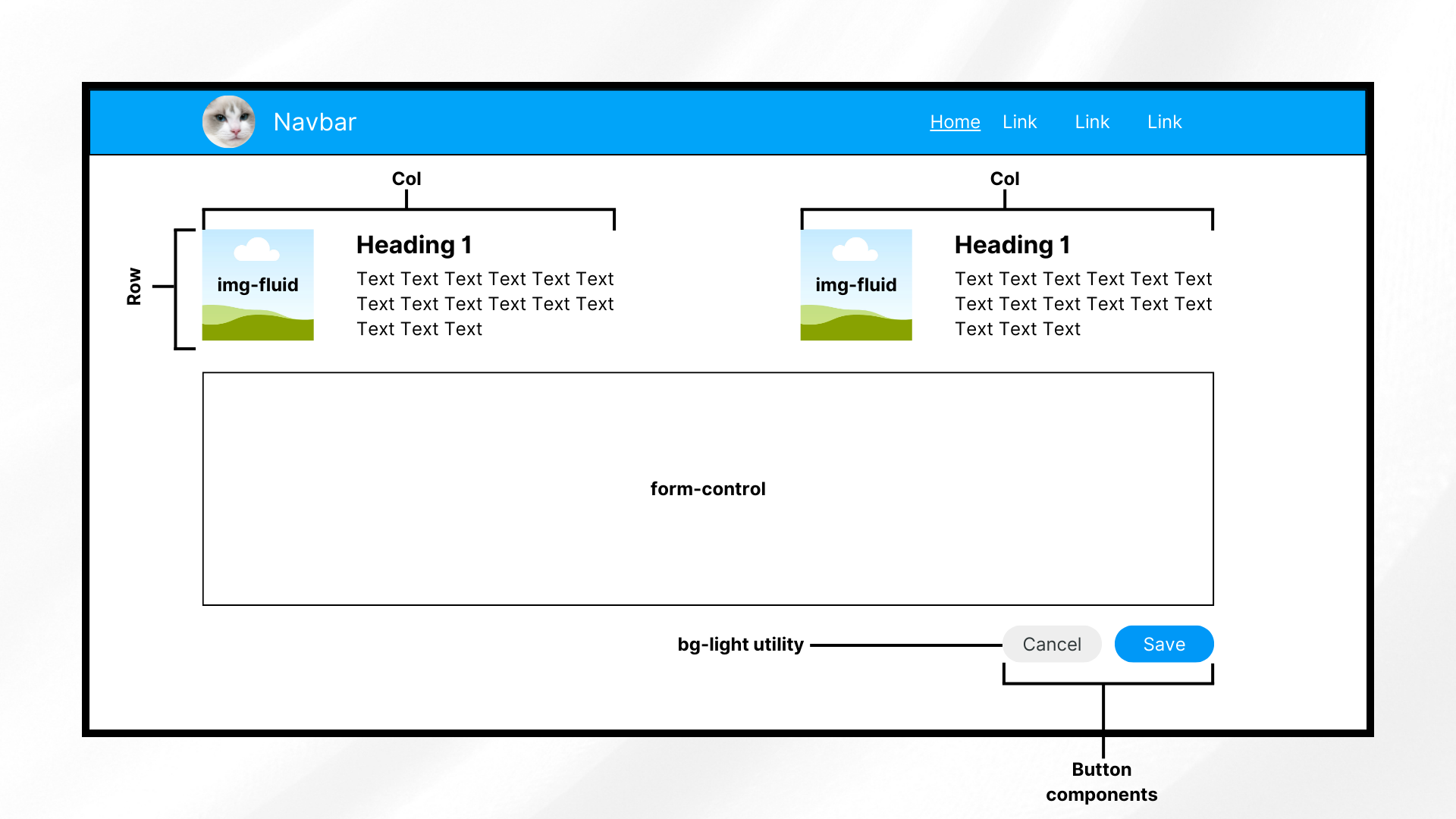
When learning how to use Bootstrap, it's vital to understand how its components work and interact with one another. This image presents a few of these components used together to create a responsive and presentable design.

Helpers

Helpers refer to smaller classes that perform a single function. You usually use these together with other Bootstrap components.

Examples of helpers include colored links, specific component positioning (e.g., “fixed-top,” “sticky-bottom”), text truncation, visually hidden elements (for assistive technologies), and some others.

Utilities

Utilities are general-purpose styling classes for HTML elements. Unlike helpers, they have a broader, more global scope, allowing you to control styling like colors, spacing, and typography. Like helpers, they usually go together with other classes or components.

Examples of Bootstrap utilities include margins, padding, text colors, flex options, shadows, borders, sizing, and more.

Now that you’ve had a refresher, it’s time to install Bootstrap.

Installing Bootstrap

There are different methods for installing the Bootstrap CSS and JS files. Here, you’ll discover some of the most popular ones.

Via compiled Bootstrap CSS and JS

You can install Bootstrap by downloading its ready-to-use codes that include both compiled and minified Bootstrap CSS bundles and JavaScript plugins.

Note that this method does not include documentation, source files, or optional JS dependencies like Popper.

Install Bootstrap via compiled CSS and JavaScript. Include the files that you need in your JS or React app’s folder afterwards. Whether you’re using React or a non-framework setup, the steps for this method are generally the same.

Via the Bootstrap CDN

A quick alternative installation method for Bootstrap is by using the Bootstrap CDN. This method allows you to call a cached version of Bootstrap in your plain JS or React application.

This helps you get started faster and more easily. To add the framework through Bootstrap CDN, include the following code in your index.html file:

<head>
<!--other head items-->
...
<!--Bootstrap 5 CSS-->
<link 	href="https://cdn.jsdelivr.net/npm/bootstrap@5.3.3/dist/css/bootstrap.min.css" rel="stylesheet" integrity="sha384-QWTKZyjpPEjISv5WaRU9OFeRpok6YctnYmDr5pNlyT2bRjXh0JMhjY6hW+ALEwIH" crossorigin="anonymous">
</head>

<body>
<!--other body items-->
<!--Bootstrap 5 JavaScript-->
<script src="https://cdn.jsdelivr.net/npm/bootstrap@5.3.3/dist/js/bootstrap.bundle.min.js" integrity="sha384-YvpcrYf0tY3lHB60NNkmXc5s9fDVZLESaAA55NDzOxhy9GkcIdslK1eN7N6jIeHz" crossorigin="anonymous"></script>
</body>

This gives you the latest delivered version. You can also specify which version of Bootstrap you want in your project by replacing the version number.

If you need interactive components such as tooltips or popovers without using the bundled JavaScript file, you can install Popper explicitly.

Via package manager

The last installation method is installing Bootstrap using NPM. To use this approach, you need Node.js (v16+) and NPM installed.

Open your CLI, navigate to your project directory, and run:

npm install bootstrap@5.3.3

This installs Bootstrap 5.3.3 into the node_modules folder, making it available for JavaScript and React-based projects.

When do you need Popper?

If you plan to use interactive components like tooltips, popovers, or dropdowns without the bundled JavaScript file, install Popper explicitly:

npm install @popperjs/core

For most projects, this extra step is not required. If you import Bootstrapโ€™s bundled JavaScript file, Popper is already included:

import 'bootstrap/dist/css/bootstrap.min.css';
import 'bootstrap/dist/js/bootstrap.bundle.min.js';

This is the recommended setup for React, Vite, and modern JavaScript workflows.

After installation, youโ€™ll see Bootstrap listed in your package.json dependencies.

"dependencies": {
  "bootstrap": "^5.3.3",
  "react": "^18.3.1",
  "react-dom": "^18.3.1"
}


If you’re not using a framework, you’ll generally include the Bootstrap files in your HTML pages, similar to the code below.

<head>
<!--other head items-->
...
<!--Bootstrap 5 CSS-->

<!--If you installed Bootstrap via NPM, use the "node_modules" directory. Otherwise, replace "node_modules" with the path to your Bootstrap CSS-->
<link rel="stylesheet" href="node_modules/bootstrap/dist/css/bootstrap.min.css">

</head>

<body>
<!--other body items-->
<!--Bootstrap 5 JavaScript-->
<script src="node_modules/bootstrap/dist/js/bootstrap.bundle.min.js"></script>
</body>

With this, you should have the ability to use Bootstrap’s components throughout your HTML page (and other pages that use it).

On the other hand, for a React app, import Bootstrap by adding the following code to your “src/index.js” file:

import 'bootstrap/dist/css/bootstrap.min.css';

import "bootstrap/dist/js/bootstrap.bundle.min";

This allows you to use Bootstrap components throughout your React app. Now, let’s dive into styling and customizing your projects using Bootstrap’s grid system and other components.

Bootstrap 5 vs Bootstrap 4: Key differences to know

If youโ€™re coming from Bootstrap 4, a few important changes in Bootstrap 5 can affect how you set up and use the framework:

  • No jQuery dependency
    Bootstrap 5 completely removes jQuery. All JavaScript plugins now use plain JavaScript, reducing bundle size and improving performance.
  • Popper is bundled by default
    In Bootstrap 5, bootstrap.bundle.min.js already includes Popper. You donโ€™t need to install or import it separately for tooltips, popovers, or dropdowns.
  • Separate JS files still exist
    If you prefer more control, Bootstrap 5 also provides individual JavaScript files without Popper. This is useful when you want to manage dependencies manually or reduce bundle size.

These changes make Bootstrap 5 easier to integrate into modern JavaScript frameworks and simpler to use in plain HTML projects.

Basic customization

To understand Bootstrap’s customization capabilities, let’s look into using its grid layout system, color styling, and font styling.

How to use Bootstrapโ€™s grid system

The grid system is a way of laying out HTML elements in terms of rows and columns. By doing so, you ensure that each component containing elements is properly displayed with respect to each other.

Each row takes up its parent’s entire width and has a total of 12 columns, which you can divide in any way you like. For example, if you want three equal-sized columns for a row, you have to change their size to 4 (3 columns x 4 column size = 12 total columns).

On the other hand, each column can have one or more rows. You can also nest these rows and columns together.

Now, let’s test it out by creating a page with a few rectangles. Try creating some rows and dividing them into columns of varying widths. To discern them from each other, add some background colors as well.

To get started, open your file (in this case, index.html) and add the following code:

<!DOCTYPE html>
<html lang="en">

<head>
  <meta charset="UTF-8" />
  <meta http-equiv="X-UA-Compatible" content="IE=edge" />
  <meta name="viewport" content="width=device-width, initial-scale=1.0" />

  <title>How to Use Bootstrap</title>

  <!-- Bootstrap 5.3.3 CSS -->
  <link
    href="https://cdn.jsdelivr.net/npm/bootstrap@5.3.3/dist/css/bootstrap.min.css"
    rel="stylesheet"
    integrity="sha384-QWTKZyjpPEjISv5WaRU9OFeRpok6YctnYmDr5pNlyT2bRjXh0JMhjY6hW+ALEwIH"
    crossorigin="anonymous"
  />
</head>

<body>
  <div class="container-fluid bg-light vh-100">
    <div class="row h-25">
      <div class="col border border-danger text-center">col-12</div>
    </div>

    <div class="row h-25">
      <div class="col-md-6 border border-danger text-center">col-6</div>
      <div class="col-md-6 border border-danger text-center">col-6</div>
    </div>

    <div class="row h-25">
      <div class="col-md-8 border border-danger text-center">col-8</div>
      <div class="col-md-2 border border-danger text-center">col-2</div>
      <div class="col-md-2 border border-danger text-center">col-2</div>
    </div>

    <div class="row h-25">
      <div class="col-md-2 border border-danger text-center">col-2</div>
      <div class="col-md-2 border border-danger text-center">col-2</div>
      <div class="col-md-2 border border-danger text-center">col-2</div>
      <div class="col-md-2 border border-danger text-center">col-2</div>
      <div class="col-md-2 border border-danger text-center">col-2</div>
      <div class="col-md-2 border border-danger text-center">col-2</div>
    </div>
  </div>

  <!-- Bootstrap 5.3.3 JS bundle (includes Popper) -->
  <script
    src="https://cdn.jsdelivr.net/npm/bootstrap@5.3.3/dist/js/bootstrap.bundle.min.js"
    integrity="sha384-YvpcrYf0tY3lHB60NNkmXc5s9fDVZLESaAA55NDzOxhy9GkcIdslK1eN7N6jIeHz"
    crossorigin="anonymous"
  ></script>
</body>
</html>

First, add Bootstrap (in this case, through Bootstrap CDN). Next up, create a div element with the class “container-fluid,” which wraps site contents in a full-width container.

If you prefer something narrower than a full-width container, use “container” instead.

We also add the “bg-light” and “vh-100” classes to the wrapper. The former is simply for adding a touch of color, while the latter makes the container span the entire height of the screen.

Afterwards, create four rows of equal height (“h-25” allows a row to take up a fourth, or 25%, of the parent element’s height).

Finally, create as many as twelve columns for each row. How you divide it is up to you, but in the example above, you have:

  • 1-column row: The first row only has one column. You can use either “col” or “col-12” to allow a column to take up the entire width of the row.
  • 2-column row: The second row has two equal-length columns. Hence, each column has the “col-md-6” class.
  • 3-column row (unequal lengths): The third row has three columns of varying sizes. The first one is longer (8 columns long), while the other two have an equal length of 2. How you divide the row is up to you, but the total columns per row should be 12.
  • 6-column row: The fourth row has six columns of size 2.

To better discern the columns, add a border to each of them by appending the “border border-danger” classes.

The “border” (as the name suggests) class adds a border to an element, while the “border-danger” one adds Bootstrap’s red theme color to it.

Run the application, and you should see the following screen:
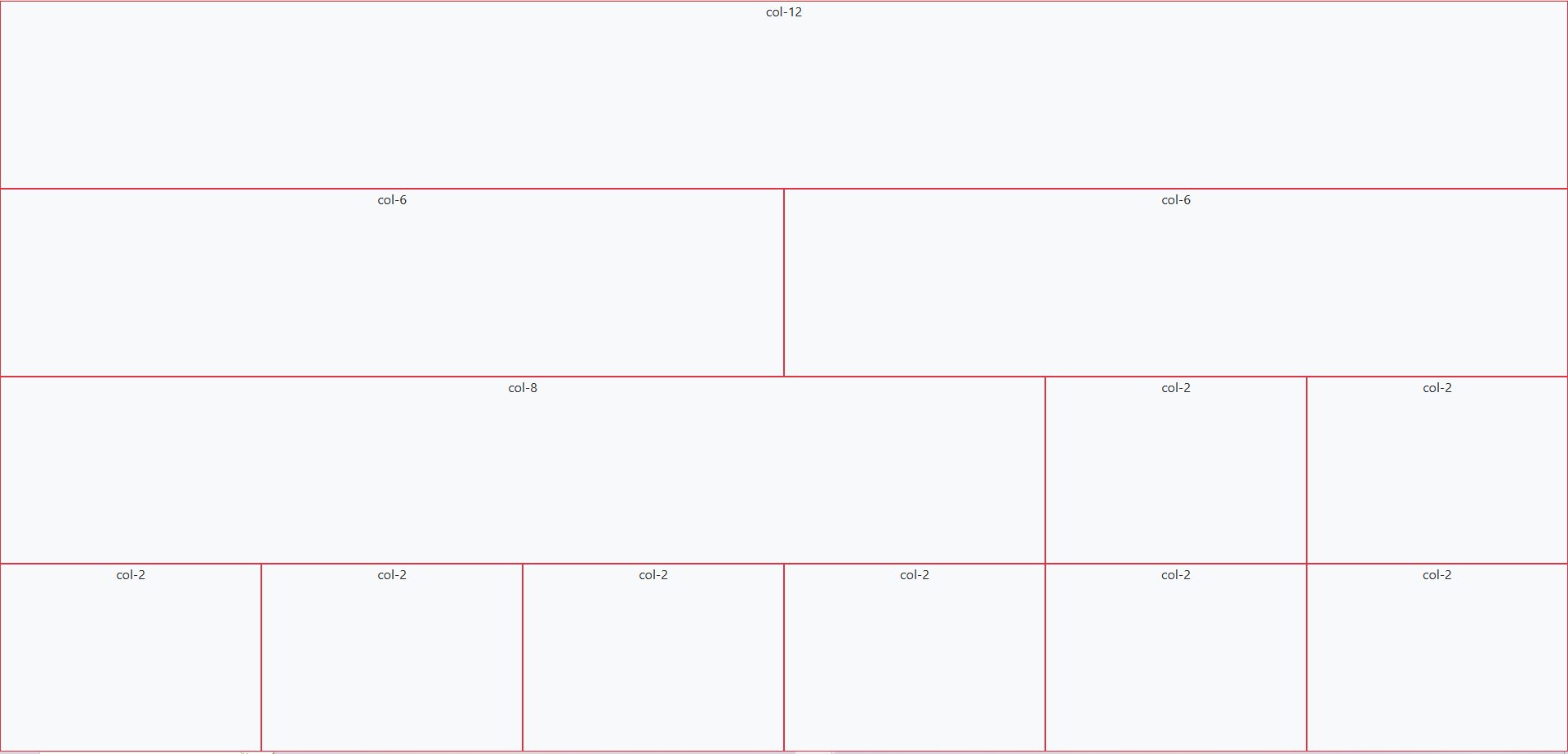
A sample application powered by Bootstrap. This screen contains 4 rows with different columns each. All columns have a reddish border color from Bootstrap's border-danger class.

Now, let’s try customizing Bootstrap’s default colors and fonts with some custom CSS.

How to customize colors and fonts

You can override Bootstrap’s default settings with custom CSS and Bootstrap 5.

Bootstrap 5 defines prebuilt CSS variables (–bs-*) for colors, typography, spacing, and more. These variables make overriding Bootstrap styles easier without modifying Bootstrap’s core files.

Overriding these CSS variables changes all elements that use Bootstrap’s default styles to follow your theme, colors, and fonts.

For instance, create a CSS file, include it in your HTML, and insert the following lines of code:

:root {
    --bs-light: #eeeeee;
    --bs-danger: #01a4f9;
    --bs-body-font-family: 'Roboto', sans-serif;
}

.bg-light {
    background-color: var(--bs-light) !important;
}

.border-danger {
    border-color: var(--bs-danger) !important;
}

The code above defines some CSS variables (e.g., –bs-light) for changing the colors of the “light” and “danger” properties. Moreover, it also changes the default font into “Roboto.”

Note that the colors this code is using are significantly different from the default (whitish gray to slightly darker gray, red to light blue).

Afterwards, the code uses these CSS variables for the “background-color” and “border-color” properties. Now, if you run the application, you should see:
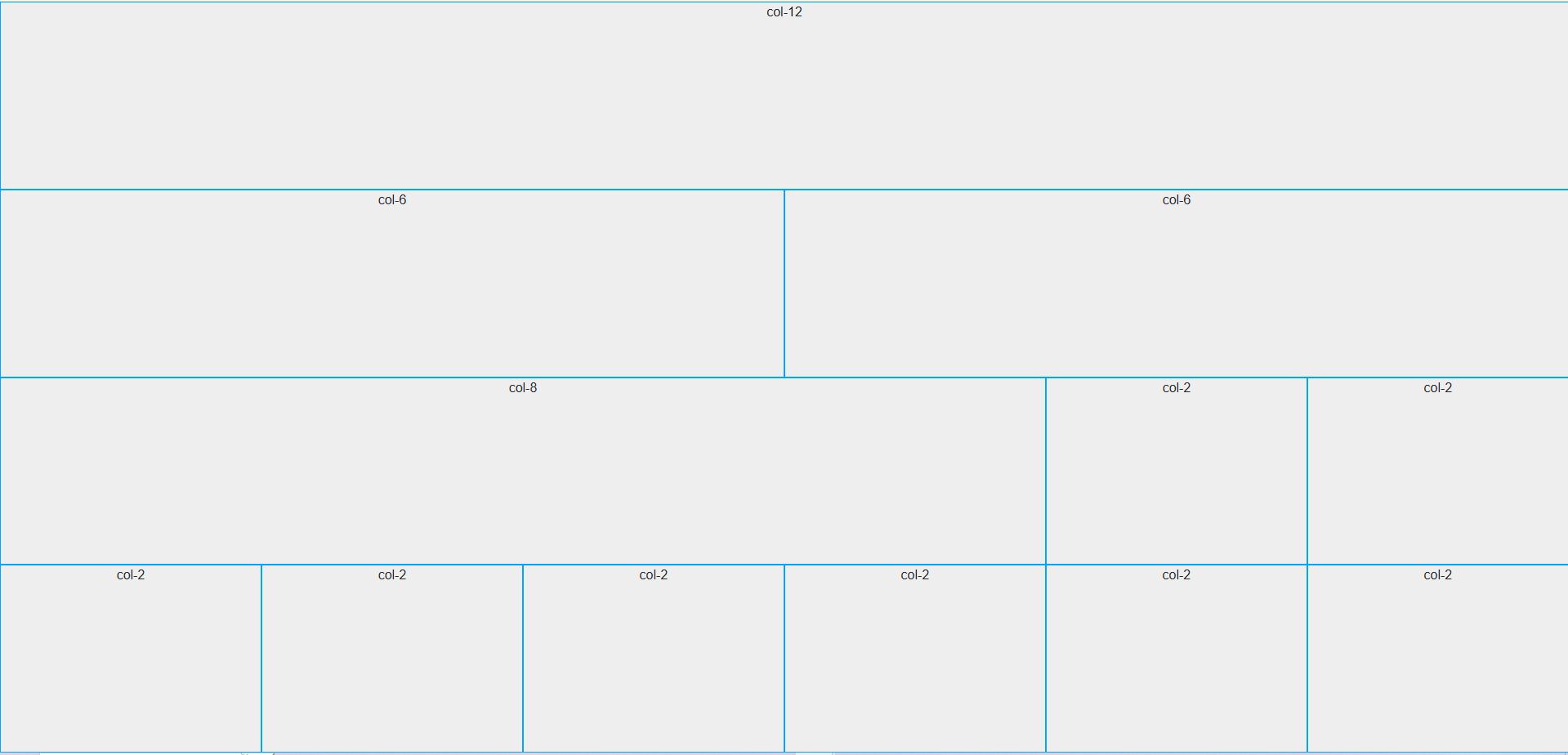
In our grid example, the border color has changed into a lighter shade of blue. Additionally, the background color is now a darker gray, and the font family is different.

In addition to colors and fonts, you can also use CSS to customize buttons, navbars, forms, dropdown menu, and other components by using the “!important” keyword. This overrides Bootstrap’s default properties.

In summary, to integrate your color scheme and typography, define CSS variables to change the default colors and fonts to your theme’s. Afterwards, you can use these variables across your CSS file together with the “important” keyword.

Now, let’s move into the more advanced Bootstrap customization techniques.

Advanced customization techniques

If you want to go beyond basic CSS customization for Bootstrap, you should try using both Bootstrap JS plugins and Sass.

JS plugins add a bit of animation and interactivity to your components, improving the UX. Sass, on the other hand, provides a more organized way of customizing styles, making it perfect for theming.

Modifying Bootstrap components with Sass

Sass (Syntactically Awesome Stylesheets) is a CSS preprocessor that allows you to write cleaner styles more efficiently. The Bootstrap framework is built on Sass, which means that you can easily customize its components and styles to match your needs.

The best part is you don’t have to manually override styles using CSS like we did in the previous section.

Note: Sass requires that you get the entire library using NPM or local installation. Bootstrap Sass won’t work if you’re using the CDN.

Let’s start setting up Sass. First, go to your project directory and run the following line:

npm install -g sass

This command installs the Sass compiler in your directory, allowing you to use Sass commands.

Afterwards, create a new folder in your root and name it “scss” or something similar. In this new folder, create a file called “custom.scss.”

Here, you’re creating your own stylesheet that imports Bootstrap instead of modifying Bootstrap’s core files. This is because Bootstrap does not recommend modifying its core files.

Open your “custom.scss” file and add the following lines:

$light: #eeeeee;
$danger: #28a745;

$font-family-base: 'Roboto', sans-serif !default;

@import "../node_modules/bootstrap/scss/bootstrap";

Here, you’re defining new colors for the “light,” “danger,” and “font-family-base” CSS properties. This step is similar to what you did in the previous section, albeit easier. This code also uses a different “danger” color from earlier.

Lastly, import the Bootstrap components at the end of the SCSS file. Bootstrap recommends importing only what you need, but for simplicity, the code above imports the entire library.

Afterwards, in your CLI, move up to the “scss” folder and run the following line:

sass custom.scss custom.css

This command essentially tells the Sass compiler to compile our “custom.scss” file into CSS, specifically with the filename “custom.css.” Afterwards, you should see the newly generated “custom.css” file in your “scss” folder.

For the next step, since you’re creating your own stylesheet that imports Bootstrap, you won’t need the Bootstrap CSS link in your HTML file anymore. In your index.html, replace the head contents with:

<head>
    <meta charset="UTF-8" />
    <meta http-equiv="X-UA-Compatible" content="IE=edge" />
    <meta name="viewport" content="width=device-width, initial-scale=1.0" />

    <title>Sample Bootstrap App</title>
    <!--<link rel="stylesheet" href="node_modules/bootstrap/dist/css/bootstrap.min.css">-->
    <!--<link href="styles.css" rel="stylesheet">-->
    <link rel="stylesheet" href="scss/custom.css">
</head>

Note that the previous links (to the Bootstrap files and the custom stylesheet) are now commented so that you can use the new CSS file that you compiled from SCSS beforehand.

Run the application, and you should see the following changes:
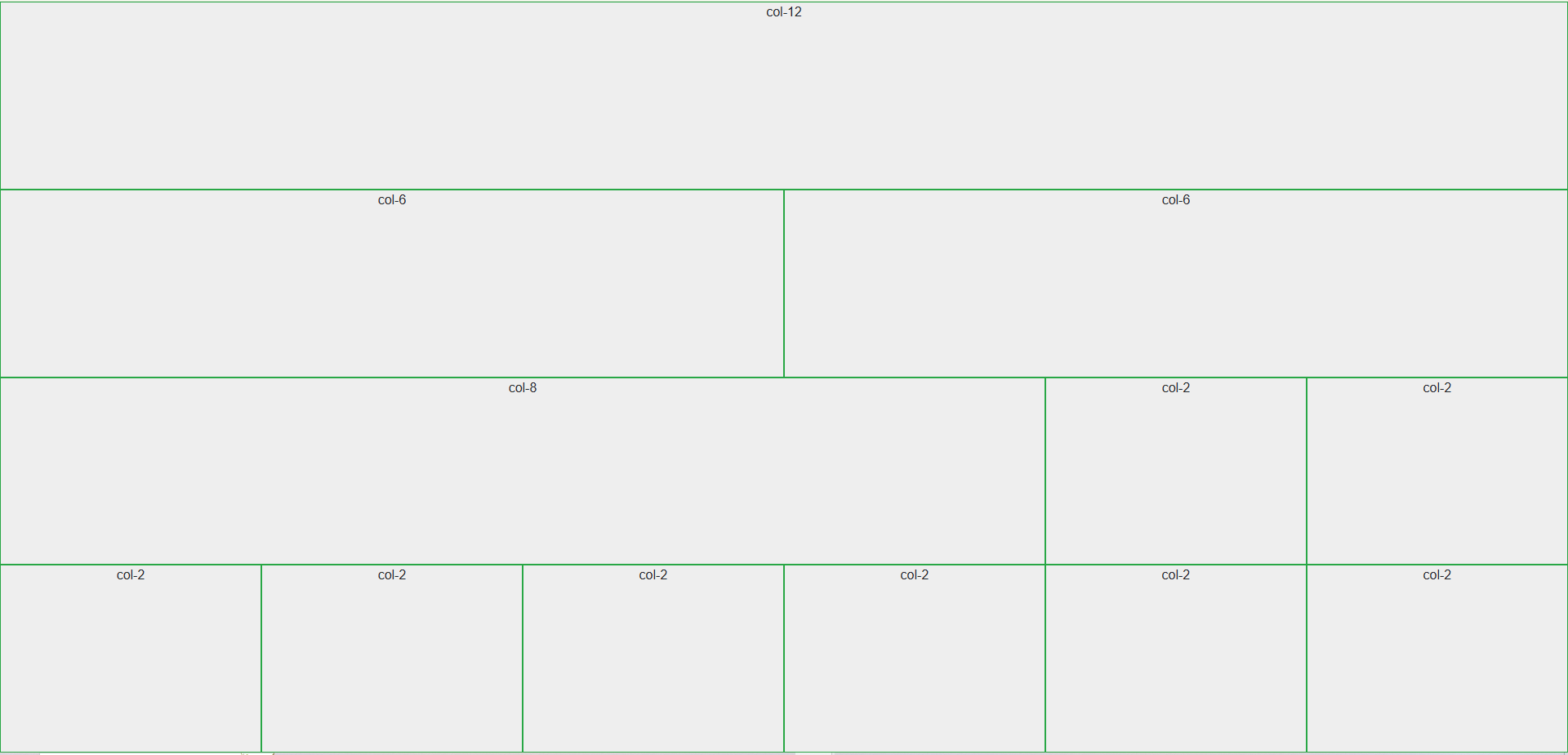
After creating an SCSS file, compiling it into CSS, and using it, we are able to achieve the same effect of customizing Bootstrap, but in an easier manner.

Using Bootstrapโ€™s JavaScript Plugins

Bootstrap provides different JavaScript plugins to add interactivity and animation to your projects. These JS plugins include:

  • Modal: These are pop-up dialogs that you can use to display information, policies or terms of use, and forms. These usually include a title, body, and footer.
  • Tooltips & Popovers: Plugins that show additional information on mouse hover (tooltips) or click (popovers). These can have either only text or a pair of title and text.
  • Toast: Use these when you want to display stylized notifications easily. These also typically include a header and a body.
  • Collapse: Plugins that create toggleable elements. These keep the application looking clean, hiding and showing elements that could clutter the display on smaller screens.
  • Carousel: These are responsive image sliders. They usually come with a title, body, image, and a pair of “next” and “previous” buttons for going through the media files.

Let’s try using a tooltip and popover. In your index.html file, pick any column from any row and add the following lines of code:

<button type="button" class="btn btn-danger text-white" data-bs-container="body" data-bs-toggle="popover" data-bs-placement="top" data-bs-content="This popover appears at the top of the button.">
     Click Me!
</button>

<button type="button" class="btn btn-info text-white" data-bs-toggle="tooltip" data-bs-placement="right" data-bs-title="This tooltip appears at the right side of the button.">
     Hover over me!
</button>

This code adds two buttons: one for triggering the popover event and another for the tooltip event. Specify the type of data toggle using the “data-bs-toggle” property, then specify the placement of the tooltip and popover.

Afterwards, after the Bootstrap script near the bottom of the body, add the following lines:

<script>
        const popoverTriggerList = document.querySelectorAll('[data-bs-toggle="popover"]');
        const popoverList = [...popoverTriggerList].map(popoverTriggerEl => new bootstrap.Popover(popoverTriggerEl));

        const tooltipTriggerList = document.querySelectorAll('[data-bs-toggle="tooltip"]');
        const tooltipList = [...tooltipTriggerList].map(tooltipTriggerEl => new bootstrap.Tooltip(tooltipTriggerEl));
</script>

What this code does is initialize both the popover and tooltip trigger lists, enabling them for the page. Run the application to see the two new buttons that show a tooltip when hovered and a popover when clicked:
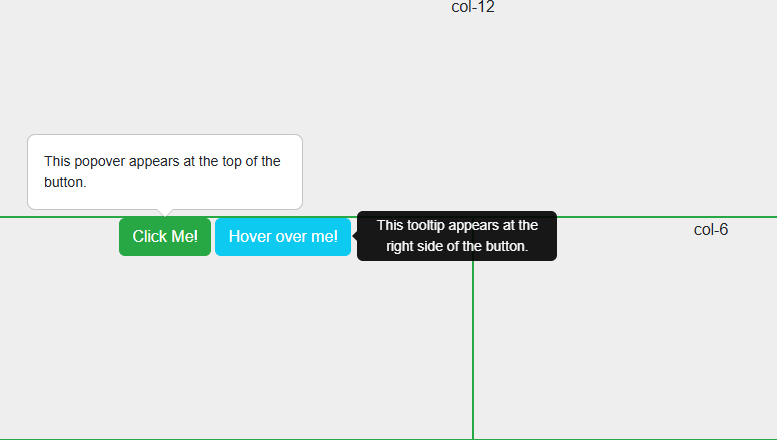
This image demonstrates Bootstrap's popover and tooltip components. It shows two buttons: one for displaying a popover on click and another for displaying a tooltip on hover.

These components are already cool, but you can take it up a notch by customizing them further using data attributes and JavaScript.

For example, you can use data attributes to change the behavior of the popover button, shown in the code below:

<button type="button" class="btn btn-danger text-white"
     data-bs-container="body"
     data-bs-toggle="popover"
     data-bs-placement="top"
     data-bs-config='{"animation": false, "delay": {"show": 500, "hide": 100}}'
     data-bs-content="This popover appears at the top of the button.">Click Me!</button>

This removes Bootstrap’s default animation for the popover. Instead, it will show the popover after 500ms without the fade-in effect. Note that to use the “data-bs-config,” you need to modify your popover and tooltip script into something like:

document.addEventListener("DOMContentLoaded", function () {
    const popoverTriggerList = document.querySelectorAll('[data-bs-toggle="popover"]');

    popoverTriggerList.forEach((popoverTriggerEl) => {
        const config = JSON.parse(popoverTriggerEl.getAttribute("data-bs-config"));
        new bootstrap.Popover(popoverTriggerEl, config);
    });

    const tooltipTriggerList = document.querySelectorAll('[data-bs-toggle="tooltip"]');
    tooltipTriggerList.forEach((tooltipTriggerEl) => {
        new bootstrap.Tooltip(tooltipTriggerEl);
    });
});

On the other hand, you can use JavaScript to change the behavior of the plugins. For instance, to dynamically update the tooltip options, replace the tooltip script with:

document.addEventListener("DOMContentLoaded", function () {
            const tooltipTriggerList = document.querySelectorAll('[data-bs-toggle="tooltip"]');

            tooltipTriggerList.forEach((tooltipTriggerEl) => {
                const tooltip = new bootstrap.Tooltip(tooltipTriggerEl);

                tooltipTriggerEl.addEventListener("mouseenter", function () {
                    tooltip.setContent({ '.tooltip-inner': "New Tooltip Text!" });
                    tooltip.update();
                });
            });
});

This code dynamically replaces the contents of the tooltip on DOM load.

That’s all we need to discuss in this article about using Bootstrap’s most common features. But before you go, why not talk about another suitable Bootstrap implementation for React apps?

Common Bootstrap errors & how to fix them

Even when you know how to use Bootstrap, a few common setup issues can cause components to break or behave unexpectedly. Here are the most frequent problems developers run into, and how to fix them quickly.

1. Tooltips or popovers not working

Problem: Tooltips, popovers, or dropdowns donโ€™t appear when expected.
Cause: Bootstrapโ€™s JavaScript plugins require manual initialization.
Fix: Ensure you initialize them after the DOM loads:

document.addEventListener("DOMContentLoaded", function () {

ย ย document.querySelectorAll('[data-bs-toggle="tooltip"]').forEach(

ย ย ย ย el => new bootstrap.Tooltip(el)

ย ย );

});

Also confirm youโ€™re using bootstrap.bundle.min.js, which includes Popper.

2. JavaScript imported twice

Problem: Modals open twice, animations behave oddly, or console warnings appear.
Cause: Bootstrap JS is loaded more than once (e.g., via CDN and NPM).ย 

Fix: Import Bootstrap JavaScript only onceโ€”either:

  • via CDN or
  • via NPM/bundler (import ‘bootstrap/dist/js/bootstrap.bundle.min.js’)

Never mix both approaches in the same project.

3. Missing Popper (older Bootstrap versions)

Problem: Dropdowns or popovers fail in Bootstrap 4 or earlier.
Cause: Popper.js is required but not included.
Fix:

  • For Bootstrap 5: Always use bootstrap.bundle.min.js (Popper included).
  • For Bootstrap 4: Add Popper manually before Bootstrap JS.

4. Styles not applying as expected

Problem: Bootstrap classes appear correct, but styles donโ€™t apply.
Cause: Custom CSS overrides Bootstrap unintentionally.
Fix:

  • Check CSS load order (Bootstrap first, custom CSS after).
  • Avoid overusing !important.
  • Use Bootstrap utility classes before writing custom overrides.

5. Components not responsive

Problem: Layout breaks on mobile or tablet screens.
Cause: Missing viewport meta tag or incorrect grid usage.
Fix: Ensure this tag exists in your <head>:

<meta name="viewport" content="width=device-width, initial-scale=1">

Also, verify correct breakpoint classes (col-md-*, col-lg-*, etc.).

React Bootstrap: an alternative for React apps

Bootstrap, as it is, works well with React apps. But if you want something that works more like React, then you should consider using React Bootstrap. Let’s quickly explore what it is and what makes it different below.

What is React Bootstrap?

React Bootstrap is a popular front-end framework from an open-source community. Although not officially from the Bootstrap team, it is perfect for React apps because it doesn’t rely on direct DOM manipulation.

Instead, it’s built on React components, ensuring better compatibility with React’s virtual DOM and state management. So, instead of using syntax like “<button class=’btn btn-primary’>…,” you would use something like “<Button variant=’primary’>Primary</Button>.”

Key differences between traditional and React Bootstrap

  • Component-based Approach: React Bootstrap provides pre-built React components like <Button> and <Form> instead of using HTML and class-based Bootstrap components.
  • No jQuery Dependency: Bootstrap 4 required jQuery for some interactive features. Bootstrap 5 removes this dependency and uses plain JavaScript instead. On the other hand, React Bootstrap relies on React itself, reducing unnecessary dependencies.
  • Better Integration with React Apps: React Bootstrap components support props, state management, and lifecycle methods, allowing more flexibility to ensure proper rendering.

Best practices for using Bootstrap

Using Bootstrap is easy, even if you are a beginner. However, beginner or not, developers should always research and consider the best practices when using Bootstrap. By doing so, you can avoid future headaches like security breaches, obsolescence, and performance issues.

Here are two important things to consider for Bootstrap:

Keep Bootstrap updated

Regularly updating Bootstrap ensures access to the latest features, performance improvements, and security patches. Outdated versions may have vulnerabilities or lack support for modern web standards.

Just be sure to check the documentation pages first before updating to the latest. Bootstrap could change some syntax on their next update, possibly breaking some existing code if not thoroughly checked. For example, “text-start” and “text-end” used to be “text-left” and “text-right” a few years ago.

Optimize Bootstrap for performance

  • Minimize CSS and JS files: Use only the necessary Bootstrap components by customizing builds. You can also use other third-party tools to help remove unused styles.
  • Use only necessary components: As briefly stated earlier, instead of importing the entire Bootstrap library, import individual components to reduce bundle size and improve loading times.

Conclusion

And that’s it! You now have some basic understanding of how Bootstrap works. Additionally, youโ€™re now equipped to customize it to suit your applications.

Experimenting with different customization options will help tailor Bootstrap to specific project needs.

So, how do you find Bootstrap so far? Did you play around with the different components and customization settings? Share your experiences and tips on using Bootstrap in the comments!

FAQs

1. How do beginners start learning how to use Bootstrap?

Beginners can start learning how to use Bootstrap by adding it via the Bootstrap CDN and experimenting with the grid system, utility classes, and common components like buttons and cards.

2. Do I need JavaScript to use Bootstrap effectively?

No. You can use Bootstrapโ€™s layout, grid, and styling features without JavaScript. JavaScript is only required for interactive components like modals, tooltips, and dropdowns.

3. What is the best way to customize Bootstrap for real projects?

For simple projects, custom CSS and CSS variables are enough. For larger projects, using Bootstrap with Sass via NPM provides better control and scalability.


Adding Rich Text Editor Support For Contact Form 7 WordPress Plugin

rich-text editor for contact form 7

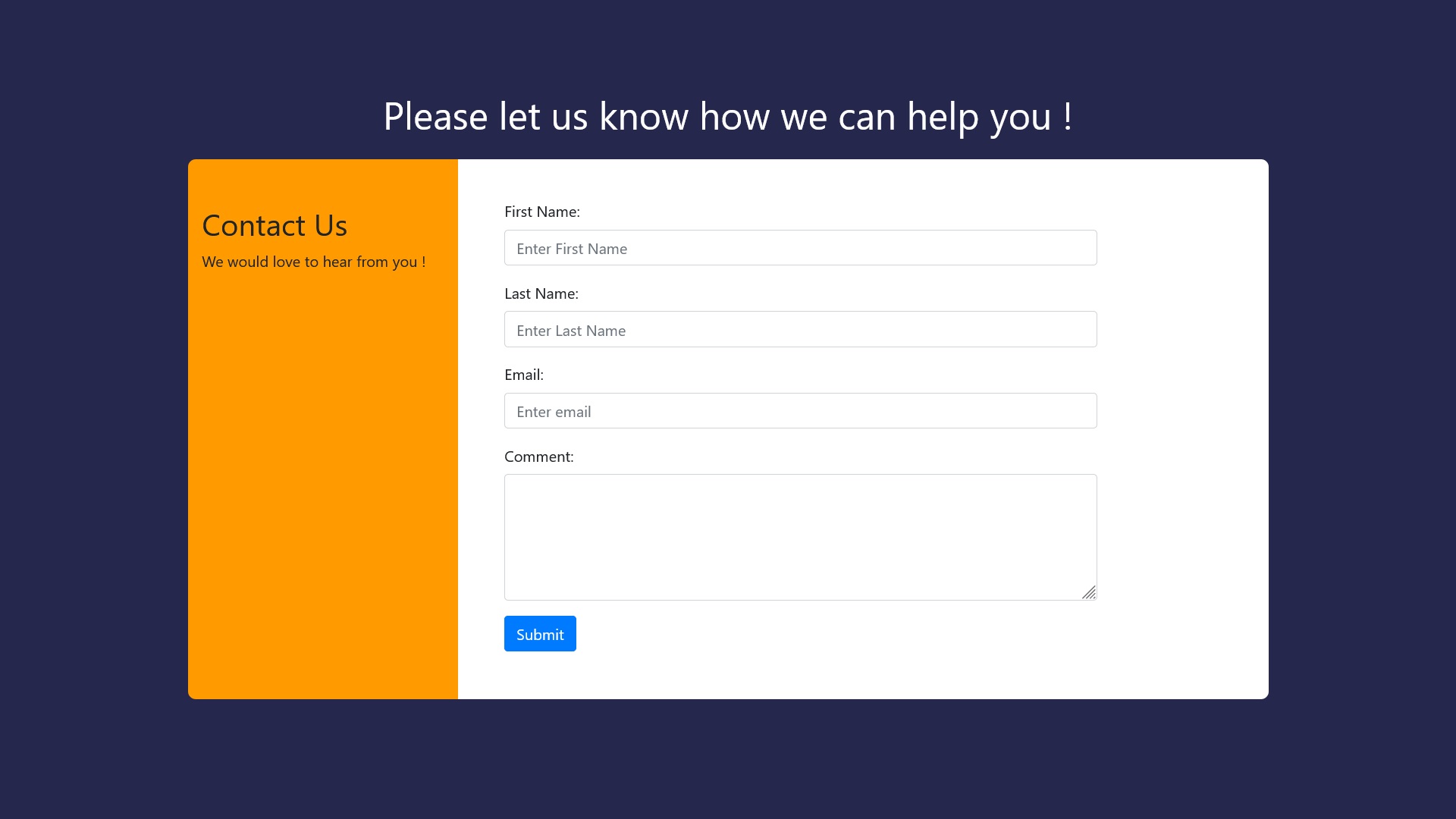
Would you like to allow users to submit formatted content through your Contact Form 7 forms instead of plain text? This guide explains step-by-step how you can integrate a rich-text editor for Contact Form 7 using the Froala WordPress content editor.

What Is Contact Form 7?

Contact Form 7 is one of the most popular form-building plugins used by millions of WordPress websites worldwide. It’s incredibly reliable and powerful for creating simple to advanced forms.

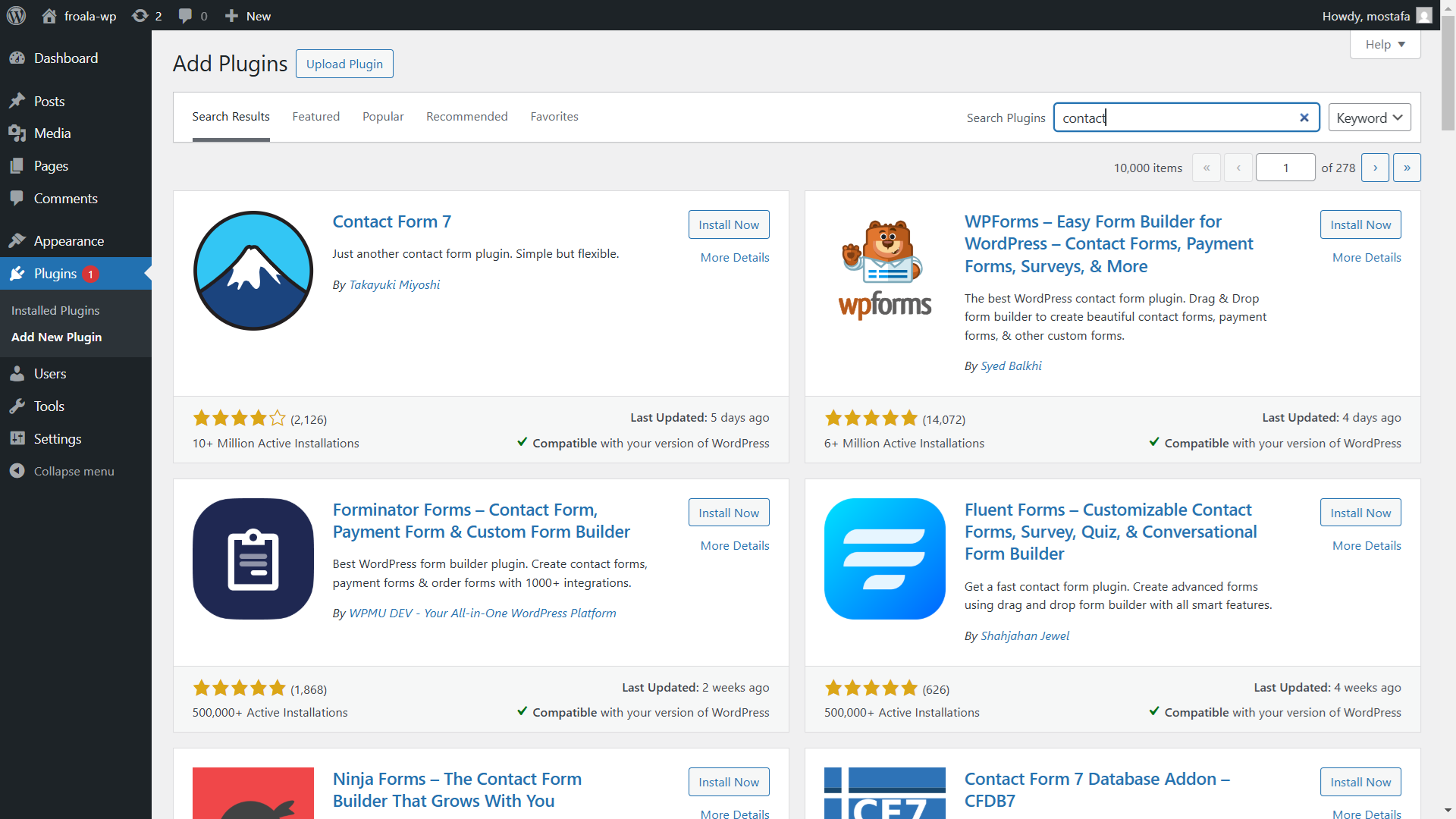
Contact form 7

But there’s one limitationโ€”its default text area fields only allow plain text submissions. This means users can’t include HTML tags like bold text, italics, headings, or any other visually appealing formatting.

That’s where adding a rich text editor like Froala can greatly improve the user experience and allow your forms to accept visually engaging, formatted submissions.

Why Add a WordPress Content Editor to Contact Form 7?

By adding a rich text editor field, you’ll significantly enhance your user’s experience. Contributors to your forms will now be able to easily provide complex content using the wordpress editor. Instead of receiving boring plain text submissions, you’ll get nicely formatted messages including headings, bold text, italicized text, and lists.

This improvement can make submissions easier to read, more organized, and visually appealing, potentially boosting your engagement and conversion rates. Your WordPress site and your email communications will both look more professional and polished.

Creating a Rich Text Editor Field for Contact Form

Let’s get started! Follow these easy steps to add the feature to your form:

Step 1: Setting Up Your Contact Form

  • In your WordPress dashboard, navigate to Contact Form 7 under the plugins menu.
  • Either create a new form or select an existing contact form to edit.
  • You might already have something like this in your form template:
<label> Your name
    [text* your-name autocomplete:name] </label>

<label> Your email
    [email* your-email autocomplete:email] </label>

<label> Subject
    [text* your-subject] </label>


[submit "Submit"]

Step 2: Adding a Rich Text Editor Field for Contact Form

Now let’s add the new Froala-powered rich text editor field:

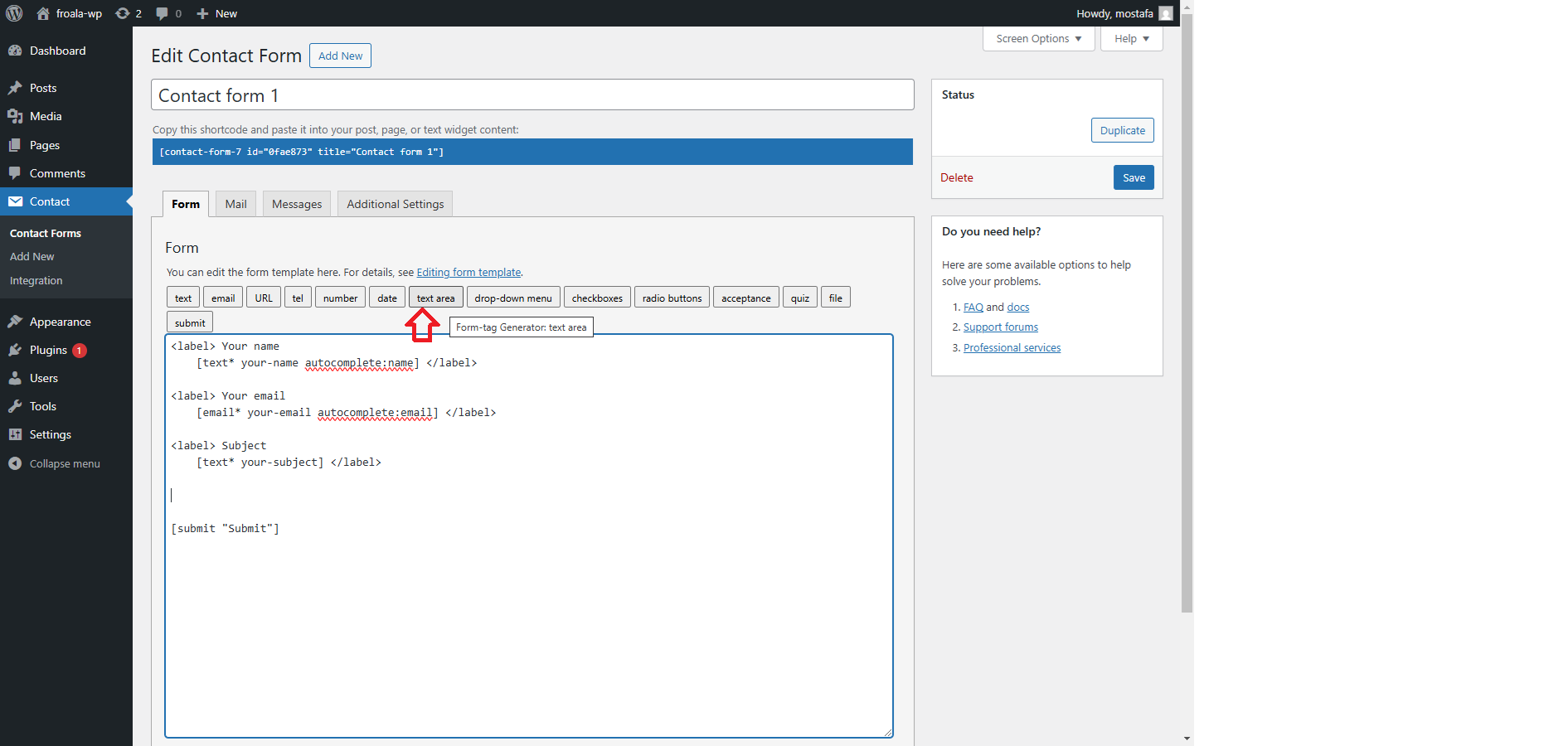
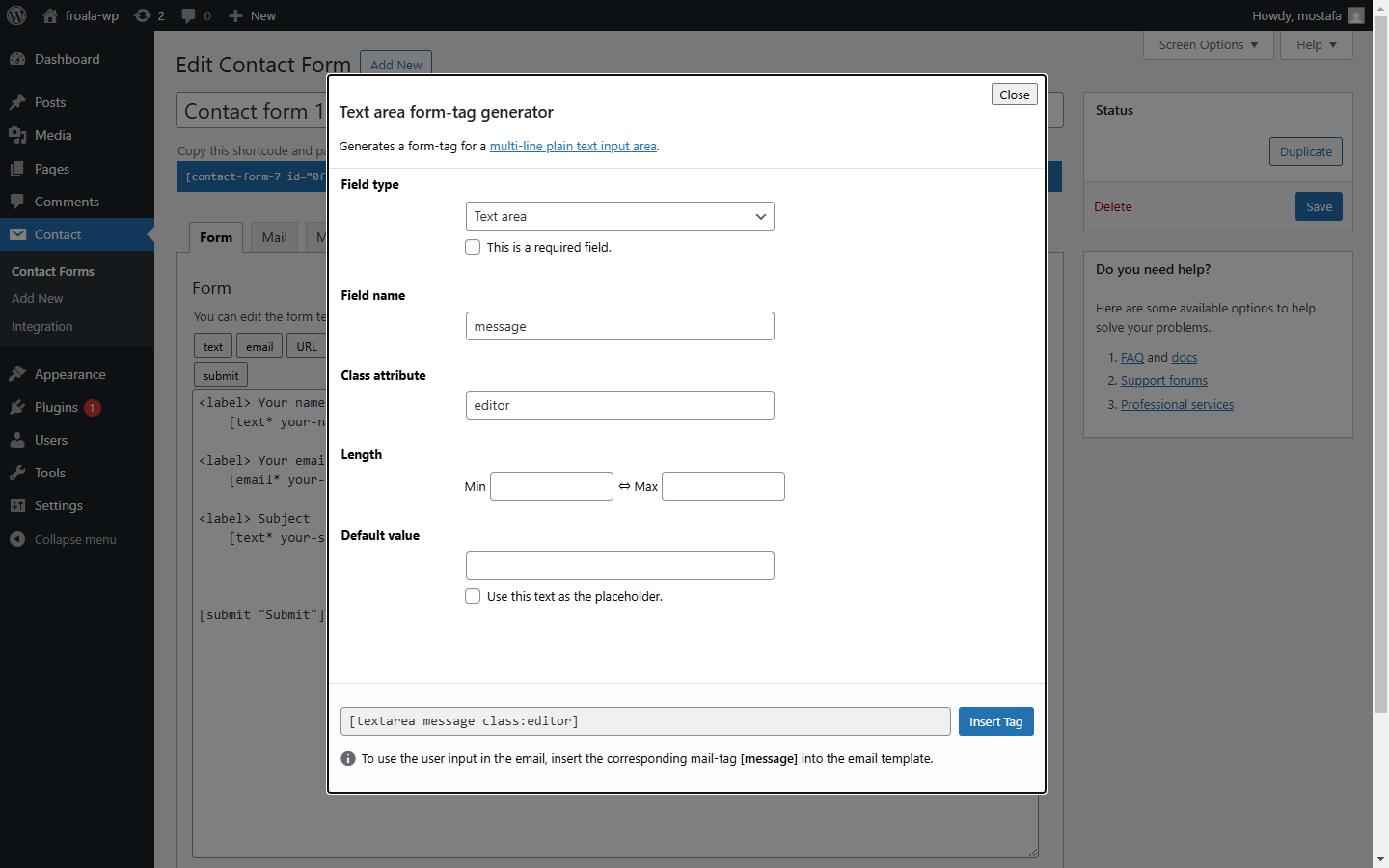
  • Click on the “textarea” button to insert a new field.

rich text wordpress content editor

  • In the “Field name” input, provide a unique identifier such as “message“.
  • In the “Class attribute” input, add a class name you’ll use later to reference the field in the Froala initialization code. A simple example is “editor“.
  • Your inserted tag will look like this:
[textarea message class:editor]

Insert text area field

  • Click “Insert Tag“, and your form template will now include this new field for complex content submission.
  • Save your updated contact form.

Initializing Froala Rich Text Editor on Your Form

You’re almost there! Next, you’ll need to set up your form emails to handle HTML content properly.

Step 3: Configuring Email Submission with HTML Tags

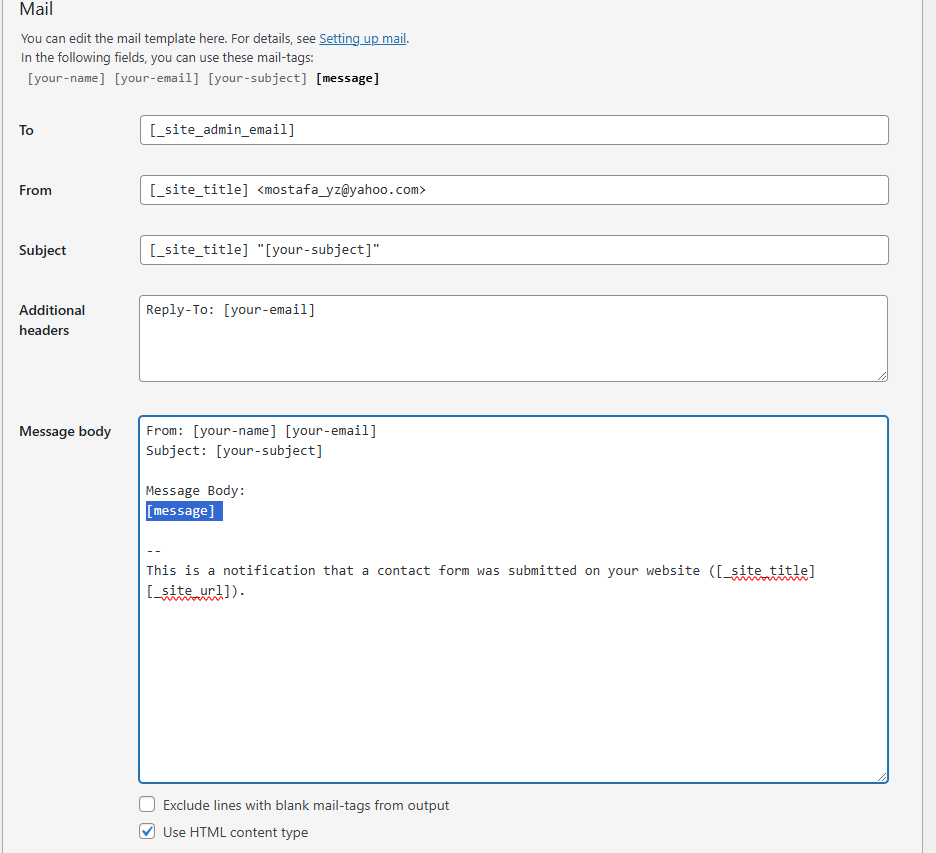
  • In your Contact Form 7 settings, click the “Mail” tab.
  • Ensure you’ve checked “Use HTML content type“. This setting allows your submissions to include HTML tags and maintain their formatting.
  • Also, ensure the “message” field is referenced in your “Message body“.
contact form email setup
  • Click “Save” and copy the generated shortcode provided by Contact Form 7.

Step 4: Embedding Your Contact Form into a WordPress Page

To display your new rich text-enabled form, embed the shortcode into one of your WordPress pages:

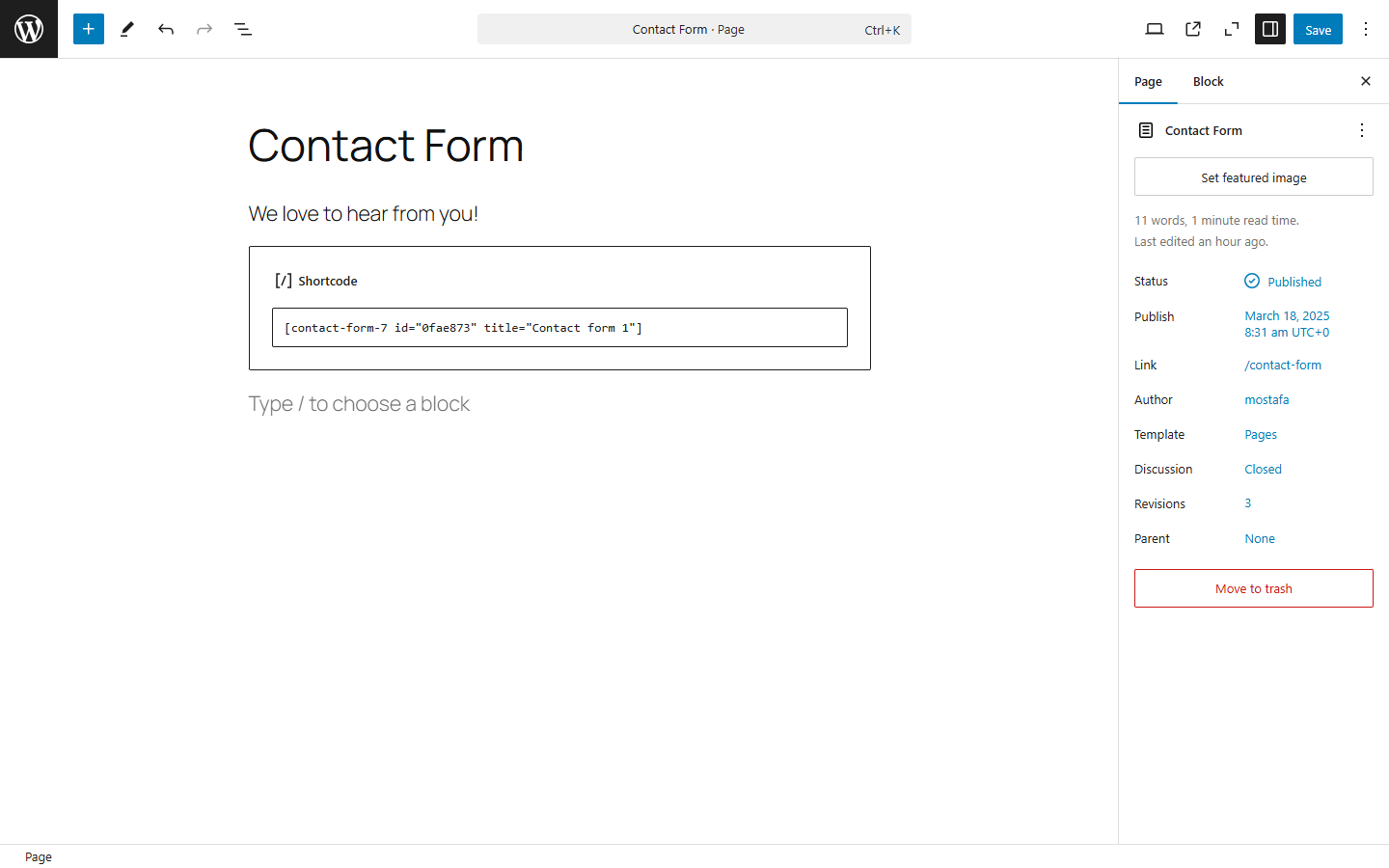
  • Open the page editor for your desired page.
  • Paste your shortcode where you want the form to appear:

Error: Contact form not found.

Insert contact form shortcode
  • Click “Publish” or “Update” to make the page live on your WordPress site.

Step 5: Adding the Froala WordPress Content Editor to the Form Page

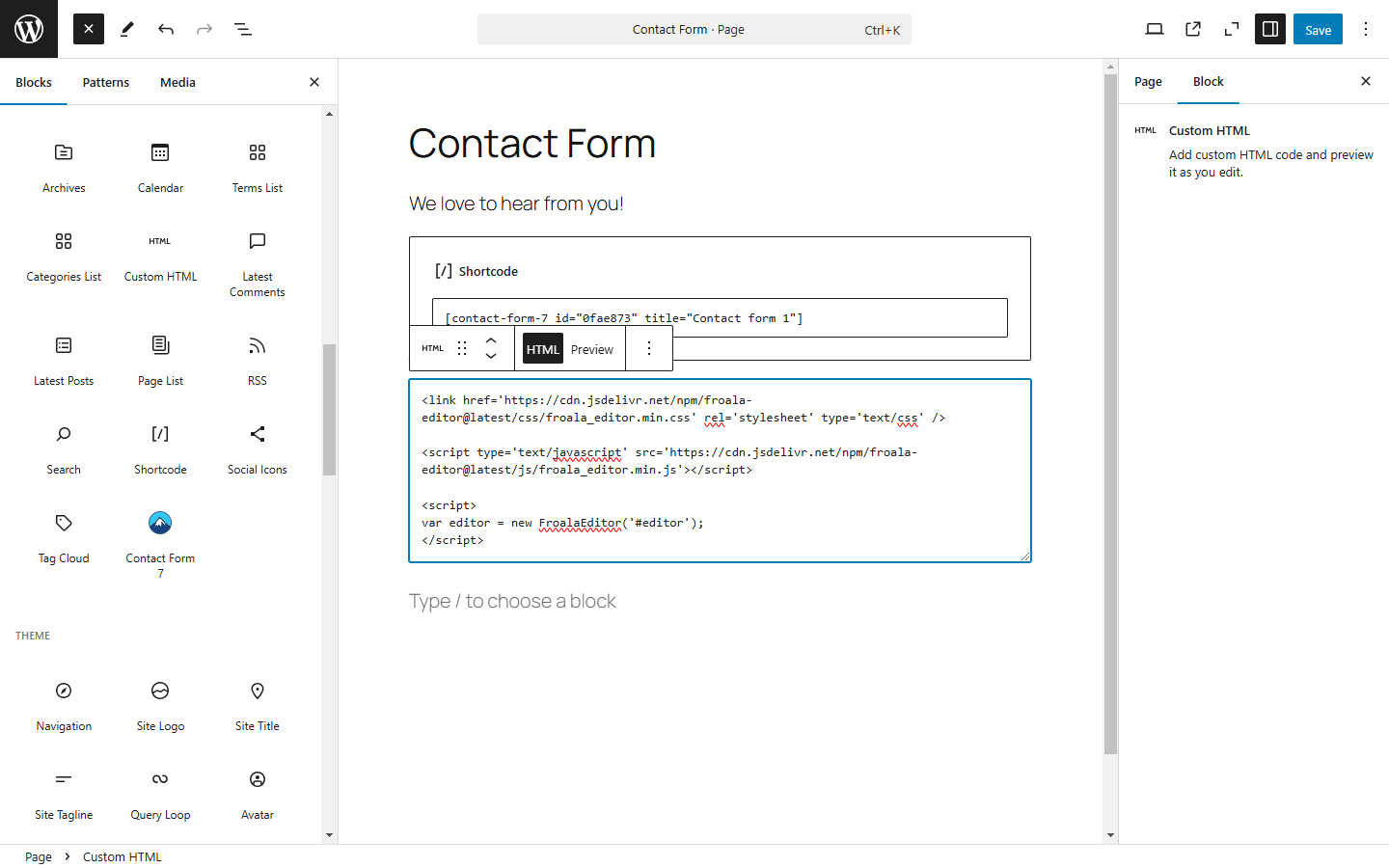
Now, you’ll add the Froala rich text editor resources directly to your page. Simply include the Froala CDN link and initialization script:

Add these CDN references to your page or site’s HTML head:

<link href='https://cdn.jsdelivr.net/npm/froala-editor@latest/css/froala_editor.min.css' rel='stylesheet' />
<script src='https://cdn.jsdelivr.net/npm/froala-editor@latest/js/froala_editor.min.js'></script>

Then initialize the Froala editor on your textarea field using the class name “editor“:

<script> document.addEventListener('DOMContentLoaded', function() { new FroalaEditor('.editor'); }); </script>
rich text editor for contact form 7

After adding this code snippet, save and publish your page.

Safety & Validation: Handling Rich Text Submissions Securely

While adding a rich text editor for Contact Form 7 improves usability, itโ€™s important to handle formatted content safely. Allowing HTML input introduces new considerations around validation, sanitization, and storage.

Here are a few best practices to follow:

Limit Allowed HTML Tags

Not all HTML tags should be accepted from user submissions. Limit input to safe formatting elements such as <strong>, <em>, <ul>, <ol>, <li>, and <p>. Avoid allowing scripts, inline styles, or embedded media unless absolutely necessary.

WordPress provides built-in functions for sanitizing user input. To learn more about best practices, refer to the official WordPress sanitization documentation

Sanitize Output Before Displaying or Sending

Always sanitize rich text content before displaying it on your site or including it in emails. This helps prevent XSS attacks and malformed HTML from breaking layouts.

If youโ€™re using the submission content in email notifications, ensure that HTML output is properly escaped or filtered to maintain consistent formatting across email clients.

Decide How HTML Should Be Stored or Emailed

Before going live, decide whether rich text submissions should be:

  • Stored as raw HTML
  • Sanitized HTML
  • Converted to plain text for email delivery

For many use cases, sanitizing and sending HTML emails works well. For others, such as support forms or internal tools, converting submissions to clean, readable text may be safer and more reliable.

Taking a few extra steps to validate and sanitize user input ensures your rich text forms remain both powerful and secure.

Testing Your New Rich Text Contact Form

Now it’s time to test your implementation:

  • Open your published page in a browser.
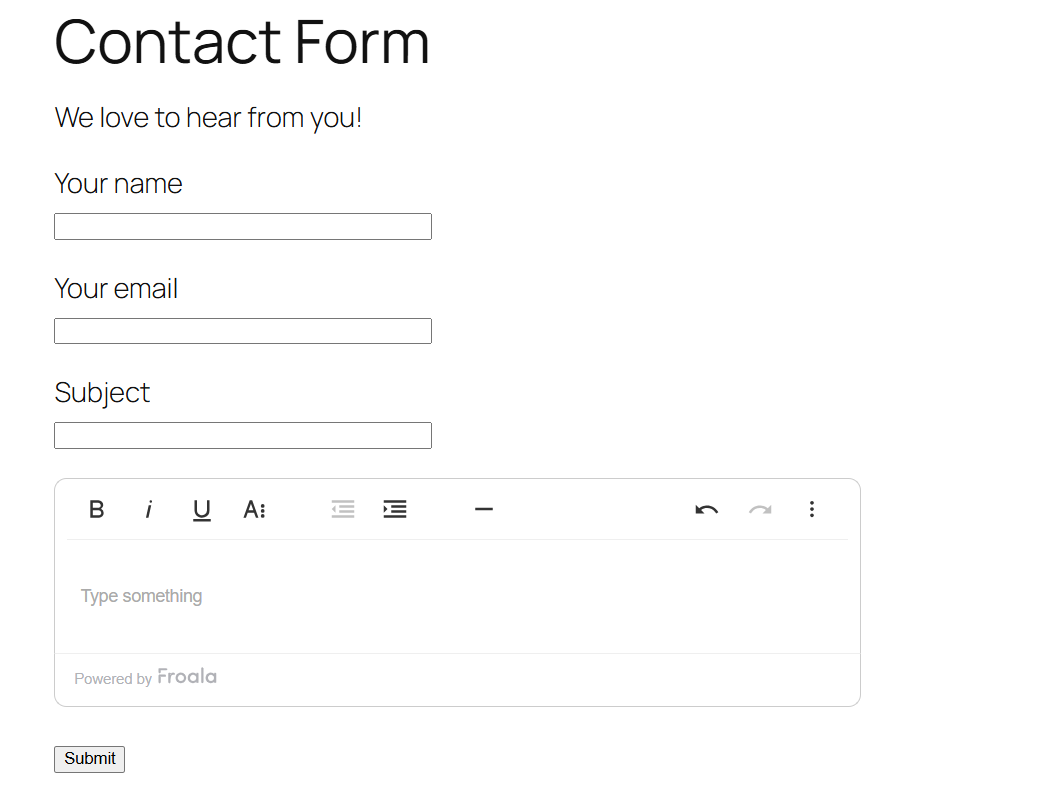
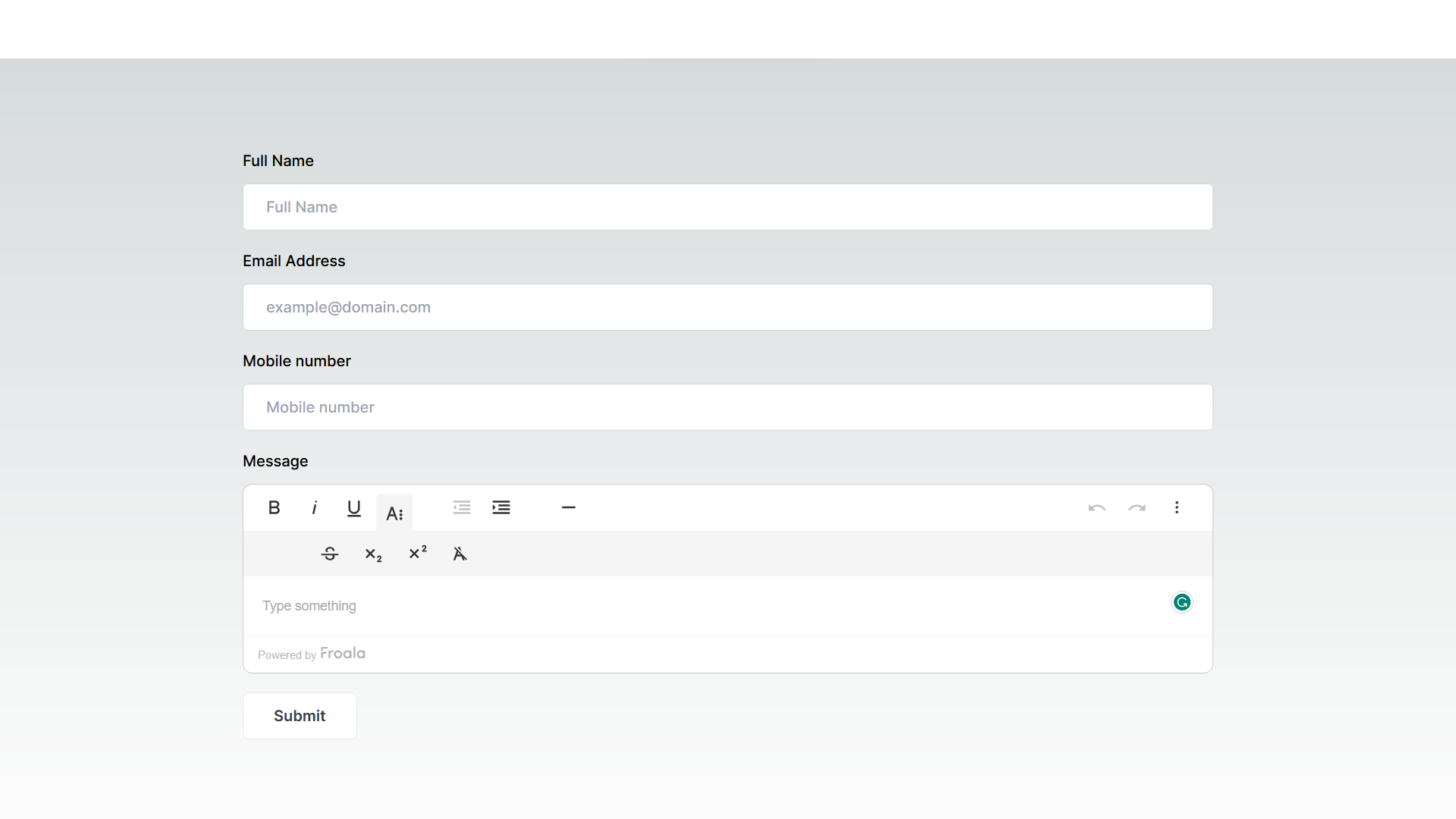
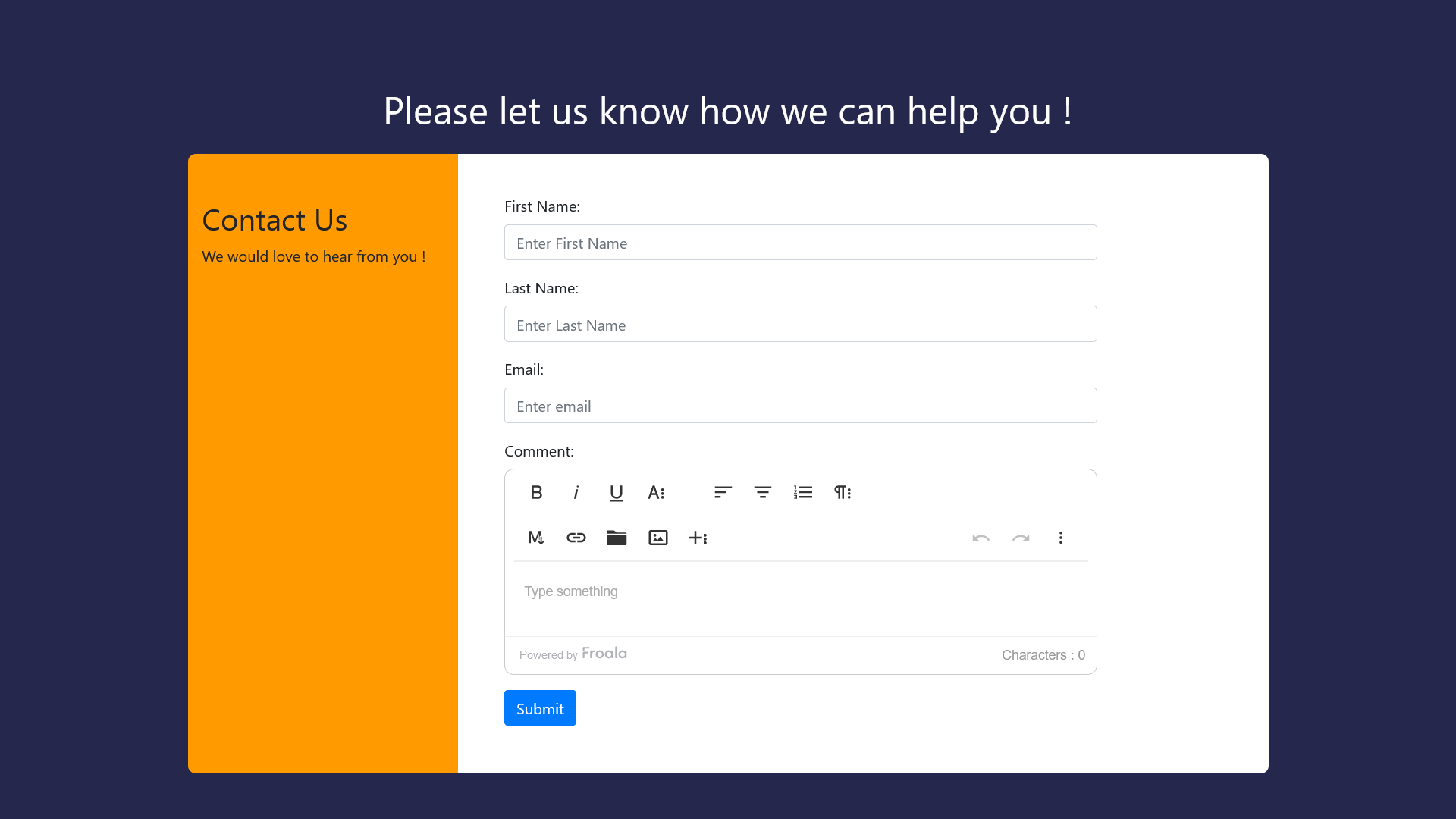
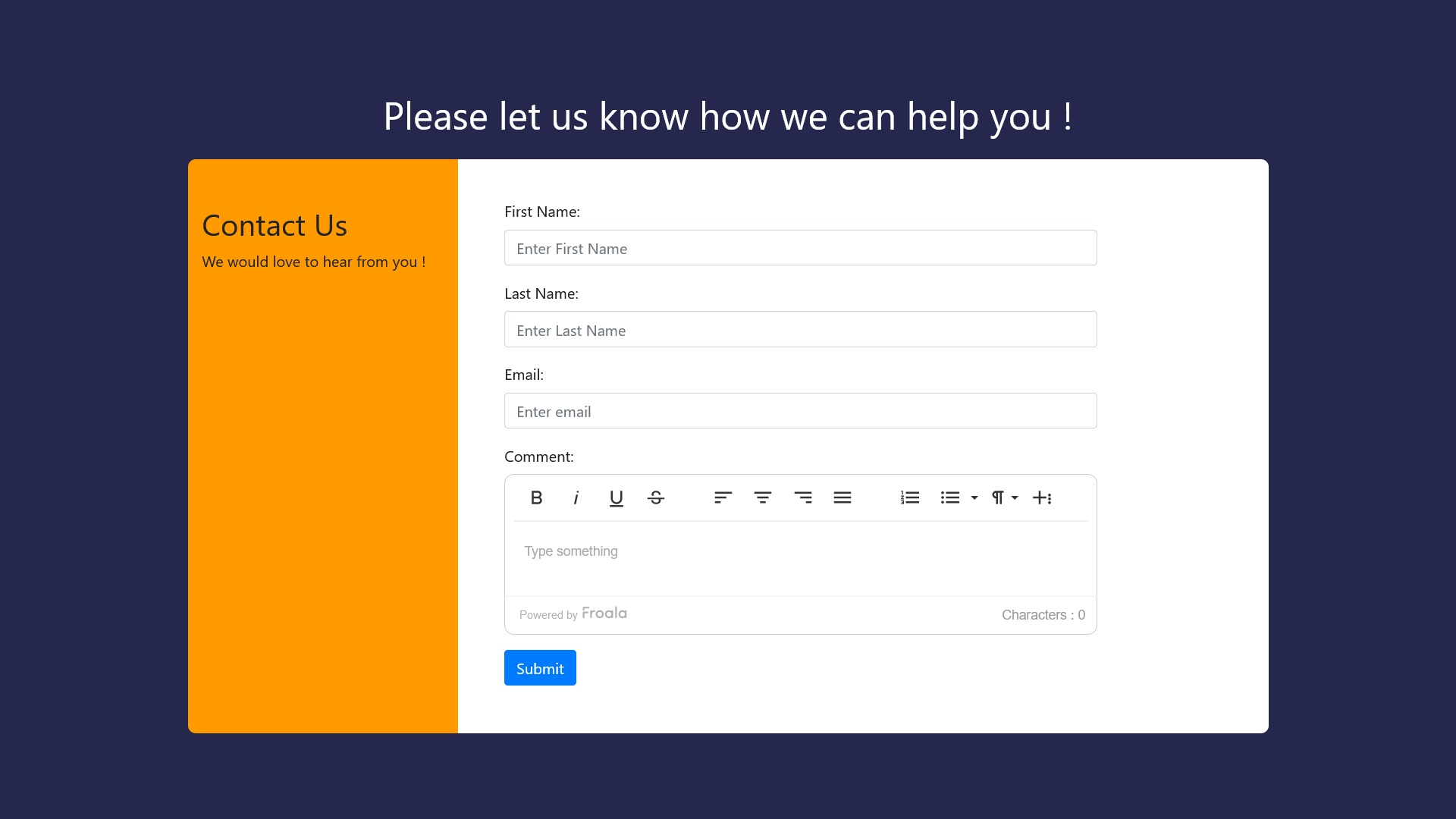
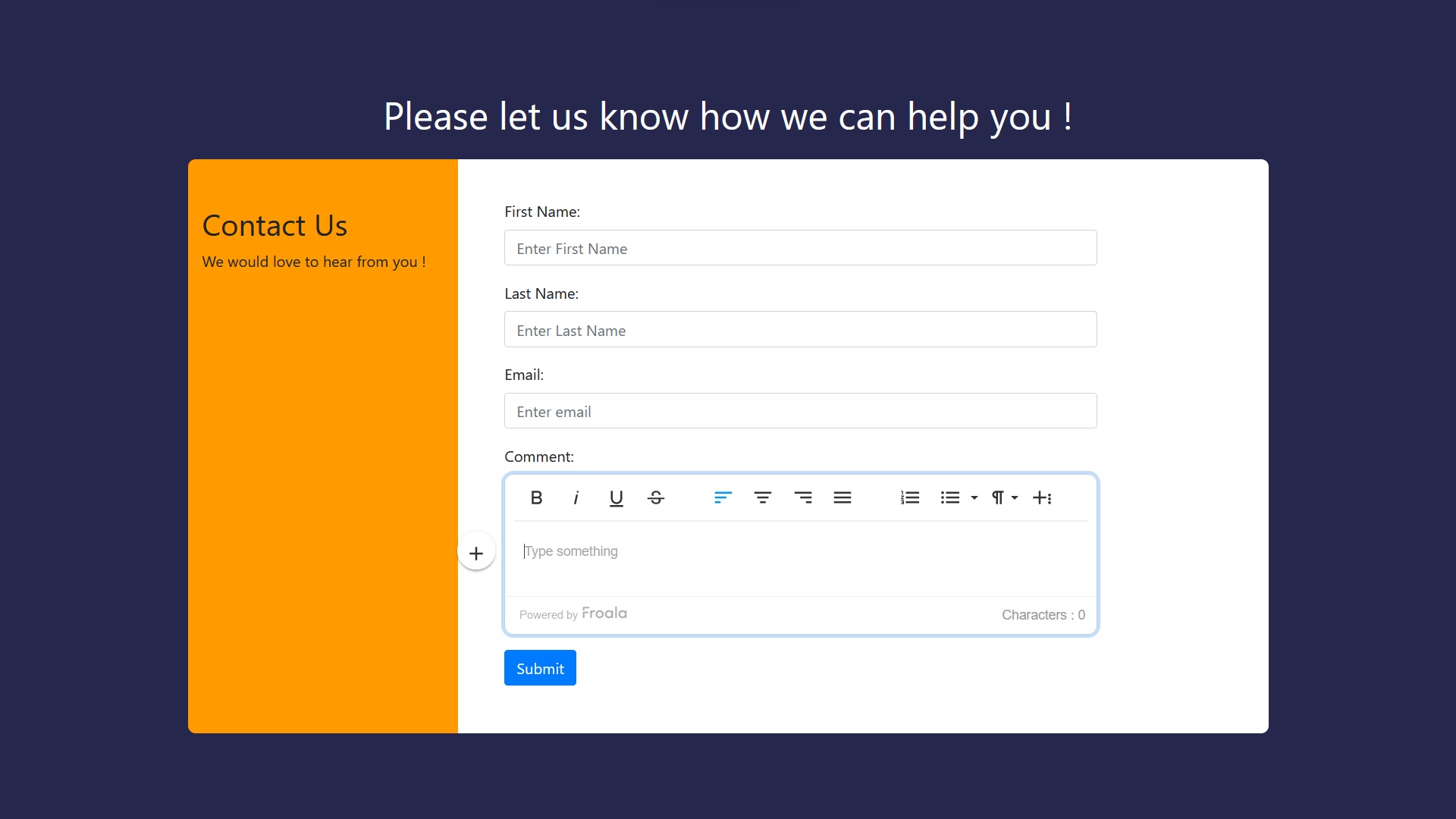
  • You should now see your contact form with the Froala rich text editor field instead of the plain textarea.

rich-text editor for contact form 7

  • Enter test values and experiment by formatting your message with headings, bold, italics, and more.
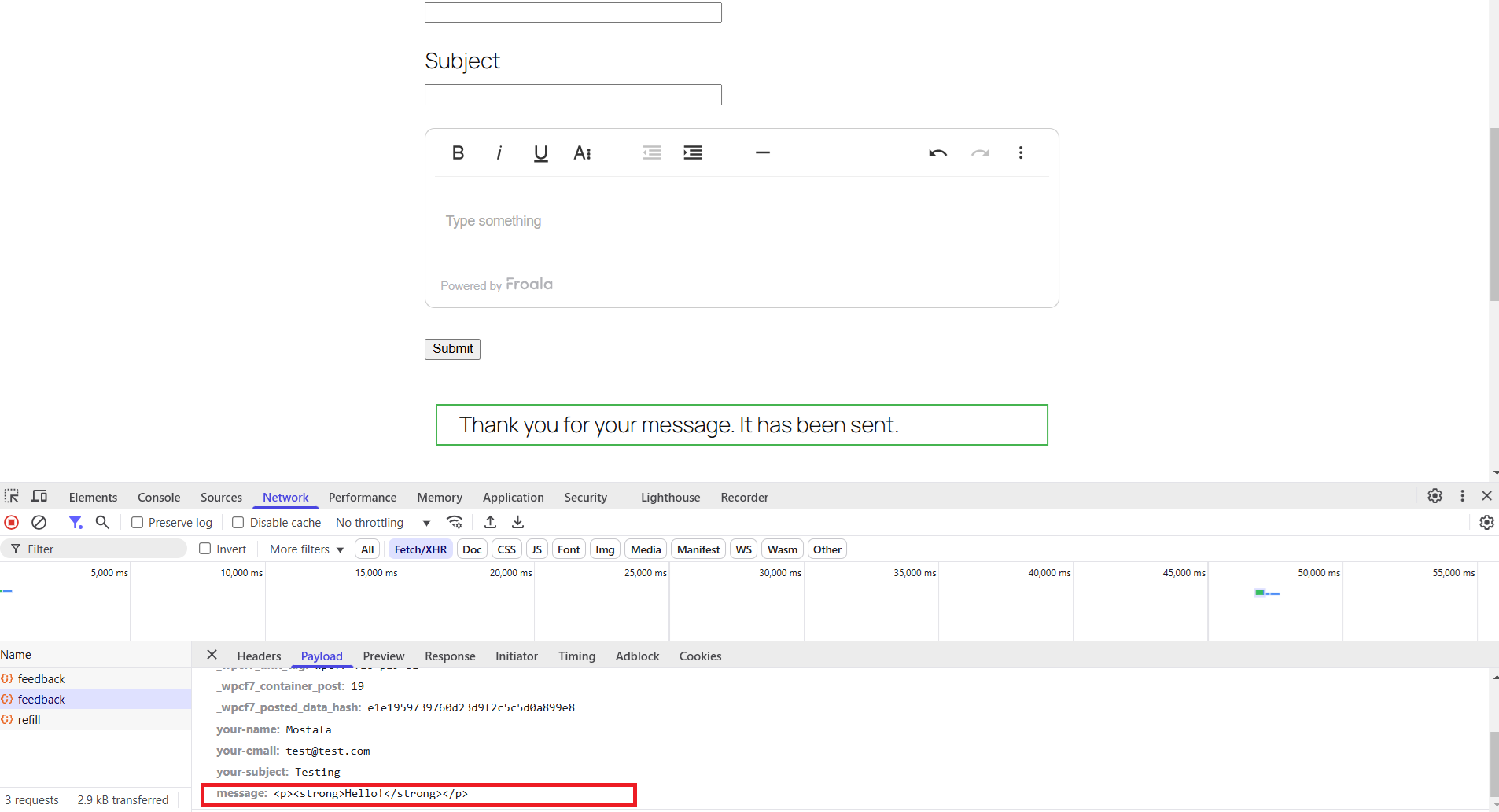
  • Submit your form and verify the formatted HTML content appears correctly in your email inbox.

rich-text editor for contact form 7 submitted

Improving Your WordPress Submissions with Complex Content

With Froala integrated, your website visitors can now submit visually rich and complex content directly through your forms. This simple upgrade drastically improves the readability and organization of form responses. It also enhances your overall communications, making them look professional and polished.

No more monotonous plain text submissionsโ€”each submission now comes beautifully formatted and ready for immediate use, perfect for your next post.

Conclusion

By following this straightforward, step-by-step guide, you’ve successfully added a powerful rich text editor to your Contact Form 7 forms. With Froala powering your form submissions, your website’s user experience is significantly enhanced, allowing for detailed, structured, and engaging responses.

This simple yet impactful integration transforms the way your website visitors interact with your forms, providing a much-improved WordPress experience. Now go ahead and enjoy the benefits of beautifully formatted submissions!

FAQs

Can Contact Form 7 support a rich text editor?

Yes. While Contact Form 7 only supports plain text fields by default, you can add a rich text editor for Contact Form 7 by integrating a third-party editor like Froala. This allows users to submit formatted content such as bold text, headings, lists, and more.

Is it safe to use a rich text editor in Contact Form 7?

Yes, as long as you follow proper security practices. When using a rich text editor for Contact Form 7, itโ€™s important to limit allowed HTML tags, sanitize user input, and validate output before displaying or emailing submissions. WordPress provides built-in sanitization functions to help handle formatted content safely.

Will rich text formatting appear correctly in Contact Form 7 emails?

It can. To ensure formatting is preserved, you must enable the HTML content type in Contact Form 7โ€™s Mail settings. Once enabled, formatted submissions created using a rich text editor will appear correctly in email notifications, provided the HTML is properly sanitized.

Froala Anchor Plugin: A Practical Guide for Implementing In-Editor Navigation

Anchor text

In the world of web development, creating intuitive navigation experiences is crucial for user engagement and content accessibility. Froala’s Anchor Plugin emerges as a powerful solution for developers seeking to implement anchor-based navigation within their rich text editor. This comprehensive guide will walk you through everything you need to know about the Anchor Plugin, from basic setup to advanced integration with Froala’s Export to Word feature.

Whether you’re building a documentation site, creating long-form content, or developing a knowledge base, understanding how to effectively use anchor links can significantly improve your user experience. This guide is designed for developers, content creators, and web developers who want to master Froala’s Anchor Plugin and leverage its full potential in their projects.

Anchor Plugin Guide

What Are Anchor Links?

Anchor links are specific points within a web page that you can link to directly, allowing users to navigate to specific sections without scrolling through the entire content. In HTML, anchors are implemented using the <a> tag with a name attribute or the id attribute on any HTML element.

<!-- Anchor point -->
<h2 name="section1" id="section1">Section 1</h2>

<!-- Link to anchor -->
<a href="#section1">Go to Section 1</a>

Common use cases include:

  • Table of contents navigation
  • FAQ sections with quick jump links
  • Long articles with numbered sections
  • Documentation sites with hierarchical content
  • E-commerce product specifications
  • Educational content with multiple chapters

The primary benefits of anchor links include improved user experience, better content organization, and enhanced accessibility for users with disabilities. They provide immediate access to relevant information, reducing cognitive load and improving content discoverability.

Getting Started with Froala’s Anchor Plugin

Before diving into the implementation, ensure you have the following prerequisites:

Installation and Setup

To get started with the Anchor Plugin, follow these steps:

    1. Install the Anchor Plugin:
      Include via CDN or using other alternative installing methods.

      <link href="path/to/froala_editor.min.css" rel="stylesheet" type="text/css" />
      <link href="path/to/css/plugins/link_to_anchor.min.css" rel="stylesheet" type="text/css" />
      
      
      <script type="text/javascript" src="path/to/js/froala_editor.min.js"></script>
      <script type="text/javascript" src="path/to/js/plugins/link_to_anchor.min.js"></script>
      <script type="text/javascript" src="path/to/js/plugins/export_to_word.min.js"></script> <!-- Optional: for Word export -->
    2. Include the plugin in your initialization:
      The Anchor plugin is enabled by default. If you are customizing enabled plugins:

      • Ensure โ€œlinkToAnchorโ€ย is listed in pluginsEnabled.
      • Ensure โ€œlinkToAnchorโ€ is NOT listed in pluginsDisabled.
    3. Include the Anchor button in the toolbar buttons:
      To display the Anchor button on the toolbar, ensure the insertAnchor is included in the toolbar button configurations for all sizes:

        • toolbarButtons
        • toolbarButtonsMD
        • toolbarButtonsSM
        • toolbarButtonsXS
$(document).ready(function() {

ย ย new froalaEditor('#edit', {

ย ย ย ย ย pluginsEnabled: ['linkToAnchor', 'exportToWord'],

ย ย pluginsDisabled: ['track_changes', 'fontSize'],

ย ย toolbarButtons: ['insertAnchor', 'export_to_word', 'undo', 'redo', '|', 'bold', 'italic']

ย ย });

});

Inserting Anchors in the Editor

Using the Anchor Insertion Button

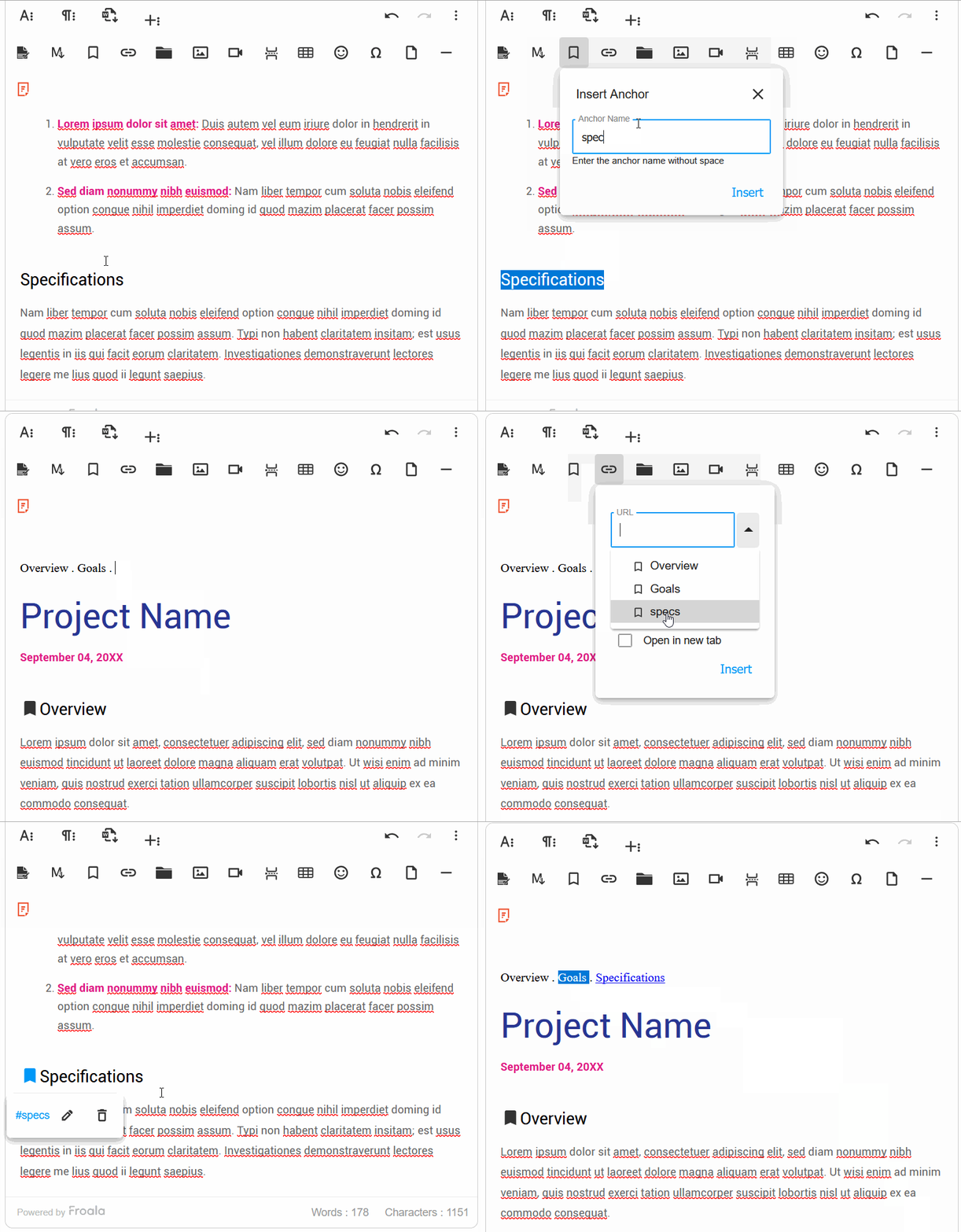
Once the plugin is activated, Froala adds an anchor button to the toolbar. Here’s how to use it:

  1. Place your cursor where you want to insert an anchor.
  2. Click the anchor button in the toolbar.
  3. Enter the anchor name in the dialog that appears.
  4. Click “Insert” to create the anchor.

You’ll see a small anchor icon appear in the editor. This visual indicator helps you locate anchors within your content.

anchors

Best Practices for Anchor Management

When working with anchors, consider these best practices:

  • Use descriptive, meaningful names.
  • Follow a consistent naming convention (e.g., section1, faq-item-2)
  • Avoid spaces and special characters in anchor names.
  • Keep anchor names short but descriptive.
  • Test anchor links regularly to ensure they work correctly.

Creating Links to Scroll to Anchors

Link Creation Workflow

Creating links to anchors in Froala is straightforward:

  1. Select the text you want to turn into a link.
  2. Click the link button in the toolbar.
  3. In the link dialog, choose the anchor reference (e.g., #section1) from the dropdown list.
  4. Click “Insert” to create the link.

Clicking the link smoothly scrolls to the anchor text.

Plugin Options and Events

The Anchor Plugin provides one option and two events for programmatic control:

Anchor Plugin Configuration

This configuration allows developers to customize the edit anchor popup buttons. This popup appears when clicking an existing anchor in the editor.

new FroalaEditor('#editor', {

  anchorEditButtons: ['anchorEdit', 'anchorRemove']

});

Event Handlers

Listen to anchor-related events to create custom workflows:

Before inserting the anchor text

Use anchor.beforeInsert event to execute pre-insert validation, modify anchor data, trigger custom animations, and synchronize with other plugins or content blocks in the editor.

For example, configure validation to ensure anchor names meet your requirements:

new FroalaEditor('#editor', {

  anchorEditButtons: ['anchorEdit', 'anchorRemove']

});
Event Handlers
Listen to anchor-related events to create custom workflows:
Before inserting the anchor text
Use anchor.beforeInsert event to execute pre-insert validation, modify anchor data, trigger custom animations, and synchronize with other plugins or content blocks in the editor.
For example, configure validation to ensure anchor names meet your requirements:
new FroalaEditor('#editor', {

  events: {

    'anchor.beforeInsert': function (link, anchorName) {

      
      if (anchorName.length < 3) return false; // Prevent insertion
      
      if (!/^[a-zA-Z0-9_-]+$/.test(anchorName)) return false; // Prevent insertion
      
      return true; // Allow insertion
 

      }

  }

});

This enables robust pre-insert checks, preventing invalid anchors and ensuring consistent naming across the document and navigation within your workflow.

Before removing the anchor text

Another available event is anchor.beforeRemove, which allows you to ensure proper cleanup, update internal references, and trigger downstream updates across the editor’s content structure consistently.

Integration with Export to Word Feature

One of the powerful aspects of Froala’s Anchor Plugin is its seamless integration with the Export to Word feature. This ensures that your anchor-based navigation structure is preserved when exporting content to Word documents.

How Anchor Plugin Works with Export to Word

When you export content containing anchors to Word, Froala automatically:

  1. Preserves anchor points: All anchor markers are converted to Word bookmarks
  2. Maintains link structure: Anchor links are converted to Word hyperlinks
  3. Keeps navigation intact: Users can still jump to specific sections in the exported document.

Conclusion

Froala’s Anchor Plugin provides developers with a powerful and flexible solution for implementing anchor-based navigation within rich text editing environments. Throughout this comprehensive guide, we’ve explored the plugin’s capabilities from basic setup to advanced integration with other features like Export to Word.

Key takeaways include:

  1. Versatile Implementation: The Anchor Plugin seamlessly integrates with Froala’s editor, offering control over anchor creation and management.
  2. Enhanced User Experience: Anchor links significantly improve content navigation, making large documents more accessible and user-friendly.
  3. Cross-Feature Compatibility: The plugin works harmoniously with Froala’s Export to Word feature, ensuring that navigation structures are preserved across different formats.
  4. Extensive Customization: With configuration options and events, developers can tailor anchor functionality to meet specific project requirements.

By following the best practices and implementation strategies outlined in this guide, developers can create sophisticated navigation experiences that enhance both user engagement and content accessibility. The Anchor Plugin exemplifies Froala’s commitment to providing comprehensive, developer-friendly solutions for modern web development challenges.

Additional Resources

To further enhance your understanding and implementation of Froala’s Anchor Plugin, consider exploring these additional resources:

Official Froala Documentation Links

By leveraging these resources and following the comprehensive guide provided, you’ll be well-equipped to implement Froala’s Anchor Plugin effectively and create exceptional navigation experiences for your users.

Building a Complete Document Generator with Froala 4.7 Plugins

automating document workflows

Froala 4.7 introduced a powerful trio of plugins that streamlines document workflows. Link to Anchor handles internal navigation, Page Break controls print layout, and Export to Word allows for generating downloadable files. While these tools are effective individually, they become a complete document generation system when combined.

This guide details how to integrate these plugins into a cohesive workflow. We will build a custom toolbar button that scans document headings and generates a semantic Table of Contents (TOC) directly inside the editor. This solves a common user friction point where manual linking becomes tedious for long reports in a WYSIWYG editor.

The Objective

The end goal is a seamless user experience. A user clicks a single button, the editor scans their content for structure, and a linked TOC appears at the top of the document. Users can then insert page breaks between sections and export the final result to Microsoft Word with the layout preserved.

Key Takeaways

  • Integrate Core Plugins Combine Link to Anchor, Page Break, and Export to Word for seamless workflows.
  • Automate Navigation Build a custom button that auto-generates a Table of Contents from headings.
  • Sanitize Data Implement logic to create URL-safe anchors and handle duplicate headings.
  • Export Fidelity Ensure page breaks and navigation links remain functional in Word downloads.
  • Validate Input Add safeguards to ensure manual anchor names adhere to strict naming conventions.

What We Are Building

The custom button performs four specific logic operations.

  1. Scans the DOM It identifies all H2 and H3 headings within the editor instance.
  2. Sanitizes Anchors It automatically creates URL-safe anchor tags for navigation.
  3. Generates Navigation It builds a nested, linked list at the top of the content.
  4. Manages Duplicates It intelligently handles identical heading names by appending unique counters.

This automation removes the need for manual anchor placement and ensures every exported document has a functional navigation structure.

Plugin Setup

To begin, you must load all three plugins along with their required dependencies. Note that the Export to Word plugin relies on FileSaver and html-docx-js. These libraries must be loaded before the Froala script to ensure the export functionality initializes correctly.


<!DOCTYPE html>
<html lang="en">
<head>
    <meta charset="UTF-8">
    <title>Froala Editor Basic Setup</title>
    
    <link href="https://cdn.jsdelivr.net/npm/froala-editor@4.7.0/css/froala_editor.pkgd.min.css" rel="stylesheet">
    <link href="https://cdn.jsdelivr.net/npm/froala-editor@4.7.0/css/plugins/link_to_anchor.min.css" rel="stylesheet">
    <link href="https://cdn.jsdelivr.net/npm/froala-editor@4.7.0/css/plugins/page_break.min.css" rel="stylesheet">
    
    <style>
        html { 
            /* Enables smooth scrolling when jumping to anchors */
            scroll-behavior: smooth; 
        }
    </style>
</head>
<body>
    
    <div id="editor"></div>
    
    <script src="https://cdn.jsdelivr.net/npm/file-saver-es@2.0.5/dist/FileSaver.min.js"></script>
    <script src="https://cdn.jsdelivr.net/npm/html-docx-js@0.3.1/dist/html-docx.min.js"></script>
        
    <script src="https://cdn.jsdelivr.net/npm/froala-editor@4.7.0/js/froala_editor.pkgd.min.js"></script>
    
    <script src="https://cdn.jsdelivr.net/npm/froala-editor@4.7.0/js/plugins/link_to_anchor.min.js"></script>
    <script src="https://cdn.jsdelivr.net/npm/froala-editor@4.7.0/js/plugins/page_break.min.js"></script>
    <script src="https://cdn.jsdelivr.net/npm/froala-editor@4.7.0/js/plugins/export_to_word.min.js"></script>
    
    <script>
        document.addEventListener('DOMContentLoaded', function () {
            // Initialize the editor on the div with id="editor"
            new FroalaEditor('#editor', {
                heightMin: 400, // Set a minimum height
                // Add any desired toolbar buttons and configurations here
                toolbarButtons: ['bold', 'italic', 'formatOL', 'formatUL', '|', 'pageBreak', 'export_to_word']
            });
        });
    </script>
</body>
</html>


Creating the Generate TOC Button

Custom toolbar buttons in Froala require a two-step definition process. First, we define the visual icon. Second, we register the command logic.

The implementation below uses DOMParser rather than regex for HTML manipulation. This is the industry standard for security and reliability, as it avoids the common pitfalls of parsing HTML strings manually.


// Define the button icon for the toolbar
FroalaEditor.DefineIcon('generateTOC', {
    NAME: 'list-ol', 
    SVG_KEY: 'orderedList' // Uses the icon key for an ordered list
});

// Register the custom command 'generateTOC'
FroalaEditor.RegisterCommand('generateTOC', {
    title: 'Generate Table of Contents',
    focus: true, // Focus on the editor after execution
    undo: true, // Allow the action to be undone
    refreshAfterCallback: true, // Refresh the toolbar state
    
    // The main function executed when the button is clicked
    callback: function() {
        var content = this.html.get();
        var parser = new DOMParser();
        // Parse the current editor content into a manipulable DOM document
        var doc = parser.parseFromString(content, 'text/html');
        // Find all H2 and H3 headings in the content
        var headings = doc.querySelectorAll('h2, h3');
        
        // Exit if no headings are found
        if (headings.length === 0) {
            alert('No headings found. Add H2 or H3 headings first.');
            return;
        }
        
        // Remove existing TOC if regenerating to avoid duplication
        var existingTOC = doc.querySelector('.generated-toc');
        if (existingTOC) {
            existingTOC.remove();
        }
        
        // Variables to track anchor names and TOC items
        var usedAnchors = {};
        var tocItems = [];
        
        // Process each heading found
        headings.forEach(function(heading) {
            // Convert heading text to an anchor-safe slug
            var baseAnchor = heading.textContent
                .toLowerCase()
                .replace(/[^a-z0-9_\s-]/g, '') // Remove invalid characters
                .replace(/\s+/g, '-')          // Replace spaces with hyphens
                .substring(0, 50);             // Limit length
                
            // Initialize anchor name
            var anchor = baseAnchor;
            
            // Handle duplicate headings by appending an index (e.g., section-2)
            if (usedAnchors[baseAnchor]) {
                usedAnchors[baseAnchor]++;
                anchor = baseAnchor + '-' + usedAnchors[baseAnchor];
            } else {
                usedAnchors[baseAnchor] = 1;
            }
            
            // Add the unique ID (anchor) to the heading element itself
            heading.id = anchor;
            
            // Store the data needed to build the list
            tocItems.push({
                text: heading.textContent,
                anchor: anchor,
                level: heading.tagName // 'H2' or 'H3'
            });
        });
        
        // Start building the Table of Contents HTML structure
        var tocHTML = '<div class="generated-toc"><h4>Table of Contents</h4><ul>';
        
        // Iterate over the prepared items to build the list links
        tocItems.forEach(function(item) {
            // Determine if the item needs indentation (for H3 headings)
            var indent = item.level === 'H3' ? ' class="indent"' : '';
            // Create the list item with a link to the corresponding anchor
            tocHTML += '<li' + indent + '><a href="#' + item.anchor + '">' + item.text + '</a></li>';
        });
        
        tocHTML += '</ul></div>';
        
        // Prepend the generated TOC HTML to the rest of the document content
        this.html.set(tocHTML + doc.body.innerHTML);
    }
});

The callback function parses the editor content to locate all H2 and H3 elements. It generates URL-safe anchor names from the heading text and handles duplicate headings (such as two sections named “Overview”) by appending an incremental number. Finally, it injects the ID attributes and prepends the linked list.

Styling the Generated TOC

Visual hierarchy is essential for a usable table of contents. The following CSS ensures the TOC is distinct from the main body content, using a left border and specific background color to denote it as a navigation element.


/* Styling for the main Table of Contents container */
.generated-toc {
    background: #f8f9fa; /* Light grey background for contrast */
    padding: 20px 24px; /* Internal spacing */
    margin-bottom: 24px; /* Space below the TOC box */
    border-radius: 6px; /* Slightly rounded corners */
    /* Highlight the TOC with a prominent blue left border */
    border-left: 4px solid #0066cc; 
}

/* Styling for the TOC header (e.g., "Table of Contents") */
.generated-toc h4 {
    margin: 0 0 12px 0; /* Space below the header */
    font-size: 14px;
    text-transform: uppercase; /* All caps text */
    letter-spacing: 0.5px; /* Slight letter spacing */
    color: #666; /* Grey text color */
}

/* Styling for the unordered list element */
.generated-toc ul {
    margin: 0;
    padding: 0;
    list-style: none; /* Remove default bullet points */
}

/* Styling for each list item */
.generated-toc li {
    margin: 8px 0; /* Vertical spacing between items */
}

/* Styling for the anchor links within the list */
.generated-toc li a {
    color: #0066cc; /* Blue link color */
    text-decoration: none; /* Remove default underline */
}

/* Hover effect for the links */
.generated-toc li a:hover {
    text-decoration: underline; /* Add underline on hover */
}

/* Indentation specifically for H3 items */
.generated-toc .indent {
    margin-left: 20px; /* Push H3 items to the right */
}

Adding Anchor Validation

In professional environments, maintaining clean data is as important as the feature itself. If users need to create anchors manually using the native insertAnchor button, you should validate their input to prevent broken links or invalid HTML IDs.

The specific regex used here enforces lowercase compatibility and prevents special characters that might break URL hashes.


events: {
    /**
     * Anchor beforeInsert Event Handler
     * * This function validates anchor names before they are inserted into the editor.
     * It ensures the anchor name meets minimum length and character requirements.
     * * @param {string} link - The link object (usually not used here but part of Froala signature)
     * @param {string} text - The proposed anchor name entered by the user
     * @returns {boolean} True to proceed with insertion, false to stop it
     */
    'anchor.beforeInsert': function(link, text) {
        // 1. Minimum Length Check
        if (text && text.length < 3) {
            alert('Anchor names must be at least 3 characters.');
            return false;
        }
        
        // 2. Character Validation Check
        // The pattern only allows lowercase letters (a-z), numbers (0-9), hyphens (-), and underscores (_).
        var validPattern = /^[a-z0-9_-]+$/;
        if (text && !validPattern.test(text)) {
            alert('Use lowercase letters, numbers, hyphens, and underscores only.');
            return false;
        }
        
        // If all checks pass, allow the anchor to be inserted
        return true;
    }
}


This validation logic rejects ambiguous names like “A” or “Section 1” while accepting standard formats like “requirements”, “phase-1”, or “section_intro”.

Complete Working Example

Below is the complete implementation code. You can copy this into a single HTML file to test the full workflow from heading generation to Word export.


<!DOCTYPE html>
<html lang="en">
<head>
    <meta charset="UTF-8">
    <title>Froala Editor with Dynamic TOC Generation</title>
    <link href="https://cdn.jsdelivr.net/npm/froala-editor@4.7.0/css/froala_editor.pkgd.min.css" rel="stylesheet">
    <link href="https://cdn.jsdelivr.net/npm/froala-editor@4.7.0/css/plugins/link_to_anchor.min.css" rel="stylesheet">
    <link href="https://cdn.jsdelivr.net/npm/froala-editor@4.7.0/css/plugins/page_break.min.css" rel="stylesheet">
    
    <style>
        /* Smooth scrolling for anchor links */
        html { 
            scroll-behavior: smooth; 
        }
        
        .generated-toc {
            background: #f8f9fa;
            padding: 20px 24px;
            margin-bottom: 24px;
            border-radius: 6px;
            border-left: 4px solid #0066cc;
        }
        
        .generated-toc h4 {
            margin: 0 0 12px 0;
            font-size: 14px;
            text-transform: uppercase;
            letter-spacing: 0.5px;
            color: #666;
        }
        
        .generated-toc ul {
            margin: 0;
            padding: 0;
            list-style: none;
        }
        
        .generated-toc li {
            margin: 8px 0;
        }
        
        .generated-toc li a {
            color: #0066cc;
            text-decoration: none;
        }
        
        .generated-toc li a:hover {
            text-decoration: underline;
        }
        
        /* Indentation for H3 items */
        .generated-toc .indent {
            margin-left: 20px;
        }
    </style>
</head>
<body>
    <div id="editor">
        <h2>Project Overview</h2>
        <p>This document outlines the technical specifications for the dashboard redesign. All stakeholders should review before the kickoff meeting scheduled for next week.</p>
        
        <h2>Requirements</h2>
        <p>The new dashboard must support real-time data updates, mobile responsiveness, and accessibility compliance. Performance targets require sub-second load times.</p>
        
        <h3>Functional Requirements</h3>
        <p>Users need to filter data by date range, export reports to CSV, and customize widget layouts. Role-based permissions control section access.</p>
        
        <h3>Technical Requirements</h3>
        <p>The frontend uses React 18 with TypeScript. Backend APIs follow REST conventions with JSON responses. All endpoints require JWT authentication.</p>
        
        <h2>Timeline</h2>
        <p>Development spans 12 weeks divided into three phases covering infrastructure, features, and testing.</p>
        
        <h3>Phase 1 Foundation</h3>
        <p>Weeks 1 through 4 establish the component library, API layer, and auth system. Deliverables include a working prototype.</p>
        
        <h3>Phase 2 Features</h3>
        <p>Weeks 5 through 8 build dashboard widgets, reporting tools, and user settings. Each feature requires design review first.</p>
        
        <h3>Phase 3 Testing</h3>
        <p>Weeks 9 through 12 cover performance optimization, accessibility audits, and user acceptance testing.</p>
        
        <h2>Team</h2>
        <p>Two frontend developers, one backend developer, one designer, and one QA engineer. The PM coordinates with stakeholders weekly.</p>
    </div>

    <script src="https://cdn.jsdelivr.net/npm/file-saver-es@2.0.5/dist/FileSaver.min.js"></script>
    <script src="https://cdn.jsdelivr.net/npm/html-docx-js@0.3.1/dist/html-docx.min.js"></script>
    
    <script src="https://cdn.jsdelivr.net/npm/froala-editor@4.7.0/js/froala_editor.pkgd.min.js"></script>
    <script src="https://cdn.jsdelivr.net/npm/froala-editor@4.7.0/js/plugins/link_to_anchor.min.js"></script>
    <script src="https://cdn.jsdelivr.net/npm/froala-editor@4.7.0/js/plugins/page_break.min.js"></script>
    <script src="https://cdn.jsdelivr.net/npm/froala-editor@4.7.0/js/plugins/export_to_word.min.js"></script>
    
    <script>
        "use strict";

        /*
         * 1. Define and Register the Custom 'Generate TOC' Command
         */

        // Define the Generate TOC button icon
        FroalaEditor.DefineIcon('generateTOC', {
            NAME: 'list-ol', 
            SVG_KEY: 'orderedList'
        });
        
        // Register the custom command
        FroalaEditor.RegisterCommand('generateTOC', {
            title: 'Generate Table of Contents',
            focus: true,
            undo: true,
            refreshAfterCallback: true,
            callback: function() {
                var content = this.html.get();
                var parser = new DOMParser();
                // Parse the editor content as an HTML document
                var doc = parser.parseFromString(content, 'text/html');
                var headings = doc.querySelectorAll('h2, h3');
                
                if (headings.length === 0) {
                    alert('No headings found. Add H2 or H3 headings first.');
                    return;
                }
                
                // Remove existing TOC if regenerating
                var existingTOC = doc.querySelector('.generated-toc');
                if (existingTOC) {
                    existingTOC.remove();
                }
                
                // Track anchor names to handle duplicates (e.g., 'title' 'title-2')
                var usedAnchors = {};
                var tocItems = [];
                
                headings.forEach(function(heading) {
                    // Create a clean base anchor from the heading text
                    var baseAnchor = heading.textContent
                        .toLowerCase()
                        .replace(/[^a-z0-9_\s-]/g, '') // Remove non-alphanumeric/spaces/hyphens
                        .replace(/\s+/g, '-')          // Replace spaces with hyphens
                        .substring(0, 50);             // Truncate
                        
                    var anchor = baseAnchor;
                    
                    // Handle duplicates by appending a number
                    if (usedAnchors[baseAnchor]) {
                        usedAnchors[baseAnchor]++;
                        anchor = baseAnchor + '-' + usedAnchors[baseAnchor];
                    } else {
                        usedAnchors[baseAnchor] = 1;
                    }
                    
                    // Set the ID attribute on the actual heading element
                    heading.id = anchor;
                    
                    // Prepare data for the TOC list
                    tocItems.push({
                        text: heading.textContent,
                        anchor: anchor,
                        level: heading.tagName // H2 or H3
                    });
                });
                
                // Construct the TOC HTML structure
                var tocHTML = '<div class="generated-toc"><h4>Table of Contents</h4><ul>';
                
                tocItems.forEach(function(item) {
                    var indent = item.level === 'H3' ? ' class="indent"' : '';
                    tocHTML += '<li' + indent + '><a href="#' + item.anchor + '">' + item.text + '</a></li>';
                });
                
                tocHTML += '</ul></div>';
                
                // Insert the new TOC at the beginning of the editor content
                this.html.set(tocHTML + doc.body.innerHTML);
            }
        });

        /*
         * 2. Initialize the Editor
         */

        new FroalaEditor('#editor', {
            // Define the toolbar buttons to be displayed
            toolbarButtons: [
                'bold', 'italic', 'paragraphFormat',
                '|',
                'generateTOC', // Custom TOC button
                'insertAnchor', // Froala native anchor button
                'insertLink',
                '|',
                'pageBreak',
                '|',
                'export_to_word'
            ],
            // Enable necessary plugins
            pluginsEnabled: [
                'link',
                'linkToAnchor',
                'pageBreak',
                'exportToWord',
                'paragraphFormat'
            ],
            // Export to Word configuration
            wordExportFileName: 'document-with-toc',
            exportPageBreak: true,
            heightMin: 500,
            
            // Custom event handling for anchor insertion (manual creation)
            events: {
                'anchor.beforeInsert': function(link, text) {
                    // Validation for manual anchor names
                    if (text && text.length < 3) {
                        alert('Anchor names must be at least 3 characters.');
                        return false; // Prevent insertion
                    }
                    
                    var validPattern = /^[a-z0-9_-]+$/;
                    if (text && !validPattern.test(text)) {
                        alert('Use lowercase letters, numbers, hyphens, and underscores only.');
                        return false; // Prevent insertion
                    }
                    
                    return true; // Allow insertion
                }
            }
        });
    </script>
</body>
</html>


Testing the Workflow

  1. Click the “Generate Table of Contents” button (the list icon). A linked TOC appears at the top.
  2. Click any link in the TOC to verify it scrolls to the correct section.
  3. Add page breaks before major sections to control print layout.
  4. Click the export button to download the file as a Microsoft Word document.

How the Pieces Fit Together

The Generate TOC button creates anchor IDs on headings programmatically. The Link to Anchor plugin’s insertAnchor button lets users add additional anchors manually anywhere in the document. The insertLink dropdown recognizes all anchors (both auto-generated and manual) which facilitates creating cross-references within the text.

Critically, Page Breaks inserted between sections carry through to the Word export. This ensures that when the file is downloaded, each major section starts on a new page, maintaining the document’s professional appearance.

Quick Reference

Custom Button Registration

  • FroalaEditor.DefineIcon() sets the toolbar icon.
  • FroalaEditor.RegisterCommand() defines the button behavior.
  • undo: true enables undo/redo history for the TOC generation.

Anchor Name Pattern

  • Allowed a-z, 0-9, -, _
  • Validation Regex /^[a-z0-9_-]+$/
  • Minimum Length 3 characters recommended.

Export to Word

  • Requires FileSaver and html-docx-js loaded first.
  • exportPageBreak: true includes page breaks in the output.
  • wordExportFileName sets the default download filename.

Next Steps

All three plugins require Froala 4.7 or later and are included in every license tier. For the complete API reference, consult the official plugin documentation.

graphical user interface, text

A Comprehensive Guide to Froalaโ€™s Page Break Plugin

Page Break plugin

The Page Break Plugin, one of the three major features introduced in the 4.7 release, addresses a long-standing gap in document creation workflows. For years, users have requested the ability to insert page breaks similar to what they experience in Microsoft Word or Google Docs. This plugin delivers exactly that functionality, providing seamless integration with Froala’s powerful export capabilities.

What is the Page Break Plugin and Its Use Cases

The Page Break Plugin is a specialized component that allows users to insert explicit page breaks within the editor content. Unlike traditional line breaks or paragraph separators, page breaks are structural elements that signal where a new page should begin when the document is exported to formats like Word (.docx) or PDF, or when printed.

Key use cases for the Page Break Plugin include:

  • Marketing Reports: Create professional multi-chapter reports with chapters starting on separate pages
  • Technical Documentation: Structure complex documentation with clear section divisions
  • Legal Documents: Format contracts and agreements with precise page control
  • Academic Papers: Organize thesis chapters, research papers, and technical manuals
  • Email Templates: Design multi-section email campaigns with deliberate page breaks
  • Annual Reports: Build comprehensive corporate reports with executive summaries on dedicated pages
  • Training Materials: Create structured training documents with logical page divisions

When to Use Page Breaks

Page breaks are particularly valuable when your use case involves:

  • Long-form content that requires logical separation
  • Documents destined for print or PDF export
  • Professional formatting where content organization matters
  • Multi-page documents where specific sections need dedicated pages
  • Compliance or regulatory documents requiring structured layouts

Understanding Page Breaks in Froala

A page break is a structural marker in a document that instructs rendering enginesโ€”whether browsers, PDF generators, or word processorsโ€”to start a new page at that point. In Froala, page breaks are represented using a special HTML custom structure that’s intelligible to various export formats.

Installation and Setup

Prerequisites and Requirements

Before implementing the Page Break Plugin, ensure you have:

  1. Froala Editor Version 4.7.0 or later – The page break plugin is a new feature introduced in this version.
  2. Valid Froala License.

Enabling the Page Break Plugin

Step 1: Including Required JavaScript Files

For vanilla JavaScript implementations, include the necessary Froala libraries in your HTML:

<!-- Include Froala CSS -->

<link href="path/to/froala_editor.pkgd.min.css" rel="stylesheet" type="text/css" />

<!-- Include Froala JavaScript (packaged version includes all plugins) -->

<script type="text/javascript" src="path/to/froala_editor.pkgd.min.js"></script>

If using the basic version of Froala without plugins bundled, you must include the page break plugin separately

<link href="path/to/froala_editor.min.css" rel="stylesheet" type="text/css" />
<link href="path/to/css/plugins/page_break.min.css" rel="stylesheet" type="text/css" />


<script type="text/javascript" src="path/to/js/froala_editor.min.js"></script>
<script type="text/javascript" src="path/to/js/plugins/page_break.min.js"></script>
<script type="text/javascript" src="path/to/js/plugins/export_to_word.min.js"></script> <!-- Optional: for Word export -->

If using a module system like Webpack or ES6 imports, enable the page break plugin in your configuration:

import FroalaEditor from 'froala-editor';

Step 2: Initializing the Editor with Page Breaks Enabled

To enable the Page Break feature when customizing plugins:

  • Ensure โ€œpageBreakโ€ is listed in pluginsEnabled.
  • Ensure โ€œpageBreakโ€ is NOT listed in pluginsDisabled.

Additionally, to make the Page Break button available on the toolbar, ensure the pageBreakย is included in the toolbar button configurations for all sizes:

  • toolbarButtons
  • toolbarButtonsMD
  • toolbarButtonsSM
  • toolbarButtonsXS
new FroalaEditor('#editor', {
  pluginsEnabled: ['pageBreak', 'exportToWord'],
  pluginsDisabled: ['track_changes', 'fontSize'],
  toolbarButtons: ['pageBreak', 'export_to_word', 'undo', 'redo', '|', 'bold', 'italic']
});

Step 3: Set Page Break Plugin Configuration Propertiesย 

The exportPageBreak Option

This critical option controls whether page breaks are preserved during export operations:

new FroalaEditor('#editor', {

  exportPageBreak: true,  // Enable page break export

});

When exportPageBreak is set to true, page breaks are converted to appropriate format-specific equivalents during Word export.

Customizing Page Break Behavior for Your Use Case

The plugin offers the pageBreak.beforeInsert event, which fires before a page break is inserted, allowing you to validate or prevent the action.

You can use this event to limit the number of page breaks inserted per document.

new FroalaEditor('#editor', {

  events: {

    'pageBreak.beforeInsert': function () {

      console.log('Page break insertion triggered');     

      // Example: Allow only 5 page breaks per document

      const breakCount = this.$el.find('.fr-page-break').length;

      if (breakCount >= 5) {

        alert('Maximum 5 page breaks allowed');

        return false; // Prevent insertion

      }

      return true; // Allow insertion

    }

  }

});

Using the Page Break Plugin: User Perspective

Inserting Page Breaks via Toolbar

Once the Page Break Plugin is enabled and the toolbar button is visible:

  1. Position your cursor where you want the page break to occur.
  2. Click the page break button (By default, it is on the โ€œMore Richโ€œ toolbar buttons group and represented by an icon showing pages stacked together)
  3. A visual indicator appears in the editor showing the page break location.
  4. Continue editing as normal.

The page break creates a visual guide in the editorโ€”a dotted line with a subtle visual markerโ€”without disrupting the editing experience.

Page Break Insertion

Visual Representation in the Editor

Page breaks are represented with a gray dotted horizontal line where the page break exists with a “Page Break” label on the left.

Hovering over the page break marker displays a yellow border and a selection handle, which allows users to select, move, or delete the page break.

These visual cues help users understand document structure without making the editor appear cluttered.

Page Break Hover

Moving Page Breaks

To modify page break placement:

  1. Click directly on the page break selection handle.
  2. Drag the page break to a new position.

Page Break

Removing Page Breaks

To remove an accidentally inserted page break:

  1. Click directly on the page break selection handle.
  2. Press the Delete key or Backspace
  3. The page break is removed, and content flows together.

Removing Page Break

Conclusion

The Froala Page Break Plugin represents a significant advancement in web-based document editing. By providing explicit pagination control combined with seamless export capabilities, it enables developers to build professional document creation applications.

The Froala Page Break Plugin is ready for implementation in your projects. Whether you’re building marketing automation platforms, documentation tools, or custom reporting systems, page breaks provide the professional document structure your users expect.

Next Steps:

  1. Evaluate Froala for your use case
  2. Download the free trial
  3. Experiment with page break functionality
  4. Integrate into your development roadmap.
  5. Share your implementation with the community

The future of web-based document editing is hereโ€”make page breaks part of your solution.

Frequently Asked Questions (FAQ)

Is a page break the same as a regular line or paragraph break?

No. A page break is a structural marker that signals where a new page should start in PDF or Word exports and in print workflows. It does not simply insert extra space or a cosmetic divider; it defines content flow across pages.

Will page breaks always render on-screen exactly as they will export?

The editor shows a visual indicator for page breaks, but rendering can differ across export targets (Word vs PDF) due to format-specific layout rules. Expect similar but not guaranteed pixel-perfect alignment across formats.

Are there performance or memory considerations for documents with many page breaks?

Page breaks add structural markers to the document model. In very large documents, excessive breaks can impact editing responsiveness slightly; balance the number of breaks with your editing needs and test in your target environment.

How do I verify that page breaks export correctly?

Create a sample doc with known page-break placements, export to Word and PDF, and compare the page boundaries. Use the beforeInsert hook to enforce constraints during drafting to reduce export surprises.

Resources for Further Learning

Official Documentation:


Step-by-Step Guide to Styling Froala Editor with Custom Skins and Icons

editor skins and icon pack

When building modern web applications, every detail of your UI mattersโ€”including the editor your users interact with daily. Froalaโ€™s WYSIWYG Editor is already known for its clean design and powerful features, but did you know you can take it even further? With customizable skins and icon packs, you can transform the editorโ€™s look and feel to perfectly match your brand or design system.

Whether you want to align it with your companyโ€™s style guide, keep up with the latest design trends, or simply create multiple themes you can switch between with ease, Froala makes it possible. From subtle tweaks to complete visual overhauls, the editor becomes a seamless part of your website rather than just an add-on.

In this article, weโ€™ll walk you through two practical, step-by-step examples of customizing both the editor skin and its icons. By the end, youโ€™ll see just how flexible Froala is when it comes to adapting to your design visionโ€”and how these enhancements can elevate the editing experience for your users.

Custom Froala icons and color theme

Why Customize Froala Editor Skins and Icons?

The editor isnโ€™t just a utilityโ€”itโ€™s a core part of how users interact with your application. When the design of the editor feels disconnected from the rest of your UI, it can break the flow and reduce engagement. By customizing Froalaโ€™s skins and icons, you ensure that your editor feels like a natural extension of your product.

Hereโ€™s why it matters:

  • Brand Alignment: Every brand has its own identity, from colors to typography. Custom skins let you bring that identity into the editor, ensuring a cohesive look across your entire platform.
  • Staying on Trend: Design trends evolve quickly. Froalaโ€™s flexibility allows you to refresh your editorโ€™s style to stay current with popular design systems such as Material Design, Fluent UI, or Bootstrap themes.
  • Improved User Experience: A familiar, polished editor encourages users to focus on content creation without distractions. Consistent icons and intuitive design make the editing process smoother.
  • Seamless Integration: Whether your editor is embedded in a CMS, SaaS dashboard, or client-facing portal, customization helps it blend in perfectly with the surrounding interface.

Understanding Froala Skins and Icons

Before jumping into customization, itโ€™s important to understand what skins and icons mean:

Skins: Customizing the Editor’s Appearance

Skins define the overall appearance of the Froala editor. This includes the colors, spacing, typography, borders, and the look of the toolbar, dropdowns, and modals.

Since Froala is an HTML component, you can change its skin by overriding the default CSS styles. For example, adding the following CSS will change the background color of the top toolbar to red:

.fr-toolbar.fr-top{

ย  background: red

}

red toolbar

In order to manage multiple skins, Foala has a “themes” feature that lets you easily switch between different skins using the theme configuration option:

  1. Create a new CSS file, e.g., “my-custom-theme.css”, and add your custom styles.
  2. Include the stylesheet in your HTML ย 
    <link href='../css/my-custom-theme.css' rel='stylesheet' type='text/css' />
  3. Set the theme configuration when initializing the Froala editor: ย 
    new FroalaEditor('#editor', {
    
    ย ย theme: 'my-custom-theme'
    
    })
  4. This will add the my-custom-theme class to the Froala .fr-box element, allowing you to target your custom styles.

Moreover, there are a few configurations that can be used to customize the editor UI. This includes:

  • toolbarBottom: Position toolbar at the bottom.
  • direction: Enable right-to-left text
  • height: Adjust editing area size
  • documentReady: Create a document-like editor interface

Icon Packs:

Icons are the visual language of your editor. Every toolbar buttonโ€”bold, italic, add link, insert imageโ€”is represented by an icon. Froalaโ€™s default icons are clean and professional, but you can swap them out with custom SVGs or font-based icons to match your brand or design system.

Froala’s icons are defined in JavaScript. You can select a predefined icon template or create a custom one. An icon template is an HTML structure that represents the icons, with a placeholder variable that will be replaced with the specific icon identifier. For example, the FontAwesome icon template is defined as:

<i class="fa fa-[NAME]" aria-hidden="true"></i>

For each icon, you need to define a NAME attribute that will replace the [NAME] placeholder. For example, for the “bold” button, you would set:

FroalaEditor.ICONS.bold.NAME = "bold"

This will generate the HTML code:

<i class="fa fa-bold" aria-hidden="true"></i>

Froala provides several predefined icon templates, and you can also define your own custom templates using the FroalaEditor.DefineIconTemplate() method.

Available pre-made icon templates in Froala are

FroalaEditor.ICON_TEMPLATES = {

ย ย font_awesome: '<i class="fa fa-[NAME]" aria-hidden="true"></i>,',

ย ย font_awesome_5: '<i class="fas fa-[FA5NAME]" aria-hidden="true"></i>',

ย ย font_awesome_5s: '<i class="far fa-[FA5NAME]" aria-hidden="true"></i>',

ย ย text: '<span style="text-align: center;">[NAME]</span>',

ย ย image: '<img src=[SRC] alt=[ALT] />',

ย ย svgMultiplePath: '<svg class="fr-svg" focusable="false" viewBox="[VIEWBOX]" xmlns="http://www.w3.org/2000/svg">[PATHS]</svg>',

ย ย svg: '<svg viewBox="0 0 24 24" xmlns="http://www.w3.org/2000/svg">[PATH]</svg>'

}

By default, Froala uses the SVG template. You can change the template like

FroalaEditor.ICON_DEFAULT_TEMPLATE = 'material_design';

ย How skins and icons work together to shape the editing experience

When combined, skins and icons give you total control over how the editor feels. You can opt for a subtle refresh (e.g., just adjusting colors) or a complete overhaul with a new theme and branded icons.

Example 1: Borderless skin with Line Awesome icons pack

Froala borderless skin

In this example, we modify the editor UI to follow the minimalist design trend by removing the editor outline borders. Also, we will enhance the icon design by replacing the default icons with the Line Awesome icons package.

Create a Borderless Theme

  1. Create a CSS file named “borderless-theme.css” with these styles: ย 
    .borderless-theme .fr-toolbar.fr-top,
    .borderless-theme .fr-wrapper{
      border: unset !important;
    }
    
    .borderless-theme .fr-second-toolbar{
        background: #f5f5f5;
        border-color: #f5f5f5;
    }
    
    .borderless-theme .fr-toolbar .fr-command.fr-btn i, .borderless-theme .fr-popup .fr-command.fr-btn i, borderless-theme .fr-modal .fr-command.fr-btn i{
      font-size: 23px !important;
    
    
  2. Include the stylesheet in your HTML.
  3. Set the theme configuration when initializing the Froala editor: ย 
    new FroalaEditor('#editor', {
    
      theme: 'borderless-theme'
    
    })
    

This will add a borderless design to the Froala editor, removing unnecessary borders and creating a more minimalist interface. The CSS targets the top toolbar, wrapper, and second toolbar, stripping away default border styles. Additionally, it adjusts the icon size to create a cleaner, more modern look.

Implement Line Awesome Icons

Line Awesome are flat line icons made by Icons8 to be an alternative to Font Awesome icons. They are used similar to Font Awesome.

To use them in Froala, add the Line Awesome stylesheet to your HTML:

<link rel= "stylesheet" href= "https://maxst.icons8.com/vue-static/landings/line-awesome/line-awesome/1.3.0/css/line-awesome.min.css" >

In your JavaScript:

  1. Define a new icon template for Line Awesome ย 
    FroalaEditor.ICON_TEMPLATES.line_awesome = '<i class= "las la-[NAME]" ></i>'
  2. Since they are similar to Font Awesome and have the same name, we will take advantage of that using the NAME placeholder which icons already have so we donโ€™t need to define them again.
  3. Switch the editor default template ย 
    FroalaEditor.ICON_DEFAULT_TEMPLATE = 'line_awesome'

    ย The editor now is packed with the new skin and icons.

Example 2: Classic skin with Iconography icons pack

Froala classic skin

In this example, we modify the editor UI to follow the classic editor design with straight borders. Also, we will enhance the icon design replacing the default icons with the Iconography icons package.

Classic Theme

  1. Create a new CSS file named classic-theme.css and add these styles to achieve a classic, straight-edged look: ย 
    .classic-theme .fr-toolbar.fr-top,
    .classic-theme .fr-wrapper{
    border-radius: 0;
        border: 1px solid #CCCCCC;
    }
    
    .classic-theme .fr-toolbar .fr-more-toolbar.fr-expanded{
      border-top: 1px solid #CCCCCC;
    }
    
    .classic-theme .fr-box .fr-second-toolbar{
    border-radius: 0;
        border: 1px solid #CCCCCC;
    }
    
    .classic-theme .fr-toolbar .fr-btn-grp{
      border-right: 1px solid #CCCCCC;
    }
    
    .classic-theme .fr-toolbar .fr-btn-grp.fr-float-right{
      border: unset !important;
    }
    
    .classic-theme .fr-desktop .fr-command.fr-selected:not(.fr-table-cell), .fr-desktop .fr-command:active, .fr-desktop .fr-command:hover:not(.fr-table-cell), .fr-desktop .fr-command:focus:not(.fr-table-cell), .fr-desktop .fr-command.fr-btn-hover:not(.fr-table-cell), .fr-desktop .fr-command.fr-expanded:not(.fr-table-cell), .fr-toolbar .fr-command.fr-btn.fr-open:not(:hover):not(:focus):not(:active),
    .fr-toolbar .fr-more-toolbar{
      background: transparent !important
    }
    
    .classic-theme .fr-toolbar .fr-command.fr-btn span, .fr-popup .fr-command.fr-btn span, .fr-modal .fr-command.fr-btn span{
      font-size: 19px !important;
    
    
  2. Include the stylesheet in your HTML
  3. Set the theme configuration when initializing the Froala editor:ย 
    new FroalaEditor('#editor', {
    
    ย ย theme: 'classic-theme'
    
    });

    ย 

Iconography Icons

Iconography icons come from the Telerik/Kendo UI design system. They consist of more than 400 unique icons. To use them with Froala:

First, add the Iconography font stylesheet in your HTML:

<link rel="stylesheet" href="https://unpkg.com/@progress/kendo-font-icons/dist/index.css" />

Then, in your JavaScript, create a new icon template named iconography:

FroalaEditor.ICON_TEMPLATES.iconography = '<span class="k-icon k-font-icon k-i-[GNAME]"></span>';

Here [GNAME] is a placeholder for the actual Iconography name. You must set a GNAME value for each icon you customize.

Since some icons are added in recent releases, we provided a small compatibility helper to set GNAME only if the icon exists (helps with newer/older Froala versions):

function setIconGNAME(buttonName, customIcon){

ย ย if (FroalaEditor.ICONS[buttonName] !== undefined) {

ย ย ย ย FroalaEditor.ICONS[buttonName].GNAME = customIcon;

ย ย }

}

Apply the GNAME mappings for the icons you want.

setIconGNAME("align", "align-middle");

setIconGNAME("align-center", "align-center");

setIconGNAME("align-justify", "align-justify");

setIconGNAME("align-left", "align-left");

setIconGNAME("align-right", "align-right");

setIconGNAME("autoplay", "play-sm");

setIconGNAME("backgroundColor", "pencil");

setIconGNAME("bold", "bold");

setIconGNAME("cancel", "x-outline");

setIconGNAME("centerTableAlign", "table-position-center");

setIconGNAME("centerTableAlignActive", "table-position-center");

setIconGNAME("clearFormatting", "strip-all-formatting");

setIconGNAME("cloudIcon", "cloud");

setIconGNAME("color", "foreground-color");

setIconGNAME("colorsBack", "level-up");

setIconGNAME("deleteAll", "clean-outline");

setIconGNAME("emoticons", "hand");

setIconGNAME("emoticonsBack", "level-up");

setIconGNAME("fileBack", "level-up");

setIconGNAME("filesByURL", "file-bac");

setIconGNAME("filesEmbed", "file-programming");

setIconGNAME("filesUpload", "file-add");

//setIconGNAME("filestackIcon", "align");

//setIconGNAME("filestackIconAdd", "align");

setIconGNAME("findAndReplaceArrowDown", "chevron-down");

setIconGNAME("findAndReplaceArrowUp", "chevron-up");

setIconGNAME("findReplaceIcon", "replace-single");

setIconGNAME("fontFamily", "font-family");

setIconGNAME("fontSize", "font-size");

setIconGNAME("formatOL", "list-ordered");

setIconGNAME("formatOLSimple", "list-roman-big");

setIconGNAME("formatUL", "list-unordered");

setIconGNAME("fullscreen", "fullscreen");

setIconGNAME("fullscreenCompress", "fullscreen-exit");

setIconGNAME("getPDF", "file-pdf");

setIconGNAME("help", "info-circle");

setIconGNAME("html", "html5");

setIconGNAME("image-align", "image-absolute-position");

setIconGNAME("image-align-center", "table-align-middle-center");

setIconGNAME("image-align-left", "table-align-middle-left");

setIconGNAME("image-align-right", "table-align-middle-right");

setIconGNAME("imageAlign", "image-absolute-position");

setIconGNAME("imageAlt", "toolbar-float");

setIconGNAME("imageBack", "level-up");

setIconGNAME("imageByURL", "link");

setIconGNAME("imageCaption", "comment");

setIconGNAME("imageDisplay", "display-block");

//setIconGNAME("imageFilestackOnly", "align");

setIconGNAME("imageLink", "hyperlink-open");

setIconGNAME("imageManager", "folder-open");

setIconGNAME("imageManagerDelete", "trash");

setIconGNAME("imageManagerInsert", "image-add");

setIconGNAME("imageRemove", "trash");

setIconGNAME("imageReplace", "chart-area-stacked");

setIconGNAME("imageSize", "col-resize");

setIconGNAME("imageStyle", "apply-format");

setIconGNAME("imageTransformations", "scale");

setIconGNAME("imageUpload", "image-add");

setIconGNAME("indent", "indent");

setIconGNAME("inlineClass", "css");

setIconGNAME("inlineStyle", "apply-format");

setIconGNAME("inputBack", "level-up");

setIconGNAME("inputEdit", "inputbox");

setIconGNAME("inputStyle", "css3");

setIconGNAME("insert", "plus");

setIconGNAME("insertAll", "file-add");

setIconGNAME("insertFile", "file-add");

setIconGNAME("insertFiles", "images");

setIconGNAME("insertHR", "horizontal-rule");

setIconGNAME("insertImage", "image-add");

setIconGNAME("insertLink", "link-add");

setIconGNAME("insertTable", "table-add");

setIconGNAME("insertVideo", "file-video");

setIconGNAME("italic", "italic");

setIconGNAME("leftTableAlign", "table-position-start");

setIconGNAME("leftTableAlignActive", "table-position-start");

setIconGNAME("lineHeight", "line-height");

setIconGNAME("linkBack", "level-up");

setIconGNAME("linkEdit", "envelope-link");

setIconGNAME("linkList", "list-unordered-square");

setIconGNAME("linkOpen", "hyperlink-open");

setIconGNAME("linkRemove", "unlink");

setIconGNAME("linkStyle", "link-vertical");

setIconGNAME("markdown", "clipboard-markdown");

setIconGNAME("minimize", "window-minimize");

setIconGNAME("moreMisc", "more-vertical");

setIconGNAME("moreParagraph", "more-vertical");

setIconGNAME("moreRich", "more-vertical");

setIconGNAME("moreText", "more-vertical");

setIconGNAME("outdent", "outdent");

setIconGNAME("paragraphFormat", "paragraph-mark");

setIconGNAME("paragraphStyle", "paragraph-height");

setIconGNAME("print", "print");

setIconGNAME("quickInsert", "plus-outline");

setIconGNAME("quote", "right-double-quotes");

setIconGNAME("redo", "redo");

setIconGNAME("remove", "trash");

setIconGNAME("rightTableAlign", "table-position-end");

setIconGNAME("rightTableAlignActive", "table-position-end");

setIconGNAME("save", "save");

setIconGNAME("selectAll", "select-all");

setIconGNAME("specialCharBack", "level-up");

setIconGNAME("specialCharacters", "transactions");

setIconGNAME("strikeThrough", "strikethrough");

setIconGNAME("subscript", "subscript");

setIconGNAME("superscript", "supscript");

setIconGNAME("tableBack", "level-up");

setIconGNAME("tableCellHorizontalAlign", "align-self-end-alt");

setIconGNAME("tableCellProperties", "table-cell-properties");

setIconGNAME("tableCellStyle", "table-wizard");

setIconGNAME("tableCellVerticalAlign", "align-self-start");

setIconGNAME("tableCells", "table-cell");

setIconGNAME("tableColorRemove", "trash");

setIconGNAME("tableColumns", "columns");

setIconGNAME("tableFooter", "file-footer");

setIconGNAME("tableHeader", "file-header");

setIconGNAME("tablePropertiesIcon", "table-properties");

setIconGNAME("tableRemove", "table-delete");

setIconGNAME("tableRows", "rows");

setIconGNAME("tableSelectorIcon", "arrows-move");

setIconGNAME("textColor", "foreground-color");

setIconGNAME("underline", "underline");

setIconGNAME("undo", "undo");

setIconGNAME("video-align", "align-middle");

setIconGNAME("video-align-center", "align-center");

setIconGNAME("video-align-left", "align-left");

setIconGNAME("video-align-right", "align-right");

setIconGNAME("videoAlign", "align-middle");

setIconGNAME("videoBack", "level-up");

setIconGNAME("videoByURL", "link");

setIconGNAME("videoDisplay", "display-inline-block");

setIconGNAME("videoEmbed", "clipboard-code");

//setIconGNAME("videoFilestackOnly", "align");

setIconGNAME("videoRemove", "trash");

setIconGNAME("videoReplace", "replace-all");

setIconGNAME("videoSize", "handle-resize");

setIconGNAME("videoUpload", "upload");

Some icon entries have a template attribute, which may override your custom icon. To ensure your iconography icons render the way you defined, remove the template attribute from those icons:

const iconsWithTemplate = ['quickInsert', 'tableCellProperties', 'tablePropertiesIcon', 'leftTableAlign', 'leftTableAlignActive', 'centerTableAlign', 'centerTableAlignActive', 'rightTableAlignActive', 'rightTableAlign', 'tableSelectorIcon', 'findReplaceIcon'];

iconsWithTemplate.forEach((icon) => {

 delete FroalaEditor.ICONS[icon].template;

})

Some icons should keep their original SVG instead of using Font/Iconography e.g. Filestack icons. For those, add the SVG template:

//Keep Filestack Icons SVG Template

if (FroalaEditor.ICONS.filestackIcon !== undefined) {

ย ย FroalaEditor.ICONS.filestackIcon.template = "svg";

ย ย FroalaEditor.ICONS.filestackIconAdd.template = "svg";

}

Switch Froalaโ€™s default icon template to iconography:

FroalaEditor.ICON_DEFAULT_TEMPLATE = 'iconography';

When you reload the editor, the icons should now use the Iconography set.

Notes and tips:

  • You can mix and match: keep some default icons with their templates if you donโ€™t have replacements and fully replace others with Iconography.

Try the demo on this JSFiddle link and experiment with different styles. Youโ€™ll see how easy it is to transform the editor into something that feels uniquely yours.

Use Cases

Customization isnโ€™t just about aestheticsโ€”it unlocks practical advantages in real-world scenarios. Here are some common use cases:

  • Corporate Branding: Enterprises often need their tools to reflect strict brand guidelines. Custom skins and icons ensure the editor fits perfectly into corporate websites, intranets, or client portals.
  • SaaS Dashboards: For SaaS applications, consistency across all modules is key. A tailored Froala editor makes the content editing experience feel integrated with the rest of the dashboard UI.
  • White-Label Solutions: Agencies and developers offering white-label platforms can quickly rebrand the editor for different clients. Creating multiple skins and icon packs makes it easy to switch styles without rewriting code.
  • Design System Alignment: Many modern apps follow design frameworks like Material, Fluent, or custom systems. Froalaโ€™s flexible customization allows you to match the editorโ€™s look to these standards effortlessly.

Conclusion

Froala is more than just a rich text editorโ€”itโ€™s a customizable UI component that can be molded to fit your exact needs. By taking advantage of skins and icons, you can align the editor with your branding, keep pace with modern design trends, and deliver a seamless user experience.

Whether you need a professional corporate look, a playful theme for creative projects, or multiple styles for white-label solutions, Froalaโ€™s customization options give you the freedom to design the editor your users will love.

Ready to transform your editor? ๐ŸŽจโœ๏ธ

Start a free trial of Froala and experiment with custom skins and icon packs today. No credit card required โ€” try it on your project and see the difference instantly.


Discord-Inspired Spoiler! Spice Up Your Web Editor Content With Hidden Text

text spoiler

Modern editors arenโ€™t just about bold and italic anymore โ€” theyโ€™re about creating richer ways to format and present content. One modern feature youโ€™ve likely seen in forums, chat apps, and blogs is spoiler text: content thatโ€™s hidden until a reader chooses to reveal it. Whether itโ€™s for plot twists, quiz answers, or sensitive details, spoiler formatting can add both fun and utility to your writing.

In this post, weโ€™ll explore how to implement spoiler text in the Froala WYSIWYG Editor. Instead of inserting raw HTML, weโ€™ll take advantage of Froalaโ€™s built-in format.toggle API to wrap the current selection in a <span> element with a custom CSS class. This approach ensures that your spoiler style can be applied and removed just like bold or italic, keeping the editing experience clean and intuitive.

By the end, youโ€™ll have a neat little toggle button in your Froala toolbar that lets users mark text as a spoiler โ€” and some CSS that hides it until revealed.

Froala editor - spoiler feature

Prerequisites

Before we start, make sure you have:

  • A working Froala Editor setup on your page.
  • Basic knowledge of JavaScript and CSS.

If you already have Froala running, youโ€™re good to go.

Step 1: Define the Spoiler Style with CSS

First, letโ€™s create a CSS class that hides text until hovered.

Instead of hiding text with a black background, weโ€™ll use a blur effect. This keeps the text visible but unreadable until the user hovers or focuses on it.

.spoiler-text {
  filter: blur(4px);                /* Blurs the text (adjust blur strength as needed) */
  transition: filter 0.3s ease-in-out; /* Smoothly animates the blur change */
  user-select: none;                /* Prevents copying the hidden text */
  cursor: default;                  /* Keeps cursor neutral (not text-selectable) */
}

.spoiler-text:hover,
.spoiler-text:focus {
  filter: blur(0);                  /* Removes blur on hover or keyboard focus */
}

How it works:

  • filter: blur(4px); โ†’ makes the text unreadable by blurring it.
  • transition: filter 0.3s ease-in-out; โ†’ ensures the blur fades smoothly when toggled.
  • user-select: none; โ†’ prevents people from selecting/copying blurred text.
  • cursor: default; โ†’ makes the cursor behave like normal text, not editable text.
  • :hover and :focus states โ†’ when the user hovers with a mouse or focuses with the keyboard (Tab), the blur is removed, revealing the text.

This gives a sleek โ€œspoiler revealโ€ effect, and it also works for keyboard users (important for accessibility).

Step 2: Add a Custom Command to Froala

Next, weโ€™ll teach Froala how to apply this class from a custom toolbar button.

FroalaEditor.ICON_DEFAULT_TEMPLATE = 'font_awesome';

// 1) Define an icon for the toolbar 
FroalaEditor.DefineIcon('spoiler', {NAME: 'eye-slash', template: 'font_awesome'});

// 2) Register a command that toggles a span.spoiler-text
FroalaEditor.RegisterCommand('spoiler', {
  title: 'Sensitive Content',
  icon: 'spoiler',
  focus: true,
  undo: true,
  refreshAfterCallback: true,

  // When clicked: toggle the span with class "my-span"
  callback: function () {
    // 'this' is the editor instance
    this.format.toggle('span', { class: 'spoiler-text' });
  },

  // Called to refresh button state (so it shows active when selection is inside span.my-span)
  refresh: function ($btn) {
    var isActive = this.format.is('span', { class: 'spoiler-text' });
    $btn.toggleClass('fr-active', isActive);
    $btn.attr('aria-pressed', isActive ? 'true' : 'false');
  }
});

What happens here:

  • We create a button with an โ€œeye-slashโ€ icon.
  • The callback applies or removes the <span class="spoiler-text">.
  • The refresh method updates the button state so it lights up when spoiler is active.

Click-to-Reveal For Mobile Users

On the desktop, hover-to-reveal works nicely. But on mobile devices, thereโ€™s no hover โ€” so itโ€™s better to let users tap or click to reveal the text.

We can achieve this with a tiny bit of JavaScript:

/* Default blurred style */
.spoiler-text {
  filter: blur(4px);
  transition: filter 0.3s ease-in-out;
  user-select: none;
  cursor: pointer;  /* Cursor indicates clickability */
}

/* When revealed, blur is removed */
.spoiler-text.revealed {
  filter: blur(0);
}
// Toggle reveal on click
document.addEventListener('click', function (e) {
  if (e.target.classList.contains('spoiler-text')) {
    e.target.classList.toggle('revealed');
  }
});

How it works:

  • By default, .spoiler-text is blurred.
  • When the user clicks (or taps) on it, JavaScript toggles the .revealed class.
  • .revealed removes the blur filter, showing the hidden content.
  • Clicking again can re-hide the text (or you can remove the toggle if you want a one-time reveal).

Example in Action:

<p>Answer: <span class="spoiler-text">42</span></p>

Now, on both desktop and mobile, readers can click or tap the blurred text to reveal it smoothly.

Step 3: Add the Button to Your Toolbar

Now tell Froala to include the button in the toolbar.

new FroalaEditor('#editor', {

ย ย toolbarButtons: ['bold', 'italic', 'underline', 'spoiler', 'insertLink']

});

When the editor loads, youโ€™ll see the Spoiler button next to the others.

Step 4: Try It Out

Type some text into the editor, highlight a word or sentence, then click the Spoiler button.

  • The text should now look hidden with a blur effect.
  • Hover over it to reveal whatโ€™s inside.
  • Click Spoiler button again to remove the formatting.

Use Cases & Tips

spoiler text use cases

Spoiler text can be used in many different contexts beyond just hiding movie endings. Here are some detailed scenarios where it can really improve the user experience:

1. Hiding Quiz or Homework Answers

If youโ€™re creating an educational platform or blog, spoiler text is perfect for concealing answers until the student is ready.

  • The question or exercise is always visible.
  • The answer remains blurred until the learner hovers over it (or clicks, if you adapt the CSS).
  • This encourages active learning because users first attempt the question before revealing the solution.

Example:

<p>What is 12 ร— 8?</p>  
<span class="spoiler-text">96</span>

2. Revealing Hints Step by Step

Sometimes you donโ€™t want to give away the full answer immediately โ€” just a nudge. Spoiler formatting lets you add โ€œprogressive disclosureโ€ to your content.

  • The first hint might be lightly blurred.
  • A second hint might contain more detail.
  • Finally, the full answer can be revealed.

This is especially useful for puzzle games, coding tutorials, or escape room guides.

Example:

<p>Hint 1: <span class="spoiler-text">Itโ€™s a two-digit number.</span></p>ย ย 

<p>Hint 2: <span class="spoiler-text">Itโ€™s divisible by 12.</span></p>

3. Concealing Story Spoilers in Blogs and Communities

Writers, bloggers, and fan communities often need to discuss books, movies, or TV shows without ruining the experience for readers who havenโ€™t caught up.

  • Spoiler formatting allows discussions without fear of spoiling the fun.
  • Readers who want the details can reveal them on their own.

Example:

<p>The twist in the final episode is <span class="spoiler-text">the detective was the villain all along</span>.</p>

4. Masking Sensitive Information

Spoiler text isnโ€™t just for fun โ€” it can also be a practical way to hide personal or sensitive details in demos or screenshots.

  • For example, showing an API key or password without exposing it directly.
  • You can blur the data but still reveal it when needed.
  • This makes tutorials safer without completely removing important context.

Example:

<p>Your API key is: <span class="spoiler-text">12345-ABCDE</span></p>

5. Styling Variations for Fun

Spoiler text doesnโ€™t have to look the same everywhere. You can:

  • Change the blur strength (subtle vs. strong).
  • Swap blur for pixelation (with a CSS trick).
  • Add hover animations (like fade-in or glow).
  • Require a click instead of hover by toggling a CSS class with JavaScript.

These variations let you adapt spoiler text to the tone of your platform โ€” serious for sensitive info, playful for games or fan discussions.

FAQ: Creating Spoiler Text in Froala Editor

  1. Can I change the blur strength of the spoiler text?
    Yes. In the CSS, adjust the value in filter: blur(4px);. A higher number makes the text harder to read before revealing, while a smaller number makes it faintly visible.
  2. Can I make the spoiler reveal on click instead of hover?
    Absolutely. The article shows a โ€œclick-to-revealโ€ variation that toggles a .revealed class using JavaScript. This is especially useful for mobile devices where hover doesnโ€™t exist.
  3. Will spoiler text be accessible for keyboard users?
    Yes. Since we also support :focus, users navigating with the keyboard (using Tab) can reveal the text. If you want click-only behavior, ensure the element can still be focused (e.g., add tabindex="0" to the spoiler spans).
  4. Can I style the spoiler differently, like fade-in or with a colored box?
    Definitely. The .spoiler-text class is just a starting point. You can add animations, background colors, or even icons. For example:

    .spoiler-text.revealed { ย ย 
      animation: fadeIn 0.5s ease-in-out;
    }
  1. Can I prevent users from copying spoiler text before itโ€™s revealed?
    Yes. We added user-select: none; in the CSS so blurred text canโ€™t be highlighted or copied. You can remove this line if you want to allow copying even when blurred.
  2. Does this feature work in all browsers?
    The blur effect (filter: blur) works in all modern browsers (Chrome, Edge, Firefox, Safari). For older browsers, you may want to provide a fallback style, like hidden text with a black background.
  3. Can I use this same technique for other custom formats?
    Yes. The same format.toggle approach in Froala can be used for any custom inline style โ€” like highlights, callouts, or even custom tags. Just swap out the class name and CSS.

Key Takeaways

  • Spoiler text adds interactivity โ€” itโ€™s great for hiding answers, hints, story spoilers, or sensitive info.
  • Use CSS for the hiding effect โ€” blur, background color, or any creative styling you prefer.
  • Froalaโ€™s format.toggle API makes spoiler text behave like bold/italic (easy to apply and remove).
  • Click-to-reveal works best for mobile, while hover-to-reveal is fine for desktop.
  • Customizable styles let you adapt spoiler text to your platformโ€™s tone โ€” fun, educational, or professional.

Conclusion

With just a bit of CSS and Froalaโ€™s format.toggle API, you can give your editor a spoiler text feature that feels as natural as bold or italic. Itโ€™s flexible, easy to maintain, and a great example of extending Froala with your own custom formatting.

Now that youโ€™ve seen how spoiler text works, try experimenting with other styles โ€” like blurred text, tooltips, or even animated reveals. Froala makes it simple to extend the editor to fit your needs.

Try It Yourself ๐ŸŽ‰

Want to see spoiler text in action? ๐Ÿ‘‰ Open the live demo on JSFiddle and try adding spoiler formatting to your own text.

Select some text, click the Spoiler button, and watch it blur until you hover or tap to reveal!

โœจ Pro tip: After testing, try modifying the CSS to change the blur strength or switch to a background-color reveal. Youโ€™ll see how flexible this technique is.

Download Froala for free and test this feature on your site today!

A Step-by-Step Guide to Checking Image and Video Safety Using an HTML Editor Software

The symbol for content safety (an eye with a diagonal slash across), which is an important part of HTML editor software.

As developers, we all want users to feel safe or productive in the applications that we make. This leads to implementing policies that prevent users from seeing or uploading explicit, violent, or distracting content. As a result, content moderation is more important than ever.

Thankfully, accomplishing complex tasks has become much easier using automation, advanced file uploaders, and even DeepSeek API integrations. For instance, in this article, youโ€™ll implement automated SFW (safe for work) checks using HTML editor software and Filestack Workflows. Letโ€™s get to it!

Key Takeaways

  • Ensure uploaded content is appropriate to maintain a professional and comfortable environment.
  • Automatically identify safe-for-work (SFW) content to handle multiple files efficiently.
  • Implement automated content safety checks with Froala Editor and Filestack Workflows.
  • Connect Filestack Workflows to a webhook endpoint to get instant feedback on file status.
  • Combine different file processing tasks in your Workflow.

Why Is Content Safety Important in Web Applications?

User-generated content can significantly impact the tone and reputation of your application. Unsafe or inappropriate content can potentially alienate, harm, or repulse users. This in turn can cause huge problems for your brandโ€™s image, leading to usersโ€™ distrust or disgust.

A 2D animated person using a platform with HTML editor software at work. The person can browse safely due to a content safety checker.

In general, youโ€™ll want to scan whether thereโ€™s anything unsafe in user content. And in social media and B2B and family-friendly platforms, implementing content safety checking becomes more imperative. By automating SFW checking, you:

  • Maintain a positive user experience.
  • Reduce human or manual content moderation.
  • Increase application scalability in moderating content.

Now, letโ€™s check out the tools that weโ€™ll need for integrating automated safety checking.

What You Need to Implement Automated Safety Checking

Alongside HTML editor software, youโ€™ll also need a file management solution where users can upload files. This will also take care of checking the safety of content. Finally, in this use case, youโ€™ll use a webhook endpoint to receive information about content safety from the upload.

Froala Editor

An HTML editor software, which youโ€™ll use to upload images. Since v4.3, it has natively supported Filestack, making transforming and processing files even easier using the editor. Here, youโ€™ll integrate it into a React application.

Filestack

A complete file management solution that handles everything file-related, from uploads and transformations to storage and even automation. In this example, youโ€™ll use Filestack Workflows to automate SFW checking. Make sure that you have access to Filestackโ€™s Webhooks, SFW checking, and Workflows features.

A workflow executes a set of tasks and logic wired up after an upload to enforce business processes and automate ingest. After configuring a workflow, you can call it with a single reference in your code. And since workflows are asynchronous, you also need to configure a webhook.

Webhook Endpoint

A webhook is similar to an API in the sense that it allows data exchange. However, itโ€™s different in that it automatically triggers after specific events, unlike APIs that require the client to request data first. In your applications, you can configure webhooks to receive information from Filestack using Node.js or PHP.

For simplicity, you can use Beeceptor to receive JSON payloads from Filestack for every file upload.

How to Automatically Check Content Safety Using HTML Editor Software

Checking content safety using HTML editor software is usually a straightforward process. It actually involves little coding and only a bit of setup. Follow the steps below to find out exactly how you can implement this.

Set up Your Filestack Workflow

To get started, log into your Filestack dashboard and navigate to the โ€œWorkflowsโ€ tab. Create a new workflow (in this case, โ€œSFWCheckerโ€). Add a task and select โ€œsfwโ€ from the list. Name the task โ€œsfw_result.โ€ In the webhook later on, you should see the same task name in the JSON payload.

Afterwards, create 2 events below the SFW task: store and remove. For the โ€œstoreโ€ task, click the โ€œAdd new conditionโ€ button. Next, check that the job will only store the image if the value of โ€œsfwโ€ is true. Do the reverse (donโ€™t store if โ€œsfwโ€ is false) for the โ€œremoveโ€ task. Hereโ€™s how your workflow should look:

Filestack workflow configuration interface

Create Your Endpoint

After setting up your workflow, create your endpoint using the back-end scripting language or framework of your choice. In this case, you can use Beeceptor to test out the SFW checker workflow.

Configure Your Application Webhooks

Once you have the link to your endpoint, go to โ€œConfiguration > Webhooksโ€ on the Filestack dashboard. Afterwards, paste your webhook link to the input field and set the dropdown beside it to โ€œWorkflow.โ€ Add your webhook, and you should see it among the list of webhooks.

Integrate Your Workflow into Froala HTML Editor Software

Open your React project, create a component called โ€œFroalaComponent.jsx,โ€ and paste the following code to configure Froala Editor:

import React, { useEffect, useState } from 'react';
import 'froala-editor/css/froala_style.min.css';
import 'froala-editor/css/froala_editor.pkgd.min.css';
import FroalaEditorComponent from 'react-froala-wysiwyg';
import 'froala-editor/js/plugins.pkgd.min.js';
import configData from './config.js';

function FroalaComponent() {
    const [tags, setTags] = useState([]);
    const config = {
        filestackOptions: {
            uploadToFilestackOnly: true,
            filestackAPI: configData.filestackAPI,
            pickerOptions: {
              accept: ['image/*'],
              fromSources: ['local_file_system'],
              storeTo: {
                  workflows: ["YourWorkflowIDHere"]
              }
            },
        },
        events: {
            'filestack.uploadedToFilestack': function (response) {
                console.log(response.filesUploaded[0]);
            }
        },
        heightMin: 500,
        width: 1000
    };

    useEffect(() => {
        const filestackScript1 = document.createElement('script');
        filestackScript1.src = 'https://static.filestackapi.com/filestack-js/3.32.0/filestack.min.js';
        filestackScript1.async = true;
        document.body.appendChild(filestackScript1);

        const filestackScript2 = document.createElement('script');
        filestackScript2.src = 'https://static.filestackapi.com/filestack-drag-and-drop-js/1.1.1/filestack-drag-and-drop.min.js';
        filestackScript2.async = true;
        document.body.appendChild(filestackScript2);

        const filestackScript3 = document.createElement('script');
        filestackScript3.src = 'https://static.filestackapi.com/transforms-ui/2.x.x/transforms.umd.min.js';
        filestackScript3.async = true;
        document.body.appendChild(filestackScript3);

        const filestackStylesheet = document.createElement('link');
        filestackStylesheet.rel = 'stylesheet';
        filestackStylesheet.href = 'https://static.filestackapi.com/transforms-ui/2.x.x/transforms.css';
        document.head.appendChild(filestackStylesheet);

        return () => {
            document.body.removeChild(filestackScript1);
            document.body.removeChild(filestackScript2);
            document.body.removeChild(filestackScript3);
            document.head.removeChild(filestackStylesheet);
        };
    }, []);

    return (
        <div>
            <div className="editor">
                <FroalaEditorComponent tag='textarea' config={config} />
            </div>
        </div>
    );
}

export default FroalaComponent;

This is your standard Froala implementation in React. What you should focus on, however, is the โ€œstoreToโ€ option, which contains the workflow ID that we created earlier.

No matter the tasks and conditions you have in your workflow, you only need a single line to call it in your application. Pretty cool, right? Now, you can include this component in your App.js and run the application.

Note: Ensure that you keep all API keys secure on the server (e.g., .env files). Furthermore, always validate webhook signatures to confirm authenticity and integrity.

Seeing the Automated SFW Checker in Action

Firstly, select the Filestack picker icon and upload your image.

An image is checked by Filestack's SFW detection once uploaded.

After uploading an image, go to your browser console and look for the result from the log command:

The image shows the results from the Filestack upload from the HTML editor software.

Take note of the file handle and the filename. You should see the same things when you go to the Beeceptor dashboard.

Moreover, notice how you can see the โ€œworkflowsโ€ property of the result object. This contains the workflow ID of our set of tasks. Now, the task information should appear on Beeceptor, so letโ€™s check that out:

On Beeceptor, click on the latest request and expand it. In this case, the filename and handle remained the same. Additionally, you can see that thereโ€™s a new handle, which emerged from the โ€œstoreโ€ part of your workflow. Most importantly, you now have the โ€œsfw_resultโ€ result from your workflow earlier.

And within it lies the โ€œ{data: {โ€œsfwโ€: true}}โ€ result from the content safety checker. This means that the image from earlier is safe for work. If you chain additional tasks to your workflow, youโ€™ll see more results on the webhook.

Ensure Safe Content in Your HTML Editor Software Today

Automating content safety checks enhances your applicationโ€™s reliability and trustworthiness. With tools like Filestack and Froala, you can efficiently manage content without much manual intervention.

Now that youโ€™ve built a solid and easy content safety checker into your HTML editor software, you can start experimenting some more! For instance, why not add some tasks like red-eye removal, image tagging, or sentiment analysis into the workflow mix?

A Step-by-Step Guide to Froala WYSIWYG Editor PDF Export

3D illustration showing HTML file being converted to PDF, representing Froala WYSIWYG Editorโ€™s PDF export feature

As a tech-savvy user or entry-level developer, you’re always on the lookout for tools that can streamline your workflow and enhance your productivity. Today, we’re excited to introduce you to the Froala WYSIWYG Editor and its powerful PDF export feature.

Froala is a feature-rich, user-friendly text editor that allows you to create and format content with ease. Whether you’re writing blog posts, drafting technical documentation, or designing marketing materials, Froala’s intuitive interface and robust functionality make it a valuable asset in your content creation arsenal.

In this blog post, we’ll dive deep into the PDF export feature of the Froala WYSIWYG Editor, guiding you step-by-step on how to set it up and leverage it to your advantage.

Key Takeaways:

  • Froala Editor offers a built-in PDF export feature for professional documents.
  • Relies on html2pdf.js library for functionality.
  • Customize PDF output with page size, orientation, margins, and more.
  • CSS page-break rules give you precise control over document layout.
  • Boosts productivity for bloggers, developers, and content teams.


Downloading and Setting Up Froala WYSIWYG Editor

To get started, you’ll need to download the Froala WYSIWYG Editor. You can visit the pricing page and choose the plan that best suits your needs. Whether you’re a solo developer or part of a larger team, Froala offers a range of licensing options to accommodate your requirements. If you want to test the editor first, you can also take advantage of the free trial option.

Once you’ve downloaded and installed the Froala WYSIWYG Editor, it’s time to set it up. The process is straightforward and can be completed in a few simple steps:

  1. Include the necessary CSS and JavaScript files in your HTML document.
  2. Initialize the Froala Editor by adding the appropriate HTML element and JavaScript code.
  3. Customize the editor’s appearance and functionality by configuring the available options.

Here’s an example of how you can set up the Froala WYSIWYG Editor:

<!DOCTYPE html>
<html>

<head>
    <title>Froala WYSIWYG Editor</title>
    <!-- Include Froala CSS -->
    <link href="{{editor__download__folder}}/css/froala_editor.pkgd.min.css" rel="stylesheet"
        type="text/css" />
</head>

<body>
    <!-- HTML element where the editor will be initialized -->
    <div id="editor">
        <p>This is the initial content of the editor.</p>
    </div>


    <!-- Include Froala Editor JS files -->
    <script type="text/javascript" src="{{editor__download__folder}}/js/froala_editor.pkgd.min.js"></script>

    <script>
        // Initialize the Froala Editor
        new FroalaEditor('#editor');
    </script>
</body>

</html>

This example demonstrates the basic setup for the Froala WYSIWYG Editor. You can further customize the editor by adding additional configurations to suit your specific needs.

Exploring the PDF Export Feature

Now that you have the Froala WYSIWYG Editor set up, let’s dive into the PDF export feature. This powerful functionality allows you to seamlessly convert your content into a professional-looking PDF document, making it easy to share, print, or archive your work.

Since we are using the packaged version of Froala โ€œfroala_editor.pkgd.min.js“, this feature is included by default.

If you’re using the basic version of Froala (froala_editor.min.js), you’ll need to include the Froala PDF export plugin in your project.

<script type="text/javascript" src="{{editor__download__folder}}/js/froala_editor.min.js"></script>
<script type="text/javascript" src="{{editor__download__folder}}/js/plugins/print.min.js"></script>

Make sure to include the “print” plugin in the list of enabled plugins:

new FroalaEditor('#editor', { 
       pluginsEnabled: ['print'],
});
ย With the plugin in place, you can now add the PDF export button to your Froala Editor toolbar. Here's an example of how to do that:
new FroalaEditor('#editor', { 
       pluginsEnabled: ['print'],
       toolbarButtons: ['getPDF'],
});

This configuration will add an “Export PDF” button to your Froala Editor toolbar. However, users will still be unable to export the content as PDF documents. That’s because the PDF export feature depends on the โ€œhtml2pdf.jsโ€œ open-source library. You’ll need to include this library in your project as well. The “html2pdf.js” script must be included before the Froala scripts.

    <!-- Include js2htm library -->
    <script src="https://cdnjs.cloudflare.com/ajax/libs/html2pdf.js/0.9.3/html2pdf.bundle.min.js"
        integrity="sha512-YcsIPGdhPK4P/uRW6/sruonlYj+Q7UHWeKfTAkBW+g83NKM+jMJFJ4iAPfSnVp7BKD4dKMHmVSvICUbE/V1sSw=="
        crossorigin="anonymous" referrerpolicy="no-referrer"></script>
    <!-- Include Froala Editor JS files -->
    <script type="text/javascript" src="{{editor__download__folder}}/js/froala_editor.min.js"></script>
    <script type="text/javascript" src="{{editor__download__folder}}/js/plugins/print.min.js"></script>

Note that, as mentioned on html2pdf.js site, there have been some issues reported with the latest version of html2pdf.js (v0.10), so it’s recommended to use version 0.9.3 for now.

Exporting Content as PDF

Now that you have the PDF export feature set up, let’s walk through the process of exporting your content as a PDF document.

  1. Add Content to the Froala Editor: Start by adding your desired content to the Froala WYSIWYG Editor. This could be a blog post, a technical guide, or any other type of content you want to export as a PDF.
  2. Click the PDF Export Button: Once you’ve finished editing your content, locate the “PDF Export” button in the Froala Editor toolbar and click it.

That’s it! You’ve successfully exported your Froala WYSIWYG Editor content as a PDF document. This feature is particularly useful when you need to share your work with others, print it, or archive it for future reference.

Export Editor Content to PDF Programmatically

The Froala Editor’s Print plugin provides a toPDF() method that allows you to export the editor’s content to a PDF document programmatically. This can be useful when you want to trigger the PDF export after a specific event, such as when the editor initializes.

Here’s an example of how to export the content to PDF right after the editor is initialized:

        // Initialize the Froala Editor
        new FroalaEditor('#editor', {
            pluginsEnabled: ['print'],
            toolbarButtons: ['getPDF'],
        }, function () {
            this.print.toPDF();


        });

The toPDF() method uses the default Froala PDF export options.

Customizing the PDF Export

If you want to customize the exported PDF, such as setting the orientation to portrait instead of landscape, you can use the html2pdf option provided by the Froala Editor.

The html2pdf option returns a function that gives you access to the html2pdf.js Worker object. With this object, you can trigger any html2pdf methods. Read more about how to use it in the html2pdf documentation.

You can use this object to configure the PDF settings and then export the editor’s content following this format editor.opts.html2pdf().set(configration).from(editor.el).save();.

Here’s an example:

        // Initialize the Froala Editor
        new FroalaEditor('#editor', {
            pluginsEnabled: ['print'],
            toolbarButtons: ['getPDF'],
        }, function () {

            let editor = this;

            editor.opts.html2pdf().set({
                margin: [10, 20],
                html2canvas: { useCORS: !0 },
                filename: 'new name.pdf',
                jsPDF: { unit: 'in', format: 'letter', orientation: 'portrait' }
            }).from(editor.el).save();
        });

In this example, we’re setting the following PDF options:

  • margin: Specifies the PDF margins in points.
  • html2canvas.useCORS: Enables CORS (Cross-Origin Resource Sharing) for the HTML2Canvas library, which is used to capture the editor’s content.
  • filename: Sets the name of the exported PDF file.
  • jsPDF: Configures the PDF document settings, such as the unit, page format, and orientation.

After setting the options, we use the from(editor.el) method to specify the editor element as the content to be converted to PDF, and then call the save() method to generate and download the PDF file.

Remember, setting the configuration incorrectly could result in an empty or incorrectly formatted PDF file, so be cautious when customizing the PDF export.

Adding Page Breaks

The html2pdf.js library automatically adds page breaks based on your CSS styles. You can use the break-before, break-after, and break-inside CSS properties to control where the page breaks should occur.

For example, you can add a page break before a specific element by applying the break-before: always style to it. This ensures that the element starts on a new page when you export the content to PDF.

Additionally, you can add the html2pdf__page-break class to any element, and html2pdf.js will insert a page break after that element. This is a legacy feature, but it can still be useful in some cases.

To summarize, make sure to add the appropriate CSS page break styles to your content. When you export the Froala Editor’s content to PDF, html2pdf.js will automatically insert the page breaks based on your CSS rules, resulting in a well-formatted PDF document.

Troubleshooting Common PDF Export Issues

Even with the correct setup, you may encounter issues when using the PDF export feature in Froala. Here are some common problems and fixes:

  • Blank or Empty PDF Output
    • Cause: Missing or misconfigured html2pdf.js library.
    • Fix: Ensure youโ€™re using version 0.9.3 (not 0.10, which has known issues) and that itโ€™s loaded before Froala scripts.
  • Incorrect Page Breaks
    • Cause: Missing CSS break rules.
    • Fix: Use break-before, break-after, or break-inside CSS properties. For finer control, apply the html2pdf__page-break class to elements.


.my-section {
  break-before: always; /* Forces this section to start on a new page */
}
  • Fonts or Images Not Loading
    • Cause: CORS restrictions.
    • Fix: Enable html2canvas: { useCORS: true } in your configuration and ensure external assets allow cross-origin requests.


editor.opts.html2pdf().set({
  html2canvas: { useCORS: true }
}).from(editor.el).save();
  • File Name Issues
    • Cause: No filename specified in config.
    • Fix: Add filename: ‘yourfile.pdf’ to the html2pdf().set() options.
  • Large File Sizes
    • Cause: High-resolution images or uncompressed content.
    • Fix: Reduce image size before uploading, or use Filestack transformations to optimize assets before export.

Conclusion

In this blog post, we’ve explored the powerful PDF export feature of the Froala WYSIWYG Editor. By following the step-by-step guide, you now know how to download and set up the Froala Editor, as well as how to leverage the PDF export functionality to streamline your content creation and sharing workflows.

Whether you’re a tech-savvy user or an entry-level developer, the Froala WYSIWYG Editor and its PDF export feature can be a valuable asset in your content creation toolkit. By mastering these tools, your users will be able to create professional-looking documents, enhance your productivity, and deliver high-quality content to their audience.

So, what are you waiting for? Download Froala, try out the PDF export feature, and start creating amazing content today!

How to Add Virus Detection Capabilities in Your HTML Editor Software

A shield with the "WYSIWYG" text displayed, representing how HTML editor software can help protect against security threats through virus detection capabilities.

Today, HTML editor software goes beyond creating clean code or supporting rich text capabilities. It has transitioned into a gateway where users can introduce files, scripts, and external resources into a system. Without proper safeguards, these entry points turn into opportunities for attackers.

Malicious scripts hidden in HTML, infected file uploads disguised as harmless images, or embedded links are potential threats. These attacks are subtle yet powerful enough to compromise entire websites, spread malware, or even steal sensitive user information. With the rise of these vulnerabilities, protecting your infrastructure and users is a top priority.

Thankfully, some of the best HTML editors come with virus and malware detection software. These transform an HTML editor from a simple content tool into a safer environment. For businesses, developers, and content creators alike, this functionality is essential for preserving trust.

In this article, youโ€™ll discover common HTML editor software security risks and some of the benefits that virus detection brings. Additionally, youโ€™ll learn how to implement this using a file management tool from within the editor. Lastly, youโ€™ll see some useful tips that could help you secure your HTML editors further.

Key Takeaways

  • HTML editor software is a frequent entry point for malware due to file uploads and embedded scripts.
  • Virus detection capabilities protect both end-users and organizations from hidden threats.
  • Cross-site scripting (XSS) and disguised file uploads are two of the most common attack vectors.
  • You can use Filestackโ€™s virus detection feature, embedded into your HTML editor, to scan file uploads for any potential threats.
  • Regular updates, SSL/TLS connections, and penetration testing help strengthen long-term protection.

Understanding Security Risks in HTML Editors

HTML editors handle a variety of content types, which makes them prime targets for attackers.

Cross-site scripting (XSS) is one of the most common risks for HTML editor software. It involves embedding malicious JavaScript through a web application to a different end user. When unsuspecting users view the content, the script executes, potentially stealing cookies, session tokens, and sensitive information in the browser.

A simple explanation of how XSS works.

HTML editors allow users to upload their own files, which led attackers to exploit file uploads. For instance, an attacker might disguise an executable file (.exe) as an image or PDF, slipping it past filters. Once it reaches the server, the malicious file could then spread malware across the server or end-user machines.

External resources, such as scripts or iframes from unsafe domains, also present risks. These can redirect users to phishing pages or inject malware into otherwise trusted websites.

The impact of these common security risks is wide-ranging. For example, these could lead to small-scale site defacement, which hinders UX and even endangers your users. These could also cause large-scale data breaches that can damage brand reputation and create legal liability.

Why Virus Detection Matters in HTML Editor Software

Building virus detection directly into HTML editor software addresses these threats before they spread.

Firstly, it protects end-users by preventing them from unintentionally executing harmful code. For example, if an employee accidentally pastes scripts from untrusted sources into a company knowledge base, virus scanning can catch it before publication.

Virus detection can also shield businesses from the costly consequences of a compromised system. These can range from customer distrust to regulatory fines under GDPR, HIPAA, or other regulations. By ensuring that only sanitized, secure content enters the system, organizations also strengthen compliance while preserving their reputation.

Finally, virus detection creates a safer collaborative environment. Teams can focus on editing, formatting, and publishing without worrying about hidden threats lurking in their content.

Core Features of Virus Detection in HTML Editors

Effective virus protection inside HTML editor software relies on multiple layers of defense.

  • File upload scanning helps ensure that images, PDFs, or documents donโ€™t contain hidden malware from entering shared content libraries.
  • Script validation checks embedded JavaScript, inline events, or external iframes for suspicious behavior. For example, an editor could block inline onload events that might trigger attacks.
  • Real-time monitoring continuously scans content for threats, flagging issues as soon as they occur rather than after files reach the server.
  • Quarantine & alerts isolate harmful files and notify administrators or security immediately. This ensures fast remediation without disrupting normal content workflows.

Any of these can greatly contribute to your infrastructureโ€™s security, but you can combine these together for better effect. For example, you can integrate quarantine and alerts into file upload scanning to automatically isolate potentially infected files.

Technical Approaches to Implement Virus Detection

There are several ways to integrate virus detection into HTML editor software, each with strengths and trade-offs.

Integration with Antivirus Engines

This is the most direct approach, as this involves using ready-made tools. For example, you can use ClamAV, VirusTotal API, or other proprietary SDKs to scan files before storing them. These APIs act as external security services, which can return a โ€œcleanโ€ or โ€œinfectedโ€ result.

Sandboxing & Heuristic Analysis

A sandbox with some viruses inside, signifying the sandboxing process, which contains suspicious files to observe their behaviors, in servers.

This provides advanced protection by executing suspicious files in a controlled environment (sandbox), analyzing behavior instead of signatures. For example, a file that tries to open unexpected network connections would result in a โ€œmaliciousโ€ flag. As a result, this method helps identify even new and unknown threats. Think of sandboxing like a safe play area for testing suspicious files.

Heuristic analysis uses rules and algorithms to predict whether a file is malicious based on its structure, instructions, or resemblance. For example, if a program has obfuscated code, tries to self-modify, or calls suspicious APIs, heuristics might flag it even before execution.

Signature-based Scanning vs. Behavior-based Detection

Signature-based scanning matches files against known malware fingerprints. Itโ€™s fast, but itโ€™s limited by zero-day threats. By contrast, behavior-based detection identifies anomalies in how a file or script acts. A robust system often combines both methods.

Note that behavior-based detection is different from sandboxing and heuristics in that it watches live or real-time behavior of the file on a system. In contrast, sandboxing and heuristics occur in simulations or predictions (pre-check instead of live).

Content Sanitization

This approach helps ensure that only clean or safe HTML survives by stripping out unsafe HTML, JS, and inline events. Tools like DOMPurify or OWASP HTML Sanitizer can help keep your website safe from XSS attacks.

Note: Sanitization is not just a backup measure. You should include it as a default safeguard even if antivirus scanning is in place. Even better, you can opt to use distraction-free HTML editor software that has built-in XSS protection.

Note: Each of these approaches comes with its own limitations or challenges, such as cost or scalability. Itโ€™s important to balance these according to your needs, but in general, security is always a good investment.
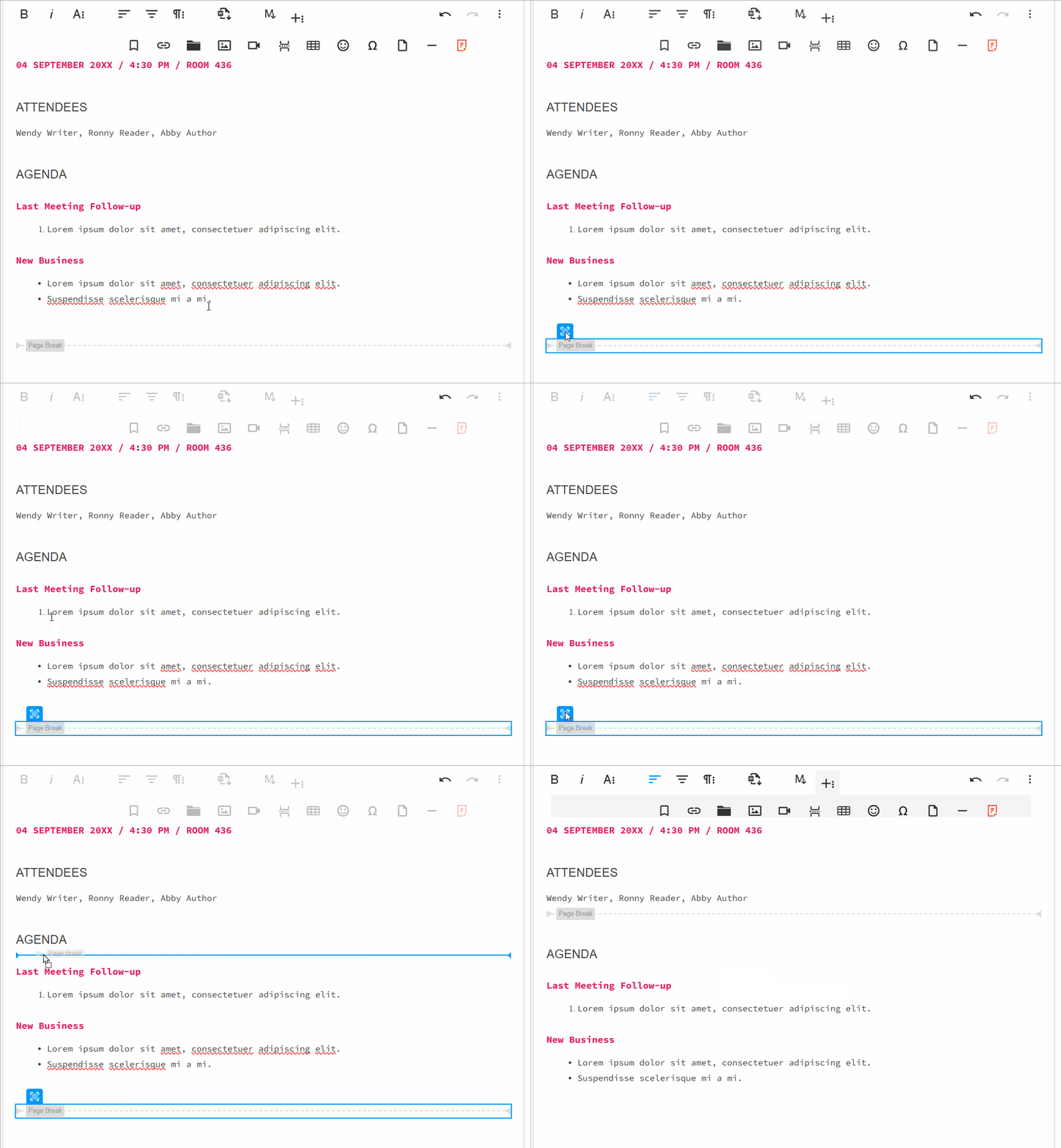
Step-by-Step Guide to Adding Virus Detection in HTML Editor Software

Building security into your HTML editor follows a structured process.

1. Define Security Requirements

Decide which content types need scanning: file uploads, embedded HTML (or scripts), or external resources. In most cases, youโ€™ll need to protect against vulnerabilities for all three. In this example, weโ€™ll focus more on protecting against malicious file uploads through Filestackโ€™s virus detection feature.

To get started, ensure that you have a Filestack account with the Virus Detection feature active. You should also have access to Filestack Workflows, which lets you automate file processing and chain tasks together.ย 

Furthermore, you’ll need Filestack’s Webhooks. This allows you to add endpoints to which Filestack will send the result of the virus detection task. This guide also uses Beeceptor, which creates a mock endpoint for webhook or API simulation.

Lastly, youโ€™ll need Froalaโ€™s v4.3 or higher, as it natively contains Filestack in the editor.

2. Integrate File Upload Security

We want the application to work so that it doesnโ€™t store suspicious or malicious uploads. This also means that weโ€™ll store safe files normally. To do this, log into your Filestack account through the Dev Portal.

After logging in, click the โ€œWorkflowsโ€ tab from the menu and click โ€œCreate New.โ€ After naming your workflow, click the plus button, and from the โ€œIntelligenceโ€ tab, choose โ€œvirus_detection.โ€ This creates a new virus detection task in your workflow.

Filestack Workflow's different features/processes. The virus_detection one is highlighted.

Afterwards, create another task by searching for โ€œvirus_detectionโ€ and adding a new condition through a button above. Set the path to “infected,” the condition to โ€œeq,โ€ and the value to โ€œfalse.โ€ This makes the workflow store the file if there are no viruses present (the infected field is set to false).

You could also use the same logic to create a condition for removing infected files (the infected field is set to true).

Next, open Beeceptor and create a mock endpoint or server. Go back to Filestackโ€™s dashboard, click โ€œWebhooksโ€ under the Configuration tab, and add the URL of your endpoint. Donโ€™t close your Beeceptor tab yet (if youโ€™re using it), since youโ€™ll revisit this after uploading an image.

Once thatโ€™s settled, go to your JavaScript file and paste the following code. Make sure that you have an element in your DOM that has the โ€œ#froala-editorโ€ identifier.

new FroalaEditor('#froala-editor',{
    filestackOptions: {
        filestackAPI: 'YourAPIKey',
        uploadToFilestackOnly: true,
        pickerOptions: {
            fromSources: ['local_file_system'],
            storeTo: {
                workflows: ["yourWorkflowID"]
            }
        }
    },
    toolbarButtons: {
        'moreRich': {
            'buttons': ['openFilePickerImageOnly', 'openFilePicker', 'insertLink', 'insertTable', 'emoticons', 'specialCharacters', 'insertHR'],
            'buttonsVisible': 3
        },

        'moreText': {
            'buttons': ['bold', 'italic', 'underline', 'fontFamily', 'fontSize', 'textColor', 'backgroundColor', 'clearFormatting']
        },

        'moreParagraph': {
            'buttons': ['alignLeft', 'alignCenter', 'formatOLSimple', 'alignRight', 'alignJustify', 'formatOL', 'formatUL', 'paragraphFormat', 'paragraphStyle', 'lineHeight', 'outdent', 'indent', 'quote']
        },
        'moreMisc': {
            'buttons': ['undo', 'redo', 'fullscreen', 'selectAll', 'html', 'help'],
            'align': 'right',
            'buttonsVisible': 2
        }
    },
    events: {
        'filestack.uploadedToFilestack': function (response) {
            console.log(response.filesUploaded[0]);
        },
        'filestack.uploadFailedToFilestack': function (response) {
            console.log(response);
        },
    },
    heightMin: 500,
    heightMax: 1000
});

This code configures Froala Editor as well as the natively integrated Filestack features. Update the fields with your actual API key and Filestack Workflow ID. You can also change, add, or remove different features and plugins here, since Froala follows the standard modular architecture in HTML editors.

3. Run the Application

Using a browser, run your application. Afterwards, click the Filestack icon to upload a file.

An image of an orange cat is uploaded into the editor through Filestack.

Should the file contain any viruses, the virus detection workflow will remove it or not store it. Otherwise, it will store it normally. This example shows the upload of a harmless picture of a cat. Thus, the workflow should allow the storing of this image.

The uploaded image is now on the HTML editor software.

After the upload, the file appears on the editor. This tells you that the file is safe and doesnโ€™t contain any viruses or malware. If you open the browser console, youโ€™ll also see the following file metadata from the uploaded file:

The result of the file upload from within the HTML editor software. From this image, one can imply that the file is safe because of its "Stored" status.

This shows the fileโ€™s name, handle, path, and other information. More importantly, we can see that its status is โ€œStored,โ€ which means that itโ€™s a safe and valid file. From here, you can implement other security measures as well as file processing features (e.g., content safety, image tagging).

Now, go back to your Beeceptor webhook endpoint (or your actual endpoint). You should see a request from Filestack, which may look similar to the following image:

The Filestack request from Workflows to Beeceptor's mock endpoint. This shows the data in a JSON format.

From the Filestack request, youโ€™ll notice the โ€œvirus_detectionโ€ workflow result, which containsย  โ€œinfectedโ€ and โ€œinfections_listโ€ properties. Since the โ€œinfectedโ€ property is false and the list of infections is empty, the file doesnโ€™t contain any viruses.

Best Practices for Secure HTML Editor Development

Adding virus detection is powerful, but you should maintain it with best practices. Here are some effective and common tips to further secure your application.

  • Keep antivirus signatures up-to-date so your system recognizes the latest threats.
  • Limit accepted file types to reduce risk. Allow only images, PDFs, safe document formats, or only the file formats that you need.
  • Use SSL/TLS encryption for secure communication with antivirus APIs.
  • Sandbox the HTML editor from the underlying operating system to contain and isolate potential exploits.
  • Educate end-users with prompts and warnings about safe file handling. At the same time, check the file sizes, file types, and other metadata of all uploads.
  • Enable real-time threat alerts for both users and administrators.
  • Run regular penetration tests to validate that your defenses hold up against evolving threats.

Note: Even the most advanced scanning system wonโ€™t stop every possible threat. Combine virus detection, sanitization, user training, and other methods to create a layered security strategy.

Conclusion

In HTML editor software, you canโ€™t think of security as an afterthought. With users constantly uploading files, pasting external code, and embedding links, actions can turn into possible entry points for malware. Thus, virus detection is vital to secure HTML editors.

By integrating virus detection, sanitization, and real-time monitoring, editors evolve from simple text tools into secure environments that protect both businesses and end-users. For teams building, customizing, or integrating HTML editors, itโ€™s clear that secure editing is better editing.

Looking to enhance your HTML editor with security features? Explore integration-ready tools and start building a safer editing experience.

Optimizing Vue Applications for HTML Code Writers: Initializing Froala Editor on Click

Optimizing Vue Applications for HTML Code Writers

The Froala Vue WYSIWYG Editor is a powerful tool that allows developers to easily incorporate a rich text editing experience into their Vue.js applications. With its user-friendly interface and extensive customization options, the Froala html code writer provides a seamless editing experience for users.

We have covered the integration process of Froala and Vue before. However, in some applications, developers may need to initialize the Froala Vue WYSIWYG Editor by clicking on a certain element. By manually initializing the editor on click, developers can control when the editor appears on the page. This helps optimize your application load speed especially if you have more than one editor on the page.

In this article, we will guide you through the process of initializing the Froala Vue WYSIWYG Editor on click. We will cover the necessary prerequisites, step-by-step instructions, and customization options to help you make the most out of this powerful editing tool.

By the end of this guide, you will have a solid understanding of how to set up and initialize the editor on click. So let’s dive in and explore the benefits and importance of on-click initialization for the Froala Vue WYSIWYG Editor.

Froala Editor
Froala Editor


prerequisites

We assume you have a working knowledge of:

  • JavaScript (including some of the newer, ES2015 features)
  • Vue 3
  • How to use the terminal/command line
  • Node and npm

Create a simple Vue project.

To create a new Vue.js project, run the following commands.

npm install -g @vue/cli

vue create my-froala-vue-app

The above commands will install the Vue CLI globally on your machine and then create a new Vue project called “my-froala-vue-app”.

Install the Froala WYSIWYG Editor package.

Next, you need to install the Froala WYSIWYG Editor package. To do this, navigate to your project directory and run the following command:

cd my-froala-vue-app

npm install vue-froala-wysiwyg

This will install the Froala WYSIWYG Editor package and its dependencies into your project.

Import the Froala WYSIWYG Editor Component

To use the Froala WYSIWYG Editor in your Vue application, you need to import the component. Copy the following code into your “main.js” file.

import { createApp } from "vue";
import App from "./App.vue";

//Import Froala Editor plugins
import "froala-editor/js/plugins.pkgd.min.js";

// Import Froala Editor css files.
import "froala-editor/css/froala_editor.pkgd.min.css";
import "froala-editor/css/froala_style.min.css";

// Import Froala Editor component
import VueFroala from "vue-froala-wysiwyg";

const app = createApp(App);

app.use(VueFroala);
app.mount("#app");

This code imports the VueFroala component from the `vue-froala-wysiwyg` package and registers it. This allows you to use the Froala WYSIWYG Editor component in your Vue components.

Initialize the Froala Vue WYSIWYG Editor on Click

We will add the following code to the “app.vue” file.

<template>
  <div id="app">
    <h1>Vue adapter for the Froala WYSIWYG editor</h1>

    <div class="sample">
      <h2>Sample 4: Manual Initialization</h2>
      <button class="manual" v-on:click="createEditor()" v-if="!showEditor">
        Initialize Editor
      </button>
      <button v-on:click="destroyEditor()" v-if="showEditor">
        Close Editor
      </button>
      <button v-on:click="deleteAll()" v-if="showEditor">Delete All</button>
      <froala
        id="sample5"
        :onManualControllerReady="initialize"
        v-model:value="sample3Text"
      >
        <template v-slot>
          <div>
            Check out the
            <a href="https://www.awsstage.froala.com/wysiwyg-editor">Froala Editor</a>
          </div>
        </template>
      </froala>
    </div>
  </div>
</template>

<script>
export default {
  name: "app",
  data() {
    return {
      // Sample 4
      sample3Text: null,
      initControls: null,
      showEditor: false,
      deleteAll: null,
      destroyEditor: () => {
        this.initControls.destroy();
        this.showEditor = false;
      },
      createEditor: () => {
        this.initControls.initialize();
        this.showEditor = true;
      },
      initialize: (initControls) => {
        this.initControls = initControls;
        this.deleteAll = () => {
          this.initControls.getEditor().html.set("");
          this.initControls.getEditor().undo.reset();
          this.initControls.getEditor().undo.saveStep();
        };
      },
    };
  },
  created() {},
};
</script>

<style>
#app {
  font-family: "Avenir", Helvetica, Arial, sans-serif;
  -webkit-font-smoothing: antialiased;
  -moz-osx-font-smoothing: grayscale;
  color: #2c3e50;
  margin-top: 60px;
}
body {
  padding: 20px;
}

.sample {
  padding-bottom: 50px;
  margin-left: 30px;
  border-top: 1px solid lightgray;
}

.manual {
  margin-bottom: 20px;
}

.button {
  margin-left: 5px;
}
</style>

Let’s break down the code step by step:

The code above defines three buttons: one for initializing the editor when it is not loaded on the page, and the other two buttons appear when the editor is shown. One button is for destroying the editor, and the other is used to clear the editor’s contents.

<h2>Sample 4: Manual Initialization</h2>
<button class="manual" v-on:click="createEditor()" v-if="!showEditor">
  Initialize Editor
</button>
<button v-on:click="destroyEditor()" v-if="showEditor">
 Close Editor
</button>
<button v-on:click="deleteAll()" v-if="showEditor">Delete All</button>

The showEditor is a data property that determines whether the editor is currently shown or not. It is initially set to false. The createEditor method is called when the “Initialize Editor” button is clicked, and it sets showEditor to true and initializes the editor. The destroyEditor method is called when the “Close Editor” button is clicked, and it destroys the editor and sets showEditor back to false. The deleteAll method is called when the “Delete All” button is clicked, and it clears the editor contents.

Our “app.vue” code also includes the Froala Vue component. It has an id of sample5 and a v-model binding to the sample3Text data property. This :onManualControllerReady is used to bind the initialize method to the Froala editor’s manual controller. This allows us to access the editor’s methods and perform actions such as clearing the editor’s contents.

      <froala
        id="sample5"
        :onManualControllerReady="initialize"
        v-model:value="sample3Text"
      >

The initialize method is called when the editor is initialized, and it receives the initControls object as a parameter. Developers can obtain instances of the FroalaEditor object by using the getEditor() method of the initControls object. This allows them to easily access and utilize any Froala API method.

<script>
export default {
  name: "app",
  data() {
    return {
      // Sample 4
      sample3Text: null,
      initControls: null,
      showEditor: false,
      deleteAll: null,
      destroyEditor: () => {
        this.initControls.destroy();
        this.showEditor = false;
      },
      createEditor: () => {
        this.initControls.initialize();
        this.showEditor = true;
      },
      initialize: (initControls) => {
        this.initControls = initControls;
        this.deleteAll = () => {
          this.initControls.getEditor().html.set("");
          this.initControls.getEditor().undo.reset();
          this.initControls.getEditor().undo.saveStep();
        };
      },
    };
  },
  created() {},
};
</script>

Finally, we have a `template` block inside the Froala component where we can add additional HTML content. In this example, we have simple text and a link to the Froala Editor website.

  <template v-slot>
    <div>
      Check out the
      <a href="https://www.awsstage.froala.com/wysiwyg-editor">Froala Editor</a>
    </div>
  </template>

That’s it! You have now created a simple Vue project with the Froala html code writer integrated. You can now run your Vue project and see the Froala Editor in action.

Run the Vue App

To run the Vue app and see the Froala Vue WYSIWYG Editor in action, navigate to your project directory and run the following command:

npm run serve

This will start the development server at http://localhost:8080

The benefits of loading Froala on click

Loading the Froala Vue WYSIWYG editor on click offers several benefits for developers. It helps improve the initial loading time of the webpage. By deferring the loading of the editor until it is actually needed, developers can ensure that their web pages load quickly and efficiently. This can lead to a better user experience, as visitors won’t have to wait for the editor to load if they don’t plan on using it.

Additionally, loading the Froala editor on click allows developers to save resources and optimize performance. Since the editor is only loaded when necessary, it doesn’t consume unnecessary memory or processing power. This can help improve the overall performance of the webpage and prevent any unnecessary strain on the user’s device.

Moreover, loading the Froala editor on click provides a more seamless and intuitive user experience. Instead of having the editor visible at all times, it only appears when the user explicitly chooses to use it. This allows for a cleaner and less cluttered interface, making it easier for users to focus on the task at hand.

Conclusion

The Froala WYSIWYG Editor is a powerful tool for creating rich text content in web applications. In this tutorial, we learned how to integrate the Froala Editor with a Vue.js project and initialize it on click. This approach offers numerous benefits in terms of performance, user experience, and resource optimization.

Now that you have learned how to integrate and initialize the Froala Editor on click, why not give it a try in your own Vue.js projects? With its user-friendly interface and extensive customization options, the Froala Editor offers a seamless editing experience for your users. Experience the power of the Froala Editor today and enhance the content creation capabilities of your web applications.

Get started with the Froala Vue WYSIWYG Editor now and unleash the full potential of your web applications!

Embedding Emotion: Emoji Integration with Froala Editor

Emoji Integration with Froala Editor

Emojis have evolved from a niche Japanese communication tool to a global, universal language that transcends linguistic and cultural barriers. When strategically incorporated, these expressive icons can enhance professional communication by clarifying tone, conveying emotional nuance, and improving engagement.

The Froala Editor’s Emoticons plugin provides a robust and customizable solution for seamlessly integrating these emotive elements into web applications. By leveraging this powerful plugin, developers can create more engaging, human-centered digital experiences that resonate with their audience.

Dive into the origins of emoji, explore their cultural impact, and discover how the Froala Emoticons plugin can elevate your web content to new heights of expressiveness and connection.

Key Takeaways

  • Emojis have evolved from a niche Japanese communication tool to a global, universal language that transcends linguistic and cultural barriers.
  • Strategically used emojis can enhance professional communication by clarifying tone, conveying emotional nuance, and improving engagement.
  • The Froala Editor’s Emoticons plugin provides a robust and customizable solution for seamlessly integrating expressive emojis into web applications.
  • By leveraging the Emoticons plugin, developers can create more engaging, human-centered digital experiences that resonate with their audience.

Origins of Emoji

The story of emoji begins in Japan during the late 1990s, a time when digital communication was rapidly evolving. Shigetaka Kurita, working for NTT DoCoMo, a Japanese mobile phone operator, created the first set of 176 emoji in 1999. These simple 12×12 pixel images were designed to enhance mobile communication, providing a way to convey emotions and context that text alone couldn’t capture.

Originally, these icons were a solution to a specific problem: how to make digital communication more nuanced and expressive on the limited screen space of early mobile phones. Kurita drew inspiration from manga, kanji characters, and international symbols, creating a visual language that could transcend traditional text-based messaging.

Technical Evolution

The real breakthrough came with Unicode standardization. In 2010, Unicode began officially encoding emoji, transforming them from a Japanese mobile phone novelty to a global communication tool. This standardization meant that an emoji sent from an iPhone in New York could be correctly displayed on an Android device in Tokyo.

The Unicode Consortium now manages emoji development, with new characters added annually. What started as 176 icons has exploded into hundreds of diverse emoji representing people, objects, activities, and complex emotions. Each new release reflects ongoing efforts to increase representation and cultural inclusivity.

Cultural Impact

Emojis have fundamentally transformed how we communicate digitally. They provide emotional nuance impossible in plain text, allowing users to convey tone, humor, and sentiment with a single character. A thumbs-up, a heart, or a crying face can communicate volumes more efficiently than paragraphs of text.

More significantly, emojis have become a quasi-universal language. They transcend linguistic barriers, enabling communication across cultures and languages. A smile is a smile, regardless of whether you speak English, Mandarin, or Arabic.

Emoji in Professional Communication: Enhancing Content and Engagement

Contrary to early assumptions, emoji have found significant utility in professional communication, particularly in emails. Far from being unprofessional, strategically used emoji can enhance message clarity, emotional intelligence, and engagement.

In email communication, emoji serve several critical functions:

  1. Tone Clarification: In text-based communication, tone is notoriously difficult to convey. An emoji can instantly soften a directive, express gratitude, or add warmth to an otherwise clinical message. A simple ๐Ÿ‘ can confirm understanding more effectively than a terse “OK.”
  2. Emotional Nuancing: Emoji allow senders to communicate emotional subtext that might be lost in plain text. A ๐Ÿ˜Š can transform a routine communication into a more personable interaction, building rapport in professional relationships.
  3. Cross-Cultural Communication: In global business environments, emoji can bridge communication gaps, providing emotional context that might be lost in translation or across different communication styles.
  4. Engagement Metrics: Research has shown that emails and messages with carefully selected emoji have higher open and response rates, particularly among younger professionals.

Practical Examples

  • A thank-you email with a ๐Ÿ™ feels more genuine than a formulaic message.
  • A project update with a ๐Ÿš€ suggests enthusiasm and progress.
  • A gentle reminder with a ๐Ÿ˜Š feels less confrontational than a stern text.

However, emoji use requires cultural sensitivity and contextual awareness. The key is moderation and appropriateness to the professional environment.

The Modern Challenge of Emoji Integration

As emoji have become a fundamental part of digital communication, web developers and content creators face a critical challenge: seamlessly integrating these expressive icons into their content platforms. The Froala Editor emerges as a powerful solution to this challenge, offering sophisticated emoji integration that goes beyond simple icon insertion.

Froala Emoticons Plugin: An Overview

The Froala Emoticons plugin represents a sophisticated approach to emoji integration, providing developers and content creators with a robust toolset for adding and customizing emoji within web applications.

Key Features

  • Comprehensive emoji library
  • Customizable emoji sets
  • Easy integration with web applications
  • Responsive design compatibility
  • Multiple insertion methods

Froala emoji plugin

Installation and Setup of Emoticons Plugin

Plugin Inclusion

The Emoticons plugin is included with the full Froala editor package (`.pkgd`). Custom implementations require manual addition of two files:

  • JavaScript: /js/plugins/emoticons.min.js
  • Stylesheet: /css/plugins/emoticons.min.css

Enabling the Emoticons Plugin

To enable the Emoticons plugin, include emoticons in the pluginsEnabled array when customizing the editor’s enabled plugins.

new FroalaEditor('#editor', { 
       pluginsEnabled: ['emoticons', 'fontFamily', 'image', 'link', 'video']
    });

Adding Toolbar Button

To add an Emoticons button when customizing the editor’s toolbar, include emoticons in your toolbar configuration.

new FroalaEditor('#editor', {
    toolbarButtons: ['emoticons', 'bold', 'italic', 'insertLink']
});

The Emoticons Plugin Configuration

Clicking the Emoticons button on the editor toolbar opens a popup containing all available emoticons. This popup can be customized using the following options:

emoticonsSet Option

This configuration allows you to customize the emoji groups displayed in the popup.

This option is an array of objects. Each object represents an emoticon group that has the following properties:

  • id: Unique identifier for the emoji group
  • name: A name or title of the emoticons group. It will appear to the users when they hover over the group icon.
  • code: Unicode for the group’s representative emoji
  • emoticons : An array of objects, each representing an emoticon in the group. Each object contains the emoticon’s code and description. For instance, the Grinning face emoticon is represented as { code: "1f600", desc: "Grinning face" }
new FroalaEditor('div#froala-editor', {
    toolbarButtons: ['bold', 'italic', 'emoticons'],
    emoticonsSet: [{
      id: 'people',
      name: 'Smileys & People',
      code: '1f600',
      emoticons: [
        { code: '1f600', desc: 'Grinning face' },
        { code: '1f601', desc: 'Grinning face with smiling eyes' },
        { code: '1f602', desc: 'Face with tears of joy' },
        { code: '1f603', desc: 'Smiling face with open mouth' },
        { code: '1f604', desc: 'Smiling face with open mouth and smiling eyes' },
        { code: '1f605', desc: 'Smiling face with open mouth and cold sweat' },
        { code: '1f606', desc: 'Smiling face with open mouth and tightly-closed eyes' },
        { code: '1f607', desc: 'Smiling face with halo' }
      ]
    }, {
    'id': 'nature',
    'name': 'Animals & Nature',
    'code': '1F435',
    'emoticons': [
      { code: '1F435', desc: 'Monkey Face' },
      { code: '1F412', desc: 'Monkey' },
      { code: '1F436', desc: 'Dog Face' },
      { code: '1F415', desc: 'Dog' },
      { code: '1F429', desc: 'Poodle' },
      { code: '1F43A', desc: 'Wolf Face' },
      { code: '1F431', desc: 'Cat Face' },
      { code: '1F408', desc: 'Cat' },
      { code: '1F42F', desc: 'Tiger Face' },
      { code: '1F405', desc: 'Tiger' },
      { code: '1F406', desc: 'Leopard' },
      { code: '1F434', desc: 'Horse Face' },
      { code: '1F40E', desc: 'Horse' },
      { code: '1F42E', desc: 'Cow Face' },
      { code: '1F402', desc: 'Ox' },
      { code: '1F403', desc: 'Water Buffalo' },
      ]
    }]
  })

emoticonsUseImage Option

The editor uses EmojiOne SVG images to represent the emoticon by default, but can be configured to use Unicode text instead by setting emoticonsUseImage to false.

new FroalaEditor('div#froala-editor', {
    toolbarButtons: ['bold', 'italic', 'emoticons'],
    emoticonsUseImage: false,
 })

emoticons.insert Method

The plugin also provides a method for programmatically inserting emoticons into the editor, with the following parameters:

  • `code`: The Unicode code point of the emoticon to insert.
  • `image`: Image to be inserted when the emoticonsUseImage option is enabled.
var editor = new FroalaEditor('.selector', {}, function () {
  // Call the method inside the initialized event.
  editor.emoticons.insert("&#x1f600;", "https://cdnjs.cloudflare.com/ajax/libs/emojione/2.0.1/assets/svg/1f601.svg");
})

Frequently Asked Questions About Emoji and Froala Editor

What is the Froala Emoticons plugin?

The Froala Emoticons plugin is a feature that allows developers to easily integrate and customize emojis used in the editor. It allows users to easily insert and manage emojis within the content created by Froala Editor.

Are emojis professional in business communication?

When used strategically and sparingly, emoji can enhance communication by adding emotional nuance and building rapport, especially in digital and global business environments.

Can I customize the emoji set in Froala?

Yes, you can create custom emoji sets using the emoticonsSet configuration option, allowing you to define specific groups and icons.

Does the Emoticons plugin impact website performance?

The plugin is designed to be lightweight and has minimal performance overhead when properly implemented.

Is the Froala Emoticons plugin cross-browser compatible?

Yes, the plugin is designed to work consistently across modern browsers, including Chrome, Firefox, Safari, and Edge.

What’s the future of emoji in web communication?

Emojis are increasingly becoming a universal language, with advanced AI and AR technologies likely to create more sophisticated and contextual emoji integration.

Conclusion

The Froala Editor’s Emoticons plugin represents more than just a technical solutionโ€”it’s a bridge between expressive communication and sophisticated web design, enabling developers to create more engaging, human-centered digital experiences.

Take the first step towards more compelling content – explore the Froala Editor’s Emoticons plugin and its comprehensive features and customization options today. Empower your users to communicate with greater emotional depth and connection, and watch as your digital experiences come alive with the power of expressive emojis.

The Developer’s Ultimate Guide to Froala’s Find and Replace Plugin

In the world of web development and text editing, efficiency is key. Whether you’re managing large documents or simply trying to clean up text, having a robust find and replace functionality can save countless hours of manual editing. Enter Froala’s Find and Replace Plugin โ€“ a powerful tool designed to streamline text manipulation and enhance user productivity.

This comprehensive guide will walk you through everything you need to know about this essential plugin. We’ll explore:

  • How the Find and Replace plugin operates
  • Step-by-step installation and setup instructions
  • A detailed breakdown of the plugin’s API options and methods
  • Practical use cases and implementation strategies

By the end of this article, you’ll have a complete understanding of how to leverage Froala’s Find and Replace Plugin to transform your text editing workflow.

Key Takeaways

  • Froala Find and replace plugin allowing user to perform comprehensive text search and replacement functionality
  • The plugin supports case-sensitive and whole word matching
  • The plugin has a flexible configuration and customization

How the Find and Replace Works

Froala’s Find and Replace plugin offers a user-friendly interface for searching and modifying text within the editor. Users can access the search and replace popup in two ways:

  • Through the editor toolbar
  • By using the keyboard shortcut (CTRL + F)

Search and Replace Popup Features

The popup provides comprehensive search capabilities, including:

  • Search term input field
  • Replacement word input field
  • Optional match case sensitivity
  • Option to match whole words only

Available Actions

Users can choose from three primary actions:

  1. Find: Locate occurrences of the search term
  2. Replace: Swap a single matched instance
  3. Replace All: Substitute all matching instances

Workflow

Initially, only the “Find” button is active. When you click “Find”, the plugin displays the number of matching occurrences and activates the replacement field and buttons. This allows you to to replace the current match or all matches.

Find and Replace plugin in action

This intuitive design enables efficient text editing with minimal effort.

Installation and Setup of Froala Find and Replace Plugin

Plugin Inclusion

If you’re using the full Froala editor package (`.pkgd`), the Find and Replace plugin is automatically included. For custom implementations, you’ll need to manually add two files:

  • JavaScript: /js/plugins/find_and_replace.min.js
  • Stylesheet: /css/plugins/find_and_replace.min.css

Plugin Configuration

Enabling the Plugin

If youโ€™re customizing the editorโ€™s enabled plugins, include findReplace in the pluginsEnabled array to activate the Find and Replace plugin

new FroalaEditor('#editor', { 
       pluginsEnabled: ['findReplace', 'fontFamily', 'image', 'link', 'video']
 });

Adding Toolbar Button

If youโ€™re customizing the editorโ€™s toolbar buttons and want to display the Find and Replace button, add findReplaceButton to your toolbar configuration:

new FroalaEditor('#editor', {
    toolbarButtons: ['findReplaceButton', 'bold', 'italic', 'insertLink']
});

If you are customizing the toolbar buttons for different screen sizes, add findReplaceButton to the used configuration:

  • toolbarButtonsMD (Medium screens)
  • toolbarButtonsSM (Small screens)
  • toolbarButtonsXS (Extra small screens)

By default, these inherit the buttons from toolbarButtons.

The Find and Replace Plugin Configuration

Froala’s Find and Replace plugin provides flexible configuration options, methods, and events that allow developers to customize the search experience.

Plugin Options

The plugin offers three key configuration settings:

  1. Case Sensitivity:
    • Set enableMatchCase: true to make case-sensitive search the default behavior.
  2. Word Matching:
    • Set enableMatchWholeWord: true to match entire words by default.
  3. Automatic Popup Display:
    • Set showFindAndReplace: true to display the Find and Replace popup when the editor initializes.

These options give developers granular control over the search and replace functionality, enabling a more tailored text editing experience.

Plugin Events

Froala’s Find and Replace plugin provides four key events that give developers precise control over text replacement workflows:

1. findandreplace.beforeClose()

Triggered before the Find and Replace popup closes, allowing for any necessary cleanup or validation.

2. findandreplace.beforeOnReplace()

Fires before a replacement occurs, enabling developers to:

  • Validate replacements
  • Implement custom validation logic
  • Prevent replacements if needed

3. findandreplace.onReplace([{ oldValue, newValue }])

Occurs after a single text replacement, providing:

  • The original text (oldValue)
  • The replacement text (newValue)

Useful for:

  • Tracking changes
  • Logging modifications
  • Triggering additional actions

4. findandreplace.onReplaceAll([{ oldValue, newValue }])

Triggered after replacing all matching instances, with similar details to onReplace().

new FroalaEditor('.selector', {
  events: {
    'findandreplace.beforeClose': function () {
      // this is the editor instance.
      console.log(this);
    },
    'findandreplace.beforeOnReplace': function () {
      // Do something here.
      // this is the editor instance.
      console.log(this);
    },
    'findandreplace.onReplace': function (textArray) {
      // Do something here.
      // this is the editor instance.
      console.log(this);
    },
    'findandreplace.onReplaceAll': function (textArray) {
      // Do something here.
      // this is the editor instance.
      console.log(this);
    }
  }
});

These events offer powerful hooks for customizing the Find and Replace plugin’s behavior, enabling developers to create more intelligent and interactive text editing experiences.

Plugin Methods

Froala’s Find and Replace plugin offers a comprehensive set of methods to programmatically control search and replacement functionality:

Search and Match Methods

findReplace.findMatches(searchText)

Locate and highlight all instances of a specific text. Use this when you want to identify all occurrences of a keyword in a document

findReplace.findNextMatch(index)

Navigate to the next matching instance. Allowing to systematically review search results

  • Example: editor.findReplace.findNextMatch(2) moves to the third match

findReplace.findPreviousMatch(index)

Navigate to the previous matching instance in a circular manner. Allowing to Backtrack through search results

  • Example: editor.findReplace.findPreviousMatch(1) moves to the previous match

Replacement Methods

findReplace.replaceMatch(replaceText)

Replace the current matched text. Use it if you want to selectively update specific instances

  • Example: editor.findReplace.replaceMatch("updated term")

findReplace.replaceMatches(replaceText)

Replace all matching instances. Use it to perform bulk text updates

  • Example: editor.findReplace.replaceMatches("new text")

Information and Control Methods

findReplace.getMatchesCount()

Retrieve total number of matches. This helpful to understand search result scope

  • Example: let matchCount = editor.findReplace.getMatchesCount()

findReplace.getCurrentMatch()

Get text of the current match. Use it when you want to inspect current search result

  • Example: let currentText = editor.findReplace.getCurrentMatch()

findReplace.getCurrentMatchIndex()

Get index of current match. Use it to track position in search results

  • Example: let currentIndex = editor.findReplace.getCurrentMatchIndex()

findReplace.showPopup()

Manually display Find and Replace interface. Use it to programmatically trigger search functionality

  • Example: editor.findReplace.showPopup()

findReplace.hidePopup()

Programmatically close Find and Replace popup

  • Example: editor.findReplace.hidePopup()

Each method provides granular control over the Find and Replace functionality, enabling developers to create sophisticated text editing experiences.

Practical Use Cases

1. Large-Scale Documentation Management

Scenario: Technical writers managing extensive documentation repositories

  • Example: Replacing an outdated product name across multiple documents
  • Leverage case sensitivity and whole word matching for precision

2. Internationalization and Localization

Translating and standardizing text across multilingual content

3. Content Compliance and Style Guide Enforcement

Ensuring consistent language and branding across organizational documents

Advanced Implementation Techniques

Programmatic Search and Replace Workflow

// Example: Systematic document review process
function reviewDocument(editor, searchTerms) {
    searchTerms.forEach(term => {
        const matches = editor.findReplace.findMatches(term);
        if (matches.length > 0) {
            // Trigger review workflow
            openReviewModal(matches);
        }
    });
}

By understanding these practical use cases, developers can leverage Froala’s Find and Replace plugin to create more intelligent, efficient, and robust text editing experiences.

Frequently Asked Questions (FAQ)

Is the Find and Replace plugin included in all Froala Editor versions?

The plugin is automatically included in the full Froala editor package (.pkgd). For custom implementations, you’ll need to manually include the JavaScript and CSS files.

Can I track or log text replacements?

Yes, use event handlers like:

  • findandreplace.onReplace()
  • findandreplace.onReplaceAll()

These provide details about the replaced text and allow for custom logging or tracking.

How can I add custom validation before text replacement?

Use the findandreplace.beforeOnReplace() event to implement custom validation logic:

editor.events.on('findandreplace.beforeOnReplace', function(oldValue, newValue) {
    // Custom validation logic
    if (containsSensitiveInformation(oldValue)) {
        return false; // Prevent replacement
    }
    return true;
});

Which browsers support the Froala Find and Replace plugin?

The plugin is compatible with all modern browsers, including:

  • Google Chrome
  • Mozilla Firefox
  • Safari
  • Microsoft Edge
  • Opera

Compatibility is ensured across desktop and mobile platforms.

Is the Find and Replace plugin available in all Froala plans?

Yes, the Find and Replace plugin is available across all Froala licensing plans.

Where can I get additional support?

Conclusion

Froala’s Find and Replace plugin represents a powerful solution for developers and content creators seeking efficient text manipulation. By providing intuitive search capabilities, flexible configuration options, and robust API methods, the plugin transforms text editing from a manual, time-consuming process to a streamlined, programmatic experience.

As web content continues to evolve, tools like Froala’s Find and Replace plugin will remain critical in helping writers maintain accuracy, consistency, and efficiency in their text editing workflows.

Ready to Transform Your Text Editing?

Don’t just read about efficiencyโ€”experience it. Froala offers a free trial that lets you explore the Find and Replace plugin and the entire editor ecosystem. Whether you’re a solo developer, part of a team, or managing large-scale documentation, there’s no better time to upgrade your text editing workflow.

Try Froala Editor for Free โ†’

Real-Time Writing Detection: A Froala WYSIWYG Editor Guide

Real-time writing detection

Every year, millions of users lose their work due to undetected writing sessions. Writing detection is revolutionizing the way we interact with digital content

In this comprehensive guide, we’ll dive deep into the world of writing detection using the Froala WYSIWYG editor. You’ll learn the fundamental concepts, explore practical use cases across various applications, and discover technical implementation strategies. From understanding the core principles to implementing advanced detection techniques, this article will equip developers and product managers with the knowledge to create more responsive and intuitive user interfaces.

Detect users start typing

Takeaways

You can use writing detection feature to:

  • Enhance user experience through intelligent, context-aware interactions.
  • Improves productivity and reduces user friction
  • Creates more engaging and responsive digital environments
  • It’s applicable across diverse platforms (chat apps, email, collaborative documents)

Understanding User Writing Detection

User writing detection aims to identify the precise moment a user begins to write. It’s a sophisticated approach to understanding and enhancing user interaction.

The core purpose of writing detection extends beyond simple tracking. It enables:

  • Personalized user experiences
  • Real-time collaborative features
  • Intelligent content management
  • Performance and engagement analytics

Use Cases

Writing detection finds applications across diverse digital platforms:

Content Creation Platforms

  • Blogs and content management systems can automatically save drafts.
  • Enable seamless collaborative editing across distributed teams
  • Technical documentation tools can provide contextual assistance.

Communication Applications

  1. Chat Applications
    • Implement real-time “typing” indicators
    • Enable intelligent draft saving
    • Suggest contextual responses
    • Provide a seamless message composition experience.
  2. Email Interfaces
    • Auto-save draft functionality
    • Detect abandoned message composition
    • Provide writing assistance

Professional Tools

  • Learning management systems tracking student engagement
  • Customer support platforms monitoring response times
  • Code documentation tools analyzing writing patterns

Technical Implementation in Froala

Event Listeners

Froala provides multiple events to detect changes inside the editor, which can be crucial for content validation and writing detection:

  1. contentChanged Event
var editor = new FroalaEditor("div#froala-editor", {
ย ย ย ย events:ย {
ย ย ย ย 'contentChanged': function () {
ย  ย  ย ย ย ย // Detect when content is modified
ย  ย  ย  ย console.log('User started writing');
ย ย ย ย }
ย ย }
});
  1. input Event
var editor = new FroalaEditor("div#froala-editor", {
ย ย ย ย events:ย {
 ย ย ย 'input': function () {
  ย  ย   // Capture real-time input changes 
   ย ย ย ย trackUserWriting();
ย ย ย ย }
ย ย }
});

While both events can help in detecting user writing, they have crucial differences:

contentChanged Event

  • Triggers after the content in the editor has been modified
  • Captures broader changes, including:
    • Pasting content
    • Deleting content
    • Formatting modifications
    • Drag-and-drop operations
  • Less frequent, more performance-friendly
  • Provides a comprehensive view of content alterations

input Event

  • Fires immediately when the user types or modifies content
  • Captures real-time, granular input changes
  • Triggered for each keystroke or character insertion

Since input event is not triggered when content deleted, we will use the contentChanged event.

Detecting User Writing with Character Count

Froala provides a convenient charCounter.count method that can be used as an additional technique to detect when a user starts writing:

var editor = new FroalaEditor("div#froala-editor", {
ย ย ย ย events:ย {
 ย ย 'contentChanged': function () {
  ย  ย ย ย ย // Check the number of characters in the editor 
  ย ย ย ย const characterCount = editor.charCounter.count(); 
ย  ย ย ย ย if (characterCount > 0) { 
ย ย ย ย ย ย ย ย // User has started writing
 ย ย ย ย ย ย ย ย console.log('User is writing'); 
  ย ย ย ย ย ย // Trigger your writing detection logic
 ย ย ย ย }
ย ย ย ย }
ย ย }
});

Key Benefits:

  • Simple and straightforward method
  • Provides an immediate indicator of writing activity
  • Works in conjunction with event listeners
  • Helps distinguish between empty and populated editor states

By combining charCounter.count() with event listeners like input and contentChanged, developers can create a robust writing detection system that captures nuanced user interactions.

Using a flag to avoid multiple unnecessary method calls

Add a flag to determine if user writing is already detected. This approach ensures:

  • Avoid multiple unnecessary method calls
  • More efficient writing detection
  • Clean state management for writing status
let isWriting = false;
var editor = new FroalaEditor('div#froala-editor', {
  events: {
    contentChanged: function () {
      // Check the number of characters in the editor
      const characterCount = editor.charCounter.count();

      if (characterCount > 0 && !isWriting) {
        // User has started writing
        isWriting = true;
        console.log('User is writing');
        // Trigger your writing detection logic
      } else if (characterCount === 0) {
        // Reset the flag when editor is empty
        isWriting = false;
      }
    },
  },
});

User Experience Improvements

Immediate Feedback Mechanisms

  • Trigger auto-save when writing begins
  • Provide spelling and grammar suggestions.
  • Offer contextual writing assistance

Privacy Considerations

  • Implement transparent tracking
  • Give users control over interaction monitoring
  • Clearly communicate data usage policies

Performance Best Practices

Optimization Strategies

  • Use lightweight event handlers
  • Minimize performance overhead
  • Ensure cross-browser compatibility

Ethical Considerations: The Human Behind the Cursor

As writing technologies become more sophisticated, we must never forget the human element. Writing detection should feel like a supportive nudge, not an invasive surveillance mechanism.ย 

While user activity tracking provides valuable insights, it must be balanced with respect for individual privacy. Transparency, user consent, and respect for privacy are paramount.

Designing for Trust

The best writing detection tools are those that feel invisible. They anticipate needs without feeling intrusive. They save work without demanding attention. They provide assistance without undermining the writer’s agency.

The Future of Digital Writing

Writing detection represents more than a technological milestone. It’s a testament to our growing understanding of how humans interact with digital spaces. It acknowledges that writing is an emotional, complex processโ€”not just a mechanical task of inputting text.

As we move forward, these technologies will become more nuanced, more empathetic. They’ll understand not just when we’re writing, but how we’re feeling while we write.

Conclusion

Writing detection in WYSIWYG editors like Froala represents a sophisticated approach to understanding and enhancing user interaction. By implementing intelligent detection mechanisms, developers can create more responsive, intuitive, and user-friendly digital experiences.

Transform your application with cutting-edge writing detection and seamless user interaction. Whether you’re building a chat app, content management system, or collaborative platform, Froala provides the tools you need to create exceptional digital writing experiences. Download Froala WYSIWYG Editor Now

Frequently Asked Questions (FAQ)

What exactly is writing detection?

Writing detection is a technology that identifies when a user starts typing or modifying content in a digital editor, enabling responsive and intelligent user interfaces.

Why is writing detection important?

It enhances user experience by:

  • Enabling auto-save features
  • Providing real-time collaboration indicators
  • Improving performance and engagement tracking
  • Offering contextual assistance

Is writing detection invasive?

No, when implemented ethically. Good writing detection:

  • Respects user privacy
  • Provides transparent tracking
  • Offers user control over data collection
  • Focuses on improving user experience

How accurate is writing detection?

Since charCounter.count() is accurately returning the character count, writing detection can be highly precise.

Does writing detection work across different browsers?

Froala Editor and its events and methods are designed to be cross-browser compatible. Creating a writing detection feature using these events and methods should be cross-browser compatible, but thorough testing across different browsers and devices remains crucial.

The goal is to create a seamless, responsive writing experience that feels natural and intuitive, regardless of the user’s chosen platform.

Can writing detection be used in mobile applications?

Absolutely! Writing detection is crucial in mobile interfaces, helping to:

  • Manage limited screen space
  • Provide real-time feedback
  • Optimize performance
  • Enhance touch-based writing experiences

What are the performance implications?

When implemented correctly, writing detection has minimal performance impact. Best practices include:

  • Using efficient event listeners
  • Implementing debounce techniques
  • Avoiding unnecessary computations

Can writing detection help with accessibility?

Yes, it can:

  • Provide better support for assistive technologies
  • Offer real-time feedback for users with different writing needs.
  • Improve overall digital writing experiences

5 Powerful Table Styles And How To Implement Them In Froala WYSIWYG Editor

table styles

Tables are a ubiquitous feature on the web, but their appearances can vary greatly. Some tables look visually unimpressive, while others display a polished, professional design. This article showcases popular and visually stunning table styles that developers can easily integrate as predefined layouts in the Froala WYSIWYG Editor.

This simplifies table styling for users, enabling them to create professional-looking tables with ease, regardless of their HTML or CSS knowledge. This democratization of design ensures that beautiful, professional-looking tables are just a click away.

beautiful, professional-looking tables

Key Takeaways

  • Table styles go beyond aesthetics; they enhance data communication.
  • Froala offers unprecedented customization for table design.
  • Choose styles that align with your content’s purpose and audience.

Understanding HTML Table Styles Feature in Froala

Before diving into specific styles, it’s crucial to understand how table styling works in Froala.

Applying Preset Table Styles

The Froala WYSIWYG Editor comes with a selection of pre-designed table styles that users can quickly apply to their tables. These preset styles include a variety of color schemes, border styles, and cell formatting options, allowing users to achieve a polished and consistent look across their tabular content.

This feature is particularly useful for users who want to quickly add visual interest to their tables without having to manually configure each individual styling element. By providing a selection of pre-designed styles, Froala helps users save time and ensure a consistent look and feel across their tabular content.

To apply a preset HTML table style, simply select the table you want to format and click on the “Table Styles” button in the editor’s toolbar. This will open a dropdown menu displaying the available style options. Users can then choose the style that best fits their design needs, and Froala will automatically apply the selected formatting to the table.

Developers can extend this Preset list by:

  1. Defining CSS classes for table styles
  2. Registering these styles within the Froala configuration using the tableStyles option. This option is an Object where the key represents the class name and its value is the style name that appears in the dropdown list. It is important to have unique keys otherwise they will not work properly.

For example, to register a table style that creates a striped table.

  1. Define CSS class
  .class1 tbody tr:nth-child(2n) {

ย ย ย ย background: #f9f9f9;

ย ย }
  1. Register the new style
ย  new FroalaEditor('div#froala-editor', {

ย ย ย ย // Define new table cell styles.

ย ย ย ย tableStyles: {

ย ย ย ย ย ย class1: 'Class 1',

ย ย ย ย }

ย ย })

Styling Tables Examples

Style 1: Minimalist Professional Grid

Design Philosophy

The Minimalist Professional Grid represents clean, corporate design. It emphasizes clarity and readability through subtle design elements.

Minimalist Professional Grid

Implementation Code

FroalaEditor.DEFAULTS.tableStyles = {

ย ย 'fr-table-minimalist-professional': 'Minimalist Professional'

};

CSS Implementation:

.fr-view table.fr-table-minimalist-professional {
  border-collapse: separate;
  border-spacing: 0;
  width: 100%;
}
.fr-view table.fr-table-minimalist-professional th {
  background-color: #f8f9fa;
  border-bottom: 2px solid #dee2e6;
  color: #495057;
  font-weight: 600;
  padding: 12px;
}
.fr-view table.fr-table-minimalist-professional td {
  border-bottom: 1px solid #e9ecef;
  padding: 10px;
  vertical-align: middle;
}

Use Cases

  • Financial reports
  • Corporate documentation
  • Academic presentations

Style 2: Colorful Interactive Grid

Design Philosophy

The Colorful Interactive Grid introduces playful yet professional color gradients that draw attention without overwhelming the data.

Colorful Interactive Grid

Implementation Code

FroalaEditor.DEFAULTS.tableStyles = {

ย ย 'fr-table-colorful-interactive': 'Colorful Interactive'

};

CSS Implementation:

.fr-view table.fr-table-colorful-interactive {
  width: 100%;
  border-radius: 8px;
  overflow: hidden;
}
.fr-view table.fr-table-colorful-interactive th {
  background: linear-gradient(45deg, #6a11cb 0%, #2575fc 100%);
  color: white;
  padding: 15px;
  text-transform: uppercase;
}
.fr-view table.fr-table-colorful-interactive tr:nth-child(even) {
  background-color: #b3e0fd;
}
.fr-view table.fr-table-colorful-interactive tr:hover {
  background-color: ##03a9f4;
  transition: background-color 0.3s ease;
}

Use Cases

  • Marketing presentations
  • Product comparisons
  • Educational materials

Style 3: Dark Mode Analytics

Design Philosophy

The Dark Mode Analytics style caters to modern HTML table design trends, offering a sleek, contemporary look that reduces eye strain.

Dark Mode Analytics

Implementation Code

FroalaEditor.DEFAULTS.tableStyles = {

ย ย 'fr-table-dark-mode-analytics': 'Dark Mode Analytics'

};

CSS Implementation:

.fr-view table.fr-table-dark-mode-analytics {
  background-color: #121212;
  color: #e0e0e0;
  width: 100%;
}
.fr-view table.fr-table-dark-mode-analytics th {
  border-bottom: 2px solid #333;
  padding: 12px;
  font-size: 15px;
  color: #00ad5f;
  line-height: 1.4;
  text-transform: uppercase;
  background-color: #393939;
}
.fr-view table.fr-table-dark-mode-analytics td {
  border-bottom: 1px solid #333;
  padding: 10px;
  font-size: 15px;
  color: #808080;
  line-height: 1.4;
  background-color: #222222;
}

Use Cases

  • Tech presentations
  • Developer documentation
  • Night mode interfaces

Style 4: Responsive Compact Grid

Design Philosophy

The Responsive Compact Grid prioritizes adaptability across different screen sizes while maintaining readability.
Implementation Code

FroalaEditor.DEFAULTS.tableStyles = {

ย ย 'fr-table-responsive-compact': 'Responsive Compact'

};

CSS Implementation:

.fr-view table.fr-table-responsive-compact {
  width: 100%;
  font-size: 0.9em;
}
.fr-view table.fr-table-responsive-compact th,
.fr-view table.fr-table-responsive-compact td {
  padding: 8px;
  text-align: left;
}
@media (max-width: 600px) {
  .fr-view table.fr-table-responsive-compact thead {
    display: none;
  }
  .fr-view table.fr-table-responsive-compact tr {
    display: block;
    margin-bottom: 10px;
  }
  .fr-view table.fr-table-responsive-compact td {
    display: block;
    text-align: right;
  }
}

Use Cases

  • Mobile-friendly websites
  • Condensed reports
  • Adaptive design scenarios

Style 5: Elegant Academic Layout

Design Philosophy

The Elegant Academic Layout draws inspiration from scholarly publications, emphasizing structured, formal presentation.

Elegant Academic

Implementation Code

FroalaEditor.DEFAULTS.tableStyles = {

ย ย 'fr-table-elegant-academic': 'Elegant Academic'

};

CSS Implementation:

.fr-view table.fr-table-elegant-academic {
  border: none;
  width: 100%;
  font-family: "Georgia", serif;
  border-collapse: separate;
  border-spacing: 0 10px;
}
.fr-view table.fr-table-elegant-academic th {
  border: solid 1px transparent;
  padding: 12px;
  text-align: left;
  font-size: 14px;
  color: #555555;
  line-height: 1.4;
  text-transform: uppercase;
  background-color: transparent;
}
.fr-view table.fr-table-elegant-academic td {
  color: #808080;
  line-height: 1.4;
  background-color: #f7f7f7;
  border: none;
  padding: 10px;
}
.fr-view table.fr-table-elegant-academic td:first-child {
  border-left-style: none;
  border-top-left-radius: 10px;
  border-bottom-left-radius: 10px;
}

Use Cases

  • Research papers
  • Academic journals
  • Scientific publications

Table Styles Implementation in Froala

Letโ€™s combine all these styles altogether.

In your stylesheet, add

#froala-editor {
  margin: 20px;
}
.show-placeholder > div > a,
.fr-wrapper > div > a {
  display: none !important;
}

/* Minimalist Professional Grid */
.fr-view table.fr-table-minimalist-professional {
  border-collapse: separate;
  border-spacing: 0;
  width: 100%;
}
.fr-view table.fr-table-minimalist-professional th {
  background-color: #f8f9fa;
  border-bottom: 2px solid #dee2e6;
  color: #495057;
  font-weight: 600;
  padding: 12px;
}
.fr-view table.fr-table-minimalist-professional td {
  border-bottom: 1px solid #e9ecef;
  padding: 10px;
  vertical-align: middle;
}

/*  Colorful Interactive Grid */
.fr-view table.fr-table-colorful-interactive {
  width: 100%;
  border-radius: 8px;
  overflow: hidden;
}
.fr-view table.fr-table-colorful-interactive th {
  background: linear-gradient(45deg, #6a11cb 0%, #2575fc 100%);
  color: white;
  padding: 15px;
  text-transform: uppercase;
}
.fr-view table.fr-table-colorful-interactive tr:nth-child(even) {
  background-color: #b3e0fd;
}
.fr-view table.fr-table-colorful-interactive tr:hover {
  background-color: ##03a9f4;
  transition: background-color 0.3s ease;
}

/* Dark Mode Analytics */
.fr-view table.fr-table-dark-mode-analytics {
  background-color: #121212;
  color: #e0e0e0;
  width: 100%;
}
.fr-view table.fr-table-dark-mode-analytics th {
  border-bottom: 2px solid #333;
  padding: 12px;
  font-size: 15px;
  color: #00ad5f;
  line-height: 1.4;
  text-transform: uppercase;
  background-color: #393939;
}
.fr-view table.fr-table-dark-mode-analytics td {
  border-bottom: 1px solid #333;
  padding: 10px;
  font-size: 15px;
  color: #808080;
  line-height: 1.4;
  background-color: #222222;
}

/* Responsive Compact Grid */
.fr-view table.fr-table-responsive-compact {
  width: 100%;
  font-size: 0.9em;
}
.fr-view table.fr-table-responsive-compact th,
.fr-view table.fr-table-responsive-compact td {
  padding: 8px;
  text-align: left;
}
@media (max-width: 600px) {
  .fr-view table.fr-table-responsive-compact thead {
    display: none;
  }
  .fr-view table.fr-table-responsive-compact tr {
    display: block;
    margin-bottom: 10px;
  }
  .fr-view table.fr-table-responsive-compact td {
    display: block;
    text-align: right;
  }
}

/* Elegant Academic */
.fr-view table.fr-table-elegant-academic {
  border: none;
  width: 100%;
  font-family: "Georgia", serif;
  border-collapse: separate;
  border-spacing: 0 10px;
}
.fr-view table.fr-table-elegant-academic th {
  border: solid 1px transparent;
  padding: 12px;
  text-align: left;
  font-size: 14px;
  color: #555555;
  line-height: 1.4;
  text-transform: uppercase;
  background-color: transparent;
}
.fr-view table.fr-table-elegant-academic td {
  color: #808080;
  line-height: 1.4;
  background-color: #f7f7f7;
  border: none;
  padding: 10px;
}
.fr-view table.fr-table-elegant-academic td:first-child {
  border-left-style: none;
  border-top-left-radius: 10px;
  border-bottom-left-radius: 10px;
}

In your script, initialize Froala editor

new FroalaEditor("div#froala-editor", {
  tableStyles: {
    "fr-table-minimalist-professional": "Minimalist Professional",
    "fr-table-colorful-interactive": "Colorful Interactive",
    "fr-table-dark-mode-analytics": "Dark Mode Analytics",
    "fr-table-responsive-compact": "Responsive Compact",
    "fr-table-elegant-academic": "Elegant Academic",
  },
  tableMultipleStyles: false,
})

The HTML code

   <link href='https://cdn.jsdelivr.net/npm/froala-editor@latest/css/froala_editor.pkgd.min.css' rel='stylesheet'
        type='text/css' />

<div id="froala-editor">
  <h2>Compare Plans</h2>
  <table style="width: 100%;">
    <tbody>
      		<tr>

			<th>
				Professional
			</th>
			<th>
				Enterprise
			</th>
			<th>
				Custom
			</th>
		</tr>
      <tr>
        <td style="width: 25%;">Self-Hosted</td>
        <td style="width: 25%;">Everything in Professional</td>
        <td style="width: 33.3559%;" rowspan="4">
				Contact Us</td>
      </tr>
      <tr>
        <td style="width: 25%;">Unlimited Active Users</td>
        <td style="width: 25%;">Unlimited Products</td>
      </tr>
            <tr>
        <td style="width: 25%;">Self-Hosted</td>
        <td style="width: 25%;">Everything in Professional</td>
      </tr>
      <tr>
        <td style="width: 25%;">Unlimited Editor Loads</td>
        <td style="width: 25%;">Unlimited Domains</td>
      </tr>
    </tbody>
  </table>
</div>
  <script type='text/javascript'
        src='https://cdn.jsdelivr.net/npm/froala-editor@latest/js/froala_editor.pkgd.min.js'></script>

Now, when you open your application, you’ll see a rich, interactive table editing experience with multiple predefined styles. Users can seamlessly switch between different table designs, each optimized for specific contexts and visual requirements. The integrated styles provide a flexible framework for creating professional, responsive, and visually engaging tables that adapt to various design needs and screen sizes, enhancing overall user experience and content presentation.

Frequently Asked Questions

Why is styling tables in Froala important?

Tables are a popular element in web content, used to organize and present data in a structured format. Whether it’s displaying product information, financial reports, or schedule details, tables play a crucial role in effectively communicating information to readers. However, poorly styled tables can detract from the overall user experience, making the content appear cluttered, difficult to scan, and visually unappealing.

This is where the Froala WYSIWYG Editor’s Table Styles feature shines. By providing a user-friendly interface for table formatting, Froala empowers non-technical users to create visually engaging tables that enhance the presentation of their content.

Can I create custom table styles beyond the pre-defined options?

Yes, Froala provides extensive flexibility for creating custom table styles. Developers can define unique CSS classes and register them using the tableStyles configuration option, allowing for virtually unlimited styling possibilities.

How difficult is it to implement custom table styles?

Implementing custom table styles is relatively straightforward. It requires basic knowledge of CSS and JavaScript. The process involves:

  • Creating a CSS class with your desired styling
  • Registering the style in the Froala configuration
  • Applying the style through the editor’s interface

Can I use these styles with dynamic content?

Yes, these table styles work seamlessly with dynamically generated tables. Once registered, the styles can be applied to tables created programmatically or through user input in the Froala editor.

Are there performance implications of using custom table styles?

Custom table styles have minimal performance impact. The CSS classes are lightweight, and Froala is optimized to handle various styling configurations efficiently.

Can I apply multiple table styles simultaneously?

By default, Froala allows you to apply multiple table styles concurrently. However, if you prefer a more controlled approach where only a single style can be active at a time, Froala provides a simple configuration option.

Controlling Style Selection

  • Multiple Styles (Default Behavior):


tableMultipleStyles: trueย  // Multiple styles can be applied simultaneously

  • Single Style Mode:


tableMultipleStyles: falseย  // Only one style can be selected at a time

Example Scenario

Consider a table with multiple style requirements:

new FroalaEditor('#myEditor', {

ย ย tableMultipleStyles: false,ย  // Enforce single style selection

ย ย tableStyles: {

ย ย ย ย 'professional-grid': 'Professional Grid',

ย ย ย ย 'dark-mode': 'Dark Mode',

ย ย ย ย 'compact-view': 'Compact View'

ย ย }

});

In this single-style mode, selecting a new style will automatically deselect any previously applied styles, ensuring a clean, focused presentation.

Pro Tip: Use tableMultipleStyles: false when you want to maintain a consistent, uniform look across your tables and prevent style conflicts.

Do these styles work in all browsers?

The styles demonstrated in this article use modern CSS techniques that are supported in all contemporary browsers. However, it’s always recommended to test your specific implementation across different browser versions.

Conclusion

Froala’s table styling capabilities represent a significant leap in content creation technology. By providing developers with flexible, powerful styling options, the editor transforms tables from mere data containers into compelling visual narratives.

Implementing these styles requires thoughtful consideration of your specific use case, target audience, and overall design language. Experiment, iterate, and find the perfect table style that elevates your content.

Download the editor, embrace these table styles, and watch your data tell more engaging, visually stunning stories.


Advanced Integrations for an AI Content Analyzer

In the last post, we introduced our internal content analyzer. That tool is great for a high-level score, but its “input-process-output” model is just the beginning. The real opportunity is to build a more dynamic and integrated experience.

This article is for developers who saw that analyzer and thought, “What’s next?” We’ll explore three practical ways to evolve a content analysis tool using the Froala editor’s deeper API features.

Key Takeaways

  • Embed AI suggestions directly into the editor text using html.set().
  • Use the official Froala Filestack plugin to handle direct .docx file uploads.
  • Leverage the plugin’s events to create a custom document-to-HTML workflow.
  • Use the editor’s contentChanged event to create a “live linting” experience.
  • Debounce editor events to ensure optimal application performance.

Embed Feedback Directly into the Text

A common limitation of analyzer tools is the separation of feedback from the content itself. We can fix this by putting the AI’s suggestions right where they belong, transforming static text into interactive annotations.

The API Implementation

After your application gets a response from the AI, it can parse the suggestions and programmatically rewrite the editor’s content. By wrapping the targeted text in a custom <span> tag using html.set(), you can highlight the area and use a title attribute to show the AI’s note on hover.


/**
 * A hypothetical function after receiving AI feedback.
 * Applies suggestions to the Froala Editor's content,
 * highlighting the original text with feedback as a tooltip.
 */
function applySuggestions(suggestions) {
  let modifiedContent = froalaEditor.html.get();

  // Your logic to find and replace text would go here
  suggestions.forEach(suggestion => {
    modifiedContent = modifiedContent.replace(
      suggestion.originalText,
      `<span class="suggestion" title="${suggestion.feedback}">${suggestion.originalText}</span>`
    );
  });

  froalaEditor.html.set(modifiedContent);
}


Integrate a Document Upload Workflow

Writers work in document editors. A professional tool should handle .docx files directly, not force a copy-paste workflow. Instead of building a custom uploader, we can use the official Froala Filestack plugin to handle this.

The goal is to use the plugin to upload a .docx file, but instead of inserting a link to that file, we will intercept the upload, convert the document to HTML on our backend, and then load that HTML into the editor.

The API Implementation

This approach relies on using the plugin’s built-in filestack.uploadedToFilestack event. We configure the plugin with our API key and then use the event to trigger our custom conversion logic.

  • The user clicks the ‘Insert File’ button, which is now powered by Filestack.
  • They upload a .docx file using the Filestack picker.
  • The filestack.uploadedToFilestack event fires, providing the URL of the uploaded file.
  • Our custom logic sends this URL to a backend service for conversion.
  • The editor’s html.set() method is called to insert the final, converted HTML.


/**
 * Initializes the Froala Editor with the Filestack plugin,
 * configured for a custom DOCX workflow.
 */
new FroalaEditor('#editor', {
  // Ensure the 'insertFile' button is available in the toolbar.
  toolbarButtons: ['bold', 'italic', '|', 'insertFile'],

  // Basic Filestack plugin configuration.
  filestackOptions: {
    filestackAPI: 'YOUR_FILESTACK_API_KEY', // Replace with your actual Filestack API key.
    pickerOptions: {
      accept: ['.docx', '.doc'] // Only allow .docx and .doc files to be picked.
    }
  },

  events: {
    // This plugin event is crucial for our custom workflow.
    // It triggers after a file has been successfully uploaded to Filestack.
    'filestack.uploadedToFilestack': function (response) {
      // The plugin has handled the file upload; now we take over.
      const fileUrl = response.filesUploaded[0].url; // Get the URL of the uploaded file.
      const editorInstance = this; // 'this' refers to the Froala editor instance.

      // This would be your function that calls a backend service
      // to convert the document at the given URL into HTML.
      convertDocxToHtml(fileUrl).then(html => {
        // Once the HTML is received, set it as the editor's content.
        editorInstance.html.set(html);
      });

      // Return 'false' to prevent the default behavior of the Filestack plugin,
      // which would typically insert a link to the uploaded file.
      return false;
    }
  }
});


Build Real-Time Analysis with Editor Events

A manual “Analyze” button is useful, but we can provide more immediate value with real-time feedback. The goal is to create a “live linting” experience that offers suggestions as the user writes.

The Froala Events API is the foundation for this feature.

The API Implementation

You can listen for the contentChanged event to trigger actions whenever the user types. To avoid performance issues, you must “debounce” this event so your analysis function only runs after the user has paused typing for a moment.


// Assumes you have a debounce utility function from a library like Lodash.
// This function delays the execution of 'updateRealtimeFeedback'
// until 1.5 seconds after the user stops typing or making changes.
const debouncedAnalysis = debounce(() => {
  let currentContent = froalaEditor.html.get();
  // Run your lightweight, real-time content analysis here.
  updateRealtimeFeedback(currentContent);
}, 1500); // 1.5 second delay

// Attach the debounced analysis function to the 'contentChanged' event of the editor.
froalaEditor.events.on('contentChanged', debouncedAnalysis);


Wrapping up the improvements

A basic content analyzer is a great start, but it’s just one possibility. These examples show how a rich editor with a deep API is not just an input field but a platform for building integrated and powerful applications. By using the API to handle content manipulation, custom UI, and events, you can move beyond simple analysis and create tools that actively improve a writer’s workflow.
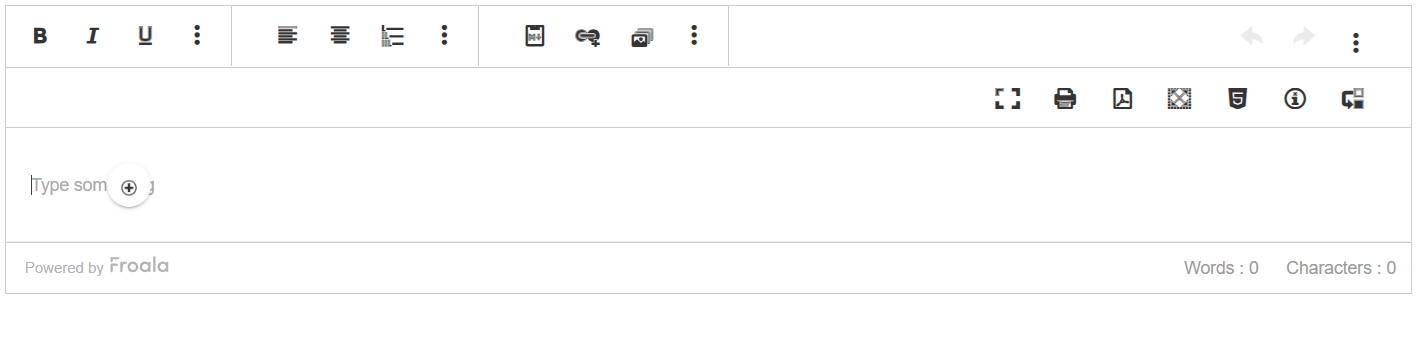
HTML Code Writer with Iframe Isolation and How to Inject Styles

HTML Iframe

Looking to seamlessly integrate a rich text editor into your web application without disrupting your existing design or compromising security? Leveraging the power of iframes, the Froala WYSIWYG editor offers a robust solution for achieving just that. This approach provides a clean, isolated environment for the editor, preventing style conflicts and potential security vulnerabilities.

This article delves into the advantages of loading your Froala editor within an iframe, exploring the benefits of content isolation and enhanced customization options. We’ll provide a clear, step-by-step guide on how to effectively embed the Froala editor in an iframe, and discuss techniques for injecting custom styles to maintain brand consistency and a polished user experience.

Key Takeaways:

  1. Using an iframe to embed the Froala WYSIWYG editor provides content isolation, preventing style conflicts between the editor and the main website. This ensures a consistent editing experience regardless of the surrounding website’s CSS.
  2. Froala’s iframe mode allows developers to inject custom styles directly into the iframe, enabling precise control over the editor’s visual presentation to maintain brand consistency.
  3. Embedding the Froala editor in an iframe is a straightforward process.

HTML Code Writer

The Benefits of Using HTML Iframe with Froala Editor

Understanding the Advantages of Iframe Content Isolation

Iframes offer a powerful way to embed external content seamlessly within your web pages while maintaining a clean separation from your core siteโ€™s structure and styling. Think of them as miniature windows displaying content from other sources.

With the Froala WYSIWYG editor, utilizing iframe mode provides significant advantages, primarily centered around content isolation. This iframe editor customization ensures that the styling of your Froala editor, embedded within the iframe, wonโ€™t clash with the CSS of your main webpage. This is particularly crucial when dealing with complex website designs or when integrating third-party content. This isolation prevents conflicts and ensures a consistent editing experience within the Froala editor, regardless of the surrounding websiteโ€™s styles.

Furthermore, iframe content isolation enhances security by limiting the impact of potentially malicious scripts within the embedded content, protecting your website’s integrity. Using iframes with the Froala editor allows for a more controlled and predictable integration, contributing to a smoother user experience and simplified development process.

The Froala editor embedding process is straightforward and designed to enhance both UX and DX, aligning perfectly with Froala’s mission to create exceptional editing experiences.

Enhancing Your WYSIWYG Editor with Iframe Customization

The ability to set default styles for framed WYSIWYG editorsโ€™ content is particularly beneficial for maintaining brand consistency and ensuring seamless visual integration.

How do you achieve this level of iframe editor customization? Itโ€™s simpler than you might think. Injecting styles into the framed Froala editor allows you to precisely tailor the look and feel to match your brandโ€™s guidelines. This precise control extends to fonts, colors, button styles, and virtually every aspect of the editorโ€™s visual presentation.

With Froalaโ€™s focus on intuitive design and developer experience, customizing your framed editor becomes a powerful tool for creating a visually appealing and user-friendly editing experience within your web application.

How to Embed Froala Editor in an Iframe Effectively

The Froala WYSIWYG editor, known for its clean design and developer-friendly integration, provides a dedicated iframe mode, further enhancing its versatility and customization capabilities.

First, include the Froala library in your project. Then, when initializing the editor, set the iframe option to true. This creates a contained environment for the editor, preventing style conflicts with the surrounding webpage.

new FroalaEditor('div#froala-editor', {
  iframe: true
})

This isolation is especially beneficial when dealing with complex website designs, ensuring the Froala editor renders perfectly regardless of existing CSS. This method offers several advantages, including iframe content isolation and enhanced iframe editor customization.

How To Inject Styles Inside Froala WYSIWYG Editor

Enabling Froalaโ€™s iframe mode brings us to the matter of styling the framed editor. Because of the inherent content isolation, simply adding CSS to your main stylesheet wonโ€™t affect the editor within the iframe. This is where the Froala core.injectStyle(style) method comes into play.

This method is used to inject styles directly into the iframe’s document. This approach allows precise control over the editor’s visual presentation within its contained environment, overcoming the limitations posed by iframe SEO impact and ensuring consistent styling regardless of the parent page’s CSS.

For example, by default, the standard browser’s font-size for the H1 tag is 32px. This is the font size that will be automatically applied to H1 elements inside the Froala editor when used in iframe mode. However, you may want to change this default to match your brand’s style guide – for instance, setting the H1 font-size to 40px. In this case, you can use core.injectStyle(style) method like this:

let editor = new FroalaEditor(
  "div#froala-editor",
  {
    iframe: true,
  },
  function () {
    // Call the method inside the initialized event.
    editor.core.injectStyle("h1{font-size: 40px}")
  },
)

The code above sets the font-size for any H1 tags inserted within the Froala editor to 40px, ensuring the editor’s appearance matches your brand’s design guidelines.

With this technique, developers can achieve seamless iframe editor customization while leveraging the benefits of iframe content isolation and enhanced security. This allows for a streamlined user experience that makes Froala a favorite among developers worldwide.

FAQ

1. What are the benefits of using HTML iframe for embedding the Froala Editor?

Using an iframe for the Froala Editor offers several key benefits: content isolation (preventing style conflicts with your main website and enhancing security), enhanced customization (allowing precise control over the editor’s appearance through style injection), and a cleaner separation of content which can potentially improve page load times and thus, SEO. It creates a contained environment, simplifying development and ensuring a consistent editing experience.

2. How can I customize the Froala Editor when loaded in an iframe?

Customize the framed Froala editor by injecting styles directly into the iframe’s document using the core.injectStyle(style) method. This allows precise control over fonts, colors, button styles, and more, ensuring brand consistency.

Conclusion

Embedding the Froala editor within an iframe offers a compelling blend of design flexibility, enhanced security, and improved site stability. While iframe implementation requires careful consideration of SEO implications, the benefits of content isolation and styling customization often outweigh the challenges. By understanding the nuances of iframe integration and leveraging Froala’s intuitive design, developers can create a seamless and visually appealing editing experience that enhances user satisfaction and development workflow. So, take the leap and explore the power of iframe embedding with Froala โ€“ you might be surprised at how easily it elevates your web application’s editing capabilities.

Setting Up and Customizing a Dark Mode in Froala Text Editor

Dark mode text editor

The demand for dark mode interfaces has been steadily rising in modern UI/UX design trends. Users actively seek out applications and tools that provide a visually pleasing and comfortable dark mode experience.

Froala, a popular rich text editor, empowers developers to easily customize the user interface and experience, including a captivating dark mode option.

Key Takeaways

  • Dark mode can improve user experience by reducing eye strain, enhancing readability, and creating a more immersive environment.
  • Implementing dark mode can benefit developers by meeting user expectations and improving accessibility.
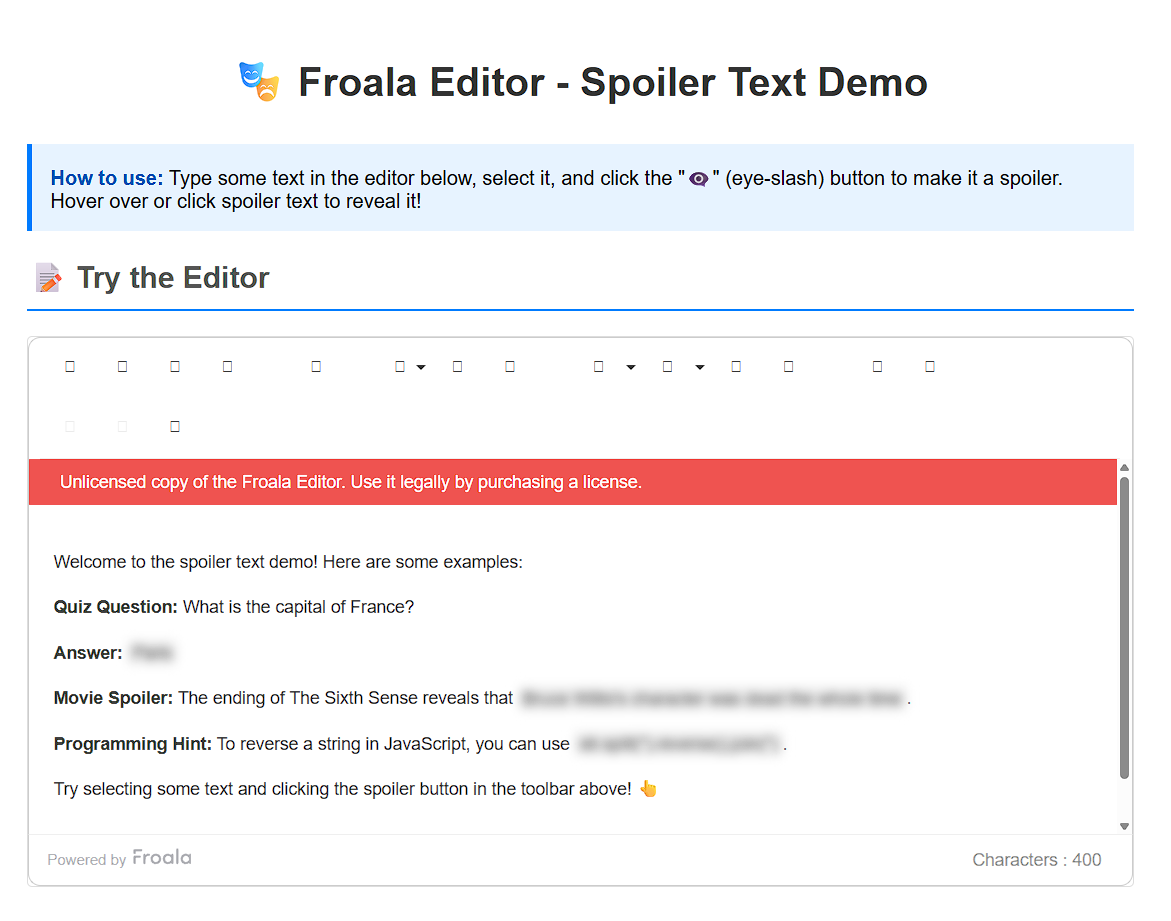
  • Froala makes it easy for developers to customize the editor’s appearance, including enabling a dark mode theme.

Froala's dark mode

The Benefits of Dark Mode

Enabling Froala’s dark mode offers several advantages for both users and developers.

From a user’s perspective, a dark mode can:

  • Reduce eye strain – The dimmer interface is easier on the eyes, especially in low-light conditions.
  • Improve readability – The high-contrast colors make text more legible.
  • Create a more immersive experience – The dark theme establishes a focused, visually appealing environment.

For developers, implementing a dark mode option can:

  • Enhance the overall user experience – Users increasingly expect and appreciate dark mode functionality.
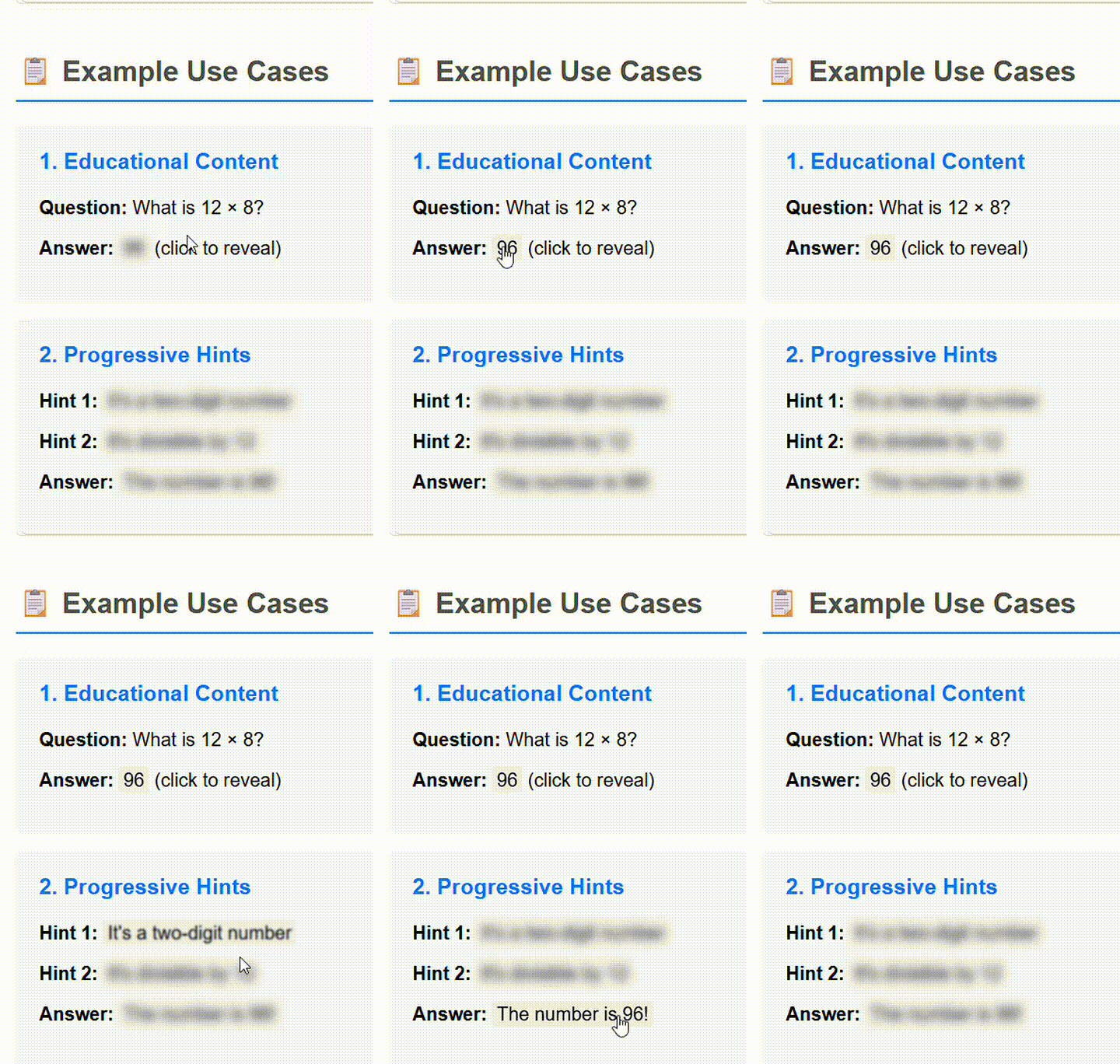
  • Increase accessibility – The improved contrast benefits users with visual impairments.

By providing a well-designed dark mode, you can deliver a more comfortable and accessible text editing experience for your users.

Step-by-step guide to setting up Froala’s dark mode

Let’s set up a dark mode text editor.

Step 1: Get started

Follow the Froala installation guide to set up your preferred framework. For a simple webpage using Froala’s CDN links, you can use the following code:

<!DOCTYPE html>
<html>
  <head>
    <meta charset="utf-8">
    <meta name="viewport" content="width=device-width, height=device-height, initial-scale=1.0, maximum-scale=1.0">
    <link href='https://cdn.jsdelivr.net/npm/froala-editor@latest/css/froala_editor.pkgd.min.css' rel='stylesheet' type='text/css'>
  </head>
  <body>
    <div id="example"></div>
    <script type='text/javascript' src='https://cdn.jsdelivr.net/npm/froala-editor@latest/js/froala_editor.pkgd.min.js'></script>
    <script>
      var editor = new FroalaEditor('#example');
    </script>
  </body>
</html>

If you prefer hosting Froala locally, you can download it and start a free trial.

Step 2: Include the theme CSS file

Froala offers several built-in themes, including Black, Gray, and Royal. You need to include the CSS file for the Dark theme to use it in your project.

https://cdn.jsdelivr.net/npm/froala-editor@latest/css/themes/dark.min.css

Step 3: Set the theme in the configuration

To enable editor dark mode,ย configure the theme option when initializing the Froala editor:

new FroalaEditor('div#eg-dark-theme', {

ย ย theme: 'dark'

});

This will add the dark-theme class to the Froala .fr-box element, allowing the CSS rules defined in the Dark theme to be applied without conflict with other CSS on the page.

Step 4: Run your app

When you run your app, you should see Froala in the dark mode.ย 

Note: To use Froala in a production environment, don’t forget to get a valid API key.

Dark mode text editor

Customize Your Editor Theme

Froala’s built-in Dark theme only changes the color of the top toolbar. To make the entire editor interface darker, you can add custom CSS rules.

Here’s an example of CSS rules to turn the editor’s editing area and bottom toolbar into a darker color:

.dark-theme.fr-box.fr-basic .fr-element {

ย ย background: #4e4d4d;

ย ย color: #f0efef;

}

.dark-theme .fr-second-toolbar {

ย ย background: #353535;

}

These rules will make the editor’s content area and bottom toolbar adopt a darker background color, with the text displayed in a lighter shade. This creates a more consistent dark mode appearance throughout the editor.

Froala custom theme

By leveraging the flexibility of CSS, you can further customize the Froala editor’s appearance to match the overall branding and design of your application.

Create Your Own Theme

Froala allows developers to create their own custom themes. This empowers you to tailor the editor’s appearance and branding to match your application or website.

To create a custom theme:

  1. Write your CSS rules in a separate file, e.g. “awesome.css”.
  2. Start each CSS rule with “.awesome-theme” to avoid conflicts with other styles.
  3. Place the “awesome.css” file in the themes folder on your server.
  4. Add a link to your theme in your application.

Once you’ve defined your custom theme, you can apply it to the Froala editor by setting the theme option when initializing the editor. For example:

new FroalaEditor('div#eg-dark-theme', {

ย ย theme: 'awesome'

});

This allows you to fully customize the appearance of the text editor, including colors, fonts, and other visual elements. By aligning the editor’s design with your application’s branding, you can create a cohesive and visually appealing user interface.

Detecting User Preferences and Adjusting Themes

You can also detect the user’s system mode (light or dark) and automatically adjust the editor’s theme accordingly. This provides a seamless transition between light and dark modes without requiring the user to manually switch settings.

Using CSS

When creating a new theme, you can use the prefers-color-scheme media query in your CSS. This media query allows you to detect the user’s preferred color scheme and apply different styles based on that preference:

/* Light mode styles */

.custom-theme .froala-editor {

ย ย --text-color: #333;

ย ย --background-color: #fff;

}

/* Dark mode styles */

@media (prefers-color-scheme: dark) {

ย ย .custom-theme .froala-editor {

ย ย ย ย --text-color: #f1f1f1;

ย ย ย ย --background-color: #333;

ย ย }

}

The default styles are set for a light mode interface. When the media query detects the user’s system is in dark mode, it overrides the text and background colors to create a visually pleasing dark mode experience.

Using JavaScript

Alternatively, you can use the window.matchMedia("(prefers-color-scheme: dark)") expression to check the user’s system mode and set the appropriate theme:

new FroalaEditor('div#eg-dark-theme', {
  theme: window.matchMedia("(prefers-color-scheme: dark)").matches
    ? "dark"
    : "royal"
});

Auto switch between dark and light mode

By leveraging these techniques, you can ensure that Froala’s dark mode is seamlessly integrated into your application, providing users with a consistent and comfortable experience regardless of their system preferences.

Best Practices for Dark Mode in Rich Text Editors

When it comes to best practices for using dark mode in rich text editors like Froala, it’s important to consider factors such as contrast, readability, and accessibility.

Ensuring that the text and background colors provide sufficient contrast, while maintaining legibility, is crucial for providing a comfortable and usable experience for all users. Avoid using low-contrast color combinations, as this can make the text difficult to read and strain the user’s eyes.

Additionally, consider the accessibility implications of your dark mode implementation. Ensure that the color choices and contrast levels meet Web Content Accessibility Guidelines (WCAG) standards to support users with visual impairments or other accessibility needs.

When designing a dark mode theme for your Froala editor, pay close attention to the following:

  • Contrast Ratio: Aim for a minimum contrast ratio of 4.5:1 between the text and background colors to ensure readability.

  • Font Legibility: Choose fonts and font sizes that are easily readable, even in low-light environments.
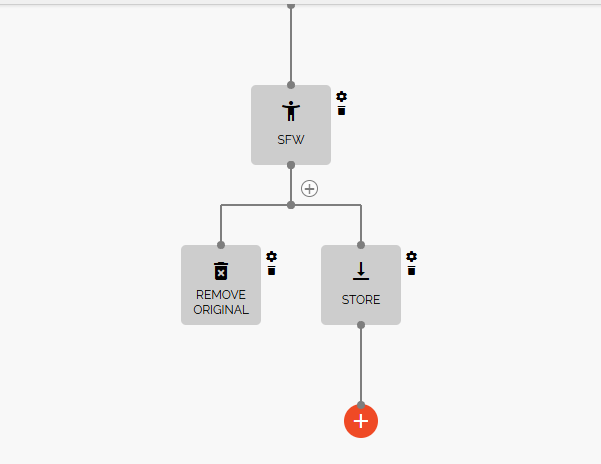
  • Consistent Styling: Maintain a consistent visual style throughout the editor, including the toolbar, menus, and other UI elements.
  • Accessibility Considerations: Ensure that your dark mode theme meets WCAG guidelines for color contrast, text resizing, and other accessibility requirements.

By following these best practices, you can create a dark mode experience in your Froala editor that is not only visually appealing but also accessible and comfortable for all users.

Conclusion

Froala’s UI customization features, such as creating custom themes, empower developers to deliver a cohesive, visually appealing dark mode experience. By exploring Froala’s dark mode capabilities and implementing best practices, you can create text editors that not only meet the growing demand for dark mode but also enhance the overall user experience and accessibility.

As users increasingly seek out applications with thoughtful dark mode support, incorporating a well-designed and accessible option in your Froala-powered text editor can be a valuable differentiator. It’s a great way to improve the user experience and set your application apart.

So why not try editor dark mode today? Enable it with just a few lines of code and see how it can transform your text editing interface. Provide your users with a comfortable, focused, visually appealing dark mode experience they’ll love.

FAQ

Is dark mode better for your eyes?

Yes, dark mode can be better for your eyes in certain situations. The dimmer interface and higher contrast between text and background can reduce eye strain, especially in low-light environments. The reduced brightness and blue light exposure can also help minimize headaches and fatigue associated with prolonged screen time. However, it’s important to ensure that the dark mode implementation follows accessibility best practices to maintain readability and comfort for all users.

What are the benefits of dark mode on a computer?

Using dark mode on a computer can provide several benefits:

  • Reduced eye strain: The lower brightness and contrast can be easier on the eyes, especially in low-light conditions.
  • Improved battery life: Dark mode can reduce the power consumption of OLED and LCD displays, leading to longer battery life on laptops and mobile devices.
  • Enhanced focus and productivity: The dimmer interface can create a more immersive and focused work environment, helping to minimize distractions.
  • Aesthetic appeal: Many users find dark mode visually appealing and prefer the sleek, modern look it provides.

This explains why dark mode is better than normal mode in many cases. By leveraging the advantages of dark mode, you can create a more comfortable and efficient computing experience for your users.

Why is dark mode bad in some cases?

While dark mode can offer several benefits, it’s important to consider that dark mode may not be suitable for all users or all situations. Some potential drawbacks of dark mode include:

  • Reduced Contrast: In some cases, the high contrast between dark backgrounds and light text can make it difficult for users with visual impairments or certain eye conditions to read the content.
  • Increased Power Consumption: On non-OLED displays, dark mode may not provide significant power savings and could even increase power consumption in some cases.
  • Difficulty Adapting: Users who are accustomed to light mode interfaces may find it challenging to adjust to a dark mode environment, especially if they need to switch between the two modes frequently.
  • Compatibility Issues: Certain websites or applications may not be designed with dark mode in mind, leading to visual inconsistencies or rendering problems.

When implementing dark mode, it’s important to carefully consider the potential drawbacks and ensure that the design provides a comfortable and accessible experience for all users, regardless of their preferences or needs.

Can I create my own custom theme for Froala’s dark mode?

Yes, Froala allows developers to create their own custom themes. This empowers you to tailor the editor’s appearance and branding to match your application or website. You can define your own CSS rules and apply the custom theme when initializing the Froala editor.

Three Ways For Uploading Images in Froala: Which One Should You Use?

Uploading Images in Froala

As a developer, you understand the importance of seamless image uploads in WYSIWYG editors. Froala, a popular rich text editor, offers three distinct methods for handling image uploads.

The right approach depends on your application’s requirements and the level of control you need over the image upload process.

In this article, we’ll explore the pros and cons of the default image uploader, the File Manager, and the Filestack integration, and when you might want to use each one, helping you determine which one best suits your project’s needs.

Key Takeaways

  • The default image uploader is a straightforward option for basic image upload needs, but it requires server-side setup and management.
  • The Froala File Manager offers a more robust and user-friendly image upload experience, with the ability to upload multiple images at once.
  • The Filestack integration provides the most comprehensive set of features, including cloud-based storage, advanced image transformation, and AI-powered image analysis. This makes it the best choice for projects with sophisticated image management requirements.
  • All methods support integrating with cloud storage providers like Amazon S3 to offload image storage from your own server.

Images Upload

The Default Image Uploader

The default image uploader in Froala is a straightforward option. When you click the image icon in the toolbar, you can easily drag and drop an image or browse your local files to select a file. This inserts the image directly into the editor as a BLOB (Binary Large Object).

The image plugin manages this default image upload functionality. Developers can customize various properties of the inserted images, such as the default width, display settings, and more.

To use the default image uploader, you’ll need to set the imageUploadURL option. This tells Froala where to send the uploaded image for processing. You’ll also need to handle the image upload on your server and return the URL of the uploaded image, which Froala can then use to display it in the editor.

Froala provides server-side SDKs to simplify this server-side implementation, making the default image uploader relatively easy to set up.

It also supports integrating with cloud storage providers like Amazon S3 and Azure. This lets you store your uploaded files on external cloud platforms, rather than your own server.

You can filter accepted image file types by setting the imageAllowedTypes option. This is useful if you want to restrict the types of images users can upload. Additionally, you can set maximum file size limits using the imageMaxSize option.

new FroalaEditor("#froala-editor", {
  toolbarButtons: [
    "insertImage",
    "bold",
    "italic",
    "underline",
    "|",
    "undo",
    "redo"
  ],
  pluginsEnabled: ["image"],
  imageUploadURL: "/upload_image",
  imageUploadMethod: "PUT",
  imageAllowedTypes: [
    'jpeg', 
    'jpg', 
    'png'
  ],
  imageMaxSize: 1024 * 1024 * 3
});

Default uploader
Pros:

  • Simple and easy to use
  • No additional costs

Cons:

  • Requires you to set up server-side logic to handle image uploads and storage.
  • Images are stored directly on your own server, which could impact performance and storage management.

Overall, the default image uploader is a straightforward option that works well for basic image upload needs. However, if you require more advanced features, you may want to consider the other options Froala provides, such as the File Manager or Filestack integration.

The File Manager

Froala’s File Manager offers a more robust and user-friendly image upload experience. It allows users to browse, upload, and manage files directly within the editor.

The File Manager utilizes several plugins, including file, image, imageTUI, and video. These plugins need to be enabled in your Froala configuration.

When uploading images, the File Manager leverages specific settings from the image plugin, such as imageDefaultWidth, imageResizeWithPercent, imageDefaultDisplay, and imageDefaultAlign. This allows you to customize the appearance and behavior of the uploaded images.

The File Manager also supports integrating with cloud storage providers like Amazon S3 and Azure. This lets you store your uploaded files on external cloud platforms, rather than your own server.

Additionally, you can use the Froala server SDKs to simplify the server-side implementation. However, keep in mind that this may require more setup and configuration since the File Manager can handle various file types, not just images.

One of the key benefits of the File Manager is its ability to upload multiple images at once. Users can easily browse their local files and select several images to upload in a single action.

Moreover, the File Manager provides a direct way to insert images into your content. Users can browse the available files and simply click to insert the desired image into the Froala editor.

new FroalaEditor('#froala-editor', {
   toolbarButtons: ['insertFiles', 'bold', 'italic', 'underline', '|', 'undo', 'redo'],
   pluginsEnabled: ["filesManager","image", "video","file","imageTUI"],
   filesManagerUploadURL: '/upload_file',
   filesManagerAllowedTypes: [
      'application/pdf', 
      'application/msword',
      'image/png'
   ], 
});

The File Manager

Pros:

  • Offers a user-friendly interface for managing images
  • Supports uploading multiple images at once.

Cons:

  • Requires enabling multiple plugins, which can increase the overall plugin size.
  • Still requires some server-side implementation to handle file uploads and storage.

Filestack Integration

Froala offers seamless integration with Filestack, a powerful file hosting and image upload API service. Filestack allows you to upload images and other file types directly to their cloud storage, relieving your server of the burden of image storage.

Filestack provides an intuitive user interface with over 20 integrated sources, enabling users to upload files from a wide range of platforms, including local devices, cloud storage services, and social media. This makes the file upload process more convenient and versatile.

Beyond images, Filestack supports the upload of various file types, and it allows users to upload multiple files simultaneously. The service’s Content Ingestion Network (CIN) ensures reliable and fast uploads, delivering a 100x improvement in reliability compared to traditional file uploads.

Once an image is uploaded, Filestack instantly generates a CDN-backed URL, ensuring lightning-fast delivery across the web. This eliminates the need for any server-side code to handle image storage, as Filestack manages the entire process on its cloud infrastructure.

Filestack also offers robust image transformation capabilities, allowing you to resize, crop, and apply various effects to your images using their powerful processing API. Additionally, Filestack’s AI features can scan uploaded images for viruses, detect tags and attributes, and perform advanced image analysis, providing valuable insights about your visual content.

Filestack provides developers with a variety of configurations to control the image upload experience. For example, they can limit accepted image file types by setting the Filestack Picker’s accept option.

     var editor = new FroalaEditor('#editor', {
       filestackOptions: {
            /*
            To get your Filestack API, create a free Filestack account
            https://www.filestack.com/signup-free-froala/
            */
            filestackAPI: "**************",
            uploadToFilestackOnly: false,
            pickerOptions: {
                accept: [
                    ".pdf",
                    "image/jpeg",
                    "image/png",
                    "image/*",
                    "video/*",
                    "audio/*"
                ],
                fromSources: [
                    "local_file_system",
                    "url",
                    "facebook",
                    "instagram"
                ]
            },
            transformationOptions: {
                filters: {
                    enabled: [
                        "blackWhite",
                        "sepia"
                    ]
                },
                adjustments: {
                    enabled: [
                        "brightness",
                        "noise"
                    ]
                }
            }
        }
    });

Pros:

  • Offloads image storage to a dedicated cloud service
  • Provides advanced image transformation and optimization tools
  • Offers robust file management capabilities, including support for multiple file types.
  • Delivers fast, CDN-backed image delivery
  • Includes features like virus detection and image analysis powered by Filestack AI

Cons:

  • Requires signing up for a Filestack account.
  • May incur additional costs depending on the Filestack pricing plan.

Overall, the Filestack integration in Froala offers a comprehensive and streamlined solution for managing file uploads, storage, and optimization, freeing you from the hassle of implementing these features on your own server.

Side-by-side comparison

Here’s a side-by-side comparison of the three image upload methods in Froala to help you identify similarities and differences and make informed decisions.

Default Image Uploader The File Manager Filestack Integration
Support multi-image uploads โœ– โœ” โœ”
Support drag and drop image upload โœ” โœ” โœ”
Upload files other than images ย โœ– โœ” โœ”
Require server-side setup โœ” โœ” โœ–
Delivery Depends on your server setup. Depends on your server setup. Fast, with CDN link instantly generated
Secure Depends on your server setup. Depends on your server setup. Yes
Image editing Through third-party integration (TUI plugin) Through third-party integration (TUI plugin) Filetsack Transformation UI
Image conversion โœ– โœ– Images can be converted to different formats using the Filestack Processing API.
Virus Detection โœ– โœ– โœ”
Image tags and AI features โœ– โœ– โœ”
S3 upload โœ” โœ” โœ” (Default)
Additional cost ย โœ– ย โœ– Free trial

Conclusion

When choosing the best image upload method for your Froala-based application, consider your specific requirements, the level of control you need, and the trade-offs between ease of implementation, performance, and cost. While the default image uploader is a simple option, the Filestack integration offers the most comprehensive set of features and capabilities, making it the best choice for projects that require advanced image management and optimization.

FAQ

Can I restrict the types of images users can upload in Froala?

Yes, you can restrict the types of images users can upload in Froala. For the default image uploader, you can set the imageAllowedTypes option to specify the allowed file extensions. For the Filestack integration, you can set the accept option in the Filestack Picker to control the accepted file types.

Does Froala support uploading multiple images at once?

Yes, the Froala File Manager and the Filestack integration both support uploading multiple images at once. This can be a useful feature for users who need to quickly add several images to their content.

Can I store my uploaded images on a cloud platform like Amazon S3?

Yes, all upload methods support integration with cloud storage providers like Amazon S3 and Azure. This allows you to offload the storage of your uploaded images to a dedicated cloud platform, rather than managing it on your own server.

What features does the Filestack integration offer beyond basic image uploads?

The Filestack integration provides a range of advanced features, including robust image transformation capabilities, virus detection, and image analysis powered by Filestack’s AI. These features can be particularly useful for projects that require more sophisticated image management and optimization.

Inserting merge tags in the Froala editor is easy – find out how?

Insert merge tags in the editor

As a developer, you know the importance of creating engaging and personalized content for your users. One powerful way to achieve this is by leveraging merge tags – dynamic placeholders that can be replaced with unique information for each user or recipient. The Froala WYSIWYG editor provides seamless integration with the Tribute JavaScript library, allowing you to easily enable merge tags and provide a delightful content creation experience for your users.

In this comprehensive guide, we’ll walk you through the step-by-step process of implementing merge tags in the Froala editor. You’ll learn how to display a dropdown list of predefined tags, allow users to select and insert them as non-editable elements, and ensure the tags are easily identifiable within the content. By the end of this article, you’ll have the knowledge to add personalization to your applications.
Insert merge tags in the editor

Key Takeaways

  1. Merge tags are dynamic placeholders that can be replaced with unique information for each user or recipient. This allows you to create highly personalized content and experiences.
  2. Froala WYSIWYG editor integrates seamlessly with the Tribute.js library to enable merge tag functionality. This allows users to easily insert predefined merge tags into the content they create.
  3. Protecting merge tags as non-editable elements is crucial to ensure consistent personalization. By setting the contenteditable="false" attribute, you can prevent users from accidentally modifying or deleting the merge tags.
  4. Merge tags can be leveraged in a variety of applications, including email marketing, CRM systems, e-commerce, and content management. This makes them a powerful tool for enhancing personalization and user engagement.

What are merge tags?

Merge tags, also known as personalization tokens or mail merge fields, are dynamic placeholders that can be replaced with unique information for each user or recipient. These tags are commonly used in email marketing, customer relationship management (CRM) systems, and other applications where personalization is crucial for engagement and conversion.

When a user or recipient interacts with content that contains merge tags, the tags are replaced with the corresponding data, creating a tailored experience. For example, a merge tag like {{first_name}} might be replaced with the recipient’s first name, resulting in a message that feels more personal and relevant.

Implementing merge tags in the Froala WYSIWYG editor can significantly enhance the content creation process. Users can easily insert predefined tags, ensuring consistent and accurate personalization across all generated content.

Integrating Tribute.js with Froala

The Froala WYSIWYG editor provides seamless integration with the Tribute.js library, which enables the display of a dropdown list of predefined tags. Tribute.js is a lightweight, customizable autocomplete library that allows users to easily select and insert tags into the editor.

To get started, you’ll need to include both the Tribute.js and Froala libraries in your web application. You can do this by adding the following script tags to your HTML file:

<script src="https://cdn.jsdelivr.net/npm/tributejs@3.5.3/dist/tribute.js"></script>

<script src="https://cdn.jsdelivr.net/npm/froala-editor@latest/js/froala_editor.pkgd.min.js"></script>

Next, add an HTML element where Froala will initialize:

<div id="froala-editor">

ย ย <p>Froala WYSIWYG Editor can easily be integrated with the awesome <a href="https://github.com/zurb/tribute" target="_blank" rel="nofollow">Tribute.js library</a>. Type an @ to display the autocomplete list.

ย ย </p>

</div>

Then, initialize the Froala editor and configure the Tribute.js integration:

var tribute = new Tribute({
  collection: [
  
    {
      values: [
        { key: "Phil", value: "pheartman" },
        { key: "Gordon", value: "gramsey" },
        { key: "Ethan", value: "ethan" },
        { key: "Emma", value: "emma" },
        { key: "Isabella", value: "isabella" },
      ],
      selectTemplate: function (item) {
        return (
          '<span class="fr-deletable fr-tribute">' +
          item.original.key +
          "</a></span>"
        )
      },
    },
    {
     trigger: '{',
  selectClass: 'mytag',
      values: [
        { key: "username" },
        { key: "email"},
        { key: "sender.phone" },
        { key: "Address" },
        { key: "Date" },
        
      ],
      selectTemplate: function (item) {
        return (
          '<span class="fr-deletable fr-tribute">{{' +
          item.original.key +
          "}}</span>"
        )
      },
    },    
  ],
})

new FroalaEditor("#froala-editor", {
  events: {
    initialized: function () {
      var editor = this

      tribute.attach(editor.el)

      editor.events.on(
        "keydown",
        function (e) {
          if (e.which == FroalaEditor.KEYCODE.ENTER && tribute.isActive) {
            return false
          }
        },
        true,
      )
    },
  },
})

In this example, we’ve set up the Tribute.js integration to display two types of dropdown lists. One list is for user mentions, triggered by typing the @ character. The other list is for merge tags, triggered by typing the { character.

The values array contains the available tags for each dropdown. The selectTemplate function defines how the selected tag will be inserted into the editor. For merge tags, it will insert the tag surrounded by {{ and }}.

Finally, we attach the Tribute.js instance to the Froala editor’s element using the tribute.attach(editor.el) method.

Protecting Merge Tags

Once the user has selected a merge tag from the dropdown, the tag should be inserted into the Froala editor as a non-editable element. This ensures that the tag is easily identifiable and cannot be accidentally modified.

To achieve this, you can edit the custom HTML representation of the inserted tag in the selectTemplate function. Here’s an example:

      selectTemplate: function (item) {
        return (
          '<span class="fr-deletable fr-tribute fr-merge-tag"  contenteditable="false">{{' +
          item.original.key +
          "}}</span>"
        )
      },

In this code, the selected tag will be inserted with a custom HTML element (<span class="fr-deletable fr-tribute fr-merge-tag" contenteditable="false">{{' + item.original.key + "}}</span>).

The contenteditable="false" attribute ensures that the inserted merge tag cannot be accidentally modified by the user.

Additionally, this custom HTML element includes a merge-tag class which you can use to style and interact with the merge tags in your application.

Styling Merge Tags

To make the merge tags visually distinct within the editor, you can style the custom HTML elements using CSS:

.fr-merge-tag {

ย ย background-color: #f0f0f0;

ย ย border: 1px solid #ddd;

ย ย border-radius: 4px;

ย ย color: #333;

ย ย display: inline-block;

ย ย font-weight: bold;

ย ย padding: 2px 6px;

ย ย margin: 0 2px;

}

This will apply a subtle background color, border, and padding to the merge tag elements, making them stand out from the regular text.

By combining the power of Froala’s WYSIWYG editor and the Tribute.js library, you can create a seamless and user-friendly merge tag experience for your content creators. This will not only make it easier to insert personalization tokens but also ensure the final content is visually appealing and easy to maintain.

Experience Merge Tags for yourself

Play with this interactive demo to see how it can improve your app’s content creation, editing, and publishing experiences.

Use Cases for Merge Tags

Merge tags can be leveraged in a variety of applications to enhance personalization and improve user engagement. Here are some common use cases:

  1. Email Marketing: Merge tags are widely used in email marketing campaigns to personalize subject lines, greetings, and email content. Email merge tags help to increase open rates, click-through rates, and overall engagement.
  2. Customer Relationship Management (CRM): CRM systems often utilize merge tags to personalize customer communications, such as welcome messages, invoices, and support inquiries. This creates a more personalized experience for customers.
  3. E-commerce and Retail: Merge tags can be used to personalize product recommendations, order confirmations, and shipping notifications in e-commerce and retail applications. This can lead to increased sales and customer loyalty.
  4. Content Management Systems (CMS): Merge tags can be integrated into CMS platforms to allow content creators to easily insert personalized elements, such as the user’s name or location, into their content.
  5. Web Applications: Merge tags can be used in web applications to personalize user dashboards, account settings, and other user-specific content, enhancing the overall user experience.

A Practical Example of Merge Tags in Email Marketing: Mailchimp Merge Fields

One well-known example of merge tags are the merge fields used in email marketing platforms like Mailchimp. Mailchimp provides a variety of predefined merge fields, such as *|FNAME|* for the recipient’s first name, *|LNAME|* for the last name, and *|EMAIL|* for the email address.

These Mailchimp merge fields can be inserted into email subject lines, body content, and other areas of an email campaign. When the email is sent, Mailchimp will replace the merge fields with the corresponding data for each recipient, resulting in a personalized message.

Integrating Mailchimp merge fields with the Froala WYSIWYG editor can be a powerful way to create highly personalized email content. By allowing users to easily insert these predefined merge tags, you can streamline the email creation process and ensure consistent personalization across all your email campaigns.

Frequently Asked Questions

How can I customize the appearance of the merge tag dropdown?

You can customize the appearance of the merge tag dropdown by modifying the CSS styles applied to the Tribute.js elements. In the example code, we’ve applied some basic styles to the .fr-merge-tag class, but you can expand on this to match the branding and design of your application.

What happens if a user accidentally deletes or modifies a merge tag?

By setting the contenteditable="false" attribute on the merge tag elements, you can prevent users from directly editing or deleting the tags. However, if a user does manage to remove or modify a merge tag, you can implement additional safeguards, such as:

  • Providing a way for users to “undo” their changes and restore the original merge tag.
  • Validating the content before saving or publishing and alerting the user if any merge tags are missing or altered.
  • Automatically replacing any missing or modified merge tags with default values or placeholders.

How can I integrate merge tags with a CRM or user database to enhance personalization?

To take merge tags to the next level, you can integrate them with a customer relationship management (CRM) system or user database. This allows you to pull in dynamic data, such as a user’s name, email, or other personalized information, directly into your content.

When a user interacts with content that contains these merge tags, your application can retrieve the corresponding data from the CRM or database and replace the tags accordingly. This creates an even more personalized experience for your users.

By integrating merge tags with a CRM or user database, you can dynamically populate your content with user-specific information, ensuring each interaction is tailored to the individual. This can lead to increased engagement, higher conversion rates, and an overall more satisfying user experience.

How can I use merge tags to generate personalized documents?

Merge tags can be utilized to generate personalized documents, such as invoices, contracts, or reports. By embedding merge tags within the document template, you can dynamically populate the content with user-specific information, ensuring each document is tailored to the recipient.

This can be particularly useful for automating the creation of custom documents, reducing the manual effort required and ensuring consistency across all generated materials.

Conclusion

In this article, you’ve learned how to enable merge tags in the Froala WYSIWYG editor by integrating the Tribute.js library. You’ve seen how to configure the Tribute.js integration and render and display the merge tags.

By implementing merge tags in your Froala-powered applications, you can empower your users to create highly personalized and engaging content, leading to increased user satisfaction and conversion rates. Remember to continue exploring the vast capabilities of the Froala editor and the Tribute.js library to unlock even more powerful content creation features for your users.

Happy coding!


Guide to DeepSeek API Integration: What It Is and How to Get Started

Conceptual 3D illustration of an AI model integration representing DeepSeek API capabilities

The fast-paced AI environment today enables developers to build applications using large language models (LLMs) and multimodal APIs, resulting in intelligent chatbots and advanced content-generation tools. DeepSeek stands as a powerful innovation that is gaining momentum in the rapidly advancing field of AI development.

So whatโ€™s behind the buzz? The DeepSeek platform provides developers with open, high-performance models, including DeepSeek-Coder and DeepSeek-VL, which offer a scalable alternative for intelligent AI-driven features. The DeepSeek API enables developers to access powerful capabilities that are specifically designed for practical applications when working with text, images, or code.

This guide provides information about DeepSeek and its comparison to other leading APIs, as well as a step-by-step process for project integration. This walkthrough provides step-by-step instructions to help beginners start their first AI application development while showing them how to replace OpenAI or Claude with confidence. Start building smarter websites with DeepSeek API integration and unlock endless possibilities for your next project

Key Takeaways

  • DeepSeek API integration gives access to open-source models for text, code, and image tasks.
  • Includes DeepSeek-Coder for code generation and DeepSeek-VL for multimodal input.
  • Offers a fast, scalable alternative to APIs like OpenAI and Claude.
  • Easy to use with Python, Postman, or curl via OpenAI-compatible endpoints.
  • No hard rate limits on the official API, but usage may vary with traffic or third-party hosts.
  • Free access available via Hugging Face; hosted use via OpenRouter or Together.ai.
  • Follow best practices: secure your API key, cache responses, and optimize prompts.
  • Can be embedded into apps like Froala Editor for AI-assisted content creation.

3D illustration of a robot assembling blocks with a magnet, representing DeepSeek API integration and AI-powered application building.

What is DeepSeek?

DeepSeek operates as an open-source AI project that develops large language and vision models for developers, researchers, and tech enthusiasts. DeepSeek presents itself as a clear and fast API solution that provides open access to its capabilities while encouraging community involvement and state-of-the-art functionality.

The project foundation rests on its two main models:

DeepSeek-Coder functions as an LLM (Large Language Model) that specializes in code generation, completion, and understanding of multiple programming languages. The system proves beneficial for software development automation, code review support, and the development of AI-based developer tools.

DeepSeek-VL functions as a strong vision-language model that accepts multiple input types, including images, charts, documents, and text, to support applications such as visual question answering, caption generation, and document comprehension.

The models within DeepSeek provide users with a wide range of AI application possibilities, including:

  • Coding assistance
  • Research and data analysis
  • Workflow automation
  • Multimodal applications combining text and images

The open-source community supports DeepSeek as a flexible platform that serves developers who want to implement AI-driven development and users who need intelligent visual interfaces.

Key features of the DeepSeek API

DeepSeek stands apart from other AI APIs through its distinctive features in the expanding AI API market. The DeepSeek API stands out through these distinctive features, which make it an attractive option for developers and researchers:

Advanced language and vision understanding

DeepSeek models surpass traditional LLMs through their ability to merge natural language processing with visual understanding capabilities. DeepSeek delivers state-of-the-art performance through accurate context-aware outputs when you need to analyze code or generate text, or interpret image-text combinations.

Open-source friendly

The open nature of DeepSeek distinguishes it from proprietary alternatives because it promotes open collaboration among developers. The developer-friendly ecosystem of DeepSeek enables open environment development, model auditing, and contribution and extension through its supportive framework for innovation and trust.

Scalable and high-performance

DeepSeek operates at high speeds and maintains low response times, which makes it appropriate for projects ranging from solo work to large enterprise implementations. The robust architecture of this system enables smooth handling of traffic and load regardless of the number of users it serves.

Competitive edge over other APIs

DeepSeek provides distinct advantages compared to proprietary APIs like OpenAI, Anthropic Claude, and Google Gemini through its unique strengths:

  • Open-source architecture with fewer usage limitations
  • Multimodal capabilities available out of the box (e.g., image + text tasks)
  • A developer-friendly platform with scalable performance

While each API has its strengths, DeepSeek stands out as a flexible and transparent solution, especially for those looking to build with open tools, experiment freely, or fine-tune for specific use cases.

Getting access to the DeepSeek API

The process to integrate DeepSeek API with your system remains simple, whether you are new to AI development or building it into an existing system.

Sign up for an account

The first step involves visiting deepseek.com or the official GitHub page to obtain registration or access instructions. DeepSeek models that are open on Hugging Face platforms do not require direct registration with DeepSeek unless you use their hosted API service.

Sign up for the DeepSeek API

Generate your API key

If you’re using an official DeepSeek-hosted API endpoint (or accessing via a third-party provider like Together.ai or OpenRouter), youโ€™ll typically need to sign up and retrieve an API key from your dashboard. This key is used to authenticate your requests and track usage.

DeepSeek dashboard
DeepSeek dashboard

Pricing and free access

DeepSeek-Coder and DeepSeek-VL models are openly available on platforms like Hugging Face for free use in research and many commercial applications, depending on the license terms (typically Apache 2.0). If you’re using the models via hosted APIs (e.g., Together.ai or OpenRouter), pricing will vary by provider and usage volume. DeepSeekโ€™s open-source approach makes it a budget-friendly option for testing, development, and even production use when self-hosted.

DeepSeek Models & Pricing

Documentation and resources

The official API documentation provides a centralized reference for DeepSeek API integration. It includes:

  • Quick start guides
  • Input/output formats
  • Supported endpoints
  • Model capabilities
  • Sample scripts and integration examples

You can also find additional resources and real-world usage patterns on platforms like GitHub, Hugging Face model cards, and community forums. These sources offer valuable implementation tips and troubleshooting insights shared by developers.

Understanding the API basics

Before diving into implementation, itโ€™s important to get familiar with the core components of the DeepSeek API. This section walks you through the base URL, authentication process, and any rate limits you should be aware of.

Base URL and endpoint structure

The DeepSeek API is accessible via:

https://api.deepseek.com

(For OpenAIโ€‘compatible clients, you may also use `https://api.deepseek.com/v1`; this โ€œv1โ€ namespace is for compatibility, not model versions.)

Endpoints follow a consistent RESTful structure. For example:

POST /chat/completions โ€“ For generating text completions using models like deepseek-chat or deepseek-coder

Each request typically includes a `model` parameter, a `messages` array, and hyperparameters such as `temperature`, `max_tokens`, `frequency_penalty`, etc.

Authentication methods

Authentication is handled via API keys. Once you create an account or access DeepSeek via a third-party provider (like OpenRouter), youโ€™ll receive a token.

To authenticate a request, include the following header:

Authorization: Bearer YOUR_API_KEY

Never expose your key in client-side applications. Store it securely and rotate it regularly if needed.

Rate limits and usage caps

DeepSeekโ€™s official API does not enforce a rate limit on user requests. Their infrastructure is designed to serve as many requests as possible, even under heavy traffic.

During periods of high load:

  • Non-streaming requests may return continuous empty lines.
  • Streaming requests may return keep-alive events (e.g., : keep-alive) until a full response is ready.

If a response cannot be completed within 30 minutes, the server will automatically close the connection.

โš ๏ธ If youโ€™re using DeepSeek through a third-party API provider (like OpenRouter or Together.ai), rate limits may apply depending on your plan.

And if youโ€™re self-hosting (e.g., via Hugging Face), usage is only limited by your compute power (e.g., GPU/CPU/memory).

For up-to-date behavior, check the official DeepSeek API docs or your providerโ€™s dashboard.

Step-by-step integration guide

Letโ€™s learn to integrate the DeepSeek API step by step.

Prerequisites

Before you begin your DeepSeek API integration, make sure you have the following:

  • Basic programming knowledge in a language like Python or JavaScript
  • Access to an API client such as:
    • Postman
    • curl (command-line tool)
    • A language-specific HTTP library like requests (Python) or fetch (JavaScript)
  • An API key from DeepSeek or a third-party provider (e.g., OpenRouter)

Making your first request

Letโ€™s walk through a basic โ€œHello Worldโ€-style text generation request using the /chat/completions endpoint.

Python example:

import requests

url = "https://api.deepseek.com/v1/chat/completions"

headers = {

ย ย ย ย "Authorization": "Bearer YOUR_API_KEY",

ย ย ย ย "Content-Type": "application/json"

}

data = {

ย ย ย ย "model": "deepseek-chat",

ย ย ย ย "messages": [{"role": "user", "content": "Say hello to the world!"}],

ย ย ย ย "temperature": 0.7

}

response = requests.post(url, headers=headers, json=data)

print(response.json())

cURL example:

curl https://api.deepseek.com/v1/chat/completions \

ย ย -H "Authorization: Bearer YOUR_API_KEY" \

ย ย -H "Content-Type: application/json" \

ย ย -d '{

ย ย ย ย ย ย ย ย "model": "deepseek-chat",

ย ย ย ย ย ย ย ย "messages": [{"role": "user", "content": "Say hello to the world!"}],

ย ย ย ย ย ย ย ย "temperature": 0.7

ย ย ย ย ย ย }'

Response format:

The response will be a JSON object with a choices array. You can extract the generated text like this:

{

ย ย "choices": [

ย ย ย ย {

ย ย ย ย ย ย "message": {

ย ย ย ย ย ย ย ย "role": "assistant",

ย ย ย ย ย ย ย ย "content": "Hello, world!"

ย ย ย ย ย ย }

ย ย ย ย }

ย ย ]

}

Step-by-step setup in Postman

You can run the equivalent of the above request code in Postman by setting up a POST request with the correct headers and JSON body.

Hereโ€™s how to do it step by step in Postman:

1. Set the request method to POST

URL:

https://api.deepseek.com/v1/chat/completions

2. Set the headers

Go to the “Headers” tab and add:

Key Value
Authorization Bearer YOUR_API_KEY
Content-Type application/json

Replace YOUR_API_KEY with your actual DeepSeek API key.

Setting HTTP Headers for DeepSeek API Call in Postman

3. Set the request body

Go to the “Body” tab โ†’ Select “raw” โ†’ Choose JSON (from the dropdown).

Paste the following JSON:


{

ย ย "model": "deepseek-chat",

ย ย "messages": [

ย ย ย ย {

ย ย ย ย ย ย "role": "user",

ย ย ย ย ย ย "content": "Say hello to the world!"

ย ย ย ย }

ย ย ],

ย ย "temperature": 0.7

}
Example JSON Body for a DeepSeek Chat Completion API Request

4. Send the request

Click the “Send” button.

5. View the response

Youโ€™ll get a JSON response like:

{

ย ย "choices": [

ย ย ย ย {

ย ย ย ย ย ย "message": {

ย ย ย ย ย ย ย ย "role": "assistant",

ย ย ย ย ย ย ย ย "content": "Hello, world!"

ย ย ย ย ย ย }

ย ย ย ย }

ย ย ]

}

Example DeepSeek API Response for Chat Completion


Handling errors and debugging

When working with any API, itโ€™s important to know how to handle errors gracefully.

Common error messages:

  • 401 Unauthorized: Check if your API key is missing or incorrect.
  • 400 Bad Request: Often due to malformed JSON or missing parameters.
  • 402 Payment Required: Your account has insufficient balance to process this request.
  • 429 Too Many Requests: Applies only if youโ€™re using a third-party API provider.
  • 500 Internal Server Error: May occur under heavy load or internal issues.

Retry strategies:

  • Use exponential backoff for retrying failed requests (especially 429 or timeout errors).
  • Avoid retrying 400 or 401 errors unless corrected.

Logging best practices:

  • Log the full request payload and response body (excluding API keys).
  • Tag logs with timestamps and response status codes for traceability.
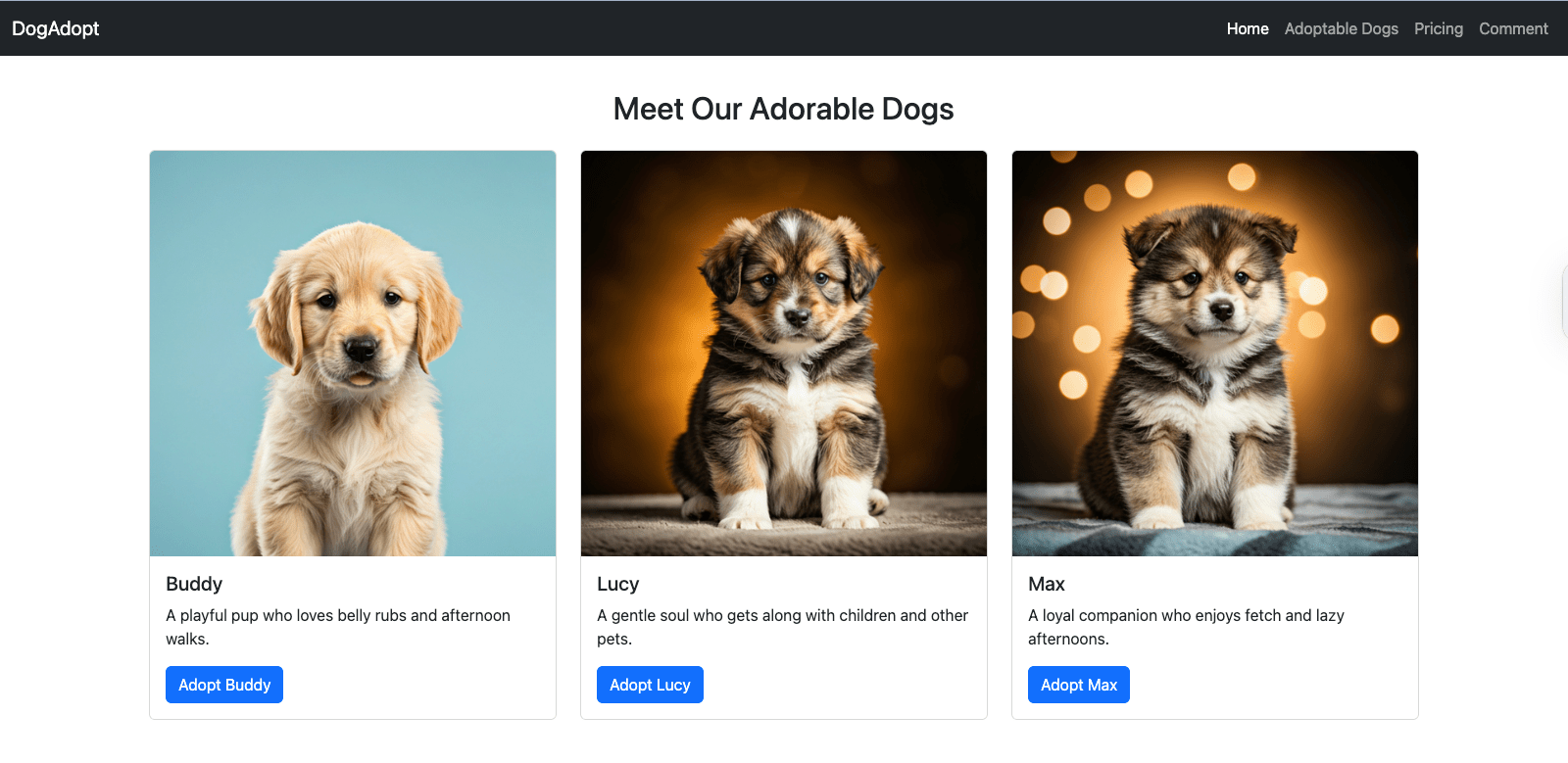
A quick note on Froala integration

Because DeepSeek is an API-based service, it can be embedded into various applications, including our very own Froala WYSIWYG Editor. While we wonโ€™t go deep into this here, the potential is exciting: AI-assisted content suggestions, intelligent grammar corrections, or auto-generated text snippetsโ€”all triggered live within the editing interface.

Imagine building a rich-text editor that not only formats your content but also helps generate it. Thatโ€™s the kind of seamless experience developers can create by combining the Froala Editor with DeepSeek API integration.

For example, you could build a note-taking or documentation app where DeepSeek autocompletes sentences or summarizes content directly inside Froalaโ€™s editor frame.

DeepDive: Example use cases

Letโ€™s explore how DeepSeekโ€™s models perform in real-world scenariosโ€”from writing clean code to understanding multimodal content.

Code completion or generation with DeepSeek-Coder

DeepSeek-Coder is optimized for software development tasks such as autocompletion, refactoring suggestions, and generating functions from plain-text prompts.

Input/output sample:

Input prompt:


{"role": "user", "content": "Write a Python function to check if a number is prime."}

Output:

def is_prime(n):

ย ย ย ย if n <= 1:

ย ย ย ย ย ย ย ย return False

ย ย ย ย for i in range(2, int(n**0.5) + 1):

ย ย ย ย ย ย ย ย if n % i == 0:

ย ย ย ย ย ย ย ย ย ย ย ย return False

ย ย ย ย return True

This makes DeepSeek-Coder ideal for coding assistants, educational platforms, and documentation generators.

IDE plugin (if available):

While thereโ€™s no official IDE plugin from DeepSeek at the time of writing, developers can integrate DeepSeek-Coder with code editors (like VS Code) using custom scripts or API wrappers, similar to how GitHub Copilot operates.

Multimodal tasks with DeepSeek-VL

DeepSeek-VL enables models to process both visual and text inputs, making it useful for applications involving documents, images, and diagrams.

Example input:

  • Image: A scanned document or screenshot
  • Text prompt: โ€œSummarize the key points from this image.โ€

The model interprets the visual content and responds with a meaningful summary or extracted data.

Sample application:

  • Caption generation: Upload an image and receive an accurate caption like:
    โ€œA group of engineers reviewing a circuit board schematic on a table.โ€


  • Document Q&A: Upload a PDF and ask:
    โ€œWhat is the main clause in paragraph 3?โ€
    โ†’ DeepSeek-VL reads the image-based document and extracts answers.


These use cases show how DeepSeek API integration can power next-gen apps across development, education, productivity, and visual understanding.

Best practices for working with DeepSeek API

To get the most out of your DeepSeek API integration, follow these best practices for security, performance, and cost-efficiency.

Token management & security tips

  • Never expose API keys in frontend code or public repositories.
  • Use environment variables or secret managers to store keys securely.
  • Rotate keys periodically and revoke them immediately if compromised.
  • Consider using IP whitelisting if supported by your API provider.

Optimizing input prompts

  • Keep prompts clear and context-rich, especially when working with coding or multimodal tasks.
  • Avoid unnecessary verbosityโ€”it can waste tokens and reduce model accuracy.
  • Test prompt variations to identify the most efficient phrasing for consistent results.

Example:

Instead of saying:

โ€œPlease can you help me by writing a function that checks whether a number is prime?โ€
Try:
โ€œWrite a Python function to check if a number is prime.โ€

Caching strategies for repeated calls

  • If your app sends the same or similar requests frequently, implement caching at the application level.
  • Cache both input-response pairs and processed outputs to reduce token consumption and latency.
  • Use hash keys of prompt strings as identifiers for quick retrieval.

Rate limiting and efficient usage

Although DeepSeekโ€™s official API does not enforce hard rate limits, usage can still be impacted by:

  • Server congestion
  • Timeout thresholds (e.g., 30-minute max response window)

To ensure efficient usage:

  • Batch smaller queries when possible
  • Use streaming mode for faster response delivery
  • Implement retry logic with exponential backoff for handling transient errors

By following these practices, youโ€™ll build more stable, secure, and scalable applications while keeping your DeepSeek usage optimized and cost-effective.

Conclusion

In this guide, we explored everything you need to know about DeepSeek API integrationโ€”from understanding its models and features to setting up your first request and handling advanced use cases. Whether youโ€™re building with DeepSeek-Coder for code generation or experimenting with DeepSeek-VLโ€™s multimodal capabilities, the API offers flexibility, speed, and open accessibility for modern AI development.

Now itโ€™s your turn. Start small with a simple prompt, or go big by integrating DeepSeek into your next project. Thereโ€™s a lot to discoverโ€”and even more to build.

FAQs

What is the DeepSeek API used for?

The DeepSeek API enables developers to integrate advanced AI modelsโ€”such as DeepSeekโ€‘Coder for code generation and DeepSeekโ€‘VL for multimodal tasksโ€”into their applications. Itโ€™s ideal for building chatbots, code assistants, image analyzers, and AIโ€‘powered content tools using openโ€‘source, highโ€‘performance models.

How do I get started with DeepSeek API integration?

To start using the DeepSeek API, visit the official DeepSeek website or GitHub page to access documentation and generate your API key. You can make API calls using Python, Postman, or curl. DeepSeek also supports OpenAIโ€‘compatible endpoints, making it easy to switch from other APIs such as OpenAI or Claude.

Is the DeepSeek API free to use?

Yes, many DeepSeek modelsโ€”such as DeepSeekโ€‘Coder and DeepSeekโ€‘VLโ€”are available for free on platforms like Hugging Face under openโ€‘source licenses (e.g., Apache 2.0). However, if you use hosted endpoints via providers such as OpenRouter or Together.ai, usage fees may apply depending on your plan and traffic volume.

Step-by-Step Guide to Building a Responsive Website with a Bootstrap WYSIWYG Editor

A responsive website layout displayed on desktop, tablet, and mobile devices, built using a Bootstrap WYSIWYG editor.

The digital world demands responsive web design as an essential requirement. Users now access websites from phones, tablets, and desktopsโ€”your site must deliver a smooth experience across all screen sizes.ย 

One of the best solutions is Bootstrap, the popular front-end framework for building mobile-first designs. But writing code manually isnโ€™t for everyone. Thatโ€™s where a Bootstrap WYSIWYG editor comes inโ€”combining drag-and-drop simplicity with Bootstrapโ€™s responsive grid system. With these editors, you can create professional, mobile-friendly websites without starting from scratch.

What is Bootstrap, and why use it?

Bootstrap is a popular front-end framework originally developed by Twitter in 2011. It was built to help developers create consistent, responsive designs more efficiently. Today, it powers millions of websites and is currently in its fifth major version (Bootstrap 5), offering modern features and a mobile-first approach.

Key features

  • Grid System: Bootstrapโ€™s 12-column layout makes it easy to create responsive page structures.
  • Components: Prebuilt elements like buttons, navbars, cards, and modals speed up development.
  • Utility Classes: Apply spacing, colors, alignment, and more directly in HTML.
  • Mobile-First Design: All components are designed to look great on small screens first.

Why choose Bootstrap?

Bootstrap stands out for its ease of use and flexibility. You can build sleek, functional websites without starting from scratch or writing a lot of custom CSS.
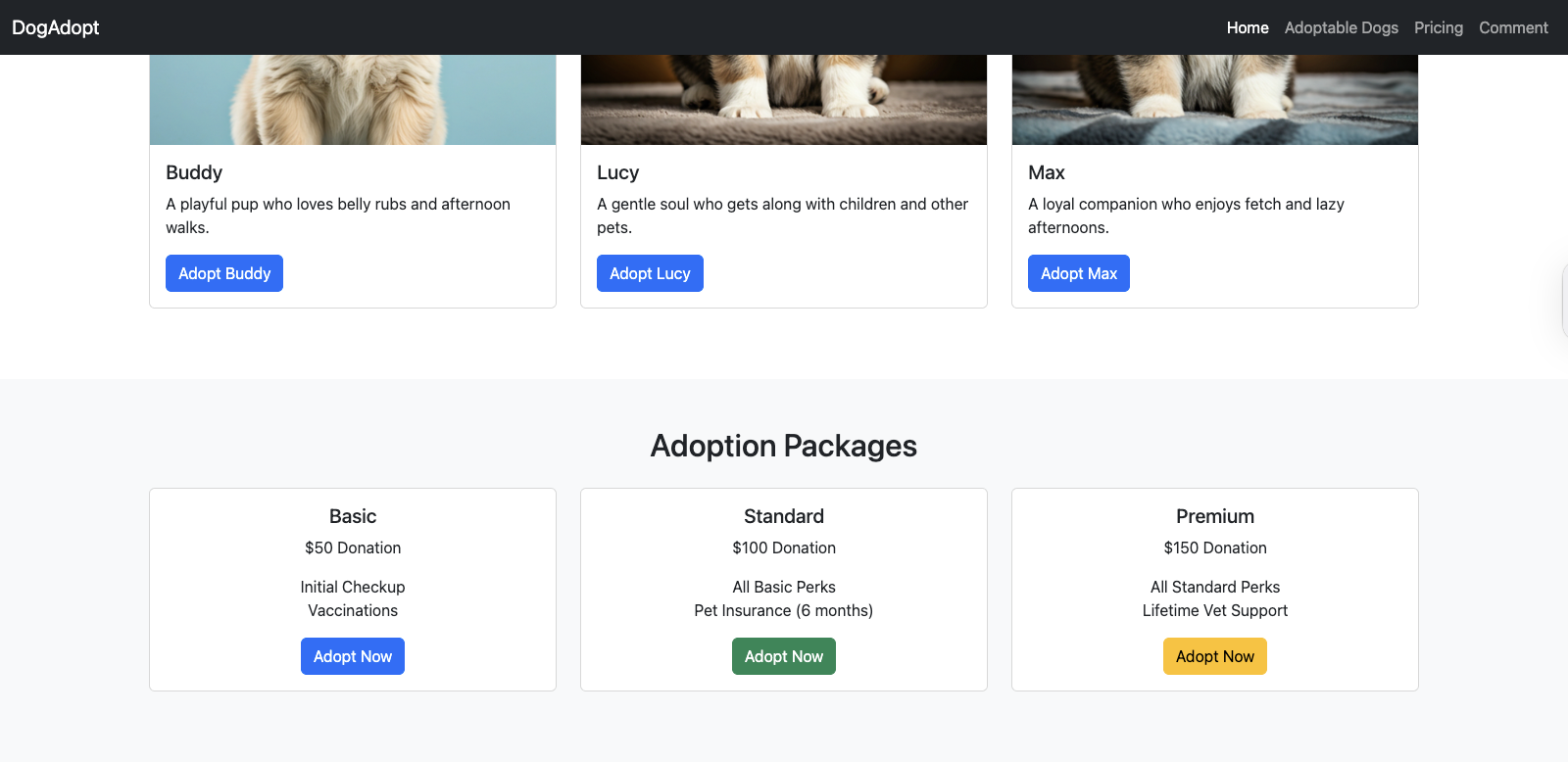
Pros:

  • Fast prototyping with reusable components.
  • Built-in responsiveness.
  • Strong community and documentation.
  • Easy to integrate with most editors and tools.

Cons:

  • May include more code than needed for small projects.
  • Customizing deeply can be challenging.
  • Websites can look similar if not styled further.

Overall, Bootstrap is a solid choice for building responsive sites quickly, especially when paired with a visual editor to simplify the process.

Check out all the Bootstrap classes here.

Overview of Bootstrap WYSIWYG editors

When building responsive websites with Bootstrap, many developers also want to offer live editing capabilities โ€” whether itโ€™s for a content management system, admin panel, or inline content editing experience. Thatโ€™s where WYSIWYG Bootstrap editors come into play.

These are not standalone site builders โ€” instead, they are embeddable editors that integrate into your Bootstrap-based website, allowing users to edit content directly on the page while preserving Bootstrapโ€™s layout and styling.

What is a Bootstrap-compatible WYSIWYG editor?

A Bootstrap-compatible WYSIWYG (What You See Is What You Get) editor is an embeddable content editor that works seamlessly with Bootstrapโ€™s grid system, components, and utility classes. These editors let users update text, images, media, and layout blocks inside a live Bootstrap site without breaking responsive design.

WYSIWYG vs. Code-based editors

  • WYSIWYG editors like Froala are designed for non-technical users or content editors who need to make real-time updates without writing code. Theyโ€™re often integrated into CMSs, admin dashboards, and SaaS applications.
  • Code-based editors, in contrast, are used by developers to manually write and maintain HTML/CSS/JS. Theyโ€™re ideal for full-code control but arenโ€™t suitable for non-technical content editing.

Bootstrap-compatible editors to consider

Here are some WYSIWYG editors that integrate well into Bootstrap-based websites:

  • Froala โ€“ A clean, lightweight, and highly customizable WYSIWYG HTML editor. Froala is Bootstrap-aware, supports inline editing, offers a responsive UI, and can be embedded directly into any Bootstrap project. It also supports custom toolbars, image uploads, code view, and works well in modern JavaScript frameworks.
  • TinyMCE โ€“ Another popular embeddable WYSIWYG editor that can be styled to match Bootstrap. Offers plugin-based customization and responsive layouts.
  • CKEditor โ€“ A rich editor that integrates with responsive frameworks, including Bootstrap. It has collaboration features and enterprise-ready tooling.

Note: Tools like Bootstrap Studio or Pinegrow are layout builders, not embeddable editors for Bootstrap websites. They are great for prototyping, but they donโ€™t offer live, in-browser editing like Froala does.

How to choose the right Bootstrap WYSIWYG editor

When picking an editor for your Bootstrap website, consider:

  • Bootstrap Compatibility โ€“ Does the editor respect your existing layout and CSS classes?
  • Ease of Integration โ€“ Can it be easily embedded with minimal setup?
  • Responsiveness โ€“ Does it adapt across devices like your Bootstrap site?
  • Customizability โ€“ Can you extend or modify its UI and features?

If you’re looking to add live, responsive content editing to your Bootstrap website, Froala offers one of the smoothest and most developer-friendly integrations available.

Preparation: setting up your project

Before we dive into building our website, we need to set up a clean development environment. In this tutorial, weโ€™ll create a dog adoption agency website to demonstrate how you can embed a WYSIWYG editor like Froala, use Bootstrap for layout and responsiveness, and integrate Filestack for handling images.

These tools work seamlessly together:

  • Bootstrap handles layout and design.
  • Froala provides inline content editing.
  • Filestack simplifies uploading and managing media.

Choosing a bootstrap-compatible editor

For this guide, weโ€™re using Froala Editor. Itโ€™s a lightweight, embeddable WYSIWYG editor that fits perfectly into modern responsive websites. Froala is Bootstrap-aware โ€” it respects your layout, classes, and components โ€” and it allows users to edit content directly inside styled elements like cards, columns, or even modals.

Creating a new project

Start by organizing your files with a simple directory structure:

/bootstrap-froala-site

ย ย โ”œโ”€โ”€ index.html

ย ย โ”œโ”€โ”€ /css

ย ย โ”‚ ย  โ””โ”€โ”€ style.css

ย ย โ”œโ”€โ”€ /js

ย ย โ”‚ ย  โ””โ”€โ”€ script.js

ย ย โ””โ”€โ”€ /assets

ย ย ย ย ย ย โ””โ”€โ”€ images/

This setup makes it easier to manage your code, styles, scripts, and media as your site grows.

Overview of bootstrap file structure

When building with Bootstrap 5, the core files youโ€™ll need are:

  • bootstrap.min.css โ€“ for responsive styling and layout utilities.
  • bootstrap.bundle.min.js โ€“ includes Bootstrapโ€™s interactive JavaScript components (like modals and dropdowns) and dependencies like Popper.js.

In addition, weโ€™ll include:

  • Froala CSS/JS โ€“ to enable rich-text editing.
  • Filestack SDK โ€“ to enable media upload and processing.

Importing Bootstrap, Filestack, and Froala

Below is the basic HTML skeleton you can use. Notice that weโ€™ve included Bootstrap, Filestack, and Froala scripts. These files enable you to leverage Bootstrap for responsive layout, work with Filestack for image handling, and embed Froala for live content editing:

index.html

<!DOCTYPE html>

<html lang="en">

<head>

ย ย ย ย <meta charset="UTF-8">

ย ย ย ย <title>Dog Adoption Agency</title>

ย ย ย ย <meta name="viewport" content="width=device-width, initial-scale=1.0"> <!-- Bootstrap CSS -->

ย ย ย ย <link rel="stylesheet" href="https://cdn.jsdelivr.net/npm/bootstrap@5.3.0/dist/css/bootstrap.min.css">

ย ย ย ย <!-- Froala Editor CSS -->

ย ย ย ย <link href='https://cdn.jsdelivr.net/npm/froala-editor@4.3/css/froala_editor.pkgd.min.css' rel='stylesheet'

ย ย ย ย ย ย ย ย type='text/css' /> <!-- Filestack JS and CSS (Picker, Drag-and-Drop, Transforms) -->

ย ย ย ย <script src="https://static.filestackapi.com/filestack-js/3.32.0/filestack.min.js"> </script>

ย ย ย ย <script

ย ย ย ย ย ย ย ย src="https://static.filestackapi.com/filestack-drag-and-drop-js/1.1.1/filestack-drag-and-drop.min.js"> </script>

ย ย ย ย <script src="https://static.filestackapi.com/transforms-ui/2.x.x/transforms.umd.min.js"> </script>

ย ย ย ย <link rel="stylesheet" href="https://static.filestackapi.com/transforms-ui/2.x.x/transforms.css" />

ย ย ย ย <!-- Froala Editor JS -->

ย ย ย ย <script type='text/javascript'

ย ย ย ย ย ย ย ย src='https://cdn.jsdelivr.net/npm/froala-editor@4.3/js/froala_editor.pkgd.min.js'> </script>

</head>

<body> <!-- Content goes here --> <!-- Bootstrap JS -->

ย ย ย ย <script src="https://cdn.jsdelivr.net/npm/bootstrap@5.3.0/dist/js/bootstrap.bundle.min.js"> </script>

</body>


</html>

With this setup, youโ€™re ready to start building your dog adoption agency website with embedded editing, responsive layout, and modern media capabilities.

Step-by-step: Building your responsive website

With our project environment set up and Bootstrap, Froala, and Filestack integrated, letโ€™s start building the dog adoption agency website section by section. Weโ€™ll walk through how to structure the layout, embed interactive components, and bring the site to life using Bootstrapโ€™s utility classes and JavaScript components โ€” all while enabling rich content editing and image uploads.

Step 1: Build a sticky navbar

Start with a Bootstrap sticky navbar that stays fixed to the top as users scroll. It contains anchor links that smoothly guide users to each section of the page.

index.html โ€“ inside the <body> tag

<nav class="navbar navbar-expand-lg navbar-dark bg-dark sticky-top">

ย ย <div class="container-fluid">

ย ย ย ย <a class="navbar-brand" href="#">DogAdopt</a>

ย ย ย ย <button class="navbar-toggler" type="button" data-bs-toggle="collapse" data-bs-target="#navbarNav">

ย ย ย ย ย ย <span class="navbar-toggler-icon"></span>

ย ย ย ย </button>

ย ย ย ย <div class="collapse navbar-collapse" id="navbarNav">

ย ย ย ย ย ย <ul class="navbar-nav ms-auto">

ย ย ย ย ย ย ย ย <li class="nav-item"><a class="nav-link active" href="#">Home</a></li>

ย ย ย ย ย ย ย ย <li class="nav-item"><a class="nav-link" href="#adopt">Adoptable Dogs</a></li>

ย ย ย ย ย ย ย ย <li class="nav-item"><a class="nav-link" href="#pricing">Pricing</a></li>

ย ย ย ย ย ย ย ย <li class="nav-item"><a class="nav-link" href="#comment">Comment</a></li>

ย ย ย ย ย ย </ul>

ย ย ย ย </div>

ย ย </div>

</nav>

Step 2: Create a hero section

Use a simple Bootstrap hero layout to grab attention with a clear message and call to action.

index.html โ€“ inside the <body> tag

<section class="bg-light text-dark py-5 text-center">

ย ย <div class="container">

ย ย ย ย <h1 class="display-4">Save a Life, Adopt a Dog</h1>

ย ย ย ย <p class="lead">Join our community and give a loving home to these adorable companions.</p>

ย ย ย ย <a href="#adopt" class="btn btn-primary btn-lg">Find Your Companion</a>

ย ย </div>

</section>

So far, your page should look something like this:

Froala Bootstrap website - after adding hero section

Step 3: Add an image carousel

Bootstrapโ€™s carousel component highlights adoptable dogs using high-quality Filestack-transformed images.

index.html โ€“ inside the <body> tag

<!-- Add an image carousel -->
    <div id="dogCarousel" class="carousel carousel-dark slide" data-bs-ride="carousel">
        <div class="carousel-indicators"> <button type="button" data-bs-target="#dogCarousel" data-bs-slide-to="0"
                class="active" aria-current="true"></button> <button type="button" data-bs-target="#dogCarousel"
                data-bs-slide-to="1"></button> <button type="button" data-bs-target="#dogCarousel"
                data-bs-slide-to="2"></button> </div>
        <div class="carousel-inner">
            <div class="carousel-item active"> <img
                    src="https://cdn.filestackcontent.com/resize=width:1200,height:500/hmzhYgUSZiIA0Ju2ocMo"
                    class="d-block w-20" alt="Friendly Dog 1"> </div>
            <div class="carousel-item"> <img
                    src="https://cdn.filestackcontent.com/resize=width:1200,height:500/xsFLOcdRYKQOz4oQpmgg"
                    class="d-block w-20" alt="Friendly Dog 2"> </div>
            <div class="carousel-item"> <img
                    src="https://cdn.filestackcontent.com/resize=width:1200,height:500/e0DUJOjTjWmUQm0FxL7e"
                    class="d-block w-20" alt="Friendly Dog 3"> </div>
        </div> <button class="carousel-control-prev" type="button" data-bs-target="#dogCarousel" data-bs-slide="prev">
            <span class="carousel-control-prev-icon" aria-hidden="true"></span> <span
                class="visually-hidden">Previous</span> </button> <button class="carousel-control-next" type="button"
            data-bs-target="#dogCarousel" data-bs-slide="next"> <span class="carousel-control-next-icon"
                aria-hidden="true"></span> <span class="visually-hidden">Next</span> </button>
    </div>

Update the image URLs with your Filestack handles or transformed links.

To center the images within the carousel, add the following CSS. You can place it in your style.css file (if you’re using a separate stylesheet) or directly in your index.html file, just inside the <style> tag and placed within the <head> section.

Style.css


<style>

ย ย ย ย .carousel-inner img {

ย ย ย ย ย ย ย ย margin: auto;

ย ย ย ย }

</style>

Hereโ€™s how your page should be shaping up so far:

Froala Bootstrap page after adding carousel

Step 4: Enable image upload with Filestack

Embed a Filestack picker to let users upload new dog images:

index.html โ€“ inside the <body> tag

<!-- Filestack Mini-Section -->

ย ย ย ย <section class="py-4 text-center">

ย ย ย ย ย ย ย ย <div class="container">

ย ย ย ย ย ย ย ย ย ย ย ย <h3>Upload a picture of your own dog</h3>

ย ย ย ย ย ย ย ย ย ย ย ย <p>Upload and transform images directly, then embed them on your site.</p>

ย ย ย ย ย ย ย ย ย ย ย ย <button class="btn btn-secondary" onclick="openFilestackPicker()">Upload a New Dog Image</button>

ย ย ย ย ย ย ย ย </div>

ย ย ย ย </section>

<script>

ย ย ย ย const client = filestack.init('YOUR_API_KEY'); // Replace 'YOUR_API_KEY' with your actual Filestack API key.ย 

ย ย ย ย function openFilestackPicker() {

ย ย ย ย ย ย ย ย client.picker({

ย ย ย ย ย ย ย ย onUploadDone: (res) => {

ย ย ย ย ย ย ย ย ย ย ย ย console.log('Uploaded file handle:', res.filesUploaded[0].handle);

ย ย ย ย ย ย ย ย }

ย ย ย ย ย ย ย ย }).open();

ย ย ย ย }

ย </script>

Replace ‘YOUR_API_KEY’ with your actual Filestack API key.

Sign up for free today to get your Filestack API key.

You can also place the script in a separate script.js file and reference it in the <body> section of your index.html file like this:

<script src="js/script.js"></script>

Make sure the path matches your folder structure (e.g., js/ in this case).

Froala Bootstrap webpage after adding Filestack file uploader

Step 5: Display adoptable dogs with cards

Showcase adoptable dogs using Bootstrap cards:

index.html โ€“ inside the <body> tag

<!--Display adoptable dogs with cards-->ย ย ย ย 

<section id="adopt" class="py-5">

ย ย ย ย ย ย ย ย <div class="container">

ย ย ย ย ย ย ย ย ย ย ย ย <h2 class="mb-4 text-center">Meet Our Adorable Dogs</h2>

ย ย ย ย ย ย ย ย ย ย ย ย <div class="row">

ย ย ย ย ย ย ย ย ย ย ย ย ย ย ย ย <div class="col-md-6 col-lg-4 mb-4">

ย ย ย ย ย ย ย ย ย ย ย ย ย ย ย ย ย ย ย ย <div class="card"> <img

ย ย ย ย ย ย ย ย ย ย ย ย ย ย ย ย ย ย ย ย ย ย ย ย ย ย ย ย src="https://cdn.filestackcontent.com/resize=width:1200,height:500/hmzhYgUSZiIA0Ju2ocMo"

ย ย ย ย ย ย ย ย ย ย ย ย ย ย ย ย ย ย ย ย ย ย ย ย ย ย ย ย class="card-img-top" alt="Buddy">

ย ย ย ย ย ย ย ย ย ย ย ย ย ย ย ย ย ย ย ย ย ย ย ย <div class="card-body">

ย ย ย ย ย ย ย ย ย ย ย ย ย ย ย ย ย ย ย ย ย ย ย ย ย ย ย ย <h5 class="card-title">Buddy</h5>

ย ย ย ย ย ย ย ย ย ย ย ย ย ย ย ย ย ย ย ย ย ย ย ย ย ย ย ย <p class="card-text">A playful pup who loves belly rubs and afternoon walks.</p> <a href="#"

ย ย ย ย ย ย ย ย ย ย ย ย ย ย ย ย ย ย ย ย ย ย ย ย ย ย ย ย ย ย ย ย class="btn btn-primary">Adopt Buddy</a>

ย ย ย ย ย ย ย ย ย ย ย ย ย ย ย ย ย ย ย ย ย ย ย ย </div>

ย ย ย ย ย ย ย ย ย ย ย ย ย ย ย ย ย ย ย ย </div>

ย ย ย ย ย ย ย ย ย ย ย ย ย ย ย ย </div>

ย ย ย ย ย ย ย ย ย ย ย ย ย ย ย ย <div class="col-md-6 col-lg-4 mb-4">

ย ย ย ย ย ย ย ย ย ย ย ย ย ย ย ย ย ย ย ย <div class="card"> <img

ย ย ย ย ย ย ย ย ย ย ย ย ย ย ย ย ย ย ย ย ย ย ย ย ย ย ย ย src="https://cdn.filestackcontent.com/resize=width:1200,height:500/xsFLOcdRYKQOz4oQpmgg"

ย ย ย ย ย ย ย ย ย ย ย ย ย ย ย ย ย ย ย ย ย ย ย ย ย ย ย ย class="card-img-top" alt="Lucy">

ย ย ย ย ย ย ย ย ย ย ย ย ย ย ย ย ย ย ย ย ย ย ย ย <div class="card-body">

ย ย ย ย ย ย ย ย ย ย ย ย ย ย ย ย ย ย ย ย ย ย ย ย ย ย ย ย <h5 class="card-title">Lucy</h5>

ย ย ย ย ย ย ย ย ย ย ย ย ย ย ย ย ย ย ย ย ย ย ย ย ย ย ย ย <p class="card-text">A gentle soul who gets along with children and other pets.</p> <a href="#"

ย ย ย ย ย ย ย ย ย ย ย ย ย ย ย ย ย ย ย ย ย ย ย ย ย ย ย ย ย ย ย ย class="btn btn-primary">Adopt Lucy</a>

ย ย ย ย ย ย ย ย ย ย ย ย ย ย ย ย ย ย ย ย ย ย ย ย </div>

ย ย ย ย ย ย ย ย ย ย ย ย ย ย ย ย ย ย ย ย </div>

ย ย ย ย ย ย ย ย ย ย ย ย ย ย ย ย </div>

ย ย ย ย ย ย ย ย ย ย ย ย ย ย ย ย <div class="col-md-6 col-lg-4 mb-4">

ย ย ย ย ย ย ย ย ย ย ย ย ย ย ย ย ย ย ย ย <div class="card"> <img

ย ย ย ย ย ย ย ย ย ย ย ย ย ย ย ย ย ย ย ย ย ย ย ย ย ย ย ย src="https://cdn.filestackcontent.com/resize=width:1200,height:500/e0DUJOjTjWmUQm0FxL7e"

ย ย ย ย ย ย ย ย ย ย ย ย ย ย ย ย ย ย ย ย ย ย ย ย ย ย ย ย class="card-img-top" alt="Max">

ย ย ย ย ย ย ย ย ย ย ย ย ย ย ย ย ย ย ย ย ย ย ย ย <div class="card-body">

ย ย ย ย ย ย ย ย ย ย ย ย ย ย ย ย ย ย ย ย ย ย ย ย ย ย ย ย <h5 class="card-title">Max</h5>

ย ย ย ย ย ย ย ย ย ย ย ย ย ย ย ย ย ย ย ย ย ย ย ย ย ย ย ย <p class="card-text">A loyal companion who enjoys fetch and lazy afternoons.</p> <a href="#"

ย ย ย ย ย ย ย ย ย ย ย ย ย ย ย ย ย ย ย ย ย ย ย ย ย ย ย ย ย ย ย ย class="btn btn-primary">Adopt Max</a>

ย ย ย ย ย ย ย ย ย ย ย ย ย ย ย ย ย ย ย ย ย ย ย ย </div>

ย ย ย ย ย ย ย ย ย ย ย ย ย ย ย ย ย ย ย ย </div>

ย ย ย ย ย ย ย ย ย ย ย ย ย ย ย ย </div>

ย ย ย ย ย ย ย ย ย ย ย ย </div>

ย ย ย ย ย ย ย ย </div>

ย ย ย ย </section>

Froala Bootstrap webpage displaying adoptable dogs with cards

Step 6: Add a pricing section with cards

Showcase your adoption packages using Bootstrap cards combined with utility classes for spacing and layout.

index.html โ€“ inside the <body> tag

<!--Add Pricing section-->

ย ย ย ย <section id="pricing" class="bg-light py-5">

ย ย ย ย ย ย ย ย <div class="container text-center">

ย ย ย ย ย ย ย ย ย ย ย ย <h2 class="mb-4">Adoption Packages</h2>

ย ย ย ย ย ย ย ย ย ย ย ย <div class="row">

ย ย ย ย ย ย ย ย ย ย ย ย ย ย ย ย <div class="col-md-4 mb-4">

ย ย ย ย ย ย ย ย ย ย ย ย ย ย ย ย ย ย ย ย <div class="card h-100">

ย ย ย ย ย ย ย ย ย ย ย ย ย ย ย ย ย ย ย ย ย ย ย ย <div class="card-body">

ย ย ย ย ย ย ย ย ย ย ย ย ย ย ย ย ย ย ย ย ย ย ย ย ย ย ย ย <h5 class="card-title">Basic</h5>

ย ย ย ย ย ย ย ย ย ย ย ย ย ย ย ย ย ย ย ย ย ย ย ย ย ย ย ย <p class="card-text">$50 Donation</p>

ย ย ย ย ย ย ย ย ย ย ย ย ย ย ย ย ย ย ย ย ย ย ย ย ย ย ย ย <ul class="list-unstyled">

ย ย ย ย ย ย ย ย ย ย ย ย ย ย ย ย ย ย ย ย ย ย ย ย ย ย ย ย ย ย ย ย <li>Initial Checkup</li>

ย ย ย ย ย ย ย ย ย ย ย ย ย ย ย ย ย ย ย ย ย ย ย ย ย ย ย ย ย ย ย ย <li>Vaccinations</li>

ย ย ย ย ย ย ย ย ย ย ย ย ย ย ย ย ย ย ย ย ย ย ย ย ย ย ย ย </ul> <a href="#" class="btn btn-primary">Adopt Now</a>

ย ย ย ย ย ย ย ย ย ย ย ย ย ย ย ย ย ย ย ย ย ย ย ย </div>

ย ย ย ย ย ย ย ย ย ย ย ย ย ย ย ย ย ย ย ย </div>

ย ย ย ย ย ย ย ย ย ย ย ย ย ย ย ย </div>

ย ย ย ย ย ย ย ย ย ย ย ย ย ย ย ย <div class="col-md-4 mb-4">

ย ย ย ย ย ย ย ย ย ย ย ย ย ย ย ย ย ย ย ย <div class="card h-100">

ย ย ย ย ย ย ย ย ย ย ย ย ย ย ย ย ย ย ย ย ย ย ย ย <div class="card-body">

ย ย ย ย ย ย ย ย ย ย ย ย ย ย ย ย ย ย ย ย ย ย ย ย ย ย ย ย <h5 class="card-title">Standard</h5>

ย ย ย ย ย ย ย ย ย ย ย ย ย ย ย ย ย ย ย ย ย ย ย ย ย ย ย ย <p class="card-text">$100 Donation</p>

ย ย ย ย ย ย ย ย ย ย ย ย ย ย ย ย ย ย ย ย ย ย ย ย ย ย ย ย <ul class="list-unstyled">

ย ย ย ย ย ย ย ย ย ย ย ย ย ย ย ย ย ย ย ย ย ย ย ย ย ย ย ย ย ย ย ย <li>All Basic Perks</li>

ย ย ย ย ย ย ย ย ย ย ย ย ย ย ย ย ย ย ย ย ย ย ย ย ย ย ย ย ย ย ย ย <li>Pet Insurance (6 months)</li>

ย ย ย ย ย ย ย ย ย ย ย ย ย ย ย ย ย ย ย ย ย ย ย ย ย ย ย ย </ul> <a href="#" class="btn btn-success">Adopt Now</a>

ย ย ย ย ย ย ย ย ย ย ย ย ย ย ย ย ย ย ย ย ย ย ย ย </div>

ย ย ย ย ย ย ย ย ย ย ย ย ย ย ย ย ย ย ย ย </div>

ย ย ย ย ย ย ย ย ย ย ย ย ย ย ย ย </div>

ย ย ย ย ย ย ย ย ย ย ย ย ย ย ย ย <div class="col-md-4 mb-4">

ย ย ย ย ย ย ย ย ย ย ย ย ย ย ย ย ย ย ย ย <div class="card h-100">

ย ย ย ย ย ย ย ย ย ย ย ย ย ย ย ย ย ย ย ย ย ย ย ย <div class="card-body">

ย ย ย ย ย ย ย ย ย ย ย ย ย ย ย ย ย ย ย ย ย ย ย ย ย ย ย ย <h5 class="card-title">Premium</h5>

ย ย ย ย ย ย ย ย ย ย ย ย ย ย ย ย ย ย ย ย ย ย ย ย ย ย ย ย <p class="card-text">$150 Donation</p>

ย ย ย ย ย ย ย ย ย ย ย ย ย ย ย ย ย ย ย ย ย ย ย ย ย ย ย ย <ul class="list-unstyled">

ย ย ย ย ย ย ย ย ย ย ย ย ย ย ย ย ย ย ย ย ย ย ย ย ย ย ย ย ย ย ย ย <li>All Standard Perks</li>

ย ย ย ย ย ย ย ย ย ย ย ย ย ย ย ย ย ย ย ย ย ย ย ย ย ย ย ย ย ย ย ย <li>Lifetime Vet Support</li>

ย ย ย ย ย ย ย ย ย ย ย ย ย ย ย ย ย ย ย ย ย ย ย ย ย ย ย ย </ul> <a href="#" class="btn btn-warning">Adopt Now</a>

ย ย ย ย ย ย ย ย ย ย ย ย ย ย ย ย ย ย ย ย ย ย ย ย </div>

ย ย ย ย ย ย ย ย ย ย ย ย ย ย ย ย ย ย ย ย </div>

ย ย ย ย ย ย ย ย ย ย ย ย ย ย ย ย </div>

ย ย ย ย ย ย ย ย ย ย ย ย </div>

ย ย ย ย ย ย ย ย </div>

ย ย ย ย </section>

Froala Bootstrap webpage after adding Pricing

Step 7: Add a comment section with Froala

Enable live WYSIWYG editing using Froala Editor for user comments.

<!--Adding a Bootstrap Editor WYSIWYG Froala-->
    <section id="comment" class="py-5">
        <div class="container">
            <h2 class="mb-4 text-center">Leave a Comment</h2>
            <div id="editor"></div>
        </div>
    </section>
    <script> var editor = new FroalaEditor('#editor', {
        imageEditButtons: ['imageReplace', 'imageAlign', 'imageCaption', 'filestackIcon', 'imageTUI'], filestackOptions: {
            uploadToFilestackOnly: false, filestackAPI: '***', // Replace with your Filestack API key 

            pickerOptions: { fromSources: ['local_file_system', 'imagesearch', 'url', 'googledrive', 'facebook'], accept: [".pdf", "image/jpeg", "image/png", "image/webp", "video/*", "audio/*"], transformations: { crop: true, rotate: true } }
        },
    }); 
    </script>

Add a comment section with Froala

With these steps, your responsive website now includes:

  • A mobile-friendly layout with Bootstrap
  • Live content editing powered by Froala
  • Image uploads and transformations via Filestack

Check out the full example on our GitHub repo!

Next, weโ€™ll look at testing, optimization, and going live.

Testing and optimization

Before going live, ensure your site looks great and performs well across all devices.

Preview and test

  • Use Chrome DevTools or built-in browser tools to preview different screen sizes.
  • Test on major browsers like Chrome, Firefox, Safari, and Edge.
  • View your site on real phones or tablets when possible.
Responsive preview of the dog adoption website built with Bootstrap, Froala and Filestack (iPad view)
Responsive preview of the dog adoption website built with Bootstrap, Froal, and Filestack (iPad view)

Optimize performance

  • Minify your HTML, CSS, and JS files to reduce load time.
  • Compress and resize images using Filestack or similar tools.
  • Use lazy loading for images and videos to boost speed, especially on mobile.

Exporting and going live

Once your dog adoption website is complete, itโ€™s time to bring it online. This final step outlines how to export your project, host it, and make it accessible to users worldwide.

Exporting your project

If youโ€™ve been working in an online editor, download your full project as a .zip file or copy the HTML, CSS, and JS files manually. If youโ€™re developing locally, your index.html, css/, and js/ folders are already ready to deploy.

Hosting options

You can host your site for free using services like:

  • GitHub Pages โ€“ Ideal for static HTML/CSS projects and version control.
  • Netlify โ€“ Offers drag-and-drop deployment, custom domains, and CI/CD support.
  • Vercel โ€“ Great for frontend developers; supports instant previews and easy deployment.

Connecting a domain

After hosting your site, you can connect a custom domain:

  • Purchase a domain from registrars like Namecheap or GoDaddy.
  • Point the domain’s DNS to your hosting provider (e.g., add A records for Netlify or GitHub).
  • Most platforms provide step-by-step domain setup guides.

This example guide is provided by Namecheap.

Basic SEO and meta tags

To improve visibility and search performance:

  • Add a <title> tag and a descriptive <meta name=”description”> to your HTML <head>.
  • Use semantic HTML (e.g., <header>, <main>, <section>).
  • Include alt text for images and ensure the site is mobile-friendly.

Example:


<!-- Example meta tags -->

<title>DogAdopt โ€“ Adopt a Dog Today</title>

<meta name="description" content="Find and adopt your perfect dog companion. Browse dogs, learn about adoption, and support a great cause.">

With these steps, your Bootstrap + Froala-powered website is live and ready to help dogs find their forever homes.

Advanced tips and next steps

Once your Bootstrap website with Froala and Filestack is up and running, you may want to take it a step further. Here are a few ways to level up your skills and make your site even more powerful, customized, and accessible.

Integrate with modern frameworks

If you’re building a more dynamic or scalable project, consider integrating Bootstrap with popular JavaScript frameworks like:

  • React (with react-bootstrap or reactstrap)
  • Angular (using ng-bootstrap)
  • Vue (with bootstrap-vue)

These integrations allow you to combine Bootstrapโ€™s styling with framework-specific component logic and interactivity.

Use Bootstrap themes and templates

Speed up design by using pre-built Bootstrap themes or UI kits. You can:

Learn SCSS for deeper customization

Bootstrap is built with Sass, and learning it unlocks powerful features:

  • Change default colors, spacing, and breakpoints.
  • Import only the components you need to reduce file size.
  • Build fully custom design systems on top of Bootstrap.

Prioritize accessibility

Make your site usable for everyone by applying accessibility best practices:

  • Use semantic HTML and ARIA roles.
  • Maintain color contrast for readability.
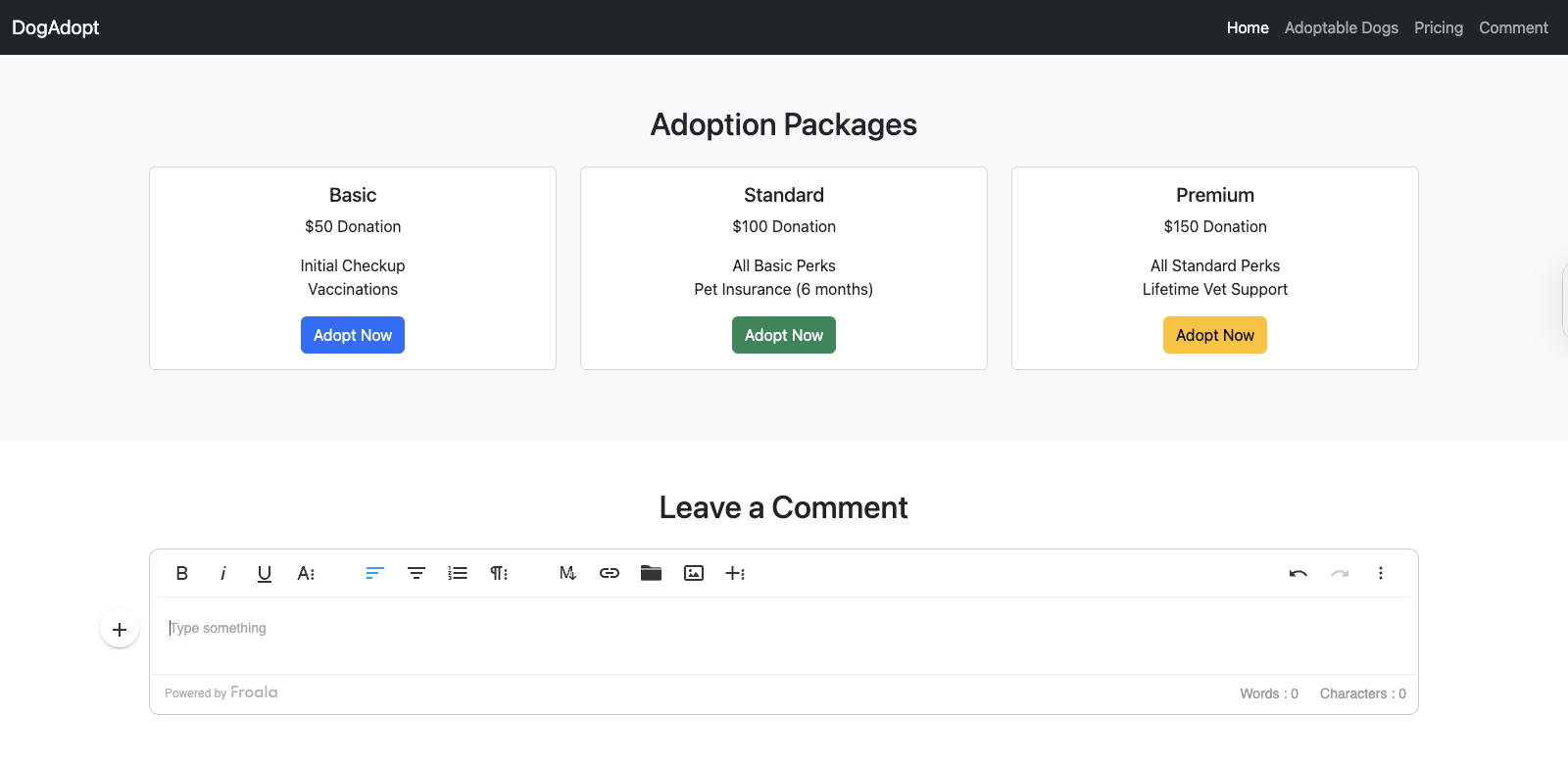
  • Ensure full keyboard navigation for all interactive elements.

You can test accessibility with tools like Lighthouse, Axe DevTools, or WAVE.

Conclusion

In this tutorial, we walked through how to build a fully responsive dog adoption website using Bootstrap, Froala, and Filestack. You learned how to:

  • Set up your project structure and import essential tools
  • Create a clean, mobile-friendly layout with Bootstrap
  • Enable inline content editing with Froala
  • Upload and manage media using Filestack
  • Test, optimize, and publish your site with ease

This guide highlights the power and efficiency of modern web development when combining Bootstrap with embeddable editors like Froala and tools like Filestack.

Now itโ€™s your turn to experiment! Try adding new sections, customizing styles, or integrating this layout into a CMS or app. The best way to learn is by building, breaking, and rebuilding.

If you have questions, want to share your own version, or need help with the next stepโ€”feel free to drop a comment or open an issue in the GitHub repo.

Happy coding, and happy adopting!

Easily Add Powerful Table Sorting with DataTables Plugin

a person posing for the camera

Introduction to the Froala Editor Integration

Do you find the Froala editor the perfect rich text editor for your project, but require robust table sorting capabilities? No problem! The Froala editor is a highly extensible WYSIWYG HTML editor, making it remarkably easy for developers to add the specific table sorting functionality you need using a suitable plugin.

Many developers rely on the Froala editor for its powerful features and ease of use when constructing HTML pages. This editor simplifies the content creation experience.

This article demonstrate how straightforward it is to integrate a table sorting feature into the Froala editor. We’ll achieve this by leveraging the popular DataTables JavaScript library, acting as a powerful plugin. This example showcases how the flexibility of the Froala editor allows developers to enhance this excellent editor with the exact tools their project requires โ€“ even if a specific capability isn’t in the core editor.

This example should provide a clear path for many developers looking to add advanced table controls. We will provide essential code examples below, showing how developers can implement this feature. The editor becomes much more powerful with this plugin.

You’ll see how the Froala editor empowers users and developers to create sophisticated editable content. This specific example focuses on table manipulation within the editor, using external library code. The goal is to improve how users interact with table data within the editor.

Froala Table Sorting

Key Takeaways

  • Implementing Froala table sorting significantly improves data usability and the overall user experience for manipulating table data within the Froala editor.
  • Integrating the DataTables plugin enhances the core functionality of Froala editor tables, adding sorting to each column. This plugin is a great example for developers. Using this plugin requires including specific code.
  • Performance optimization is essential when the editor needs to handle tables with numerous rows and large data sets; developers must consider this when adding custom code.

The Power of Froala Tables in a WYSIWYG Editor

The Froala WYSIWYG editor already includes robust table editing functionality out of the box. People using the editor can easily create, modify, and format tables directly within the rich text editor.

Native capabilities like multi-cell selection, cell merging, and custom style options (even controlling border collapse or font family) make Froala tables a cut above many other editor solutions.

But the native table features in the Froala editor can be further enhanced by integrating with the powerful DataTables library integration. DataTables provides advanced sorting, filtering, paging (rows per page), and other table management capabilities that complement Froala’s built-in table edit tools within the editor.

This plugin adds significant ability through its JavaScript code. This plugin is a popular choice for developers working with tables in web applications and the Froala editor. The editor becomes a more complete tool for data presentation.

Importance of Table Sorting within the Rich Text Editor

Okay, so you’ve used the editor to create a table. Great! But what if users need to find specific data within its rows? That’s where sorting comes in. Table sorting is important because it lets users quickly organize data in a way that makes sense within the editor.

Imagine a table with a list of customers. Without sorting, users would have to manually scan all the rows to find someone. But with sorting enabled by the plugin, users can instantly arrange the table by name, order date, or whatever column they need. This saves a ton of time and makes your table data way more useful for anyone using the editor.

It’s not just about finding stuff faster, though. Sorting tables can also help users highlight trends and patterns in their data that they might otherwise miss inside the editor. For example, sorting a sales table by revenue could quickly highlight your top-performing products. The editor makes managing this table data easier for users.

Here are some reasons why sorting within the editor is important for developers and end-users:

  • Faster data retrieval from tables for users.
  • Improved data analysis within the editor by users.
  • Enhanced user experience for those interacting with the editable content in the Froala editor. This example clearly shows the benefit of adding this plugin code. The editor feels more interactive.

Froala Table Sorting – How it works

There are several ways developers can add table sorting support to the Froala editor using any JavaScript HTML table enhancing library or plugin. In this guide and code example, we’ll use the popular DataTables library.

DataTables provides advanced sorting, filtering, and pagination features that complement the Froala editor’s built-in table edit tools. We select this plugin due to its extensive features, good documentation for developers, and ease of integration with the editor via simple code additions.

This JavaScript library is a common choice for enhancing HTML tables. Its code is widely used by developers. It interacts directly with the table elements within the editor.

The approach or method we’ll take has the following key steps:

  1. Add a new custom button to the Froala editor table edit popup (menu) that initializes the DataTables plugin on the selected table. The necessary code is shown below.
  2. This will enhance the table, adding sorting buttons (visual signs) to each column header cell.
  3. Users can then click these buttons to sort the table data in ascending or descending order. The underlying code handles the table row manipulation directly in the editor.
  4. This tutorial serves as a good starting point example for integrating the Froala editor with the DataTables library plugin. However, developers may need to optimize the provided code further to handle certain scenarios, such as when a user adds new rows and columns to the table after initializing the DataTables on it. In this case, developers may need to re-initialization the DataTables on the modified table.

Adding the Froala Table Sorting Feature: A Code Example

Adding this table sorting capability via the DataTables plugin to your Froala editor setup is a straightforward process. Here are the key steps involved in this setup:

Step 1: Include the Required Libraries (CSS & JS Code)

To get started with this editor enhancement, developers must include the following CDN links in their web page:

  • Froala WYSIWYG Editor Stylesheet and JavaScript CDN links
  • DataTables JavaScript library (which requires jQuery)
  • Font Awesome stylesheet for custom button icons

<!-- Font Awesome library for icons -->
<link href='https://cdnjs.cloudflare.com/ajax/libs/font-awesome/5.5.0/css/all.min.css' rel='stylesheet' type='text/css' />

<!-- Froala editor stylesheet -->
<link href='https://cdn.jsdelivr.net/npm/froala-editor@latest/css/froala_editor.pkgd.min.css' rel='stylesheet' type='text/css' />

<!-- DataTables stylesheet -->
<link href='https://cdn.datatables.net/2.2.2/css/dataTables.dataTables.min.css' rel='stylesheet' type='text/css' />

<!-- jQuery script -->
<script type='text/javascript' src='https://cdnjs.cloudflare.com/ajax/libs/jquery/3.7.1/jquery.min.js'></script>
<!-- DataTables script -->
<script type='text/javascript' src='https://cdn.datatables.net/2.2.2/js/dataTables.min.js'></script>
<!-- Froala script -->
<script type='text/javascript' src='https://cdn.jsdelivr.net/npm/froala-editor@latest/js/froala_editor.pkgd.min.js'></script>

Step 2: Create a New Custom Button For Froala

Letโ€™s create a custom button within the Froala editor system to enable the sorting function on the selected table.

We will use the โ€œfilterโ€ Font Awesome icon (font) to represent our button in the editor toolbar. Add this JavaScript code before initializing the Froala editor.

// Use Font Awesome icons
FroalaEditor.ICON_DEFAULT_TEMPLATE = "font_awesome_5" 

//Define icon for "advancedTable" buttton
FroalaEditor.DefineIcon("advancedTable", { NAME: "filter" })

This code tells the editor how to display the button icon using the specified font.

2.2 Define the Button Function (Command Code)

Now, let’s register one of the Froala editor commands that executes our table sorting logic using the DataTables plugin. This code defines the button’s action. Place this code before the editor initialization.

The following code block shows the command registration.

FroalaEditor.RegisterCommand("advancedTable", { ย  
   title: "Advanced Table", ย  undo: true,
 ย  callback: function callback(cmd) {
 ย  ย  let table = this.$el.find(".fr-selected-cell").closest("table");
 ย  ย  if (table[0] && table[0].getElementsByTagName("thead").length > 0) {
 ย  ย  ย  let advTable = new DataTable(table, {
 ย  ย  ย  ย  searching: false,
 ย  ย  ย  ย  paging: false,
 ย  ย  ย  });
 ย  ย  } else {
 ย  ย  ย  alert("You should add a table header first.");
 ย  ย  }
 ย  },
 });

In the above JavaScript code:

  • We registered a new Froala editor button command with the name “advancedTable”.
  • The button will be represented by the font icon we defined in the previous step using separate code. It will appear on the table edit menu.
  • It has a title attribute shown as a tooltip in the editor.
  • The callback function contains the core logic. This function code runs when the button is clicked by a user in the editor.
  • It finds the parent table HTML element from the currently selected table cell within the editor. This part of the code uses jQuery selectors provided by the Froala editor.
  • Crucially, it checks if the selected table has a header row (<thead> tag). This is a requirement for the DataTables plugin code to identify columns for sorting.
  • If a header row exists, it initializes the DataTables plugin (new DataTable(…)) on the HTML table DOM element. Note the options object uses false for searching and paging in this specific code example. This code line activates the plugin. The boolean value false turns those features off.
  • If no header row is found, it displays an alert message. This ensures the DataTables plugin functionality works as expected.
  • This code provides the essential mechanism for developers to trigger the plugin. It’s the core integration code.

Step 3: Initialize the Froala Editor

Finally, developers need to setup the Froala Editor instance on their page. This usually involves targeting a textarea HTML element or a div. Add the new “advancedTable” button to the tableEditButtons array in the editor configuration options.

This code integrates our custom button into the editor’s table edit menu. The following code block shows the editor initialization. This code makes the editor appear on the page.

new FroalaEditor("#editor", {
ย  tableEditButtons: [
ย  ย  "tableHeader",
ย  ย  "tableRemove",
ย  ย  "|",
ย  ย  "tableRows",
ย  ย  "tableColumns",
ย  ย  "tableStyle",
ย  ย  "-",
ย  ย  "tableCells",
ย  ย  "tableCellBackground",
ย  ย  "tableCellVerticalAlign",
ย  ย  "tableCellHorizontalAlign",
ย  ย  "tableCellStyle",
ย  ย  "|",
ย  ย  "advancedTable",
ย  ],
})

This final block of code:

  • Creates the Froala editor instance, targeting an HTML element (e.g., <textarea id="editor"></textarea> or <div id="editor"></div>). This HTML element becomes the editor element where users edit content.
  • Crucially, advancedTable is added to the tableEditButtons array. This makes our custom button appear in the table edit menu within the editor.
  • Developers can add many other options to this initialization code to customize the editor (e.g., license key, height, available font size, font family options like sans serif, event handlers, other plugins). This example code shows only the essential part for adding the button. The Froala documentation lists all available code options.
  • This editor setup code should run after the page’s HTML body is loaded and the previous JavaScript code (icon and command definition) has executed. Ensure all prerequisite code is loaded.

Testing the Froala Table Sorting Feature

Once the Froala editor is set up with the new “Advanced Table” button using the provided code, users and developers can test it:

  1. Insert a new table into the editor’s editable content area using the toolbar.
  2. Add content to the table rows and columns. Make sure to add a header row using the editor’s table menu. Each table cell should contain appropriate data. The table needs a <thead> for the plugin code to work.
  3. Click inside any table cell of the table you want to sort within the editor.
  4. The table edit toolbar / popup menu should appear. Find and click the “Advanced Table” button (the one with the filter font icon).
  5. The DataTables plugin code will execute, enhancing the table. Users should see sorting icons (a visual sign) appear in each column header cell. These icons are often added via CSS defined in the plugin’s stylesheet code.
  6. Click these column headers to sort the table data within that column in ascending or descending order. The rows will rearrange directly within the editor, handled by the plugin’s code.


This integration allows Froala editor users to leverage the advanced table management features of the DataTables plugin while still maintaining the rich edit capabilities of the Froala WYSIWYG HTML editor. This enhances the content creation experience. Try pasting data into the table as well. Users can edit table cell content freely after sorting. The editor remains fully functional.

Advanced Configurations for Froala Table Sorting

While the default DataTables plugin integration (using the minimal code shown) provides a great baseline table sorting functionality, developers may want to further customize the experience. DataTables offers a wide range of configuration options in its code API.

Developers can modify the initialization code (example: the options object { searching: false, paging: false } passed to new DataTable(…) in the command’s code) to:

  • Implement pagination by setting paging to true instead of false and control the number of rows displayed per page. The plugin code handles this display logic.
  • Customize the applied CSS classes for different table states. Apply custom border styles or width controls using your own CSS code. The plugin adds specific CSS classes that developers can target.
  • Define custom sorting functions (function code) for specific data types (e.g., dates, currency) if the default plugin sorting isn’t sufficient. This involves writing more JavaScript code for the plugin.
  • Change the sorting mode (e.g., multi-column sorting). Requires different options in the initialization code.
  • Control the position of elements like the search box or pagination controls relative to the table using CSS code.

Leveraging these configurability options in the code requires more effort from developers but allows tailoring the table sorting experience within the Froala editor to perfectly fit the needs of your project and the people using the editor. Consult the DataTables plugin documentation for full details and more code examples. Many developers find the plugin very flexible. You can find many code examples online for this plugin.

Handling Dynamic Table Changes (Developer Considerations for Table Columns and Cells)

One potential challenge for developers when integrating the Froala editor and the DataTables plugin using the provided code is handling scenarios where the user adds, removes, or modifies table rows, table columns, or table cell content after the DataTables plugin initialization code has run. The sorting state might become inconsistent with the actual table data in the editor.

To address this, developers must implement more sophisticated code:

  1. Store References: Keep track of the DataTables instances initialized on each table within the editor. Developers could use JavaScript code to manage this, perhaps using a Map keyed by table IDs.
  2. Listen to Froala Events: Use the Froala editor’s event system (like contentChanged, table.inserted, commands.after, etc.) by adding event handlers in the editor initialization code. These editor events signal changes to the HTML. Developers need to write listener code.
  3. Update or Re-initialize DataTables: When relevant editor events fire for a specific table, get the corresponding DataTables instance using your tracking code. Developers might need to write code to:
  • Destroy the existing DataTables instance (table.destroy()) and re-initialize the plugin on the modified HTML table structure using the original initialization code. This is often the simplest method for developers to ensure the plugin sees all HTML changes, including new rows or changes affecting border or width. This requires careful execution of code.

Developers must test these scenarios thoroughly in different browser environments. Look for code examples online or in documentation for handling these dynamic updates in the editor.

Frequently Asked Questions about the WYSIWYG HTML Editor and Plugin

What is Froala WYSIWYG HTML Editor?

Froala is a powerful, front-end WYSIWYG HTML editor (a type of rich text editor) that allows people (users) to easily create and edit HTML content directly in a web page, often replacing a standard textarea. It’s known for its clean interface and extensive API (code methods and events) for developers. It provides a great content creation experience. The editor renders HTML tags visually.

Why use DataTables with the Froala Rich Text Editor?

Using the DataTables plugin with the Froala editor adds powerful features for managing HTML tables, like sorting by column, filtering data, and pagination across multiple rows. This makes it much easier for people using the editor to work with large amounts of table data. It enhances the core editor functionality via external code. This plugin makes the editor more suitable for data-heavy content.

How do I integrate DataTables into my Froala editor setup?

Developers can integrate the DataTables plugin by including the necessary DataTables CSS and JavaScript library code (https links) in their project’s HTML page (often in the <head> or before the </body> tag).

Then, write JavaScript code (like the example in this article) to initialize the plugin on specific HTML table elements within the Froala editor’s editable content area, usually triggered by a custom button defined with editor API code.

Does Froala integrate with DataTables in Inline Editor mode?

Yes, the Froala-DataTables integration can also be used in Froala’s Inline Editor mode. The inline editor mode is used when the user wants to minimize the disruptions and maintaining the page layout during the editing process.

Does Froala support multiple table cell editing?

Yes, Froala does support multiple cell table editing. Users can select multiple cells and apply formatting, styles, or other operations across the selected range. This enables powerful table management capabilities within the Froala WYSIWYG editor. By leveraging DataTables sorting alongside Froala’s multi-cell editing, users can efficiently organize and structure tabular data to meet their specific requirements. The combination of these features provides a robust and flexible table editing experience within the Froala editor.

Does Froala support image uploads within tables?

Yes, Froala allows users to insert images directly within table cells, providing a seamless way to incorporate visual elements alongside tabular data. This flexibility enables content creators to build rich and visually engaging tables that blend text, numbers, and imagery. The integration of image uploads within Froala’s table editing capabilities empowers users to create more dynamic and informative tabular content, enhancing the overall presentation and effectiveness of the information being conveyed.

How to modify table cell font family and size?

To modify the font family and size of table cells in the Froala WYSIWYG editor, you can use the editor toolbar. Moreover, you can set a specific font family and size in a CSS class and apply that class to the desired cell using the “tableCellStyles” button.

Conclusion

Integrating the Froala editor with the DataTables JavaScript library plugin is an excellent method for developers to provide a comprehensive table management experience for users. Froala’s built-in table edit capabilities, combined with the advanced sorting provided by the DataTables plugin, create a powerful solution for content-rich web applications needing sophisticated table interactions within a rich text editor. The ability to sort rows by column is crucial for data analysis within the editor.

By following the simple steps and the code examples outlined in this article, and further customizing the integration code and CSS style to meet your specific needs, developers can quickly add this valuable feature to their projects using the Froala editor. This empowers people using the editor with a best-in-class table editing and data exploration experience, improving the overall content creation experience.

Add Multilingual Translation to Froala with Translate Plus API from APILayer

Multilingual Translation API

Modern apps need to work for users everywhere. If youโ€™re building tools like chat apps or collaborative editors, language barriers can quickly get in the way. People want to read, write, and communicate in their own language โ€” without copying text into external translators.

Thatโ€™s why adding a Multilingual Translation API directly into your editor can make a huge difference.

In this tutorial, Iโ€™ll walk you through how I added real-time translation to my Froala-based chat editor. I used the Translate Plus API from APILayer to build a simple, clean, and one-click translation experience. With this integration, users can understand each other instantly, no matter what language they speak.

Letโ€™s get started.

Translate Plus API

Exploring a Multilingual Translation API on the APILayer Marketplace

As I was building a new Froala editor demo for a multilingual chatting application, I needed to add high-quality translations to enable users from diverse linguistic backgrounds to communicate with each other. While existing translation tools like the Google Translate API are popular, I wanted to explore alternatives that could offer accurate translations with broader language support at a much lower price.

While exploring the APILayer marketplace, which offers a wide range of APIs to help you build modern, feature-rich applications with real-time translations, I discovered the Translate Plus API, which seemed like the perfect solution to my problem.

APILayer Marketplace

What is APILayer?

APILayer is a popular API marketplace that provides access to a wide range of APIs, not limited to translation services. It also offers APIs that integrate with the Google Cloud ecosystem and other technical content service providers.

As a developer, I appreciated the ease of integration for the APIs provided by APILayer, which made it straightforward to incorporate new features into my applications.

Why Choose APILayer?

Utilizing APILayer includes several benefits, such as:

  • Wide Variety of APIs: It offers APIs for currency conversion, IP geolocation, weather data, email validation, and much more, catering to a broad spectrum of use cases, including machine translation.
  • Ease of Integration: Their APIs are designed to be user-friendly, with straightforward documentation and code samples that allow for quick and seamless integration.
  • Cost-Effectiveness: Many of their APIs are affordable and come with tiered pricing models, making it accessible for both startups and enterprises working on large-scale projects.
  • Reliability: All the APIs are thoroughly reviewed for high accuracy before they are listed by the APILayer team, ensuring customer satisfaction.

Why Use the Translate Plus API?

The Translate Plus API from APILayer stood out to me as a powerful tool that could seamlessly integrate with the Froala Editor to provide translation capabilities for multiple languages. The language detection feature was particularly impressive, as it could automatically determine the source language.

One of the key features of using the Translate Plus API from the APILayer marketplace is the extensive language support. Unlike some other APIs that are limited in their support for language pairs, this service truly excels.

The Translate Plus API supports over 100 languages, catering to a diverse global audience. This flexibility enables my users to translate content into their preferred languages, ensuring that information is accessible and understandable to all, even when dealing with industry jargon or technical terms.

The comprehensive documentation and intuitive API design made it easy for me to quickly implement the translation feature in my application. Additionally, the competitive pricing and reliable performance of the Translate Plus API were key factors that influenced my decision to leverage this solution over other alternatives.

How the Translation Feature Works

I wanted to make the translation process seamless and intuitive for users. To achieve this, I aimed to add a new toolbar button to the Froala Editor. When users click this button, they’ll see a dropdown menu displaying all the languages supported by the Translate Plus API.

Users can then select their preferred language from the list. Once they make their selection, the API automatically detects the original language of the content and translates it into the user’s chosen language. The editor then instantly updates, displaying the translated text.

Froala integration with translation API

This straightforward interaction allows users to quickly and easily access content in their native tongue, fostering a more inclusive and accessible experience within the chatting application.

Integrating the Translate Plus API into the Froala Editor

Step 1: Get a Translate Plus API Key

I began by signing up for a Translate Plus account (multilingual translation API in APILayer marketplace) and obtaining an API key. This would be required to authenticate my API requests. This process was similar to what you’d experience with other APIs.

Step 2: Create a starter template

Next, I included the necessary Froala scripts and stylesheets in my HTML file. Additionally, I added an HTML element to serve as the editor’s container. This is where the Froala editor would be rendered.

To enhance the visual appeal of the editor’s toolbar, I also included the Font Awesome 5 stylesheet. This allowed me to use the iconic Font Awesome 5 library to represent the toolbar buttons’ icons.

<!DOCTYPE html>
<html>

<head>
    <title>Froala WYSIWYG Editor</title>
    <!-- Include Froala CSS -->
    <link href="{{editor__download__folder}}/css/froala_editor.pkgd.min.css" rel="stylesheet"
        type="text/css" />
        
    <!-- Include Font Awesome 5 -->
    <link href="https://cdnjs.cloudflare.com/ajax/libs/font-awesome/5.5.0/css/all.min.css" rel="stylesheet"
        type="text/css" />
</head>

<body>

    <!-- HTML element where the editor will be initialized -->
    <div id="editor">
    </div>

    <!-- Include Froala Editor JS files -->
    <script type="text/javascript" src="{{editor__download__folder}}/js/froala_editor.pkgd.min.js"></script>
 
</body>

</html>

Step 3: Get Translate Plus Multilingual Translation API Supported Languages

var myHeaders = new Headers()
myHeaders.append("X-API-KEY", "b2430***************************19be00")
myHeaders.append("Content-Type", "application/json")

var requestOptions = {
  method: "GET",
  redirect: "follow",
  headers: myHeaders,
}

fetch("https://api.translateplus.io/v1/supported-languages", requestOptions)
  .then((response) => response.json())
  .then((result) => initFroala(result.supported_languages))
  .catch((error) => console.log("error", error))

To get the list of supported languages for the Translate Plus API, I made a GET request to the /supported-languages endpoint. This provided me with a comprehensive list of all the languages that the API supports. I then passed this information to the initFroala function, which I will use to create the translation toolbar button and initialize the Froala Editor.

By obtaining the full list of supported languages, I could ensure that my users would have access to a wide range of translation options, catering to diverse linguistic needs. This flexibility would be a key differentiator for my chatting application, allowing users from all over the world to communicate effectively, regardless of their native tongue.

The straightforward API documentation and intuitive response format made it easy for me to parse and utilize the language data. This streamlined the development process, allowing me to quickly move on to the next steps of creating the custom toolbar button and integrating the translation functionality.
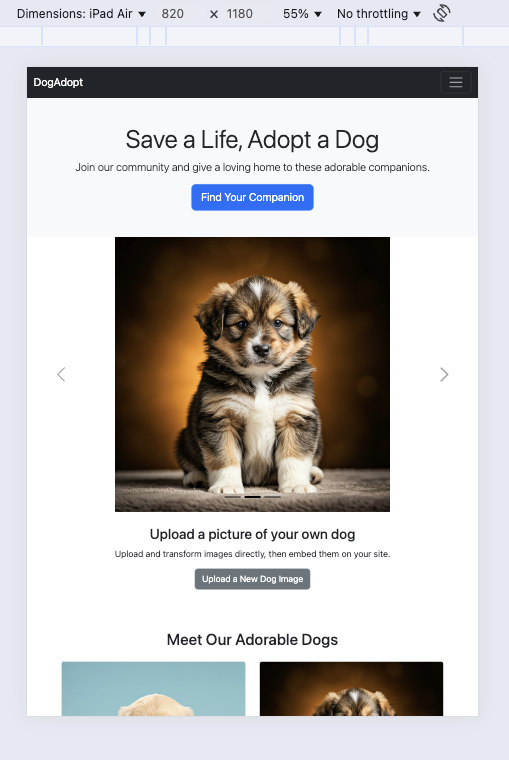
Step 4: Create the Translation toolbar button

Now, I need to add a new custom button to the editor’s toolbar. When clicked, this button would display a dropdown menu with the list of available translation languages.

The dropdown menu would allow the user to select the desired target language for translation. When a language is selected, I would use the Translate Plus API to fetch the translated content and update the editor’s text accordingly.

Step 4.1 Define the Translation toolbar button icon

To define an icon for the translate toolbar button, I did the following:

  // Set Font Awesome 5 as the default toolbar icon library.
  FroalaEditor.ICON_DEFAULT_TEMPLATE = "font_awesome_5"

  // Set the Font Awesome's language symbole as icon for the "translate" button
  FroalaEditor.DefineIcon("translate", { NAME: "language" })

By using the recognizable language icon, I ensured that users would instantly understand the purpose of the translation button, enhancing the intuitiveness of the feature.

Step 4.2 Craft the Translation Toolbar Button

To create the new “translate” button, I defined an object with several key properties:

title

The title represents the label of the button.

title: "translate",

type

The type property defines the button’s behavior. In this case, I set it to “dropdown” since it will open a list of translation options.

type: "dropdown",

options

The options property holds an object containing the supported translation languages, which I obtained from the Translate Plus API in step 3. I can access this object later using the FroalaEditor instance at FroalaEditor.COMMANDS.translate.options.

html

The html property is a method that returns the HTML code for the dropdown menu. Here, I used the FroalaEditor.COMMANDS.translate.options object to dynamically generate a list of the supported translation languages.

    html: function html() {
      var c = '<ul class="fr-dropdown-list" role="presentation">'
      var options = FroalaEditor.COMMANDS.translate.options

      for (var val in options) {
        if (options.hasOwnProperty(val) && val!=="Auto Detect") {
          c += `<li role="presentation"><a class="fr-command fr-title" tabIndex="-1" role="option" data-cmd="translate" data-param1="${this.language.translate(options[val])}" title="${this.language.translate(val)}"> ${this.language.translate(val)} <span class="fr-sr-only">${this.language.translate(val)}</span></a></li>`
        }
      }

      c += "</ul>"
      return c
    },

callback

The callback property defines the action executed when the user selects a language from the dropdown menu.

First, I check if the editor is empty using the core.isEmpty() method. If the editor has content, I select all the text using the commands.selectAll() method and save it to a variable using selection.text().

Then, I call a translate() function, passing the selected text and the user’s chosen language as arguments. This function handles the translation process and returns the translated content. Finally, I update the editor’s content with the translated text using the html.insert() method.

callback: async function callback(cmd, param1) {
    	if(this.core.isEmpty()) return;
    
      this.commands.selectAll();
      const text = this.selection.text();   
      const result = await translate(text, param1);
      this.html.insert(result.translations.translation, true);

      
    },

Step 4.3 Handling the Translation Process

The translate function receives the current content of the Froala Editor and the desired target language. It then sends a request to the Translate Plus API, passing both parameters.

Importantly, I set the source parameter to "auto". This tells the Translate Plus API to automatically detect the original language of the content. This ensures a seamless translation experience for the user, as they don’t need to worry about specifying the source language.

The API then responds with the translated content, which the translate function returns. Here’s the code:

 async function translate(text, translateTo) {
    var requestOptions = {
      method: "POST",
      redirect: "follow",
      headers: myHeaders,
      body: JSON.stringify({
        text,
        source: "auto",
        target: translateTo,
      }),
    }
    let data = false
    try {
      const response = await fetch(
        "https://api.translateplus.io/v1/translate",
        requestOptions,
      )
      // Check if the response is okay
      if (!response.ok) {
        throw new Error(`HTTP error! Status: ${response.status}`)
      }

      // Parse the response JSON
      data = await response.json()
    } catch (error) {
      console.log("error", error)
    }
    return data
  }

The automatic language detection and the straightforward API response make the translation process effortless for the user, especially when dealing with context-specific content.

Step 5: Initialize The Froala Editor

Finally, I called the FroalaEditor constructor and passed an object with the necessary configurations, including the custom translation button I defined earlier.

new FroalaEditor("#editor", {
    wordCounterCount: false,
  	charCounterMax: 5000,
    toolbarBottom: true,
    toolbarButtons: ["bold", "italic", "underline", "strikeThrough", "|", "formatOL", "formatUL", "|", "textColor", "backgroundColor", "fontSize", "|", "insertLink", "translate"],
  })
}

I set the charCounterMax to 5000, which is the maximum number of characters that can be translated using the Translate Plus API in one call. For larger projects, you might consider implementing batch processing to handle more extensive content.

The translation feature is now seamlessly integrated into the Froala Editor, allowing users to effortlessly translate content within the application. The custom translation button in the toolbar provides a clear and recognizable interface for users to access the translation functionality, further improving the overall usability of the editor. This feature is particularly useful for mobile apps that need to support global audiences.. Try it now.

Conclusion

Adding the Translate Plus API (multilingual translation API in APILayer marketplace) to the Froala Editor gave my app instant multilingual support with just a few lines of code. Users can translate text on the spot, making communication smoother and more inclusive.

If youโ€™re building anything for a global audience โ€” chat apps, editors, dashboards, or internal tools โ€” this is one of the easiest upgrades you can add.

To try it yourself, explore the Translate Plus Multilingual Translation API on the APILayer marketplace and check the Froala documentation to extend your editor even further.

Start integrating multilingual translation today and build apps that speak to everyone.

FAQs

Q1: Does the Multilingual Translation API detect languages automatically?

Yes. The Translate Plus API includes automatic language detection. When you set the source parameter to “auto”, the API identifies the original language automatically and returns the correct translation.

Q2: How many languages does the Translate Plus API support?

The Translate Plus API supports over 100 languages. This includes widely used languages as well as niche and regional languages, making it ideal for global applications.

Q3: Can I translate large documents with Froala?

Yes, but with a limit. Translate Plus allows up to 5,000 characters per request. If you need to translate larger documents, you can split the content into smaller chunks and process them in batches.

Step-by-step Guide To Add a Custom Export from Markdown Button to Froala

Custom Export Markdown Button

The Froala Markdown feature allows users to write content using a simplified markup language that is easy to read and write. This feature is important because it enables users to format their text with headings, lists, links, and other elements quickly, without needing to use complex HTML tags. Markdown’s simplicity also boosts productivity, making it a favorite among content creators and developers.
 Add a Custom Export from Markdown Button to Froala
We covered how the Markdown feature is working in previous articles:

Today, we’ll show developers how to add a custom export from markdown button. This will let users easily save their work as a markdown file while maintaining the format of their markdown document. The Froala Editor provides a powerful way to extend its functionality, making this implementation straightforward.

Why Add a Custom Export to Markdown Button?

Markdown is a lightweight markup language that has become increasingly popular among developers and writers alike. It offers a simple and efficient way to format text, making it a preferred choice for tasks such as writing documentation, creating README files, and composing blog posts. By adding a custom button to your Froala-powered application, you provide users with a seamless way to export their content in the Markdown format, enabling them to:

  • Easily share their work with others who prefer the Markdown syntax
  • Integrate their content into other tools that support Markdown
  • Maintain a clean and organized workflow by keeping their documents in a standardized format

Creating the Custom Button

Froala makes it easy to add a new toolbar button to the editor. Let’s create a custom “Export to Markdown” button step-by-step:

Step 1: Include Froala in your Project:

To include Froala in your project, follow the setup instructions in the Froala documentation according to your programming language and framework. For this demo, I only used the core Froala editor and the Markdown plugin to keep my project simple, avoiding unnecessary features. Here’s the resulting template:

<!DOCTYPE html>
<html>

<head>
    <title>Froala WYSIWYG Editor</title>
    <!-- Include Froala CSS -->
    <link href="{{editor__download__folder}}/css/froala_editor.min.css" rel="stylesheet"
        type="text/css" />
    <link href="{{editor__download__folder}}/css/plugins/markdown.min.css" rel="stylesheet"
        type="text/css" />
</head>

<body>
    <!-- HTML element where the editor will be initialized -->
    <div id="editor">
    </div>


    <!-- Include Froala Editor JS files -->
    <script type="text/javascript" src="{{editor__download__folder}}/js/froala_editor.min.js"></script>
    <script type="text/javascript" src="{{editor__download__folder}}/js/plugins/markdown.min.js"></script>
 
</body>

</html>

Step 2: Define an Icon for the Button:

With Froala, you can easily define icons for toolbar buttons. You can define the icon using one of the wide range templates Froala provides. I prefer using SVG icons. First, I’ll add the SVG path for the “Export” icon to the FroalaEditor.SVG object:

FroalaEditor.SVG.export  ="M15.293 5.293L12 8.586V2h-1v6.586L8.707 5.293 7.293 6.707 12 11.414l4.707-4.707zM18 11h-1v4H7v-4H6v5h12v-5z";

Then, I’ll register the icon using the FroalaEditor.DefineIcon method:

FroalaEditor.DefineIcon("export", { NAME: "Export", SVG_KEY: "export" });

Step 3: Define the Custom Button:

To create the new “Export to Markdown” button, I’ll define a new object with the following properties:

title

The title represents the label of the button. It is set to “Export from Markdown”.

title: "Export from Markdown",

type

Defines whether this is a button or a dropdown. In this case, it is set as a button.

type: "button",

plugin

Associate the button with a specific plugin. Here, it is linked to the Markdown plugin.

plugin: "markdown",

undo

Since the buttonโ€™s function doesnโ€™t need to be added to the undo stack, this is set to false.

undo: false,

showOnMobile

To make the button visible on mobile devices, this is set to true.

showOnMobile: true,

disabled

Determines the initial state of the buttonโ€”whether it should be disabled or enabled. Since the button should only be available when the editor is in Markdown mode, I set it to true.

disabled: true,

refreshAfterCallback

When set to true, the editor will refresh all toolbar buttons after the buttonโ€™s callback is executed.

refreshAfterCallback: true,

refresh

Defines the function executed during the toolbar button refresh process. The button is initially disabled, I will utilize this function to enable the button when the Markdown feature is active. I will use themarkdown.isEnabled()ย method to check the state of the Markdown feature:

  • If true, I will enable the button.
  • If false, I will disable the button.
  refresh: function refresh($btn) {
    if (this.markdown.isEnabled()) $btn[0].classList.remove("fr-disabled").setAttribute('aria-disabled', 'true');
    else $btn[0].classList.add("fr-disabled").setAttribute('aria-disabled', 'false');
  },

forcedRefresh

To ensure the buttonโ€™s refresh method is triggered whenever the user clicks any toolbar button, forcedRefresh is set to true.

forcedRefresh: true,

Callback Function

Defines the action executed when the button is clicked. In this case, it handles Markdown export, allowing users to save their content as a downloadable .md file.

Steps to Export Markdown

Markdown feature

Follow these steps to enable users to export content from the Froala Editor in Markdown format. This process involves retrieving the editor content, creating a Markdown file, and providing a seamless download option via a custom toolbar button.

1. Retrieve Editor Content

To obtain the content in Markdown format:

  • Use commands.selectAll() to select all text.
  • Extract the text with selection.text().
  • Ensure the cursor position remains unchanged using selection.save() and selection.restore().
    this.selection.save();
    this.commands.selectAll();
    const markdownContent = this.selection.text();
    this.selection.restore();

2. Create a File with Markdown Content

  • Utilize the Blob constructor to create a file.
  • Set the type to text/markdown;charset=utf-8.
  • Generate a downloadable URL using URL.createObjectURL().
    const blob = new Blob([markdownContent], {
      type: "text/markdown;charset=utf-8",
    })
    const url = URL.createObjectURL(blob)

3. Download the File

  • Create an <a> element and assign the Blob URL.
  • Set the download attribute to specify the filename.
  • Trigger a click event to start the download.
  • Use URL.revokeObjectURL(url) to release the memory.
    const a = document.createElement("a")
    a.href = url
    a.download = "markdown.md"
    a.click()
    URL.revokeObjectURL(url)

Step 4: Register the Custom Button:

With the button object defined, I’ll use the FroalaEditor.RegisterCommand method to register it as a custom button.

FroalaEditor.RegisterCommand("export", {
  title: "Export from Markdown",
  type: "button",
  undo: false,
  refreshAfterCallback: true,
  forcedRefresh: true,
  disabled: true,
  plugin: "markdown",
  showOnMobile: true,
  refresh: function refresh($btn) {
    if (this.markdown.isEnabled()) $btn[0].classList.remove("fr-disabled").setAttribute('aria-disabled', 'true');
    else $btn[0].classList.add("fr-disabled").setAttribute('aria-disabled', 'false');
  },
  callback: function () {
    this.selection.save();
    this.commands.selectAll();
    const markdownContent = this.selection.text();
    this.selection.restore();
    const blob = new Blob([markdownContent], {
      type: "text/markdown;charset=utf-8",
    })
    const url = URL.createObjectURL(blob)
    const a = document.createElement("a")
    a.href = url
    a.download = "markdown.md"
    a.click()
    URL.revokeObjectURL(url)
  },
})

Step 5: Initialize the Froala Editor:

Now I’m ready to initialize the Froala Editor and display it to the users.
new FroalaEditor('#editor');

6. Add the Custom Button to the Froala Toolbar:

To make the custom button available in the Froala toolbar, add it to the toolbarButtons configuration option:

new FroalaEditor('#editor', {
 toolbarButtons: ["bold", "italic", "underline", "markdown", "|", "export"],
 });

This adds the “Export to Markdown” button to the Froala toolbar alongside other buttons. When users click it, their markdown document will be downloaded as an .md file to their device. See the code in action.

Benefits of Adding the Custom Button

Integrating a custom “Export to Markdown” button into your Froala-powered application offers several benefits:

  1. Increased Flexibility: Users can easily export their content in the Markdown format, which is widely supported by various platforms. This allows them to write content once and use it across multiple systems.
  2. Improved Workflow: By providing a way to export to Markdown, you’re streamlining your users’ workflow. They can focus on content creation, knowing they can easily export their work in the desired format.
  3. Enhanced User Experience: The addition of the custom button enhances the overall user experience. Being able to convert and download their work directly from the editor saves time and reduces the need to copy/paste between applications.

Additional Customization Options

You can further enhance this functionality to:

  • Allow users to specify a filename before download
  • Add support for exporting to other formats like HTML file or PDF file
  • Include syntax highlighting in the exported code blocks
  • Apply custom CSS to the markdown editor
  • Add options to import content from external sources

Integrating with External Services

Beyond basic exporting, you can extend your Markdown functionality to integrate with popular development platforms:

GitHub Integration

Adding GitHub integration to your custom Markdown export button allows users to directly push their content to repositories. This is particularly useful for teams working on documentation or README files. You can implement a workflow that lets users select a target repository, specify the file path, and upload their markdown content with a single click from the editor.

Document Storage Solutions

For teams that need more robust document management, you can integrate with various storage solutions to help users organize their markdown files. This allows for better version control and collaboration. When implementing this feature, consider how search functionality could enhance the user experience, making it easier to find and reuse previously created content.

eBook Publishing Extensions

For content creators who want to publish longer-form content, adding EPUB export capabilities can be valuable. This feature allows users to convert their markdown documents into properly formatted eBooks that can be rendered on various devices. The process involves converting markdown to HTML and then packaging it with the necessary metadata into an EPUB file, complete with custom CSS styling.

By implementing these extensions, you provide users with a complete solution for their content creation and publishing needs, reducing the need to switch between multiple applications and streamlining their workflow across multiple pages of content.

Advanced Editor Configurations

Take your Markdown editing experience further with advanced configurations. Customize the textarea for better usability, implement additional command options, and enhance functionality to cater to specific Markdown editing needs.

Custom Textarea Enhancements

When working with Markdown in Froala, you can customize how the textarea appears and functions to make editing more comfortable. This includes adjusting the default appearance, implementing custom keyboard shortcuts, and defining specialized editing behaviors for markdown-specific syntax.

Supporting Additional Command Options

Enhance your export functionality by adding additional command options that give users more control. These could include the ability to insert predefined templates, search within the markdown content, or generate an index of headings. Each command can be configured to process the markdown in different ways depending on the user’s needs.

Conclusion

In this blog post, you’ve learned how to add a markdown button to the Froala WYSIWYG HTML Editor. By leveraging Froala’s customization features, you can easily extend the editor’s functionality to meet specific needs. This enhancement allows users to seamlessly export their markdown content as a file, improving their document management workflow.

The process demonstrates how toolbar buttons can be defined, customized, and integrated into the Froala editor, showcasing its flexibility as a powerful and extensible text editor. Implement this feature in your Froala-powered application to give users more control over their content.

Build a Noteโ€‘Taking App with Flask, Froala, and DeepSeek AI in 30 Minutes

3D illustration of a digital hand writing notes with floating graphs and checklists, symbolizing an AI-powered note-taking app built with DeepSeek AI, Flask, and Froala Editor integration.

Hey everyone! Earlier, I shared a general guide on Deepseek API Integrations in web apps. This time, I want to walk you through how I used the DeepSeek API for an AI-powered note-taking app to build a simple yet modern note-taking app with Flask, Froala, and (of course) DeepSeek AIโ€”all in just 30 minutes.

Spoiler: Yes, DeepSeek AI actively helped me build this! I used prompt engineering to have it generate boilerplate Flask code, offer suggestions for integrating Froala, and even refine my Python functions. If youโ€™re a developer looking for a quick and functional starting point with a sleek design, this tutorial (and DeepSeek) has you covered. Letโ€™s dive in!

Illustration of a developer writing notes on a tablet with a digital interface in the background, symbolizing a Flask note-taking app enhanced with DeepSeek AI integration for AI-powered writing, summarization, and text improvement.

What Weโ€™re Building

Weโ€™ll create a note-taking app where users can:

  1. Write and format notes using the Froala WYSIWYG editor.
  2. Save notes to a local JSON file (simple, lightweight storage).
  3. Use DeepSeekโ€™s API Integration to generate suggestions or improve their notes (e.g., โ€œHelp me summarize this noteโ€ or โ€œMake this note more conciseโ€).

The app will feature a modern Material UI design powered by the Materialize CSS framework. Everything will reside in a single app.py file for simplicity.

How I Used DeepSeek to Build It

1. Creating a Starter Flask App

I started by asking DeepSeek AI for a simple Flask starter app. Hereโ€™s a condensed version of my prompt:

Prompt to DeepSeek AI:
“Help me create a starter Flask app with a single route that returns a home page. Please use Python best practices, and initialize a JSON file if it doesn’t exist.”

DeepSeek responded with a skeleton code snippet, which I adapted. It even reminded me to handle the case where the JSON file might not exist.

2. Integrating the Froala Editor

Once my Flask starter was in place, I wanted to embed the Froala WYSIWYG editor into my front end. I asked DeepSeek:

Prompt to DeepSeek AI:
“Show me how to integrate the Froala Editor into a Flask template with Materialize CSS. I want a minimal example that includes a text editor and a button to save the content via a POST request.”

DeepSeek returned a neat HTML snippet that used both Froala and Materialize CSS from CDN links. With just a bit of tweaking, it fit perfectly into index.html.

3. Hooking Up DeepSeek for AI-Powered Notes

Finally, I wanted to let users improve or summarize their notes with AI. I asked DeepSeek:

Prompt to DeepSeek AI:
“How do I make a POST request to my own Flask route and then call the DeepSeek Chat API with the user input? Include an example of the JSON payload and how to handle the response in Flask.”

DeepSeek walked me through constructing the API request, including the headers and payload. It also showed me how to process the result and return it to the client.

Letโ€™s Build It: Step-by-Step Code

Below is the final, consolidated code. Iโ€™ve included the relevant DeepSeek calls, which you can adapt as needed.

Prerequisites

  • Python installed.
  • Flask installed (pip install flask).
  • A DeepSeek API key (get one from their website).
  • Basic knowledge of Flask and HTML.

Step 1: Setting Up Flask

Create a file called app.py and add the following code:

from flask import Flask, render_template, request, jsonify
import json
import os
import requests

app = Flask(__name__)

# DeepSeek API endpoint and key
DEEPSEEK_API_URL = "https://api.deepseek.com/v1/chat/completions"
DEEPSEEK_API_KEY = "yourapikey_here"

# File to store notes
NOTES_FILE = "notes.json"

# Ensure the notes file exists
if not os.path.exists(NOTES_FILE):
    with open(NOTES_FILE, "w") as f:
        json.dump([], f)


@app.route("/")
def home():
    return render_template("index.html")

This creates:

  • A simple Flask app with a / route pointing to index.html.
  • A local JSON file called notes.json to store your notes.
  • Variables for the DeepSeek API URL and key.

(DeepSeekโ€™s suggestion helped me remember to handle the file check gracefully.)

Step 2: Adding the Froala Editor and Materialize CSS

Inside a templates folder, add index.html with the following code:

<!DOCTYPE html>
<html lang="en">

<head>
    <meta charset="UTF-8" />
    <meta name="viewport" content="width=device-width, initial-scale=1.0" />
    <title>Note-Taking App</title>
    <!-- Materialize CSS -->
    <link href="https://cdnjs.cloudflare.com/ajax/libs/materialize/1.0.0/css/materialize.min.css" rel="stylesheet" />
    <!-- Froala Editor CSS (using the official CDN) -->
    <link href="https://cdn.jsdelivr.net/npm/froala-editor@latest/css/froala_editor.pkgd.min.css" rel="stylesheet"
        type="text/css" />
</head>

<body>
    <div class="container">
        <h1 class="center-align">My Note-Taking App</h1>
        <div class="row">
            <div class="col s12">
                <!-- Froala Editor Target (using a DIV as recommended) -->
                <div id="froala-editor"></div>
            </div>
        </div>
        <div class="row">
            <div class="col s12">
                <button class="btn waves-effect waves-light" onclick="saveNote()">
                    Save Note
                </button>
                <button class="btn waves-effect waves-light" onclick="askDeepSeek()">
                    Improve Note with DeepSeek
                </button>
            </div>
        </div>
        <div class="row">
            <div class="col s12">
                <h3>Saved Notes</h3>
                <ul id="notes-list" class="collection"></ul>
            </div>
        </div>
    </div>

    <!-- jQuery (if you need it for other parts of your app) -->
    <script src="https://cdnjs.cloudflare.com/ajax/libs/jquery/3.6.0/jquery.min.js"></script>
    <!-- Materialize JS -->
    <script src="https://cdnjs.cloudflare.com/ajax/libs/materialize/1.0.0/js/materialize.min.js"></script>
    <!-- Froala Editor JS -->
    <script type="text/javascript"
        src="https://cdn.jsdelivr.net/npm/froala-editor@latest/js/froala_editor.pkgd.min.js"></script>

    <script>
        // Global variable to hold the editor instance
        let editorInstance;

        // Initialize Froala using the constructor API when the DOM is ready
        document.addEventListener("DOMContentLoaded", function () {
            if (typeof FroalaEditor === "function") {
                editorInstance = new FroalaEditor("#froala-editor", {
                    // Optional configuration options go here.
                });
                loadNotes();
            } else {
                console.error("FroalaEditor is not loaded correctly.");
            }
        });

        // Save note to server using the editor instance API
        function saveNote() {
            // Use the Froala Editor instance to get HTML content.
            const content = editorInstance.html.get();
            console.log("Saving note:", content);
            fetch("/save_note", {
                method: "POST",
                headers: { "Content-Type": "application/json" },
                body: JSON.stringify({ content: content }),
            })
                .then((response) => response.json())
                .then((data) => {
                    alert("Note saved!");
                    loadNotes();
                })
                .catch((error) => {
                    console.error("Error saving note:", error);
                });
        }

        // Ask DeepSeek for AI suggestions using the editor instance API
        function askDeepSeek() {
            const content = editorInstance.html.get();
            console.log("Sending note to DeepSeek:", content);
            fetch("/ask_deepseek", {
                method: "POST",
                headers: { "Content-Type": "application/json" },
                body: JSON.stringify({ content: content }),
            })
                .then((response) => response.json())
                .then((data) => {
                    // Update the editor content with the response from DeepSeek
                    editorInstance.html.set(data.response);
                })
                .catch((error) => {
                    console.error("Error with DeepSeek:", error);
                });
        }

        // Load saved notes from the server
        function loadNotes() {
            fetch("/get_notes")
                .then((response) => response.json())
                .then((data) => {
                    const notesList = $("#notes-list");
                    notesList.empty();
                    data.forEach((note) => {
                        notesList.append(
                            `<li class="collection-item">${note.content}</li>`
                        );
                    });
                })
                .catch((error) => {
                    console.error("Error loading notes:", error);
                });
        }
    </script>
</body>

</html>

ย This integrates:

  • Froala Editor for rich text editing.
  • Materialize CSS for a modern look and feel.
  • Buttons for saving notes and asking DeepSeek for improvements.
  • A list (<ul>) that displays all the saved notes.

Step 3: Adding Backend Logic (Saving Notes + DeepSeek)

Finally, we add routes to save notes, retrieve them, and request help from DeepSeek. In app.py, place the following below the existing code:

@app.route("/save_note", methods=["POST"])
def save_note():
    data = request.json
    with open(NOTES_FILE, "r") as f:
        notes = json.load(f)
    notes.append({"content": data["content"]})
    with open(NOTES_FILE, "w") as f:
        json.dump(notes, f)
    return jsonify({"status": "success"})


@app.route("/get_notes", methods=["GET"])
def get_notes():
    with open(NOTES_FILE, "r") as f:
        notes = json.load(f)
    return jsonify(notes)


@app.route("/ask_deepseek", methods=["POST"])
def ask_deepseek():
    data = request.json
    # Modify the prompt to instruct the API to return only the improved note text.
    prompt = f"Return only the revised note: {data['content']} dont add any ** ** or any formatting that would look weird just return it with plain text"

    headers = {
        "Authorization": f"Bearer {DEEPSEEK_API_KEY}",
        "Content-Type": "application/json"
    }
    payload = {
        "model": "deepseek-chat",
        "messages": [
            {"role": "user", "content": prompt}
        ]
    }

    response = requests.post(DEEPSEEK_API_URL, headers=headers, json=payload)
    if response.status_code == 200:
        return jsonify({"response": response.json()["choices"][0]["message"]["content"]})
    else:
        return jsonify({"response": "Error contacting DeepSeek API."})

Hereโ€™s whatโ€™s happening:

  1. /save_note: Takes the note from the user, loads existing notes from notes.json, appends the new note, and saves it back.
  2. /get_notes: Returns the JSON array of all saved notes.
  3. /ask_deepseek:
    • Prepares a prompt by adding the userโ€™s note content.
    • Calls the DeepSeek API with the userโ€™s text.
    • Returns the AI-generated response to the front end.

(DeepSeek initially gave me the code in smaller pieces, and I combined them into one final function.)

Step 4: Run and Test the App

Save all files.

In your terminal, run:

python app.py

Open your browser and go to:

http://localhost:5000

Youโ€™ll see your new note-taking app, with a WYSIWYG editor and buttons to save or improve your notes with AI.

Sample Prompts to Try

  • โ€œHelp me summarize this noteโ€
    For instance:
    โ€œI need to buy groceries. I want apples, bananas, and bread.โ€
    DeepSeek might return a concise list like:
    โ€œGrocery list: apples, bananas, bread.โ€
  • โ€œMake this note more conciseโ€
    Takes a lengthy paragraph and returns a more streamlined version.
  • โ€œRewrite this note with a friendlier toneโ€
    Makes an abrupt list or instructions sound more inviting.

Lessons Learned (Thanks to DeepSeek)

  • Prompt Engineering: The better your prompt, the more helpful DeepSeek is. Experiment with โ€œRewrite,โ€ โ€œSummarize,โ€ โ€œShorten,โ€ or โ€œExplain like Iโ€™m 5.โ€
  • Rapid Prototyping: Generating boilerplate code quickly lets you focus on logic instead of syntax.
  • UI Integration: Materialize + Froala looks elegant with very little CSS or JavaScript overhead.

Final Thoughts

In just 30 minutesโ€”with a bit of help from DeepSeekโ€”I built a modern, AI-powered note-taking app. The synergy of Flask for quick server setup, Froala for rich text editing, Materialize for design, and DeepSeek for AI suggestions made the experience seamless.

Here’s what it looks like when you run it in your local browser:

deepseek api - ai powered note taking app screenshot

Ready to customize your app further? Here are some ideas:

  • Add user authentication for private note-taking.
  • Tag or categorize notes for organization.
  • Search capabilities with DeepSeekโ€™s semantic understanding.

If you havenโ€™t tried DeepSeek yet, give it a shotโ€”itโ€™s a powerful addition to your dev toolkit. Let me know in the comments or on social media if you build something cool.

FAQs

What is DeepSeek AI used for in this AI-powered note-taking app?

DeepSeek AI enhances your notes with capabilities such as summarization, grammar improvement, and rewriting. By integrating DeepSeekโ€™s API, your app can offer smart note suggestions in real-time โ€” making it more than just a text editor.

Can I use DeepSeek AI with other Python frameworks besides Flask?

Yes, DeepSeek AI can be integrated with any Python framework, including Django, FastAPI, or a CLI-based app. The important part is making HTTP requests to DeepSeekโ€™s API endpoint, which works universally across Python projects.

Is this note-taking app beginner-friendly for Python developers?

Absolutely. This project uses simple Python file operations, Flask routing, and basic API requestsโ€”making it ideal for beginners who want to learn about backend development, AI integration, and building full-stack apps with tools like Froala and DeepSeek AI.

Integrating Froala HTML Editor Software in Angular 19 With SSR Enabled

3D illustration of a digital data pipeline with glowing circuit paths and tech modules, set against a green-blue gradient background.

Froala has recently upgraded its Angular SDK to support Angular 19. With this update, developers can now integrate the Froala WYSIWYG Editor into their Angular 19 applications with server-side rendering (SSR) enabled. This allows for improved performance, better SEO, and enhanced user experience.

The updated SDK provides a seamless integration process, making it easier for developers to incorporate the feature-rich Froala Editor into their Angular projects. This integration enables users to create and edit content within the Angular application while benefiting from the advantages of server-side rendering.

In this article, we will explore the step-by-step process of integrating the Froala WYSIWYG Editor into an Angular 19 application with server-side rendering enabled. We will cover the necessary setup, configuration, and implementation details to ensure a seamless integration. By the end of this guide, you will have a comprehensive understanding of how to leverage the power of Froala within your Angular 19 project.

Getting Started with Your Angular App

First, make sure you have the Angular CLI installed. The CLI is a powerful command-line tool that lets you create, develop, and manage Angular projects right from your terminal.

Don’t have the CLI installed yet? No problem, just run this command:

npm install -g @angular/cli

Now you’re ready to start building your Angular app. Let’s create a new project called “froala-app” by running:

ng new froala-app

You’ll be asked a couple of questions along the way:

  1. Which stylesheet format would you like to use? Choose your preferred CSS preprocessor, like SCSS or Sass.
  2. Do you want to enable Server-Side Rendering (SSR) and Static Site Generation (SSG/Prerendering)? This is an important one! Enabling SSR and SSG will make your Angular app more performant and SEO-friendly. Go ahead and type “Y” to turn it on.

Once youโ€™ve answered these questions, an Angular project structure will be created in a new folder called โ€œfroala-appโ€. Navigate into the project directory using

cd froala-app

Install the Froala Angular SDK

Alright, let’s get the Froala Angular rich-text editor installed into your Angular application. The Froala Angular SDK has all the essential tools and components you need to easily integrate the Froala editor functionality into your Angular app.

Just run this command to get it installed:

npm install angular-froala-wysiwyg

Create a Standalone Component for Handling The Editor

Now, let’s create another component that we can use to integrate the Froala editor. We’ll call it the “my-editor” component.

ng generate component myEditor

This will create a new folder called “my-editor” inside the “src/app” directory. Inside you’ll find these files for the “my-editor” component:

  • my-editor.component.css
  • my-editor.component.html
  • my-editor.component.spec.ts
  • my-editor.component.ts

Import Froala Components

Open up the my-editor.component.ts file and let’s import the necessary Froala SDK components:

import { Component } from '@angular/core';

import { FroalaEditorModule, FroalaViewModule } from 'angular-froala-wysiwyg';


@Component({

ย ย selector: 'app-my-editor',

ย ย standalone: true,

ย ย imports: [FroalaEditorModule, FroalaViewModule],

ย ย templateUrl: './my-editor.component.html',

ย ย styleUrl: './my-editor.component.css'

})

export class MyEditorComponent {}

Insert Froala Editor HTML Code

Now let’s add the Froala editor HTML code to the my-editor.component.html file:

<div [froalaEditor]>Hello, Froala!</div>


Styling the Froala Editor

To make sure the Froala editor looks good, we need to include the necessary stylesheets. In the angular.json file, add these Froala stylesheets under the “styles” array:

ย  ย  ย  ย  ย  ย  "styles": [

ย ย ย ย ย ย ย ย ย ย ย ย ย ย "src/styles.css",

ย ย ย ย ย ย ย ย ย ย ย ย ย ย "node_modules/froala-editor/css/froala_editor.pkgd.min.css",

ย ย ย ย ย ย ย ย ย ย ย ย ย ย "node_modules/froala-editor/css/froala_style.min.css"

ย ย ย ย ย ย ย ย ย ย ย ย ],

The froala_editor.pkgd.min.css includes the styles for the core editor and all Froala plugins. The froala_style.min.css includes the styles needed for displaying the content created by the editor outside the editor.

Displaying Froala on the main page

Finally, let’s import the MyEditorComponent into the app.component.ts file so we can use it in the main app template:

import { Component } from '@angular/core';

import { CommonModule } from '@angular/common';

import { RouterOutlet } from '@angular/router';

import { MyEditorComponent } from './my-editor/my-editor.component';


@Component({

ย ย selector: 'app-root',

ย ย standalone: true,

ย ย imports: [CommonModule, RouterOutlet, MyEditorComponent],

ย ย templateUrl: './app.component.html',

ย ย styleUrl: './app.component.css'

})

export class AppComponent {

ย ย title = 'froala-app';

}

And in the app.component.html file, replace the main section with:

<main class="main">

ย ย <div class="content">

ย ย ย ย <app-my-editor></app-my-editor>

ย ย </div>

</main>

Start your App

Alright, now you can serve the app by running ng serve. This will compile the application and serve it locally, usually at http://localhost:4200/. You can now open your Angular app in a web browser and you should see the Froala editor displayed on the homepage.

Froala in Angular 19

Displaying More Froala’s Features

You may have noticed that the Froala editor is displayed with just its basic features. That’s because we haven’t included the plugin’s JavaScript files in the ngOnInit() method yet. Let’s take care of that now.

Open up the “my-editor.component.ts” file and let’s start adding some Froala plugins one by one:

import { isPlatformBrowser } from '@angular/common';

import { Component, Inject, PLATFORM_ID } from '@angular/core';

import { FroalaEditorModule, FroalaViewModule } from 'angular-froala-wysiwyg';


@Component({

ย ย selector: 'app-my-editor',

ย ย standalone: true,

ย ย imports: [FroalaEditorModule, FroalaViewModule],

ย ย templateUrl: './my-editor.component.html',

ย ย styleUrl: './my-editor.component.css'

})

export class MyEditorComponent {

ย ย constructor(@Inject(PLATFORM_ID) private platformId: Object) { }


ย ย ngOnInit() {

ย ย ย ย // Import Froala plugins dynamically only in the browser context

ย ย ย ย if (isPlatformBrowser(this.platformId)) {


ย ย ย ย ย ย // Import a single Froala Editor plugin.

ย ย ย ย ย ย // @ts-ignore

ย ย ย ย ย ย import('froala-editor/js/plugins/align.min.js');


ย ย ย ย ย ย // Import a Froala Editor language file.

ย ย ย ย ย ย // @ts-ignore

ย ย ย ย ย ย import('froala-editor/js/languages/de.js');


ย ย ย ย ย ย // Import a third-party plugin.

ย ย ย ย ย ย // @ts-ignore

ย ย ย ย ย ย import('froala-editor/js/third_party/font_awesome.min');

ย ย ย ย ย ย // @ts-ignore

ย ย ย ย ย ย import('froala-editor/js/third_party/image_tui.min');

ย ย ย ย ย ย // @ts-ignore

ย ย ย ย ย ย import('froala-editor/js/third_party/spell_checker.min';

ย ย ย ย ย ย // @ts-ignore

ย ย ย ย ย ย import('froala-editor/js/third_party/embedly.min');

ย ย ย ย }

ย ย }

}

Alternatively, if you want to load all the Froala features with a single call, you can import the plugins.pkgd.js file instead:

import { isPlatformBrowser } from '@angular/common';
import { Component, Inject, PLATFORM_ID } from '@angular/core';
import { FroalaEditorModule, FroalaViewModule } from 'angular-froala-wysiwyg';

@Component({
  selector: 'app-my-editor',
  standalone: true,
  imports: [FroalaEditorModule, FroalaViewModule],
  templateUrl: './my-editor.component.html',
  styleUrl: './my-editor.component.css'
})
export class MyEditorComponent {
  constructor(@Inject(PLATFORM_ID) private platformId: Object) { }

  ngOnInit() {
    // Import Froala plugins dynamically only in the browser context
    if (isPlatformBrowser(this.platformId)) {
      // Import all Froala Editor plugins.
      // @ts-ignore
      import('froala-editor/js/plugins.pkgd.min.js');

    }
  }
}

In the code above, we’re using the isPlatformBrowser component to make sure we only import the Froala plugins in the browser context. This is important for server-side rendering (SSR) scenarios.

The // @ts-ignore is used to suppress any TypeScript errors that might come up due to the dynamic import statements. This allows the code to compile without issues, and the plugins will be loaded at runtime.

How to Setup Froala if Server-side Rendering is disabled

If you’ve disabled server-side rendering (SSR) in your Angular application, the way you import the Froala SDK components may be a bit different. Instead of importing SDK components in my-editor.component.ts, we’ll update the my-editor.module.ts file as follows:

// Import all Froala Editor plugins.
// import 'froala-editor/js/plugins.pkgd.min.js';

// Import a single Froala Editor plugin.
// import 'froala-editor/js/plugins/align.min.js';

// Import a Froala Editor language file.
// import 'froala-editor/js/languages/de.js';

// Import a third-party plugin.
// import 'froala-editor/js/third_party/font_awesome.min';
// import 'froala-editor/js/third_party/image_tui.min';
// import 'froala-editor/js/third_party/spell_checker.min';
// import 'froala-editor/js/third_party/embedly.min';

// Import Angular plugin.
import { FroalaEditorModule, FroalaViewModule } from 'angular-froala-wysiwyg';
...

@NgModule({
   ...
   imports: [FroalaEditorModule.forRoot(), FroalaViewModule.forRoot() ... ],
   ...
})

Customizing The Editor

Now that we’ve set up the Froala editor in our Angular application, it’s time to start customizing it to fit our needs. We can enable additional features and plugins, adjust the toolbar buttons, and even create custom functionality.

The Froala SDK provides a wide range of options to tailor the editor to our specific requirements. By leveraging the power of Angular and the flexibility of Froala, we can build a robust and feature-rich text editing experience for our users.

Let’s open the my-editor.component.ts file and define a public options object in the MyEditorComponent class with some customizations from the Froala API options, events, and methods:

export class MyEditorComponent {

ย ย public options: Object = {

ย ย ย ย toolbarButtons: ['alignRight', 'bold', 'insertImage'],

ย ย ย ย events: {

ย ย ย ย ย ย 'froalaEditor.contentChanged': function () {

ย ย ย ย ย ย ย ย console.log('Content updated!');

ย ย ย ย ย ย },

ย ย ย ย },

ย ย };

ย ย .....

And in the my-editor.component.html file, we’ll assign the options object to the Froala component:

<div [froalaEditor]="options">Hello, Froala!</div>

Is it possible to store uploaded files in the cloud with Froala?

Absolutely! Froala offers two convenient ways for uploading files:

  1. Built-in File Upload: Froala’s built-in file upload functionality seamlessly integrates with your Angular application, and you can configure it to upload files directly to your S3 bucket.
  2. Filestack Integration: Froala also integrates with Filestack, a powerful upload and cloud storage solution. This integration gives you advanced file handling capabilities, allowing you to securely store and manage your application’s files. The Filestack integration streamlines the file upload experience within your Angular-powered app and offers easy integration with various cloud storage services.

The Filestack integration requires minimal configuration โ€“ you’ll need to create a Filestack account to get an API key.

Both options make it easy to incorporate file upload functionality into your Angular application, enhancing the content creation experience for your users.

Conclusion

In this article, we’ve explored the seamless integration of the Froala HTML Editor software into an Angular 19 application with server-side rendering (SSR) enabled. By leveraging the updated Froala Angular SDK, we were able to quickly set up the editor.

The step-by-step guide covered the necessary setup, configuration, and implementation details to ensure a smooth integration process. We also discussed how to customize the Froala editor to fit the specific needs of your Angular application including enabling additional features and plugins.

Moreover, we highlighted the two convenient options for storing uploaded files in the cloud – the built-in file upload functionality and the Filestack integration. Both of these solutions make it easy to incorporate secure and scalable file management into your Angular-powered application.

By following the instructions in this article, you now have the knowledge and tools to integrate the powerful Froala WYSIWYG Editor into your Angular 19 project, while taking advantage of the benefits of server-side rendering. Start enhancing your users’ content creation experience today!

Try Froala in your Angular 19 application and see the difference it can make. Get started with the Froala Angular SDK now.

FAQs

1. What is an HTML Editor Software, and why use it in Angular 19?

An HTML Editor Software like Froala allows developers to easily create, format, and manage HTML content within Angular 19 applications. It provides a visual interface for writing content, supports custom plugins, and integrates seamlessly with server-side rendering (SSR) for better performance and SEO.

2. How do I integrate Froala HTML Editor Software with SSR in Angular 19?

You can integrate the Froala HTML Editor Software in Angular 19 by installing the Froala Angular SDK (angular-froala-wysiwyg), importing its modules, and configuring them in a standalone component. When SSR is enabled, use Angularโ€™s isPlatformBrowser to ensure the editor plugins load only in the browser context.

3. Can I use Froala HTML Editor Software for file uploads in Angular apps?

Yes! Froala HTML Editor Software supports both built-in file upload functionality and integration with Filestack for cloud storage. This enables developers to securely upload, preview, and manage images or documents directly within the Angular application.


Integrating Froala as a Functional Component in React 18

Froala and React logos on a blue gradient background symbolizing the Froala React rich text editor integration with React 18

As a React developer, choosing the right rich text editor can make or break your content editing experience. In this guide, youโ€™ll learn how to integrate Froala, a powerful and lightweight React rich text editor, into your React 18 application as a functional component. With full support in Froala v4.4, setting up and customizing the Froala React SDK is now easier than everโ€”giving you everything you need to build a seamless, modern content editing interface.

Froala 4.4 and React 18 Support

Froala, a leading provider of content editing solutions, has recently released version 4.4, which now fully supports React 18. This means that you can easily incorporate the Froala Editor v4.4 into your React 18 projects, taking advantage of the latest features and improvements in the React ecosystem.

Benefits of Updating to Froala 4.4

By updating your application to use the Froala React SDK, you’ll be able to:

  • Leverage the latest features and enhancements in the Froala Editor
  • Ensure compatibility with the latest version of React (18)
  • Improve the overall performance and user experience of your application.

Integrating Froala as a Functional Component

To get started with integrating Froala as a functional component in your React 18 application, follow these steps:

  1. Install the Froala 4.4 React SDK:
npm install react-froala-wysiwyg --save
  1. Create a functional component that uses the Froala Editor. Create a new directory in the src directory called components and create a file called MyEditorComponent.jsx in that directory.
  2. Open MyEditorComponent.jsx and import the Froala Editor component and the necessary CSS files.
import React from "react";

// Require Editor CSS files.

import "froala-editor/css/froala_style.min.css";

import "froala-editor/css/froala_editor.pkgd.min.css";

import FroalaEditorComponent from "react-froala-wysiwyg";

// Import all Froala Editor plugins;

// import 'froala-editor/js/plugins.pkgd.min.js';

// Import a single Froala Editor plugin.

// import 'froala-editor/js/plugins/align.min.js';

// Import a language file.

// import 'froala-editor/js/languages/de.js';

// Import a third-party plugin.

// import 'froala-editor/js/third_party/image_tui.min.js';

// import 'froala-editor/js/third_party/embedly.min.js';

// import 'froala-editor/js/third_party/spell_checker.min.js';

// Include font-awesome css if required.

// install using "npm install font-awesome --save"

// import 'font-awesome/css/font-awesome.css';

// import 'froala-editor/js/third_party/font_awesome.min.js';
  1. Render the Froala SDK component
// Render Froala Editor component.

function MyEditorComponent() {

ย ย return (

ย ย ย ย <div class="editor">

ย ย ย ย ย ย <h3> Froala's React WYSIWYG Editor</h3>

ย ย ย ย ย ย <FroalaEditorComponent tag="textarea" />

ย ย ย ย </div>

ย ย );

}

export default MyEditorComponent;
  1. Add to other components. For example, to add in `src/App.js`
import "./styles.css";

import MyEditorComponent from "./components/MyEditorComponent";

export default function App() {

ย ย return (

ย ย ย ย <div className="App">

ย ย ย ย ย ย <h1>Hello CodeSandbox</h1>

ย ย ย ย ย ย <h2>Start editing to see some magic happen!</h2>

ย ย ย ย ย ย <MyEditorComponent />

ย ย ย ย </div>

ย ย );

}

By following these steps, you can easily integrate the Froala Editor as a functional component in your React 18 application, allowing your users to create and edit rich content with ease.

Froala Editor Customization In React

To further customize the Froala Editor in your React 18 application, you can leverage the various configuration options and event handlers provided by the Froala API.

Add a config attribute to the FroalaEditorComponent utilizing the Froala options, events, and methods to customize the editor to your needs.

function MyEditorComponent() {

ย ย let config = {

ย ย ย ย documentReady: true,

ย ย ย ย heightMin: 300,

ย ย ย ย events: {

ย ย ย ย ย ย contentChanged: function (e, editor) {

ย ย ย ย ย ย ย ย console.log("test");

ย ย ย ย ย ย },

ย ย ย ย },

ย ย };

ย ย return (

ย ย ย ย <div class="editor">

ย ย ย ย ย ย <h3> Froala's React WYSIWYG Editor</h3>

ย ย ย ย ย ย <FroalaEditorComponent tag="textarea" config={config} />

ย ย ย ย </div>

ย ย );

}

This allows you to tailor the editor’s appearance, functionality, and behavior to match the specific needs of your project.

Additionally, you can integrate third-party plugins and language files to extend the editor’s capabilities, ensuring a seamless and feature-rich content editing experience for your users.

By leveraging these customization options, you can create a truly unique and engaging rich text editing solution within your React 18 application.

Explore more in the Froala documentation.

You can learn React here.

Common Froala + React Integration Issues (and How to Fix Them)

Even with a straightforward setup, you may encounter a few hiccups. Here are some common issues developers face when integrating Froala with React, along with their solutions.

1. CSS Not Loading Properly

Issue: Editor appears unstyled or broken.

Solution: Make sure you’ve imported both required CSS files:

import 'froala-editor/css/froala_style.min.css';
import 'froala-editor/css/froala_editor.pkgd.min.css';

If using a bundler like Webpack or Vite, ensure that CSS is configured to be imported from the node_modules directory.

2. Plugins Not Working

Issue: Plugin features (e.g., align, embed, spell-check) donโ€™t appear in the toolbar.

Solution: You likely forgot to import the specific plugin:

import 'froala-editor/js/plugins/align.min.js';

Or, you may not have enabled it in your config:

config: {
  toolbarButtons: ['align']
}

3. FroalaEditorComponent is Not Defined

Issue: Runtime error saying the component is undefined.

Solution: Check the import:

import FroalaEditorComponent from 'react-froala-wysiwyg';

If youโ€™re using ES modules and get a default export error, try:

import * as FroalaEditorComponent from 'react-froala-wysiwyg';

4. File Upload Not Working

Issue: Images donโ€™t upload or return a 400/500 error.

Solution: You need to configure either:

  • Froalaโ€™s native image upload endpoint

Or use Filestack by integrating their API key and setting the upload URL

Why Should I Use Froala With React in 2025?

Using Froala with React in 2025 offers several key advantages. Firstly, the tight integration between the Froala Editor and the React ecosystem ensures seamless compatibility with the latest React features and best practices. This allows you to leverage the full power of React 18 and beyond, delivering a highly responsive and performant content editing experience.

Additionally, Froala’s robust plugin ecosystem and extensive customization options enable you to tailor the editor to your specific requirements, ensuring a unique and engaging user interface for your application.

Froala Editor V4 integrates with Filestack to provide a seamless cloud storage solution for images, videos, and other file types.

By embracing Froala and React in 2025, you can future-proof your content management solutions and provide your users with a cutting-edge rich text editing experience.

How Easy Is It to Upload Images in the Froala React Rich Text Editor?

Froala makes it easy to upload images in your React application. They offer two convenient options:

  1. Built-in Image Upload: Froala’s built-in image upload functionality seamlessly integrates with your React app. All you need to do is configure the Froala Editor’s image upload options, and your users can upload images directly from their devices or external sources. The only additional step is setting up a server to store the uploaded images.
  2. Filestack Integration: Froala also integrates with Filestack, a powerful upload and cloud storage solution. This integration gives you advanced file handling capabilities, allowing you to securely store and manage your application’s media assets. The Filestack integration streamlines the image upload experience within your React-powered app. Plus, you can apply image transformations directly within the Froala Editor, before or after uploading the images.

The Filestack integration requires minimal configuration – you’ll just need to create a Filestack account to get an API key.

Both options make it easy to incorporate rich image functionality into your React application, enhancing the content creation experience for your users.

Why is Froala Significantly Cheaper than TinyMCE?

Froala’s transparent pricing model provides a fixed annual fee for using the editor and all its features. Unlike TinyMCE, Froala does not impose limits on the number of editor loads or charge extra for additional features. Consequently, Froala is significantly cheaper than TinyMCE in many use cases.

This cost-effectiveness, combined with Froala’s robust customization capabilities and seamless integration with React, makes it an attractive choice for developers seeking a high-quality WYSIWYG editor for their React 18 applications.

How to Migrate from TinyMCE to Froala in React?

Migrating from TinyMCE to Froala in a React application is a straightforward process. The key steps involve removing the TinyMCE SDK, installing the Froala SDK, importing the necessary components, and configuring the editor to match your existing setup.

By following this comprehensive migration from TinyMCE to Froala in React guide, you can seamlessly transition your content editing experience, preserving your users’ familiarity while benefiting from Froala’s features, customization options, and cost-effective pricing model.

Conclusion

Integrating the Froala Editor as a functional component in your React 18 application is a powerful way to enhance your content creation and management capabilities. By leveraging the latest version of Froala and taking advantage of its seamless compatibility with React 18, you can deliver a cutting-edge rich text editing experience to your users.

The step-by-step guide provided in this article walks you through the process of setting up the Froala React rich text editor as a reusable component, allowing you to easily customize it to match the unique needs of your project. With Froala’s robust plugin ecosystem, extensive configuration options, and tight integration with cloud storage solutions like Filestack, you can create a truly unique and engaging content editing workflow within your React 18 application.

If you’re a React developer looking to elevate your content management capabilities, we encourage you to try integrating Froala Editor into your next project. Froala is an excellent choice that will help you deliver a superior user experience for your application’s content creators.

If you have any questions or need further assistance, don’t hesitate to reach out to the Froala team or explore the comprehensive documentation.

How to add Froala HTML Editor Software in Django in 2025

add HTML editor software in Django

Django is a powerful Python web framework that helps developers build web applications quickly and efficiently. Froala 4.4 release adds support for the popular Python framework, Django 5.

Integrating Froala HTML Editor Software into a Django project allows users to create and edit rich text content within the application. By combining the flexibility of Froala and the rapid development capabilities of Django, you can create dynamic, user-friendly web applications that meet the evolving needs of your audience.

In this step-by-step guide, you’ll learn how to integrate the Froala HTML Editor Software into a Django form, allowing your users to create and edit rich text content within your application. Whether you’re building a blog, a content management system, or any other web application, this Django HTML editor integration will enhance the user experience and unlock new possibilities for your project.

Integrate Froala into Django

Prerequisites

Being a Python web framework, Django requires Python. Weโ€™re assuming:

  • You are familiar with Python and have it installed on your computer. If not, please install python and come again.
  • You have Django installed already.

Versions Used in This Tutorial

  • Froala Editor V4.4
  • Python V3.13.1
  • Django V5.1.5

Step 1: Getting started

From the command line, cd into a directory where youโ€™d like to store your code and create a new directory named froaladjangotutorial.

mkdir froaladjangotutorial
ย Then, run the following command to bootstrap a new Django project:
django-admin startproject myapp froaladjangotutorial

This will create a project called myapp inside the froaladjangotutorial directory.

Step 2: Creating a Demo app

To create your app, jump into the created directory:

cd froaladjangotutorial

Type the following command:

py manage.py startapp demos

Thatโ€™ll create a directory demos which will contain our demo code.

Step 3: Install Froala

To begin, you’ll need to install the Froala Django package. You can do this using pip.

pip install django-froala-editor

Install Froala Django SDK

After successfully installed, open myapp/settings.pyย and add froala_editor into the INSTALLED_APPS array.

# Application definition

INSTALLED_APPS = [
    'django.contrib.admin',
    'django.contrib.auth',
    'django.contrib.contenttypes',
    'django.contrib.sessions',
    'django.contrib.messages',
    'django.contrib.staticfiles',
    'froala_editor'
]

Then open the myapp/urls.py file and include the Froala Editor URLs.

from django.contrib import admin
from django.urls import include,path

urlpatterns = [
    path("demos/", include("demos.urls")),
    # Froala Editor URLs
    path('froala_editor/', include('froala_editor.urls')),
    path('admin/', admin.site.urls),
]

Step 4: Create a form with a Froala

Create a new file demos/forms.py and add the following code:

from django import forms
from froala_editor.widgets import FroalaEditor

class FroalaForm(forms.Form):
    content = forms.CharField(widget=FroalaEditor)
ย In the above code, we've created a Django form with a FroalaEditor widget. 

Step 5: Configure Froala

You can also customize the editor’s appearance and behavior by passing various options to the FroalaEditor widget.

For example, to initialize the Froala Editor with an inline toolbar, you can use the following code:

from django import forms
from froala_editor.widgets import FroalaEditor

class FroalaForm(forms.Form):
    content = forms.CharField(widget=FroalaEditor(options={
      'toolbarInline': True,
    }))

This will create a Froala Editor instance with an inline toolbar, allowing users to format the content as needed. You can further customize the editor by modifying the options passed to the FroalaEditor widget.

Step 6: Create a template to render the form

You’ll need to configure the Froala Editor in your Django templates. In the demos app, create a new file called froala_form.html in the /templates directory. In this file, you’ll add the necessary HTML and Django template tags to integrate the Froala Editor.


<!DOCTYPE html>
<html>

<head>
    <title>Froala Editor</title>
    {{ form.media }}


</head>

<body>
    <h1>Froala Editor</h1>
    <form method="post">
        {% csrf_token %}
        {{ form.as_p }}
        <button type="submit">Submit</button>
    </form>

</body>

</html>

Make sure to update your settings.py to include the templates directory in the TEMPLATES setting:

import os

# ...existing code...

ROOT_URLCONF = 'mysite.urls'

TEMPLATES = [
    {
        'BACKEND': 'django.template.backends.django.DjangoTemplates',
        'DIRS': [os.path.join(BASE_DIR, 'demos', 'templates')],
        'APP_DIRS': True,
        'OPTIONS': {
            'context_processors': [
                'django.template.context_processors.debug',
                'django.template.context_processors.request',
                'django.contrib.auth.context_processors.auth',
                'django.contrib.messages.context_processors.messages',
            ],
        },
    },
]

Step 7: Update the view to render the template

Update your demos/views.py file to render the form in the template:

from django.shortcuts import render
from .forms import FroalaForm

def index(request):
    if request.method == 'POST':
        form = FroalaForm(request.POST)
        if form.is_valid():
            # Process the form data
            pass
    else:
        form = FroalaForm()
    
    return render(request, 'froala_form.html', {'form': form})

Step 8: Map The URLs

Define a URLconf for the demos app by creating a file demos/urls.py with the following content:

from django.urls import path

from . import views

urlpatterns = [
    path("", views.index, name="index"),
]

The next step is to configure the global URLconf in the myapp project to include the URLconf defined in demos.urls.

To do this, add an import for django.urls.include in myapp/urls.py and insert an include() in the urlpatterns list, so you have:

from django.contrib import admin
from django.urls import include,path

urlpatterns = [
    path("demos/", include("demos.urls")),
    path('admin/', admin.site.urls),
]

Step 9: Test the demo app

Verify the demo app is working with the following command:

python manage.py runserver

You can now access the demo app by visiting `http://127.0.0.1:8000/demos/` in your web browser. This will display the form you created, including the Froala Editor.

Froala into Django

With the Froala Editor integrated into your Django application, users can now create and edit rich text.

Learn more in the official Froala documentation and Django documentation.

Troubleshooting: Common Djangoโ€“Froala Integration Issues

1) Editor doesnโ€™t appear (just a plain textarea)

Symptoms: No toolbar, no styling; browser console shows 404s for CSS/JS.

Checks & Fixes:

  • Ensure the app is installed: add ‘froala_editor’ to INSTALLED_APPS. 
  • Include form media in the template:

    {{ form.media }}

    ย 

  • Place it inside <head> or before </body>. 
  • Donโ€™t mix CDN and local assets from different versions. Use the assets that ship with django-froala-editor (recommended) or keep all Froala files on the same version. 

2) 404 onย /froala_editor/โ€ฆURLs

Symptoms: Toolbar icons missing; media uploads or plugins fail; 404 for paths under /froala_editor/.

Fix: Make sure you included Froalaโ€™s URL patterns in your project URLs:

# myapp/urls.py
from django.urls import include, path

urlpatterns = [
    path("demos/", include("demos.urls")),
    path("froala_editor/", include("froala_editor.urls")),  # required
    path("admin/", admin.site.urls),
]

3) Static files load in dev but not in production

Symptoms: Works locally, breaks after deploy (no CSS/JS).

Fixes:

  • Set static settings and collect static assets:
STATIC_URL = "/static/"
STATIC_ROOT = BASE_DIR / "staticfiles"
  • Then run:


python manage.py collectstatic
  • Make sure your web server (e.g., NGINX) serves STATIC_ROOT. 

4) Images/files donโ€™t upload from the editor

Symptoms: The Upload button shows errors, 403, or 404 on upload endpoints.

Checks & Fixes:

  • Ensure Froalaโ€™s upload endpoints are enabled by including froala_editor.urls (see #2). 
  • Configure media settings and URL patterns:

    MEDIA_URL  = "/media/"
    MEDIA_ROOT = BASE_DIR / "media"
    

    ย 

  • In your project URLs (development only), serve media:

    from django.conf import settings
    from django.conf.urls.static import static
    
    urlpatterns += static(settings.MEDIA_URL, document_root=settings.MEDIA_ROOT)
    

    ย 

  • CSRF: If you see 403 CSRF errors on upload, ensure your template includes {% csrf_token %} in forms, and that AJAX requests include the CSRF token (Djangoโ€™s default CSRF cookie + header). 

5) โ€œToolbar icons missing,โ€ but editor loads

Symptoms: Editor renders; icons appear as empty squares.

Fix: Font files (e.g., .woff, .ttf) not served correctly. Verify your static files setup (see #3) and that icon/font MIME types are allowed on your server/CDN.

Security Best Practices for Rich Text Input

When integrating HTML Editor Software like Froala into Django, itโ€™s important to handle user-generated content securely:

  • Sanitize input server-side: Use libraries like bleach to remove unsafe tags, scripts, and attributes before saving or rendering. 
  • Limit editor features: Configure Froala to allow only the formatting and media options your app supports. 
  • Validate uploads: Check file type and size, and scan for malware if image or document uploads are enabled. 
  • Apply CSP (Content Security Policy): Restrict scripts and assets to trusted sources using tools like django-csp. 
  • Enforce Django security settings: Always use HTTPS, secure cookies, CSRF protection, and set headers like X_FRAME_OPTIONS = “DENY”. 

Example: Sanitizing Rich Text with bleach

import bleach

def sanitize_content(content):
    allowed_tags = ['p', 'b', 'i', 'u', 'ul', 'ol', 'li', 'a', 'blockquote', 'br']
    allowed_attrs = {'a': ['href', 'title']}
    
    return bleach.clean(content, tags=allowed_tags, attributes=allowed_attrs, strip=True)

# Usage in a Django view
if form.is_valid():
    raw_content = form.cleaned_data['content']
    safe_content = sanitize_content(raw_content)
    # Save safe_content to the database

This ensures only safe HTML tags and attributes are stored, reducing risks like XSS (Cross-Site Scripting).

Conclusion

Integrating the Froala WYSIWYG Editor into your Django application is a powerful way to enable rich text editing for your users. By following the steps outlined in this article, you can quickly add a feature-rich text editor to your Django forms.

The Froala Editor provides a wide range of customization options, allowing you to tailor the editor to your specific needs. Whether you want an inline toolbar, custom buttons, or advanced formatting options, the Froala Editor has you covered.

Now that you know how to add the Froala Editor to your Django project, why not give it a try? Start by creating a new Django project and follow the steps in this guide. Before long, you’ll have a dynamic, user-friendly text editing experience integrated into your web application.

HTML Code Writer with Iframe Isolation and How to Inject Styles

HTML Iframe

Looking to seamlessly integrate a rich text editor into your web application without disrupting your existing design or compromising security? Leveraging the power of iframes, the Froala WYSIWYG editor offers a robust solution for achieving just that. This approach provides a clean, isolated environment for the editor, preventing style conflicts and potential security vulnerabilities.

This article delves into the advantages of loading your Froala editor within an iframe, exploring the benefits of content isolation and enhanced customization options. We’ll provide a clear, step-by-step guide on how to effectively embed the Froala editor in an iframe, and discuss techniques for injecting custom styles to maintain brand consistency and a polished user experience.

Key Takeaways:

  1. Using an iframe to embed the Froala WYSIWYG editor provides content isolation, preventing style conflicts between the editor and the main website. This ensures a consistent editing experience regardless of the surrounding website’s CSS.
  2. Froala’s iframe mode allows developers to inject custom styles directly into the iframe, enabling precise control over the editor’s visual presentation to maintain brand consistency.
  3. Embedding the Froala editor in an iframe is a straightforward process.

HTML Code Writer

The Benefits of Using HTML Iframe with Froala Editor

Understanding the Advantages of Iframe Content Isolation

Iframes offer a powerful way to embed external content seamlessly within your web pages while maintaining a clean separation from your core siteโ€™s structure and styling. Think of them as miniature windows displaying content from other sources.

With the Froala WYSIWYG editor, utilizing iframe mode provides significant advantages, primarily centered around content isolation. This iframe editor customization ensures that the styling of your Froala editor, embedded within the iframe, wonโ€™t clash with the CSS of your main webpage. This is particularly crucial when dealing with complex website designs or when integrating third-party content. This isolation prevents conflicts and ensures a consistent editing experience within the Froala editor, regardless of the surrounding websiteโ€™s styles.

Furthermore, iframe content isolation enhances security by limiting the impact of potentially malicious scripts within the embedded content, protecting your website’s integrity. Using iframes with the Froala editor allows for a more controlled and predictable integration, contributing to a smoother user experience and simplified development process.

The Froala editor embedding process is straightforward and designed to enhance both UX and DX, aligning perfectly with Froala’s mission to create exceptional editing experiences.

Enhancing Your WYSIWYG Editor with Iframe Customization

The ability to set default styles for framed WYSIWYG editorsโ€™ content is particularly beneficial for maintaining brand consistency and ensuring seamless visual integration.

How do you achieve this level of iframe editor customization? Itโ€™s simpler than you might think. Injecting styles into the framed Froala editor allows you to precisely tailor the look and feel to match your brandโ€™s guidelines. This precise control extends to fonts, colors, button styles, and virtually every aspect of the editorโ€™s visual presentation.

With Froalaโ€™s focus on intuitive design and developer experience, customizing your framed editor becomes a powerful tool for creating a visually appealing and user-friendly editing experience within your web application.

How to Embed Froala Editor in an Iframe Effectively

The Froala WYSIWYG editor, known for its clean design and developer-friendly integration, provides a dedicated iframe mode, further enhancing its versatility and customization capabilities.

First, include the Froala library in your project. Then, when initializing the editor, set the iframe option to true. This creates a contained environment for the editor, preventing style conflicts with the surrounding webpage.

new FroalaEditor('div#froala-editor', {
  iframe: true
})

This isolation is especially beneficial when dealing with complex website designs, ensuring the Froala editor renders perfectly regardless of existing CSS. This method offers several advantages, including iframe content isolation and enhanced iframe editor customization.

How To Inject Styles Inside Froala WYSIWYG Editor

Enabling Froalaโ€™s iframe mode brings us to the matter of styling the framed editor. Because of the inherent content isolation, simply adding CSS to your main stylesheet wonโ€™t affect the editor within the iframe. This is where the Froala core.injectStyle(style) method comes into play.

This method is used to inject styles directly into the iframe’s document. This approach allows precise control over the editor’s visual presentation within its contained environment, overcoming the limitations posed by iframe SEO impact and ensuring consistent styling regardless of the parent page’s CSS.

For example, by default, the standard browser’s font-size for the H1 tag is 32px. This is the font size that will be automatically applied to H1 elements inside the Froala editor when used in iframe mode. However, you may want to change this default to match your brand’s style guide – for instance, setting the H1 font-size to 40px. In this case, you can use core.injectStyle(style) method like this:

let editor = new FroalaEditor(
  "div#froala-editor",
  {
    iframe: true,
  },
  function () {
    // Call the method inside the initialized event.
    editor.core.injectStyle("h1{font-size: 40px}")
  },
)

The code above sets the font-size for any H1 tags inserted within the Froala editor to 40px, ensuring the editor’s appearance matches your brand’s design guidelines.

With this technique, developers can achieve seamless iframe editor customization while leveraging the benefits of iframe content isolation and enhanced security. This allows for a streamlined user experience that makes Froala a favorite among developers worldwide.

FAQ

1. What are the benefits of using HTML iframe for embedding the Froala Editor?

Using an iframe for the Froala Editor offers several key benefits: content isolation (preventing style conflicts with your main website and enhancing security), enhanced customization (allowing precise control over the editor’s appearance through style injection), and a cleaner separation of content which can potentially improve page load times and thus, SEO. It creates a contained environment, simplifying development and ensuring a consistent editing experience.

2. How can I customize the Froala Editor when loaded in an iframe?

Customize the framed Froala editor by injecting styles directly into the iframe’s document using the core.injectStyle(style) method. This allows precise control over fonts, colors, button styles, and more, ensuring brand consistency.

Conclusion

Embedding the Froala editor within an iframe offers a compelling blend of design flexibility, enhanced security, and improved site stability. While iframe implementation requires careful consideration of SEO implications, the benefits of content isolation and styling customization often outweigh the challenges. By understanding the nuances of iframe integration and leveraging Froala’s intuitive design, developers can create a seamless and visually appealing editing experience that enhances user satisfaction and development workflow. So, take the leap and explore the power of iframe embedding with Froala โ€“ you might be surprised at how easily it elevates your web application’s editing capabilities.

Froala’s Best Innovative Approach to Styling JavaScript WYSIWYG Editor Tables

Styling JavaScript WYSIWYG Editor Tables

Tables are best used in JavaScript WYSIWYG Editors. They help us organize data, highlight important information, and present content in a clear, structured way. However, styling these tables has long been a frustrating challenge for non-technical users.

Froala came up with an innovative approach to table styling, giving developers the ability to create ready visually stunning styles that content creators can select to style their tables.

In this post, we’ll explore Froala’s table styling capabilities. We’ll uncover why Froala’s table solution seamlessly fits into any content.

Styling JavaScript WYSIWYG Editor Tables

Key Takeaways:

  • Froala provides a comprehensive set of table formatting options in its rich-text editor, including the ability to resize columns, add/remove table headers/footers, and control cell alignment.
  • Froala’s innovative table styling capabilities allow developers to create pre-designed table styles that content creators can easily apply to their tables, without needing to write custom CSS.
  • Froala’s table styling features improve the readability and aesthetics of content by enabling the creation of professional-looking tables that enhance the overall visual appeal.
  • Froala’s seamless table editing tools streamline the content creation process, boosting productivity by reducing the time spent on table formatting.
  • By integrating Froala’s powerful yet user-friendly table management capabilities, you can elevate the quality and impact of your content, delivering a better experience for your audience.

Table Editing in Froala

When it comes to styling tables in a rich-text editor, Froala provides a comprehensive set of formatting options to help you create professional-looking tables.

Table Structure

Froala’s rich text editor provides a powerful “Table” dropdown menu that gives you complete control over the structure of your tables. This menu allows you to easily manipulate your table, ensuring you can create the perfect layout for your content.

With the “Table” dropdown, you can:

Add/Remove Table Header: Toggle a header row at the top of your table. This is great for labeling the different columns and providing context for your data.

Add/Remove Table Footer: Add a footer row at the bottom of your table. This can be useful for including summary information, totals, or other important details.

Add/Remove Table Rows: Quickly insert new rows or delete existing ones as needed. This flexibility allows you to expand your table to accommodate more data or trim it down to only the most essential information.

Add/Remove Table Columns: Just like with rows, you can add or remove columns at any time. This makes it easy to reorganize your content and adjust the table structure to suit your needs.

Beyond just adding and removing elements, the “Table” dropdown also lets you control the alignment of content within each cell. You can choose to align text horizontally (left, center, right, justify) as well as vertically (top, middle, bottom). This allows you to present your data in a visually appealing and organized manner.

Moreover, Froala provides the ability to merge and split cells, giving you complete control over the table structure. This flexibility ensures that you can create complex table layouts to best suit your content.

Styling Tables with Froala

One of the biggest challenges with rich-text editors is styling tables. Most WYSIWYG editors don’t provide an easy solution for non-technical users to style their tables.

But Froala has an intuitive approach to table styling. Let’s say you want to create a striped table style. You can add the following CSS rule to your stylesheet:

.class1 tbody tr:nth-child(2n) {

ย ย background: #f9f9f9;

}

This rule will apply a light gray background color to every other row in the table, creating a striped effect.

Next, you can define this new table style in the tableStyles option of the Froala Editor:

new FroalaEditor('div#froala-editor', { 
      // Define new table cell styles 
       tableStyles: {
         class1: 'Stripped',
       }
});

In this example, the key class1 represents the CSS class that will be applied to the table, and the value 'Striped' is the label that will be displayed in the “Table Style” dropdown menu for users to select.

When a user selects the “Striped” option from the dropdown, the class1 CSS class will be applied to the table, resulting in the striped appearance you defined earlier.

This approach allows you, as the developer, to create a range of pre-designed table styles that users can easily apply to their content. By providing these visually appealing options, you empower your users to create professional-looking tables without having to write any custom CSS themselves.

Additionally, you can control whether users can select multiple table styles at once or if they should be limited to a single style. This is done using the tableMultipleStyles option in the Froala Editor configuration.

With Froala’s robust table styling capabilities, content creators can focus on creating high-quality, visually appealing content, without getting bogged down by the complexities of table formatting.

Styling Table Cells with Froala

In addition to styling entire tables, Froala also allows you to apply custom styles to individual table cells. This granular control enables you to highlight specific data, draw attention to important information, or create visually distinct sections within your tables.

To style table cells, Froala provides a “Cell Style” dropdown menu that lets users select from a range of predefined styles. Similarly to “Table Style”, as the developer, you can define these styles using CSS and then expose them in the editor’s interface. This empowers your users to easily apply professional-looking formatting to their content without any coding knowledge.

Let’s say you want to allow users to style some cell text in red so they are highlighted. You can add the following CSS rule to your stylesheet:

.redcell {
   text-align: center;
   color: red;
}

Next, set the tableCellStyles option of the Froala Editor:

new FroalaEditor('div#froala-editor', {
   // Define new table cell styles.
   tableCellStyles: {
     redcell: 'highlight',
   }
})

When a user selects the “highlight” option from the dropdown, the redcell CSS class will be applied to the table cell, resulting in the selected cell text appearing in red.

table cell style

This flexibility allows users to emphasize important data, create visual hierarchies, and ensure their tables are informative and aesthetically pleasing.

With these powerful table styling capabilities, content creators can craft professional-looking tables that effectively communicate their message and enhance the overall visual appeal of their content.

Benefits of Froala’s Table Styling

Improved Readability and Aesthetics

Froala’s table styling capabilities help create clean, professional-looking tables that enhance the overall appearance and readability of your content. With a range of formatting options, you can ensure a consistent look and feel across your entire document.

This attention to detail results in an enhanced user experience, making it easier for your audience to navigate and digest the information presented in your tables. Well-styled tables can significantly improve the clarity and impact of data-heavy content, whether it’s in a corporate blog, online documentation, or e-commerce product descriptions.

Increased Productivity

Froala’s intuitive table editing tools streamline the content creation process, allowing you to spend less time fussing with table formatting and more time focusing on the substance of your work. The seamless integration of tables with other rich-text elements, such as text, images, and multimedia, further enhances your productivity by enabling a smooth, efficient workflow.

By reducing the development time required for custom table implementations, Froala’s table styling capabilities free up your team to concentrate on higher-value tasks and deliver content to your audience more quickly.

Conclusion

Froala’s innovative approach to table styling in javaScript WYSIWYG editors has solved a long-standing challenge for content creators. By providing an intuitive set of table formatting options and the ability to define custom table styles, Froala empowers users to create professional-looking tables without requiring any specialized technical knowledge.

To experience the benefits of Froala’s table styling firsthand, we encourage you to explore the Froala Editor and integrate it into your next project. With its powerful yet user-friendly table management capabilities, you can elevate the quality and impact of your content, delivering a better experience for your audience.

Enhancing a Lightweight WYSIWYG Editor with a File Uploader: A Developerโ€™s Guide

icon

Creating user-friendly and efficient tools is essential. WYSIWYG (What You See Is What You Get) editors help users create and format content without needing to know HTML or CSS. Lightweight WYSIWYG editors are especially popular because they load quickly and are easy to integrate into projects. However, to make these editors even more powerful, adding a file uploader is a great idea. This guide will show you how to add a file uploader to a lightweight WYSIWYG editor using Froala and Filestack as examples.

What is a Lightweight WYSIWYG Editor?

A WYSIWYG editor allows users to see how their content will look while they are creating it. A lightweight editor means it has a small file size, loads quickly, and doesnโ€™t use a lot of computer resources. These editors are perfect for projects where speed and efficiency are important.

Why Choose Lightweight Editors?

  • Faster Performance: They load quickly, making your website or application run smoother.
  • Easy to Integrate: Simple to add to your project without complicated setup.
  • Customizable: Easy to adjust to fit your specific needs.
  • Better User Experience: Provides a smooth and responsive interface for creating content.

Why Add a File Uploader?

Adding a file uploader to your WYSIWYG editor makes it easier for users to include images, videos, documents, and other media in their content. This not only makes the content more engaging but also improves the overall user experience.

Benefits of File Uploaders:

  • Richer Content: Users can add various types of media to their content.
  • User-Friendly: Features like drag-and-drop and multiple file uploads make it easy to use.
  • Developer Efficiency: Offloads the task of handling files to specialized services, saving time and effort.

Tools Youโ€™ll Need

Froala Editor

Froala is a modern, lightweight WYSIWYG editor known for its speed and flexibility. It offers many features while keeping its file size small, making it a great choice for developers.

Filestack

Filestack is a powerful service that helps you upload, transform, and deliver files easily. It supports many file types and offers features like resizing, cropping, and optimizing files. Filestack also ensures your files are delivered quickly and reliably through its global network.

Step-by-Step Tutorial: Integrating Filestack with Froala

Follow these simple steps to add a file uploader to your Froala editor using Filestack.

1. Set Up Your Development Environment

First, you need to include the necessary CSS and JavaScript files for both Froala and Filestack in your HTML file.

<!DOCTYPE html>
<html lang="en">
<head>
  <meta charset="UTF-8">
  <title>Froala & Filestack Integration</title>
  <!-- Load Froala Editor CSS files -->
  <link href='https://cdn.jsdelivr.net/npm/froala-editor@4.3/css/froala_editor.pkgd.min.css' rel='stylesheet' type='text/css' />
  
  <!-- Load Filestack Transformation UI CSS files -->
  <link rel="stylesheet" href="https://static.filestackapi.com/transforms-ui/2.x.x/transforms.css" />
</head>
<body>
  <div id="editor">Type something...</div>

  <!-- Load Filestack JS -->
  <script src="https://static.filestackapi.com/filestack-js/3.32.0/filestack.min.js"></script>       
  <script src="https://static.filestackapi.com/filestack-drag-and-drop-js/1.1.1/filestack-drag-and-drop.min.js"></script>
  
  <!-- Load Filestack Transformation UI JS -->
  <script src="https://static.filestackapi.com/transforms-ui/2.x.x/transforms.umd.min.js"></script>
  
  <!-- Load Froala Editor JS files -->
  <script type='text/javascript' src='https://cdn.jsdelivr.net/npm/froala-editor@4.3/js/froala_editor.pkgd.min.js'></script>
  
  <!-- Initialize Froala Editor with Filestack Integration -->
  <script>
    const filestackClient = filestack.init('YOUR_FILESTACK_API_KEY'); // Replace with your Filestack API key

    // Initialize the Froala Editor
    new FroalaEditor('#editor', {
      imageEditButtons: ['imageReplace', 'imageAlign', 'imageCaption', 'filestackIcon', 'imageTUI'],

      filestackOptions: {
        uploadToFilestackOnly: false,
        filestackAPI: 'YOUR_FILESTACK_API_KEY', // Replace with your Filestack API key
        pickerOptions: {
          fromSources: [
            'local_file_system',
            'imagesearch',
            'url',
            'googledrive',
            'facebook',
          ],
          accept: [
            ".pdf",
            "image/jpeg",
            "image/png",
            "image/webp",
            "video/*",
            "audio/*"
          ],
          transformations: {
            "crop": true,
            "rotate": true
          }
        },
      },
    });
  </script>
</body>
</html>

2. Initialize the Froala Editor

The HTML above sets up the Froala editor inside a div with the ID editor. The Froala Editor is initialized with options that allow it to work with Filestack for file uploads.

3. Configure Filestack Integration

In the JavaScript section, you need to initialize Filestack with your API key and configure Froala to use Filestack for handling file uploads.

const filestackClient = filestack.init('YOUR_FILESTACK_API_KEY'); // Replace with your Filestack API key

// Initialize the Froala Editor
new FroalaEditor('#editor', {
  imageEditButtons: ['imageReplace', 'imageAlign', 'imageCaption', 'filestackIcon', 'imageTUI'],

  filestackOptions: {
    uploadToFilestackOnly: false,
    filestackAPI: 'YOUR_FILESTACK_API_KEY', // Replace with your Filestack API key
    pickerOptions: {
      fromSources: [
        'local_file_system',
        'imagesearch',
        'url',
        'googledrive',
        'facebook',
      ],
      accept: [
        ".pdf",
        "image/jpeg",
        "image/png",
        "image/webp",
        "video/*",
        "audio/*"
      ],
      transformations: {
        "crop": true,
        "rotate": true
      }
    },
  },
});

Key Options Explained:

  • imageEditButtons: Adds Filestack-specific buttons to the image editing toolbar in Froala.
  • filestackOptions:
    • uploadToFilestackOnly: If set to true, only Filestack handles uploads. If false, other sources can also upload files.
    • filestackAPI: Your Filestack API key for authenticating upload requests.
    • pickerOptions:
      • fromSources: Lists the sources users can upload files from, like their local system or Google Drive.
      • accept: Specifies the types of files users can upload, such as PDFs and images.
      • transformations: Enables options like cropping and rotating images directly in the uploader.

4. Exploring Advanced Integration Modes

Froala offers different ways to integrate with Filestack, allowing you to choose how much control you want over the upload process.

Demo #1: Basic Mode

In Basic Mode, Filestackโ€™s file picker and transformation tools are added to Froalaโ€™s existing upload options. This mode enhances Froala without changing its default upload behavior.

new FroalaEditor('#editor', {
  imageEditButtons: ['imageReplace', 'imageAlign', 'imageCaption', 'filestackIcon', 'imageTUI'],

  filestackOptions: {
    uploadToFilestackOnly: false,
    filestackAPI: 'YOUR_FILESTACK_API_KEY',
    pickerOptions: {
      fromSources: [
        'local_file_system',
        'imagesearch',
        'url',
        'googledrive',
        'facebook',
      ],
      accept: [
        ".pdf",
        "image/jpeg",
        "image/png",
        "image/webp",
        "video/*",
        "audio/*"
      ],
      transformations: {
        "crop": true,
        "rotate": true
      }
    },
  },
});

Demo #2: Advanced (Filestack-only) Mode

Advanced Mode uses Filestack exclusively for all file uploads in Froala. This gives you complete control over the upload process through Filestack.

new FroalaEditor('#editor', {

  filestackOptions: {
    uploadToFilestackOnly: true,
    filestackAPI: "YOUR_FILESTACK_API_KEY"
  },

  events: {
    'filestack.uploadedToFilestack': function (response) {
      console.log("File uploaded to Filestack:", response);
    },

    'filestack.filestackPickerOpened': function () {
      console.log("Filestack picker opened");
    },

    'filestack.filestackPickerClosed': function () {
      console.log("Filestack picker closed");
    },

    'filestack.uploadFailedToFilestack': function (error) {
      console.log("File upload failed:", error);
    },
  },

});

Key Points in Advanced Mode:

  • uploadToFilestackOnly: Set to true to ensure all uploads go through Filestack.
  • events: Customize how your application responds to different stages of the upload process, like when a file is uploaded or if an upload fails.

Demo #3: Enable Transformation UI after Image Uploads

Filestackโ€™s Transformation UI allows users to edit images right after uploading. They can adjust brightness, contrast, size, and apply filters. To enable this feature, adjust the transformationsUI option.

ย 

new FroalaEditor('#editor', {
  filestackOptions: {
    uploadToFilestackOnly: true,
    filestackAPI: "YOUR_FILESTACK_API_KEY",
    pickerOptions: {
      transformationsUI: true,
    } 
  },
});

ย 

Benefits of Transformation UI:

  • Real-Time Editing: Users can edit images immediately after uploading.
  • Professional Enhancements: Apply filters and effects easily.
  • User-Friendly Interface: Simple controls make it easy for users to customize images.

5. Best Practices for Integration

To make sure your integration works smoothly and securely, follow these best practices:

Security Considerations:

  • File Validation: Check files on both the client side and server side to ensure only allowed types and sizes are uploaded.
  • Secure Connections: Use HTTPS to protect data during upload.
  • Access Control: Make sure only authorized users can upload and access files.

Performance Optimization:

  • Optimize Images: Compress and resize images before uploading to save bandwidth and improve load times.
  • Lazy Loading: Load images only when needed to speed up page loads.
  • Efficient Caching: Use Filestackโ€™s CDN to deliver files quickly to users around the world.

User Experience Enhancements:

  • Progress Indicators: Show upload progress bars to keep users informed.
  • Error Handling: Provide clear messages if something goes wrong during upload.
  • Intuitive Interface: Make the upload process simple with features like drag-and-drop.

6. Testing and Debugging

Thorough testing ensures your integration works well for all users. Hereโ€™s how to test and fix common issues:

Testing Upload Functionality:

  • Different File Types: Try uploading various files like images, videos, and documents to ensure compatibility.
  • Multiple Files: Check that the editor can handle multiple uploads at once.
  • Edge Cases: Test with large files, slow internet connections, and unsupported file types to see how your system handles them.

Debugging Common Issues:

  • Network Errors: Make sure your application can handle network problems gracefully and allow users to retry uploads.
  • API Key Errors: Verify that your Filestack API key is correct and has the right permissions.
  • Compatibility Issues: Ensure the integration works on different browsers and devices, and fix any issues that arise.

Conclusion

Adding a file uploader to a lightweight WYSIWYG editor like Froala can greatly enhance its functionality. By integrating Filestack, you enable users to easily upload and manage files, making content creation more efficient and engaging. This guide provided a simple, step-by-step approach to setting up this integration, ensuring that your editor remains fast and user-friendly.

Next Steps:

  • Explore More Features: Look into additional options and settings in Froala and Filestack to further customize your editor.
  • Optimize for Your Needs: Adjust the integration to fit the specific requirements of your project, whether itโ€™s a blog, a content management system, or a single-page application.
  • Stay Updated: Keep up with updates from Froala and Filestack to take advantage of new features and improvements.

By following these steps and best practices, you can create a robust and user-friendly content editing tool that meets the needs of modern web applications.

Elevate Your Froala File Uploads: Harnessing Filestack’s Robust Event System

enhance file uploading experience

Filestack doesn’t just offer a reliable file uploading solution – it empowers you to craft a truly exceptional user experience. By harnessing Filestack’s robust event system, you can take control of every step of the file upload process and delight your users like never before.

The Filestack events allow developers to handle different scenarios, such as when a file is selected, when the upload is in progress, or when the upload is completed.

By leveraging these events, developers can create a more seamless and user-friendly file uploading experience for your users. This can include providing feedback on the upload status, handling errors, and integrating the uploaded files into the application’s workflow. This is the power of Filestack’s events that you can leverage to enhance the file uploading experience within the Froala editor.

In a previous article, we explored the foundational events like onOpen, onFileSelected, and onCancel. Now, let’s dive deeper and uncover how the onFileUploadCancel, onFileUploadFailed, onFileUploadFinished, and other Filestack events can help you elevate your file uploading experience to new heights.

Events for enhancing file uploading experience

Key Takeaways

  • Filestack’s robust event system allows developers to handle different scenarios in the file upload process, such as file selection, upload progress, upload completion, and errors.
  • By leveraging events like onFileUploadCancel, onFileUploadFailed, onFileUploadFinished, and others, developers can create a more seamless, transparent, and user-friendly file management workflow within their Froala-powered applications.
  • Implementing these Filestack events allows developers to provide visual feedback, handle errors gracefully, and integrate the uploaded files into their application’s functionality, resulting in a more polished and delightful experience for users.
  • Integrating Filestack into Froala-based applications unlocks the full potential of file management, allowing developers to enhance their users’ trust and confidence in their application’s file handling capabilities.

Improving the File Upload Cancellation Experience

The onFileUploadCancel event lets you handle when a user cancels a file upload. By listening to this event, you can:

  • Provide visual feedback to the user
  • Update the application’s state
  • Ensure a smooth experience even when a file upload is interrupted

This event gives you control to gracefully handle cancellations and maintain the coherence of your application’s file management workflow.

The onFileUploadCancel event receives an object containing the cancelled file’s metadata. You can use this information to update your UI and application state accordingly.

new FroalaEditor("div#froala-editor", {
    filestackOptions: {
        filestackAPI: 'yourAPIKey',
        pickerOptions: {
            onFileUploadCancel: (file) => {
                console.log(file.size);
            }
        }
    }
});

By handling the onFileUploadCancel event, you can create a more responsive and transparent file uploading experience for your users.

Improving the File Upload Start Experience

The onUploadStarted and onFileUploadStarted events let you know when a file upload has begun. By handling these events, you can keep users informed about the status of their uploads, which builds trust and confidence in your application’s file management capabilities.

The onUploadStarted event fires when the user clicks the upload button. It provides an array of file metadata objects. The onFileUploadStarted event fires when a file begins uploading. It provides the metadata for the file being uploaded.

new FroalaEditor("div#froala-editor", {
    filestackOptions: {
        filestackAPI: 'yourAPIKey',
        pickerOptions: {
           onUploadStarted: (files) => {
              console.log(files[0].size);
            },
           onFileUploadStarted: (file) => {
            console.log(file.size);
          },
        }
    }
});

Improving the File Upload Progress Experience

The onFileUploadProgress event allows you to track the multi-part upload progress of local files. This enables you to provide users with a visual representation of the upload status, such as progress bars or spinners. By leveraging this event, you can create a more responsive and transparent file uploading experience, building trust and confidence in your application.

The onFileUploadProgress event fires repeatedly during the file upload process. It provides the file metadata and an FSProgressEvent object containing information about the upload progress.

new FroalaEditor("div#froala-editor", {
    filestackOptions: {
        filestackAPI: 'yourAPIKey',
        pickerOptions: {
            onFileUploadProgress: (file, ProgressEvent) => {
                console.log(file.size);
                console.log(ProgressEvent);
            }
        }
    }
});

By handling the onFileUploadProgress event, you can create a more engaging and informative file uploading experience for your users.

Improving the File Upload Failed Experience

The onFileUploadFailed event lets you handle failed file uploads. This allows you to provide users with meaningful feedback and guidance. When this event fires, you can:

  • Display error messages to inform users about the issue
  • Suggest troubleshooting steps to help users resolve the problem
  • Automatically retry the upload to recover from the failure

By handling the onFileUploadFailed event, you can significantly improve the overall user experience. This makes your application more resilient and user-friendly. It ensures users are never left in the dark when encountering upload issues, fostering trust and confidence in your application’s file management capabilities.

The onFileUploadFailed event provides the file metadata and an error object. You can use this information to give users the necessary feedback and guidance.

new FroalaEditor("div#froala-editor", {
    filestackOptions: {
        filestackAPI: 'yourAPIKey',
        pickerOptions: {
            onFileUploadFailed: (file, error) => {
                console.log(file.size);
                console.log(error);
            }
        }
    }
});

By handling the onFileUploadFailed event, you can create a more robust and user-friendly file uploading experience.

Improving the Successful Uploads Experience

The onFileUploadFinished event lets you handle successful file uploads. When this event fires, you can:

  • Update your application’s state to reflect the new file
  • Integrate the uploaded file into your workflow
  • Provide visual feedback to the user, such as a success message

This event allows you to seamlessly incorporate the uploaded files into your application. This creates a cohesive and efficient file management experience for your users. By handling onFileUploadFinished, you can ensure your application responds effectively to successful file uploads, enhancing the overall user experience.

The onFileUploadFinished event provides the uploaded file’s metadata, which you can use to update your application accordingly.

Explain
new FroalaEditor("div#froala-editor", {
    filestackOptions: {
        filestackAPI: 'yourAPIKey',
        pickerOptions: {
            onFileUploadFinished: (file) => {
                console.log(file.size);
            }
        }
    }
});

You can create a more polished and user-friendly file uploading experience by leveraging the event.

Improving the Upload End Experience

The onUploadDone event allows you to handle the completion of a file upload, whether successful or not. This event gives you the opportunity to perform cleanup, update your application’s state, or trigger additional actions based on the upload outcome. By using this event, you can ensure a seamless and comprehensive file management experience, allowing users to confidently interact with your application’s file handling.

The onUploadDone event receives an object containing two arrays: filesFailed and filesUploaded. The filesFailed array contains metadata for failed uploads, while the filesUploaded array contains metadata for successful uploads. You can use this information to take appropriate actions, such as displaying error messages for failed uploads or integrating the successful uploads into your application.

new FroalaEditor("div#froala-editor", {
    filestackOptions: {
        filestackAPI: 'yourAPIKey',
        pickerOptions: {
          onUploadDone: (files) => {
             console.log(files.filesUploaded[0].size);
          },
        }
    }
});

How Filestack Integration in Froala Editor Works?

The Filestack integration in Froala Editor provides a straightforward way to enable powerful file management and upload capabilities. This integration was introduced in Froala V4.3, making it easy for developers to leverage Filestack’s features.

To get started, you’ll need a free Filestack API key. Once you have that, you can follow the steps outlined in the Filestack integration guide for Froala. This guide will walk you through the necessary setup and configuration to integrate Filestack within your Froala-powered application.

With the Filestack plugin, Froala developers can unlock a wide range of file management features, including:

  • Seamless file uploads
  • Robust file processing capabilities
  • Advanced file transformation options
  • Secure file storage and delivery

By integrating Filestack, Froala developers can enhance the file handling experience for their users, creating a more polished and feature-rich application.

Conclusion

In this article, we demonstrate how Filestack’s robust event system can help Froala developers elevate the file uploading experience for their users. By leveraging events like onFileUploadCancel, onFileUploadFailed, onFileUploadFinished, and others, you can create a more seamless, transparent, and user-friendly file management workflow within your Froala-powered applications.

Implementing these Filestack events allows you to provide visual feedback, handle errors gracefully, and integrate the uploaded files into your application’s functionality. This results in a more polished and delightful experience for your users, building their trust and confidence in your application’s file handling capabilities.

If you’re a Froala developer looking to enhance your file uploading experience, we encourage you to explore the power of Filestack’s events. Integrate Filestack into your Froala-based applications and unlock the full potential of file management for your users. Get started with Filestack today and take your Froala-powered experiences to new heights!

Customizing Filestack File Picker: the New Froala File Uploading Option โ€“ Part 2

file uploading

Imagine a JavaScript tool – where it can effortlessly handle upload, store, and process your files with a few lines of code. That’s the power of Filestack, a file management tool that has processed over 1 billion files and counting.

Filestack now has official integration with Froala, offering many customization options that allow developers to create a truly seamless and intuitive file uploading process within the Froala editor tailored for your users.

We explored some of the Filestack File Picker customization options available to developers before. In this second part of the series, we will explore additional customization options related to events, uncovering how you can customize the file uploading experience from start to finish – from the moment the user opens the picker to handle the successful (or failed) upload.

Letโ€™s delve into these customization features that help you create a smooth and intuitive file management workflow within your Froala-powered applications, significantly improving user experience.

Key Takeaways:

  1. Filestack provides a range of customization options and events that allow developers to create a highly responsive and tailored file picker experience within Froala-powered applications.
  2. The onOpen event can be used to enhance the user experience when the File Picker UI mounts, such as displaying a custom loading indicator or updating the UI.
  3. The onFileSelected event enables developers to validate selected files, reject files that don’t meet certain criteria, and even modify the file name if needed.
  4. The onFileCropped event provides metadata about the cropped image, allowing developers to perform additional processing before inserting it into the Froala editor.
  5. The onCancel event can be used to customize the user experience when file uploads are cancelled, ensuring the application remains responsive and user-friendly.
  6. The onClose event triggers when the File Picker UI is exited, providing an opportunity to perform any necessary cleanup or additional actions.

Enhance File Uploading experience

Customize the File Picker Opening Experience

Filestack’s onOpen event triggers when the File Picker UI mounts. You can use this event to enhance the user experience. For example, you can display a custom loading indicator or update the UI to provide feedback.

new FroalaEditor("div#froala-editor", {
    filestackOptions: {
        filestackAPI: 'yourAPIKey',
        pickerOptions: {
            onOpen: filepicker => {
                console.log(filepicker);
            }
        }
    }
});

The onOpen callback receives the PickerInstance interface, which provides the following methods:

  • cancel() Cancels any ongoing uploads. This operation is idempotent and returns a Promise.
    new FroalaEditor("div#froala-editor", {
        filestackOptions: {
            filestackAPI: 'yourAPIKey',
            pickerOptions: {
                onOpen: PickerInstance => {
                    //Cancel picker uploads. 
                    PickerInstance.cancel();
                }
            }
        }
    });
    
  • close() Closes the File Picker. This operation is idempotent and returns a Promise.
    new FroalaEditor("div#froala-editor", {
        filestackOptions: {
            filestackAPI: 'yourAPIKey',
            pickerOptions: {
                onOpen: PickerInstance => {
                    //Close the File Picker.
                    PickerInstance.close();
                }
            }
        }
    });
    
  • open() Opens the File Picker. This operation is idempotent.
  • crop(urls) Specifies a list of file URLs to open in the Picker for cropping.
    new FroalaEditor("div#froala-editor", {
    filestackOptions: {
            filestackAPI: 'yourAPIKey',
            pickerOptions: {
                onOpen: PickerInstance => {
                    const urls = [
                        'https://d1wtqaffaaj63z.cloudfront.net/images/fox_in_forest1.jpg',
                        'https://d1wtqaffaaj63z.cloudfront.net/images/sail.jpg',
                    ];
                    PickerInstance.crop(urls);
                }
            }
        }
    });
    

Leverage the onOpen event and the PickerInstance methods to create a more engaging user experience.

Handling User Selected Files

The onFileSelected event in Filestack triggers whenever a user selects a file. You can use this event to validate the selected file and, if necessary, reject the selection by throwing an error. The error message will be displayed to the user as an alert.

For example, you can reject files that exceed a certain size limit:

new FroalaEditor("div#froala-editor", {
    filestackOptions: {
        filestackAPI: 'yourAPIKey',
        pickerOptions: {
            onFileSelected: file => {
                if (file.size > 1000 * 1000) {
                    throw new Error('File too big, select something smaller than 1MB');
                }
            }
        }
    }
});

Developers can use this event to change the selected file name if itโ€™s uploaded from the local source.

new FroalaEditor("div#froala-editor", {
    filestackOptions: {
        filestackAPI: 'yourAPIKey',
        pickerOptions: {
            onFileSelected: file => {
                // It's important to return a new file by the end of this function.
                return { ...file, name: 'foo' };
            }
        }
    }
});

The onFileSelected event also supports asynchronous validation logic. You can return a Promise from the callback function and then resolve or reject the Promise as needed:

new FroalaEditor("div#froala-editor", {
    filestackOptions: {
        filestackAPI: 'yourAPIKey',
        pickerOptions: {
            onFileSelected: file => {
                return new Promise((resolve, reject) => {
                    // Do something async
                    resolve();
                    // Or reject the selection with reject()
                  });
            }
        }
    }
});

By leveraging the onFileSelected event, you can create a more robust and user-friendly file selection experience within your Froala-powered applications.

Handling Cropped Files

When a user uploads an image using the File Picker, Filestack displays a simple image editor. This editor allows the user to crop, circle crop, and rotate the image.

Filestack triggers the onFileCropped event when the user crops the image. This event provides an object with the file metadata, such as the file size. You can use this metadata to perform additional processing on the cropped image before inserting it into the Froala editor.

new FroalaEditor("div#froala-editor", {
    filestackOptions: {
        filestackAPI: 'yourAPIKey',
        pickerOptions: {
            onFileCropped : (file) => {
                console.log(file.size);
            }
        }
    }
});

The onFileCropped event provides the necessary information to handle the cropped image, allowing you to integrate the cropping functionality seamlessly into your application’s workflow.

Customize User Experience When Files Get Cancelled

Filestack triggers the onCancel event when all uploads in the File Picker are cancelled. This event receives an object containing the file’s metadata.

new FroalaEditor("div#froala-editor", {
    filestackOptions: {
        filestackAPI: 'yourAPIKey',
        pickerOptions: {
            onCancel: PickerUploadDoneCallback => {
                console.log(PickerUploadDoneCallback);
            }
        }
    }
});

Handling the onCancel event gives you the flexibility to customize the user experience when the file upload is interrupted, ensuring your application remains responsive and user-friendly. By providing feedback and handling the cancellation scenario, you can create a more engaging and intuitive file management workflow within your Froala-powered applications. This helps to enhance the overall user experience and ensure your users feel in control of the file upload process, even when they choose to cancel it.

Customize the File Picker Closing Experience

Filestack triggers the onClose event when the File Picker UI is exited.

new FroalaEditor("div#froala-editor", {
    filestackOptions: {
        filestackAPI: 'yourAPIKey',
        pickerOptions: {
            onClose: () => {
                console.log('File Picker closed');
            }
        }
    }
});

Looking For Other Events?

Beyond the events mentioned, Filestack provides a range of other events such as onFileUploadCancel, onFileUploadFailed, onFileUploadFinished, onFileUploadProgress, onFileUploadStarted, onUploadDone, and onUploadStarted that you can leverage to customize the file uploading experience. Refer to the Filestack documentation for a comprehensive list of available options and their usage.

Conclusion

Filestack File Picker is a powerful tool for handling file uploads. Users appreciate its ease of use, support for various upload sources, dependability, and straightforward cloud storage integration. Filestack offers many customization options and events that allow developers to create a highly responsive and tailored file picker experience.

From validating file selections to handling cropped images and managing the overall file upload workflow, these events empower you to customize the user experience to your specific needs. Explore the full range of Filestack events and integrate them seamlessly into your application’s logic. This ensures a smooth and intuitive file management process for your users.

If you’re looking to enhance the file-uploading experience in your Froala-powered applications, try the Filestack integration today. Its robust set of customization features will help you create a seamless and user-friendly file management workflow.


Get your Filestack API here for free.

Customizing Filestack File Picker: the New Froala File Uploading Option – Part 1

customization

Froala, a popular rich text editor, just got even better with its latest update. Froala V4.3+ now supports the Filestack File Picker as a new option for uploading images, videos, and files.

The Filestack File Picker offers a user-friendly interface that improves the uploading file experience. By integrating Filestack, Froala users can now leverage its robust file management capabilities to simplify the entire upload process, delivering a much smoother experience for their users.

One of the advantages of Filestack File Picker is its many customization options, such as restricting file types and setting upload size limits. In this article, we’ll dive into some of the customization options available to Froala users when integrating the Filestack File Picker.

By leveraging these powerful features, you can create a truly seamless and intuitive file management workflow within your Froala-powered applications, taking the user experience to new heights.

How Can I Customize The File Picker Within the Froala Editor?

To start using Filestack File Picker for file uploading within the Froala editor, you have to include its scripts and stylesheet files within your project and configure the filestackOptions.filestackAPI option with a valid API key which you can get from Filestack DevPortal for free.

Hereโ€™s an example of what your HTML code might look like:

<!DOCTYPE html>
<html>
    <head>
        <meta charset="utf-8">
        <meta name="viewport" name="viewport" content="width=device-width, height=device-height, initial-scale=1.0,
            maximum-scale=1.0" />
        <link href="https://cdn.jsdelivr.net/npm/froala-editor@latest/css/froala_editor.pkgd.min.css" rel="stylesheet"
            type="text/css" />
              <link rel="stylesheet" href="https://static.filestackapi.com/transforms-ui/2.x.x/transforms.css" />

    </head>
    <body>
        <div id="froala-editor"> </div>
        <script type="text/javascript"
            src="https://cdn.jsdelivr.net/npm/froala-editor@latest/js/froala_editor.pkgd.min.js"></script>
         <script src="https://static.filestackapi.com/filestack-js/3.32.0/filestack.min.js"></script>
  <script src="https://static.filestackapi.com/filestack-drag-and-drop-js/1.1.1/filestack-drag-and-drop.min.js"></script>
  <script src="https://static.filestackapi.com/transforms-ui/2.x.x/transforms.umd.min.js"></script>
        
        <script>
                new FroalaEditor("div#froala-editor",{
                  filestackOptions{
                    filestackAPI: 'yourAPIKey',
                  }
                });
        </script>
        </body>
</html>

To customize the File Picker, you can add your custom configuration to the filestackOptions.pickerOptions option. In this case, the Froala initialization code would be similar to:

  new FroalaEditor("div#froala-editor",{
    filestackOptions{
      filestackAPI: 'yourAPIKey',
      pickerOptions: {
        transformationsUI: true
      }
    }
  });

Customization Options

Restrict File Types

You can restrict the file types that users can upload by setting the accept option within theย  filestackOptions.pickerOptions configuration. For example, to only allow image files, you can use accept: 'image/*'. You can also specify multiple file types by providing an array, such as accept: ['image/*', 'video/*', 'application/pdf']. This ensures that users can only upload the file types that are relevant to your application, enhancing the overall user experience. The formats that you can assign through this option are:

  • .pdf <- accept PDF files.
  • image/jpeg <- any MIME type commonly known by browsers
  • image/* <- accept all types of images
  • video/* <- accept all types of video files
  • audio/* <- accept all types of audio files
  • application/* <- accept all types of application files
  • text/* <- accept all types of text files
  new FroalaEditor("div#froala-editor",{
    filestackOptions{
      filestackAPI: 'yourAPIKey',
      pickerOptions: {
        accept: ['image/*', 'video/*']
      }
    }
  });

If you need to restrict other file types, you can use the acceptFn option which allows you to provide a custom function to determine which files are accepted. This gives you full control over the file type validation process.

The acceptFn has two parameters:

  • PickerFileMetadata
  • PickerAcceptFnOptions

And you have to return the Promise<string> .

  new FroalaEditor("div#froala-editor",{
    filestackOptions{
      filestackAPI: 'yourAPIKey',
      pickerOptions: {
        acceptFn: (file, options) => {
           return options.mimeFromMagicBytes(file.originalFile).then((res) => { // we can check mimetype from magic bytes
             //console.log(options.mimeFromExtension(file.originalFile.name)); // or check extension from filestack extensions database
             // throw new Error('Cannot accept that file') // we can throw exception to block file upload
             // return Promise.reject('Cannot accept that file'') // or reject a promise
             return Promise.resolve();
           });
        }
      }
    }
  });

By leveraging the acceptFn, Froala users can ensure that only the appropriate files are uploaded, maintaining the integrity and consistency of the content within their Froala-powered applications. This level of customization empowers them to tailor the file upload experience to their specific needs, enhancing the overall user experience.

Restrict File Size

You can also set upload size limits using the maxSize option within the filestackOptions.pickerOptions configuration. This allows you to restrict the maximum file size that users can upload, helping to manage storage and bandwidth constraints. For example, to set a 10MB limit, you can use maxSize: 10 * 1024 * 1024. This ensures that users cannot upload files that exceed your specified size limit, improving the overall file management process.

  new FroalaEditor("div#froala-editor",{
    filestackOptions{
      filestackAPI: 'yourAPIKey',
      pickerOptions: {
        maxSize: 10 * 1024 * 1024
      }
    }
  });

By setting appropriate size limits, you can ensure that the file upload process aligns with your application’s requirements and provides a seamless user experience.

Restrict Allowed Image Dimensions

You can also set accepted image dimensions using the imageDim option within the filestackOptions.pickerOptions configuration. This allows you to specify the exact width and height for uploaded JPEG, PNG, and BMP images, ensuring that they meet your application’s requirements.

Local and cropped images will be resized (upscaled or downscaled) to the specified dimensions before uploading. The original height to width ratio is maintained. To resize all images based on the width, set [width, null], e.g. [800, null]. For the height set [null, height], e.g. [null, 600].

  new FroalaEditor("div#froala-editor",{
    filestackOptions{
      filestackAPI: 'yourAPIKey',
      pickerOptions: {
        imageDim: [800, 600]
      }
    }
  });

This helps maintain visual consistency and quality within your Froala-powered content.

Instead, if you prefer to give your users some freedom, you can use imageMax and imageMin options where imageMax allows you to set the maximum allowed dimensions. Images bigger than the specified dimensions will be resized to the maximum size while maintaining the original aspect ratio.

imageMin allows you to set the minimum allowed image dimensions. Images smaller than the specified size will be upscaled to the minimum size while maintaining the original aspect ratio.

 new FroalaEditor("div#froala-editor",{
    filestackOptions{
      filestackAPI: 'yourAPIKey',
      pickerOptions: {
        imageMax: [1800, 1600],
        imageMin: [800, 600],

      }
    }
  });

This gives users more flexibility while still ensuring the images meet your application’s requirements. By leveraging these options, you can strike a balance between maintaining visual consistency and providing users with a more open file upload experience.

Restrict Upload Number

You can also restrict the number of files that users can upload at once by setting the maxFiles option within the filestackOptions.pickerOptions configuration. This helps you manage the upload process and ensure that users don’t overwhelm your application with too many files at once. For example, to limit the number of files to 5, you can use maxFiles: 5.

 new FroalaEditor("div#froala-editor",{
    filestackOptions{
      filestackAPI: 'yourAPIKey',
      pickerOptions: {
         maxFiles: 5,
         
      }
    }
  });

Additionally, you can set the minimum number of files that users must upload at once by setting the minFiles option within the filestackOptions.pickerOptions configuration. This can be useful if your application requires a certain number of files to be uploaded together, such as multiple images for a product listing. For example, to require at least 3 files to be uploaded, you can use minFiles: 3.

 new FroalaEditor("div#froala-editor",{
    filestackOptions{
      filestackAPI: 'yourAPIKey',
      pickerOptions: {
         maxFiles: 5,
         minFiles: 3
      }
    }
  });

By setting both maxFiles and minFiles, you can strike a balance between providing flexibility and maintaining control over the file upload process, ensuring that your Froala-powered application meets your specific requirements.

By default, the upload process didnโ€™t start until the user hit the โ€œUploadโ€œ button. If you want to start uploading automatically when maxFiles is hit, set the startUploadingWhenMaxFilesReached option to true.

Restrict Concurrency Upload Number

You can also restrict the number of concurrent file uploads by customizing the concurrency option within the filestackOptions.pickerOptions configuration, which is by default set to 4. This allows you to control the maximum number of files that can be uploaded simultaneously, preventing your application from being overwhelmed and ensuring a smooth upload experience. By setting an appropriate value for concurrency, you can balance the need for efficient file uploads with the available resources and bandwidth of your application.

 new FroalaEditor("div#froala-editor",{
    filestackOptions{
      filestackAPI: 'yourAPIKey',
      pickerOptions: {
         concurrency: 2,
      }
    }
  });


Restrict Video Resolution

You can also restrict the video resolution of uploaded files using the videoResolution option within the filestackOptions.pickerOptions configuration. This allows you to specify the maximum width and height for video files to one of these values “320×240”, “640×480” or “1280×720”, ensuring that they meet your application’s requirements. By default, it is "640x480". By setting appropriate limits, you can optimize storage, bandwidth, and playback performance, while maintaining the desired visual quality for your Froala-powered content.


 new FroalaEditor("div#froala-editor",{
    filestackOptions{
      filestackAPI: 'yourAPIKey',
      pickerOptions: {
         videoResolution: "1280x720",
      }
    }
  });


Customize Upload Sources

You can also specify the upload sources that users can choose from by setting the fromSources option within the filestackOptions.pickerOptions configuration. This allows you to restrict the file selection to specific sources, such as local device storage, cloud storage providers, or social media platforms. For example, to only allow users to upload files from their local device and Google Drive, you can use fromSources: ['local_file_system', 'google_drive']. This helps streamline the file upload process and ensures that users can only access the file sources that are relevant to your application. Valid ones are:

  • local_file_system – Default
  • url – Default
  • imagesearch – Default
  • facebook – Default
  • instagram – Default
  • googledrive – Default
  • dropbox – Default
  • webcam – Uses device menu on mobile. Not currently supported in Safari and IE.
  • video – Uses device menu on mobile. Not currently supported in Safari and IE.
  • audio – Uses device menu on mobile. Not currently supported in Safari and IE.
  • box
  • github
  • gmail
  • googlephotos
  • onedrive
  • onedriveforbusiness
  • customsource – Configure this in your Filestack Dev Portal.
  • unsplash

 new FroalaEditor("div#froala-editor",{
    filestackOptions{
      filestackAPI: 'yourAPIKey',
      pickerOptions: {
         fromSources: ['local_file_system', 'google_drive'],
      }
    }
  });

Cleaning JPEG Image EXIF

You can also configure Filestack to automatically remove EXIF data from JPEG images during the upload process. This can be useful for reducing the file size and ensuring that sensitive metadata, such as location information, is not inadvertently included in the uploaded images. To enable this feature, you can set the cleanupImageExif option within the filestackOptions.pickerOptions configuration to true.


 new FroalaEditor("div#froala-editor",{
    filestackOptions{
      filestackAPI: 'yourAPIKey',
      pickerOptions: {
         cleanupImageExif: true,
      }
    }
  });


This option also offers the ability to keep image orientation by assigning it to an object and setting a keepOrientation property to true. Moreover, you can keep image color profiles by setting keepICCandAPP property to true.

 new FroalaEditor("div#froala-editor",{
    filestackOptions{
      filestackAPI: 'yourAPIKey',
      pickerOptions: {
         cleanupImageExif: {
           keepOrientation: true,
           keepICCandAPP: false
         },
      }
    }
  });

By doing so, you can streamline the file upload process and maintain better control over the data being stored in your Froala-powered application.

Enable Transformation UI

You can also enable the Transformation UI to allow users to perform advanced image editing, including filters and overlay text, alongside basic operations like cropping and rotating, directly in the file picker. To enable this feature, you can set the transformationsUI option within the filestackOptions.pickerOptions configuration to true.

This provides users with a more robust file editing experience, allowing them to customize their uploads before they are sent to your application.

  new FroalaEditor("div#froala-editor",{
    filestackOptions{
      filestackAPI: 'yourAPIKey',
      pickerOptions: {
        transformationsUI: true
      }
    }
  });

Conclusion

In this article, we’ve explored the powerful customization options available when integrating the Filestack File Picker into your Froala-powered applications. By leveraging features like file type restrictions, upload size limits, image dimension controls, and more, you can create a truly seamless and intuitive file management workflow for your users.

These customization capabilities empower Froala users to tailor the file upload experience to their specific needs, ensuring the integrity and consistency of the content within their applications. As we continue to explore the Filestack integration in future articles, we’ll cover File Picker events and the user interface customization options.

To get started, sign up for a free Filestack account today and start enhancing your Froala-powered applications with a truly customized file upload experience. With Filestack’s robust file management capabilities and Froala’s industry-leading rich text editing features, you can take your content creation and management to new heights.

Get your Filestack API here for free.

Explore The Transformation Options within The Froala New File Uploading Tool

Image transformation UI

Tired of the same old image editing options in your content editor? Get ready to unlock a new world of creative possibilities with Froala’s latest file-uploading feature!

Froala integrated Filestack to bring you a powerful, user-friendly file uploader that goes way beyond basic image cropping and resizing. With the Filestack integration, you can now transform your uploaded images in ways you never thought possible – right from within the Froala editor.

Imagine being able to apply eye-catching filters, adjust the brightness and contrast, or even swap out the background of your images, all with just a few clicks. Sounds intriguing? In this post, we’ll dive into the various image transformation options available through the Filestack TUI and show you how to unleash your creative side while building content for your Froala-powered website or app.

By the end, you’ll be equipped with the knowledge to take your visual content to the next level and leave your readers thoroughly impressed. So, what are you waiting for? Let’s get started!

Getting Started with the Transformation UI

To use the Transformation UI within the Froala editor, you’ll need to follow a few simple steps:

  1. Get a Filestack API Key: Filestack is the service that powers the Transformation UI. Get a free Filestack API key now.
  2. Include the Required Scripts and Stylesheets: In your HTML file, you’ll need to include the Filestack JavaScript library, the Transformation UI scripts, and the Transformation UI stylesheet. This will give you access to all the powerful image editing tools.
  3. Configure the Froala Editor: When you initialize the Froala editor, you’ll need to provide your Filestack API key in the filestackOptions.filestackAPI setting.

Here’s an example of what your HTML code might look like:

<!DOCTYPE html>
<html>
    <head>
        <meta charset="utf-8">
        <meta name="viewport" name="viewport" content="width=device-width, height=device-height, initial-scale=1.0,
            maximum-scale=1.0" />
        <link href="https://cdn.jsdelivr.net/npm/froala-editor@latest/css/froala_editor.pkgd.min.css" rel="stylesheet"
            type="text/css" />
              <link rel="stylesheet" href="https://static.filestackapi.com/transforms-ui/2.x.x/transforms.css" />

    </head>
    <body>
        <div id="froala-editor"> </div>
        <script type="text/javascript"
            src="https://cdn.jsdelivr.net/npm/froala-editor@latest/js/froala_editor.pkgd.min.js"></script>
         <script src="https://static.filestackapi.com/filestack-js/3.32.0/filestack.min.js"></script>
  <script src="https://static.filestackapi.com/filestack-drag-and-drop-js/1.1.1/filestack-drag-and-drop.min.js"></script>
  <script src="https://static.filestackapi.com/transforms-ui/2.x.x/transforms.umd.min.js"></script>
        
        <script>
                new FroalaEditor("div#froala-editor",{
                  filestackOptions{
                    filestackAPI: 'yourAPIKey',
                  }
                });
        </script>
        </body>
</html>

With this setup, an “Image Transformation” button will appear when you click on an image uploaded using Filestack. Clicking this button will open the Transformation UI, allowing you to edit the image in various ways before inserting it into the Froala editor.

Transformation button

If you want the Transformation UI to be available immediately after uploading an image using the “Filestack Upload” button, you can enable the transformationsUI option within the filestackOptions.pickerOptions setting.

        <script>
                new FroalaEditor("div#froala-editor",{
                  filestackOptions{
                    filestackAPI: 'yourAPIKey',
                    pickerOptions: {
                      transformationsUI: true,
                    }
                  }
                });
        </script>

Now when you click “Upload with Filestack”, you can select an image to upload. Once the image is uploaded, a thumbnail will appear, and an “Edit” button will appear on the right. Clicking the “Edit” button will open the transformation UI, allowing you to edit the image before inserting it into the editor.

Filestack upload

If you are using a front-end framework, check the following guide:

Explore Transformation UI: A Powerful Image Editing Tool

The Transformation UI is an intuitive image editing tool that appears when you click on an image uploaded using Filestack. This tool allows you to make various changes and enhancements to your images right within the Froala editor.

When you open the Transformation UI, you’ll see the image displayed in the center of the editor. At the top, you’ll find a few helpful controls:

  • Undo Button: On the left, you’ll see an “Undo” button that allows you to revert any changes you’ve made to the image.
  • Zoom Options: In the center, you’ll find zoom controls that let you adjust the size of the image within the editor.
  • Cancel and Save Buttons: On the left, you’ll see a “Cancel” button to close the editor without saving any changes, and a “Save” button to apply your edits and insert the updated image into the Froala editor.

At the bottom of the Transformation UI, you’ll find a variety of transformation options, including filters, adjustments, and overlays. Simply click on the option you want to apply it to the image. The changes will be shown in real time, so you can preview the results before finalizing your edits.

Transformation User Interface

This powerful image editing tool empowers your users to create visually stunning content with ease. By allowing them to enhance and transform their images right within the Froala editor, you’re giving them the ability to elevate the visual appeal of their content and captivate their audience.

Available Transformation Options

The Transformation UI within the Froala editor provides a range of powerful tools to enhance your images. Let’s dive into the key features:

Crop

The Crop tool allows you to select a specific area of the image and remove the unwanted parts. This is useful for focusing the viewer’s attention on the most important part of the image. You can adjust the crop box by dragging the corners or edges, and the image will update in real-time. Once you’re satisfied with the crop, simply click the “Save” button to apply the changes.

Image Crop

Froala offers several pre-defined crop options:

  • Portrait (16:9): This is ideal for social media posts, as it ensures images fit seamlessly on platforms like Instagram or Facebook.
  • Square: A square-shaped crop that you can resize and position as needed.
  • Circle: A circular crop that always maintains a perfect circle shape as you resize and position it.
  • Custom: A rectangular crop that you can freely resize and position to suit your needs.

Image crop

Resize

Resizing images is important for optimizing file size, fitting specific layouts, and ensuring consistent quality across devices. The Resize tool in the Transformation UI allows you to easily adjust the width and height of the image, while maintaining the original aspect ratio or changing it as needed. This gives you precise control over the final image size, helping you create a cohesive and visually appealing layout within the Froala editor.

Image resize

Flip and Rotate

Users often need to flip or rotate images to correct the orientation or achieve a specific visual effect. The Transformation UI provides four options for this:

  • Flip horizontally
  • Flip vertically
  • Rotate 90 degrees clockwise
  • Rotate 90 degrees counter-clockwise

Image flip and rotate

These tools empower users to optimize their images and ensure they are displayed correctly within the Froala editor.

Filters

The Transformation UI offers a variety of filters that can be applied to your images to alter their visual appeal. These filters range from subtle adjustments to dramatic effects, giving you the flexibility to find the perfect look for your content. You can experiment with different filters, adjust their intensity, and preview the changes in real time before saving the final image.


Enhance Presets

This feature smartly analyzes a photo and performs color correction and other enhancements to improve the overall quality of the image. You can choose from multiple presets to achieve the best results. Currently, it is available only when you open the Transformation UI from the File Picker. Here are the presets available with their purpose:

Preset Description
auto Automatically selects the best enhancement settings for a photo.
vivid Enhances depth and brightness in a photo.
beautify Ideal for portraits, this preset scans each face in the photo and adjusts corrections individually for optimal results.
beautify_plus Similar to Beautify, it applies stronger corrections with a broader range of modifications.
fix_dark It is perfect for underexposed photos or dark subjects against bright backgrounds. Turning off contrast maximizes detail in shadow areas without blowing out highlights.
fix_noise Detects and removes noise from photos while preserving details. Adjusts based on the ISO level and camera model.
fix_tint Removes abnormal tints (yellow, blue, green, etc.) caused by various lighting conditions, such as fluorescent, infrared, ultraviolet, and tungsten lights.
outdoor Enhances landscape photos by increasing color vibrancy and adjusting the contrast to reveal more detail in shadow areas.
fireworks Corrects for night skies and highlights excess colors from fireworks.

Image Adjustments

This feature allows users to adjust different image parameters to modify and enhance the visual appearance of an image. Here’s a list of different parameters you can adjust directly within the editor:

  • Blur: Softens the image, reducing detail and sharpness.
  • Brightness: Adjusts the overall lightness or darkness of the image.
  • Contrast: Alters the difference between the light and dark areas of the image.
  • Gamma: Adjusts the midtones of the image without affecting the shadows and highlights.
  • Hue: Changes the overall color tone of the image.
  • Noise: Adds or reduces random variations of brightness or color information in the image.
  • Pixelate: This creates a mosaic effect by enlarging the pixels, making the image appear blocky.
  • Saturation: Adjusts the intensity of the colors in the image.

These adjustments can be used individually or in combination to achieve the desired visual effect.

Overlay Text

The Transformation UI also allows users to overlay text on their images. This feature is useful for adding captions, titles, or other textual elements to enhance the visual communication of the content.

Users can choose from a variety of font styles, sizes, and colors, and position the text anywhere on the image. This empowers content creators to elevate their visuals and convey their message more effectively.

The text overlay tool provides a seamless way to integrate text and imagery, creating a cohesive and visually appealing final product.

Overlay Text

Overlay Image

The Transformation UI also allows users to overlay additional images on top of the main image. This can be useful for adding logos, watermarks, or other visual elements to the image. Users can resize, position, rotate, and adjust the opacity of the overlaid image to achieve the desired effect.

This feature provides a flexible way to enhance the visual impact and branding of the content within the Froala editor. The real-time preview ensures users can experiment with different overlay options and find the perfect combination.

Image Border

The Transformation UI also offers the ability to add a border around the image. Users can customize the border width, color, and style to create a polished, professional visual look.

This feature is particularly useful for framing images, separating them from the surrounding content, or adding a decorative touch. The real-time preview allows users to experiment with different border options and find the perfect balance between the image and its presentation within the Froala editor.

Elevate Your Visual Content with Froala’s Transformation UI

The Filestack integration within the Froala editor has unlocked a whole new world of creative possibilities for content creators. With the powerful Transformation UI, you now have the ability to enhance your images in ways you never thought possible – right from within your content editor.

From applying eye-catching filters and adjusting brightness and contrast, to swapping backgrounds and overlaying text and graphics, the Transformation UI puts a suite of advanced image editing tools at your fingertips. This empowers you to elevate the visual appeal of your content and leave your readers thoroughly impressed.

So what are you waiting for? Take your visual content to new heights by exploring the Transformation UI within the Froala editor. Unlock your creative potential, captivate your audience, and watch your engagement soar. Get started with the Filestack integration today and see the difference it can make for your Froala-powered website or app.

Get your Filestack API here for free.

Uploading Files to Dropbox in Angular Rich Text Editor with Froala

Froala filestack integration in Angular

Dropbox is a popular cloud storage service allowing users to securely store and share files. Integrating Dropbox with an Angular rich text editor, such as Froala, can enhance the user experience by enabling seamless file uploads directly from the editor. This integration can be achieved by leveraging a service like Filestack, which provides a user-friendly interface for handling file uploads and storage. By incorporating Filestack’s features, developers can streamline the file upload process and ensure that users can easily access and manage their Dropbox files within the rich text editor.

Froala’s latest version, V4.3, includes a new plugin for integrating with Filestack. This makes it easy to upload files to your Dropbox storage directly from the Froala editor. With just a few simple configuration steps, you can start uploading files without leaving the editor.

This integration saves development time and cost. Developers can focus on building the core functionality of their application, rather than spending time implementing complex file upload and storage solutions.

It also saves users time and effort by eliminating the need to switch between different applications or interfaces to manage files. Additionally, it ensures that uploaded files are securely stored in the user’s Dropbox account, providing an extra layer of data protection.

Overall, the Froala-Filestack-Dropbox integration offers a powerful and efficient way to incorporate file management into your Angular-based applications.

Let’s explore how this integration can be set up and leveraged to enhance your Angular application’s functionality. We’ll cover the necessary steps to configure Filestack, connect it to Dropbox, and seamlessly integrate it with the Froala rich text editor. By the end, you’ll have a robust file management solution that provides a seamless user experience within your Angular app.

Angular rich text editor

Step 1: Create a Filestack Account

You will need a Filestack account and obtain an API key for successful uploads. You can create a free Filestack account, which provides a limited amount of bandwidth, uploads, and transformations, as well as access to Filestack’s internal S3 storage. To upload files to Dropbox, you’ll need a paid plan. Start a free trial of a Filestack plan that fits your needs.

Step 2: Dropbox Configuration

Just four simple steps to ensure that files uploaded through the file picker will be stored in your Dropbox account.

  1. You need an existing Dropbox application or you can create a new one.
  2. Make sure to enable additional development users.

Enable additional users

  1. Generate an OAuth2 access token that will be added to the Dropbox storage section in the developer portal.

generate access

  1. Add the necessary policies and test the Storage Keys in the Developer Portal to ensure the connection between our API and your Cloud Storage is set.

Step 3: Create a new Angular project

Skip this step if you are installing the editor in an existing Angular project.

To create a new Angular project, you can use the Angular CLI. Open a terminal or command prompt, navigate to the desired directory, and run the following command:

ng new filestack-integration

This will create a new Angular project named “my-app” and guide you through the setup process, including options for routing and stylesheet format.

When prompted โ€œDo you want to enable Server-Side Rendering (SSR) and Static Site Generation (SSG/Prerendering)? (y/N)“, answer with “N”.

Once the project is created, you can navigate to the project directory:

cd filestack-integration


Step 4: Install Froala Angular SDK

To integrate the Froala rich text editor into your Angular application, you’ll need to install the Froala Angular SDK. You can do this by running the following command in your project’s root directory:

npm install angular-froala-wysiwyg --save

This will install the necessary packages and dependencies.

Step 5: Include the Froala Stylesheets

To include the necessary Froala stylesheets, add the following lines to your `angular.json` file, within the `styles` array:

"node_modules/froala-editor/css/froala_editor.pkgd.min.css",

"node_modules/froala-editor/css/froala_style.min.css"

This will ensure that the Froala editor is properly styled within your Angular application.

Step 6: Create Editor Component

In this step, we will create a custom component to handle the Froala editor and Filestack integration. This component will provide a user-friendly interface for uploading files to Dropbox directly from the rich text editor. By encapsulating the integration logic within a dedicated component, you can easily reuse and maintain the editor functionality across your Angular application.

Create a new component using the Angular CLI:

ng generate component editor

This will create a new component called EditorComponent in your project.

Step 7: Import the Froala Editor Modules

Open the editor.component.ts file and import the necessary Froala modules.

import { Component } from '@angular/core';
import { FroalaEditorModule, FroalaViewModule } from 'angular-froala-wysiwyg';
import 'froala-editor/js/plugins.pkgd.min.js';

@Component({
  selector: 'app-editor',
  standalone: true,
  imports: [FroalaEditorModule, FroalaViewModule],
  templateUrl: './editor.component.html',
  styleUrl: './editor.component.css'
})
export class EditorComponent {

}

Step 8: Include Filestack Files

Open index.html and include the required Filestack files to open the file picker and Transformation UI.

<link rel="stylesheet" href="https://static.filestackapi.com/transforms-ui/2.x.x/transforms.css" />

<script src="https://static.filestackapi.com/filestack-js/3.32.0/filestack.min.js"></script>

<script src="https://static.filestackapi.com/filestack-drag-and-drop-js/1.1.1/filestack-drag-and-drop.min.js"></script>

<script src="https://static.filestackapi.com/transforms-ui/2.x.x/transforms.umd.min.js"></script>

Step 9: Configure the Froala Component

Open the editor.component.ts file and add the required editor configuration within the EditorComponent class. To complete the Filestack integration, consider setting the following options and events:

  • filestackOptions.filestackAPI This is where you should add your Filestack API key.
  • filestackOptions.uploadToFilestackOnly (Optional) Set this option to true if you want to handle all file uploads by Filestack.
  • filestackOptions.pickerOptions (Optional) Use this option to customize the Filestack Picker.
  • filestack.filestackPickerOpened (Optional) This event is triggered when the Filestack File Picker is opened.
  • filestack.filestackPickerClosed (Optional) This event is triggered when the Filestack File Picker is closed.
  • filestack.uploadedToFilestack (Optional) This event is triggered when files are successfully uploaded to your storage.
  • filestack.uploadFailedToFilestack (Optional) This event is triggered when a file upload fails. You can use this event to run a custom function to handle the failed upload.
import { Component } from '@angular/core';
import { FroalaEditorModule, FroalaViewModule } from 'angular-froala-wysiwyg';
import 'froala-editor/js/plugins.pkgd.min.js';

@Component({
  selector: 'app-editor',
  standalone: true,
  imports: [FroalaEditorModule, FroalaViewModule],
  templateUrl: './editor.component.html',
  styleUrl: './editor.component.css'
})
export class EditorComponent {
  public editorContent = "Filestack is a simple file uploader & powerful APIs to upload, transform & deliver any file into your app.";
  public options: Object = {

    heightMin: 300,
    filestackOptions: {
      uploadToFilestackOnly: true,
      filestackAPI: "AvaZ2E0mxRdGPjgMAbus8z",
    },

    events: {
      'filestack.uploadedToFilestack': function () {
        console.log("Callback is triggered for uploaded to filestack ",)
      },

      'filestack.filestackPickerOpened': function () {
        console.log("Callback is triggered for picker opened ",)
      },

      'filestack.filestackPickerClosed': function () {
        console.log("Callback is triggered for picker closed ",)
      },

      'filestack.uploadFailedToFilestack': function () {
        console.log("Callback is triggered for filestack failed ",)
      },

    },
  };
}

Then add <div [froalaEditor]="options" [(froalaModel)]="editorContent"></div> in your editor.component.html file.

With the editor component set up, you can now use it in your Angular application. Simply add the <app-editor> element wherever you want the rich text editor to appear. The EditorComponent will handle the integration with Froala and Filestack, providing a seamless user experience for file uploads directly within the editor. The uploaded files will then be stored in Dropbox using the Filestack integration. This allows your users to easily incorporate multimedia content into their rich text content without leaving the editor interface.

Step 10: Displaying Froala on the main page

To display the Froala editor on the main page of your Angular application, open app.component.ts and import the EditorComponent.

import { Component } from '@angular/core';
import { CommonModule } from '@angular/common';
import { RouterOutlet } from '@angular/router';
import { EditorComponent } from './editor/editor.component';

@Component({
  selector: 'app-root',
  standalone: true,
  imports: [CommonModule, RouterOutlet, EditorComponent],
  templateUrl: './app.component.html',
  styleUrl: './app.component.css'
})
export class AppComponent {
  title = 'filestack-integration';
}

Then simply add the <app-editor> element to the app.component.html template.

<!-- * * * * * * * * * * * * * * * * * * * * * * * * * * * * * * * -->
<!-- * * * * * * * * * * * The content below * * * * * * * * * * * -->
<!-- * * * * * * * * * * is only a placeholder * * * * * * * * * * -->
<!-- * * * * * * * * * * and can be replaced.  * * * * * * * * * * -->
<!-- * * * * * * * * * * * * * * * * * * * * * * * * * * * * * * * -->
<!-- * * * * * * * * * Delete the template below * * * * * * * * * -->
<!-- * * * * * * * to get started with your project! * * * * * * * -->
<!-- * * * * * * * * * * * * * * * * * * * * * * * * * * * * * * * -->

<style>
  :host {
    --bright-blue: oklch(51.01% 0.274 263.83);
    --electric-violet: oklch(53.18% 0.28 296.97);
    --french-violet: oklch(47.66% 0.246 305.88);
    --vivid-pink: oklch(69.02% 0.277 332.77);
    --hot-red: oklch(61.42% 0.238 15.34);
    --orange-red: oklch(63.32% 0.24 31.68);

    --gray-900: oklch(19.37% 0.006 300.98);
    --gray-700: oklch(36.98% 0.014 302.71);
    --gray-400: oklch(70.9% 0.015 304.04);

    --red-to-pink-to-purple-vertical-gradient: linear-gradient(180deg,
        var(--orange-red) 0%,
        var(--vivid-pink) 50%,
        var(--electric-violet) 100%);

    --red-to-pink-to-purple-horizontal-gradient: linear-gradient(90deg,
        var(--orange-red) 0%,
        var(--vivid-pink) 50%,
        var(--electric-violet) 100%);

    --pill-accent: var(--bright-blue);

    font-family: "Inter", -apple-system, BlinkMacSystemFont, "Segoe UI", Roboto,
      Helvetica, Arial, sans-serif, "Apple Color Emoji", "Segoe UI Emoji",
      "Segoe UI Symbol";
    box-sizing: border-box;
    -webkit-font-smoothing: antialiased;
    -moz-osx-font-smoothing: grayscale;
  }

  h1 {
    font-size: 3.125rem;
    color: var(--gray-900);
    font-weight: 500;
    line-height: 100%;
    letter-spacing: -0.125rem;
    margin: 0;
    font-family: "Inter Tight", -apple-system, BlinkMacSystemFont, "Segoe UI", Roboto,
      Helvetica, Arial, sans-serif, "Apple Color Emoji", "Segoe UI Emoji",
      "Segoe UI Symbol";
  }

  p {
    margin: 0;
    color: var(--gray-700);
  }

  main {
    width: 100%;
    min-height: 100%;
    display: flex;
    justify-content: center;
    align-items: center;
    padding: 1rem;
    box-sizing: inherit;
    position: relative;
  }


  .content {
    display: flex;
    justify-content: space-around;
    width: 100%;
    max-width: 700px;
    margin-bottom: 3rem;
  }

  .content p {
    margin-top: 1.5rem;
  }


  @media screen and (max-width: 650px) {
    .content {
      flex-direction: column;
      width: max-content;
    }

  }
</style>

<main class="main">
  <div class="content">
    <div class="">

      <p>Congratulations! Your app is running. ๐ŸŽ‰</p>
      <app-editor></app-editor>
    </div>

  </div>
</main>

<!-- * * * * * * * * * * * * * * * * * * * * * * * * * * * * * * * * -->
<!-- * * * * * * * * * * * The content above * * * * * * * * * * * * -->
<!-- * * * * * * * * * * is only a placeholder * * * * * * * * * * * -->
<!-- * * * * * * * * * * and can be replaced.  * * * * * * * * * * * -->
<!-- * * * * * * * * * * * * * * * * * * * * * * * * * * * * * * * * -->
<!-- * * * * * * * * * * End of Placeholder  * * * * * * * * * * * * -->
<!-- * * * * * * * * * * * * * * * * * * * * * * * * * * * * * * * * -->


<router-outlet></router-outlet>

This will render the EditorComponent you created earlier, which encapsulates the Froala editor and Filestack integration. By using the custom EditorComponent, you can easily reuse the rich text editing functionality across your application without having to manage the integration details in multiple places. This promotes code reusability and maintainability as your application grows.

Step 11: Test your App

Run ng serve. This will start the development server and make your Angular application available at http://localhost:4200

Forala Filestack Integration in Angular

You can now test the Froala editor and Filestack integration within your Angular application. Verify that the editor is displayed correctly on the main page and that users can upload files directly within the editor interface. Ensure that the uploaded files are successfully stored in Dropbox using the Filestack integration.

forala angular rich text editor with Filestack integration Froala Angular WYSIWYG editor integration with Filestack Froala integration with Dropbox

Test various editing features provided by Froala, such as formatting, inserting images, and embedding multimedia content. Validate that the rich text content is properly rendered and that the user experience is seamless. Make any necessary adjustments to the integration or styling to optimize the overall functionality and appearance of the editor within your Angular application.

Elevate Your Angular App with Seamless Dropbox Integration

By integrating Froala’s Angular rich text editor with Filestack and Dropbox, you can elevate your Angular application’s functionality and provide users with a seamless content creation experience. This integration empowers your users to effortlessly upload and manage files directly within the editor, eliminating the need to switch between different applications.

The benefits of this integration are clear:

  • It saves development time and costs, while also enhancing the user experience.
  • Developers can focus on building core application features, rather than implementing complex file upload and storage solutions.
  • Users enjoy the convenience of accessing and managing their Dropbox files without leaving the familiar Froala editor interface.

Don’t settle for a disjointed content creation workflow in your Angular app. Embrace the power of the Froala-Filestack-Dropbox integration and take your application to new heights.

Get your Filestack API here for free.

How to transform your LMS with a React WYSIWYG HTML editor, part 1

icon

Weโ€™ve all been there. Huge project, impending deadlines, hopeful clients or investors, and plenty of tasking tasks left. Uploading content like rich text with images, videos, and specific formatting, for example, is not as simple as it sounds. This is especially true for LMS (learning management systems), which require course creators to upload different content in one go. To accommodate this need, we must prepare to allow as many file types as possible while also considering rich text processing and storage. Thankfully, we have WYSIWYG editors for that. In this tutorial, weโ€™ll tackle these LMS content issues using a React WYSIWYG HTML editor.

Key takeaways

  • A WYSIWYG HTML editor significantly simplifies content processing and uploading tasks
  • Video and image uploads, processing, and transformations make LMS more engaging and powerful.
  • Froala Editor now comes with built-in Filestack integration, making image transformations and more possible within the editor.
  • You can use React, PHP (or the back-end tool of your choice), and Froala to easily get started with a modern LMS project.
  • As your mastery with WYSIWYG editors and file upload tools grows, so do the capabilities of your LMS.

Defining the scope and features of our LMS project

First, let me clarify that this isnโ€™t a full tutorial for creating a full-fledged LMS. Instead, this is a guide for those who want to have robust content editing and uploading features within their projects. We will be building the front end of the application using React and Froala. For file uploading, weโ€™ll leverage the newly integrated Filestack within the editor. Finally, we will use PHP for the back-end parts and SQL Server for storing and retrieving the data.

Our mini LMS will have the following features:

  • View and add courses – each course will have a title, description, date published, and a unique ID.
  • View and add chapters – each course will consist of chapters, which contain a title, description, content, date published, and a unique ID.

Weโ€™ll first set up the React application and Froala Editor. And then, we will create the front end of the application, followed by the back end and database tables. In the end, weโ€™ll run a demo of the application.

Setting up the React project and the WYSIWYG HTML editor

Letโ€™s start our project by creating our React app and installing the packages that we need: ย 

npx create-react-app demo-lms
cd demo-lms
npm install react-froala-wysiwyg --save

npm install react-router-dom

ย 

Now, you should have a React application with the Froala WYSIWYG HTML editor and page routing dependencies. The next thing we need to do is create a new folder under โ€œsrcโ€ called โ€œcomponents.โ€ Afterwards, create a new file named โ€œFroalaComponent.jsxโ€ and insert the following:

import React, { useEffect } from 'react';
import 'froala-editor/css/froala_style.min.css';
import 'froala-editor/css/froala_editor.pkgd.min.css';
import FroalaEditorComponent from 'react-froala-wysiwyg';
import 'froala-editor/js/plugins.pkgd.min.js';

function FroalaComponent({ setChapterContent, setChapterImage }) {
ย  const config = {
ย  ย  filestackOptions: {
ย  ย  ย  uploadToFilestackOnly: true,
ย  ย  ย  filestackAPI: 'InsertYourFilestackAPIHere',
ย  ย  },
ย  ย  events: {
ย  ย  ย  'contentChanged': function () {
ย  ย  ย  ย  setChapterContent(this.html.get());
ย  ย  ย  },
ย  ย  ย  'filestack.uploadedToFilestack': function (response) {
ย  ย  ย  ย  if(response && response.filesUploaded[0].url){
ย  ย  ย  ย  ย  setChapterImage(response.filesUploaded[0].url);
ย  ย  ย  ย  }

ย ย ย ย ย ย ย ย else{
ย  ย  ย  ย  ย  console.error("Image upload failed, no URL found in response", response);
ย  ย  ย  ย  }
ย  ย  ย  }
},
ย  };

ย  useEffect(() => {
ย  ย  const filestackScript1 = document.createElement('script');
ย  ย  ย  ย  filestackScript1.src = 'https://static.filestackapi.com/filestack-js/3.32.0/filestack.min.js';
ย  ย  ย  ย  filestackScript1.async = true;
ย  ย  ย  ย  document.body.appendChild(filestackScript1);

ย  ย  ย  ย  const filestackScript2 = document.createElement('script');
ย  ย  ย  ย  filestackScript2.src = 'https://static.filestackapi.com/filestack-drag-and-drop-js/1.1.1/filestack-drag-and-drop.min.js';
ย  ย  ย  ย  filestackScript2.async = true;
ย  ย  ย  ย  document.body.appendChild(filestackScript2);

ย  ย  ย  ย  const filestackScript3 = document.createElement('script');
ย  ย  ย  ย  filestackScript3.src = 'https://static.filestackapi.com/transforms-ui/2.x.x/transforms.umd.min.js';
ย  ย  ย  ย  filestackScript3.async = true;
ย  ย  ย  ย  document.body.appendChild(filestackScript3);

ย  ย  ย  ย  const filestackStylesheet = document.createElement('link');
ย  ย  ย  ย  filestackStylesheet.rel = 'stylesheet';
ย  ย  ย  ย  filestackStylesheet.href = 'https://static.filestackapi.com/transforms-ui/2.x.x/transforms.css';
ย  ย  ย  ย  document.head.appendChild(filestackStylesheet);

ย  ย  return () => {
ย  ย  ย  document.body.removeChild(filestackScript1);
ย  ย  ย  document.body.removeChild(filestackScript2);
ย  ย  ย  document.body.removeChild(filestackScript3);
ย  ย  ย  document.head.removeChild(filestackStylesheet);
ย  ย  };
ย  }, []);

ย  return (
ย  ย  <div className="editor">
ย  ย  ย  <FroalaEditorComponent tag='textarea' config={config} />
ย  ย  </div>
ย  );
}

export default FroalaComponent;

The first thing we need to do is declare our component and its properties. Note that for the Froala config, we have to declare the Filestack options, including our Filestack API. You can get one by creating a free Filestack account or starting a free trial of a paid plan. Also note that weโ€™re handling Froalaโ€™s content-change events and Filestackโ€™s image upload event. This is for storing a course chapterโ€™s content and image URL later.

Additionally, weโ€™re loading Filestack-related scripts and styles dynamically using useEffect. That way, we can easily use Filestackโ€™s drag-and-drop functionality, image uploads, and other features. Lastly, we load our FroalaEditorComponent and its configuration. If you need additional guidance on setting up Froala for React, follow this helpful article.

Creating the LMS

Now that we have the application and our Froala WYSIWYG HTML editor component ready, letโ€™s build our LMS! Start by creating 4 files under the components folder:

  • Courses.jsx: For viewing courses and navigating to a courseโ€™s chapters
import React, { useState, useEffect } from 'react';
import CourseModal from './CourseModal';
import { Link } from 'react-router-dom';

function Courses() {
ย  const [courses, setCourses] = useState([]);
ย  const [isModalOpen, setIsModalOpen] = useState(false);

ย  const fetchCourses = async () => {
ย  ย  // Fetch courses from the back end
ย  ย  const response = await fetch('path-to-backend/demo-lms-backend/fetchCourses.php');
ย  ย  const data = await response.json();
ย  ย  setCourses(data);
ย  };

ย  useEffect(() => {
ย  ย  fetchCourses();
ย  }, []);

ย  const handleSaveCourse = () => {
ย  ย  fetchCourses(); // Fetch courses again after saving a new one
ย  ย  setIsModalOpen(false);
ย  };

ย  return (
ย  ย  <div className="course-list">
ย  ย  ย  <h1>My Simple yet Powerful LMS</h1>
ย  ย  ย  <h2>Courses</h2>

ย  ย  ย  <button onClick={() => setIsModalOpen(!isModalOpen)}>
ย  ย  ย  ย  {isModalOpen ? 'Close' : 'Add a Course'}
ย  ย  ย  </button>

ย  ย  ย  {isModalOpen && <CourseModal onSaveCourse={handleSaveCourse} onClose={() => setIsModalOpen(false)} />}
ย  ย  ย  {courses.map((course) => (
ย  ย  ย  ย  <div key={course.course_id} className="course-card">
ย  ย  ย  ย  ย  <h3>{course.course_title}</h3>
ย  ย  ย  ย  ย  <p>{course.course_description}</p>
ย  ย  ย  ย  ย  <p>Date Published: {course.date_published ? new Date(course.date_published.date).toLocaleDateString() : 'N/A'}</p>
ย  ย  ย  ย  ย  <Link to={`/chapters/${course.course_id}`}>
ย  ย  ย  ย  ย  ย  <button>View Course</button>
ย  ย  ย  ย  ย  </Link>
ย  ย  ย  ย  </div>
ย  ย  ย  ))}
ย  ย  </div>
ย  );
}

export default Courses;
  • CourseModal.jsx: For saving courses
import React, { useState } from 'react';

function CourseModal({ onSaveCourse, onClose }) {
ย  const [courseTitle, setCourseTitle] = useState('');
ย  const [courseDescription, setCourseDescription] = useState('');

ย  const handleSubmitCourse = async (e) => {
ย  ย  e.preventDefault();

ย  ย  const newCourse = {
ย  ย  ย  title: courseTitle,
ย  ย  ย  description: courseDescription,
ย  ย  ย  date_published: new Date().toISOString().split('T')[0],
ย  ย  };

ย  ย  const response = await fetch('path-to-backend/demo-lms-backend/saveCourse.php', {
ย  ย  ย  method: 'POST',
ย  ย  ย  headers: {
ย  ย  ย  ย  'Content-Type': 'application/json',
ย  ย  ย  },
ย  ย  ย  body: JSON.stringify(newCourse),
ย  ย  });

ย  ย  const result = await response.json();
ย  ย  if (response.ok) {

ย ย ย ย ย ย // This will call fetchCourses from Courses.jsx
ย  ย  ย  onSaveCourse();
ย  ย  } else {
ย  ย  ย  console.error('Failed to save course:', result);
ย  ย  }
ย  };

ย  return (
ย  ย  <div className="modal">
ย  ย  ย  <form onSubmit={handleSubmitCourse}>
ย  ย  ย  ย  <h3>New Course</h3>
ย  ย  ย  ย  <label>Title</label>
ย  ย  ย  ย  <input type="text" value={courseTitle} onChange={(e) => setCourseTitle(e.target.value)} required />
ย  ย  ย 
ย  ย  ย  ย  <label>Description</label>
ย  ย  ย  ย  <textarea value={courseDescription} onChange={(e) => setCourseDescription(e.target.value)} required />

ย  ย  ย  ย  <button type="submit">Save</button>
ย  ย  ย  ย  <button type="button" onClick={onClose}>Cancel</button>
ย  ย  ย  </form>
ย  ย  </div>
ย  );
}

export default CourseModal;
  • Chapters.jsx: For viewing the chapters of a course and navigating back to the courses
import React, { useState, useEffect } from 'react';
import { useParams } from 'react-router-dom';
import ChapterModal from './ChapterModal';
import { Link } from 'react-router-dom';

function Chapters() {
ย  const { courseId } = useParams();
ย  const [chapters, setChapters] = useState([]);
ย  const [course, setCourse] = useState(null); // To store course details
ย  const [isModalOpen, setIsModalOpen] = useState(false);

ย  // Fetch chapters for the course
ย  const fetchChapters = async () => {
ย  ย  const response = await fetch(`path-to-backend/demo-lms-backend/fetchChapters.php?course_id=${courseId}`);
ย  ย  const data = await response.json();
ย  ย  setChapters(data);
ย  };

ย  // Fetch course details
ย  const fetchCourseDetails = async () => {
ย  ย  const response = await fetch(`path-to-backend/demo-lms-backend/getCourseById.php?courseId=${courseId}`);
ย  ย  const data = await response.json();
ย  ย  setCourse(data);
ย  };

ย  useEffect(() => {
ย  ย  fetchChapters();
ย  ย  fetchCourseDetails(); // Fetch course details on load
ย  }, [courseId]);

ย  const handleSaveChapter = (newChapter) => {
ย  ย  setChapters([...chapters, newChapter]);
ย  ย  setIsModalOpen(false);
ย  };

ย  if (!course) {
ย  ย  return <p>Loading course details...</p>;
ย  }

ย  return (
ย  ย  <div className="course-details">
ย  ย  ย  <h1>{course.course_title}</h1>
ย  ย  ย  <p>Description: {course.course_description}</p>
ย  ย  ย  <p>Date Published: {course.date_published ? new Date(course.date_published.date).toLocaleDateString() : 'N/A'}</p>
ย  ย  ย  <Link to={`/`}>
ย  ย  ย  ย  <button>Back to Courses</button>
ย  ย  ย  </Link>

ย  ย  ย  <button onClick={() => setIsModalOpen(!isModalOpen)}>
ย  ย  ย  ย  {isModalOpen ? 'Close' : 'Add a Chapter'}
ย  ย  ย  </button>
ย  ย 
ย  ย  ย  <div className="chapter-list">
ย  ย  ย  ย  {chapters.map((chapter) => (
ย  ย  ย  ย  ย  <div key={chapter.chapter_id} className="chapter-card">
ย  ย  ย  ย  ย  ย  <h3>{chapter.chapter_title}</h3>
ย  ย  ย  ย  ย  ย  <p>{chapter.chapter_description}</p>
ย  ย  ย  ย  ย  ย  <p>Date Published: {chapter.date_published}</p>
ย  ย  ย  ย  ย  </div>
ย  ย  ย  ย  ))}
ย  ย  ย  </div>

ย  ย  ย  {isModalOpen && <ChapterModal courseId={courseId} onSaveChapter={handleSaveChapter} onClose={() => setIsModalOpen(false)} />}
ย  ย  </div>
ย  );
}

export default Chapters;
  • ChapterModal.jsx: For saving chapters within a course
import React, { useState } from 'react';
import FroalaComponent from './FroalaComponent';

function ChapterModal({ courseId, onSaveChapter, onClose }) {
ย  const [chapterTitle, setChapterTitle] = useState('');
ย  const [chapterDescription, setChapterDescription] = useState('');
ย  const [chapterContent, setChapterContent] = useState('');
ย  const [chapterImage, setChapterImage] = useState('');

ย  const handleSubmitChapter = async (e) => {
ย  ย  e.preventDefault();

ย  ย  console.log('Chapter Image URL:', chapterImage);

ย  ย  const newChapter = {
ย  ย  ย  course_id: courseId,
ย  ย  ย  title: chapterTitle,
ย  ย  ย  description: chapterDescription,
ย  ย  ย  content: chapterContent,
ย  ย  ย  chapter_img: chapterImage, // for Filestack URL
ย  ย  ย  date_published: new Date().toISOString().split('T')[0],
ย  ย  };

ย  ย  const response = await fetch('path-to-backend/demo-lms-backend/saveChapter.php', {
ย  ย  ย  method: 'POST',
ย  ย  ย  headers: {
ย  ย  ย  ย  'Content-Type': 'application/json',
ย  ย  ย  },
ย  ย  ย  body: JSON.stringify(newChapter),
ย  ย  });

ย  ย  const result = await response.json();
ย  ย  if (response.ok) {
ย  ย  ย  onSaveChapter(result);
ย  ย  } else {
ย  ย  ย  console.error('Failed to save chapter:', result);
ย  ย  }
ย  };

ย  return (
ย  ย  <div className="modal">
ย  ย  ย  <form onSubmit={handleSubmitChapter}>
ย  ย  ย  ย  <h3>Add New Chapter</h3>
ย  ย  ย  ย  <label>Title</label>
ย  ย  ย  ย  <input type="text" value={chapterTitle} onChange={(e) => setChapterTitle(e.target.value)} required />
ย  ย  ย 
ย  ย  ย  ย  <label>Description</label>
ย  ย  ย  ย  <textarea value={chapterDescription} onChange={(e) => setChapterDescription(e.target.value)} required />
ย  ย  ย 
ย  ย  ย  ย  <label>Content</label>
ย  ย  ย  ย  <FroalaComponent setChapterContent={setChapterContent} setChapterImage={setChapterImage} />

ย  ย  ย  ย  <div><button type="submit">Save</button> <button type="button" onClick={onClose}>Cancel</button></div>
ย  ย  ย  </form>
ย  ย  </div>
ย  );
}

export default ChapterModal;

Lastly, replace the default code in your App.js with:

import React, { useState } from 'react';
import { BrowserRouter as Router, Route, Routes } from 'react-router-dom';
import './App.css';
import Courses from './components/Courses';
import Chapters from './components/Chapters';

function App() {
ย  return (
ย  ย  <Router>
ย  ย  ย  <Routes>
ย  ย  ย  ย  <Route path="/" element={<Courses />} />
ย  ย  ย  ย  <Route path="/chapters/:courseId" element={<Chapters />} />
ย  ย  ย  </Routes>
ย  ย  </Router>
ย  );
}

export default App;

Hereโ€™s a quick summary of how our components work:

  • App.js displays the Courses page first. Using the fetchCourses function, the application will send a fetch request to fetchCourses.php on the server. This loads all courses from the database table.
  • When the user clicks the โ€œAdd a Courseโ€ button, weโ€™ll show the CourseModal component. The user can then save a course through a fetch request to saveCourse.php. After saving the course, the application refreshes the courses.
  • The Chapters and ChapterModal components work similarly, except that loading and saving chapter data requires a course ID. Furthermore, we add the Froala component in our ChapterModal.

After creating the front end of our LMS, weโ€™ll handle the back end of the application next.

Setting up the DB tables and back-end codes

For our database tables, weโ€™ll create two simple tables in SQL Server:

  • course
    • course_id char(10)
    • course_title varchar(100)
    • course_description varchar(255)
    • date_published date
  • chapter
    • course_id char(10)
    • chapter_id char(10)
    • chapter_title varchar(100)
    • chapter_description varchar(255)
    • chapter_content varchar(max)
    • chapter_img_url varchar(255)
    • date_published date

These are just some basic tables, so you will want to improve this or plan ahead when implementing your LMS. Note that we plan to store the contents of the editor in chapter_content. On the other hand, weโ€™ll store the Filestack URL in the chapter_img_url column. For now, we choose 255 as the max length, but you might want to adjust this in your implementation.

Alright, weโ€™re almost done! The last thing we need to do is create our PHP files for fetching and saving data. We also assume that we have a โ€œconnection.phpโ€ that connects to a database instance. Here are our PHP files and their respective purposes:

  • fetchCourses.php: Retrieve all course data from the course table
<?php
ย  ย  include "connection.php";

ย  ย  $query = "SELECT course_id, course_title, course_description, date_published FROM course";
ย  ย  $result = sqlsrv_query($conn, $query);

ย  ย  $courses = array();
ย  ย  while ($row = sqlsrv_fetch_array($result, SQLSRV_FETCH_ASSOC)) {
ย  ย  ย  ย  $courses[] = $row;
ย  ย  }

ย  ย  sqlsrv_close($conn);
ย  ย  echo json_encode($courses);
?>
  • saveCourse.php: Generate a unique course ID and save the course data
<?php
ย  ย  include "connection.php";

ย  ย  $input = json_decode(file_get_contents("php://input"), true);

ย  ย  $course_title = $input["title"];
ย  ย  $course_description = $input["description"];

ย  ย  $query = "
ย  ย  ย  ย  DECLARE @course_id CHAR(10)

ย  ย  ย  ย  WHILE 1 = 1
ย  ย  ย  ย  BEGIN
ย  ย  ย  ย  ย  ย  SET @course_id = LEFT(CONVERT(NVARCHAR(36), NEWID()), 10)

ย  ย  ย  ย  ย  ย  IF NOT EXISTS (SELECT 1 FROM course WHERE course_id = @course_id)
ย  ย  ย  ย  ย  ย  BEGIN
ย  ย  ย  ย  ย  ย  ย  ย  BREAK
ย  ย  ย  ย  ย  ย  END
ย  ย  ย  ย  END

ย  ย  ย  ย  INSERT INTO course
ย  ย  ย  ย  (course_id, course_title, course_description, date_published)
ย  ย  ย  ย  VALUES
ย  ย  ย  ย  (@course_id, ?, ?, GETDATE())
ย  ย  ";
ย  ย  $params = array($course_title, $course_description);
ย  ย  $result = sqlsrv_query($conn, $query, $params);

ย  ย  if($result===false) {
ย  ย  ย  ย  echo json_encode(["error" => "Failed to save course"]);
ย  ย  }
ย  ย  else{
ย  ย  ย  ย  echo 1;
ย  ย  }
ย  ย  sqlsrv_close($conn);
?>
  • getCourseById.php: Select all information of a specific course (for generating course data in our Chapters component)
<?php
ย  ย  include "connection.php";

ย  ย  if (isset($_GET["courseId"])) {
ย  ย  ย  ย  $courseId = $_GET["courseId"];

ย  ย  ย  ย  $query = "SELECT course_id, course_title, course_description, date_published FROM course WHERE course_id = ?";
ย  ย  ย  ย  $params = array($courseId);
ย  ย  ย  ย  $stmt = sqlsrv_query($conn, $query, $params);

ย  ย  ย  ย  if($stmt === false){
ย  ย  ย  ย  ย  ย  http_response_code(500);
ย  ย  ย  ย  ย  ย  echo json_encode(["error" => "Failed to query the database."]);
ย  ย  ย  ย  ย  ย  exit;
ย  ย  ย  ย  }

ย  ย  ย  ย  $course = sqlsrv_fetch_array($stmt, SQLSRV_FETCH_ASSOC);

ย  ย  ย  ย  if($course){
ย  ย  ย  ย  ย  ย  echo json_encode($course);
ย  ย  ย  ย  }
ย  ย  ย  ย  else{
ย  ย  ย  ย  ย  ย  http_response_code(404);
ย  ย  ย  ย  ย  ย  echo json_encode(["message" => "Course not found"]);
ย  ย  ย  ย  }

ย  ย  ย  ย  sqlsrv_free_stmt($stmt);
ย  ย  ย  ย  sqlsrv_close($conn);
ย  ย  }
ย  ย  else{
ย  ย  ย  ย  echo json_encode(["message" => "Course ID not provided"]);
ย  ย  }
?>
  • fetchChapters.php: Get all chapters in a course
<?php
ย  ย  include "connection.php";

ย  ย  $course_id = $_GET["course_id"];

ย  ย  $query = "SELECT chapter_title, chapter_description, date_published FROM chapter WHERE course_id = ?";
ย  ย  $params = array($course_id);
ย  ย  $result = sqlsrv_query($conn, $query, $params);

ย  ย  if ($result === false) {
ย  ย  ย  ย  die("Error in query preparation/execution: " . print_r(sqlsrv_errors(), true));
ย  ย  }
ย  ย  $chapters = array();
ย  ย  while($row = sqlsrv_fetch_array($result, SQLSRV_FETCH_ASSOC)){
ย  ย  ย  ย  $chapters[] = $row;
ย  ย  }

ย  ย  sqlsrv_close($conn);
ย  ย  echo json_encode($chapters);
?>
  • saveChapter.php: Add a chapter to a course
<?php
ย  ย  include "connection.php";

ย  ย  $input = json_decode(file_get_contents("php://input"), true);

ย  ย  $course_id = $input["course_id"];
ย  ย  $chapter_title = $input["title"];
ย  ย  $chapter_description = $input["description"];
ย  ย  $chapter_content = $input["content"];
ย  ย  $chapter_img_url = $input["chapter_img"];

ย  ย  $query = "
ย  ย  ย  ย  DECLARE @chapter_id CHAR(10)

ย  ย  ย  ย  WHILE 1 = 1
ย  ย  ย  ย  BEGIN
ย  ย  ย  ย  ย  ย  SET @chapter_id = LEFT(CONVERT(NVARCHAR(36), NEWID()), 10)

ย  ย  ย  ย  ย  ย  IF NOT EXISTS (SELECT 1 FROM chapter WHERE chapter_id = @chapter_id)
ย  ย  ย  ย  ย  ย  BEGIN
ย  ย  ย  ย  ย  ย  ย  ย  BREAK
ย  ย  ย  ย  ย  ย  END
ย  ย  ย  ย  END

ย  ย  ย  ย  INSERT INTO chapter
ย  ย  ย  ย  (course_id, chapter_id, chapter_title, chapter_description, chapter_content, chapter_img_url, date_published)
ย  ย  ย  ย  VALUES
ย  ย  ย  ย  (?, @chapter_id, ?, ?, ?, ?, GETDATE())
ย  ย  ";

ย  ย  $params = array($course_id, $chapter_title, $chapter_description, $chapter_content, $chapter_img_url);
ย  ย  $result = sqlsrv_query($conn, $query, $params);

ย  ย  if($result===false){
ย  ย  ย  ย  echo json_encode(["error" => "Failed to save chapter"]);
ย  ย  }
ย  ย  else{
ย  ย  ย  ย  echo 1;
ย  ย  }
ย  ย  sqlsrv_close($conn);
?>

And thatโ€™s it! Now, we have all we need for our React LMS with image transformations and rich-text editing.ย 

Seeing the React WYSIWYG HTML editor LMS in action

Letโ€™s end this tutorial by checking how our React LMS works. After running npm start, weโ€™ll see the homepage, which is empty at first. So, letโ€™s add a course:

A GIF showing the sample LMS' feature that allows users to create courses.

We now have a course. Note that for demo purposes, we didnโ€™t apply that much CSS for now, which is why the input fields and other elements look out of place. Next, letโ€™s view the course and try to add a chapter. After clicking “Add a Chapter,” we will see the WYSIWYG HTML editor along with two input fields.

A GIF showing how you can create an LMS chapter for a course using Froala, Filestack, and React.

Once we’ve selected, cropped, and uploaded the image through the integrated Filestack file picker, weโ€™ll now apply some transformations to the image.

A GIF showing how you can transform images using Froala's built-in Filestack file picker.

Lack of CSS aside, this LMS already looks and feels like a top-notch editing and content processing tool because of the WYSIWYG editor. Lastly, we save the enhanced image, insert a document (a sample chapter outline), add the chapter title and description, and save the chapter.

A GIF that shows how you can upload documents using Froala and Filestack.

Now, letโ€™s check the database to see if we saved the information correctly. Note that I added the chapter to the course about 4 days after creating the course.

Database results that show correctness in terms of data uploaded

Letโ€™s also check our Filestack dashboard:

We can see that we have both the edited image and our demo PDF in our Filestack dashboard. If we now download the image file, weโ€™ll see the image that we transformed earlier in our LMS!

An image that was uploaded using Froala Editor and cropped and edited using Filestack

And there you have it: a React WYSIWYG HTML editor-powered LMS. Undoubtedly, this is far from a finished or even decent LMS product. However, itโ€™s a good start, especially if you plan on implementing comprehensive image handling and content editing on your application. Moreover, we can still do a lot more that I havenโ€™t shown you yet. Next time, weโ€™ll continue this mini project and load the image from Filestack back to our application. Happy coding!

Get your Filestack API here for free.

Integrating Google Cloud Storage in Vue.js Rich Text Editor with Froala

Froala Vue.js rich text editor

As businesses continue to embrace the power of cloud computing, the need to effortlessly manage and store files has become paramount. If you’re a Vue.js developer working with the Froala rich-text editor, you may have encountered the challenge of implementing a file-uploading process that seamlessly integrates with Google Cloud Storage.

Fortunately, the latest version of Froala, V4.3, has introduced a game-changing solution: the Filestack plugin. This innovative feature makes integrating your Vue.js WYSIWYG editor with Google Cloud Storage a breeze, requiring only a few lines of code to set up.

In this article, we’ll dive deep into how Froala V4.3 has simplified this process, empowering you to effortlessly store your files in the Google Cloud while providing your users with a seamless rich-text editing experience. We will discover practical insights and step-by-step guidance to help you master this powerful integration.

So, let’s explore how you can elevate your Vue.js projects by seamlessly connecting your Froala rich-text editor with the reliability and scalability of Google Cloud Storage.

Wysiwyg editor with Google cloud integration

How does Froala V4.3 simplify the integration with Google Cloud?

Froala V4.3 introduces a game-changing feature that streamlines the process of integrating your Vue.js rich-text editor with Google Cloud Storage. This new capability comes in the form of the Filestack plugin, which seamlessly integrates the Filestack Picker directly into the Froala editor.

With the Filestack plugin, users can now upload images, videos, and files directly from the rich-text editor, and these assets will be automatically stored in your Google Cloud Storage. This is made possible by the Filestack platform, which supports a wide range of popular cloud storage services, including Google Cloud.

The integration process is incredibly straightforward. All you need to do is connect your Google Cloud account to your Filestack dashboard, and you’re good to go. From that point on, any files uploaded through the Filestack Picker within the Froala editor will be directly saved to your Google Cloud Storage, without the need for any additional configuration or complex integrations.

This streamlined approach not only saves you time and effort but also ensures a seamless user experience for your content creators. They can focus on crafting their content, while the Froala-Filestack-Google Cloud integration handles the behind-the-scenes file management, allowing you to leverage the power and reliability of Google Cloud Storage with minimal hassle.

Letโ€™s explore how this integration works.

Step 1: Create a simple Vue project

Skip this step if you will install the editor in an existing Vue app.

Run the following commands to create a new Vue 3 project.

npm install -g @vue/cli

vue create my-froala-vue-app

cd my-froala-vue-app

The above code creates a new Vue 3 project named “my-froala-vue-app” and navigates to the project directory. This provides a clean starting point for integrating the Froala rich-text editor and enabling the Google Cloud Storage integration using the Filestack plugin.

Step 2: Install the Froala Editor Vue SDK

Next, you’ll need to install the Froala Editor for Vue.js. Run the following commands in your project directory:

npm install vue-froala-wysiwyg --save

This will add the required dependencies to your project, allowing you to use the Froala editor within your Vue application.

Step 3: Include Froala in Your Application

3.1 Import Froala Editor in main.js

In your “main.js” file, import the Froala associated CSS and JS files:

import { createApp } from 'vue'
import App from './App.vue'

//Import Froala Editor plugins
import 'froala-editor/js/plugins.pkgd.min.js';


// Import Froala Editor css files.
import 'froala-editor/css/froala_editor.pkgd.min.css';
import 'froala-editor/css/froala_style.min.css';


// Import Froala Editor component
import VueFroala from 'vue-froala-wysiwyg';

const app = createApp(App);          

app.use(VueFroala);
app.mount('#app');

This step ensures that the Froala Editor is available throughout your Vue.js application, allowing you to use it in your components.

3.2 Use Froala in a Vue Component

In your “App.vue” file, add the Froala component within the template and add some initial configuration.

<template>

  <froala id="edit" :tag="'textarea'" :config="config" v-model:value="model"></froala>

</template>


<script>

export default {

  name: 'App',

  data () {

    return {

      config: {

        heightMin: 300,

      },

      model: '<i>Edit Your Content Here!</i>'

    }

  }

}

</script>


<style>

#app {

  font-family: Avenir, Helvetica, Arial, sans-serif;

  -webkit-font-smoothing: antialiased;

  -moz-osx-font-smoothing: grayscale;

  text-align: center;

  color: #2c3e50;

  margin-top: 60px;

}

</style>

The Froala component has three attributes:

  • :tag attribute is used to tell on which tag the editor is initialized.
  • :config attribute is used to configure the editor options.
  • v-model:value Used to load editor content. This value is affected by editor HTML changes.

Step 4: Include Filestack for Uploading and Storing Files

Since we already included the “plugins.pkgd.min.js” file in our application, then the Froala Filestack is already included and active by default. However, to correctly display the Filestack File Picker and UI Transformation tools in the editor, include the following Filestack stylesheet and scripts:

Open the “public/index.html” file and include the mentioned scripts.

<!DOCTYPE html>
<html lang="">

<head>
  <meta charset="utf-8">
  <meta http-equiv="X-UA-Compatible" content="IE=edge">
  <meta name="viewport" content="width=device-width,initial-scale=1.0">
  <link rel="icon" href="<%= BASE_URL %>favicon.ico">
  <title>
    <%= htmlWebpackPlugin.options.title %>
  </title>
  <link rel="stylesheet" href="https://static.filestackapi.com/transforms-ui/2.x.x/transforms.css" />

</head>

<body>
  <noscript>
    <strong>We're sorry but <%= htmlWebpackPlugin.options.title %> doesn't work properly without JavaScript enabled.
        Please enable it to continue.</strong>
  </noscript>
  <div id="app"></div>
  <!-- built files will be auto injected -->
  <script src="https://static.filestackapi.com/filestack-js/3.32.0/filestack.min.js"></script>
  <script
    src="https://static.filestackapi.com/filestack-drag-and-drop-js/1.1.1/filestack-drag-and-drop.min.js"></script>
  <script src="https://static.filestackapi.com/transforms-ui/2.x.x/transforms.umd.min.js"></script>
</body>

</html>

Step 5: Create a Filestack Account

To integrate the Filestack File Picker with your Froala Editor, you’ll need to create a Filestack account and obtain an API key.

  1. Sign up for a Filestack Account:
    You can create a free Filestack account with low bandwidth, uploads, transformations, and storage limits. However, to upload files to Google Cloud you need a paid plan. Start a free trial of a paid plan based on your needs.
  2. Obtain the Filestack API Key:
    • After creating your account, you’ll be taken to the Filestack dashboard.
    • In the dashboard, locate the “API Keys” section and copy your “API Key”.
    • You’ll need this API key to configure the Filestack integration with your Froala Editor.

Get Filestack API key

With your Filestack account and API key, you’re now ready to integrate the Filestack File Picker into your Froala Editor, allowing your users to upload, store, and transform files directly within the rich-text editing experience.

Step 6: Filestack Configuration

To complete the Filestack integration, we need to configure the following options and events:

  • Set the filestackOptions.filestackAPI to your Filestack API key.
  • (Optional) Set the filestackOptions.uploadToFilestackOnly to true. This will handle all file uploads by Filestack.
  • (Optional) Pass the File Picker configurations in the filestackOptions.pickerOptions option to customize the Filestack Picker.
  • (Optional) Configure the filestack.filestackPickerOpened event. This allows you to execute a custom action after a user opens the Filestack File Picker.
  • (Optional) Configure the filestack.filestackPickerClosed event. This allows you to execute a custom action after a user closes the Filestack File Picker.
  • (Optional) Configure the filestack.uploadedToFilestack event. This allows you to execute a custom action when files are successfully uploaded to your cloud storage.
  • (Optional) Configure the filestack.uploadFailedToFilestack event. This allows you to execute a custom action if the file upload fails.

Open your “App.vue” file and modify the data() function:

      data () {
      
        return {
        
          config: {
            
            heightMin: 300,
            filestackOptions: {
              uploadToFilestackOnly: true,
              filestackAPI: "***",
            },

            events: {
              'filestack.uploadedToFilestack': function () {
                  console.log("Callback is triggered for uploaded to filestack ",)
              },

              'filestack.filestackPickerOpened': function () {
                  console.log("Callback is triggered for picker opened ",)
              },

              'filestack.filestackPickerClosed': function () {
                  console.log("Callback is triggered for picker closed ",)
              },

              'filestack.uploadFailedToFilestack': function () {
                  console.log("Callback is triggered for file stack failed ",)
              },

            },
          },
        
          model: '<i>Edit Your Content Here!</i>'
        
        }
      
      }

Step 7: Google Cloud Configuration

Log in to your Filestack Dev Portal to configure your storage options so that uploaded files are saved in your Google Cloud account instead of Filestack’s default S3 bucket.

Simply add your service account key and ensure it has the Storage Object Admin role.

Note that depending on your internal GCS settings, additional permissions may be required, such as Storage Admin, Storage Object Creator, and Storage Object Viewer.

Obtain the JSON key for this account and paste it into the Access Key field in the GCS section of the developer portal.

Step 8: Start Your Application

With the Filestack integration and Google Cloud Storage configuration complete, you can now start your application. Run the following command in your terminal:

npm run serve

This command will start the development server and run your application at “http://localhost:8080”.

Froala Filestack integration

When a user clicks the Filestack File Picker button, the picker will open, allowing them to select files from various sources. The selected files will be automatically uploaded to your Google Cloud Storage account, and you can handle the successful or failed upload events using the configured callbacks. This integration provides a seamless file management experience within your Froala Editor-powered application.

What other cloud storage services are supported?

In addition to Google Cloud Storage, Filestack supports integration with other popular cloud storage services such as Amazon S3, Rackspace, Microsoft Azure Blob Storage, and Dropbox. You can configure the desired cloud storage provider in the Filestack Developer Portal and use the same integration approach as outlined for Google Cloud Storage. This flexibility allows you to choose the cloud storage solution that best fits your application’s requirements and infrastructure. The Filestack File Picker seamlessly handles file uploads and transformations, regardless of the underlying cloud storage provider.

Unlock the Power of Seamless Cloud Integration with Froala, Filestack, and Google Cloud Storage

By leveraging the Filestack plugin in Froala V4.3, you can now effortlessly integrate your Vue.js rich-text editor with the reliability and scalability of Google Cloud Storage. This game-changing integration empowers your content creators to focus on crafting exceptional content, while the behind-the-scenes file management is handled seamlessly.

With just a few lines of code, you can set up this powerful integration and unlock a new level of productivity and efficiency in your Vue.js projects. Say goodbye to the hassle of complex file upload processes and hello to a streamlined, user-friendly experience that delights your users.

Get your Filestack API here for free.

React Rich-Text Editor with Advanced Images and Cloud Storage

React rich-text editor

Rich-text editor is a crucial component that allows your users to seamlessly add and edit content. But have you ever found the process of integrating image uploads and storage to be a complex and time-consuming task?

Rich-text editors are undoubtedly popular, but the ability to easily insert and display images is often a pain point. Traditionally, developers have had to write additional code to handle the uploading and storage of images, a process that can be both tedious and error-prone.

However, thanks to the integration between Froala and Filestack, introduced in Froala version 4.3, the uploading and storing of any type of files has become a straightforward process. In this article, we’ll guide you through the setup of this powerful integration within your React applications, empowering you to create a React rich-text editor with advanced image editing capabilities and a seamless cloud storage solution.

Get ready to streamline your content management workflow and provide your users with a truly exceptional experience. Let’s dive in and explore how you can leverage this powerful combination to take your web applications to new heights.

A React Rich-Text Editor with Advanced Image Capabilities and Seamless Cloud Storage Solution

Step 1: Creating A React App.

Skip this step if you will install the editor in an existing React app.

Run the following commands to create a new React application

npm install -g create-react-app

npx create-react-app froala-app

cd froala-app

The above code creates a new React application named “froala-app” and navigates to the project directory. This sets up the necessary files and folders for a basic React application, which you can then customize to integrate the Froala Rich Text Editor and Filestack for file management.

Step 2: Install Froala React Component

Next, you’ll need to install the Froala Rich Text Editor SDK for React. Run the following commands in your project directory:

npm install react-froala-wysiwyg --save

This will add the required dependencies to your project, allowing you to use the Froala editor within your React application.

Step 3: Include Froala in Your Application

To create a Froala editor component with your custom configuration, create a new file “src/components/FroalaComponent.jsx” and add the following code

import React from 'react';

// Require Editor CSS files.

import 'froala-editor/css/froala_style.min.css';

import 'froala-editor/css/froala_editor.pkgd.min.css';

import FroalaEditorComponent from 'react-froala-wysiwyg';

import 'froala-editor/js/plugins.pkgd.min.js';

// Render Froala Editor component.
function FroalaComponent (){

  return (
  
    <div class="editor">
    
    <h3> Froala's React WYSIWYG Editor</h3>
    
    <FroalaEditorComponent tag='textarea'/>
    
    </div>
  
  );

}

export default FroalaComponent;

In the above code, we did the following

  • Import the necessary Froala CSS files and the FroalaEditorComponent from the “react-froala-wysiwyg” library.
  • Import the /plugins.pkgd.min.js to load the full-featured editor with all default plugins loaded.
  • Create a functional component called FroalaComponent that renders the Froala editor within a div.
  • Set the tag attribute of FroalaEditorComponent to textarea, this means the editor will be initialized at textarea HTML element.
  • (Optional) Set the config attribute of FroalaEditorComponent and pass your custom Froala options values through it. We will use it later to set up Filestack plugin options and events.

Step 4: Include Filestack For Uploading and Storing Files

To correctly display the Filestack File Picker and UI Transformation tools in the editor, include the following Filestack files:

We can directly add the script and link tags to your React project’s “public/index.html” file. This method ensures that the scripts are loaded with the initial HTML file.

However, for better performance, we will use the useEffect hook to dynamically add the scripts and stylesheet to the document when the component mounts and remove them when the component unmounts. This ensures the external resources are properly loaded and unloaded with the component lifecycle.

Here’s the “FroalaComponent.jsx” after including the Filestack scripts and stylesheet:

import React, { useEffect } from 'react';
import 'froala-editor/css/froala_style.min.css';
import 'froala-editor/css/froala_editor.pkgd.min.css';
import FroalaEditorComponent from 'react-froala-wysiwyg';
import 'froala-editor/js/plugins.pkgd.min.js';

function FroalaComponent() {

    useEffect(() => {
        const filestackScript1 = document.createElement('script');
        filestackScript1.src = 'https://static.filestackapi.com/filestack-js/3.32.0/filestack.min.js';
        filestackScript1.async = true;
        document.body.appendChild(filestackScript1);

        const filestackScript2 = document.createElement('script');
        filestackScript2.src = 'https://static.filestackapi.com/filestack-drag-and-drop-js/1.1.1/filestack-drag-and-drop.min.js';
        filestackScript2.async = true;
        document.body.appendChild(filestackScript2);

        const filestackScript3 = document.createElement('script');
        filestackScript3.src = 'https://static.filestackapi.com/transforms-ui/2.x.x/transforms.umd.min.js';
        filestackScript3.async = true;
        document.body.appendChild(filestackScript3);

        const filestackStylesheet = document.createElement('link');
        filestackStylesheet.rel = 'stylesheet';
        filestackStylesheet.href = 'https://static.filestackapi.com/transforms-ui/2.x.x/transforms.css';
        document.head.appendChild(filestackStylesheet);

        return () => {
            document.body.removeChild(filestackScript1);
            document.body.removeChild(filestackScript2);
            document.body.removeChild(filestackScript3);
            document.head.removeChild(filestackStylesheet);
        };
    }, []);

    return (
        <div className="editor">
            <h3>Froala's React WYSIWYG Editor</h3>
            <FroalaEditorComponent tag='textarea' />
        </div>
    );
}

export default FroalaComponent;

Step 5: Filestack Configuration

5.1: Create Filestack Account

In this step, we need to create a Filestack account and obtain a Filestack API key to add to the Froala configuration so we can upload files to your cloud storage through the Filestack File Picker. This powerful tool allows users to upload, store, and transform files directly. When integrated with Froala, it enables users to upload files from their local devices or cloud storage and apply various transformations within the Froala Editor interface.

You can create a free Filestack account with limited bandwidth, uploads, transformations, and storage, or start a free trial of a paid plan based on your needs.

create Filestack account

5.2: Set the Filestack Plugin Options

Login to your account and copy your Filestack API key.

Get Filestack API key

In the “FroalaComponent.jsx”, add a config parameter to FroalaEditorComponent where you can pass all the Froala configuration:

  • Set the filestackOptions.filestackAPI to your Filestack API key.
  • Set the filestackOptions.uploadToFilestackOnly to true. This will handle all file uploads by Filestack.
  • (Optional) If you want to customize the Filestack Picker, pass the File Picker configurations in the filestackOptions.pickerOptions option.
  • (Optional) Assign a callback function to the filestack.filestackPickerOpened event to perform a custom action after a user opens the Filestack File Picker.
  • (Optional) Assign a callback function to the filestack.filestackPickerClosed event to perform a custom action after a user closes the Filestack File Picker.
  • (Optional) Assign a callback function to the filestack.uploadedToFilestack event to perform a custom action when files are successfully uploaded to your cloud storage.
  • (Optional) Assign a callback function to the filestack.uploadFailedToFilestack event to perform a custom action if file upload fails.
import React, { useEffect } from 'react';
import 'froala-editor/css/froala_style.min.css';
import 'froala-editor/css/froala_editor.pkgd.min.css';
import FroalaEditorComponent from 'react-froala-wysiwyg';
import 'froala-editor/js/plugins.pkgd.min.js';

function FroalaComponent() {
    let config = {
        filestackOptions: {
            uploadToFilestackOnly: true,
            filestackAPI: "***",
        },

        events: {
            'filestack.uploadedToFilestack': function (response) {
                console.log("Callback is triggered for uploaded to filestack ",)
            },

            'filestack.filestackPickerOpened': function (response) {
                console.log("Callback is triggered for picker opened ",)
            },

            'filestack.filestackPickerClosed': function (response) {
                console.log("Callback is triggered for picker closed ",)
            },

            'filestack.uploadFailedToFilestack': function (response) {
                console.log("Callback is triggered for file stack failed ",)
            },

        },
    };
    useEffect(() => {
        const filestackScript1 = document.createElement('script');
        filestackScript1.src = 'https://static.filestackapi.com/filestack-js/3.32.0/filestack.min.js';
        filestackScript1.async = true;
        document.body.appendChild(filestackScript1);

        const filestackScript2 = document.createElement('script');
        filestackScript2.src = 'https://static.filestackapi.com/filestack-drag-and-drop-js/1.1.1/filestack-drag-and-drop.min.js';
        filestackScript2.async = true;
        document.body.appendChild(filestackScript2);

        const filestackScript3 = document.createElement('script');
        filestackScript3.src = 'https://static.filestackapi.com/transforms-ui/2.x.x/transforms.umd.min.js';
        filestackScript3.async = true;
        document.body.appendChild(filestackScript3);

        const filestackStylesheet = document.createElement('link');
        filestackStylesheet.rel = 'stylesheet';
        filestackStylesheet.href = 'https://static.filestackapi.com/transforms-ui/2.x.x/transforms.css';
        document.head.appendChild(filestackStylesheet);

        return () => {
            document.body.removeChild(filestackScript1);
            document.body.removeChild(filestackScript2);
            document.body.removeChild(filestackScript3);
            document.head.removeChild(filestackStylesheet);
        };
    }, []);

    return (
        <div className="editor">
            <h3>Froala's React WYSIWYG Editor</h3>
            <FroalaEditorComponent tag='textarea' config={config} />
        </div>
    );
}

export default FroalaComponent;

The “FroalaComponent.jsx” component can now be imported and used in other components of your React application.

5.3: Configure Cloud Storage

By default, all uploaded files are stored in Filestack’s internal S3 bucket. This doesn’t require any additional configuration and works for both free and paid Filestack accounts.

However, if youโ€™re on a paid plan, you can store files in your custom cloud storage on the following platforms:

  • Amazon S3
  • Rackspace
  • Azure Blob Storage
  • Dropbox
  • Google Cloud Storage

Log in to your Filestack dev portal and follow the steps described in the Filestack’s storage docs.

Step 6: Add Froala To Your Main Component

To display the Froala editor in your product, add the FroalaComponent to the template where you want the editor to be displayed.

In our tutorial, we will add it to the App.js file. It will be like

import './App.css';
import FroalaComponent from './components/FroalaComponent';

function App() {
  return (
    <div className="App">

      <FroalaComponent />
    </div>
  );
}

export default App;

ย Step 7: Start Your Application

Open the terminal again and run the following command.

npm start

This will start the development server, which will display the Froala editor with Filestack buttons for uploading images, videos, and files.

Rich text-editor integrated with Filestack

Step 8: Test Your Application

You can test if your Filestack integration is working properly by following the below steps:

  • Upload images, videos, or files through Filestack File Picker.
  • Login to your Filestack dev portal.
  • Click on the โ€œContent Browserโ€œ and see if your files are listed.
  • Go to your cloud storage service and check if your file is successfully stored.

Conclusion

In this article, we’ve explored how to seamlessly integrate the Froala React Rich Text Editor with Filestack’s powerful file management capabilities within a React application. Filestack provides a user-friendly interface and a range of advanced image editing capabilities that can be easily integrated with the Froala editor.

The integration of Froala and Filestack streamlines the process of uploading, storing, and transforming files directly within the rich-text editor, empowering your users to focus on creating great content without the hassle of complex file management. With just a few simple steps, you can set up this integration and unlock advanced image editing tools, a user-friendly file picker, and a robust cloud storage solution.

So what are you waiting for? Try the Froala-Filestack integration and give your users the rich-text editing experience they deserve.

Get your Filestack API here for free.


Explore Froala Lists Plugin Setup, Options, and Methods

Froala Lists plugin

Crafting content with clear structure and organization is essential for effective communication. Fortunately, Froala – a powerful WYSIWYG HTML editorย – offers advanced list formatting capabilities that go beyond the basic list features found in most editors. In this post, we’ll explore how you can harness Froala’s robust list management tools to create and customize lists like a pro.

What are HTML Lists? and How Are They Structured?

HTML lists are a way for web developers to group related items together in an organized manner. They help present content in a clear and structured way, making it more readable and accessible. There are three main types of lists in HTML:

  1. Ordered Lists (<ol>): These lists are used when the order of items matters. Each item is numbered.
  2. Unordered Lists (<ul>): These lists are used when the order of items doesn’t matter. Each item is marked with a bullet point.
  3. Definition Lists (<dl>): These lists are used for terms and their definitions.

Each type of list serves a specific purpose and can be customized to fit the design and content requirements of your website. Let’s break down how each type of list is structured:

Ordered List (<ol>):

<ol>

<li>First item</li>
<li>Second item</li>
<li>Third item</li>

</ol>
  • <ol>: This tag defines the start of an ordered list.
  • <li>: Each list item is wrapped in this tag.

Unordered List (<ul>):


<ul>

<li>First item</li>

<li>Second item</li>

<li>Third item</li>

</ul>
  • <ul>: This tag defines the start of an unordered list.
  • <li>: Each list item is wrapped in this tag.

Definition List (<dl>):

<dl>

<dt>Term 1</dt>

<dd>Definition of Term 1</dd>

<dt>Term 2</dt>

<dd>Definition of Term 2</dd>

</dl>
  • <dl>: This tag defines the start of a definition list.
  • <dt>: This tag is used for each term.
  • <dd>: This tag is used for each definition.

How does Froala Help in Creating HTML Lists?

Froala helps developers and non-developers create HTML content without needing to know or remember the HTML tags. Users can use the editor’s intuitive toolbar to format the content. The editor offers the option to create ordered or unordered lists without writing a single line of code. Moreover, Froala supports advanced list styling options, allowing users to customize the appearance of their lists. For example, you can change bullet points to different shapes. The Froala’s Lists plugin is responsible for providing this functionality.

By providing these features, Froala empowers non-developers to create well-structured and visually appealing HTML lists with ease, enhancing both the user experience and the quality of the web content.

Froala Lists plugin

Froala’s Lists plugin

Froala’s Lists plugin provides a comprehensive set of options and methods to create and manage HTML lists within your rich text editor. With Froala, you can easily insert, modify, and style unordered and ordered lists to enhance the structure and presentation of your content. The plugin allows you to seamlessly integrate lists into your web application’s content.

The Froala’s Lists plugin registers three buttons that can be added to the editor toolbar:

  1. formatOLSimple: Display a button for formatting content in an ordered list where list items will be numbered with numbers.
  2. formatOL: Display a list of options for formatting content in an ordered list
    1. Default: list items will be numbered with numbers.
    2. Lower Alpha: The list items will be numbered with lowercase letters style="list-style-type: lower-alpha;"
    3. Lower Greek: The list items will be numbered with lowercase classical Greek symbols style="list-style-type: lower-greek;"
    4. Lower Roman: The list items will be numbered with lowercase Roman numerals style="list-style-type: lower-roman;"
    5. Upper Alpha: The list items will be numbered with uppercase letters style="list-style-type: upper-alpha;"
    6. Upper Roman: The list items will be numbered with uppercase Roman numerals style="list-style-type: upper-roman;"
  3. formatUL: Display a list of options for formatting content in an unordered list
    1. Default: Sets the list item marker to a disc bullet (small black circle).
    2. Circle: Sets the list item marker to a hollow circle.
    3. Disc: Sets the list item marker to a small black circle.
    4. Square: Sets the list item marker to a filled square.

By default, the formatOL and formatUL are displayed in the โ€œParagraphโ€ toolbar buttons group. Learn more about Froalaโ€™s toolbar configuration.

Formatting a List

To create a list:

  1. Click on one of the formatting toolbar buttons.
  2. Start typing to create the first list item.
  3. Press “Enter” to create a new list item.
  4. To create a second-level list item, press “Tab”.
  5. To decrease the list level, press “Shift + Tab”.
  6. When you’re finished with the list, press “Enter” twice to start a normal paragraph.

HTML lists

If the content was already on the editor

  1. Select it.
  2. Click on one of the formatting toolbar buttons and it will be converted to a list.

To reformatting a list:

  1. Select the list.
  2. Click on the same formatting toolbar button that was used to create the list.

Installation and Setup of Froala Lists Plugin

If you include the Froala packaged script, the Froala Lists plugin is active by default. However, if you only include the Froala core script, you will need to add the Lists plugin script separately.

<!DOCTYPE html>
<html lang="en">

<head>
    <meta charset="UTF-8">
    <meta name="viewport" content="width=device-width, initial-scale=1.0">
    <title>Lists</title>
    <!--Include Froala Stylesheet -->
    <link href='https://cdn.jsdelivr.net/npm/froala-editor@latest/css/froala_editor.min.css' rel='stylesheet'
        type='text/css' />

</head>

<body>

    <!--Editor element -->
    <textarea id="editor"></textarea>

    <!--Include Froala Script -->
    <script type='text/javascript'
        src='https://cdn.jsdelivr.net/npm/froala-editor@latest/js/froala_editor.min.js'></script>
            
    <!--Include Lists Plugin Script -->
    <script type='text/javascript'
        src='https://cdn.jsdelivr.net/npm/froala-editor@latest/js/plugins/lists.min.js'></script>


    <script>

        new FroalaEditor('#editor');
    </script>
</body>

</html>

If you are customizing the enabled plugins, add the โ€œListsโ€ plugin to the `pluginsEnabled` option.

new FroalaEditor('#editor', {

  pluginsEnabled: ['lists', 'image', 'link', 'video']

});

When customizing the toolbar buttons, add the list formatting buttons you want to use to the toolbarButtons option.

new FroalaEditor('#editor', {

  pluginsEnabled: ['lists', 'image', 'link', 'video'],

  toolbarButtons: ['formatOL', 'formatUL', 'bold']

});

Similarly, customize the toolbarButtonsMD, toolbarButtonsSM, toolbarButtonsXS options. These options indicate the buttons to be displayed on medium, small, and extra small screens, respectively. By default, these options display the same buttons defined in the toolbarButtonsoption.

Customizing the Lists Plugin

Setting the listAdvancedTypes option to false disables the advanced types selection for the bullets. This restricts the list formatting options to the default settings only.

new FroalaEditor('#editor', {

  pluginsEnabled: ['lists', 'image', 'link', 'video'],

  toolbarButtons: ['formatOL', 'formatUL', 'bold'],

  listAdvancedTypes: false

});

Moreover, you can listen to the formatOL and formatUL actions and execute a custom function before or after them using Froala commands.before and commands.after events.

        new FroalaEditor('#editor', {
            pluginsEnabled: ['lists', 'image', 'link', 'video'],
            toolbarButtons: ['formatOL', 'formatUL', 'bold'],
            listAdvancedTypes: false,
            events: {
                'commands.before': function (cmd) {
                    if (cmd == 'formatUL' || cmd == 'formatOL') {
                        this.html.insert('Do somthing <b>before</b> ' + cmd + ' ');

                    }
                },
                'commands.after': function (cmd) {
                    if (cmd == 'formatUL' || cmd == 'formatOL') {
                        this.html.insert('Do somthing <b>after</b> ' + cmd + ' ');

                    }
                }
            }
        });

Additionally, the plugin provides a lists.format(tag_name) method, which allows developers to programmatically convert selected content into a list. If the tag_name is ‘OL’, the method will create an ordered list. If the tag_name is ‘UL’, the method will create an unordered list.

Try Froala List Plugin for Free

The Froala Lists plugin provides a flexible and customizable way to create and manage lists within your Froala-powered content editor. You can easily configure the available list formatting options, control the toolbar buttons, and even listen to list-related events to execute custom functionality. By leveraging the plugin’s programmatic methods, you can also dynamically convert content into ordered or unordered lists as needed. This level of control and extensibility allows you to tailor the list management experience to best fit your specific application requirements.

Ready to unlock the power of structured content? Try the Froala Editor for free today and experience the difference it can make in your web projects. Elevate your content with the advanced list formatting capabilities of Froala.

Seamlessly Integrate a Date Picker Into Froala Rich Text Editor

Integrate a date picker into Froala

Froala WYSIWYG editor is a powerful tool that transforms content management. Integrating a date picker into it enhances your whole application user experience. This can be easily achieved by incorporating a date picker JavaScript library into Froala.

This blog post will guide you through the process of integrating a date picker into the Froala Rich Text Editor using the MCDatepicker JavaScript library. You can use any other date picker alternative, the integration process will be almost the same.

MCDatepicker is a free, open-source date picker library with a clean design and flexibility, making it the ideal choice for managing dates with ease and accuracy. Join us as we delve into the step-by-step process of this integration, showcasing how you can enrich the Froala experience and streamline your content creation process with just a few lines of intuitive JavaScript.

Date picker integration into Froala rich text editor

Understanding the Role of a Date Picker in a Rich Text Editor

When it comes to rich text editors, usability and functionality are paramount. Adding a custom date picker enhances the user experience by providing an intuitive way to input dates. Using a JavaScript date picker simplifies the process, reducing user errors and improving the efficiency of content creation. Froalaโ€™s rich text editor is a great example of how we can integrate these tools seamlessly, offering developers a solution thatโ€™s both powerful and easy to use. Our focus on UX ensures that users have a smooth experience, and integrating a date picker is just one of the many ways we enhance the editorโ€™s capabilities.

Why Should We Use Froala Rich Text Editor?

The Froala Rich Text Editor is a popular WYSIWYG (What You See Is What You Get) editor that provides a wide range of features and customization options.

It allows users to easily format text, and insert images, tables, and videos. It offers over 100 features. Check them all here.

One of the key benefits of the Froala Rich Text Editor is its extensibility, which enables developers to integrate additional functionality and features.

Setting Up MCDatepicker for Seamless Date Management

To manage dates effectively within Froalaโ€™s editor, we turn to MCDatepicker, a robust library renowned for its attractive design and ease of use. Setting up an MCDatepicker date picker allows us to handle date formats and calculations with precision. By leveraging MCDatepicker, developers can streamline date management, ensuring application consistency and reliability. The integration process is straightforward. Froalaโ€™s custom buttons approach makes it easy for developers to implement MCDatepicker within the editor.

Integrating the Date Picker

  1. Set up the Froala Rich Text Editor:
    1. Include the necessary Froala CSS and JavaScript files in your HTML file.
    2. Initialize the Froala Rich Text Editor on your desired HTML element.
<!DOCTYPE html>
<html lang="en">

<head>
    <meta charset="UTF-8">
    <meta name="viewport" content="width=device-width, initial-scale=1.0">
    <title>Insert date and time</title>
    <!--Include Froala Stylesheet -->
    <link href='https://cdn.jsdelivr.net/npm/froala-editor@latest/css/froala_editor.pkgd.min.css' rel='stylesheet'
        type='text/css' />
    <!--Include Font awesome for the button icon -->
    <link rel="stylesheet" href="https://cdnjs.cloudflare.com/ajax/libs/font-awesome/4.5.0/css/font-awesome.min.css"
        integrity="sha512-+L4yy6FRcDGbXJ9mPG8MT/3UCDzwR9gPeyFNMCtInsol++5m3bk2bXWKdZjvybmohrAsn3Ua5x8gfLnbE1YkOg=="
        crossorigin="anonymous" referrerpolicy="no-referrer" />
</head>

<body>

    <!--Editor element -->
    <textarea id="editor"></textarea>

    <!--Include Froala javaScript -->
    <script type='text/javascript'

    <script>

        new FroalaEditor('#editor');
    </script>
</body>

</html>
  1. Install and include MCDatepicker:
    Download the MCDatepicker library or include it from a CDN.
<link href="https://cdn.jsdelivr.net/npm/mc-datepicker/dist/mc-calendar.min.css" rel="stylesheet" />

<script src="https://cdn.jsdelivr.net/npm/mc-datepicker/dist/mc-calendar.min.js"></script>
  1. Define a new Froala button and include the necessary functionality:
    As per the Froala custom button guide, we should:

    1. Define an icon for the custom button.
FroalaEditor.DefineIcon('calendar', { NAME: 'calendar', template: 'font_awesome' });
    1. Register the button
FroalaEditor.RegisterCommand('calendar', {
    1. Set a title
title: 'Display Calendar Popup',
    1. Specify the icon for the button. If this option is not specified, the button name is used.
icon: 'calendar',
    1. Save the button action into the undo stack.
undo: true,
    1. Set whether to focus inside the editor before the callback or not
focus: false,
    1. Set a callback function to be called when the button is hit.
    callback: function () {
        const datepicker = MCDatepicker.create();
        datepicker.open();
        datepicker.onSelect((date, formatedDate) => {
            this.html.insert('Selected date: ' + formatedDate);
        });
}

In the callback function, we used the MCDatepicker.create() method to initialize the date picker and then automatically display the picker using the datepicker.open(); method.
When the user selects a date and clicks on the โ€œOKโ€œ button, the selected date is inserted in the editor. We achieved this using the MCDatepicker onSelect event. This event provides the selected date and formatted date. We then used the html.insert() Froala method to insert the formatted date into the Froala editor.
The MCDatepicker provides the formatted date based on the format specified with the dateFormat option, which is set to DD-MMM-YYYY by default. By customizing the dateFormat option, you can customize the date format to suit your specific needs. Once the date picker is integrated, users can easily select dates within the Froala Rich Text Editor, streamlining the content creation process.

rich text editor

  1. Display the date picker button on the Froala toolbar
    Add the newly created custom button to Froalaโ€™s toolbarButtons options. Master the customization of Froala toolbar buttons.
        new FroalaEditor('#editor', {
            // Add the custom buttons in the toolbarButtons list, after the separator.
            toolbarButtons: [['calendar', 'italic', 'bold']]
        });
  1. The final code
<!DOCTYPE html>
<html lang="en">

<head>
    <meta charset="UTF-8">
    <meta name="viewport" content="width=device-width, initial-scale=1.0">
    <title>Insert date and time</title>
    <!--Include Froala Stylesheet -->
    <link href='https://cdn.jsdelivr.net/npm/froala-editor@latest/css/froala_editor.pkgd.min.css' rel='stylesheet'
        type='text/css' />
    <link href="https://cdn.jsdelivr.net/npm/mc-datepicker/dist/mc-calendar.min.css" rel="stylesheet" />
    <!--Include Font awesome for the button icon -->
    <link rel="stylesheet" href="https://cdnjs.cloudflare.com/ajax/libs/font-awesome/4.5.0/css/font-awesome.min.css"
        integrity="sha512-+L4yy6FRcDGbXJ9mPG8MT/3UCDzwR9gPeyFNMCtInsol++5m3bk2bXWKdZjvybmohrAsn3Ua5x8gfLnbE1YkOg=="
        crossorigin="anonymous" referrerpolicy="no-referrer" />
</head>

<body>

    <!--Editor element -->
    <textarea id="editor"></textarea>

    <!--Include Froala javaScript -->
    <script type='text/javascript'
        src='https://cdn.jsdelivr.net/npm/froala-editor@latest/js/froala_editor.pkgd.min.js'></script>
    <script src="https://cdn.jsdelivr.net/npm/mc-datepicker/dist/mc-calendar.min.js"></script>
    <script>
        // Define an icon and command for the button that opens the custom popup.
        FroalaEditor.DefineIcon('calendar', { NAME: 'calendar', template: 'font_awesome' });
        FroalaEditor.RegisterCommand('calendar', {
            title: 'Display Calendar Popup',
            icon: 'calendar',
            undo: true,
            focus: false,
            popup: false,

            callback: function () {
                const datepicker = MCDatepicker.create();
                datepicker.open();
                datepicker.onSelect((date, formatedDate) => {
                    this.html.insert('Selected date: ' + formatedDate);
                });

            }
        });
    </script>
    <script>

        new FroalaEditor('#editor', {
            // Add the custom buttons in the toolbarButtons list, after the separator.
            toolbarButtons: [['calendar', 'italic', 'bold']]
        });
    </script>
</body>

</html>

Customize The Date Picker

The MCDatepicker library offers a range of customization options, enabling developers to tailor the date picker’s appearance and behavior to match the branding and design of their application. By leveraging these features, you can create a cohesive and visually appealing date management solution within the Froala Rich Text Editor. For example, you can disable some weekdays, specify allowed years, or change the date picker theme.

Conclusion

Integrating a date picker into the Froala Rich Text Editor using MCDatepicker can be a powerful way to enhance the user experience and improve the overall quality of your web content. By following the steps outlined in this blog post, you can seamlessly incorporate this functionality into your web application or website.

This seamless integration of MCDatepicker enhances the overall functionality and user experience of the Froala editor, making it a powerful tool for developers to create rich and engaging content. The flexibility to add custom features like the date picker sets Froala apart as a versatile and extensible rich text editing solution.

If youโ€™re looking to enhance your web applicationโ€™s content creation experience, I encourage you to give Froala a try. With its robust API, extensive feature set, and easy integration, Froala makes it simple to build a WYSIWYG editor that is perfectly suited to your usersโ€™ needs.

Using JavaScript Date Object to Add Date/Time in a JavaScript WYSIWYG Editor

JavaScript WYSIWYG Editor

The JavaScript Date object is a powerful tool that allows developers to work with dates and times in their web applications. JavaScript WYSIWYG editors can utilize it to allow users to insert specific dates and times in their content. In this blog post, weโ€™ll explore using the Date object to insert date and time into the Froala WYSIWYG editor.

Understanding the Date Object

The Date object in JavaScript represents a single moment in time. It provides a variety of methods for working with dates and times, such as getting the current date and time, formatting dates, and performing date calculations.

The Date object can be created in several ways, including using the new Date() constructor or by passing specific date and time values to the constructor.

Displaying the Current Date

Getting the Current Date

To get the current date, you can use the new Date() constructor without any arguments. This will create a new Date object representing the current date and time.

const currentDate = new Date();

Formatting the Date

Once you have the current date, you can use various methods of the Date object to format the date in the desired way. We want to display the inserted date and time in the following format Month/Day/Year Hours:Minutes:Seconds. The methods we will use in our case are:

  • getFullYear(): Returns the year as a four-digit number (e.g., 2023)
  • getMonth(): Returns the month as a zero-based number (0 for January, 1 for February, etc.)
  • getDate(): Returns the day of the month (1-31)
  • getDay(): Returns the day of the week as a zero-based number (0 for Sunday, 1 for Monday, etc.)
  • getHours(): Returns the hours (0-23)
  • getMinutes(): Returns the minutes (0-59)
  • getSeconds(): Returns the seconds (0-59)

If you want another format, you can check the Date JavaScript documentation for other methods.

Displaying the Date

After getting the current date and formatting it, you can display the date on your web page.

You can use JavaScript to update the content of an HTML element, such as a <p> or <div> tag, with the formatted date.

const currentDate = new Date();

const dateString = `Current date and time is ${currentDate.getMonth() + 1}/${currentDate.getDate()}/${currentDate.getFullYear()} ${currentDate.getHours()}:${currentDate.getMinutes()}:${currentDate.getSeconds()}`;

document.getElementById('date-display').textContent = dateString;

In this example, we create a new Date object, format the date using the methods mentioned above, and then update the text content of an HTML element with the ID `date-display`.

Now letโ€™s use it with Froala WYSIWYG editor but first letโ€™s explain what WYSIWYG editor means, why we want to insert the current date in it, and how to do it.

What are WYSIWYG Editors?

WYSIWYG (What You See Is What You Get) editors are text editors that allow users to format and style content as they type, without having to write raw HTML or markup. These editors provide a user-friendly interface, making it easier for non-technical users to create and edit web content.

datetime with Froala

Why Do I Need To Insert The Current Date While Using WYSIWYG Editor?

WYSIWYG Editors are used in many use cases where adding current date and time are important to users. For example:

  • In Content Management Systems (CMSs): users can insert the current date when creating a new blog post or article. This helps provide context and timestamp the content.
  • In Email Clients: users may want to insert the current date when composing a new email message.
  • In Online Forms: users may need to insert the current date when filling out forms, such as job applications or registration forms.
  • In Note-taking Apps: users may want to timestamp their notes with the current date.

By utilizing the JavaScript Date object, developers can enable users to insert the current date and time directly into the content they are creating or editing, enhancing the functionality and convenience of the WYSIWYG editor.

Why Itโ€™s Recommended to Use Froala Editor?

Froala Editor is an advanced WYSIWYG editor with a user-friendly interface. It offers a wide range of features and tools, including advanced formatting options, image and media integration, and export to PDF, allowing users to create high-quality content efficiently.

One of the most important features is its powerful API that allows developers to easily and quickly customize the editor to fit the specific needs and branding of your organization, allowing you to create a unique and tailored content creation experience.

How To Insert Date and Time Into Froala JavaScript WYSIWYG Editor?

First, we need to add a new toolbar button. When this button is clicked, it inserts the current date and time into the editor. Froala made defining new toolbar buttons easy. You just need to follow this โ€œcreate a custom Froala buttonโ€œ guide.

The main steps to define a custom button and display it in the editor toolbar are:

  • Define the button icon to be displayed on the editor toolbar
  • Define the button’s action, which in our case will be to insert the current date and time into the editor.
  • Register the custom button with Froala’s API

Define button icon

We will use the calendar icon from the Font Awesome library.

FroalaEditor.DefineIcon('dateIcon', {NAME: 'calendar', template: 'font_awesome'})

Define the button’s action

Here is the button definition and inside the callback function we will use the JavaScript Date object as we used earlier to format the current date and time and then we will use the html.set() Froala Method to insert the date and the time into the editor.

        FroalaEditor.RegisterCommand('date', {
            title: "Today's date and time",
            icon: 'dateIcon',
            undo: true,
            focus: true,
            showOnMobile: true,
            refreshAfterCallback: true,
            callback: function () {

                const currentDate = new Date();
                const dateString = `${currentDate.getMonth() + 1}/${currentDate.getDate()}/${currentDate.getFullYear()} ${currentDate.getHours()}:${currentDate.getMinutes()}:${currentDate.getSeconds()}`;

                this.html.set("<i>"+dateString+"</i>");
            },

        })

Register the custom button with Froala’s API

In a basic HTML project, initialize the editor and the date custom button we created above to Froalaโ€™s toolbarButtons option.

Hereโ€™s the full code example

<!DOCTYPE html>
<html lang="en">
<head>
    <meta charset="UTF-8">
    <meta name="viewport" content="width=device-width, initial-scale=1.0">
    <title>Insert date and time</title>
    <!--Include Froala Stylesheet -->
    <link href='https://cdn.jsdelivr.net/npm/froala-editor@latest/css/froala_editor.pkgd.min.css' rel='stylesheet' type='text/css' />
    <!--Include Font awesome for the button icon -->
    <link rel="stylesheet" href="https://cdnjs.cloudflare.com/ajax/libs/font-awesome/4.5.0/css/font-awesome.min.css" integrity="sha512-+L4yy6FRcDGbXJ9mPG8MT/3UCDzwR9gPeyFNMCtInsol++5m3bk2bXWKdZjvybmohrAsn3Ua5x8gfLnbE1YkOg==" crossorigin="anonymous" referrerpolicy="no-referrer" />
</head>
<body>

    <!--Editor element -->
    <textarea id="editor"></textarea>

    <!--Include Froala javaScript -->
    <script type='text/javascript' src='https://cdn.jsdelivr.net/npm/froala-editor@latest/js/froala_editor.pkgd.min.js'></script>
    <script>
        FroalaEditor.DefineIcon('dateIcon', {NAME: 'calendar', template: 'font_awesome'})
        FroalaEditor.RegisterCommand('date', {
            title: "Today's date and time",
            icon: 'dateIcon',
            undo: true,
            focus: true,
            showOnMobile: true,
            refreshAfterCallback: true,
            callback: function () {

                const currentDate = new Date();
                const dateString = `${currentDate.getMonth() + 1}/${currentDate.getDate()}/${currentDate.getFullYear()} ${currentDate.getHours()}:${currentDate.getMinutes()}:${currentDate.getSeconds()}`;

                this.html.set("<i>"+dateString+"</i>");
            },

        })

        new FroalaEditor('#editor', {
            // Add the custom buttons in the toolbarButtons list, after the separator.
            toolbarButtons: [['date', 'italic' , 'bold']]
        });
    </script>
</body>
</html>

By following these steps, you can easily integrate the ability to insert the current date and time into your Froala-powered web applications, providing users with a convenient way to timestamp their content.

Advanced Date Formatting

While the basic formatting methods provided by the Date object are useful, you may sometimes need more advanced date formatting options. In that case, itโ€™s recommended to integrate third-party libraries, such as Moment.js with Froala editor to provide additional date formatting capabilities.

These libraries offer a wide range of formatting options, including the ability to display dates in different languages, time zones, and custom formats.

If you recommend writing an article about how to do that integration, leave a comment below.

Try Froala for Your Next Project

In this article, we’ve explored how to leverage the powerful JavaScript Date object to insert the current date and time into a Froala WYSIWYG editor. By creating a custom toolbar button, we were able to give users a convenient way to timestamp their content directly within the editor interface.

The ability to seamlessly integrate date and time functionality into a WYSIWYG editor can be a valuable feature for a wide range of applications, from content management systems to online forms and note-taking apps. With the flexibility and customization options provided by Froala, developers can tailor this functionality to perfectly fit the needs of their users and their application’s branding.

If you’re looking to enhance your web application’s content creation experience, I encourage you to give Froala a try. With its robust API, extensive feature set, and easy integration, Froala makes it simple to build a WYSIWYG editor that is perfectly suited to your users’ needs.

Get started with Froala today and unlock the power of dynamic date and time integration in your web applications!

Customizing Froala’s Behavior with Command-Driven Events

Froala commands API

Froala is a powerful WYSIWYG editor created by developers for developers. Its robust API empowers users to create highly customized and seamless user experiences. One of the Froala API’s standout features is the ability to execute commands programmatically. Furthermore, developers can run custom functions before or after specific commands are triggered.

In this blog post, we’ll explore the steps to master programmatic command execution and learn how to listen for their related events in Froala. By the end, you’ll have a solid understanding of how to leverage Froala’s advanced API Commands methods and events to build exceptional content editing experiences.

What Are the Types of Commands I Can Execute Programmatically In Froala

There are several types of commands that developers can call in their custom code. Here is the complete list:

  1. Format The Selected Text
    1. Bold
      Developers can use the commands.bold() method to format the user-selected text as bold.
    2. Italic
      Developers can use the commands.italic() method to format the user-selected text as italic.
    3. strikeThrough
      The commands.strikeThrough() method helps developers to format the user-selected text as a strikethrough.
    4. Subscript
      The commands.subscript() method helps developers format the user-selected text as a subscript.
    5. Superscript
      The commands.superscript() method helps developers format the user-selected text as a superscript.
    6. Underline
      The commands.underline() method helps developers format the user-selected text as an underlined.
    7. Indent
      Using the commands.indent() method, developers can indent more of the selected paragraphs.
    8. Outdent
      Using the commands.outdent() method, developers can indent fewer of the selected paragraphs.
  2. Clear Formatting
    If a developer wants to clear the format applied to the selected text, he can execute the commands.clearFormatting() method.
  3. Insert a horizontal line
    The commands.insertHR() method helps developers insert a horizontal line in the editor.
  4. Redo
    Using the commands.redo() method, developers can redo the user’s most recent action.
  5. Undo
    Using the commands.undo() method, developers can undo the userโ€™s last executed action.
  6. Select All
    Using the commands.selectAll() method, developers can select all the content inside the editor.
  7. Toolbar
    1. Display The Inline Toolbar
      The commands.show() method displays the inline toolbar at the cursor position.
    2. Open sub-toolbars
      1. The commands.moreText() method opens the more text actions toolbar.
      2. The commands.moreParagraph() method opens the more paragraph actions toolbar.
      3. The commands.moreRich() method opens the more rich text actions.
      4. The commands.moreMisc() method opens the more miscellaneous actions toolbar.
      5. The commands.moreTrackChanges() method opens the track changes actions toolbar.

All the methods do not accept any arguments, and you can call them from the editor instance. For example, to call the moreText command, you can do it like this

var editor = new FroalaEditor('.selector', {}, function () {

  // Call the method inside the initialized event.

  editor.commands.moreText ();

})

In the above code, the commands.moreText() method is called once the editor is initialized. This opens the “More Text” actions toolbar.

Customize The Editor Based on The Executed Commands

The Froala API provides developers with over 100 events that can be used to listen for specific actions performed by the user. Five of these events allow developers to customize the editor’s behavior and appearance based on the executed commands. By leveraging these events, developers can create highly interactive experiences tailored to their users’ needs. Let’s dig deeper into these events.

Execute Actions Prior to Command Execution

The commands.before event is triggered right before a command is executed. This allows developers to perform custom actions or validations before the command is carried out. For example, developers can use this event to display a confirmation dialog, update the UI, or perform any other action.

The command name is passed as the first parameter of the callback function for the commands.before event. To see the full list of commands that trigger this event, refer to the documentation. Depending on the command type, a second parameter may be defined in the callback function, providing information related to the executed command. For example, when the fontSize command is executed, the second parameter will be the selected font size.

Developers can listen to the commands.before event, check which command is being executed, and then take an appropriate action based on that command. For example:

var editor = new FroalaEditor('.selector', {
  events: {
    'commands.before': function (command, param) {
      // Perform custom actions here.
      console.log('Command about to be executed:', command);
      if(command== "fontSize"){
        if(param == "72px")
            this.inlineStyle.apply('color: red;');
      }      
    }
  }
});

In the above example, the `commands.before` event is used to listen for commands before they are executed. In this case, when the fontSize command is about to be executed, the code checks if the selected font size is 72px. If so, it applies a custom inline style to the editor, setting the text color to red. This shows how developers can customize the editor’s behavior based on the specific command being executed.

In the code, we used the inlineStyle.apply method to style the text. Click to learn more about the Froala Inline Style plugin and how it differs from the Inline Class plugin.

Execute Actions Following Command Execution

If you need to run custom code after a specific command is executed, you can use the commands.after event. This event is triggered immediately after a command is executed, allowing you to perform additional actions or update the UI as needed. The callback function for this event receives the same parameters as the commands.before event – the command name and any additional information related to the executed command.

Execute Actions According to the Clicked Button

Froala offers the commands.mousedown(btn) event which is triggered when a button in the editor’s toolbar is clicked. This allows developers to perform custom actions based on the specific button that was clicked. The callback function for this event receives the clicked button element as a parameter, which can be used to identify the button and execute the desired logic.

In the following example, the commands.mousedown event is used to listen for when a button in the editor’s toolbar is clicked. In this case, when the “Bold” button is clicked, the code checks the data-cmd attribute of the clicked button to identify the command. If the command is “bold”, it applies a custom inline style to the editor, setting the text color to red. This demonstrates how developers can customize the editor’s behavior based on the specific button that was clicked.

let editor = new FroalaEditor('#editor', {

        events: {

            'commands.mousedown': function(btn) {
                  // Do something here.
                  // this is the editor instance.
                  let cmd = btn[0].getAttribute('data-cmd');
                  if( cmd == "bold"){
            		this.inlineStyle.apply('color: red;');
                  }
  
           }
        }
    }, function () {

});

The Difference Between Before, After, and Mousedown Command Events

Here are the key differences between these events to help you choose the right one:

  • The Mousedown event is triggered before the Before and After events.
  • The Mousedown event can be triggered by any toolbar button, while the Before and After events are specific to certain commands.
  • The callback function for Before and After events may include a second parameter with additional information about the executed command.

Redo and Undo Specific Command Events

The Froala API also provides events for handling redo and undo actions. The commands.redo() event is triggered when the user performs a redo action, while the commands.undo()event is triggered when the user performs an undo action. These events allow developers to customize the editor’s behavior or update the UI in response to these actions.

For example, you could use the commands.redo event to update a counter or button state to reflect the current redo/undo state. Similarly, the commands.undo event could be used to update the UI to show that an action has been undone. By leveraging these events, developers can create a more responsive and interactive editor’s behavior.

Elevate Your Application User Experience

Froala’s powerful API and rich set of events provide developers with the tools to create highly customized and interactive content editing experiences. By leveraging the commands.before, commands.after, and commands.mousedown events, you can execute custom logic at key points in the editing workflow – before and after commands are executed, and when specific toolbar buttons are clicked.

These events, combined with the ability to inspect the executed commands and their parameters, give you granular control over Froala’s behavior. You can use this to display confirmations, update the UI, apply custom styles, and much more. The redo and undo-specific events also allow you to keep your application in sync with the user’s actions.

With this knowledge, you’re now equipped to take your Froala-powered applications to new heights. Start experimenting with command-driven events today and unlock the full potential of this robust WYSIWYG editor. Download Froala for free and try it out for yourself!

Inline Styles vs Classes: Best Practices for Froala-Powered Apps

inline styles and inline classes

Styling text is essential for modern web applications. Rich-text editors make it easy to style text and preview changes in real time. These editors provide various buttons to apply different styles to the text. Professional WYSIWYG editors, like Froala, go a step further. They allow developers to combine multiple formats for the end-user to apply with a single button, streamlining the process of applying styles. This helps create a consistent user experience for the end-user.

The Froala inline styles and inline classes plugins help in styling text but using two different approaches. Each approach has its advantages and disadvantages, and the choice between them depends on the project’s specific requirements. Inline styles are applied directly to the HTML element, while inline classes are applied to the element using a CSS class. The choice between the two depends on factors such as the complexity of the styling, the need for reusability, and the overall maintainability of the codebase.

In this article, we will explore the difference between inline styles and inline classes plugins, and provide guidance on when to use each approach. Understanding the differences between these two plugins can help developers make informed decisions and create more efficient and maintainable web applications.

Froala inline class and inline styles plugins

How Does The Froala Inline Style Plugin Work?

The Froala Inline Style plugin offers the inlineStyles option that is used to define some CSS styles that can be applied to text.

When the Froala Inline Style plugin is activated, a button appears on the editor toolbar that opens a list of the predefined styles. Choosing a style will apply its corresponding CSS rules inline to the selected text allowing end-users to effortlessly enhance the visual appeal of your text.

How Does The Froala Inline Class Plugin Work?

The Froala Inline Class plugin offers the inlineClasses option that is used to define some CSS class names that can be applied to text. The CSS classes themselves should be defined in the page stylesheet.

When the Froala Inline Class plugin is activated, a button appears on the editor toolbar that opens a list of the predefined styles. Choosing a style will apply its corresponding CSS class to the selected text allowing end-users to effortlessly enhance the visual appeal of your text.

Inline Style VS Inline Class

Both plugins offer a user-friendly way to make your text more engaging and visually appealing, helping you stand out with iconic text styles.

The choice between inline styles and inline classes often depends on the specific requirements of the project, such as the complexity of the styling, the need for reusability, and the overall maintainability of the codebase.

Inline styles are useful for simple, one-off styling requirements, as they can be quickly applied and don’t require additional CSS files. However, they can make the HTML code more cluttered and harder to maintain. Inline classes, on the other hand, allow for more modular and reusable styling, as the CSS can be defined in a separate file. This can lead to a more organized and maintainable codebase but may require more upfront effort to set up.

Developers should consider factors such as code maintainability, performance, and overall project requirements when deciding which approach to use. Ultimately, a combination of both techniques may be the most effective solution, allowing for flexibility and consistency in the application’s styling.

What is the difference between Inline Style, Inline Class, and Paragraph Style Plugin?

The Paragraph Style plugin in Froala is a separate plugin that allows users to apply predefined styles to entire paragraphs, rather than just inline text. In contrast, the Inline Style and Inline Class plugins focus on applying styles to selected text within a paragraph. The choice between these plugins depends on the specific needs of the project and the desired level of control over the text formatting.

Learn more about the Paragraph Style plugin.

The Inline Style and Inline Class Plugins in Code

Both plugins are included by default when the Froala packaged JavaScript file is included. However, if you’re using the core editor files only, you may include the plugins individually.

Installation

Use the following code to include the Inline Style plugin:

<script type='text/javascript' src='{url_based_on_your_download_option}/js/plugins/inline_style.min.js'></script>

Use the following code to include the Inline Class plugin:

<script type='text/javascript' src='{url_based_on_your_download_option}/js/plugins/inline_class.min.js'></script>

Activation

When customizing the enabled plugins, ensure that the inlineStyle and inlineClass values are included in the pluginsEnabled array to keep the Inline Style and Inline Class plugins enabled.

new FroalaEditor('#HTMLElement',{

   pluginsEnabled: ['image', 'link', 'video', 'inlineStyle', 'inlineClass']

});

When customizing the editor toolbar buttons, ensure that the inlineStyle and inlineClass values are included in the toolbarButtons array to display the buttons needed to open the dropdown corresponding to each plugin.

new FroalaEditor('#HTMLElement',{

ย ย ย ย toolbarButtons: ['inlineStyle', 'inlineClass', 'bold', 'italic', 'underline', 'fontFamily', 'fontSize', '|', 'paragraphFormat', 'align', 'undo', 'redo', 'html'],

});

Styles Definition

For Inline Styles, define styles using inlineStyles option. It is an object where the property name is the text shown in the dropdown menu when the inlineStyle button is clicked while the propertyโ€™s value is the inline CSS rules that will be applied to the text. For example, if the inlineStyles is

// Define new inline styles.

inlineStyles: {

ย ย ย ย ย ย 'Big Red': 'font-size: 20px; color: red;',

ย ย ย ย ย ย 'Small Blue': 'font-size: 14px; color: blue;'

}

This will display two options on the dropdown menu:

  • Big Red: once selected, the editor will wrap the selected text into <span style=”font-size: 20px; color: red;”> </span>.
  • Small Blue: once selected, the editor will wrap the selected text into <span style=”font-size: 14px; color: blue;”> </span>.

For Inline Classes, define styles using inlineClasses option. It is an object where the property name represents a CSS class and its corresponding value is the text shown in the dropdown menu when the inlineClasses button is clicked. For example, if the assigned object is

// Define new inline styles.

inlineClasses: {

ย ย ย 'fr-class-code': 'Code',

ย ย ย 'fr-class-highlighted': 'Highlighted',

ย ย ย 'fr-class-transparency': 'Transparent'

}

and define the classes in the CSS code

<style>

ย ย .fr-view .fr-class-highlighted {

ย ย ย ย background-color: #ffff00;

ย ย }

ย ย .fr-view .fr-class-code {

ย ย ย ย border-color: #cccccc;

ย ย ย ย border-radius: 2px;

ย ย ย ย -moz-border-radius: 2px;

ย ย ย ย -webkit-border-radius: 2px;

ย ย ย ย -moz-background-clip: padding;

ย ย ย ย -webkit-background-clip: padding-box;

ย ย ย ย background-clip: padding-box;

ย ย ย ย background: #f5f5f5;

ย ย ย ย padding: 10px;

ย ย ย ย font-family: "Courier New", Courier, monospace;

ย ย }

ย ย .fr-view .fr-class-transparency {

ย ย ย ย opacity: 0.5;

ย ย }

</style>

This will display three options on theย  Inline Classes dropdown menu:

  • Code: when selected, the editor will toggle the โ€˜fr-class-codeโ€™ class in the selected text.
  • fr-class-code: when selected, the editor will toggle the โ€˜fr-class-highlightedโ€™ class in the selected text.
  • fr-class-code: when selected, the editor will toggle the โ€˜fr-class-transparencyโ€™ class in the selected text.

Plugins Methods

The Inline Styles plugin provides the inlineStyle.apply(value) method, which can be used to dynamically apply inline styles to a text. The value parameter is a string that represents the inline CSS style to be applied to the selected text.

The Inline Class plugin provides the inlineClass.apply(value) method, which can be used to dynamically add a specific class to the selected text. The value parameter is the name of the defined class that should be applied to the selected text.

Full Code Example

Here is a full code example:

<!DOCTYPE html>
<html>

    <head>
        <meta charset="utf-8">
        <meta name="viewport" content="width=device-width, height=device-height, initial-scale=1.0, maximum-scale=1.0" />
        <link href='https://cdn.jsdelivr.net/npm/froala-editor@latest/css/froala_editor.pkgd.min.css' rel='stylesheet' type='text/css' />

        <style>

          .fr-view .fr-class-highlighted {
            background-color: #ffff00;
          }
        
          .fr-view .fr-class-code {
            border-color: #cccccc;
            border-radius: 2px;
            -moz-border-radius: 2px;
            -webkit-border-radius: 2px;
            -moz-background-clip: padding;
            -webkit-background-clip: padding-box;
            background-clip: padding-box;
            background: #f5f5f5;
            padding: 10px;
            font-family: "Courier New", Courier, monospace;
          }
        
          .fr-view .fr-class-transparency {
            opacity: 0.5;
          }

        </style>
    </head>

    <body>

            <textarea id="editor"></textarea>


        <script type='text/javascript' src='https://cdn.jsdelivr.net/npm/froala-editor@latest/js/froala_editor.pkgd.min.js'></script>

        <script> 
            new FroalaEditor('div#froala-editor', {
              toolbarButtons: ['inlineStyle', 'inlineClass', 'bold', 'italic', 'underline', 'strikeThrough', 'fontFamily', 'fontSize', '|', 'align', 'undo', 'redo', 'html'],
            
              // Define new inline styles.
              inlineStyles: {
                'Big Red': 'font-size: 20px; color: red;',
                'Small Blue': 'font-size: 14px; color: blue;'
              },
                  inlineClasses: {
                  'fr-class-code': 'Code',
                  'fr-class-highlighted': 'Highlighted',
                  'fr-class-transparency': 'Transparent'
                },
              events: {
                'commands.after': function(cmd) {
                  // Do something here.
                  // this is the editor instance.
                  if(cmd== "strikeThrough"){
                   this.inlineStyle.apply('font-size: 20px; color: red;');
\                  
                  }
                        // this is the editor instance.
                  if(cmd== "bold"){
                   this.inlineClass.apply('fr-class-code');
                  }
                }
              }
            })

        </script>
    </body>

</html>

Balancing Simplicity and Maintainability in Froala’s Rich-Text Editor

Froala, a popular rich-text editor, offers two approaches to enhancing the visual appeal of text in web applications: inline styles and inline classes. Both are powerful tools, but each has its own advantages and disadvantages.

Inline styles, as offered by Froala’s Inline Style plugin, provide a quick and easy way to apply formatting to text. With just a few clicks, you can wrap your selected text in custom CSS rules, making it stand out and grab your users’ attention. This can be particularly useful for simple, one-off styling requirements.

However, inline styles can also lead to cluttered HTML and maintainability issues over time. That’s where Froala’s Inline Class plugin comes in. This approach allows you to define CSS classes in your stylesheet and then easily apply them to text within the editor. While it may require a bit more upfront effort to set up, this modular and reusable approach can result in a cleaner, more organized codebase.

As you continue to build and enhance your web applications, I encourage you to download Froala and experiment with both the Inline Style and Inline Class plugins. Take the time to carefully consider the tradeoffs between the two approaches and choose the one that best fits your specific needs. With Froala’s powerful tools and the right techniques, you can create engaging and visually appealing content that captivates your users and helps your application stand out from the crowd.
Download Froala Editor

Classic, IFrame, Inline & Document Modes: HTML Editor Software Differences

popular rich text editor

Froala is a popular rich text editor that offers users various editing modes, each with its own user interface and use cases. As a writer or content creator, understanding the differences between these modes can help you select the most appropriate one for your project needs.

In this blog post, we’ll take a deep dive into the four main editing modes provided by Froala: Classic, IFrame, Inline, and Document. We’ll explore the key characteristics of each mode, their benefits, and the scenarios where they are best suited. By the end, you’ll have a solid understanding of Froala’s editing capabilities and be equipped to choose the right mode for your content creation workflows.

Froala editor modes

Classic Froala Editor

basic mode

The Classic mode is the default and most commonly used editing mode in Froala. In this mode, the editor is displayed as a standalone element on the page, typically within a <div> or <textarea> element.

This mode is the default mode in the Froala editor. You donโ€™t need any special configuration when you initialize the editor.

<!DOCTYPE html>
<html>

    <head>
        <meta charset="utf-8">
        <meta name="viewport" content="width=device-width, height=device-height, initial-scale=1.0, maximum-scale=1.0" />
        <link href='https://cdn.jsdelivr.net/npm/froala-editor@latest/css/froala_editor.min.css' rel='stylesheet' type='text/css' />
    </head>

    <body>

        <div id="froala-editor"></div>

        <script type='text/javascript' src='https://cdn.jsdelivr.net/npm/froala-editor@latest/js/froala_editor.min.js'></script>
        <script> 

        	new FroalaEditor('div#froala-editor');

        </script>
    </body>

</html>

In this mode, the editor toolbar is always visible at the top of the editor. If you want to make the toolbar stay visible as you scroll the content, you need to enable the toolbarSticky option.

 new FroalaEditor('div#froala-editor', {
    toolbarSticky: true
  })

You can also display the toolbar at the bottom instead of the top of the editor by setting the toolbarBottom option to true.

new FroalaEditor('div#froala-editor', {

ย ย ย ย toolbarBottom: true

ย ย })

Explore how to customize the Froala editor toolbar.

The Froala classic mode is suitable for scenarios where you want the editor to be a distinct element on the page, such as in a content management system or a form. It provides a familiar and intuitive interface for users to input and format text.

IFrame Froala Editor

The IFrame mode embeds the Froala editor within an <iframe> element. This isolates the editor’s content and styling from the main page, providing a more secure and independent editing environment.

This mode is useful when you need to ensure the editor’s content and styles do not interfere with the surrounding page. It can be particularly helpful in scenarios where the page has complex layouts or existing styles that could potentially conflict with the editor.

The user interface of the editor is the same as it is in the classic mode.

To enable this mode, set the iframe option to true.

new FroalaEditor('div#froala-editor', {

iframe: true

})

Full Page Mode

The Full Page mode is similar to the classic mode but allows the usage of HTML, HEAD, BODY tags and DOCTYPE declaration. This mode is useful when you need to edit the entire web page, including the <head> and <body> sections. It provides a more comprehensive editing experience, allowing you to modify the page’s metadata, styles, and overall structure. The Full Page mode is particularly beneficial when working on standalone HTML pages or templates that require a complete document-level editing capability.

To enable the Full Page mode, set the fullPage option to true when initializing the Froala Editor.

new FroalaEditor('div#froala-editor', {
   fullPage: true
 })

Inline (Distraction-Free) Mode

inline mode

The minimalist interface of this mode helps you focus on your content. In Froalaโ€™s Inline mode, the editorโ€™s toolbar remains accessible but stays hidden until needed, providing a clean and minimalist interface, ensuring a seamless and uninterrupted writing experience. This mode makes it easier for users to focus on their content.

var editor = new FroalaEditor('div#froala-editor',{

toolbarInline: true,

});

The toolbarVisibleWithoutSelection option allows you to control whether the toolbar should be displayed when the user:

  1. Select content within the editor.
  2. Focuses on the editor without selecting any content.

This gives you the flexibility to decide when the toolbar should be visible to the user.

var editor = new FroalaEditor('div#froala-editor',{

toolbarInline: true,

toolbarVisibleWithoutSelection: true,

});

By default, Froala displays Character and Word Counts at the bottom of the editing area. However, it may be feasible to hide this information in this mode.

var editor = new FroalaEditor('div#froala-editor',{

toolbarInline: true,

toolbarVisibleWithoutSelection: true,

charCounterCount: false,

wordCounterCount: false

});

This mode is suitable for scenarios where you want to provide a seamless editing experience within the page’s content, such as in a blog post or a content-heavy website.

Explore Froala’s inline editing mode.

Document Mode

document mode

The Document mode in Froala is similar to the classic mode but with a different default toolbar configuration optimized for creating online documents. The editing area is taller, providing an A4 page layout design. However, this mode does not offer page break, headers, or footers features. The Document mode is best suited for scenarios where you need a rich text editor with a document-like appearance, such as in a word processor or a report generator. The increased editing area height makes it easier to work with longer-form content.

The content is editable within the editor, and the changes are reflected in the underlying HTML structure.

To enable this mode, set the documentReady option to true.

new FroalaEditor('div#froala-editor',{

documentReady : true,

});

Edit in Popup

popup mode

The Froala editor’s “Edit in Popup” mode allows users to quickly update text content within a focused popup environment. In this mode, the toolbar functionality is not available, making formatting a text is not an option but users can easily make simple text updates without the complexity of the complete editor interface. To enable this mode, set the editInPopup option to true when initializing the Froala editor. The popup will appear when the user focuses on the text, providing a streamlined experience for updating specific content areas within your application.

new FroalaEditor('div#froala-editor',{

editInPopup : true,

});

What Are Froala Initialize Modes?

Froala is a flexible editor that can be initialized on different HTML elements, giving different UI and options for each.

The different modes we have discussed in this article can be applied when the editor is initialized on <div>, <p>, or <textarea> elements. However, the Froala editor can be initialized on other elements where these modes will not be applicable. For example:

  • Initialize on a Button: in this mode, a popup will be displayed to update the button text.
  • Initialize on an Image: The image popup will be displayed to replace or edit the image.
  • Initialize on a link: allowing you to update, remove, and set link attributes.

Conclusion

Froala rich text editor offers a variety of editing modes to cater to different use cases. The choice of editing mode will depend on the specific requirements of your project and the type of editing experience you want to provide to your users. By understanding the differences between the Classic, IFrame, Inline, and Document modes, you can choose the most appropriate mode for your project and provide a seamless and efficient editing experience for your users.

Try Froala for free and explore its different modes.

Unlock the Power of Customizable Toolbars with Froala

Froala Customizable Toolbars

As a content creator, you know that a rich text editor is only as powerful as its customization capabilities. That’s why Froala stands out – it offers a flexible, modular architecture that lets you tailor the editor’s functionality and design to fit your unique needs.

The toolbar is a prime example. With Froala, you can position it at the top or bottom, and display it in a classic view or an inline layout. But the magic happens when you optimize the toolbar for different screen sizes, creating a truly responsive editing experience.

In this guide, we’ll dive deep into Froala’s robust toolbar customization options. You’ll learn how to override the default toolbar, create custom configurations based on device width, and even control the toolbar’s position, direction, and z-index. By the end, you’ll have the skills to craft a rich text editor that seamlessly integrates with your application’s design and workflow.

So if you’re ready to take your content creation tools to the next level, let’s get started unlocking the full potential of Froala’s customizable toolbar.

Custom toolbars for Froala

The Froala Default Toolbar

Letโ€™s start with the following basic HTML template, including Froalaโ€™s core stylesheet and JavaScript files.

<!DOCTYPE html>
<html>

    <head>
        <meta charset="utf-8">
        <meta name="viewport" content="width=device-width, height=device-height, initial-scale=1.0, maximum-scale=1.0" />
        <link href='https://cdn.jsdelivr.net/npm/froala-editor@latest/css/froala_editor.min.css' rel='stylesheet' type='text/css' />


<style>

            .container{
                margin: 5% auto;
                width: 80%;
                display: block;
            }


        </style>
    </head>

    <body>
        <div class="container">
            <textarea id="editor">
                <h1>Let's build something beautiful</h1>
                <p>You can customize the Froala toolbar according to your use case. </p>
            </textarea>
        </div>

        <script type='text/javascript' src='https://cdn.jsdelivr.net/npm/froala-editor@latest/js/froala_editor.min.js'></script>

    </body>

</html>

Now, letโ€™s initialize Froala using the default settings.

  ย  ย  <script>ย 

ย ย ย ย ย ย ย ย ย ย ย ย var editor = new FroalaEditor('#editor');

ย ย ย ย ย ย ย ย </script>

The Froalaโ€™s default toolbar has the following basic format options:

Froala default toolbar

Froala’s modular architecture is based on plugins. If a plugin is not included or deactivated, its toolbar buttons will not be displayed.

By replacing the Froala stylesheet and JavaScript files in the above code with the packaged version, the toolbar will display all the default pluginsโ€™ toolbar buttons.

<!DOCTYPE html>
<html>

    <head>
        <meta charset="utf-8">
        <meta name="viewport" content="width=device-width, height=device-height, initial-scale=1.0, maximum-scale=1.0" />
        <link href='https://cdn.jsdelivr.net/npm/froala-editor@latest/css/froala_editor.pkg.min.css' rel='stylesheet' type='text/css' />


<style>

            .container{
                margin: 5% auto;
                width: 80%;
                display: block;
            }


        </style>
    </head>

    <body>
        <div class="container">
            <textarea id="editor">
                <h1>Let's build something beautiful</h1>
                <p>You can customize the Froala toolbar according to your use case. </p>
            </textarea>
        </div>

        <script type='text/javascript' src='https://cdn.jsdelivr.net/npm/froala-editor@latest/js/froala_editor.pkgd.min.js'></script>

    </body>

</html>
<script> 
    var editor = new FroalaEditor('#editor');
</script>

Froala Full Featured Toolbar

If you do not use all these features, you can include the stylesheets and JavaScript files of the plugins you want to use only. This way you can optimize your application performance. Here is a complete list of Froalaโ€™s plugins.

Customizing the Froala Toolbar

Overriding The Default Toolbar

There may be situations where you include a plugin file but don’t need to display its toolbar buttons, or you may want to display the buttons of a custom plugin. In either case, to override the default toolbar, you can use the toolbarButtons option. This option allows you to specify the buttons you want to display in the toolbar. By default, this option is set to

{

  'moreText': {

    'buttons': ['bold', 'italic', 'underline', 'strikeThrough', 'subscript', 'superscript', 'fontFamily', 'fontSize', 'textColor', 'backgroundColor', 'inlineClass', 'inlineStyle', 'clearFormatting']

  },

  'moreParagraph': {

    'buttons': ['alignLeft', 'alignCenter', 'formatOLSimple', 'alignRight', 'alignJustify', 'formatOL', 'formatUL', 'paragraphFormat', 'paragraphStyle', 'lineHeight', 'outdent', 'indent', 'quote']

  },

  'moreRich': {

    'buttons': ['insertLink', 'insertImage', 'insertVideo', 'insertTable', 'emoticons', 'fontAwesome', 'specialCharacters', 'embedly', 'insertFile', 'insertHR']

  },

  'moreMisc': {

    'buttons': ['undo', 'redo', 'fullscreen', 'print', 'getPDF', 'spellChecker', 'selectAll', 'html', 'help'],

    'align': 'right',

    'buttonsVisible': 2

  }

}

As you can see, by default, it is an object that has four sub-objects, each representing a toolbar section.

  • moreText
  • moreParagraph
  • moreRich
  • moreMisc

Each of these four objects can have the following properties:

  • buttons: is an array that contains the buttons to be displayed in that section.
  • align: is a string that determines the position of a section on the toolbar. It can have a value of either “right” or “left”. If not specified, the default value is “left”.
  • buttonsVisible: is an integer that represents the number of buttons directly visible on the toolbar. Any additional buttons are hidden behind a “Display More” option.

If you prefer the classic toolbar where all buttons are visible, you can assign an array to the toolbarButtons option instead of an object. To separate buttons into groups, add each group in a separate array within the main array.

    var editor = new FroalaEditor('#editor',{
        toolbarButtons: [
            ['insertLink', 'insertImage', 'insertVideo', 'insertTable', 'emoticons', 'fontAwesome', 'specialCharacters', 'embedly', 'insertFile', 'insertHR'],

            ['bold', 'italic', 'underline', 'strikeThrough', 'subscript', 'superscript', 'fontFamily', 'fontSize', 'textColor', 'backgroundColor', 'inlineClass', 'inlineStyle', 'clearFormatting'],

            ['alignLeft', 'alignCenter', 'formatOLSimple', 'alignRight', 'alignJustify', 'formatOL', 'formatUL', 'paragraphFormat', 'paragraphStyle', 'lineHeight', 'outdent', 'indent', 'quote'],

            ['undo', 'redo', 'fullscreen', 'print', 'getPDF', 'spellChecker', 'selectAll', 'html', 'help'],
        ]
    });

Full featured classic toolbar

In arrays, you can use the pipe character ‘|’ to add a vertical separator between options on the toolbar.

    var editor = new FroalaEditor('#editor',{
        toolbarButtons: [
            ['insertLink', 'insertImage', 'insertVideo', '|', 'insertTable', 'emoticons', 'fontAwesome'],

            ['bold', 'italic', 'underline', '|', 'strikeThrough', 'subscript', 'superscript',  'fontFamily', 'fontSize', 'textColor', 'backgroundColor', '|', 'inlineClass', 'inlineStyle', 'clearFormatting'],

        ]

    });

Froala toolbar with vertical separator

Use hyphens โ€˜-โ€™ to add a horizontal separator between options on the toolbar.

   var editor = new FroalaEditor('#editor',{
        toolbarButtons: [
            ['insertLink', 'insertImage', 'insertVideo', '-', 'insertTable', 'emoticons', 'fontAwesome'],

            ['bold', 'italic', 'underline', '|', 'strikeThrough', 'subscript', 'superscript', '-', 'fontFamily', 'fontSize', 'textColor', 'backgroundColor', '|', 'inlineClass', 'inlineStyle', 'clearFormatting'],

        ]

    });

Froala custom toolbar with horizontal separator

If you have only one group of buttons, you can put them in a single array instead of the nested array.

    var editor = new FroalaEditor('#editor',{
        toolbarButtons: ['bold', 'italic', 'underline', 'alignLeft', 'alignCenter', 'formatOLSimple', 'alignRight', 'alignJustify', 'undo', 'redo', 'fullscreen', 'print', 'getPDF', 'insertLink', 'insertImage', 'insertVideo', 'insertTable', 'emoticons', 'fontAwesome'],
        
    });

Froala custom toolbar

In this case, adding pipes ‘|’, will insert a white space between options.

   var editor = new FroalaEditor('#editor',{
        toolbarButtons: ['bold', 'italic', 'underline', '|', 'alignLeft', 'alignCenter', 'formatOLSimple', 'alignRight', 'alignJustify', '|', 'undo', 'redo', 'fullscreen', 'print', 'getPDF', '|', 'insertLink', 'insertImage', 'insertVideo', 'insertTable', 'emoticons', 'fontAwesome'],
        
    });

Froala custom toolbar with white space

There are many ways to design your toolbar by just playing with the toolbarButtons option. This makes Froala Editor provide a highly customizable toolbar that allows you to tailor the available options to your specific needs. You can choose to display all buttons at once or group them into sections that can be expanded or collapsed. The toolbar can be aligned to the left or right, and you can control the number of directly visible buttons. This flexibility enables you to create a user interface that is both intuitive and efficient for your application.

Custom Froala Toolbar Based on The Screen or Editor Width

Froala provides several options to customize the toolbar buttons based on the screen or editor width. This allows you to optimize the user experience by showing the most relevant toolbar options for different device sizes.

The available options are:

  • toolbarButtonsMD: This option sets the list of buttons that appear in the rich text editorโ€™s toolbar when the screen or editor width is larger than 992px and less than 1200px. If you donโ€™t set this option, the toolbarButtons value will be used.
  • toolbarButtonsSM: This option sets the list of buttons that appear in the rich text editorโ€™s toolbar when the screen or editor width is larger than 768px and less than 992px. If you donโ€™t set this option, the toolbarButtonsMD value will be used.
  • toolbarButtonsXS: This option sets the list of buttons that appear in the rich text editor’s toolbar when the screen or editor width is less than 768px. If you don’t set this option, the toolbarButtonsSM value will be used.

By default, these options are responsive to the screen width. However, you can change this behavior to make the toolbar responsive to the editor width instead. To do this, set the toolbarResponsiveToEditor option to true. This can be useful if you want the toolbar to adapt to the size of the editor, rather than the overall browser window.

These options empower you with many benefits, such as:

  1. Optimized User Experience: By showing the most relevant toolbar options for different device sizes, you can provide a more intuitive and efficient editing experience for your users.
  2. Improved Performance: Reducing the number of toolbar buttons displayed on smaller screens can improve the overall performance and responsiveness of the Froala editor.
  3. Flexibility: The ability to customize the toolbar based on screen or editor width gives you greater control over the user interface, allowing you to tailor the editor to the specific needs of your application.

Here’s an example of how you can use these options to customize the toolbar:

var editor = new FroalaEditor('#editor', {
    toolbarResponsiveToEditor: true,
    toolbarButtonsMD: ['bold', 'italic', 'underline', 'align', 'formatOL', 'formatUL', 'insertLink', 'insertImage'],
    toolbarButtonsSM: ['bold', 'italic', 'underline', 'align'],
    toolbarButtonsXS: ['bold', 'italic', 'underline']
    });

In this example, the toolbar will display a larger set of buttons on medium and larger devices, a reduced set of buttons on small devices, and an even more minimal set of buttons on extra small devices. By making the toolbar responsive to the editor’s width, the layout and button visibility will adapt to the available space within the editor, providing an optimal user experience across different screen sizes.

Toolbar For RTL Language

When using Froala Editor with a right-to-left (RTL) language, you may want your editor toolbar buttons to start from the right. Froala provides the direction option to achieve this. By setting direction: 'rtl', the toolbar buttons will be displayed in the correct order and position for the RTL interface, providing a more natural and intuitive editing experience.

    var editor = new FroalaEditor('#editor', {
        toolbarButtons: ['bold', 'italic', 'underline', '|', 'alignLeft', 'alignCenter', 'formatOLSimple', 'alignRight', 'alignJustify', '|', 'undo', 'redo', 'fullscreen', 'print', 'getPDF', '|', 'insertLink', 'insertImage', 'insertVideo', 'insertTable', 'emoticons', 'fontAwesome'],
        direction: 'rtl'    
    });

Froala RTL toolbar

Hide Toolbar Tooltips

You can also hide the tooltips that are shown when getting with the mouse over the buttons from the toolbar. To do this, set the tooltips option to false. However, we recommend keeping it enabled as tooltips can be helpful for users to understand the functionality of each toolbar button.

var editor = new FroalaEditor('#editor', {

ย tooltips: false

});

Control Froala Toolbar Position

While you can configure the toolbar with more buttons or fewer buttons, another customization option is changing the toolbar position around the editor.

Bottom Toolbar

In some use cases, for example in chat applications or mobile-focused interfaces, it may be more desirable to position the toolbar at the bottom of the editor. This can be achieved by setting the toolbarBottom: true. This configuration will display the toolbar at the bottom of the editor, providing a more natural and intuitive layout for certain use cases.

Froala toolbar at bottom

Sticky toolbar

Another toolbar position option is the “sticky” toolbar, which keeps the toolbar visible at the top or bottom of the screen as the user scrolls through the content. This can be enabled by setting the toolbarSticky option to true. This ensures that the toolbar remains accessible and in view, even as the user scrolls, providing a more seamless editing experience. The sticky toolbar can be particularly useful when the editor is embedded within a larger page layout.

In this case, you can benefit from the toolbarStickyOffset option, which allows you to specify the vertical space in pixels from the top or bottom of the editor where the sticky toolbar should be fixed. This can be useful if you have other elements at the top of the page that you want the toolbar to remain below. By customizing the toolbar position, you can create a more intuitive and user-friendly interface that aligns with the specific needs of your application and its users.

var editor = new FroalaEditor('#editor', {

ย ย ย ย toolbarButtons: ['bold', 'italic', 'underline', '|', 'alignLeft', 'alignCenter', 'formatOLSimple', 'alignRight', 'alignJustify', '|', 'undo', 'redo', 'fullscreen', 'print', 'getPDF', '|', 'insertLink', 'insertImage', 'insertVideo', 'insertTable', 'emoticons', 'fontAwesome'],

ย ย ย ย toolbarBottom: true,

ย ย ย ย toolbarSticky: false,

ย ย ย ย toolbarStickyOffset: 100,

ย ย ย ย height: 1200

ย ย ย ย });

Inline Toolbar

Alternatively, you can choose to display the toolbar in line with the editor content, rather than in a separate bar. This can be achieved by setting the toolbarInline option to true. You can learn more about how to use the inline mode in this guide.

Show information About Your Selection on The Toolbar

Another useful toolbar feature is the ability to display the font size, family, and paragraph format information of the user’s current selection on the toolbar. This can be enabled by setting the fontFamilySelection, fontSizeSelection, and paragraphFormatSelection options to true. This provides users with immediate feedback on the formatting of their selection, allowing them to quickly identify and adjust the font, size, or paragraph style as needed. By surfacing this information directly on the toolbar, the editing experience becomes more intuitive and efficient. These toolbar customization options give you the flexibility to tailor the Froala editor’s user interface to best suit the needs of your specific application and its users, enhancing the overall content creation and editing workflow.

var editor = new FroalaEditor('#editor', {

ย ย ย ย toolbarButtons: ['bold', 'italic', 'underline', '|', 'alignLeft', 'alignCenter', 'formatOLSimple', 'alignRight', 'alignJustify', '|', 'undo', 'redo', 'fullscreen', 'print', 'getPDF', '|', 'insertLink', 'insertImage', 'insertVideo', 'insertTable', 'emoticons', 'fontAwesome'],

ย ย ย ย toolbarBottom: true,

ย ย ย ย toolbarSticky: false,

ย ย ย ย toolbarStickyOffset: 100,

ย ย ย ย height: 1200,

ย ย ย ย fontFamilySelection: true,

ย ย ย ย fontSizeSelection: true,

ย ย ย ย paragraphFormatSelection: true

});

See an example of show selection details in the Froala toolbar.

Control Multiple Editors From a Shared Toolbar

Froala Editor allows you to control multiple editors on the same page using a shared toolbar. This can be useful when you have multiple rich text editors on a single page and want to provide a consistent user experience.

To achieve this, you can use the toolbarContainer option. This option allows you to specify a CSS selector for an external container where the toolbar will be placed. All the editors on the page will then share this common toolbar.

Here’s an example:

<!DOCTYPE html>
<html>

    <head>
        <meta charset="utf-8">
        <meta name="viewport" content="width=device-width, height=device-height, initial-scale=1.0, maximum-scale=1.0" />
        <link href='https://cdn.jsdelivr.net/npm/froala-editor@latest/css/froala_editor.pkgd.min.css' rel='stylesheet' type='text/css' />


<style>

            .container{
                margin: 5% auto;
                width: 80%;
                display: block;
            }


        </style>
    </head>

    <body>
        <div class="container">
            <div id="toolbarContainer"></div>
            <p>Some dummy content.</p>
            <p>Some dummy content.</p>

            <h2>Editor 1</h2>

            <textarea id="editor1">
                <h1>Let's build something beautiful</h1>
                <p>You can customize the Froala toolbar according to your use case. </p>
            </textarea>
            <p>Some dummy content.</p>

            <h2>Editor 2</h2>
            <textarea id="editor2">
                <p>This editor toolbar is in another Div.</p>
            </textarea>
        </div>

        <script type='text/javascript' src='https://cdn.jsdelivr.net/npm/froala-editor@latest/js/froala_editor.pkgd.min.js'></script>


        <script> 
            var editor1 = new FroalaEditor('#editor1', {
                toolbarButtons: ['bold', 'italic', 'underline', '|', 'alignLeft', 'alignCenter', 'formatOLSimple', 'alignRight', 'alignJustify', '|', 'undo', 'redo', 'fullscreen', 'print', 'getPDF', '|', 'insertLink', 'insertImage', 'insertVideo', 'insertTable', 'emoticons', 'fontAwesome'],
                toolbarContainer: '#toolbarContainer'
            });
        
            var editor2 = new FroalaEditor('#editor2', {
                toolbarButtons: ['bold', 'italic', 'underline', '|', 'alignLeft', 'alignCenter', 'formatOLSimple', 'alignRight', 'alignJustify', '|', 'undo', 'redo', 'fullscreen', 'print', 'getPDF', '|', 'insertLink', 'insertImage', 'insertVideo', 'insertTable', 'emoticons', 'fontAwesome'],
        
                toolbarContainer: '#toolbarContainer'
            });
        </script>
    </body>

</html>

Shared toolbar

In the above code, we have a shared toolbar container with the ID `#toolbarContainer`. Both editors, `editor1` and `editor2`, are configured to use this shared toolbar container by setting the toolbarContainer option and configuring the toolbarButtons to have the same buttons in both editors. This allows the toolbar to be displayed in a single location, providing a consistent user interface across multiple editors on the same page.

If the toolbarButtons option has different settings for each editor, it will result in two separate toolbars – one for each editor.

By sharing the toolbar, any insertion made in the editor (e.g., inserting an image) will be reflected in the active editor.

The Froala Toolbar Is Not Showing

If the toolbar is not appearing, the problem is most likely in the configuration of the toolbar option. However, sometimes the problem is the toolbar is hidden under other page elements. In this case, you can use the Froala zIndex option to fix this. This option sets the zIndex on the editor toolbars and popups.

For example, if the toolbar is hidden behind a fixed header, you can set the z-index option to a higher value to ensure the toolbar is displayed on top. This can be done by setting the zIndex option when initializing the Froala Editor:

var editor = new FroalaEditor('#editor', {

ย ย zIndex: 2000 // Set a higher z-index value

});

Adjusting the z-index can help resolve issues where the toolbar is obscured by other page elements, ensuring the editor’s functionality remains accessible and intuitive for users.

Unleash the Power of Froala’s Customizable Toolbar

Froala’s flexible and customizable toolbar provides a powerful way to tailor the rich text editor to your specific needs. You can optimize the toolbar layout for different screen sizes and editor widths. You also have the ability to control the toolbar position. This ensures an intuitive and efficient editing experience across devices.

Additional customization options, such as setting the toolbar direction and displaying selection details, give you even greater flexibility to create a polished, user-friendly interface.

By taking advantage of Froala’s robust toolbar customization capabilities, you can craft a rich text editing experience that seamlessly integrates with your application’s design and functionality. Unlock the full potential of Froala and create content management solutions that delight your users.

Ready to build your custom Froala toolbar? Get started today and elevate your content creation workflows!

Rich Text to HTML Editors: Making Web Development Easier with Code View

icon

Have you ever wondered how websites let you write fancy text without knowing HTML? That’s where rich text to HTML editors come in handy. These tools are super useful for web developers. Today, we’re going to explore how these editors work, especially the cool “code view” feature.


Key Takeaways

  • Rich text editors let anyone create nice-looking content without writing HTML
  • Code view lets developers see and edit the actual HTML
  • Switching between normal view and code view gives more control over content
  • You can make things happen automatically when someone changes the code view
  • Adding code view makes content editing more powerful and flexible

What Are Rich Text to HTML Editors?

First of all, let’s talk about rich text editors. These are tools that make it easy for people to write fancy text on websites. You can make words bold, add pictures, and organize your writing without knowing any complicated code. Behind the scenes, these editors turn your writing into neat HTML code.

Why Code View is Awesome

Now, while most people are happy just writing their content, sometimes developers need to see what’s happening under the hood. That’s where code view comes in. It’s like peeking behind the curtain to see how the magic happens.

Here’s why code view is so cool:

  1. You can fix tricky problems that you can’t see in the normal view
  2. You can add special code to make your content look exactly how you want
  3. It helps make websites easier to use for people with disabilities
  4. You can clean up messy code to make your website faster

How to Use Code View

Let’s look at how you might set up code view in a rich text editor. Don’t worry if this looks complicated – it’s just an example!

var editor = new FroalaEditor('#froala', {
  pluginsEnabled: ['codeView'],
  codeViewKeepActiveButtons: ['selectAll'],
  events: {
    'codeView.update': function () {
      document.getElementById("eg-previewer").textContent = this.codeView.get();
    }
  }
});

This code does a few things:

  • Enable code view:ย This allows users to directly interact with the code.

  • Maintain “select all” functionality:ย Ensure users can still easily select all code within code view.

  • Dynamic response to code changes:ย Trigger an action or update based on modifications made in the code view.

Making Things Happen Automatically

One of the coolest things about code view is that you can make stuff happen automatically when someone changes the code. For example, you could update a preview of your website in real-time as you type.

A Real-Life Example

Let’s put it all together with a real example. Imagine you’re building a website where people can write blog posts. You want to give them a normal editor, but also let them see the HTML if they want to. Here’s how that might look:

<h1>Code View Plugin</h1>
<div id='froala'>
 Open the code viewer, edit the code and close the code view mode, this will trigger the codeView.update event and in this example, the HTML code inside the code view mode will appear under the editor.
</div>
<br/>
<pre id="eg-previewer">
</pre>

And here’s the code that makes it work:


var editor = new FroalaEditor('#froala', {
  pluginsEnabled: ['codeView'],
  codeViewKeepActiveButtons: ['selectAll'],
  events: {
    'codeView.update': function () {
      document.getElementById("eg-previewer").textContent = this.codeView.get();
    }
  }
});


This code sets up an editor where people can write normally. But if they want to, they can also see and edit the HTML code. Whenever they make a change in code view, it automatically updates a preview of the HTML below the editor.

Wrapping Up

In conclusion, rich text to HTML editors with code view are super helpful tools for web developers. They make it easy for anyone to create nice-looking content, while still giving developers the power to tweak things behind the scenes.

By adding code view to your projects, you’re giving yourself and your users more control and flexibility. Whether you’re building a blog, a website builder, or any other kind of web app, consider using a rich text editor with code view. It’s like having the best of both worlds – easy for beginners, but powerful for experts!


Enhance Your Content with beautiful Photos Using the Image Tui Plugin

TUI plugin - edit images and add filters

WYSIWYG editors simplify web content creation by allowing users to format their content without having coding skills. For instance, you can insert images by uploading them through a simple user interface and see how they will look on the web page. The editor is responsible for writing the HTML code to display the image.

In this article, we aim to enhance the user experience by enabling image manipulation before insertion in the editor. Users can crop, flip, rotate, draw, and add shapes, icons, text, mask filters, and image filters using the Toast UI Image editor. This editor is integrated flawlessly with the Froala editor using its Image Tui Plugin.

With the Image Tui Plugin, users can effortlessly enhance their content with visually striking images that perfectly match their desired aesthetic. This empowers content creators to produce more engaging and visually appealing web pages without the need for specialized image editing software. Letโ€™s learn how it works.

What is The Toast UI Image Editor?

The Toast UI Image Editor is a free, open-source JavaScript tool for editing images using HTML5 Canvas. It offers a user-friendly interface and powerful image filters, making it a convenient tool for image editing. The editor is widely supported across major web browsers, including Chrome, Internet Explorer 10+, Edge, Safari, and Firefox. Its responsive design ensures a good user experience on screens with a minimum size of 550 x 450 pixels. The editor theme can be easily customized using the editor API.

The Toast UI Image Editor Features

The editor comes with a wide range of great photo manipulation features, suitable for most use cases:

  • Load image to canvas
  • Undo/Redo (With shortcut)
  • Download
  • Reset
  • Delete Object(Shape, Line, Mask Image…)
  • Crop
  • Flip
  • Rotation
  • Resize
  • Free drawing
  • Line drawing
  • Shape
  • Icon
  • Text
  • Mask Filter
  • Image Filter
    • Grayscale
    • Invert
    • Sepia
    • Blur Sharpen
    • Emboss
    • Remove-white
    • Brightness
    • Noise
    • Pixelate
    • Color filter
    • Tint
    • Multiply
    • Blend

Integrating The Toast UI Image Editor With The Froala WYSIWYG Editor

The integration between the Toast UI Image Editor and Froala WYSIWYG editor is very simple, thanks to the Image Tui plugin.

Include Froala Editor Files

Letโ€™s begin with a basic setup of Froala editor in a simple HTML web page:

  1. Include Froala Stylesheet and JavaScript files.
  2. Add HTML element to load editor at.
  3. Add a script with the Froala initialization code.
<!DOCTYPE html>
<html>

    <head>
        <meta charset="utf-8">
        <meta name="viewport" content="width=device-width, height=device-height, initial-scale=1.0, maximum-scale=1.0" />
        <link href='https://cdn.jsdelivr.net/npm/froala-editor@latest/css/froala_editor.min.css' rel='stylesheet' type='text/css' />
        <style>
            body{
                background-color: black;

            }
            .container{
                margin: 5% auto;
                width: 80%;
                display: block;
            }

            .container h1{
                color: #fff;
                text-align: center;
            }

        </style>
    </head>

    <body>
        <div class="container">
            <h1 class="header">Let's build something beautiful</h1>
            <div id="example"></div>
        </div>

        <script type='text/javascript' src='https://cdn.jsdelivr.net/npm/froala-editor@latest/js/froala_editor.min.js'></script>  
        <script> 
            var editor = new FroalaEditor('#example');
        </script>
    </body>

</html>

This will load the basic Froala editor features.

Froala core editor

Include The Toast UI Image Editor Files

To use the Toast UI Image Editor, include its stylesheet and JavaScript files.

        <link rel="stylesheet" href="https://uicdn.toast.com/tui-color-picker/latest/tui-color-picker.css">
        
        <script type="text/javascript" src="https://cdnjs.cloudflare.com/ajax/libs/fabric.js/1.6.7/fabric.min.js"></script>
        <script type="text/javascript" src="https://cdn.jsdelivr.net/npm/tui-code-snippet@1.4.0/dist/tui-code-snippet.min.js"></script>
        <script type="text/javascript" src="https://cdn.jsdelivr.net/npm/tui-image-editor@3.2.2/dist/tui-image-editor.min.js"></script>

Include The Froala TUI Image Plugin Files

The Froala TUI Image plugin requires Froalaโ€™s Image plugin to be active. Letโ€™s include the stylesheet and JavaScript files for the image and TUI plugins.

        <link href='https://cdn.jsdelivr.net/npm/froala-editor@latest/css/plugins/image.min.css' rel='stylesheet' type='text/css' />
        <link href='https://cdn.jsdelivr.net/npm/froala-editor@latest/css/third_party/image_tui.min.css' rel='stylesheet' type='text/css' />
    
        <script type='text/javascript' src='https://cdn.jsdelivr.net/npm/froala-editor@latest/js/plugins/image.min.js'></script> 
        <script type='text/javascript' src='https://cdn.jsdelivr.net/npm/froala-editor@latest/js/third_party/image_tui.min.js'></script>

How It Works

When you run the editor with the above setup, you can edit images using the Toast UI Image Editor by following these steps:

  1. Insert an image into the editor.
  2. Click on the image to edit it.
  3. Click on the โ€œAdvanced Editโ€œ button from the displayed popup.
  4. Start editing the image using the Toast UI Image Editor.
  5. Save changes to use the edited image instead of the original one.

Froala TUI plugin

Customizing The Froala Editor

While customizing the editor, keep your eye on the following options to avoid accidentally deactivating the Toast UI Image Editor.

pluginsEnabled

This option tells the editor which plugins are enabled and can be used by users. If you are customizing this option, make sure you have added the image and the imageTUI plugins.

var editor = new FroalaEditor('#example',{

    pluginsEnabled: ['image', 'imageTUI'],

});

toolbarButtons

This option controls the buttons displayed on the Froala toolbar. If you are customizing this setting, ensure that you have included the InsertImage button.

var editor = new FroalaEditor('#example',{

    pluginsEnabled: ['image', 'imageTUI'],

    toolbarButtons: ['insertImage'],

});

imageEditButtons

This option determines the buttons shown on the Edit Image popup. Make sure the imageTUI button is included. This will allow users to open the TUI image editor.

var editor = new FroalaEditor('#example',{

    pluginsEnabled: ['image', 'imageTUI'],

    toolbarButtons: ['insertImage'],

    imageEditButtons: ['imageReplace', 'imageAlign', 'imageCaption', 'imageRemove', 'imageTUI']

});

Customizing The TUI Plugin

The Toast UI Image Editor has a powerful API that helps customize the features displayed to the user and the editor UI. When the Toast UI Image Editor is integrated into the Froala editor through the TUI plugin, you can customize the TUI editor by utilizing the imageTUIOptions option.

            var editor = new FroalaEditor('#example',{
                pluginsEnabled: ['image', 'imageTUI'],
                toolbarButtons: ['insertImage'],
                imageEditButtons: ['imageReplace', 'imageAlign', 'imageCaption', 'imageRemove', 'imageTUI'],
                imageTUIOptions: {
                    includeUI: {
                        initMenu: "filter",
                        menuBarPosition: "right",
                        theme: {
                            "menu.activeIcon.path": "https://cdn.jsdelivr.net/npm/tui-image-editor@3.2.2/dist/svg/icon-b.svg",
                            "menu.disabledIcon.path": "https://cdn.jsdelivr.net/npm/tui-image-editor@3.2.2/dist/svg/icon-a.svg",
                            "menu.hoverIcon.path": "https://cdn.jsdelivr.net/npm/tui-image-editor@3.2.2/dist/svg/icon-c.svg",
                            "menu.normalIcon.path": "https://cdn.jsdelivr.net/npm/tui-image-editor@3.2.2/dist/svg/icon-d.svg",
                            "submenu.activeIcon.name": "icon-c",
                            "submenu.activeIcon.path": "https://cdn.jsdelivr.net/npm/tui-image-editor@3.2.2/dist/svg/icon-c.svg",
                            "submenu.normalIcon.name": "icon-d",
                            "submenu.normalIcon.path": "https://cdn.jsdelivr.net/npm/tui-image-editor@3.2.2/dist/svg/icon-d.svg"
                        }
                    }
                }

            });

Do I need to subscribe to a specific plan for using the Froala TUI plugin?

The Froala TUI plugin, as well as other Froala plugins, are available in any of the Froalaโ€™s plans. Check our pricing page and select the plan that best fits your needs. Froalaโ€™s flexible licensing options ensure you can utilize the full capabilities of the TUI plugin, tailored to your specific requirements, with no additional costs or restrictions.

Does Froala Offer a Free Trial?

You can try Froala for free by downloading the editor and using it on your localhost or staging site. The unlicensed editor displays an alert message under the toolbar; however, it doesnโ€™t restrict any features of the editor. Once you are ready to use the editor in production, purchase a license to get the API key and remove the unlicensed message.

Elevate Your Content with Visually Stunning Images

The integration of the Toast UI Image Editor with the Froala WYSIWYG editor through the Image TUI plugin is a game-changer for content creators. This powerful combination empowers you to effortlessly enhance your web content with visually striking, professionally edited images.

No longer are you limited to basic image insertion. With the Toast UI Image Editor, you can unleash your creativity, cropping, flipping, rotating, drawing, and applying a wide range of filters to your images – all within the familiar Froala editor interface. This allows you to produce more engaging, visually appealing content without the need for specialized image editing software.

So what are you waiting for? Start your Froala WYSIWYG editor free trial today. Captivate your audience, boost your brand, and take your online presence to new heights. The tools are at your fingertips – all you need to do is unlock their potential.

The Art of Fluid Editing: Froala’s Draggable Plugin

Drag and drop with Froala

Nowadays, users are looking for convenient ways to edit their content. In response to this need, professional WYSIWYG editors with advanced capabilities, such as Froala, have become increasingly popular. For example, the Froala draggable plugin allows moving images and videos within the editor by dragging them, resulting in easily reordering the content and improving the overall content editing experience.

In this article, we will explore the Froala draggable plugin in depth. We will look at setting up the plugin, its options, and different usage examples.

Drag and drop with Froala

What is the Froala Draggable Plugin?

The Froala draggable plugin adds the capability to drag content such as images and videos inside the Froala editor. This allows users to move and rearrange the content using their mouse or touch screen. Using the Froala draggable plugin has several advantages such as

  • Improved user experience:
    Adding a drag-and-drop feature makes your application more user-friendly and improves the overall user experience.
  • Increased productivity
    Dragging content using a mouse or touch screen is much faster than cutting content and re-pasting it. As a result, users will be able to complete more tasks in the same time frame.

Installation and Setup of Froala Draggable Plugin

To set up the Froala Draggable plugin, you have to include its script and stylesheet files alongside the core Froala editor scripts and stylesheet files

<!-- Froala core editor Files -->
<link href='{url_based_on_your_download_option}/css/froala_editor.min.css' rel='stylesheet' type='text/css' />

<script type='text/javascript' src='{url_based_on_your_download_option}/js/froala_editor.min.js'></script>


<!-- Froala Draggable plugin files -->
<link href='{url_based_on_your_download_option}/css/plugins/draggable.min.css' rel='stylesheet' type='text/css' />

<script type='text/javascript' src='{url_based_on_your_download_option}/js/plugins/draggable.min.js'></script>

Note that if we use the .pkgd version of the Froala editor, you do not have to include Draggable plugin scripts and stylesheet files separately. The .pkgd version already includes all Froalaโ€™s default plugin files.

Once the plugin files are included, it will be active by default when initializing the editor

new FroalaEditor('#HTMLElement');

However, if youโ€™re customizing the pluginsEnabled option, you must include the Draggable plugin:

new FroalaEditor('#HTMLElement',{

ย ย ย ย ย pluginsEnabled: ['image', 'link', 'video', 'draggable', 'print']

});

Using the Draggable Plugin

If the Draggable plugin is enabled and there are images or videos inside the editor, users can drag these elements as follows:

  • Click on the element.
  • Drag the element into a new position within the editor.
  • Release the element.

Dragging elements as described above is impossible if the Draggable plugin is disabled.

Customizing the Draggable Plugin

Options

The Draggable plugin provides developers with a dragInline API option. This option allows developers to control how the dragged elements are positioned within the editor. When set to true, the dragged items can be placed inside inline elements, such as text. Disabling this option ensures that the dragged elements are positioned between block-level tags. This provides more control over the layout and structure of your content.

new FroalaEditor('#HTMLElement',{
     dragInline: false,
     pluginsEnabled: ['image', 'link', 'video', 'draggable', 'print']

});

draginline
draginline: true


draginline-false
draginline: false


Events

The plugins register two events:

  • The element.beforeDrop event is fired when the user starts dropping the dragged element into a new or the same position (by releasing a mouse button or hitting the escape key).
  • The element.dropped event is fired when the element is dropped either in a new or the same position.
new FroalaEditor('div#froala-editor', {
  dragInline: false,
  pluginsEnabled: ['image', 'link', 'draggable', 'print'],
  events: {
    "element.beforeDrop": function(element) {
      console.log("beforeDrop");
    },
    "element.dropped": function(element, t) {
      console.log("droppped");
    },

  }
})

Both events pass the dragged element as the first argument of the callback function.

If more control is required over the dragging and dropping process, JavaScript events can be utilized, such as:

  • drag
  • dragend
  • dragenter
  • dragleave
  • dragover
  • dragstart
  • drop

To utilize these events, register an event handler for these events inside the editor’s initialized event using the on method.

new FroalaEditor('div#froala-editor', {
  dragInline: false,
  pluginsEnabled: ['image', 'link', 'draggable', 'print'],
  events: {
    "element.beforeDrop": function(element) {
      console.log("beforeDrop");
    },
    "element.dropped": function(element, t) {
      console.log("droppped");
    },
    'initialized': function() {
      // Do something here.
      var editor = this;

      editor.events.on('drop', function(dropEvent) {
        console.log("drop");
        console.log(dropEvent);

      });
    }
  }
})

Comparison of dragging feature between TinyMCE and Froala

At the time of writing this article, I went to the official TinyMCE full feature example page, I tried to drag the TinyMCE logo image but it didnโ€™t move. Clicking on the image to drag it makes the image selected, but once I try to move it down, it selects the text below instead of dragging the image.

drag-and-drop inTinyMCE

I copied the TinyMCE editor content and pasted it into the Froala editor full-featured example, moving the TinyMCE logo by drag and drop was a piece of cake.

Drag-and-drop in Froala

Moreover, unlike Froala:

  • TinyMCE doesnโ€™t provide options to customize drag-and-drop behavior.
  • TinyMCE only supports browser-native dragging events.

Overall, Froala provides a better user drag-and-drop experience.

Do I need to subscribe to a specific plan for using the Froala Draggable plugin?

The Froala draggable plugin, as well as other Froala plugins, are available in any of the Froalaโ€™s plans. Check our pricing page and select the plan that best fits your needs. Froala’s flexible licensing options ensure you can utilize the full capabilities of the draggable plugin, tailored to your specific requirements, without any additional costs or restrictions.

What is the difference between Froalaโ€™s annual and perpetual licenses?

Froalaโ€™s annual license lets you use the Froala editor for a full calendar year. Within this year, you can update your editor to the new releases. After that, you need to renew your license to continue using the editor in your product.

Froalaโ€™s perpetual license lets you use any version of the Froala editor that was released within one year of your license purchase, forever. To use versions that were released after that, you can renew your license at a discounted cost.

Can I test the editor before purchasing a license?

You may download the editor from our download page and test it at any time, without spending money. While testing, an unlicensed message will be displayed, however, it doesnโ€™t limit any of the editorโ€™s features. Once you are ready to use the editor in production, purchase a license to get the API key and remove the unlicensed message.

Conclusion

The Froala draggable plugin offers a seamless and customizable drag-and-drop experience, surpassing the capabilities of TinyMCE’s dragging functionality. With options to control the positioning of dragged elements and events to monitor the dragging process, Froala provides developers with greater control over the content structure. Froala’s flexible licensing, including annual and perpetual options, ensures the draggable plugin can be utilized effectively without additional costs or restrictions, making it a compelling choice for content-rich web.


Froala Word Count Plugin: A Comprehensive Guide

word counter thumbnail

Content duration regulation is an absolute necessity in digital content development. The precise word count is essential for adhering to specifications, optimizing search engines, and enhancing readability, regardless of whether you are a writer, editor, or marketer.

With the addition of the remarkable Word Count module in version 4.2, the well-known WYSIWYG (What You See Is What You Get) HTML editor Froala Editor makes it simpler to monitor your real-time word consumption. Using the Froala Word Count feature to its fullest capacity is the subject of this article.

Understanding the Froala Word Count Plugin

The Froala Word Count plugin is an extension for the Froala editor that functions flawlessly. Upon activation, the plugin provides real-time visibility into the word count of your content.

Here’s a breakdown of the primary features supplied by the Froala word count plugin:

  • Real-time Word Count: The plugin continuously monitors your content and displays the precise word count. This eliminates the need to manually count words or rely on external tools, resulting in greater accuracy and efficiency.
  • Clear Visibility: The word count is usually displayed in a specific section of the editor’s interface, making it easily available for quick reference. You can concentrate on your writing without switching between windows or applications.
  • Configurable Limits: Set maximum word to ensure your content stays within desired bounds. However, character limits can be modified via a character plugin.
  • Seamless Integration: Easily integrates with other Froala plugins and tools.

Advantages of Employing the Froala Word Count Plugin

There are numerous benefits to incorporating the Froala word count feature into your writing workflow:

  1. Keep Up with Word Limit: By religiously following up on the number of your written words, you are in a position to ensure that your published document will meet this limit. This advantage is highly appreciated by those who do freelance writing, develop content and engage in academic writing because they have to follow the exact word count boundary.
  2. Enhanced Efficiency in Writing: The writing process is streamlined by providing a real-time word count and no longer requires external tools or manual word counting. This enables you to focus uninterrupted on the composition of your content.
  3. Enhanced Content Planning and Structure: The ability to ascertain the current word count provides the means to strategize and organize content efficiently. You can guarantee a proportionate and balanced structure by assigning word counts to distinct sections of your writing.
  4. Fosters’ Brevity and Clarity: Good writers are conscious of their word counts, which helps them create brief texts that serve the purpose they want to communicate. The number of words can serve as a tacit reminder to avoid repetition or superfluous information in an essay.

Configuring Froala Editor with the Word Count Plugin

Before utilizing the Froala Word Count function, you must incorporate the Froala Editor into your project. Proceed by following these steps:

Step 1: Include Froala Editor Files

Froala Editor files can be incorporated into a project via a CDN or downloaded from the Froala website. How to accomplish this with a CDN:


<!DOCTYPE html>
<html lang="en">
<head>
ย  ย  <meta charset="UTF-8">
ย  ย  <meta name="viewport" content="width=device-width, initial-scale=1.0">
ย  ย  <title>Froala Editor with Word Count Plugin</title>
ย  ย  <!-- Include Froala Editor style files -->
ย  ย  <link href="https://cdn.jsdelivr.net/npm/froala-editor@4.2.0/css/froala_editor.pkgd.min.css" rel="stylesheet" type="text/css" />
</head>
<body>

<div id="editor"></div>

<!-- Include Froala Editor JS files -->
<script type="text/javascript" src="https://cdn.jsdelivr.net/npm/froala-editor@4.2.0/js/froala_editor.pkgd.min.js"></script>

<!-- Initialize the Froala Editor -->
<script>
ย  ย  new FroalaEditor('#editor', {
ย  ย  ย  // Insert the Word Counter Plugin here
ย  ย  });
</script>

</body>
</html>


Step 2: Enable the Word Count Plugin

In the initialization script, enable the wordCounter plugin by including it in the pluginsEnabled array:


<script>
ย  ย  new FroalaEditor('#editor', {
ย  ย  ย  ย  pluginsEnabled: ['wordCounter']
ย  ย  });
</script>


You have effectively integrated the Word Count feature of the Froala Editor into your project by following these steps.

Customizing the Word Count Display

Froala Editor provides the capability to modify the appearance of the word count. You can display the word count and maximum count limit or both. Here’s how to accomplish it:

Displaying Word Count

To show the word count, the initialization script can be modified as follows:


$(function() {
ย  $('#editor').froalaEditor({
ย  ย  pluginsEnabled: ['wordCounter'],
ย  ย  wordCounterCount: true
ย  });
});


Hide Word Count

To hide the word count, the initialization script can be modified as follows:


$(function() {
ย  $('#editor').froalaEditor({
ย  ย  pluginsEnabled: ['wordCounter'],
ย  ย  wordCounterCount: false
ย  });
});


In addition, the Word Count function permits the configuration of maximum limits for words. This feature is especially beneficial in guaranteeing that the duration of your content adheres to designated criteria.

Setting a Maximum Word Limit

In the initialization script, include the โ€˜wordCounterMaxโ€™ parameter to establish a maximum word limit, in our case we have set the limit to 200:


$(function() {
ย  $('#editor').froalaEditor({
ย  ย  pluginsEnabled: ['wordCounter'],
ย  ย  ย  ย  wordCounterCount: true,
ย  ย  ย  ย  wordCounterMax: 200,
ย  });
});


Track Your Word Count with Froalaโ€™s Word Count Plugin

Froala’s Word Count plugin is invaluable for those who must monitor every word of their content. It features configurable limits, real-time updates, and customizable displays to facilitate the efficient and streamlined management of your writing metrics.

By adhering to the instructions in this tutorial, one can effortlessly incorporate and personalize the Word Count plugin in Froala Editor, guaranteeing that the content consistently satisfies the intended criteria. Regardless of your professional background as a developer, writer, or marketer, attaining proficiency in this feature will undeniably improve your content creation workflow.

Optimizing React CMS Applications With Lazy Loading of The React WYSIWYG Editor

lazy-loading Froala in React CMS

React CMS applications are popular, especially in modern web development. One of their main components is the React WYSIWYG editor, which helps content creators generate and organize content within the CMS.

In a React CMS application, initializing the React WYSIWYG editor after clicking an external button can improve the user experience in case the editor is not needed immediately when the page loads. This approach, known as lazy loading, helps to speed up the initial page load time, which is a critical factor in user experience.

Why are React CMS Applications popular?

React CMS Applications are popular because they offer a powerful combination of React’s component-based architecture and the flexibility of a Content Management System (CMS), making them a go-to choice for developers looking to build dynamic, scalable, and efficient web applications.

React CMS applications are popular for several reasons:

  1. Scalability: React CMS applications can handle large amounts of traffic and data without breaking down, making them perfect for businesses that experience sudden spikes in traffic or have many users.
  2. Flexibility: Whether it’s a change in design or functionality, React CMS applications can be easily customized and adapted to meet the specific needs of a business.
  3. Fast development cycles: developers can quickly create and deploy new features and updates in React CMSs, allowing businesses to respond fast to changing market demand and customer needs.
  4. Seamless user experience: React CMS applications provide a seamless user experience, with fast loading times and intuitive navigation, increasing customer satisfaction and loyalty.
  5. Community support: React CMS has a large and active community of developers, which means plenty of resources are available for troubleshooting and solving problems.
  6. Integration with other technologies: React CMS can be easily integrated with other technologies, such as server-side rendering, GraphQL, and state management libraries, allowing developers to create complex and sophisticated applications.
  7. Performance: React CMS applications are optimized for performance, using techniques such as lazy loading and code splitting, to ensure that the application loads quickly and runs smoothly.

Why Does React CMS Use WYSIWYG Editors?

WYSIWYG (What You See Is What You Get) editors enable users to create and edit content while applying the inserted format in real time. Moreover, it doesnโ€™t require users to be familiar with coding. This streamlines the content creation and management process, making it more accessible for non-technical users. Professional WYSIWYG editors can provide your team with many editing features, helping them create professional-looking content easily. The powerful React WYSIWYG editor, Froala, has over 100 features.

How to Lazy Load Froala WYSIWYG Editor in React application

Letโ€™s look at how to use lazy loading to keep the Froala React WYSIWYG Editor from loading until needed.

Prerequisites

  • JavaScript (including some of the newer, ES2015 features)
  • Basic understanding of React
  • Node.js and npm installed

Setting Up The React Project

If you donโ€™t already have a React project set up, the create-react-app makes it easy to create one:

npm uninstall -g create-react-app

npm install -g create-react-app

npx create-react-app lazy-load-froala-app

Cd lazy-load-froala-app

Next, install the react-froala-wysiwyg package, which provides the Froala Editor component for React:

npm install react-froala-wysiwyg --save

The --save flag is important to add the React Froala WYSIWYG editor package to the dependencies in your package.json file. This ensures that the Froala editor is included in your deployed application.

Integrating The Editor

You should integrate the editor into where you want to display the editor. For simplicity, we will suppose we want to display on the homepage. Edit the app.js file.

  • Import the editor CSS stylesheet so the editor UI appears correctly.
  • Import the FroalaEditorComponent so you can use the component inside the app function.
  • Import the required plugins.
  • Add the customization options
  • Add initialization text
import React, { useState  } from 'react';
import './App.css';

//froala_style.min.css: Only needed if you display the editor content outside the rich text editor to preserve the look of the edited HTML.
import 'froala-editor/css/froala_style.min.css';

//froala_editor.pkgd.min.css: Contains the editor UI styles, such as the toolbar, buttons, popups, etc.
import 'froala-editor/css/froala_editor.pkgd.min.css';

// Import all Froala Editor component;
import FroalaEditorComponent from 'react-froala-wysiwyg';

// Import all Froala Editor plugins;
import 'froala-editor/js/plugins.pkgd.min.js';

// Render Froala Editor component.
function App() {
  const [model, setModel] = useState("the integration of CMS with React has become a significant trend in web development, offering developers the best of both worlds: the robustness of a CMS and the agility of React.");

  const handleModelChange= (event) =>{

    setModel(event)
  
  }  


  //Froala custom options
    let config = {
      heightMin: 300,
      events : {
        'contentChanged' : function(e, editor) {
          console.log('test');
        }
      }
    };

    return (
    <div className="App">
      <header className="App-header">
      <h1>Lazy load Froala app</h1>
        <FroalaEditorComponent
            model={model}
            onModelChange={handleModelChange}
            config={config}
          />

      </header>
    </div>
  );
}

export default App;

Running the app will display the Froala editor.

React WYSIWYG editor

For more explanation about the above code, refer to the โ€œIntegrate Froala with Reactโ€œ guide.

Displaying the Editor on the Button Click

To display the editor on click, we need to implement the following:

  • Set up a state to track whether Froala should be displayed or removed.
  • Create a button that, when clicked, updates the state to initialize Froala.
    • A button to display the editor.
    • A button to hide the editor and display its content only.
  • Conditionally render the Froala Editor based on the state.
  • Import the FroalaEditorView component to display the editor content outside the editor correctly.
import React, { useState  } from 'react';
import './App.css';

//froala_style.min.css: Only needed if you display the editor content outside the rich text editor to preserve the look of the edited HTML.
import 'froala-editor/css/froala_style.min.css';

//froala_editor.pkgd.min.css: Contains the editor UI styles, such as the toolbar, buttons, popups, etc.
import 'froala-editor/css/froala_editor.pkgd.min.css';

// Import core Froala Editor component;
import FroalaEditorComponent from 'react-froala-wysiwyg';

// Import the component to display the editor content outside the editor;
import FroalaEditorView from 'react-froala-wysiwyg/FroalaEditorView';

// Import all Froala Editor plugins;
import 'froala-editor/js/plugins.pkgd.min.js';

// Render Froala Editor component.
function App() {
  const [model, setModel] = useState("the integration of CMS with React has become a significant trend in web development, offering developers the best of both worlds: the robustness of a CMS and the agility of React.");

  const handleModelChange= (event) =>{

    setModel(event)
  
  }  

  //Set up a state to track whether Froala should be displayed or removed.
  const [initializeEditor, setInitializeEditor] = useState(false);

  const handleButtonClick = (flag) => {
  setInitializeEditor(flag);
  };

  //Froala custom options
    let config = {
      heightMin: 300,
      events : {
        'contentChanged' : function(e, editor) {
          console.log('test');
        }
      }
    };

    return (
    <div className="App">
      <header className="App-header">
      <h1>Lazy load Froala app</h1>
      {
        //Conditionally render the Froala Editor based on the state.
      }
        { initializeEditor && <FroalaEditorComponent
            model={model}
            onModelChange={handleModelChange}
            config={config}
          />
        }
        
        { !initializeEditor && <FroalaEditorView
          model={model}
        />
        }

      { 
      // Add button
       }
      <button onClick={() => handleButtonClick(true)}>Edit Content</button>
      <button onClick={() => handleButtonClick(false)}>View Content</button>


      </header>
    </div>
  );
}

export default App;

React CMS

Conclusion

Enabling the Lazy loading technique in React CMS improves the overall user experience of your application. Ask yourself if you need the Froala React WYSIWYG Editor component to be initialized immediately after the page loads. If not, implement the lazy load technique as described above.

Try it yourself and once you are ready to use Froala in production, subscribe to the plan that suits you.
Download Froala Editor


Gemini AI Integration in Froala Editor: AI-powered Chat and Generate Feedback Features

Gemini AI Integration in Froala WYSIWYG Editor

Would you like to give your users the power of using AI inside their WYSIWYG editor to help them compose content, rewrite some blocks, or get feedback on their writing? That would be easy if you have a powerful WYSIWYG editor that makes it easy to extend its functionality such as Froala. Since it was made by developers for developers, Froala has been built with a modular architecture based on plugins making it easy to add new functions to the editor. Choosing Froala helps you to provide your users with new features developed for your specific use case. Moreover, you will not miss new technologies waiting for the editor team to build it for you, you can easily build it for yourself.

Generative AI tools, such as Gemini, are becoming an essential part of any product, used to create content, looking for success. โ€œPowered by AIโ€ is a successful marketing statement that helps in promoting your product to many categories.

Integrating Froala with ChatGPT or Gemini is a magic recipe for incorporating success for your product and itโ€™s a piece of cake. In this article, you will learn how to build a custom Froala plugin for integrating Gemini into your Froala editor. We will add a popup to chat with Gemini and a button to allow users to receive SEO feedback on various aspects of their writing.

Froala meets AI

What is Gemini?

Gemini is an AI-powered chat service developed by Google to enhance creativity and productivity. It’s designed to assist with writing, planning, learning, and more, leveraging Google’s AI technology. Initially introduced as Bard, it functions similarly to a conversational chatbot and uses information from the web to provide fresh, high-quality responses.

How to integrate Gemini With Froala?

To integrate Gemini into 3rd party tools, you need first to get a Gemini API key. This API key should be kept secret for security purposes. Thatโ€™s why we strongly recommend that you call the Google AI Gemini API only server-side. If you embed your API key directly in your web app or fetch it remotely at runtime, you risk potentially exposing your API key to malicious actors. Thatโ€™s why we will perform this tutorial in the Node.js environment using Express Framework.

Integrate Froala with Express Framework

We already created a tutorial about using the Froala editor in the Node.JS server using Express Framework. We will make a quick recap here but for more details, you can go back to that tutorial.

Create a new Node.js app

npm init

Set the entry point to โ€œapp.jsโ€

Install Dependencies

Install the Express framework, Embedded JavaScript templates (EJS), and Froala WYSIWYG editor

npm install froala-editor ejs express

Set up the Express Framework

Create a new file named โ€œapp.jsโ€ in the root directory of our project. Open โ€œapp.jsโ€ and add the following code:

var express = require('express');

var app = express();

// Set EJS as the view engine
app.set('view engine','ejs');

//Froala editor CSS & JS files
app.use('/froalacss',express.static(__dirname+'/node_modules/froala-editor/css/froala_editor.pkgd.min.css'));
app.use('/froalajs',express.static(__dirname+'/node_modules/froala-editor/js/froala_editor.pkgd.min.js'));

// Define routes 
app.get('/',(req,res)=>{
 res.render('editor');
});

var port = process.env.PORT || 3000;
app.listen(port,()=>console.log('server run at port '+port));

Init Froala Editor

Create a new directory called โ€œviewsโ€. Inside it, create a new file called โ€œeditor.ejsโ€ with the following code

<!DOCTYPE html>
<html lang="en">
<head>
    <meta charset="UTF-8">
    <meta name="viewport" content="width=device-width, initial-scale=1.0">
    <meta http-equiv="X-UA-Compatible" content="ie=edge">
    <link rel="stylesheet" href="/froalacss">
    <script src="/froalajs"></script>
    <title>Document</title>
</head>
<body>
    <h1>Froala Editor</h1>
    <textarea id="example"></textarea>
    <script>
            var editor = new FroalaEditor("#example");
     </script>
</body>
</html>

Run your node.js App

node app.js

Open http://localhost:3000\ in your browser, your app should be running and you should be able to see and play with the Froala Editor.

If you feel you missed something or need more explanation refer to the โ€œusing the Froala editor in the Node.JS server using Express Framework” tutorial.

Integrate Gemini With Froala

The idea is we will create a custom Froala plugin that will introduce custom Froala buttons. Once the new custom button is clicked it will send a request to the node.js server with a custom AI prompt, the server should handle the request by making a Gemini API call and return a response with the returned output from the Gemini API call. The Froala custom plugin will display the server response, which is the text generated by Gemini API, after making any needed modifications.

Install Dependencies

First, we will need to install the following packages:

  • Install the GoogleGenerativeAI package for Node.js
  • Install dotenv package so we can access the Gemini API key from the .env file. This package will make the .env variables accessible through process.env.
  • Install the marked package. We will use it to convert Gemini API response from mark-down syntax to HTML code.

run

npm install @google/generative-ai dotenv marked

Secure Your API Keys

To keep your Gemini API key safe, create a new .env file at the root directory and add your API key to it

GEMINI_API_KEY=***

Replace *** with your API key value.

Initialize the generative model

Open app.js and add

require('dotenv').config();
const marked = require('marked');

const { GoogleGenerativeAI } = require("@google/generative-ai");

// Access your API key as an environment variable (see "Set up your API key" above)
const genAI = new GoogleGenerativeAI(process.env.GEMINI_API_KEY);

// For text-only input, use the gemini-pro model
const model = genAI.getGenerativeModel({ model: "gemini-pro"});

In the above code, we initialized the generative model for the Gemini API using the GoogleGenerativeAI package and accessed the API key securely from the .env file. We are using the “gemini-pro” model which allows text-only input. You can specify another model based on your use case.

Define Route to Generate Text From Text-only Prompt Using Gemini API

Define a POST route to handle user prompts using Gemini API and return the AI-generated text.

// Middleware to parse JSON bodies
app.use(express.json());

// Define the /gemini POST route
app.post('/gemini', async (req, res) => {

    // Extract the prompt variable from the request body
    const { prompt } = req.body;
    
    try {
    
        const result = await model.generateContent(prompt);
        
        const response = await result.response;
        
        const responseText = marked.parse(response.text());
    
        // Send the response back to the client
        res.json({ response: responseText });

    } catch (error) {
        // Handle any errors that occur during the API call
        res.status(500).json({ error: error.message });
    }
});

In the above code, the route extracts the prompt from the request body, generates content using the Gemini model, and sends the generated text back to the client after converting it from markdown syntax to HTML. Any errors that occur during the API call are handled appropriately.

Build Froala Custom Plugin for Gemini

Basic Structure

Froala custom plugin is a custom JavaScript function that is added to FroalaEditor.PLUGINS object. Usually, it is defined inside a self-executed function that takes FroalaEditor object as a parameter. The starting point for your plugin should be a public method with the name _init(). The plugin should include a public method for sending requests to the server to generate text using AI. This method is an asynchronous function since we should wait for the response from Gemini API.

        (function (FroalaEditor) {
            // Define the plugin.
            // The editor parameter is the current instance.
            FroalaEditor.PLUGINS.Gemini = function (editor) {


                async function generateText(prompt) {
                    const response = await fetch('/gemini', {
                        method: 'POST',
                        headers: {
                        'Content-Type': 'application/json',
                        },
                        body: JSON.stringify({ prompt }),
                    });

                    return await response.json();
                    
                }

                
                // The start point for your plugin.
                function _init () {}

 
                return {
                _init: _init,
                generateText
                }
            }
            })(FroalaEditor);

Custom Froala popup

Now we need a custom popup that will contain an input for users to enter their prompts and display the AI response.

Gemini AI integrated with Froala editor

Asking Gemini and generating response

Displaying Gemini response in Froala editor

Also, it will contain a button to ask AI to give SEO feedback about the content in the editor.

Generating SEO feedback about the content inside the Froala editor

AI-feedback

The custom popup requires the following:

  • Define the popup structure/template.
    • This will contain a div for displaying the chat and an input to enter the user prompt
    • // Load popup template.
      var template = {
          buttons: popup_buttons,
          custom_layer: `<div id="chat-container"></div>
          <div id="chat-form">
            <input id="chat-form-input" type="text" placeholder="Ask AI" />
            <button id="chat-form-button" type="button">Send!</button> 
          </div>
        `
      };
  • initPopup method for creating the popup
  •                 // Create custom popup.
                    function initPopup () {
                        // Load popup template.
                        var template = FroalaEditor.POPUP_TEMPLATES.Geminipopup;
                        if (typeof template == 'function') template = template.apply(editor);
    
                        // Popup buttons.
                        var popup_buttons = '';
    
                        // Create the list of buttons.
                        if (editor.opts.geminiPopupButtons.length > 1) {
                        popup_buttons += '<div class="fr-buttons">';
                        popup_buttons += editor.button.buildList(editor.opts.geminiPopupButtons);
                        popup_buttons += '</div>';
                        }
    
                        // Load popup template.
                        var template = {
                            buttons: popup_buttons,
                            custom_layer: `<div id="chat-container"></div>
                            <div id="chat-form">
                                <input id="chat-form-input" type="text" placeholder="Ask AI" />
                                <button id="chat-form-button" type="button">Send!</button> 
                            </div>
                            `
                        };
    
                        // Create popup.
                        var $popup = editor.popups.create('Gemini.popup', template);
    
                        return $popup;
                    }
  • showPopup method for displaying the popup
  •                 // Show the popup
                    function showPopup () {
                        // Get the popup object defined above.
                        var $popup = editor.popups.get('Gemini.popup');
    
                        // If popup doesn't exist then create it.
                        // To improve performance it is best to create the popup when it is first needed
                        // and not when the editor is initialized.
                        if (!$popup) $popup = initPopup();
    
                        // Set the editor toolbar as the popup's container.
                        editor.popups.setContainer('Gemini.popup', editor.$tb);
    
                        // This custom popup is opened by pressing a button from the editor's toolbar.
                        // Get the button's object in order to place the popup relative to it.
                        var $btn = editor.$tb.find('.fr-command[data-cmd="AI"]');
    
                        // Compute the popup's position.
                        var left = $btn.offset().left + $btn.outerWidth() / 2;
                        var top = $btn.offset().top + (editor.opts.toolbarBottom ? 10 : $btn.outerHeight() - 10);
    
                        // Show the custom popup.
                        // The button's outerHeight is required in case the popup needs to be displayed above it.
                        editor.popups.show('Gemini.popup', left, top, $btn.outerHeight());
                    }
    • Inside showPopup method, we need to register a click event handler for the โ€œSend promptโ€ button
    • const chatButton = document.getElementById("chat-form-button");
      chatButton.addEventListener('click', _chatButtonHandler);
      

      The private method, _chatButtonHandler, handles the button click event by displaying the user prompt in the chat area and sending it to the Gemini API to show the response. A loading message will be displayed while waiting for the server response to keep the user informed. Implementing a validation process for user input is essential for app security, but it will be left for you to implement.

    •                 function _chatButtonHandler () {
                          const prompt = document.getElementById("chat-form-input").value;
                              editor.Gemini.displayPrompet(prompt);
      
                              editor.Gemini.loadingMessage();
      
                              editor.Gemini.generateText(prompt).then(result => {
      
                              editor.Gemini.displayAiResponse(result);
      
                              }).catch(error => {
                                  // Handle any errors here
                                  console.error('Error:', error);
                              });                    
                      }
    • Add a public method for displaying the loading message
    •                 // Display a loading message
                      function loadingMessage(){
      
                          const chatContainer = document.getElementById("chat-container");
                          const loadingMessage = document.createElement('p');
                          loadingMessage.id = 'chat-loading-response';
                          loadingMessage.textContent = 'Generating response... Please wait.';
                          chatContainer.append(loadingMessage);
      
                      }

      Add a public method for displaying user prompts in the chat area

    •                // Display prompt
                      function displayPrompet(prompt){
      
                          const chatContainer = document.getElementById("chat-container");
                          const loadingMessage = document.createElement('p');
                          loadingMessage.className = 'chat-prompt';
                          loadingMessage.textContent = prompt;
                          chatContainer.append(loadingMessage);
      
                      }

      Add a public method for displaying the response from Gemini AI in the chat area

    •                 function displayAiResponse(result){
                          const chatContainer = document.getElementById("chat-container");
                          const loadingMessage = document.getElementById('chat-loading-response');
      
                          // Remove the loading message
                          chatContainer.removeChild(loadingMessage);
      
                          // Create a new paragraph element for the response
                          const p = document.createElement('p');
                          p.className = 'chat-ai-response';
                          // Set the text content to the resolved data
                          p.innerHTML = result.response; 
      
                          // Prepend the new paragraph to the chat container
                          chatContainer.append(p);
                      }
  • hidePopup method to hide the popup
  •                 // Hide the custom popup.
                    function hidePopup () {
                        document.getElementById("chat-form-button").removeEventListener('click',_chatButtonHandler);
                        editor.popups.hide('Gemini.popup');
                    }
  • A custom Froala button for opening the popup
                // Define an icon and command for the button that opens the custom popup.
                FroalaEditor.DefineIcon('AI', {NAME: 'AI', template: 'text'});            
                FroalaEditor.RegisterCommand('AI', {
                title: 'Display Gemini AI Popup',
                icon: 'AI',
                undo: false,
                focus: false,
                popup: true,
                // Buttons which are included in the editor toolbar should have the plugin property set.
                plugin: 'Gemini',
                callback: function () {
                    if (!this.popups.isVisible('Gemini.popup')) {
                    this.Gemini.showPopup();
                    }
                    else {
                    if (this.$el.find('.fr-marker')) {
                        this.events.disableBlur();
                        this.selection.restore();
                    }
                    this.popups.hide('Gemini.popup');
                    }
                }
                });
  • Custom buttons will appear on the popup
    • Define a custom button for closing the popup
    •             FroalaEditor.DefineIcon('hideAI', { NAME: 'close', SVG_KEY: 'close'});
                  FroalaEditor.RegisterCommand('hideAI', {
                  title: 'Close',
                  icon: 'hideAI',
                  undo: false,
                  focus: false,
                  callback: function () {
                      this.Gemini.hidePopup();
                  }
                  });
    • Define a custom button for clearing the chat area
    •             FroalaEditor.DefineIcon('clearChat', { NAME: 'clear', SVG_KEY: 'remove'})
                  FroalaEditor.RegisterCommand('clearChat', {
                      title: 'Start A New Chat',
                      icon: 'clearChat',
                      undo: false,
                      focus: false,
                      callback: function () {
                      
                          this.Gemini.clearChat();
                      }
                  });
      • the clearChat public method
      • function clearChat(){
            const chatContainer = document.getElementById("chat-container");
           // Prepend the new paragraph to the chat container
           chatContainer.textContent="";
        }
    • Define a custom button for using Gemini to generate feedback about editor content
    •             // Define custom popup 1.
                  FroalaEditor.DefineIcon('getFeedback', { NAME: 'star', SVG_KEY: 'star'})
                  FroalaEditor.RegisterCommand('getFeedback', {
                  title: 'Get Feedback on Your Writing',
                  icon: 'getFeedback',
                  undo: false,
                  focus: false,
                  callback: function () {
      
                      const editorTextContent = this.$el[0].textContent;
                      const proPrompt = "Hello AI, could you please provide SEO feedback on my writing? I am looking for insights on keyword optimization, readability, and meta description effectiveness. Here is the text:"+editorTextContent+". Thank you!"
                      
                      this.Gemini.displayPrompet("Generate feedback about my writing (editor content)");
      
                      this.Gemini.loadingMessage();
      
                      this.Gemini.generateText(proPrompt).then(result => {
      
                              this.Gemini.displayAiResponse(result);
      
                          }).catch(error => {
                              // Handle any errors here
                              console.error('Error:', error);
                          });
                      }
                  });

      In the above code, we defined a custom button for requesting AI feedback on editor content. It retrieves the editor’s text content and creates a prompt for the AI to generate feedback on SEO aspects. The AI is asked to provide insights on keyword optimization, readability, and meta-description effectiveness. The `generateText` method is called with the generated prompt, and upon receiving the result, the displayAiResponse function is invoked to show the AI’s feedback in the chat area. Any errors encountered during this process are logged.

  • styling the popup
  • <style>
            #chat-container{
                width: 600px;
                overflow: scroll;
                height: 300px;
    
            }
            #chat-form{
                padding: 15px;
            }
            #chat-form-input{
                width: 80%;
                padding: 10px;
                border-radius: 5px;
                border: 1px solid #999;
            }
    
            #chat-form-button{
                padding: 10px;
                background: #1978de;
                color: #fff;
                border: 1px solid;
                border-radius: 6px;
                cursor: pointer;
            }
    
            #chat-form-button:hover{
                background: #065cb8;
    
            }
            .chat-prompt, .chat-ai-response{
                padding: 15px;
                text-align: justify;
            }
    
            .chat-prompt{
                background: #eee;
                width: auto;
                padding: 10px;
                margin: 15px 100px 0 0;
                border-radius: 15px;
                border-top-left-radius: 0;
            }
    
        </style>

Combining all the code creates the Gemini plugin script

     <script>
        (function (FroalaEditor) {

            // Define popup template.
            Object.assign(FroalaEditor.POPUP_TEMPLATES, {
            'Gemini.popup': '[_BUTTONS_][_CUSTOM_LAYER_]'
            });

            // Define popup buttons.
            Object.assign(FroalaEditor.DEFAULTS, {
                geminiPopupButtons: ['hideAI', '|', 'getFeedback','clearChat'],
            });

            // Define the plugin.
            // The editor parameter is the current instance.
            FroalaEditor.PLUGINS.Gemini = function (editor) {

                // Create custom popup.
                function initPopup () {
                    // Load popup template.
                    var template = FroalaEditor.POPUP_TEMPLATES.Geminipopup;
                    if (typeof template == 'function') template = template.apply(editor);

                    // Popup buttons.
                    var popup_buttons = '';

                    // Create the list of buttons.
                    if (editor.opts.geminiPopupButtons.length > 1) {
                    popup_buttons += '<div class="fr-buttons">';
                    popup_buttons += editor.button.buildList(editor.opts.geminiPopupButtons);
                    popup_buttons += '</div>';
                    }

                    // Load popup template.
                    var template = {
                        buttons: popup_buttons,
                        custom_layer: `<div id="chat-container"></div>
                        <div id="chat-form">
                            <input id="chat-form-input" type="text" placeholder="Ask AI" />
                            <button id="chat-form-button" type="button">Send!</button> 
                        </div>
                        `
                    };

                    // Create popup.
                    var $popup = editor.popups.create('Gemini.popup', template);

                    return $popup;
                }

                function _chatButtonHandler () {
                    const prompt = document.getElementById("chat-form-input").value;
                        editor.Gemini.displayPrompet(prompt);

                        editor.Gemini.loadingMessage();

                        editor.Gemini.generateText(prompt).then(result => {

                        editor.Gemini.displayAiResponse(result);

                        }).catch(error => {
                            // Handle any errors here
                            console.error('Error:', error);
                        });                    
                }
                                
                // Show the popup
                function showPopup () {
                    // Get the popup object defined above.
                    var $popup = editor.popups.get('Gemini.popup');

                    // If popup doesn't exist then create it.
                    // To improve performance it is best to create the popup when it is first needed
                    // and not when the editor is initialized.
                    if (!$popup) $popup = initPopup();

                    // Set the editor toolbar as the popup's container.
                    editor.popups.setContainer('Gemini.popup', editor.$tb);

                    // This custom popup is opened by pressing a button from the editor's toolbar.
                    // Get the button's object in order to place the popup relative to it.
                    var $btn = editor.$tb.find('.fr-command[data-cmd="AI"]');

                    // Compute the popup's position.
                    var left = $btn.offset().left + $btn.outerWidth() / 2;
                    var top = $btn.offset().top + (editor.opts.toolbarBottom ? 10 : $btn.outerHeight() - 10);

                    const chatButton = document.getElementById("chat-form-button");
                    chatButton.addEventListener('click', _chatButtonHandler);

                    // Show the custom popup.
                    // The button's outerHeight is required in case the popup needs to be displayed above it.
                    editor.popups.show('Gemini.popup', left, top, $btn.outerHeight());
                }

                // Hide the custom popup.
                function hidePopup () {
                    document.getElementById("chat-form-button").removeEventListener('click',_chatButtonHandler);
                    editor.popups.hide('Gemini.popup');
                }

                async function generateText(prompt) {
                    const response = await fetch('/gemini', {
                        method: 'POST',
                        headers: {
                        'Content-Type': 'application/json',
                        },
                        body: JSON.stringify({ prompt }),
                    });

                    return await response.json();
                    
                }

                // Display a loading message
                function loadingMessage(){

                    const chatContainer = document.getElementById("chat-container");
                    const loadingMessage = document.createElement('p');
                    loadingMessage.id = 'chat-loading-response';
                    loadingMessage.textContent = 'Generating response... Please wait.';
                    chatContainer.append(loadingMessage);

                }

                // Display prompt
                function displayPrompet(prompt){

                    const chatContainer = document.getElementById("chat-container");
                    const loadingMessage = document.createElement('p');
                    loadingMessage.className = 'chat-prompt';
                    loadingMessage.textContent = prompt;
                    chatContainer.append(loadingMessage);

                }

                function displayAiResponse(result){
                    const chatContainer = document.getElementById("chat-container");
                    const loadingMessage = document.getElementById('chat-loading-response');

                    // Remove the loading message
                    chatContainer.removeChild(loadingMessage);

                    // Create a new paragraph element for the response
                    const p = document.createElement('p');
                    p.className = 'chat-ai-response';
                    // Set the text content to the resolved data
                    p.innerHTML = result.response; 

                    // Prepend the new paragraph to the chat container
                    chatContainer.append(p);
                }

                function clearChat(){
                    const chatContainer = document.getElementById("chat-container");

                    // Prepend the new paragraph to the chat container
                    chatContainer.textContent="";
                }

                // The start point for your plugin.
                function _init () {}

 
                return {
                _init: _init,
                generateText,
                loadingMessage,
                displayPrompet,
                displayAiResponse,
                clearChat,
                showPopup,
                hidePopup
                }
            }


            // Define an icon and command for the button that opens the custom popup.
            FroalaEditor.DefineIcon('AI', {NAME: 'AI', template: 'text'});            
            FroalaEditor.RegisterCommand('AI', {
            title: 'Display Gemini AI Popup',
            icon: 'AI',
            undo: false,
            focus: false,
            popup: true,
            // Buttons which are included in the editor toolbar should have the plugin property set.
            plugin: 'Gemini',
            callback: function () {
                if (!this.popups.isVisible('Gemini.popup')) {
                this.Gemini.showPopup();
                }
                else {
                if (this.$el.find('.fr-marker')) {
                    this.events.disableBlur();
                    this.selection.restore();
                }
                this.popups.hide('Gemini.popup');
                }
            }
            });

            // Define custom popup close button icon and command.
            FroalaEditor.DefineIcon('hideAI', { NAME: 'close', SVG_KEY: 'close'});
            FroalaEditor.RegisterCommand('hideAI', {
            title: 'Close',
            icon: 'hideAI',
            undo: false,
            focus: false,
            callback: function () {
                this.Gemini.hidePopup();
            }
            });

            
            // Define custom popup 1.
            FroalaEditor.DefineIcon('getFeedback', { NAME: 'star', SVG_KEY: 'star'})
            FroalaEditor.RegisterCommand('getFeedback', {
            title: 'Get Feedback on Your Writing',
            icon: 'getFeedback',
            undo: false,
            focus: false,
            callback: function () {

                const editorTextContent = this.$el[0].textContent;
                const proPrompt = "Hello AI, could you please provide SEO feedback on my writing? I am looking for insights on keyword optimization, readability, and meta description effectiveness. Here is the text:"+editorTextContent+". Thank you!"
                
                this.Gemini.displayPrompet("Generate feedback about my writing (editor content)");

                this.Gemini.loadingMessage();

                this.Gemini.generateText(proPrompt).then(result => {

                        this.Gemini.displayAiResponse(result);

                    }).catch(error => {
                        // Handle any errors here
                        console.error('Error:', error);
                    });
                }
            });

            // clear chat button
            FroalaEditor.DefineIcon('clearChat', { NAME: 'clear', SVG_KEY: 'remove'})
            FroalaEditor.RegisterCommand('clearChat', {
                title: 'Start A New Chat',
                icon: 'clearChat',
                undo: false,
                focus: false,
                callback: function () {
                
                    this.Gemini.clearChat();
                }
            });
            
    })(FroalaEditor);
     </script>

Customize Froala Editor to Use Gemini Plugin

Finally, edit the Froala toolbar to display the new Gemini dropdown button.

    <script>

        var editor = new FroalaEditor("#example",{
            toolbarButtons: [['AI', 'bold', 'italic', 'underline', 'strikeThrough', 'subscript', 'superscript'], ['fontFamily', 'fontSize', 'textColor', 'backgroundColor'], ['inlineClass', 'inlineStyle', 'clearFormatting']]

        });

    </script>

Now once you run the application again, you should see the “AI” button on the toolbar. By clicking the “AI” button, you can display the Gemini AI popup. The popup allows you to interact with the Gemini plugin, enabling users to prompt Gemini to get responses and generate feedback on their writing.

Similarly, you can code new custom buttons to add more AI functions within the Froala editor. These custom functionalities enhance the Froala Editor’s capabilities and provide a seamless user experience for content creation and editing.

Get The Application Code

We made this tutorial code available for free download from this GitHub repo. This way you can quickly implement these features, customize them to your needs, and improve your content creation workflows.

If you would like a tutorial on using the “gemini-pro-vision” model for generating text from text and image inputs (multimodal mode), please leave a comment.

Unleash the Power of AI in Your Froala Editor

Incorporating Gemini AI into your Froala Editor is not just an enhancementโ€”it’s a transformation. By enabling AI-powered features like chat interfaces and instant feedback within your editor, you equip your users with the tools to elevate their content creation process, making it more efficient, engaging, and error-free. Don’t let your application lag behind in harnessing the capabilities of AI.

Take action today! Start by purchasing Froala and integrate the Gemini AI with your Froala Editor to see immediate improvements in user engagement and content quality. Enhance your product, empower your users, and lead the way in innovative content creation.

Utilizing Froala HTML editor software in Angular standalone component with SSR disabled

HTML editor software

Angular 17 gives preference to standalone components in new projects. This streamlines development by eliminating the requirement for NgModules and advocates for a cleaner, modular code design.

In this guide, we will demonstrate how to integrate the Froala WYSIWYG editor within a standalone Angular component, particularly when Server-Side Rendering (SSR) is disabled. The Froala editor is known for its rich text capabilities and user-friendly interface, making it perfect for applications needing powerful content management abilities. By integrating Froala, developers can provide users with a robust editing tool that improves the functionality and user experience of web applications.

HTML editor software with Angular

Start Developing Your Angular App

For those who are fresh, make sure you have Angular CLI installed. The Angular CLI is a tool on the command line that allows you to initialize and manage Angular projects right from the terminal.

If it is not installed, run this command:

npm install -g @angular/cli

Now you can run โ€œngโ€ commands in your terminal.

Run the following command to create a new Angular app:

ng new froala-standalone-app

This will prompt you with the following

  1. Which stylesheet format would you like to use? (CSS/SCSS/Sass/Less)
    Select your preferred format.
  2. Do you want to enable Server-Side Rendering (SSR) and Static Site Generation (SSG/Prerendering)? (y/N)
    It inquires if you would like to configure your application to render pages on the server side and create static HTML files for your pages while building. Type “N” to turn off SSR.
    Enabling SSR and SSG means that your Angular app will be more performant and SEO-friendly, but it also implies a different build and deployment process, as you’ll need to handle the server-side and static aspects of your application. We will not cover this in this tutorial.

install new Angular app

After completing the prompts, an Angular project structure will be created in a new folder called “froala-standalone-app”. Navigate into the project directory using

cd froala-standalone-app

As of Angular 17, using the “ng new” command generates standalone components as the default. No longer will an “app.module.ts” exist.

Open the folder in your IDE. The project structure is as follows:

Angular 17 folder stracture

In the “src” folder, you will find the “index.html” file and the default component “app”.

Angular 17 app component

Integrate Froala With a Standalone Angular App

Letโ€™s create another component with the name โ€œwysiwygโ€œ to use for integrating the Froala editor into your application:

ng generate component wysiwyg

create a new Angular component

The command above will create a new folder, “wysiwyg”, inside the “src/app” directory. This folder will contain the following files for the “wysiwyg” component:

  • wysiwyg.component.css
  • wysiwyg.component.html
  • wysiwyg.component.spec.ts
  • wysiwyg.component.ts

Froala HTML editor software inside Augular standalone component

Install the Froala Angular SDK

letโ€™s install the Froala Angular rich-text editor into your Angular application. The Froala Angular SDK includes the essential tools and components to easily integrate the functionality of the Froala editor software into your standalone Angular components.

npm install angular-froala-wysiwyg

install Froala Angular SDK

Once the installation is complete, the “angular-froala-wysiwyg” will appear in the “dependencies” section of the package.json file.

Styling the Froala Editor

Ensure that Froalaโ€™s style resources are included in your standalone Angular application. In angular.json, add Froala stylesheets under the โ€œstylesโ€œ array.

"styles": [

"src/styles.css",

"node_modules/froala-editor/css/froala_editor.pkgd.min.css",

"node_modules/froala-editor/css/froala_style.min.css"

],

The โ€œfroala_editor.pkgd.min.cssโ€œ includes the styles for the core editor and all Froala plugins.

The โ€œfroala_style.min.cssโ€œ includes the styles needed for displaying the content created by the editor outside the editor.

Setting Up The Froala Component

Open the โ€œwysiwyg.component.tsโ€œ and import the FroalaEditorModule and FroalaViewModule components and add them to the โ€œimportsโ€œ array

import { Component } from '@angular/core';
import { FroalaEditorModule, FroalaViewModule } from 'angular-froala-wysiwyg';

@Component({
  selector: 'app-wysiwyg',
  standalone: true,
  imports: [FroalaEditorModule, FroalaViewModule],
  templateUrl: './wysiwyg.component.html',
  styleUrl: './wysiwyg.component.css'
})
export class WysiwygComponent {

}

Navigate to โ€œwysiwyg.component.htmlโ€ and add

<div [froalaEditor]>Hello, Froala!</div>

Now we can use โ€œwysiwygโ€œ component to display the Froala editor in any other component in your Angular application.

Displaying Froala on the main page

Letโ€™s add โ€œwysiwygโ€œ component to the โ€œappโ€ component to display Froala on the main page.

Open โ€œapp.component.tsโ€œ and import WysiwygComponent

import { Component } from '@angular/core';
import { CommonModule } from '@angular/common';
import { RouterOutlet } from '@angular/router';

import { WysiwygComponent } from './wysiwyg/wysiwyg.component';

@Component({
  selector: 'app-root',
  standalone: true,
  imports: [CommonModule, RouterOutlet, WysiwygComponent],
  templateUrl: './app.component.html',
  styleUrl: './app.component.css'
})
export class AppComponent {
  title = 'froala-standalone-app';
}

Open โ€œapp.component.htmlโ€œ and add the following code to include the “wysiwyg” component:

<app-wysiwyg></app-wysiwyg>

This code will render the Froala editor on the main page of your Angular application.

Start your App

Next, you can serve the app by running `ng serve`. This command compiles the application and serves it locally, typically on `http://localhost:4200/`. You can now access your Angular app in a web browser to see the initial application setup.

The editor will be displayed on the homepage.

Display Froala WYSIWYG editor inside Angular standalone component

Including Froala Plugins

You may notice that Froala is displayed with just its basic features. Thatโ€™s because we havenโ€™t included the plugin’s JavaScript files. Open the โ€œwysiwyg.component.tsโ€œ and add

import 'froala-editor/js/plugins.pkgd.min.js';

This will include all Froala default plugins. Return to `http://localhost:4200/`, you will find the full-featured editor is loaded.

Full-featured WYSIWYG editor in Angular 17

If you are using just a few features, you can include the JavaScript files for the required plugins instead of “plugins.pkgd.min.js”. For example:

// import 'froala-editor/js/plugins.pkgd.min.js';

// Import plugins one by one

import 'froala-editor/js/plugins/align.min.js';

import 'froala-editor/js/plugins/image.min.js';

Customizing the Editor Options, Initial Content, and Setup Events

By adjusting the options, setting the initial content, and defining event handlers, you can create a unique and personalized editing experience for your users based on your specific requirements.

Inside the โ€œWysiwygComponentโ€œ class, define:

  • A string with the editor’s initial HTML content
  • An array containing the customized options, including the โ€œeventsโ€ option where you can set your editor events handlers.
import { Component } from '@angular/core';
import { FroalaEditorModule, FroalaViewModule } from 'angular-froala-wysiwyg';
// import 'froala-editor/js/plugins.pkgd.min.js';
// Import plugins one by one
import 'froala-editor/js/plugins/align.min.js';
import 'froala-editor/js/plugins/image.min.js';

@Component({
  selector: 'app-wysiwyg',
  standalone: true,
  imports: [FroalaEditorModule, FroalaViewModule],
  templateUrl: './wysiwyg.component.html',
  styleUrl: './wysiwyg.component.css'
})
export class WysiwygComponent {
  
  editorContent = 'Learn more about <a href="https://awsstage.froala.com/angular-rich-text-editor/">Froala Angular WYSIWYG Editor</a>';
  
  public options: Object = {

    toolbarButtons: ['alignRight', 'bold', 'insertImage'],

    events: {
      'froalaEditor.contentChanged': function () {
        console.log('Content updated!');
      },
    },
  };
  
}

Then, open โ€œapp.component.htmlโ€œ and modify it

<div [froalaEditor]="options" [(froalaModel)]="editorContent"></div>

Now the editor should look like

Froala HTML editor software inside Angular 17

Using the editor instance from the callback arguments, you can call editor methods as described in the method docs.

Using the editor content outside the editor

To display the editor content in other elements in your application, you can utilize the froalaView component and the variable you have passed to the froalaModel attribute of the froalaEditor component. Open the โ€œapp.component.htmlโ€œ file and modify it to

<p>wysiwyg works!</p>

<div [froalaEditor]="options" [(froalaModel)]="editorContent"></div>

<h2>Preview the editor content </h2>

<hr>

<div [froalaView]="editorContent"></div>

Now open your homepage, start editing the editor content, and notice your changes appear outside it too.

two-way binding between Froala and Angular

Conclusion

By integrating the Froala HTML editor software in the Angular standalone component using the Angular Froala SDK, you can enhance the editing experience and functionality in your application.

In this article, we explored how to integrate the Froala editor into a standalone Angular component while Server-Side Rendering is disabled. By following our step-by-step guide, you learned how to create a new Angular app, set up the Froala Angular rich-text editor, customize editor options, and display editor content outside the editor.

Now that you have the tools to enhance your Angular application with the Froala editor, why not give it a try? Start creating dynamic and interactive content for your users today by incorporating this powerful editor into your projects. Happy coding!


Simple Integration Guide: Adding Math Equations and Chemistry Formulas to Froala Editor

integrating Froala with mathType

Wondering how to type math equations and chemistry formulas in Froala Editor?

By integrating Froala with MathType, you can easily insert math equations and chemistry formulas in the Froala editor. In this blog post, we will learn how to integrate Froala and mathType.

What is MathType?

MathType is an intuitive solution for creating quality math formulas in your documents and digital content. It is the leading formula editor and equation writer used by K-12 and university STEM students and faculty worldwide.

MathType has a user-friendly interface that makes writing scientific content on your computer fun. Forget about having to learn LaTeX to write math on a computer.

MathType has a handwriting interface powered with AI to convert your handwritten formula into a clean digital equation ready to be used in the editor.

MathType is not just for math equations but also provides a tool for handling chemistry formulas.

MathType is designed to meet accessibility standards in order to make the software accessible to individuals with disabilities. It follows the WCAG 2.0 guidelines from W3C, making sure content can be read by assistive technologies and operated with a keyboard.

Incorporating Froala HTML editor includes MathType capabilities, enabling easy writing of math equations and chemical formulas in your WYSIWYG editor.

How Can I Integrate MathType With Froala?

  • include Froala stylesheet and scripts files and the element you want to initialize the editor in your HTML page
<!DOCTYPE html>
<html>

    <head>
        <meta charset="utf-8">
        <meta name="viewport" content="width=device-width, height=device-height, initial-scale=1.0, maximum-scale=1.0" />
        // Froala Stylesheet
        <link href='https://cdn.jsdelivr.net/npm/froala-editor@latest/css/froala_editor.pkgd.min.css' rel='stylesheet' type='text/css' />
    </head>

    <body>
        <!-- HTML element for displaying the editor -->
        <div id="editor"></div>
        <!-- Froala JS file -->
        <script type='text/javascript' src='https://cdn.jsdelivr.net/npm/froala-editor@latest/js/froala_editor.pkgd.min.js'></script>  

    </body>

</html>
  • Install the MathType for Froala npm module by running the following command:
npm i @wiris/mathtype-froala3
  • ย Include the MathType-Froala plugin script in your HTML page
<script src="node_modules/@wiris/mathtype-froala3/wiris.js"></script>
  • Initialize the editor
new FroalaEditor('#editor', {
   // Add MathType and ChemType buttons to the toolbar and the image menu:
   toolbarButtons: ['wirisEditor', 'wirisChemistry'], 
   quickInsertButtons: ['image', 'table', 'wirisEditor', 'wirisChemistry'],
   // Allow all tags, in order to allow MathML:
   htmlAllowedTags:  ['.*'],
   htmlAllowedAttrs: ['.*'],
   // Allow empty tags on these next elements for proper formula rendering:
   htmlAllowedEmptyTags: ['mprescripts', 'none', 'textarea', 'a', 'iframe', 'object', 'video', 'style', 'script', '.fa', '.fr-emoticon', '.fr-inner', 'path', 'line', 'hr'],
});

In the above code:

  • We customized the editor toolbar buttons to display a button for adding math equations โ€œwirisEditorโ€œ and a button for adding chemistry formulas โ€œwirisChemistryโ€œ using `toolbarButtons` option.
  • We also customized the `quickInsertButtons` option to display the MathType buttons on the Quick Insert toolbar. This toolbar appears when you have the cursor on a blank new line.
  • Additionally, we set the `htmlAllowedTags`, `htmlAllowedAttrs`, and `htmlAllowedEmptyTags` properties to ensure proper rendering of formulas in the editor and while displaying it later on the HTML page outside the editor.
    • htmlAllowedTags is an array containing allowed tags to be inserted in the editor, by default itโ€™s set to
      ['a', 'abbr', 'address', 'area', 'article', 'aside', 'audio', 'b', 'base', 'bdi', 'bdo', 'blockquote', 'br', 'button', 'canvas', 'caption', 'cite', 'code', 'col', 'colgroup', 'datalist', 'dd', 'del', 'details', 'dfn', 'dialog', 'div', 'dl', 'dt', 'em', 'embed', 'fieldset', 'figcaption', 'figure', 'footer', 'form', 'h1', 'h2', 'h3', 'h4', 'h5', 'h6', 'header', 'hgroup', 'hr', 'i', 'iframe', 'img', 'input', 'ins', 'kbd', 'keygen', 'label', 'legend', 'li', 'link', 'main', 'map', 'mark', 'menu', 'menuitem', 'meter', 'nav', 'noscript', 'object', 'ol', 'optgroup', 'option', 'output', 'p', 'param', 'pre', 'progress', 'queue', 'rp', 'rt', 'ruby', 's', 'samp', 'script', 'style', 'section', 'select', 'small', 'source', 'span', 'strike', 'strong', 'sub', 'summary', 'sup', 'table', 'tbody', 'td', 'textarea', 'tfoot', 'th', 'thead', 'time', 'title', 'tr', 'track', 'u', 'ul', 'var', 'video', 'wbr']

      Since MathType uses other HTML tags, we customized htmlAllowedTags to be

      htmlAllowedTags:ย  ['.*'],

      This allows MathType custom tags to be inserted in the editor.

    • htmlAllowedAttrs is an array containing allowed attributes to be used for tags, by default itโ€™s set to
      ['accept', 'accept-charset', 'accesskey', 'action', 'align', 'allowfullscreen', 'allowtransparency', 'alt', 'aria-.*', 'async', 'autocomplete', 'autofocus', 'autoplay', 'autosave', 'background', 'bgcolor', 'border', 'charset', 'cellpadding', 'cellspacing', 'checked', 'cite', 'class', 'color', 'cols', 'colspan', 'content', 'contenteditable', 'contextmenu', 'controls', 'coords', 'data', 'data-.*', 'datetime', 'default', 'defer', 'dir', 'dirname', 'disabled', 'download', 'draggable', 'dropzone', 'enctype', 'for', 'form', 'formaction', 'frameborder', 'headers', 'height', 'hidden', 'high', 'href', 'hreflang', 'http-equiv', 'icon', 'id', 'ismap', 'itemprop', 'keytype', 'kind', 'label', 'lang', 'language', 'list', 'loop', 'low', 'max', 'maxlength', 'media', 'method', 'min', 'mozallowfullscreen', 'multiple', 'muted', 'name', 'novalidate', 'open', 'optimum', 'pattern', 'ping', 'placeholder', 'playsinline', 'poster', 'preload', 'pubdate', 'radiogroup', 'readonly', 'rel', 'required', 'reversed', 'rows', 'rowspan', 'sandbox', 'scope', 'scoped', 'scrolling', 'seamless', 'selected', 'shape', 'size', 'sizes', 'span', 'src', 'srcdoc', 'srclang', 'srcset', 'start', 'step', 'summary', 'spellcheck', 'style', 'tabindex', 'target', 'title', 'type', 'translate', 'usemap', 'value', 'valign', 'webkitallowfullscreen', 'width', 'wrap']

      Since MathType uses other HTML attributes, we customized htmlAllowedAttrs to be

      htmlAllowedAttrs: ['.*'],
    • htmlAllowedEmptyTags is an array containing a list of tags that are not removed when they have no content inside. We have added ‘mprescripts’ and ‘none’ tags since these tags can be inserted by MathType and could be empty.

Customize MathType Editor

MathType offers various choices for adjusting its design, enabling you to coordinate it with your application’s interface and enhance the user’s experience. Refer to the MathType documentation for a comprehensive list of available choices. Use the mathTypeParameters option to send these parameters. One way to adjust the MathEditor language is by following this process.

mathTypeParameters: { 
 editorParameters: { Language: 'es' },
},

You can also disable the handwriting interface by setting the detectHand option to false.

mathTypeParameters: { 
 editorParameters: { Language: 'es' },
       detectHand: false
},

Here is the full page code

<!DOCTYPE html>
<html lang="en">
<head>
    <meta charset="UTF-8">
    <meta name="viewport" content="width=device-width, initial-scale=1.0">
    <link href='https://cdn.jsdelivr.net/npm/froala-editor@latest/css/froala_editor.pkgd.min.css' rel='stylesheet' type='text/css' />
    <title>Froala & MathType integration</title>
</head>

<body>
    <!-- HTML element fo displaying the editor -->
    <div id="editor"></div>

    <!-- Froala JS file -->
    <script type='text/javascript' src='https://cdn.jsdelivr.net/npm/froala-editor@latest/js/froala_editor.pkgd.min.js'></script>  

    <script src="node_modules/@wiris/mathtype-froala3/wiris.js"></script>

    <script>
        new FroalaEditor('#editor', {
            // Add MathType and ChemType buttons to the toolbar and the image menu:
            toolbarButtons: ['wirisEditor', 'wirisChemistry'], 
            quickInsertButtons: ['image', 'table', 'wirisEditor', 'wirisChemistry'],
            // Allow all tags, in order to allow MathML:
            htmlAllowedTags:  ['.*'],
            htmlAllowedAttrs: ['.*'],
            // Allow empty tags on these next elements for proper formula rendering:
            htmlAllowedEmptyTags: ['mprescripts', 'none', 'textarea', 'a', 'iframe', 'object', 'video', 'style', 'script', '.fa', '.fr-emoticon', '.fr-inner', 'path', 'line', 'hr'],
            //mathType options
            mathTypeParameters: { 
                editorParameters: { 
                    Language: 'es',
                    backgroundColor: '#333',
                    detectHand: false
                 },
            },
        });
    </script>
</body>
</html>

How Can I Render MathML Data and Store Generated Images Locally?

The MathType npm package uses remotely hosted services to display MathML content remotely. Nevertheless, we suggest that you set up these services on your backend. This will enable you to, among other capabilities, set up the service and save the images produced by MathType on your server.

Plugins are available for Java, PHP, .NET, and Ruby on Rails. If you are using any of these technologies, make sure to get the plugin for your backend technology from here.

How To Display Math Equations and Chemistry Formulas Outside The Editor?

To display mathematical formulas on the webpage where content produced by the Froala HTML editor will be visible, the target page needs to include the MathType script. For example, for the default setting, this would be:

<script src="https://www.wiris.net/demo/plugins/app/WIRISplugins.js?viewer=image"></script>

How To Insert Math Equations and Chemistry Formulas Effortlessly?

Once you integrate MathType, there will be two icons added to the Froala toolbar.

Integrate Froala and MathType editor

Clicking on the square root icon will display all the symbols available for math equations. Once you are done, click on the OK button. The equation will be inserted into your WYSIWYG editor.
MathType editor

Clicking on the C icon will display all the symbols available for chemistry formulas. Once you are done, click on the OK button. The formula will be inserted into your WYSIWYG editor.
Button to open chemType editor

ChemType editor

Conclusion

To sum up, integrating Froala with MathType provides a seamless solution to include math equations and chemistry formulas in your content creation workflow. By following the instructions provided in this blog post, you can enhance the functionality of Froala Editor, making it easier to create and display complex scientific content. Whether you are a student, educator, or professional in the STEM field, leveraging MathType’s capabilities within Froala Editor can streamline your workflow and improve the accessibility of your mathematical and chemical content. Embracing this integration opens up a world of possibilities for effectively communicating scientific concepts in a visually appealing and interactive manner.

Are you prepared to enhance your content by including flawless math equations and chemistry formulas? Try out the combination of Froala Editor and MathType now to see their powerful capabilities. Begin generating visually impressive and engaging scientific content with ease. Give it a try now and access a higher level of creativity!

Download Froala Editor

Efficient Handling of Special Characters in HTML with Froala WYSIWYG Editor

special characters in HTML pages

Have you ever wondered how developers add cool symbols like copyright signs to websites? It’s all about special characters! This blog post will show you how to use special characters in HTML pages. We’ll explain the differences between Unicode values and HTML entities to represent special characters in a way that’s easy to understand. Plus, we’ll introduce you to the Froala editor, a handy tool that makes working with special characters a breeze.

Get ready to learn the secrets of special characters and level up your web design skills. Let’s make your web pages stand out with special characters that add a touch of magic!

What are Special Characters?

Special characters are characters that are not part of the standard alphanumeric or punctuation characters found on a typical keyboard. These characters serve specific functions or have special meanings in various contexts, such as programming languages, markup languages like HTML, and text processing.

Special characters can include symbols, diacritics, mathematical symbols, currency symbols, punctuation marks, and other characters used for specific purposes. Some common examples of special characters include:

  1. & (ampersand): Used in HTML to start an entity reference.
  2. # (hash or pound sign): Used in programming languages for comments or to indicate numbers.
  3. $ (dollar sign): Used to represent currency or variables in programming.
  4. @ (at sign): Used in email addresses and social media handles.

Special characters can have different meanings and functions depending on the context in which they are used. It is important to handle them correctly using HTML entities or Unicode values to avoid formatting issues or errors in the display of web content.

How to Include Special Characters in HTML?

Special characters in HTML can be handled using HTML entities or Unicode values. Both values are used in HTML to represent special characters that cannot be easily typed on a keyboard or may cause formatting issues if used directly in the code. They are used to display characters such as copyright symbols, arrows, and accented letters on web pages.

Using HTML entities or Unicode values, you can effectively include special characters in HTML and ensure they are displayed correctly on your web pages.

What is the Difference Between HTML Entity and Unicode for Special Characters?

An HTML entity and Unicode are both used to represent special characters in HTML, but they serve different purposes and have different formats.

An HTML entity is a named code that represents a specific character in HTML. For example, &copy; is the HTML entity for the copyright symbol ยฉ. HTML entities begin with an ampersand (&) and end with a semicolon (;). Entities are easier to read and understand in the code, making them more human-friendly.

Unicode, on the other hand, is a universal character encoding standard that assigns a unique numerical value to every character and symbol in almost all the world’s writing systems. Unicode values are typically represented in HTML using the hexadecimal format &#xXXXX; (where XXXX is the Unicode value in hexadecimal). For example, the Unicode value for the copyright symbol ยฉ is 00A9, so it can be represented in HTML as &#x00A9;.

In summary, HTML entities are named codes for special characters in HTML, while Unicode provides a universal standard for encoding characters across different writing systems. HTML entities are easier to use and understand in the code, while Unicode allows for a broader range of characters to be represented in a standardized way.

Simplifying Handling HTML special characters in web pages

Developers face challenges in using special characters due to the need for accurate HTML symbol codes, entities, or Unicode values for each character. Mishandling these characters can result in formatting problems or display errors on websites. While there are reference websites available for these codes and values, a more effective solution is to utilize an editor that gives you a dropdown menu for selecting special characters visually. Using a text editor that supports Unicode encoding ensures correct display and saving of characters.

Froala Wysiwyg editor is an example of a powerful editor that supports special characters efficiently by providing a convenient way to select and insert symbols without the need to remember specific codes or values. This editor simplifies the process of incorporating special characters into web content, ensuring accurate display and compatibility across different browsers. By utilizing tools like the Froala Wysiwyg editor, developers can enhance the visual appeal and functionality of their websites with ease.

How does Froala manage special characters?

Froala offers two plugins for managing special characters in the editor.

Special Characters Plugin

The special Characters plugin adds a toolbar button that opens a dropdown menu. This menu contains a list of special characters for users to select from. By utilizing the specialCharactersSets option, you can specify the special characters to be displayed and categorize them. For example, consider the following initialization code:

new FroalaEditor('div#froala-editor', {
  // Set custom buttons.
  toolbarButtons: ['bold', 'italic', 'underline', 'specialCharacters', 'html'],
  specialCharactersSets: [    
  {
      title: "Letters",
      "char": "&Imacr;",
      list: [{
        "char": "&imacr;",
        desc: "LOWERCASE I WITH MACRON"
      }],
    },
    {
      title: "Punctuation",
      "char": "&copy;",
      list: [{
        "char": "&reg;",
        desc: "REGISTERED TRADE MARK SIGN"
      }, {
        "char": "&copy;",
        desc: "COPYRIGHT SIGN"
      }]
    },

  ],
})

In the code above, the editor toolbar was customized with a limited selection of buttons, including the “specialCharacters” button. Two categories of special characters were defined to be displayed when the user clicks on this button using the specialCharactersSets option.

The first category is “Letters,” represented by the uppercase letter I with macron (ฤจ), and includes only one symbol: โ€œthe lowercase letter i with macron (ฤฉ)โ€. The second category, “Punctuation,” contains two symbols: the copyright ยฉ and the registered trademark ยฎ signs.

special characters in Froala editor

Now when using the editor, you can conveniently select and insert the defined special characters without having to remember specific codes or values. This simplifies the process of incorporating special characters into web content, ensuring accurate display and compatibility across different browsers.

However, if you insert the โ€œฤฉโ€ and then switch the editor to the code view mode, you will find that it is still showing as โ€œฤฉโ€ and not converted to the corresponding entity value โ€&imacr;โ€. Thatโ€™s why the Froala Entities plugin comes in to fix this problem.

Froala special characters plugin

Entities Plugin

The Entities plugin displays HTML entities in the code view when their related special character symbol is inserted in the editor. Use the entities option to specify the HTML entities that should be displayed in the code view when their related special character symbol is inserted in the editor. For instance, using the following initialization code will convert โ€œฤฉโ€ to the corresponding entity value โ€&imacr;โ€ in the code view.

new FroalaEditor('div#froala-editor', {

ย ย entities: '&imacr;'

})

The power of using Special Characters and Entities Plugins together

Combining the functionality of the Special Characters and Entities plugins provides a comprehensive solution for handling special characters seamlessly within the Froala Wysiwyg editor. This integration enhances the editing experience and ensures the proper display of special characters in the HTML code.

For example, consider the following initialization code:

new FroalaEditor('div#froala-editor', {
  // Set custom buttons.
  toolbarButtons: ['bold', 'italic', 'underline', 'specialCharacters', 'html'],
  specialCharactersSets: [    
  {
      title: "Letters",
      "char": "&Imacr;",
      list: [{
        "char": "&imacr;",
        desc: "LOWERCASE I WITH MACRON"
      }],
    },
    {
      title: "Punctuation",
      "char": "&copy;",
      list: [{
        "char": "&reg;",
        desc: "REGISTERED TRADE MARK SIGN"
      }, {
        "char": "&copy;",
        desc: "COPYRIGHT SIGN"
      }]
    },

  ],
  entities: '&imacr;&reg;&copy;'
})

Using the above code, the Special Characters plugin will display a popup containing ฤฉ, ยฉ, and ยฎ symbols. When one of them is selected, the entities plugin converts it to their respective HTML entity – ฤฉ to โ€œ&imacr;โ€œ, ยฉ to โ€œ &copy;โ€œ, and ยฎ to โ€œ &reg;โ€œ in the code view.

Froala Entity Plugin

By combining the Special Characters and Entities Plugins, users no longer need to search for special character entity values every time they want to use one. They can simply select the icon from the dropdown menu.

Conclusion

The Froala WYSIWYG editor with its Special Characters and Entities Plugins streamlines the process of inserting special characters, eliminating the need to memorize specific codes or values. This powerful editor not only enhances the editing experience but also guarantees the proper display of special characters within the HTML code.

By simplifying the handling of special characters, developers can focus on enhancing the visual appeal and functionality of their websites without worrying about formatting issues. The comprehensive solution offered by Froala empowers developers to effortlessly incorporate special characters, adding a touch of magic to their web pages and creating a seamless user experience.

Embrace the power of special characters in your HTML projects by utilizing the Froala WYSIWYG editor with its Special Characters and Entities Plugins. Experience the seamless integration, streamlined workflow, and accurate display of special characters. Try Froala editor today and unleash your creativity in web design!

Download Froala Editor

Best Practices for Text to HTML Editors: Prioritizing Code Quality

Learn to Convert Plain Text to HTML Easily with Froala

Developing engaging content is merely a portion of the challenge in web development. Your message comes to life by delivering that information impactfully on a webpage. However, numerous experts face challenges when transitioning from plain text to HTML with text to html editors.

This guide functions as a directional tool, systematically describing a direct strategy for accomplishing this conversion procedure.

Acquiring a comprehensive understanding of HTML will enable you to utilize a text to HTML editor effectively, converting your written compositions into interactive and visually captivating web content. This transformation allows your content to seamlessly connect with your intended audience, effectively enhancing engagement and retention.

Understanding Plain Text and HTML

Let’s start by learning about the building blocks. Plain text is any unformatted text document. It’s essentially the same as a simple notepad file: pure text with no additional formatting or graphic components. Plain text is fantastic for raw content but cannot define a webpage’s organization, design, or interactivity.

HTML is the foundation for webpages, offering a set of instructions browsers utilize to interpret and display content.ย  These components instruct the web browser on presenting the content, including formatting such as headings, paragraphs, and bolded text.

Headings are denoted by h1>, paragraphs by p>, and bold text by b>, all typical foundational elements. Utilizing these identifiers enables one to delineate the fundamental arrangement and structure of the content on a webpage.

Why Use a WYSIWYG Editor?

While HTML provides exact control, manual coding can be time-consuming and difficult, particularly for inexperienced people.ย  Consider crafting lengthy chapters full of arcane tags only to achieve basic formatting. In such situations, WYSIWYG editors emerge as transformative tools.

The intuitive interface of WYSIWYG editors serves as an intermediary between plain text and HTML. An alternative approach to code entry involves using tools, menus, and icons to represent the intended layout visually. Do you need to bold a sentence? Click the “bold” button.

Want to make a bulleted list? Use the list-creation tool.ย  This eliminates the need to memorize or manually write code, simplifying content development.

Learn to Convert Plain Text to HTML Easily with Froala

Getting Started with Froala

Froala is a strong text to HTML Editor. Froala integrates seamlessly into your web project. Typically, you will include the Froala JavaScript library on your web pages.ย  This library includes all of the functionality required for the editor to function.ย 

Alternatively, Froala provides plugins for major frameworks such as WordPress and React, allowing for smooth integration with existing workflows.ย 

Once set up, Froala gives a toolbar with straightforward buttons and choices, allowing you to format text, add images, and structure your material without writing a single line of code.

HTML offers full control over web page structure and functionality. But, there are obvious benefits to using a text-to-HTML editor like Froala:

Markdown Plugin

Froala has a powerful Markdown plugin, which expands the possibility of authoring your content. Markdown is a simple markup language that employs plain text characters to determine formatting. This enables you to compose text familiarly while maintaining a rich page layout.

Simplified Creation

Froala Text-to-HTML editor has a simple interface. It has familiar formatting options like you are using MS Word or Google Docs. It is easier for non-coders or those new to HTML to create web content.

Froala Markdown


<h2 id=“ftoc-real-time-online-html-editor” class=“ftwp-heading”>Realtime online HTML editor</h2><p>Create and edit ca
href=“https://validator.w3.org/” rel=“nofollow” target=“blank” title=“W3C HTML validator”>W3C valid HTML code</a> without writing a single line of code. The WYSIWYG editor on the left helps non- developers write their own <em>high-quality HTML code.</em></p>

Increased Efficiency

Froala increases efficiency. It automates repetitive tasks, such as code generation and formatting. This lets you focus on creating content and reduces development time.

Froala Markdown2

<h2 id=“ftoc-real-time online-html-editor” class=“ftwp-heading” style=“text-align: center; “>
ย  Time is Money, <u>And We Are Saving it for You.</u>
</h2>

Visual Representation

The WYSIWYG interface provides a real-time preview of your HTML code. It shows you how your content will appear as you work.

Froala Markdown3

<h1 dir=“ltr” style=“line-height: 2.1;margin-top:12pt;margin-bottom: 12pt;”>
ย  Visual Representation
</h1>
<p dir=“ltr” style=“line height:2.1;margin-top:12pt;margin-bottom: 12pt;” id=“isPasted”>
ย  See Your Code is Alway (Right) There.
</p>

Rich Content Capabilities

Froala text-to-HTML editor often offers features beyond basic formatting. It allows you to add images, tables, and other multimedia elements easily and convert them into Pure HTML Code.

Froala Markdown4


<h2 id=“ftoc-real-time-online-html-editor” class=“ftwp-heading”>Real- time online HTML editor</h2>
<p>Create and edit <a href=“https://validator.w3.org/” rel=“nofollow” target=“blank” title=“W3C HTML validator”>W3C valid HTML code</a> without writing a single line of code. The WYSIWYG editor on the left helps non- developers write their own <em>high-quality HTML code</em>
</p>
<p align=“center”>
ย  <img src=“https://awsstage.froala.com/up- content/uploads/2021/11/agefis-v1108b04XTe-unsplash-scaled.jpg” alt=“Editor photo” class=“fr-fic fr-dii” width=“300”>
</p>
<h3 id=“ftoc- know-some-code” class=“ftup-heading”>Know some code? <span class=“fr- emoticon fr-deletable fr-emoticon-img” style=“background: url(https://cdnjs.cloudflare.com/ajax/libs/emojione/2.0.1/assets/svg/1 f600.svg);”>&nbsp;</span>
</h3>
<p>The editing works both ways, with live visual feedback. Write some markup code on the right, which will appear in the left editor.</p>

Exploring the Power of Froala’s Markdown Plugin


While Froala excels at text formatting, it can go even further with the strong Markdown plugin. This add-on enables a more simplified approach to article generation using Markdown, a lightweight formatting language known for its simplicity and efficiency.

Markdown made simple: Write and preview simultaneously


Froala’s Markdown plugin adds a user-friendly split-screen view. As you write in Markdown syntax (basic text characters with specified functionalities), the prepared content will appear on the other side in real time.ย 


This visual feedback allows you to create and see your content simultaneously, ensuring it looks exactly as you planned.

Rich Text Formatting is at your fingertips


The charm of Froala’s Markdown plugin resides in its extensive support for numerous formatting styles. You can use markdown syntax to create:


  • Headings: Organize your information into hierarchies using heading levels (H1, H2, etc.).
  • Emphasis: Highlight important points with bold, italic, or strikethrough formatting.
  • Lists: Present information rationally using ordered or unordered lists.
  • Code Blocks: Display code snippets with suitable formatting to improve readability.
  • Quotes: Use block quotes to highlight quotations or borrowed text.
  • Links and photos: Use Markdown syntax to integrate hyperlinks and photos into your writing seamlessly.
  • Tables: Organize complex data into well-structured and understandable tables.


The plugin includes extra features such as footnotes and task lists to meet various content development demands.

Mastering Text Formatting for Compelling Content

Although a fundamental framework is critical for every webpage, genuine interaction resides in engrossing content. Froala enables users to surpass basic skills and effectively format their texts to enhance readability and impact. Its fundamental capabilities can enhance your content as follows:

  • Font Styling: Select from various fonts and modify their dimensions, hue, and weight to establish an aesthetically pleasing design.
  • Aligning Text: To attain the intended layout on a webpage, align the text to the left, right, center, or justify position.
  • Indentation and Line Spacing: Control indentation and line spacing for improved readability, especially for lengthy text sections.
  • Hyperlinks: Effortlessly create hyperlinks by selecting text and specifying the target URL. Froala streamlines the process, removing the need for manual HTML code insertion.
  • Line Breaks and Paragraphs: Insert line breaks and create new paragraphs with a single click, ensuring proper content structure and organization.

Froala Markdown5

Bottom Line

Froala is a powerful text to HTML editor. It lets you easily convert plain text into visually appealing and compelling HTML content. Its essential capabilities create a solid foundation for text formatting, while the Markdown plugin opens up a world of efficient content development.ย 

Whether you prefer a WYSIWYG approach or the simplicity of Markdown, Froala has you covered, making the shift from plain text to rich online content a seamless and fast procedure.ย 


Froala & Quasar Integration: Mastering the Best WYSIWYG HTML Editor

Integrating Froala with Quasar

Froala 4.1 release has been a significant step in the history of the developer-friendly best WYSIWYG HTML Editor. It is the release where Froala supports React 18, Angular 15+ with Ivy Engine, and Vue 3. This allows developers to easily integrate Froala into applications using these technologies. For example, Froala can now straightforwardly integrate with Quasar framework V2 which utilizes Vue 3.

In this technical guide, we will explore integrating the powerful Froala as the best WYSIWYG html editor with the Quasar Framework. By leveraging the capabilities of both tools, developers can create rich text editing experiences that meet the needs of modern web development. This guide is designed to be beginner-friendly and will walk you through the process step by step.

What is the Quasar framework?

Quasar framework is an MIT-licensed open-source Vue.js-based framework, which allows you as a web developer to create responsive websites and applications in many flavors quickly:

  • SPAs (Single Page App)
  • SSR (Server-side Rendered App) (+ optional PWA client takeover)
  • PWAs (Progressive Web App)
  • BEX (Browser Extension)
  • Mobile Apps (Android, iOS, โ€ฆ) through Cordova or Capacitor
  • Multi-platform Desktop Apps (using Electron)

Prerequisites

We assume you have a working knowledge of:

  • JavaScript (including some of the newer, ES2015 features)
  • Vue 3
  • How to use the terminal/command line
  • Make sure that you have Node >=14 (or any newer LTS Node.js version) and NPM >=6.14.12 installed on your machine.

Quasar framework integration

Step 1: Setting Up Quasar Project

Open your terminal, navigate to the location where you want to create your project and run the following command:

npm init quasar

youโ€™ll be prompted with some options. Depending on your needs, you can select the CLI type (Vite or Webpack) and you can add things like TypeScript support or a different CSS preprocessor. If you are unsure about any of the options, just take the defaults (hit enter) and youโ€™ll be good to go. You can change the options, except for the CLI type, later if you wish.

Here are our selections:

install Quasar Framework

And we agreed to install project dependencies using NPM.

NPM install

When we were prompted to enter the project name, we entered โ€œmy-projectโ€œ.

Navigate to the project directory

cd my-project

Step 2: Installing Vue WYSIWYG editor

Following the Froala Vue SDK docs, install Froalaโ€™s Vue WYSIWYG editor by running the following command:

npm install vue-froala-wysiwyg --save

ย Step 3: Integrating Froala Editor

3.1: Import Froala Vue component

As per the Froala document, we need to inject the Froala component before the root Vue app instance is instantiated.

Since you wonโ€™t have access to any /main.js file in the Quasar framework (so that Quasar CLI can seamlessly initialize and build the same codebase for SPA/PWA/SSR/Cordova/Electron), Quasar provides an elegant solution to that problem by allowing users to define so-called boot files.

By using Quasar Boot files, you can easily set up and configure the Froala Editor Vue component to be available globally in your Quasar application.

To import the Froala Editor Vue component using Quasar Boot files, you can create a boot file (e.g. froala-editor.js) in the src/boot/ directory of your Quasar project. In this boot file, you can import and configure the Froala Editor Vue component, and then use app.use() to make it available globally.

Here’s an example of how you can set up the best wysiwyg html Editor Vue component in a Quasar Boot file:

//Import Froala Editor plugins
import 'froala-editor/js/plugins.pkgd.min.js';

// Import Froala Editor css files.
import 'froala-editor/css/froala_editor.pkgd.min.css';
import 'froala-editor/css/froala_style.min.css';

// Import Froala Editor component
import VueFroala from 'vue-froala-wysiwyg';

export default async ({ app }) => {
  // Use Froala Editor Vue component
  app.use(VueFroala);
};

After creating the boot file, you need to register it in the quasar.config.js file under the boot property to ensure that it is loaded when your Quasar application starts:

boot: [

'froala-editor'

],

By following this approach, you can easily import the Froala Editor Vue component using Quasar Boot files in your Quasar application.

3.2 Configure and Initializing the Froala Editor

Ideally, you may need to define a route for a subpage where youโ€™ll display the Froala editor but for our basic tutorial, we will edit the main page to display the Froala editor directly.

Open src/pages/IndexPage.vue, and somewhere inside the <template> tag call the Froala component.

<template>
  <q-page class="flex flex-center">
    <froala id="edit" :tag="'textarea'" :config="config" v-model:value="model"></froala>
  </q-page>
</template>

Inside the <script> tag defines the config and model variables where you can pass the editor options and the initialization content.

<script>
import { defineComponent } from 'vue'

export default defineComponent({
  name: 'IndexPage',
  data () {

    return {

      config: {

        heightMin: 300,

        events: {

          initialized: function () {

            console.log('initialized')

          }

        }

      },

      model: '<i>Edit Your Content Here!</i>'

    }

  }
})
</script>

Step 4: Run the project

After the integration is complete, itโ€™s time to run your project to see the editor in action.

To start your local development server and see your application, run the following command in your terminal:

npx quasar dev

This command will start the development server and open the default browser at http://localhost:9000/

Froala runing inside Quasar

You can always stop the server by using the CTRL + C command.

Customizing Your Froalaโ€™s Vue WYSIWYG editor

You can learn about the Vue Froala component tags and how to customize the editor from the Vue SDK docs and the following articles:

If you encounter any issues, comment below and Iโ€™ll be glad to help.

Conclusion

Integrating Froala Editor with the Quasar Framework can enhance the editing capabilities of your web application. By following the steps outlined in this guide, you can easily incorporate a feature-rich WYSIWYG editor into your project. Experiment with different customization options to tailor the editor to your specific needs and create a seamless editing experience for your users.

Download Froala Editor

Froala Paragraph Styles for Online JavaScript Editors

Paragraph style

Transforming ordinary paragraphs into iconic statements is now within your reach with the powerful Froala online javascript editor. By harnessing the capabilities of the Froala Paragraph Style plugin, you can effortlessly infuse your text with a touch of creativity and sophistication. Whether you aim to emphasize crucial details, craft a distinct visual identity, or simply engage your audience on a deeper level, this plugin equips you with the tools to make your paragraphs truly stand out.

In this article, we will learn how to use the Froala Paragraph Style plugin to enhance the appearance of your text. You can apply different formatting options to make your paragraphs visually striking. Additionally, you can experiment with various font styles, colors, and sizes to create a unique and captivating design. Let’s dive into the features and functionalities of this plugin to elevate your paragraph presentation.

How does the Froala Paragraph Style Plugin Work?

When the Froala Paragraph Style plugin is activated, a button appears on the editor toolbar that opens a list of predefined styles. These styles are defined using CSS classes through the paragraphStyles API option. Choosing a style will apply its corresponding class to the selected paragraphs allowing you to effortlessly enhance the visual appeal of your text. By experimenting with different fonts, colors, and sizes, you can create a unique and captivating design for your paragraphs. This plugin offers a user-friendly way to make your text more engaging and visually appealing, helping you stand out with iconic paragraph styles with your online javascript editor.

paragraph style feature

What does the Froala Paragraph Style Plugin API do?

The Froala Paragraph Style plugin offers two options and one method for customizing paragraph styles in the editor.

The Froala Paragraph Style Plugin Options

1. paragraphStyles:

The paragraphStyles option enables developers to create custom styles for selected paragraphs. It is an object where the property name represents a CSS class and its corresponding value is the text shown in the dropdown menu when the “Paragraph Styles” button is clicked. For example, if the assigned object is

{

'fr-text-gray': 'Gray',

'fr-text-bordered': 'Bordered',

}

This will display two options on the dropdown menu.

  • Gray: once selected, the editor will check the selected paragraph. If it does not have the ‘fr-text-gray’ class, the editor will add it. If the selected paragraph already has that class, the editor will remove it.
  • Bordered: once selected, the editor will check the selected paragraph. If it does not have the ‘fr-text-bordered’ class, the editor will add it. If the selected paragraph already has that class, the editor will remove it.

By default, the paragraphStyles option has the following value:

{

'fr-text-gray': 'Gray',

'fr-text-bordered': 'Bordered',

'fr-text-spaced': 'Spaced',

'fr-text-uppercase': 'Uppercase'

}

You can also define your custom styles and their corresponding classes. When you add your custom class name, make sure you have defined that class in the page stylesheet.

2. paragraphMultipleStyles

Using the paragraphMultipleStyles option, developers can choose whether users can apply a single style or multiple styles from the defined styles in the paragraphStyles option. This gives you control over the number of styles that should be applied to each paragraph using the Paragraph Styles feature. By default, the paragraphMultipleStyles option is set to true.

The Froala Paragraph Style Plugin Methods

The Froala Paragraph Style plugin provides the paragraphStyle.apply(className) method to programmatically apply a specific CSS class to selected paragraphs. This method can be called within editor events or used to create custom buttons for applying paragraph styles.

var editor = new FroalaEditor('.selector', {}, function () {

    // Call the method inside the initialized event.

    editor.paragraphStyle.apply('light');

})

This flexibility in styling empowers you to create visually appealing and unique paragraph designs effortlessly. Experimenting with different font styles, colors, and sizes can help you enhance the visual appeal of your text effectively.

Installation and Setup of The Froala Paragraph Style Plugin

Step 1: Add the Froala Paragraph Style plugin files.

If you have included the Froala packaged files in your web application, then the Paragraph Style plugin JavaScript file is included by default. Skip to step #2.

<link href='{url_based_on_your_download_option}/css/froala_editor.pkgd.min.css' rel='stylesheet' type='text/css' />

<script type='text/javascript' src='{url_based_on_your_download_option}/js/froala_editor.pkgd.min.js'></script>

Otherwise, you should include the plugin script file. The plugin doesnโ€™t have a stylesheet file.

<!-- The editor core files -->

<link href='{url_based_on_your_download_option}/css/froala_editor.min.css' rel='stylesheet' type='text/css' />

<script type='text/javascript' src='{url_based_on_your_download_option}/js/froala_editor.min.js'></script>


<!-- The plugin script file -->

<script type='text/javascript' src='{url_based_on_your_download_option}/js/plugins/paragraph_style.min.js'></script>

Step 2: Activate the plugin

By default, the plugin is activated when its JavaScript file is added. However, if the pluginsEnabled option is customized, you should include the paragraphStyle in its assigned value. This ensures that the plugin is active and ready to be used.

new FroalaEditor('#HTMLElement',{

pluginsEnabled: ['image', 'link', 'video', 'paragraphStyle']

});

Step 3: Add the Paragraph Styles Button to the Froala Toolbar

The Paragraph Styles Button is shown by default when the plugin is active. If the toolbarButtons option is customized, include paragraphStyle in the assigned value to display the button.

new FroalaEditor('#HTMLElement',{

    pluginsEnabled: ['image', 'link', 'video', 'paragraphStyle'],

    toolbarButtons: ['bold','insertLink', 'insertImage', 'insertVideo','paragraphStyle']

});

Do the same with the toolbarButtonsMD, toolbarButtonsSM, toolbarButtonsXS options. These options indicate the buttons to be displayed on medium, small, and extra small screens, respectively. By default, these options display the same buttons defined in the toolbarButtons option.

Common use cases of the Paragraph Styles feature

The Paragraph Styles feature is very popular among users as it helps them with

  • Highlighting Important Information: Use different styles to draw attention to key points or important information within your paragraphs.
  • Creating a Consistent Design: Maintain a uniform look throughout your document by applying predefined styles to different sections.
  • Enhancing Readability: Experiment with font styles, colors, and sizes to improve the readability of your text and make it more visually appealing.
  • Adding Emphasis: Apply unique styles to specific paragraphs to emphasize their significance or create a visual hierarchy in your content.

And much more…

Conclusion

The Froala Paragraph Style plugin offers a versatile toolkit to elevate your content presentation. By highlighting important information, creating a consistent design, enhancing readability, and adding emphasis, you can captivate your audience with visually appealing paragraphs. Take your writing to the next level with the power of customization at your fingertips.

Ready to make your paragraphs iconic? Start transforming your text today with the Froala and unleash your creativity like never before!

Download Froala Editor


Responsive Video Design for Online JavaScript Editors: A Vue WYSIWYG Guide

Vue WYSIWYG editor

Imagine a world where videos seamlessly adapt to any screen size or device, captivating viewers with their dynamic display. In today’s digital landscape, where content consumption spans across various platforms and gadgets, the need for responsive videos has never been more crucial. Enter the “Responsive Video” feature Froala; an online javascript editorโ€”a game-changer that ensures your videos always shine, regardless of the viewing platform.

We recently answered ten questions about the Froala video plugin customization. However, we did not cover some features, including the “Responsive Video” feature. This article will explore this important feature and demonstrate how to use it with our Vue WYSIWYG editor.

What is the Responsive Video feature in Froala?

The “Responsive Video” feature in Froala online javascript editor allows videos to adjust their size based on the screen or container they are displayed in, ensuring they look good on any device or screen size. Implementing this feature can enhance the user experience by ensuring videos are displayed responsively across various devices.

Unlike the normal mode, you cannot manually resize the added video by dragging and dropping. Additionally, users cannot modify video display or alignment properties. They also cannot change the video dimensions through the Edit video popup.

By enabling this option, the video edit pop-up menu will have three buttons only:

  • Video Replace button
  • Video Remove button
  • Auto-play button

Video feature

Responsive Videos Use Cases

Many use cases can benefit from the Responsive Videos feature. For instance, imagine a scenario where a fashion e-commerce website utilizes the “Responsive Video” feature to showcase dynamic runway videos of its latest collections. These videos seamlessly adapt to the varying screen sizes of users, whether they are browsing on a laptop, tablet, or smartphone. This not only ensures a consistent visual experience for shoppers but also reinforces the brand’s commitment to delivering high-quality content across all devices.

Moreover, consider an educational platform that leverages the responsive video functionality to deliver interactive learning materials to students. With videos adjusting intelligently to fit the screen size, learners can engage with course content effortlessly, regardless of the device they are using. This feature eliminates the need for manual adjustments, allowing educators to focus on creating impactful video lessons without worrying about compatibility issues.

In a marketing context, a travel agency could utilize the “Responsive Video” feature to showcase breathtaking destination videos on their website. By enabling automatic resizing, these videos captivate potential travelers on desktops, tablets, or smartphones, painting an immersive picture of the travel experiences they offer. This seamless display ensures that the agency’s promotional content is visually striking and accessible to a wide audience.

How to enable the “Responsive Video” feature in Froala?

To enable the “Responsive Video” feature in Froala online javascript editor, you can simply set the videoResponsive option to true within the editor configuration.

new FroalaEditor('.selector', {

ย ย videoResponsive: true

});

By activating this feature, videos embedded using Froala will automatically adjust their dimensions to fit the screen or container they are placed in. This dynamic resizing ensures that videos appear correctly sized and formatted on any device or screen resolution.

responsive videos

A Demonstration of the Froala Responsive Video Feature on Vue 3

Letโ€™s create a working example of the Froala Responsive Video Feature on Vue 3. Following a few simple steps, you can easily incorporate this feature into your Froala Vue WYSIWYG editor setup.

Start by creating a new Vue project. Simply use the command below:

vue create video-responsive-project

Once the project is created, navigate to the project directory:

cd video-responsive-project

After that, install the Froala Vue WYSIWYG editor package and its dependencies using npm:

npm install vue-froala-wysiwyg

The vue-froala-wysiwyg NPM package is a wrapper around the Froala editor that simplifies the integration between Froala and Vue.js applications, allowing users to easily create and edit content with a What You See Is What You Get interface.

After installing the vue-froala-wysiwyg package, import it into your project to set up and customize the Froala editor in your Vue.js application.

Open the main Vue component file (main.js)

import { createApp } from 'vue'

import App from './App.vue'

//Import Froala Editor plugins
import 'froala-editor/js/plugins.pkgd.min.js';

// Import Froala Editor css files.
import 'froala-editor/css/froala_editor.pkgd.min.css';
import 'froala-editor/css/froala_style.min.css';


// Import Froala Editor component
import VueFroala from 'vue-froala-wysiwyg';
  • Register the Froala Vue WYSIWYG editor component globally:
const app = createApp(App);ย ย ย ย ย ย ย ย ย ย 

app.use(VueFroala);

app.mount('#app');

Now you can use the Froala editor component anywhere in your Vue.js project.

The Froala editor component has three attributes:

  1. :tag attribute specifies the tag on which the editor is initialized, typically set to “textarea”.
  2. :config attribute which is used to pass the editor options that allow you to customize the editor settings based on your requirements. It provides flexibility in configuring the editor’s behavior, appearance, and functionality. Using this attribute, you can tailor the Froala editor to suit your specific needs and enhance the editing experience for users interacting with your Vue.js application.
  3. v-model:value attribute is used to display and edit content in the editor with two-way binding.

To enable the video responsive feature, we will set the videoResponsive option to true inside the :config attribute.

Open the โ€œApp.vueโ€ file and edit it as

<template>
  ย ย <froala
    :tag="'textarea'"
    :config="config" 
  ></froala>

</template>
<script>
export default {
  name: "App",
  ย ย data () {

ย ย ย ย return {

ย ย ย ย ย ย config: {
        videoResponsive: true,
        toolbarButtons: ['insertVideo']
        }
      }
    },
  }
</script>

Run the below NPM command to run your Vue application on your local development server.

npm run serve

Visit http://localhost:8080 to view the running example we created. Note, on the Froala editor’s toolbar, there is a button to insert Videos. When a video is inserted, it automatically spans the full width of the editor and cannot be manually resized.

Conclusion

By incorporating the “Responsive Video” feature in Froala, you can ensure that videos adjust their size according to the screen or container they are displayed in, providing a consistent viewing experience across various devices. This dynamic resizing feature enhances user interaction by optimizing video displays on different screen sizes.

Froala can act as your Vue WYSIWYG editor. Enabling the videoResponsive option in the Froala Vue WYSIWYG editor allows for seamless integration of this feature, making it easy to create and edit responsive videos within your Vue.js application.

Building a Support System with Laravel PHP and Froala HTML Editor Sofware – part 3

Froala WYSIWYG Editor PHP SDK

In this article, we will continue building a rich-text support system using the Laravel PHP Framework and the Froala html editor software. If you haven’t read the previous articles in this series, we recommend doing so as we will be building upon them.


Part 1: Building a Support System Using Laravel PHP Framework and Froala Rich Text Editor

Part 2: Simplify Froala Image Management in Laravel using Froala PHP SDK

A Quick Recap

In the previous articles, we built a page containing a form for users to send their issues to the support team. We used Froala to allow users to send a rich-text message. Users can include images within their messages to help them describe their issues better. We used Froala PHP SDK to validate the images and store them on the server. Once the user is done with their messages and submits the form, the data is saved into the database using our html editor software.

Retrieving and Displaying User Messages for Site Administrators

In this article, we will learn how to retrieve user messages from the database and display them to the site administrators. This will allow the administrators to respond to the users’ issues. We will not cover the implementation of a login system for the administrators, as there are already many resources available for setting up authentication in Laravel. Instead, we will focus on creating a page that lists all the user tickets and another page that displays the details of a specific ticket for the administrators to respond to.

List User Requests

Letโ€™s create a new resource controller to allow the support team to review and read the submitted requests.

php artisan make:controller AdminRequestController --resource

Add the route in web.php

Route::resources(['admin/requests' => App\Http\Controllers\AdminRequestController::class]);

Open the AdminRequestController.php and add the following line at the top to allow us to use the Request model within the controller.

use App\Models\Request as RequestModel;

Edit the index function to

    public function index()
    {
        //
        $requests = RequestModel::all();

        return view('requests.index', ['request'=>$request]);

    }

The above code fetches all the user messages from the database using the RequestModel::all() method. Then it passes the retrieved data to the requests.index view.

We need to create the requests.index view to display the user tickets on the page. Let’s create a new file called index.blade.php in the resources/views/requests directory. In this file, we can iterate over the $requests variable using a @foreach loop and display the necessary information for each ticket.

<!DOCTYPE html>
<html lang="{{ str_replace('_', '-', app()->getLocale()) }}">
    <head>
        <meta charset="utf-8">
        <meta name="viewport" content="width=device-width, initial-scale=1">

        <title>Support App.</title>

        <!-- Fonts -->
        <link href="https://fonts.googleapis.com/css2?family=Nunito:wght@400;600;700&display=swap" rel="stylesheet">

        <!-- Styles -->
        <link href="https://cdn.jsdelivr.net/npm/bootstrap@5.3.2/dist/css/bootstrap.min.css" rel="stylesheet" integrity="sha384-T3c6CoIi6uLrA9TneNEoa7RxnatzjcDSCmG1MXxSR1GAsXEV/Dwwykc2MPK8M2HN" crossorigin="anonymous">

        <script src="https://cdn.jsdelivr.net/npm/bootstrap@5.3.2/dist/js/bootstrap.bundle.min.js" integrity="sha384-C6RzsynM9kWDrMNeT87bh95OGNyZPhcTNXj1NW7RuBCsyN/o0jlpcV8Qyq46cDfL" crossorigin="anonymous"></script>


    </head>
    <body>
        <div class="container">
            <div class="row justify-content-center">
                <h1 class="col-md-8 my-5 text-center">
                    All Requests
                </h1>

            </div>
            <div class="row justify-content-center">
                <table class="table">
                    <thead>
                      <tr>
                        <th scope="col">#</th>
                        <th scope="col">Subject</th>
                        <th scope="col">date</th>
                        <th scope="col">View</th>
                      </tr>
                    </thead>
                    <tbody>
                        @foreach ($requests as $i => $request)


                      <tr>
                        <th scope="row">{{$i}}</th>
                        <td>{{$request->subject}}</td>
                        <td>{{$request->created_at}}</td>
                        <td>
                            <a href="{{route('requests.show', $request->id )}}" type="button" class="btn btn-info">View</a>
                        </td>
                      </tr>
                      @endforeach

                    </tbody>
                  </table>
            </div>
        </div>
    </body>

Once we have the index.blade.php view set up, we can navigate to the /admin/requests route to see the list of user tickets.

Laravel support system

Request Details View

Next to each ticket, there is a button to view the ticket details. Clicking on it redirects the support team member to the /admin/requests/{ID} URL, where ID is the unique identifier of the ticket.

To handle the route for viewing a specific ticket, we need to update the AdminRequestController show function. This function will retrieve the ticket details from the database based on the ID and pass them to the requests.show view.

    /**
     * Display the specified resource.
     *
     * @param  int  $id
     * @return \Illuminate\Http\Response
     */
    public function show($id)
    {

        $request = RequestModel::findOrFail($id);

        return view('requests.show', ['request'=>$request]);
    }

Next, let’s create a new file called show.blade.php in the resources/views/requests directory. In this file, we can display the details of a specific ticket by accessing the properties of the $request variable. We can show the subject, description, date, and any other relevant information.

On this page, it is crucial to include the CSS stylesheet provided below in the page header to ensure the accurate display of the data that users entered using the Froala html editor software.

<link href='https://cdn.jsdelivr.net/npm/froala-editor@latest/css/froala_style.min.css' rel='stylesheet' type='text/css' />

The show.blade.php full code is:

<!DOCTYPE html>
<html lang="{{ str_replace('_', '-', app()->getLocale()) }}">
    <head>
        <meta charset="utf-8">
        <meta name="viewport" content="width=device-width, initial-scale=1">

        <title>Support App.</title>

        <!-- Fonts -->
        <link href="https://fonts.googleapis.com/css2?family=Nunito:wght@400;600;700&display=swap" rel="stylesheet">

        <!-- Styles -->
        <link href="https://cdn.jsdelivr.net/npm/bootstrap@5.3.2/dist/css/bootstrap.min.css" rel="stylesheet" integrity="sha384-T3c6CoIi6uLrA9TneNEoa7RxnatzjcDSCmG1MXxSR1GAsXEV/Dwwykc2MPK8M2HN" crossorigin="anonymous">

        <script src="https://cdn.jsdelivr.net/npm/bootstrap@5.3.2/dist/js/bootstrap.bundle.min.js" integrity="sha384-C6RzsynM9kWDrMNeT87bh95OGNyZPhcTNXj1NW7RuBCsyN/o0jlpcV8Qyq46cDfL" crossorigin="anonymous"></script>

        <!-- CSS file for showing Froala content outside the editor -->
        <link href='https://cdn.jsdelivr.net/npm/froala-editor@latest/css/froala_editor.pkgd.min.css' rel='stylesheet' type='text/css' />


    </head>
    <body>
        <div class="container">
            <div class="row justify-content-center">
                <div class="col-md-8 my-5 ">
                <h1>
                    {{$request->subject}}
                </h1>
                <p>{!!$request->request!!}</p>
                </div>
                <div class="card col-md-4 my-5 ">
                    <div class="card-header">
                        Requester Details
                    </div>
                    <ul class="list-group list-group-flush">
                        <li class="list-group-item">{{$request->name}}</li>
                        <li class="list-group-item">{{$request->email}}</li>
                        <li class="list-group-item">{{$request->created_at}}</li>
                    </ul>
                </div>


            </div>

        </div>
    </body>

The above code will display the subject of the ticket, the content of the request (which includes HTML code), and the details of the requester’s name and email. We use Bootstrap to style the card that contains the requester details.

Displaying Froala Editor content Outside The Editor

In addition to adding froala_style.min.css to the header, it is important to note that we use {!! !!} instead of {{ }} to display the request variable that contains Froala Content. This is because it contains HTML code, which should be rendered as is without any character escaping.

Laravel PHP support system ticket details

The support team can now view the ticket and requester details. They have the option to manually email the requester with a solution to their issue. We could improve this process by including a “Reply” button that opens a Froala editor. This editor would enable the support team to draft a message that is automatically sent back to the requester. If you would like me to address this topic in another article, please leave a comment.

Conclusion

In this article, we have learned how to configure the index view to showcase a list of user tickets. We have also explored handling the route for viewing a specific ticket and presenting its details in the show.blade.php file. Bootstrap was utilized for styling, along with including the necessary CSS files for displaying Froala content outside the editor. This ensures that user-entered content is displayed accurately.

As a next step, consider enhancing system security by implementing authentication features that limit access to authorized administrators. Laravel provides built-in authentication capabilities that can be seamlessly integrated into the support system, offering an additional layer of control and privacy.

Overall, this article emphasizes the simplicity and effectiveness of showcasing Froala content outside the editor within the Laravel PHP framework. With this knowledge, you can handle user tickets and provide exceptional support within your application.

Start using Froala in your Laravel application now. For any queries or assistance, do not hesitate to reach out to us. Happy coding!

Froala Image Management in Laravel: Easy for HTML Code Writers

Froala PHP SDK

If youโ€™re using the Froala html code writerย in your Laravel project to offer rich-text editing options for your users, they can use it to insert images in their content. These images are not saved to your PHP server by default, but you need to handle storing these images using the Froala events. Since uploading images to a PHP server could be a complex task for many developers, Froala offers a PHP SDK to simplify this process. The SDK provides a set of functions and methods that streamline the image management process, allowing you to upload, edit, and delete images with ease.

This article is the second part of the โ€œBuilding a Support System Using Laravel PHP Framework and Froala html editor softwareโ€œ series. We will use the Froala PHP SDK to enhance the support system we created by adding the functionality to store, validate, and remove images in the contact form. By doing this, we can display the uploaded images within the “Request Details” field to the admin at a later stage.

Get Started

To get started, you’ll need to install the Froala PHP SDK in your Laravel project. Include the SDK as a dependency in your composer.json file.

{
    "name": "laravel/laravel",
    "type": "project",
    "description": "The Laravel Framework.",
    "keywords": ["framework", "laravel"],
    "license": "MIT",
    "require": {
        "php": "^7.3|^8.0",
        "fruitcake/laravel-cors": "^2.0",
        "guzzlehttp/guzzle": "^7.0.1",
        "laravel/framework": "^8.75",
        "laravel/sanctum": "^2.11",
        "laravel/tinker": "^2.5",
        "twbs/bootstrap": "5.3.2",
        "froala/wysiwyg-editor-php-sdk" : ""
    },
    "require-dev": {
        "facade/ignition": "^2.5",
        "fakerphp/faker": "^1.9.1",
        "laravel/sail": "^1.0.1",
        "mockery/mockery": "^1.4.4",
        "nunomaduro/collision": "^5.10",
        "phpunit/phpunit": "^9.5.10"
    },
    "autoload": {
        "psr-4": {
            "App\\": "app/",
            "Database\\Factories\\": "database/factories/",
            "Database\\Seeders\\": "database/seeders/"
        }
    },
    "autoload-dev": {
        "psr-4": {
            "Tests\\": "tests/"
        }
    },
    "scripts": {
        "post-autoload-dump": [
            "Illuminate\\Foundation\\ComposerScripts::postAutoloadDump",
            "@php artisan package:discover --ansi"
        ],
        "post-update-cmd": [
            "@php artisan vendor:publish --tag=laravel-assets --ansi --force"
        ],
        "post-root-package-install": [
            "@php -r \"file_exists('.env') || copy('.env.example', '.env');\""
        ],
        "post-create-project-cmd": [
            "@php artisan key:generate --ansi"
        ]
    },
    "extra": {
        "laravel": {
            "dont-discover": []
        }
    },
    "config": {
        "optimize-autoloader": true,
        "preferred-install": "dist",
        "sort-packages": true
    },
    "minimum-stability": "dev",
    "prefer-stable": true
}

Run the composer update command

composer update

This command will update the dependencies specified in the composer.json file and install the latest versions of the packages.

Before we dive in, make sure your server has the FileInFo extension enabled. You can do this by opening your server โ€œphp.iniโ€œ file and removing the โ€œ;โ€œ before โ€œextension=fileinfoโ€ if it exists.

The SDK also requires the Imagick extension to be enabled. To install the Imagick extension on XAMPP, you can follow these steps:

  1. Download the appropriate Imagick DLL file for your PHP version from the PECL website.
  1. Copy the downloaded php_imagick.dll file to the “ext” directory in your XAMPP installation.
  1. Copy other DLL files to the PHP root directory (where you have php.exe). Ex: For XAMPP users, `C:\xampp\php\` folder.
  2. Open the “php.ini” file in the “php” directory of your XAMPP installation.
  3. Add the following line to the “php.ini” file:

extension=php_imagick.dll

  1. Save the changes to the “php.ini” file and restart the Apache server in XAMPP.

Once you have completed these steps, the Imagick extension will be installed and ready to be used in your XAMPP environment. Now you can proceed to use the Froala html code writer PHP SDK in your Laravel application.

Upload images using the Froala PHP SDK

Before proceeding with the process of uploading images, it is necessary to configure certain Froala API options and events:

  • imageUploadParam is the name of the parameter that contains the image file information in the upload request. The default value is “file,” but you can change it to whatever name you want.
  • imageUploadURL is the URL where the upload request is being made.
  • imageUploadParams are additional parameters that are passed in the upload request to the server.
  • imageUploadMethod is the HTTP request type.
  • imageMaxSize is the maximum image size that can be uploaded.
  • imageAllowedTypes is an array with the image types allowed to be uploaded.
  • image.beforeUpload event is triggered before starting the upload request and it can be used to change the upload params or cancel the action.
  • image.uploaded event is triggered after a successful image upload request, but before inserting the image into the editor.
  • image.inserted event is triggered after inserting the image into the editor.
  • image.replaced event is triggered after replacing the image in the editor.
  • image.error event is triggered if any errors occur during the upload process.

Go ahead to the `welcome.blade.php` and edit the script to

       <script>
            // to protect your application from cross-site request forgery (CSRF) 
            let token = document.querySelector('[name="_token"]').value;

            new FroalaEditor("#request", {

                toolbarButtons: [
                    ['fontSize', 'bold', 'italic', 'underline', 'strikeThrough'],
                    [ 'alignLeft', 'alignCenter', 'alignRight', 'alignJustify','textColor', 'backgroundColor'],
                    ['formatOLSimple', 'formatUL', 'insertLink','insertImage','insertFile'],
                ],

                //Set the request type
                imageUploadMethod:'POST',
                
                //Set the image upload URl.
                imageUploadURL:'/support-app/public/upload',

                //To avoid getting 419 bad request
                imageUploadParams: {
                    _token: token
                }
            });
        </script>

The code above configures the image upload method and URL so that when a user inserts an image in the editor, an HTTP request is automatically sent to the ‘/upload’ URL.

To prevent server errors and protect against CSRF attacks, we included the CSRF token generated by Laravel for each active user session in the request. This was done using the imageUploadParams option in Froala.

Next, we need to create a route and controller to handle the HTTP request for inserted images. Use the following command to generate the controller.

php artisan make:controller ImageHandlerController

create Laravel controller

Then, open our โ€œweb.phpโ€ and define a route for the URL assigned to the imageUploadURL option.

use App\Http\Controllers\ImageHandlerController;


Route::post('/upload', [ImageHandlerController::class, 'store']);

Open the newly created controller to add the store function. In this function, we will use the Froala PHP SDK upload method to store the uploaded images in the storage\app\public\uploads folder.

<?php

namespace App\Http\Controllers;

use Illuminate\Http\Request;
use FroalaEditor_Image;

class ImageHandlerController extends Controller
{
    /**
     * Store the uploaded image
     */
    public function store()
    {
        return FroalaEditor_Image::upload('/support-app/storage/app/public/uploads/');
    }
}

The upload method returns the URL of the uploaded image, which is then assigned to the src attribute of the inserted image by Froala.

Now, when a user inserts an image in the Froala html code writer, it will be automatically uploaded to the specified URL and stored in the designated folder.

After submitting the form, the database will store the permanent URLs of the inserted images within the โ€œrequest detailsโ€ content. These images can then be displayed on the admin dashboard for reviewing user requests.

Server-side image upload validation

Froala editor offers imageAllowedTypes and imageMaxSize options for client-side validation of image type and size. Additionally, the Froala PHP SDK upload method enables server-side validation of uploaded images. This provides an extra layer of security and ensures that only valid images are accepted.

The second parameter of the FroalaEditor_Image::upload accepts an array for validating the uploaded image.

To validate image uploads on the server side, make the following modifications to the store function in the ImageHandlerController

    public function store()
    {
        $options = array(
            'validation' => array(
            'allowedExts' => array('jpeg', 'jpg'),
            'allowedMimeTypes' => array('image/jpeg', 'image/pjpeg')
            )
        );
        return FroalaEditor_Image::upload('/support-app/storage/app/public/uploads/', $options);
    }

The code above sets Froala to accept only JPEG and JPG images. Uploading any other image type will trigger an error message.

Froala PHP SDK - server-side validation

By implementing image upload validation on the server side, we can ensure that only valid images are accepted and stored in the designated folder. This helps to maintain the integrity and security of the application.

Removing Images From the Server

Unlike uploading, Froala does not have a built-in option for making a server request to delete uploaded images. However, we can utilize the froalaEditor.image.removed event to send an AJAX request to the server when the user selects the “remove image” button. This event is triggered after the image has been removed from the editable area.

Open welcome.blade.php and add the following code to the Froala initialization code.

                events:{
                    'image.beforeRemove': function ($img){
                       
                        const url = '/support-app/public/image-delete',
                        params ={
                            src: $img[0].src
                        };

                        // Send Ajax call to delete the image
                        fetch(url,{
                            method: 'delete',
                            headers: {
                                'Content-Type': 'application/json',
                                'X-CSRF-TOKEN': token
                            },
                            body: JSON.stringify(params)
                        })
                        .then(response => {
                            const reposList = response.json();
                            console.log(reposList);
                        })
                        .catch(err => console.log(err))
                    }
                }

The code above sends a delete request to the “/image-delete” URL, including the image src attribute of the image that will be deleted.

Letโ€™s define the “/image-delete” URL in the โ€œweb.phpโ€œ file.

Route::delete('/image-delete/', [ImageHandlerController::class, 'remove']);

This route action is controlled by the remove method in the ImageHandlerController. Open the `ImageHandlerController.php` to define this method.

    /**
     * Remove the uploaded image
     */
    public function remove(Request $request)
    {
        $search = request()->getScheme().'://'.$_SERVER['SERVER_NAME']; //
        $src= str_replace($search, '', $request->src);
        return FroalaEditor_Image::delete($src);
    }

The remove method utilizes the FroalaEditor_Image::delete method from the Froala PHP SDK to delete the image from the server.

Testing Image Upload and Removal Functionality

To test if everything is working properly, follow these steps:

  1. Upload an image to the editor.
  2. Navigate to the storage\app\public\uploads directory to view the uploaded image. The image should be there.
  3. Return to the editor and click on the image. Then, choose the “Remove Image” option from the “Edit Image” popup.
  4. Open the storage\app\public\uploads directory again. The image shouldnโ€™t be there anymore.

froala php sdk and Laravel

Replace the uploaded image

The Froala โ€œEdit Imageโ€œ popup allows users by default to replace the current image with a new one. This enhances the user experience by enabling them to quickly update the image without needing to remove the current uploaded image first. However, while Froala automatically replaces the image on the front-end, the functionality of removing the selected image from the server and storing the new one must be implemented separately. We can utilize the Froala PHP SDK to accomplish this task efficiently. Nonetheless, this article will not cover the implementation process. Instead, we will hide the “Replace Image” option, requiring users to remove the existing image before uploading a new one.

Edit the Froala initialization code at welcome.blade.php to

            // to protect your application from cross-site request forgery (CSRF)
            let token = document.querySelector('[name="_token"]').value;

            new FroalaEditor("#request", {

                toolbarButtons: [
                    ['fontSize', 'bold', 'italic', 'underline', 'strikeThrough'],
                    [ 'alignLeft', 'alignCenter', 'alignRight', 'alignJustify','textColor', 'backgroundColor'],
                    ['formatOLSimple', 'formatUL', 'insertLink','insertImage','insertFile'],
                ],

                imageEditButtons: ['imageAlign', 'imageCaption', 'imageRemove', '|', 'imageLink', 'linkOpen', 'linkEdit', 'linkRemove', '-', 'imageDisplay', 'imageStyle', 'imageAlt', 'imageSize'],


                //imageMaxSize: 1024 * 1024 * 3,

                //Set the request type
                imageUploadMethod:'POST',

                //Set the image upload URl.
                imageUploadURL:'/support-app/public/upload',

                //To avoid getting 419 bad request
                imageUploadParams: {
                    _token: token
                },

                events:{
                    'image.beforeRemove': function ($img){

                        const url = '/support-app/public/image-delete',
                        params ={
                            src: $img[0].src
                        };

                        // Send Ajax call to delete the image
                        fetch(url,{
                            method: 'delete',
                            headers: {
                                'Content-Type': 'application/json',
                                'X-CSRF-TOKEN': token
                            },
                            body: JSON.stringify(params)
                        })
                        .then(response => {
                            const reposList = response.json();
                            console.log(reposList);
                        })
                        .catch(err => console.log(err))
                    }
                }


            });

In the above code, we customized the `imageEditButtons` API option by removing the ‘imageReplace’ from the array.

Conclusion

Integrating the Froala PHP SDK into your Laravel project provides a seamless solution for handling image management within the Froala JavaScript WYSIWYG editor. By leveraging the SDK’s functions and methods, developers can simplify the process of uploading, validating, and deleting images, offering a user-friendly experience for content creators.

Incorporating the Froala PHP SDK into your Laravel project not only simplifies image management but also enhances the support system you’ve built. By enabling users to upload and display images within the contact form, you can provide a more interactive and engaging experience for both users and administrators.

As you continue to build your Laravel project and leverage the power of the Froala PHP SDK, we hope that the insights and instructions provided in this article have proven helpful. Remember to stay updated with the latest SDK version and explore additional features and functionalities it offers. With Froala and Laravel at your disposal, you can create a truly dynamic and visually appealing content creation platform.

Build a Google Docs-like Online JavaScript Editor Using Froala Vue WYSIWYG Editor

Vue WYSIWYG editor

Google Docs has become a household name when it comes to online word processing. If you would like to build a similar application, there is a wide range of development languages and frameworks to use. One of the top options is Vue.js. With our Froala online javascript editor, you can have a similar one for your inhouse app.

Vue.js, a progressive JavaScript framework, has gained significant traction in the web development community due to its simplicity, flexibility, and excellent performance. Leveraging Vue.js allows developers to create powerful and interactive user interfaces, making it an ideal choice for building a Google Docs alternative.

While building a document editing application from scratch is a viable option, it can be a time-consuming and complex process. This is where third-party WYSIWYG (What You See Is What You Get) editors come into play. These editors provide a pre-built foundation for creating rich text editors, saving developers valuable time and effort. One such editor is the Froala Vue WYSIWYG editor, which offers a comprehensive set of features, customization options, and compatibility with Vue.js.

In this article, we will learn how to use the Froala Vue WYSIWYG editor to build a Google Docs alternative. We will explore its features, and demonstrate its suitability for implementing web document editing.

Vue web document editing

Understanding the Froala Vue WYSIWYG Editor

The Froala Vue WYSIWYG Editor stands out as a top choice when it comes to building a Google Docs alternative. Its extensive range of features and rapid development capabilities make it an ideal solution for creating rich text editors. Here are some of its features:

  • Rich Text Editing: The Froala Vue WYSIWYG editor provides a comprehensive set of tools and options for editing text. Users can easily format text, change fonts, styles, and colors, add links, insert images and videos, create tables, and more.
  • Vue.js Integration: Froala 4.1 provides a Vue component that can be easily integrated into Vue.js projects, making it simple to incorporate rich text editing capabilities into Vue.js applications.
  • Document-ready mode: The Froala Vue WYSIWYG editor has a document-ready mode that makes the editor interface resemble a word processor document by default.
  • Cross-browser and Cross-platform Compatibility: The editor is designed to work seamlessly across different browsers and platforms, ensuring a consistent editing experience for users regardless of their device or browser choice.
  • Responsive Design: The editor is built with a responsive design, which means it automatically adapts to different screen sizes and resolutions, providing an optimal editing experience on both desktop and mobile devices.
  • Accessibility: The editor is designed with accessibility in mind, ensuring that users with disabilities can easily navigate and use the editing interface. It includes features like keyboard navigation, support for screen readers, and adherence to accessibility standards.
  • Extensibility: The editor is highly extensible, allowing developers to customize and extend its functionality to meet specific requirements. It provides a plugin system that enables the addition of custom buttons, options, and features.
  • Modern and User-Friendly Interface: The editor features a modern and intuitive user interface, with a clean and clutter-free design. It offers a seamless editing experience, allowing users to focus on content creation without distractions.
  • Comprehensive Documentation and Support: Froala provides extensive documentation and support resources for developers using their editor. This includes detailed API documentation, guides on how to get started, examples, and more.

By leveraging the Froala Vue WYSIWYG editor, developers can quickly and easily build a Google Docs alternative that meets their specific needs. Whether it’s for collaborative document editing, online word processing, or any other application that requires rich text editing capabilities, the Froala Vue WYSIWYG editor provides a reliable and feature-rich solution.

In the next section, we will dive into the process of integrating the Froala Vue WYSIWYG editor into a Vue.js project.

Setting up the Development Environment

You’ll need to install the Froala Vue component to use the Froala Vue WYSIWYG editor in your Vue.js project. Here’s a step-by-step guide:

  1. Start by creating a new Vue.js project using the Vue CLI. Open your terminal and run the following command:
vue create my-project
  1. Next, navigate to the project directory:
cd my-project
  1. Install the Froala Vue WYSIWYG editor package and its dependencies using npm:
npm install vue-froala-wysiwyg

This command will install the required packages and add them to your project’s package.json file.

Configuration and Integration of Froala Vue WYSIWYG Editor with a Vue.js Project

Once the necessary dependencies are installed, you can configure and integrate the Froala Vue WYSIWYG editor with your Vue.js project.

  1. Open the main Vue component file (main.js) and import the Froala Vue WYSIWYG editor component:
import { createApp } from 'vue'
import App from './App.vue'

//Import Froala Editor plugins
import 'froala-editor/js/plugins.pkgd.min.js';


// Import Froala Editor css files.
import 'froala-editor/css/froala_editor.pkgd.min.css';
import 'froala-editor/css/froala_style.min.css';


// Import Froala Editor component
import VueFroala from 'vue-froala-wysiwyg';
  1. Register the Froala Vue WYSIWYG editor component globally:
const app = createApp(App);          

app.use(VueFroala);
app.mount('#app');

This step allows you to use the Froala online javascript editor component anywhere in your Vue.js project.

  1. Finally, you can start using the Froala Vue WYSIWYG editor component in your Vue.js templates. For example, in the (App.vue) file:
<template>
  ย ย <froala
    id="edit"
    :tag="'textarea'"
  ></froala>

</template>
<script>
export default {
  name: "App",
  }}
</script>

By doing this, you have successfully set up the development environment and integrated the Froala Vue WYSIWYG editor into your Vue.js project.

  1. Run the below NPM command to run your Vue application on your local development server.
npm run serve

Now you can start using the editor’s features to create and edit HTML content at http://localhost:8080

Optimizing the Froala Vue WYSIWYG Editor for a Google Docs-Like Layout

To make your Froala Vue online javascript editorย layout look like Google Docs and other online document editing applications, you need to enable the documentReady API option. Enabling this option will automatically set the optimal settings for creating online documents. The editor toolbar button will be customized to display the most frequently used buttons for these types of applications. The print and export as PDF buttons will be moved to a more visible location. The editable area will be expanded, and a margin will be added between it and the editor’s borders.

Open the App.vue file and edit your template to

<template>
  ย ย <froala
    id="edit"
    :tag="'textarea'"
    :config="config"
  ></froala>

</template>
<script>
export default {
  name: "App",
  data() {
    return {
      config: {
        documentReady: true
      }
    };
  },
  
  };
</script>

Conclusion

The Froala Vue WYSIWYG editor is a powerful tool for building a Google Docs alternative or any other application that requires rich text editing capabilities. It offers a seamless editing experience with its responsive design, accessibility features, and modern user-friendly interface.

To integrate the Froala Vue WYSIWYG editor into a Vue.js project, you need to set up the development environment by installing the necessary dependencies. Then, you can configure and integrate the editor by importing the component, registering it globally, and using it in your Vue.js templates.

To optimize the editor for a Google Docs-like layout, you can enable the `documentReady` API option, which sets optimal settings for creating online documents.

Learn more about Froala Vue WYSIWYG editor.

Using Froala as a Vue Visual HTML Editor for Markdown: A Guide

Froala WYSIWYG editor

If you want to provide text formatting options for your users, you have two popular choices: a visual html editor or a Markdown editor. Froala offers both options. Essentially, Froala is a visual html editor with the ability to convert to a Markdown editor. Since the Froala V4.1 release, it has supported Vue 3. This makes it a powerful Vue 3 WYSIWYG Markdown editor component. In this article, we will learn how to use Froala as a Markdown editor in your Vue app.

Whatโ€™s a Markdown editor?

A Markdown editor is a text editor that allows users to write using Markdown syntax. Markdown is a lightweight markup language that uses plain text formatting to create structured documents. It is easy to read and write, making it a popular choice for content creation. Markdown editors provide a user-friendly interface for writing and editing Markdown content. With a Markdown editor, users can create well-formatted documents without needing to learn complex HTML or CSS. It is a great tool for users who want a simple and efficient way to create and format content.

What is the difference between WYSIWYG and Markdown editors?

A WYSIWYG editor, which stands for “What You See Is What You Get”, allows users to create and edit content in a visual manner. Users can see the final appearance of the content as they are editing it, including formatting, images, and other elements. It provides a more intuitive and familiar experience for users who are not familiar with coding or markup languages.

On the other hand, a Markdown editor requires users to write content using Markdown syntax. Markdown is a plain text formatting language that uses simple syntax to indicate formatting elements such as headings, lists, links, and more.

Is Froala a WYSIWYG editor or a Markdown editor?

Froala is primarily a WYSIWYG editor, but it also has a Markdown plugin that you can use to enable editing content using Markdown syntax. This allows users to have the flexibility to choose between the two editing modes based on their preferences and needs.

Does Froala Support Vue 3?

Froala V4.1 supports Vue 3 out of the box. This means you can easily integrate Froala visual html editor into your Vue 3 app and take advantage of its powerful features. With the Froala Vue component, you can create a WYSIWYG editor or a Markdown editor in your Vue app with just a few lines of code.

How do we integrate the Froala WYSIWYG editor with Vue 3?

Check out this guide on integrating the Froala WYSIWYG editor with Vue 3 for a detailed explanation. In summary, you will need to install the Froala Vue package using npm.

npm install -g @vue/cli

vue create my-froala-vue-app

cd my-froala-vue-app

npm install vue-froala-wysiwyg --save

Once installed, you can import the Froala Vue component in the “main.js” file.

import { createApp } from 'vue'
import App from './App.vue'

//Import Froala Editor plugins
import 'froala-editor/js/plugins.pkgd.min.js';


// Import Froala Editor css files.
import 'froala-editor/css/froala_editor.pkgd.min.css';
import 'froala-editor/css/froala_style.min.css';


// Import Froala Editor component
import VueFroala from 'vue-froala-wysiwyg';

const app = createApp(App);          

app.use(VueFroala);
app.mount('#app');

Then add the component to your Vue template.

<template>
  <froala
    id="edit"
    :tag="'textarea'"
    :config="config"
  ></froala>

</template>
<script>
export default {
  name: "App",
  data() {
    return {
      config: {},
    };
  },
};
</script>

You can customize the editor’s toolbar, configure its options, and handle events such as content changes.

Froala also provides extensive documentation and examples to help you get started quickly.

Vue Markdown editor

How to use the Froala Vue WYSIWYG editor as a Vue Markdown editor?

By default, the Froala editor toolbar displays an option for switching between Markdown and the WYSIWYG editor. But in case you want to display the Markdown editor only, you will need to customize the editor as follows.

First, remove the editor toolbar by setting the โ€œtoolbarButtonsโ€œ API option to an empty array.

config: {
toolbarButtons: [""],
}

Then, on the initialized API event, toggle to the Markdown editor using the markdown.toggle() API method.

    config: {
        toolbarButtons: [""],
        events: {
          initialized: function () {
            // Do something here.
            // this is the editor instance.
            if (!this.markdown.isEnabled()) this.markdown.toggle();
          },
        },
      },

By doing this, you have integrated Froala into our app as aย Vue Markdown editor.

Conclusion

Froala is a powerful Vue WYSIWYG editor. Using its Markdown plugin, you can allow users to create well-formatted content using Markdown syntax. Froala supports both WYSIWYG and Markdown editing modes, providing users with flexibility. Froala V4.1 supports Vue 3 out of the box, making it easy to integrate into your Vue app. You can install the Froala Vue package and import the Froala Vue WYSIWYG editor component to get started. The toolbar can be customized to display only the Markdown editor option. With Froala, you can create a user-friendly and efficient editing experience for your Vue app.

See a working example.

useState Hook: Manage Froala React WYSIWYG Editor State

React WYSIWYG Editor

React has evolved to make state management and side effects efficient and expressive.ย One significant addition to React is the hooks, which allow functional components to manage state and side effects traditionally associated with class components.

In this article, we will explain a basic introduction to React Hooks, with a focus on the “useState“.

Additionally,ย  Using the “useState” hook, we will show how the Froala React WYSIWYG editor can manage its state and dynamically display the editor changes.

React WYSIWYG editor

React Hooks Overview

Before the hooks, state and lifecycle methods were exclusive to class components.

Hooks were introduced in React to enable functional components to manage local state and other React features without the need for class components.ย They provide a concise way to handle stateful logic.

The useState is a fundamental hook used for adding state to functional components.ย It allows you to declare state variables in functional components, making them dynamic.

The basic syntax for “useState” is:

const [state, setState] = useState(initialState);

Here, state is the current state value, and setState is a function that allows you to update the state. The “initialState” is the initial value of the state variable.

Integrating Froala React WYSIWYG Editor

Now, let’s explore how to integrate the Froala with React and the “useState” hook.

The Froala React WYSIWYG editor is a powerful WYSIWYG editor that allows users to easily create rich content. First, install the necessary packages on your React project:

npm install react-froala-wysiwyg --save

Next, create a new React component and import the required dependencies on the “App.js” file:

import React, { useState } from 'react';

import FroalaEditorComponent from 'react-froala-wysiwyg';

import FroalaEditorView from 'react-froala-wysiwyg';

import 'froala-editor/css/froala_style.min.css';

import 'froala-editor/css/froala_editor.pkgd.min.css';

import 'froala-editor/js/plugins.pkgd.min.js';
  1. React and useState are imported from the ‘react’ library. useState is a React hook used for managing state in functional components.
  2. FroalaEditorComponent and FroalaEditorView are components provided by the ‘react-froala-wysiwyg’ package. They are used for integrating the Froala WYSIWYG editor into a React application.
  3. This code imports the styles and scripts for the Froala WYSIWYG editor. These include CSS files for styling and a packaged JavaScript file (plugins.pkgd.min.js) that contains bundled plugins for the editor.

Now, let’s use the “useState” hook to manage the editor’s content:

function App() {

ย ย const [model,setModel] = useState("Example Set");

ย ย const handleModelChange= (event)=>{

ย ย ย ย setModel(event)

ย ย }

ย ย return (

ย ย ย ย <div className="App">

ย ย ย ย ย ย <FroalaEditorComponentย 

ย ย ย ย ย ย ย ย tag='textarea'

ย ย ย ย ย ย ย ย onModelChange={handleModelChange}

ย ย ย ย ย ย />

ย ย ย ย ย ย <FroalaEditorView

ย ย ย ย ย ย ย ย model={model}

ย ย ย ย />

ย ย ย ย </div>

ย ย );

}

export default App;
  1. The component uses the useState hook to define a state variable named model with an initial value of “Example Set”. This state will hold the content of the Froala editor.
  2. The handleModelChange function is a callback function that will be called when the content of the Froala editor changes.
  3. Inside the function, it updates the model state using setModel(event), effectively updating the content of the editor.
  4. The return statement renders JSX for the component.
  5. The component is wrapped in a div with the class name “App”.
  6. FroalaEditorComponent is rendered with a textarea as the underlying HTML tag. The onModelChange prop is set to the handleModelChange callback function.
  7. FroalaEditorView is rendered with the model prop set to the model state. This component is used to display the content of the Froala editor.
  8. The App component is exported as the default export of the module, making it available for use in other parts of the application.

Maneging Froala React WYSIWYG editor using useState hook

In this example, we’ve created a React component named App. It uses the “FroalaEditorComponent” for editing and the “FroalaEditorView” for displaying the content.

The model state variable is used to manage the content of the editor.

When the content changes, the “handleModelChange” function is called. It updates the model state and triggers a re-render with the new content.

This integration demonstrates how the “useState” hook can manage the state of the Froala. It’s used in a React functional component.

Conclusion

React hooks have upgraded how developers manage state in functional components. The “useState” hook, in particular, is a key part of this upgrade.

Using hooks provides a more concise and readable syntax. It also makes it easier to work with stateful logic in functional components.

Integrating Froala with React enhances the development experience. It allows for seamless content creation and management within your applications. You can manage the editor’s state using the “useState” hook. It enables dynamic creation.

As you explore React hooks and their integration with libraries like Froala React WYSIWYG editor, you’ll find that the combination of these lets you easily build feature-rich web applications.

Building a Support System Using Laravel PHP Framework and Froala HTML Editor Software – Part 1

Laravel support system

Laravel, a popular PHP framework, provides a robust and efficient platform for building web applications. It offers various features and tools to make development easier and faster.

We will use Laravel and the Froala Rich-text editor to create a comprehensive support system for your web application. In this series of tutorials, we will cover how to set up the Laravel project, integrate the Froala editor, save data to a MySQL database, manage support tickets, and more. Letโ€™s dive in and start building!

What should you expect to learn from this tutorial?

This series of articles will include:

In this article, we will create a page with a form that lets users submit requests to the support team. We will integrate the Froala editor to support rich text requests. Finally, we will store the submitted data in the MYSQL database.

The second article will explain how to configure the Froala Editor to upload images and files and how to store them on our PHP server. We may cover this topic over multiple articles.

In the last article, we will create a page for the support team to view all submitted requests. They can access these requests from that page and modify, update, or delete them.

Prerequisites

In this tutorial, I will use XAMPP as my local PHP development environment. XAMPP includes Apache, MySQL, and PHP, which allows you to set up a local server on localhost to test PHP web applications. You can also use alternatives such as WAMP or LAMP, as long as you install and configure them properly.

Also, make sure you install Composer, a dependency manager for PHP, on your computer.

Create a new Laravel project.

After installing PHP and Composer, open your XAMPP server โ€œhtdocsโ€, and create a new Laravel project in your terminal using the command:

composer create-project laravel/laravel support-app

This command downloads the Laravel framework and creates a new project for you.

Once you create the project, navigate to the project directory using the cd command:

cd support-app

Configure the Project Database

Use your preferred IDE, such as Visual Studio Code, to open the project folder. Open the .env file at the root of your application. Update the database configuration values.

DB_CONNECTION=mysqlย 

DB_HOST=127.0.0.1ย 

DB_PORT=3306ย 

DB_DATABASE=laravelย 

DB_USERNAME=rootย 

DB_PASSWORD=

Setup the Database Tables

Run this command in your terminal to create a migration file for the table that will store the support requests:

php artisan make:migration create_requests_table

This above command creates a new migration file in the database/migrations directory. Open the file and define the requests table schema inside the up function.

/**

* Run the migrations.

*

* @return void

*/

public function up()

{

   Schema::create('requests', function (Blueprint $table) {

     $table->id();

     $table->string('name');

     $table->string('email');

     $table->string('subject');

     $table->text('request');

     $table->timestamps();

  });

}

This will create a table with the following columns:

  • id (auto-incrementing integer)
  • name (string) to store the username
  • email (string) to store the userโ€™s email
  • subject (string) – the subject of the request
  • request (text) – the request details
  • created_at (timestamp)
  • updated_at (timestamp)

Once you have defined the schema, ensure your MySQL server runs and contains a database with the name you specified in the .env file.

Run the following command in your terminal to migrate the database and create the table:

php artisan migrate

This command will execute the migration and create the “requests” table in your database.

The request DB table structure

Create a Support Table Model

Create an Eloquent model to interact with the โ€œrequestsโ€ table by running the command

php artisan make:model Request -crR

The -crR code instructs Laravel to generate model, controller, and request files for the “request” table.

Create the Request Page

We will add a request page to the homepage. Navigate to resources/views/welcome.blade.php, and replace the existing code with the form code. We will use a Bootstrap form to save time.

<!DOCTYPE html>
<html lang="{{ str_replace('_', '-', app()->getLocale()) }}">
    <head>
        <meta charset="utf-8">
        <meta name="viewport" content="width=device-width, initial-scale=1">

        <title>Support App.</title>

        <!-- Fonts -->
        <link href="https://fonts.googleapis.com/css2?family=Nunito:wght@400;600;700&display=swap" rel="stylesheet">

        <!-- Styles -->
        <link href="https://cdn.jsdelivr.net/npm/bootstrap@5.3.2/dist/css/bootstrap.min.css" rel="stylesheet" integrity="sha384-T3c6CoIi6uLrA9TneNEoa7RxnatzjcDSCmG1MXxSR1GAsXEV/Dwwykc2MPK8M2HN" crossorigin="anonymous">

        <script src="https://cdn.jsdelivr.net/npm/bootstrap@5.3.2/dist/js/bootstrap.bundle.min.js" integrity="sha384-C6RzsynM9kWDrMNeT87bh95OGNyZPhcTNXj1NW7RuBCsyN/o0jlpcV8Qyq46cDfL" crossorigin="anonymous"></script>
    </head>
    <body>
        <div class="container">
            <div class="row justify-content-center">
                <h1 class="col-md-8 my-5 text-center">
                    Welcome To Our Support App
                </h1>
            </div>
            <div class="row justify-content-center">
                <div class="col-md-8">
                    <div class="card">
                        <div class="card-header">Submit a Support Request</div>

                        <div class="card-body">
                            <form method="POST" > 
                                @csrf
                                <div class="mb-3">
                                    <label for="name" class="form-label">Full Name</label>
                                    <input type="text" class="form-control" id="name">
                                </div>
                                <div class="mb-3">
                                    <label for="exampleInputEmail1" class="form-label">Email address</label>
                                    <input type="email" class="form-control" id="exampleInputEmail1" aria-describedby="emailHelp">
                                    <div id="emailHelp" class="form-text">We'll never share your email with anyone else.</div>
                                </div>
                                <div class="mb-3">
                                    <label for="subject" class="form-label">Subject</label>
                                    <input type="text" class="form-control" id="subject">
                                </div>

                                <div class="mb-3">
                                    <label for="request" class="form-label">Request Details</label>
                                    <textarea class="form-control" id="request" rows="5"></textarea>
                                </div>

                                <button type="submit" class="btn btn-primary">Submit</button>

                            </form>
                        </div>
                    </div>
                </div>
            </div>
        </div>
    </body>
</html>

The above code creates a basic HTML form for submitting a support request, including input fields for the userโ€™s name, email, subject, and request details.

Open โ€œhttp://localhost/support-app/public/โ€œ on your browser to see the page in action.

laravel request form

Integrate the Froala WYSIWYG Editor into your Laravel application

Integrate the Froala WYSIWYG Editor into our Laravel application to transform the โ€œMore Detailsโ€œ field into one that accepts rich-text editing, which lets users format their requests with advanced styling and formatting options. In the welcome.blade.php file, perform the following steps

  • Add the Froala stylesheet and scripts to the page.
<link href='https://cdn.jsdelivr.net/npm/froala-editor@latest/css/froala_editor.pkgd.min.css' rel='stylesheet' type='text/css' />

<script type='text/javascript' src='https://cdn.jsdelivr.net/npm/froala-editor@latest/js/froala_editor.pkgd.min.js'></script>
  • Initialize the editor by using the constructor function FroalaEditor and pass the ID value of the requested field as the first parameter.
<script>
   new FroalaEditor("#request");
</script>
  • Reload your page to display the Froala rich text editor instead of the request field.

froala integrated in Laravel app.

Customize the Froala Editor

The Froala editorโ€™s API provides powerful customization options. Refer to the documentation to discover options, events, and methods that will help you adapt the editor to your needs. In this tutorial, we will use the toolbarButtons API option to customize the editorโ€™s toolbar buttons.

<script>
   new FroalaEditor("#request", {

       toolbarButtons: [
            ['fontSize', 'bold', 'italic', 'underline', 'strikeThrough'],
            [ 'alignLeft', 'alignCenter', 'alignRight', 'alignJustify','textColor', 'backgroundColor'],
            ['formatOLSimple', 'formatUL', 'insertLink','insertImage','insertFile'],
       ]

    });
</script>

Handle the Form Submission

Create a route for the RequestController in routes/web.php to manage form submissions. Since the RequestController is a resource controller, add the following route definition.

Route::resources(['requests' => App\Http\Controllers\RequestController::class]);

We will use the store method in the RequestController to process the form submission. In the welcome.blade.php file, add the action attribute to the form tag, like:

<form method="POST" action="{{ route('requests.store') }}" >

In the store method, add the following code to save the submitted data to the database:

    /**
     * Store a newly created resource in storage.
     *
     * @param  \App\Http\Requests\StorerequestRequest  $request
     * @return \Illuminate\Http\Response
     */
    public function store(StorerequestRequest $request)
    {
        // Retrieve form data and save it to the database

        $model = new Request;

        $model->name = $request->input('name');
        $model->email = $request->input('email');
        $model->subject = $request->input('subject');
        $model->request = $request->input('request');

        $model->save();

        // Redirect back to the form page with a success message
        return redirect()->back()->with('success', 'Your support request has been submitted successfully.');

    }

Make sure the authorize method in the StorerequestRequest.php file returns true to allow visitors to submit the form.

<?php

namespace App\Http\Requests;

use Illuminate\Foundation\Http\FormRequest;

class StorerequestRequest extends FormRequest
{
    /**
     * Determine if the user is authorized to make this request.
     *
     * @return bool
     */
    public function authorize()
    {
        return true;
    }

    /**
     * Get the validation rules that apply to the request.
     *
     * @return array
     */
    public function rules()
    {

    }
}

Now, upon form submission, data will be saved in the database, including content from the Froala editor. Then, it redirects the user back to the form page and displays a success message.

Form Validation

To avoid errors when saving the form data to the database, we need to add validation rules. Update the rules method in the StorerequestRequest class found in the App\Http\Requests namespace.

    public function rules()
    {
        return [
            'name' => 'required',
            'email' => 'required|email',
            'subject' => 'required|max:255',
            'request' => 'required',
        ];
    }

In this example, we added validation rules for the “name”, “email”, “subject”, and “request” fields. The “name” field is mandatory, the “email” must be valid, and both the “subject” and “request” fields must be filled. The “subject” field must not exceed 255 characters.

When an invalid input is submitted via the form, the Laravel blade @error and old methods can be used to identify and display an error message as well as repopulate the form fields with previously entered values. This prevents the user from having to re-enter values incorrectly in the fields without having an error.

Update the code in the welcome.blade.php file like the following

<!DOCTYPE html>
<html lang="{{ str_replace('_', '-', app()->getLocale()) }}">
    <head>
        <meta charset="utf-8">
        <meta name="viewport" content="width=device-width, initial-scale=1">

        <title>Support App.</title>

        <!-- Fonts -->
        <link href="https://fonts.googleapis.com/css2?family=Nunito:wght@400;600;700&display=swap" rel="stylesheet">

        <!-- Styles -->
        <link href="https://cdn.jsdelivr.net/npm/bootstrap@5.3.2/dist/css/bootstrap.min.css" rel="stylesheet" integrity="sha384-T3c6CoIi6uLrA9TneNEoa7RxnatzjcDSCmG1MXxSR1GAsXEV/Dwwykc2MPK8M2HN" crossorigin="anonymous">

        <script src="https://cdn.jsdelivr.net/npm/bootstrap@5.3.2/dist/js/bootstrap.bundle.min.js" integrity="sha384-C6RzsynM9kWDrMNeT87bh95OGNyZPhcTNXj1NW7RuBCsyN/o0jlpcV8Qyq46cDfL" crossorigin="anonymous"></script>

        <link href='https://cdn.jsdelivr.net/npm/froala-editor@latest/css/froala_editor.pkgd.min.css' rel='stylesheet' type='text/css' />

    </head>
    <body>
        <div class="container">
            <div class="row justify-content-center">
                <h1 class="col-md-8 my-5 text-center">
                    Welcome To Our Support App
                </h1>
            </div>
            <div class="row justify-content-center">
                <div class="col-md-8">
                    <div class="card">
                        <div class="card-header">Submit a Support Request</div>

                        <div class="card-body">
                            <form method="POST" action="{{ route('requests.store') }}" >
                                @csrf
                                <div class="mb-3">
                                    <label for="name" class="form-label">Full Name</label>
                                    <input type="text" class="form-control @error('name') is-invalid @enderror" id="name" name="name" value="{{(old('name') ? old('name')  : '')}} ">
                                    @error('name')
                                    <span class="invalid-feedback">
                                            <strong>{{ $errors->first('name') }}</strong>
                                        </span>
                                     @enderror
                                </div>
                                <div class="mb-3">
                                    <label for="email" class="form-label">Email address</label>
                                    <input type="email" class="form-control @error('email') is-invalid @enderror" name="email" id="email" value="{{(old('email') ? old('email')  : '')}} " aria-describedby="emailHelp">
                                    <div id="emailHelp" class="form-text">We'll never share your email with anyone else.</div>
                                    @error('email')
                                    <span class="invalid-feedback">
                                            <strong>{{ $errors->first('email') }}</strong>
                                        </span>
                                     @enderror
                                </div>
                                <div class="mb-3">
                                    <label for="subject" class="form-label">Subject</label>
                                    <input type="text" class="form-control @error('subject') is-invalid @enderror" id="subject" name="subject" value="{{(old('subject') ? old('subject')  : '')}} " >
                                    @error('subject')
                                    <span class="invalid-feedback">
                                            <strong>{{ $errors->first('subject') }}</strong>
                                        </span>
                                     @enderror
                                </div>

                                <div class="mb-3">
                                    <label for="request" class="form-label">Request Details</label>
                                    <textarea class="form-control @error('request') is-invalid @enderror"
                                    id="request" name="request" rows="5">{{(old('request') ? old('request')  : '')}}</textarea>

                                    @error('request')
                                    <span class="invalid-feedback">
                                            <strong>{{ $errors->first('request') }}</strong>
                                        </span>
                                    @enderror
                                </div>

                                <button type="submit" class="btn btn-primary">Submit</button>

                            </form>
                        </div>
                    </div>
                </div>
            </div>
        </div>
        <script type='text/javascript' src='https://cdn.jsdelivr.net/npm/froala-editor@latest/js/froala_editor.pkgd.min.js'></script>

        <script>
            new FroalaEditor("#request", {

                toolbarButtons: [
                    ['fontSize', 'bold', 'italic', 'underline', 'strikeThrough'],
                    [ 'alignLeft', 'alignCenter', 'alignRight', 'alignJustify','textColor', 'backgroundColor'],
                    ['formatOLSimple', 'formatUL', 'insertLink','insertImage','insertFile'],
                ]

            });
        </script>
    </body>
</html>

Once you submit the form, the data will be validated using the specified rules. If validation fails, the user will be returned to the form page with error messages displayed, and the form inputs will be repopulated with the previously entered values.

Form with validation


Conclusion

In this tutorial, we explored the powerful combination of Laravel and the Froala Rich-text editor to create a comprehensive support system for web applications. By following this series, you learned how to set up the Laravel project, set up your MySQL database, and integrate the Froala editor. We also implemented form submission handling and form validation.

Utilizing Laravelโ€™s robust features and the flexibility of the Froala editor enhances the user experience, empowers your support team, and streamlines the process of handling support requests.

Stay tuned for the next part of this series where you will learn how to save images uploaded with the Froala Editor and store them on a PHP server. We will use the Froala PHP SDK for a smooth experience.

If you have any questions or need further assistance, leave a comment below. Happy coding!

Mastering Froala Paragraph Styles in an Html Code Writer

Froala Paragraph Styles

Paragraph Styles in a text editor are defined sets of formatting rules that can be applied to paragraphs of text in a document. These styles allow users to format their content by defining how text should appear. The options are font, size, color, spacing, and all typographic elements.

Paragraph Styles are used to keep the formatting consistent in a document for a unified look. Instead of changing each paragraph’s settings, users can use a Paragraph Style to get a pre-set format.

Paragraph Styles mean consistency, efficiency, and customization. They can update the whole document when formatting requirements change.

Modern text editors, including WYSIWYG (What You See Is What You Get) editors and HTML code writers like Froala, provide interfaces for managing Paragraph Styles. Users can access these styles through a dropdown menu or toolbar, making the process friendly.

Froala’s WYSIWYG editor and HTML code writer provides a customizable solution for handling text content. We will explain how to use Froala Paragraph Styles in a React project. This plugin allows you to take the text editing capabilities to the next level with our react rich text editor.

Froala WYSIWYG editor provides a customizable solution for handling text content. We will explain how to use Froala Paragraph Styles in a React project. This plugin allows you to take the text editing capabilities to the next level with our react rich text editor.

Understanding Froala

Froala is a feature-rich and easy-to-use text editor that provides various tools for formatting text, handling images, and managing other multimedia elements. It is highly customizable and can be integrated seamlessly into various web applications. One of the standout features of Froala is its support for Paragraph Styles.

Setting Up Your React Project

To get started, make sure you have Node.js and npm installed on your machine.

Create a new project using the Create React App, or use your existing project if you have one. Open your project in your preferred code editor.

npx create-react-app froala-styles-demo

cd froala-styles-demo

npm start

Installing Froala WYSIWYG Editor

Next, you’ll need to install Froala WYSIWYG Editor. You can do this by running the following command in your project directory:

npm install react-froala-wysiwyg --save

This package provides a React wrapper for the Froala editor, making it easy to integrate into your React application.

Creating a new Froala component on the project

Now, let’s create a simple React component that includes the Froala editor. Use the file App.js.

import './App.css';

import FroalaEditorComponent from "react-froala-wysiwyg";

import "froala-editor/css/froala_style.min.css";

import "froala-editor/css/froala_editor.pkgd.min.css";

import "froala-editor/js/plugins.pkgd.min.js";


function App() {


ย ย let model = '<p><a href="https://awsstage.froala.com">Froala WYSIWYG Editor</a></p>';

ย ย 

ย ย return (

ย ย ย ย <div id="froala-editor">

ย ย ย ย ย ย <h1>Froala</h1>

ย ย ย ย ย ย <FroalaEditorComponent

ย ย ย ย ย ย ย ย tag="textarea"

ย ย ย ย ย ย ย ย model={model}

ย ย ย ย ย ย ย ย config={{

ย ย ย ย ย ย ย ย }}

ย ย ย ย ย ย />

ย ย ย ย </div>

ย ย )

}

export default App;

Let’s break down the provided React code for the Froala Editor component:

  • import ‘./App.css’; This line imports the CSS styles from the “App.css” file.ย 
  • import FroalaEditorComponent from “react-froala-wysiwyg”;This line imports the FroalaEditorComponent from the “react-froala-wysiwyg” package.
  • import “froala-editor/css/froala_style.min.css”;

import “froala-editor/css/froala_editor.pkgd.min.css”;

import “froala-editor/js/plugins.pkgd.min.js”;

These lines import plugins for the Froala Editor. The first two lines import CSS styles, and the third line imports the packaged JavaScript plugins for the editor.

  • function App() { – Defines a functional React component named App.
  • let model = ‘<p><a href=”https://awsstage.froala.com”>Froala WYSIWYG Editor</a></p>’; – Declares a variable named model and assigns it a string containing HTML code.
  • ย return (

ย ย ย ย  <div id=”froala-editor”>

Begins the component’s JSX markup, returning a div element with the id “froala-editor”.

  • <h1>Froala</h1> – Includes an h1 element with the text “Froala”.
  • <FroalaEditorComponent

ย ย ย ย ย ย ย ย  tag=”textarea”

ย ย ย ย ย ย ย ย  model={model}

ย ย ย ย ย ย ย ย  config={{

ย ย ย ย ย ย ย ย  }}

ย ย ย ย ย ย  />

Includes the FroalaEditorComponent, configuring it with the tag (“textarea”), initial model content, and an empty configuration object. This is where the Froala Editor will be rendered.

</div> ) } – Closes the JSX markup for the component.

export default App; – Exports the App component as the default export of this module.


The standard Froala Editor component has some Paragraph Styles already formatted as gray, bordered, spaced, and uppercase.

  • Gray Style: This style involves setting the text color to gray.
  • Bordered Style: A bordered style allows adding a border around an element.
  • Spaced Style: Adding spacing between elements makes setting margins or padding.
  • Uppercase Style: To make text uppercase, you can use the text-transform property.

Froala Paragraph Styles

Styling Paragraphs with Froala

Now that we have the basic editor set up, let’s explore how to customize Paragraph Styles.

You can customize the appearance of each paragraph style by modifying the Froala configuration. On the config use this code:

  ย  ย  config={{

ย ย ย ย ย ย ย ย ย ย paragraphStyles: {

ย ย ย ย ย ย ย ย ย ย ย ย class1: 'Class 1',

ย ย ย ย ย ย ย ย ย ย ย ย class2: 'Class 2'

ย ย ย ย ย ย ย ย ย ย },

ย ย ย ย ย ย ย ย }}

On the file App.css, use this code:

.class1 {

ย ย text-align: center;

ย ย font-weight: bold;

}

.class2 {

ย ย font-weight: 300;

ย ย font-size: 30px;

}

This code is a set of CSS rules that define styles for HTML elements with specific class names.

  • text-align: center; – This rule centers the text within the element horizontally.
  • font-weight: bold; – This rule makes the text bold.
  • font-weight: 300; – This rule sets the font weight to 300, which is relatively light or normal weight.
  • font-size: 30px; – This rule sets the font size to 30 pixels.

custom Froala Paragraph Styles

Conclusion

In this article, we’ve covered the integration of Froala WYSIWYG Editor into a React project and explored how to implement and customize Paragraph Styles.

With the ability to define custom styles and easily apply them, Froala provides a powerful solution for creating rich text editors in your web applications.

Explore Froala’s extensive documentation for more advanced features and customization options.

The key to mastering Paragraph Styles is experimentation. Play around with the configurations, try different styles, and see how they impact your editor.

Image Management in Express Framework: Froala Node.JS SDK

Froala Node.js SDK

Express framework is a popular web application framework for Node.JS. It provides a simple and minimalistic approach to building web applications. Froala is an advanced WYSIWYG editor for effortless content creation and editing. We discussed the integration between Froala and Express framework before. However, uploading images and files into the Node server needs additional configuration. The Froala Node.js SDK simplifies uploading images and files to Froala in an Express application. With this SDK, you can easily handle image uploads, validate them, store them, and delete them on your server. This makes it incredibly convenient to integrate Froala into your Express application and provide a seamless image-uploading experience for your users.

Throughout this tutorial, we will cover the steps to set up the uploading image process in your Express application using the Froala Node.JS SDK. We will continue from where we left off in the integration article. We recommended reading the integration guide first.

Install Froala Node.JS SDK

You can install the Froala Node.JS SDK by running the following command in your terminal:

npm install wysiwyg-editor-node-sdk

Import the SDK into your Express application after installing it by adding this line of code in the app.js file.

var FroalaEditor = require(__dirname+'/node_modules/wysiwyg-editor-node-sdk/lib/froalaEditor.js');

Configure the Froala Editor

We will need to configure the Froala initialization function to assign the image upload options and events. There are six API options and five events related to this feature.

  • imageUploadParam: is the name of the parameter that contains the image file information in the upload request. The default value is โ€œfileโ€ but you can change it to whatever name you want.
  • imageUploadURL: is the URL where the upload request is being made.
  • imageUploadParams: are additional parameters that are passed in the upload request to the server.
  • imageUploadMethod: is the HTTP request type. It is โ€˜POSTโ€™ by default.
  • imageMaxSize: sets the upper limit for image size during uploading.
  • image.beforeUpload: Froala triggers this event before starting the upload request and it can be used to change the upload params or cancel the action.
  • image.uploaded: Froala triggers this event after a successful image upload request, but before inserting the image into the editor.
  • image.inserted: Froala triggers this event after inserting the image into the editor.
  • image.replaced: Froala triggers this event after replacing the image in the editor.
  • image.error: Froala triggers this event if any errors occur during the upload process.

In the โ€œeditor.ejsโ€ file, change the initialization method to

var editor = new FroalaEditor("#example", {

imageUploadURL: '/upload_image'

});

The above code will configure the Froala Editor to upload images to the โ€˜/upload_imageโ€™ URL.

Handle the Image Upload Request

We need to define the โ€˜/upload_imageโ€™ route in our Express application to handle the image upload request. It will receive the image file and save it on the server using the FroalaEditor.Image.upload method.

Add the following code to your app.js file:

app.post('/upload_image', function (req, res) {
    // Store image.

    FroalaEditor.Image.upload(req, '/uploads/', function(err, data) {

    // Return data.

    if (err) {

         return res.send(JSON.stringify(err));

     }

     res.send(data);

   });

});

The above code will create a POST route in your Express application at โ€˜/upload_imageโ€™. When this route receives a request, it will use the FroalaEditor.Image.upload method to store the uploaded image in the โ€˜/uploads/โ€™ directory on the server. If there are any errors during the upload process, it will return the error as a JSON string. Otherwise, it will send the data object containing information about the uploaded image as the response.

Create an โ€œuploadsโ€ folder in the root of our Express app to store uploaded images.

Also, add the below code to the “app.js” file to give the server access to the static files in the root directory. This will allow images and files in โ€˜/uploads/โ€™ to be accessed.

app.use(express.static(__dirname + '/'));

Now, when you upload an image with the Froala Editor, it will be saved in the ‘/uploads/’ directory and accessible through the ‘/uploads/’ URL.

The full app.js code is

var express = require('express');

var FroalaEditor = require(__dirname+'/node_modules/wysiwyg-editor-node-sdk/lib/froalaEditor.js');

var app = express();

// Set EJS as the view engine

app.set('view engine','ejs');

//Froala editor CSS & JS files

app.use('/froalacss',express.static(__dirname+'/node_modules/froala-editor/css/froala_editor.pkgd.min.css'));

app.use('/froalajs',express.static(__dirname+'/node_modules/froala-editor/js/froala_editor.pkgd.min.js'));

//So images can be displayed after stored

app.use(express.static(__dirname + '/'));

// Define routes

app.get('/',(req,res)=>{

  res.render('editor');

});


// Path to upload image.

app.post('/upload_image', function (req, res) {

     // Store image.

     FroalaEditor.Image.upload(req, '/uploads/', function(err, data) {

    // Return data.

    if (err) {

    return res.send(JSON.stringify(err));

    }

    res.send(data);

   });

});

var port = process.env.PORT || 3000;

app.listen(port,()=>console.log('server run at port '+port));

Test the Image Upload Functionality

Now that we have configured the Froala Editor and created a route to handle the image upload request, we can test the functionality. Start your Express application by running the following command:

node app.js

Once your application is running, open http://localhost:3000/ and start working with the editor. Upload an image using the editor and see if it gets stored in the โ€œuploadsโ€ directory. You should be able to successfully upload and store images using the Froala Editor in your Express application.

Upload image using Froala Node.js SDK

Image Validation

To further enhance the image upload functionality, you can add validation to ensure that only specific image types and sizes are allowed. Froala Node.JS SDK simplifies the image validation process.

Using the SDK, you can pass an object with the validation roles at the third parameter of the FroalaEditor.Image.upload method. The supported validation rules are:

  • allowedExts: Contains the allowed image extensions
  • allowedMimeTypes: Contains the allowed mime types

In the following code, we altered the โ€œ/upload_imageโ€œ route handler to allow only JPEG and JPG image types to be uploaded through Froala editor

// Path to upload image.

app.post('/upload_image', function (req, res) {

var options = {

  validation: {

   'allowedExts': [ 'jpeg', 'jpg'],

   'allowedMimeTypes': [ 'image/jpeg', 'image/pjpeg']

  }

}

// Store image.

FroalaEditor.Image.upload(req, '/uploads/', options, function(err, data) {

   // Return data.

   if (err) {

     return res.send(JSON.stringify(err));

   }

   res.send(data);

  });

});

However, if you want to perform other validation, it is possible too. You can pass a custom method instead of the validation object with filePath, mimetype, and callback parameters. This gives you full control over what types of images you want to store on disk. Learn how the custom validation works.

Deleting Images with Froala Node.JS SDK

The Froala Node.JS SDK also simplifies deleting images on the editor from the server. When You click on an image in the editor, a pop-up appears. On that pop-up, there is a delete image button. When a user clicks on that button, the editor triggers two events:ย  froalaEditor.image.beforeRemove and froalaEditor.image.removed. You can use either option to delete the image from the server, but it’s recommended to use the second one to ensure that the image is removed from the editable area.

In the froalaEditor.image.removed event, we will send a request to the server to delete the image. In the “app.js” you will need to define a route to handle the delete request. This handler will use the FroalaEditor.Image.delete() method from the Node.JS SDK to remove the image from the server.

Unlocking the other capabilities of the Froala Node.JS SDK

The Froala Node.JS SDK will help you also store images on the Amazon S3 bucket, display the uploaded images on Froala Image Manager, and handle other files on your Node.JS server.

Streamlining the editor Image handling in Express with Froala Node.JS SDK

With these configurations and code in place, you have successfully simplified uploading images to Froala Editor in an Express framework application using the Froala Node.js SDK. The Froala Node.JS SDK provides a convenient way to handle image uploads, validate them, and store them on your server. This integration allows you to provide a seamless image-uploading experience for your users. You can now continue building your Express application with the enhanced functionality of Froala Editor.

Angular CMS Development: Integrate Froala WYSIWYG Editor

Angular CMS

With a Content Management System (CMS), you can easily create, modify, manage, and publish content in a user-friendly way. Starting with HTML to add text, forms, images, navigation bars, and other essential website components is straightforward. That’s why having a secure, intelligent, fast, and robust HTML code writer is crucial.

Froala, the next-generation WYSIWYG HTML code writer, has become a go-to solution for users, enabling them to shape content without diving into intricate code. This editor seamlessly integrates with any framework like React, Vue, Angular, etc., providing rich text editing capabilities for your CMS.

This article will explore how you can use the WYSIWYG HTML code writer to build a feature-rich CMS using Angular and integrate Froala’s HTML code writer for a modern design and more customizable experience.

What is a Content Management System (CMS)?

A CMS is software that helps you create, organize, and modify website content, such as text, images, and videos, without having any technical knowledge. Moreover, it provides tools for user management and collaborative workflows and offers features for version controls and scheduling content publication. Some Popular CMS systems include WordPress, Joomla, Drupal, etc.

HTML Code Writer For Seamless CMS Development

The role of a WYSIWYG HTML editor in CMS development is paramount. WYSIWYG, or What You See Is What You Get, editors are instrumental in simplifying content creation within a CMS. An intuitive WYSIWYG HTML editor is a crucial component of a CMS that allows seamless content creation, enhances user experience, and enables efficient content management without requiring coding skills.

The following section will explore building a CMS using Froala, a WYSIWYG HTML editor. We are choosing Froala for CMS development because its developer-friendly feature makes it easy to integrate with multiple frameworks, including angular, and allows developers to create and modify content with more control.

How to Build a CMS with Froala using Angular?

Make your CMS development easier, flexible, robust, and faster by integrating Froala with Angular. This powerful combination offers a sophisticated platform for building a feature-rich Content Management System, blending Froala’s intuitive design with the robust capabilities of Angular for a seamless development experience with our angular rich text editor.

Prerequisites

Before starting, you will need

  • Node.js and npm: Visit Node.js site to get the latest version of Node.js. Note that npm comes as a part of the package with node.js.
  • Angular CLI: Launch the command prompt of the terminal to set up the Angular CLI on your machine. Run the command below:
npm install -g @angular/cli
  • Visual Studio Code: A text editor for building and compiling the code.

Step 1: Setup the Angular Project

First of all, open the terminal in the Visual Studio Code and set up your AngularJS project by running the following command.

ng new my-app

Angular project

After that, navigate to your app folder.

cd my-app

Step 2: Install and Integrate the Froala Editor

Now, let’s install the Froala Editor.

npm install angular-froala-wysiwyg --save

Once it’s installed, you need to import the Froala Editor module into your Angular module. Open โ€˜src/app/app.module.tsโ€™ file and add the following code.

import { FroalaEditorModule, FroalaViewModule } from 'angular-froala-wysiwyg';

@NgModule({
declarations: [
// your components here
],
imports: [
FroalaEditorModule.forRoot(),
FroalaViewModule.forRoot(),
// other modules here
],
bootstrap: [AppComponent],
})
export class AppModule {}

Step 3: Create a Content Management System (CMS)

Here we will create a content management system using AngularJS and Flora with the help of multiple components.

Create an Editor Component

In the terminal of VS Code, run the following to create an editor component. This will create a new folder named โ€˜editorโ€™ with the necessary files.

ng generate component editor

Angular editor component

Open โ€˜src/app/editor/editor.component.htmlโ€™ and add the Froala Editor.

<div [froalaEditor]></div>

Now, in your โ€˜src/app/app.component.htmlโ€™ file, replace the existing content with:

<header>

<div class="header-content">

<h1>Content Management System</h1></div>

</header>

<app-editor></app-editor>

Add the following design code for the header in the โ€˜src/app/app.component.cssโ€™ file.

header {
background-color: #f0f0f0; /* Add your desired background color */
padding: 10px;
}.header-content {
text-align: center;
}h1 {
margin: 0;
}

ย Create a Service for Data Management

Now, let’s add the ability to save the content entered in the Froala Editor. We’ll create a service to handle data management. First, create a new service.

ng generate service content

This will create a file named โ€˜content.service.tsโ€™ in the src/app folder.

Angular service

Open โ€˜src/app/content.service.tsโ€™ and add the following:

import { Injectable } from '@angular/core';
import { BehaviorSubject } from 'rxjs';

@Injectable({
  providedIn: 'root',
})
export class ContentService {
  private contentSubject = new BehaviorSubject<string>('');

  getContent() {
    return this.contentSubject.asObservable();
  }

  updateContent(content: string) {
    this.contentSubject.next(content);
  }
}

ย Modify Editor Component

Now, let’s modify our โ€˜editor.component.tsโ€™ to use this service.

import { Component, OnInit } from '@angular/core';
import { ContentService } from '../content.service';

@Component({
  selector: 'app-editor',
  templateUrl: './editor.component.html',
  styleUrls: ['./editor.component.css'],
})
export class EditorComponent implements OnInit {
  
  content: string = '';
  
  constructor(private contentService: ContentService) {}

  ngOnInit() {}

  onContentChanged(content: string) {
    this.contentService.updateContent(content);
  }
}

Update โ€˜editor.component.htmlโ€™ to pass the content to the service when it changes:

<div [froalaEditor] [(froalaModel)]="content" (froalaModelChange)="onContentChanged($event)"></div>

ย Create a Viewer Component

Now, let’s create a new component to display the saved content. Run:

ng generate component viewer

Angular Viewer

Open โ€˜src/app/viewer/viewer.component.tsโ€™ and add the following code.

import { Component, OnInit } from '@angular/core';
import { ContentService } from '../content.service';

@Component({
  selector: 'app-viewer',
  templateUrl: './viewer.component.html',
  styleUrls: ['./viewer.component.css'],
})
export class ViewerComponent implements OnInit {
  content: string = '';

  constructor(private contentService: ContentService) {}

  ngOnInit() {
    this.contentService.getContent().subscribe((content) => {
      this.content = content;
    });
  }
}

Update โ€˜viewer.component.htmlโ€™ to display the content.

<div [froalaView]="content"></div>

Now, update โ€˜app.component.htmlโ€™ to include both the editor and the viewer.

<header>
  <div class="header-content">
  <h1>Content Management System</h1></div>
</header>

<app-editor></app-editor>
<app-viewer></app-viewer>

Step 4: Run the CMS Application

Start your Angular development server using the command:

ng serve

Now go to http://localhost:4200 and check your application running on the following port.

Froala runing in Angular

The CMS application has been successfully built and running.

Step 5: Test the Data Management on CMS

To test the data storage and display on the screen using the viewer component, we have to pass some text in the text field shown above in the CMS dashboard. Letโ€™s write some text and test.

Angular WYSIWYG editor

As the data is displayed in the screen below the dashboard, the CMS has been successfully tested and displaying the correct data.

Make CMS Development Fast, Robust, and Secure with Froala WYSIWYG HTML Editor

Froala is a WYSIWYG HTML editor that, when combined with Angular, enables seamless CMS development. This collaboration, combining Froala’s user-friendly interface and rich features with Angular’s capabilities, provides developers with a toolkit for crafting efficient and customizable CMS solutions.

With Froala, you can format text, put in images, and include different things easily. Your CMS becomes more than just plain textโ€”it can have lists, pictures, and more. You can adjust it to fit what you need for your CMS, making it simple and good for users.

Get started with Froala today for seamless CMS development!

Learn to Integrate Froala Visual HTML Editor into Your NodeJS App

Froala in NodeJS and Express

NodeJS is a popular runtime environment that allows you to run JavaScript on the server side. It offers various frameworks to build web applications, and one of the most popular ones is Express. In this tutorial, we will learn how to integrate Froala, a powerful visual HTML editor, into a NodeJS application built with Express. Froala provides an easy-to-use interface for users to create and edit rich text content.

Before diving in, we assume you have a working knowledge of:

  • JavaScript
  • NodeJS and npm
  • Express Framework
  • How to use the terminal/command line

Create a new NodeJS app

To create a new NodeJS app, open your terminal or command line and navigate to the desired directory where you want to create your app. Then, run the following command:

npm init

This will initialize a new NodeJS project inside the selected directory. You will be prompted with some questions for filling the `package.json` file. Accept the default values except for โ€œmainโ€, which we will set to โ€œapp.jsโ€.

Install Dependencies

Next, we need to install the Express framework, Embedded JavaScript templates (EJS), and Froala WYSIWYG editor

Run the following command:

$ npm install froala-editor ejs express

This will install the required dependencies for our NodeJS application. Once the installation is complete, we can proceed to integrate Froala visual html editor into our Express application.

Set up the Express application

First, let’s create a new file named “app.js” in the root directory of our project. This file will serve as the entry point for our Express application.

Open “app.js” in your preferred text editor and add the following code:

var express = require('express');

var app = express();

// Set EJS as the view engine
app.set('view engine','ejs');

//Froala editor CSS & JS files
app.use('/froalacss',express.static(__dirname+'/node_modules/froala-editor/css/froala_editor.pkgd.min.css'));
app.use('/froalajs',express.static(__dirname+'/node_modules/froala-editor/js/froala_editor.pkgd.min.js'));

// Define routes 
app.get('/',(req,res)=>{
 res.render('editor');
});

var port = process.env.PORT || 3000;
app.listen(port,()=>console.log('server run at port '+port));

In the above file, we first import the Express framework and an instance of it using the `express()` function.

Next, we set EJS as the view engine by using the `app.set()` method.

Then, we use the `app.use()` method to serve the Froala editor CSS and JS files as static files.

After that, we define a route for the root URL (“/”) and render the “editor” view using the `res.render()` method.

Finally, we set the port for the server to listen on and start the server using the `app.listen()` method.

Create the views

Next, let’s create the views for our application. Inside the root directory of your project, create a new directory called “views”. Inside the “views” directory, create a new file called “editor.ejs”.

Open “editor.ejs” in your preferred text editor and add the following code:

<!DOCTYPE html>
<html lang="en">
<head>
    <meta charset="UTF-8">
    <meta name="viewport" content="width=device-width, initial-scale=1.0">
    <meta http-equiv="X-UA-Compatible" content="ie=edge">
    <link rel="stylesheet" href="/froalacss">
    <script src="/froalajs"></script>
    <title>Document</title>
</head>
<body>
    <h1>Froala Editor</h1>
    <textarea id="example"></textarea>
    <script>
            var editor = new FroalaEditor("#example");
     </script>
</body>
</html>

In the above file, we create a basic HTML structure with a title and a heading. We include the Froala editor CSS file and the Froala editor JS file using the `<link>` and `<script>` tags respectively. Inside the body, we create a textarea element with the id “example”. Finally, we initialize the Froala editor by creating a new instance of the FroalaEditor class and passing in the textarea element’s id as a parameter.

Test the application

To test the application, run the following command in your terminal or command line:

$ node app.js

This will start the server and your application will be accessible at `http://localhost:3000\`.

You should be able to see the Froala Editor interface with a textarea where you can create and edit rich text content. You can test the functionality of the editor by typing in the textarea and applying various formatting options provided by Froala.

Congratulations! You have successfully integrated Froala into your NodeJS application built with Express.

Customize The Froala Editor

One benefit of using Froala editor rather than other WYSIWYG editors is its extensive customization options. Froala allows you to tailor the editor to fit the specific needs of your application.

To customize the Froala editor, you can modify the initialization code in the “editor.ejs” file. The FroalaEditor class accepts an options object as a parameter, where you can specify various configuration settings.

For example, you can customize the toolbar buttons by setting the “toolbarButtons” property. You can choose which buttons to include in the toolbar and in what order they should appear.

Here’s an example of how you can customize the toolbar buttons:

ย ย ย ย ย ย ย ย ย ย ย ย var editor = new FroalaEditor("#example", {

ย ย ย ย ย ย ย ย ย ย ย ย ย toolbarButtons: ['bold', 'italic', 'underline', 'strikeThrough', 'subscript', 'superscript', 'fontFamily', 'fontSize', 'color', 'backgroundColor', 'align', 'formatOL', 'formatUL', 'indent', 'outdent', 'insertImage', 'insertLink', 'insertTable', 'insertVideo', 'undo', 'redo']

ย ย ย ย ย ย ย ย ย ย ย ย ย ย });

In the above example, we set the “toolbarButtons” property to an array of button names. This will customize the toolbar to only include the specified buttons.

You can explore the Froala documentation to find more customization options and configure the editor according to your requirements.

froala nodejs sdk

Uploading Images, Videos, and Files

To upload images, videos, and files using Froala, we need to make some changes to our existing code. For simpification Froala provides NodeJS SDK to handle file uploads. We will cover how to use the Froala NodeJS SDK in another article.

Do I need to Secure the Froala integration?

Froala WYSIWYG HTML Editor has robust XSS attack prevention. Generally, you won’t have to worry at all about this, however, additional server-side checks are recommended.

Conclusion

We have successfully integrated the Froala editor into our NodeJS application built with Express. We have created the necessary files and views, tested the application, and explored customization options for the editor. We have also discussed the possibility of uploading images, videos, and files using the Froala NodeJS SDK. The editor also provides a strong defense against XSS attacks, ensuring the security of your application. So why wait? Start integrating Froala into your NodeJS application today and take your content editing experience to the next level.

Improve React Project Engagement: Custom Emoticons with HTML Editor Software

Froala custom emoticons

In 2023, having an engaging user interface is crucial for keeping people interested. One effective way to enhance user experience is by incorporating emoticons into your application.

Emoticons, or emojis, have evolved from being mere embellishments to essential elements in development. They play a significant role in enhancing communication across platforms.

Emoticons are important because they help us express ourselves and engage users more effectively. They personalize messages, making communication more relatable and engaging.

Additionally, emoticons serve as a universal language, boosting branding efforts by adding a visual element to text, making content more compelling.

They also contribute to storytelling by conveying emotions and context within limited space. Integrating emoticons using advanced HTML editor software can significantly elevate your application’s user interface and overall experience.

The Froala WYSIWYG editor lets you do this with its Custom Emoticons feature. In the blog post, we will explore how to integrate Froala Custom Emoticons into a React project with our versatile react rich text editor.

Froala HTML Editor Software Custom Emoticons

Take a moment to see how Froala Custom Emoticons can help your application. Froala is a tool that helps developers make advanced text editors for web apps.

Users can add their own emoticons or emojis using the Custom Emoticons feature, expanding the editor’s capabilities.

Users can use Custom Emoticons to add their own personal touch to messages, instead of using the standard emojis.

Prerequisites

Before we start, make sure you have the following prerequisites installed:

  • Node.js and npm (Node Package Manager): Ensure that you have Node.js installed on your machine.
  • Create React App: Install Create React App globally using the following command:
npm install -g create-react-app

Now that we have the prerequisites in place, let’s proceed with the integration.

Setting Up a React Project

To get started, create a new React project using the Create React App. Open your terminal and run the commands:

npx create-react-app froala-custom-emoticons-demo

cd froala-custom-emoticons-demo

This will create a new React project named froala-custom-emoticons-demo and navigate into its directory.

Installing Froala Editor

To use Froala Custom Emoticons in our React project, we need to install the Froala Editor package. In your project directory, run the command:

npm install react-froala-wysiwyg --save

This package provides a React wrapper for the Froala Editor, making it easy to integrate into our application.

Integrating Froala Editor

Now that we have the Froala Editor installed, let’s integrate it into our React project. Open the “src/App.js” file in your code editor and replace its contents with the following code:

import './App.css';

import FroalaEditorComponent from "react-froala-wysiwyg";

import "froala-editor/css/froala_style.min.css";

import "froala-editor/css/froala_editor.pkgd.min.css";

import "froala-editor/js/plugins.pkgd.min.js";

function App() {

ย ย let model = '<p><a href="https://awsstage.froala.com">Froala WYSIWYG Editor</a></p>';

ย ย return (

ย ย ย ย <div id="froala-editor">

ย ย ย ย ย ย <h1>Froala</h1>

ย ย ย ย ย ย <FroalaEditorComponent

ย ย ย ย ย ย ย ย tag="textarea"

ย ย ย ย ย ย ย ย model={model}

ย ย ย ย ย ย ย ย config={{

ย ย ย ย ย ย ย ย }}

ย ย ย ย ย ย />

ย ย ย ย </div>

ย ย )

}

export default App;


  1. The import App.css statement imports the styles specific to the App component.
  2. FroalaEditorComponent is a React component provided by the “react-froala-wysiwyg” package.
  3. The next 3 lines are about importing the Froala editor styles and plugins.
  4. The App function is a functional React component.
  5. The model variable contains the initial content of the Froala editor. It’s a simple HTML string with a link.
  6. Inside the return statement, there’s a div with the id “froala-editor” and an h1 element with the text “Froala.”
  7. The FroalaEditorComponent is used to render the Froala editor. It is configured to use a textarea as its underlying element (tag=”textarea”), and the initial content is set using the model prop.
  8. The App component is exported as the default export of this module.

emoticons in React

Using Custom Emoticons in Froala Editor

Froala Editor provides flexibility in customizing the display of emoticons. The following code must be put on the config part.

In the toolbarButtons define the button emoticons.

You can control how many emoticons show up in each row of the emoticons menu by using the emoticonsStep property in the FroalaEditor component’s config prop.

The emotionsSet allows you to personalize the emotions displayed.

 ย  ย  ย  toolbarButtons: ["emoticons"],

ย ย ย ย ย ย ย ย ย ย emoticonsStep: 4,

ย ย ย ย ย ย ย ย ย ย emoticonsSet: [{

ย ย ย ย ย ย ย ย ย ย ย ย id: 'people',

ย ย ย ย ย ย ย ย ย ย ย ย name: 'Smileys & People',

ย ย ย ย ย ย ย ย ย ย ย ย code: '1f600',

ย ย ย ย ย ย ย ย ย ย ย ย emoticons: [

ย ย ย ย ย ย  ย  ย  ย  { code: '1f600', desc: 'Grinning face' },

ย ย ย ย ย ย  ย  ย  ย  { code: '1f601', desc: 'Grinning face with smiling eyes' },

ย ย ย ย ย ย  ย  ย  ย  { code: '1f602', desc: 'Face with tears of joy' },

ย ย ย ย ย ย  ย  ย  ย  { code: '1f603', desc: 'Smiling face with open mouth' },

ย ย ย ย ย ย  ย  ย  ย  { code: '1f604', desc: 'Smiling face with open mouth and smiling eyes' },

ย ย ย ย ย  ย  ย  ย  { code: '1f605', desc: 'Smiling face with open mouth and cold sweat' },

ย ย ย ย ย ย  ย  ย  ย  { code: '1f606', desc: 'Smiling face with open mouth and tightly-closed eyes' },

ย ย ย ย ย ย  { code: '1f607', desc: 'Smiling face with halo' }

ย ย ย ย ย ย ย ย ย ย ย ย ]

ย ย ย ย ย ย ย ย ย ย ย ย }, {

ย ย ย ย ย ย ย ย ย ย ย ย id: 'nature',

ย ย ย ย ย ย ย ย ย ย ย ย name: 'Animals & Nature',

ย ย ย ย ย ย ย ย ย ย ย ย code: '1F435',

ย ย ย ย ย ย ย ย ย ย ย ย emoticons: [

ย ย ย ย ย ย ย ย ย ย ย ย ย ย { code: '1F412', desc: 'Monkey' },

ย ย ย ย ย ย ย ย ย ย ย ย ย ย { code: '1F415', desc: 'Dog' },

ย ย ย ย ย ย ย ย ย ย ย ย ย ย { code: '1F429', desc: 'Poodle' },

ย ย ย ย ย ย ย ย ย ย ย ย ย ย { code: '1F408', desc: 'Cat' },

ย ย ย ย ย ย ย ย ย ย ย ย ย ย { code: '1F405', desc: 'Tiger' },

ย ย ย ย ย ย ย ย ย ย ย ย ย ย { code: '1F406', desc: 'Leopard' },

ย ย ย ย ย ย ย ย ย ย ย ย ย ย { code: '1F40E', desc: 'Horse' },

ย ย ย ย ย ย ย ย ย ย ย ย ย ย { code: '1F402', desc: 'Ox' },

ย ย ย ย ย ย ย ย ย ย ย ย ย ย { code: '1F403', desc: 'Water Buffalo' },

ย ย ย ย ย ย ย ย ย ย ย ย ]

ย ย ย ย ย ย ย ย ย ย }]

ย ย ย ย ย ย ย ย }}

Here’s an explanation:

  1. toolbarButtons: [“emoticons”]: This adds an “emoticons” button to the toolbar, indicating that users can interact with emoticons.
  2. emoticonsStep: 4: This is related to some intervals for emoticons.
  3. emoticonsSet: An array containing sets of emoticons. In this case, there are two sets: “Smileys & People” and “Animals & Nature”.
  4. For “Smileys & People” (id: ‘people’):
    • code: ‘1f600’: Identifier for this set.
    • emoticons: An array of objects, each representing an emoticon with a code (e.g., ‘1f600’) and a description of the emoji (‘Grinning face’, ‘Grinning face with smiling eyes’, ‘Face with tears of joy’, ‘Smiling face with open mouth’, ‘Smiling face with open mouth and smiling eyes’, ‘Smiling face with open mouth and cold sweat’, ‘Smiling face with open mouth and tightly-closed eyes’, ‘Smiling face with halo’).
  1. For “Animals & Nature” (id: ‘nature’):
    • code: ‘1F435’: Another identifier for this set.
    • emoticons: Array of objects, each representing an animal or nature-related emoticon (‘Monkey’, ‘Dog’, ‘Poodle’, ‘Cat’, ‘Tiger’, ‘Leopard’, ‘Horse’, ‘Ox’, ‘Water Buffalo’).

Running the React App

Now that we’ve set up the Froala Editor in our React project, let’s run the application and see our Custom Emoticons in action. In your terminal, run the following command:

npm start

This will start the development server, and you can view your React app by navigating to http://localhost:3000 in your web browser.

Add emoticons in React

Conclusion

This article shows how to add Froala Custom Emoticons to a React project. It makes communication more expressive and personal.

You can make a text editor with lots of features. Users can add their own emoticons, which makes the app more fun and interactive.

Froala Editor has many features for developers, like Custom Emoticons.

As you work on your React project, try using Froala Editor to improve your web app’s features and user experience.

Creating a Rich Text Form in NextJS Using an Online JavaScript Editor

NextJS rich text forms

NextJS is a powerful React framework that enables developers to build server-side rendered and static web applications with ease. An online JavaScript editor, like Froala, is a highly customizable, rich-text editor for web and mobile applications. When these two powerful tools are combined, they provide an efficient way to create dynamic, rich-text forms for your web application. In this simple tutorial, we will walk you through building a Contact Us form in NextJS, finishing with the integration of an online JavaScript editor for users to craft attractive, organized messages. Using an online JavaScript editor ensures a seamless, user-friendly experience, enhancing the overall functionality and aesthetics of your web application.

We will cover the configuration and customization of your rich-text form.

Create a new NextJS project

To create a new NextJS application, run the following NPM command:

npx create-next-app@latest

install nextJS

Answer the prompted questions like:

โˆš What is your project named? contact-form

โˆš Would you like to use TypeScript? Yes

โˆš Would you like to use ESLint? Yes

โˆš Would you like to use Tailwind CSS? Yes

โˆš Would you like to use src/ directory? Yes

โˆš Would you like to use App Router? (recommended) Yes

โˆš Would you like to customize the default import alias (@/*)? … No

This will scaffold a new NextJS project named โ€œcontact-formโ€œ in your current directory. Once created, navigate into your new project by running:

cd contact-form

Creating a simple contact form

In this tutorial, we will use the react-hook-form for creating our form component. The react-hook-form is a lightweight, performant form library for React that leverages the use of hooks. It’s easy to use, requires little boilerplate code, and includes features such as form validation and error handling built right in.

To install react-hook-form, run the following NPM command:

npm install react-hook-form

After installing react-hook-form, let’s create our form component.

  • Create the `components` directory, if it doesnโ€™t exist.
  • Create a new component file named `contact.tsx` Inside the `components` directory.
  • Open the `contact.tsx` using your preferred IDE to start editing it.
  • Since this component will run on the client side not the server side, add the following on the first line:
'use client';
  • react-hook-form provides a form builder that you can use to easily create your form and it will display the component code on the right.

form builder

Use this builder to build the form fields you like to have on your page, then copy the code in the `contact.tsx` file we created. Note that the form code doesnโ€™t have a style for the form, so we will add some Tailwind CSS classes to make the form visually appealing. After all, this how our Contact component code looks like.

'use client';

import React from 'react';
import { useForm } from 'react-hook-form';.

export default function Contact() {

ย ย const { register, handleSubmit, formState: { errors } } = useForm();

ย ย const onSubmit = (data: any) => console.log(data);

ย ย console.log(errors);

ย ย 
ย ย return (

ย ย ย ย <form

ย ย ย ย className="w-full max-w-5xl"

ย ย ย ย onSubmit={handleSubmit(onSubmit)}>

ย ย ย ย ย ย <div className='mb-5'>

ย ย ย ย ย ย ย ย <label

ย ย ย ย ย ย ย ย ย ย htmlFor='name'

ย ย ย ย ย ย ย ย ย ย className='mb-3 block text-base font-medium text-black'

ย ย ย ย ย ย ย ย >

ย ย ย ย ย ย ย ย ย ย Full Name

ย ย ย ย ย ย ย ย </label>

ย ย ย ย ย ย ย ย <input

ย ย ย ย ย ย ย ย ย ย type='text'

ย ย ย ย ย ย ย ย ย ย placeholder='Full Name'

ย ย ย ย ย ย ย ย ย ย className='w-full rounded-md border border-gray-300 bg-white py-3 px-6 text-base font-medium text-gray-700 outline-none focus:border-purple-500 focus:shadow-md'

ย ย ย ย ย ย ย ย ย ย {...register('name', { required: true })}

ย ย ย ย ย ย ย ย />

ย ย ย ย ย ย </div>

ย ย ย ย ย ย <div className='mb-5'>

ย ย ย ย ย ย ย ย <label

ย ย ย ย ย ย ย ย ย ย htmlFor='email'

ย ย ย ย ย ย ย ย ย ย className='mb-3 block text-base font-medium text-black'

ย ย ย ย ย ย ย ย >

ย ย ย ย ย ย ย ย ย ย Email Address

ย ย ย ย ย ย ย ย </label>

ย ย ย ย ย ย ย ย <input

ย ย ย ย ย ย ย ย ย ย type='email'

ย ย ย ย ย ย ย ย ย ย placeholder='example@domain.com'

ย ย ย ย ย ย ย ย ย ย className='w-full rounded-md border border-gray-300 bg-white py-3 px-6 text-base font-medium text-gray-700 outline-none focus:border-purple-500 focus:shadow-md'

ย ย ย ย ย ย ย ย ย ย {...register('email', { required: true })}

ย ย ย ย ย ย ย ย />

ย ย ย ย ย ย </div>

ย ย ย ย ย ย <div className='mb-5'>

ย ย ย ย ย ย ย ย <label

ย ย ย ย ย ย ย ย ย ย htmlFor='Mobile number'

ย ย ย ย ย ย ย ย ย ย className='mb-3 block text-base font-medium text-black'

ย ย ย ย ย ย ย ย >

ย ย ย ย ย ย ย ย ย ย Mobile number

ย ย ย ย ย ย ย ย </label>

ย ย ย ย ย ย <inputย 

ย ย ย ย ย ย ย type="tel"

ย ย ย ย ย ย ย placeholder="Mobile number"

ย ย ย ย ย ย ย className='w-full rounded-md border border-gray-300 bg-white py-3 px-6 text-base font-medium text-gray-700 outline-none focus:border-purple-500 focus:shadow-md'

ย ย ย ย ย ย ย ย {...register("Mobile number", {required: true, minLength: 6, maxLength: 12})}

ย ย ย ย ย ย />

ย ย ย ย ย ย </div>

ย ย ย ย ย ย <div className='mb-5'>

ย ย ย ย ย ย ย ย <label

ย ย ย ย ย ย ย ย ย ย htmlFor='message'

ย ย ย ย ย ย ย ย ย ย className='mb-3 block text-base font-medium text-black'

ย ย ย ย ย ย ย ย >

ย ย ย ย ย ย ย ย ย ย Message

ย ย ย ย ย ย ย ย </label>

ย ย ย ย ย ย ย ย <textarea

ย ย ย ย ย ย ย ย ย ย rows={5}

ย ย ย ย ย ย ย ย ย ย placeholder='Type your message'

ย ย ย ย ย ย ย ย ย ย className='w-full resize-none rounded-md border border-gray-300 bg-white py-3 px-6 text-base font-medium text-gray-700 outline-none focus:border-purple-500 focus:shadow-md'

ย ย ย ย ย ย ย ย ย ย {...register('message', { required: true })}

ย ย ย ย ย ย ย ย ></textarea>

ย ย ย ย ย ย </div>

ย ย ย ย ย ย <div>

ย ย ย ย ย ย ย ย <button className='hover:shadow-form rounded-md bg-white border py-3 px-8 text-base font-semibold outline-none text-gray-700'>ย ย ย ย 

ย ย ย ย ย ย ย ย ย ย Submit

ย ย ย ย ย ย ย ย </button>

ย ย ย ย ย ย </div>

ย ย ย ย </form>

ย ย );

}

As you can see on the above code, the Contact component will handle the form submission at the moment.

When a user submits the form, the validation starts. If there is a validation error, the errors will be logged on the console. If there are no validation errors, the input data will also be logged on the console. In a real-world application, we will need to change this behavior so the data is sent to the site administrator.

Test The Form

Display the Form in our application

To display the form on the homepage, letโ€™s replace the code on “app/page.tsx” with the following code

import Contact from '@/components/contact';

export default function Home() {

return (

<main className="flex min-h-screen flex-col items-center justify-between p-24">

<Contact />

</main>

)

}

The above code imports the `Contact` component that we just created and renders it in the `Home` component. The Home component is the main component that is displayed when the user lands on the homepage. The `Contact` component is wrapped in the `main` tag, which is styled using Tailwind CSS to center the form on the page.

Run the NextJS app

Now, run the application using the following command:

npm run dev

This will start the Next.js development server.

Result

NextJS form

Open your web browser and navigate to `localhost:3000`. You should now see the contact form on your homepage. Open the browser console, and try submitting the form with different inputs to test the validation. If the validation fails, you will see the error messages logged in the console. If the form is submitted successfully, you will see the form data logged in the console.

The next step will be enhancing the message field to support rich text.

Enhance React Forms by Integrate Froala Rich-text

Now that our basic contact form is working as expected, we can enhance it to enable users to write rich text messages. For this, we will use the Froala WYSIWYG editor. It offers a wide range of features, including text formatting, image and video insertion, tables, and more. Moreover, it is easily integrated with NextJS since it already has a ready React rich-text editor component.

Install Froala Editor React component

First, install the Froala Editor package in your Next.js application using the following command:

npm install react-froala-wysiwyg --save

Import Froala Editor Component and stylesheets

inside “contact.tsx” file, and add

import 'froala-editor/css/froala_style.min.css';

import 'froala-editor/css/froala_editor.pkgd.min.css';

import FroalaEditorComponent from 'react-froala-wysiwyg';

Display the Froala React rich-text editor

Inside the return statement, add the Froala component after the Message field so it appears under it and before the submit button. Update the code as follows:

return (

<form

className="w-full max-w-5xl"

onSubmit={handleSubmit(onSubmit)}

>

<div className='mb-5'>

<label

htmlFor='name'

className='mb-3 block text-base font-medium text-black'

>

Full Name

</label>

<input

type='text'

placeholder='Full Name'

className='w-full rounded-md border border-gray-300 bg-white py-3 px-6 text-base font-medium text-gray-700 outline-none focus:border-purple-500 focus:shadow-md'

{...register('name', { required: true })}

/>

</div>

<div className='mb-5'>

<label

htmlFor='email'

className='mb-3 block text-base font-medium text-black'

>

Email Address

</label>

<input

type='email'

placeholder='example@domain.com'

className='w-full rounded-md border border-gray-300 bg-white py-3 px-6 text-base font-medium text-gray-700 outline-none focus:border-purple-500 focus:shadow-md'

{...register('email', { required: true })}

/>

</div>

<div className='mb-5'>

<label

htmlFor='Mobile number'

className='mb-3 block text-base font-medium text-black'

>

Mobile number

</label>

<input

type="tel"

placeholder="Mobile number"

className='w-full rounded-md border border-gray-300 bg-white py-3 px-6 text-base font-medium text-gray-700 outline-none focus:border-purple-500 focus:shadow-md'

{...register("Mobile number", {required: true, minLength: 6, maxLength: 12})}

/>

</div>

<div className='mb-5'>

<label

htmlFor='message'

className='mb-3 block text-base font-medium text-black'

>

Message

</label>

<textarea

rows={5}

placeholder='Type your message'

className='w-full rounded-md border border-gray-300 bg-white py-3 px-6 text-base font-medium text-gray-700 outline-none focus:border-purple-500 focus:shadow-md'

{...register('message', { required: true })}

>

</textarea>

</div>

<div className="mb-5">

<FroalaEditorComponent

tag="textarea"

/>

</div>

<div>

<button className='hover:shadow-form rounded-md bg-white border py-3 px-8 text-base font-semibold outline-none text-gray-700'>

Submit

</button>

</div>

</form>

);

Once you open the webpage, you’ll see the Froala WYSIWYG editor is on the form. You can use it to write and make your text look nice. But, when you send the form, the editor’s content isn’t checked or sent along with it.

Submit Froala editor content along with react-hook-form submitted data in NextJS app

To validate and submit the Froala editor content along with react-hook-form submitted data, we will use the react-hook-formโ€™s `Controller` component. This component is useful for creating a field that updates its value based on an externally controlled component, such as the Froala React rich-text editor component

First, import the `Controller` component:

import { useForm, Controller } from 'react-hook-form';

Then, Add a new variable `control` which will be used with the `Controller` component.

const { register, handleSubmit, control, formState: { errors } } = useForm();

Finally, replace the message field and Froala Editor component code with the `Controller` component :

<div className='mb-5'>

ย  ย  ย  ย  <label htmlFor='message' className='mb-3 block text-base font-medium text-black'>

Message

</label>

<Controller

name="message"

rules={{ required: true }}

control={control}

defaultValue=""

render={({ field }) => (

<FroalaEditorComponent

tag="textarea"

model={field.value}

onModelChange={field.onChange}

/> )}

/>

</div>

In the `Controller` component:

  • We used the `name` property to identify the data when the form is submitted. The `control` property is used to control the form.
  • We used the rules property to set the validation rules.
  • The `render` method is used to render the editor and connect it with the form. inside it:
    • we used the `field` argument to get the current value and the onChange event of the form field.
    • The `model` property is used to bind the current value to the Froala Editor.
    • The `onModelChange` event is used to update the form field value when the Froala Editor content changes.

This way, the Froala Editor is fully integrated with the form, and its content is validated and submitted along with the other form fields.

Now, when you open the app and submit the form, the content of the Froala Editor will be included in the form data. The error messages, if any, will be displayed in the console.

NextJs rich text form

Customize the editor

To customize the editor toolbar, you can pass an options object to the Froala Editor component. This object should contain the desired configuration options from the Froala API options. Here’s an example:

const options = {

toolbarButtons: [ 'bold', 'italic', 'underline', 'outdent', 'indent', 'undo', 'redo', 'clearFormatting', 'selectAll'ย  ],

charCounterMax: 140

}

You can then pass the options object to the Froala Editor component’s config property like so:

<FroalaEditorComponent

tag="textarea"

model={field.value}

onModelChange={field.onChange}

config={options}

/>

This will customize the toolbar to only include the specified buttons and set the maximum character count to 140 characters.

Note that some editor buttons and functions require additional plugins to be loaded. You have to import the plugin file

import 'froala-editor/js/plugins/align.min.js';

import 'froala-editor/js/plugins/char_counter.min.js';

Include it in the `pluginsEnabled` option, and add the buttons to be displayed in the `toolbarButtons` option:

const options = {

toolbarButtons: [ 'bold', 'italic', 'underline', 'alignRight', 'alignCenter',ย  'alignLeft', 'outdent', 'indent', 'undo', 'redo', 'clearFormatting', 'selectAll'ย  ],

pluginsEnabled: ['align', 'charCounter'],

charCounterMax: 140

}

custom Froala rich text editor in NextJS

Full Code

Here is the complete code of โ€œcontact.tsxโ€ component with all the changes:

'use client';

import React from 'react';
import { useForm, Controller } from 'react-hook-form';

import 'froala-editor/css/froala_style.min.css';
import 'froala-editor/css/froala_editor.pkgd.min.css';
import 'froala-editor/js/plugins/align.min.js';
import 'froala-editor/js/plugins/char_counter.min.js';

import FroalaEditorComponent from 'react-froala-wysiwyg';

export default function Contact() {
  const { register, handleSubmit, control, formState: { errors } } = useForm();
  const onSubmit = (data: any) => console.log(data);
  console.log(errors);

  const options = {
    toolbarButtons: [ 'bold', 'italic', 'underline', 'alignRight', 'alignCenter',  'alignLeft', 'outdent', 'indent', 'undo', 'redo', 'clearFormatting', 'selectAll'  ],  
    pluginsEnabled: ['align', 'charCounter'],
    charCounterMax: 140
  } 

return (
    <form
    className="w-full max-w-5xl"
    onSubmit={handleSubmit(onSubmit)}
    >
      <div className='mb-5'>
        <label
          htmlFor='name'
          className='mb-3 block text-base font-medium text-black'
        >
          Full Name
        </label>
        <input
          type='text'
          placeholder='Full Name'
          className='w-full rounded-md border border-gray-300 bg-white py-3 px-6 text-base font-medium text-gray-700 outline-none focus:border-purple-500 focus:shadow-md'
          {...register('name', { required: true })}
        />
      </div>
      <div className='mb-5'>
        <label
          htmlFor='email'
          className='mb-3 block text-base font-medium text-black'
        >
          Email Address
        </label>
        <input
          type='email'
          placeholder='example@domain.com'
          className='w-full rounded-md border border-gray-300 bg-white py-3 px-6 text-base font-medium text-gray-700 outline-none focus:border-purple-500 focus:shadow-md'
          {...register('email', { required: true })}
        />
      </div>

      <div className='mb-5'>
        <label
          htmlFor='Mobile number'
          className='mb-3 block text-base font-medium text-black'
        >
          Mobile number
        </label>
      <input 
       type="tel"
       placeholder="Mobile number"
       className='w-full rounded-md border border-gray-300 bg-white py-3 px-6 text-base font-medium text-gray-700 outline-none focus:border-purple-500 focus:shadow-md'
        {...register("Mobile number", {required: true, minLength: 6, maxLength: 12})}

      />
      </div>

      <div className='mb-5'>
      <label
          htmlFor='message'
          className='mb-3 block text-base font-medium text-black'
        >
          Message
        </label>
      <Controller   name="message" rules={{ required: true }}  control={control}   defaultValue=""   render={({ field }) => ( 
            <FroalaEditorComponent 
                    tag="textarea"
                    model={field.value}
                    onModelChange={field.onChange}
                    config= {options}
             /> )}
        />
      </div>

      <div>
        <button className='hover:shadow-form rounded-md bg-white border py-3 px-8 text-base font-semibold outline-none text-gray-700'>
          Submit
        </button>
      </div>
    </form>
  );
}

Concluding Remarks

The Froala WYSIWYG editor provides a rich set of options for text manipulation, and its React component allows for easy integration with your React and NextJS applications. Using the `react-hook-form` library’s `Controller` component, we can seamlessly integrate the Froala editor into a form created using `react-hook-form`, ensuring its content is validated and submitted alongside other form data. With the configuration options provided by the Froala API, we can customize the editor to fit our application’s needs.

Whether you are building a blog, a CMS, or any other application that requires text editing, the Froala WYSIWYG editor is a powerful tool that can enhance your project’s functionality and user experience. Start your free trial now and enable your users to create and manage content in a visually appealing and intuitive way.

Customize the Froala Font Family Plugin in React App Project

Font Family Plugin

The choice of font family plays a significant role in the communication effectiveness of the content. Different font families can convey varying tones of a message.

Some key reasons to use different fonts are readability, clarity, hierarchy, branding, consistency, compatibility, and accessibility.

Froala is a WYSIWYG HTML editor that offers a range of plugins to enhance the editing experience. One plugin is the Froala Font Family Plugin, which allows users to change fonts in their text.

Here, we will walk you through the process of including the Froala Font Family Plugin, as in this example, in a React project, step by step with Froala’s react rich text editor.

Font Family Plugin

Step 1: Setting up your React Project

If you already have a React project, you can skip this step.

Otherwise, open your terminal and run the below commands:

npx create-react-app froala-font-family-demo

cd froala-font-family-demo

This will create a new React project called “froala-font-family-demo.”

Step 2: Install Froala Editor

You need to have the Froala Editor integrated into your React project.

npm install react-froala-wysiwyg --save

Step 3: Create the component

Once you have installed Froala Editor, you need to import the editor in Froala default mode into your React component.

You can use this code on the App.js file of the React App project.

import './App.css';

import FroalaEditorComponent from "react-froala-wysiwyg";

import "froala-editor/css/froala_style.min.css";

import "froala-editor/css/froala_editor.pkgd.min.css";

import "froala-editor/js/plugins.pkgd.min.js";

function App() {

let model = '<p><a href="https://awsstage.froala.com">Froala WYSIWYG Editor</a></p>';

return (

<div id="froala-editor">

<h1>Froala</h1>

<FroalaEditorComponent

tag="textarea"

model={model}

config={{

}}

/>

</div>

);

}

export default App;

Let’s break down the code:

Import Statements:

  • import ‘./App.css’; – The line imports a CSS file named App.css.
  • import FroalaEditorComponent from “react-froala-wysiwyg”; – The line imports the Froala Editor react component from “react-froala-wysiwyg” library.
  • The following lines import CSS and JavaScript files of the Froala Editor.

function App() { … } – This code defines a function component named App. In React, function components are used to create UI elements.

model Variable – let model initialize a model variable with an HTML string, that represents the initial content that will be displayed.

JSX Structure – The return statement contains a JSX structure, which defines the rendered output. JSX is a syntax extension for JavaScript often used with React.

<div id=”froala-editor”> – This div element has an id of “froala-editor.” It serves as a container for the component.

<h1>Froala</h1> – This is an <h1> heading that displays the text “Froala.”

<FroalaEditorComponent> – The code is the core component from the “react-froala-wysiwyg” library, which embeds the editor in the app.

tag=”textarea” – This prop specifies that it should be rendered as a textarea element.

model={model} – This prop provides the initial content to be displayed in the editor.

config={{}} – This prop can be used to pass additional configuration options to the editor.

export default App; – This line exports the App component as the default export of this module. This makes it available for use in other parts of the application.


Step 4: Add & Customize the Froala Font Family Plugin

Now that you have set up the Froala Editor in your React component, the Froala Font Family Plugin is added by default as we have included the “froala-editor/js/plugins.pkgd.min.js” file which imports all Froala plugins, and we have kept the pluginsEnabled API option unchanged.

Now it’s time to add more font families to the editor using the Froala Font Family Plugin.

This can be done by including the fontFamily API option in the Froala editor component config. Specify the font families that will be available in the editor.

Here we are using Roboto, Oswald, Montserrat, and Open Sans.

return (

<div id="froala-editor">

<h1>Froala</h1>

<FroalaEditorComponent

tag="textarea"

model={model}

config={{

fontFamily: {

"Roboto,sans-serif": 'Roboto',

"Oswald,sans-serif": 'Oswald',

"Montserrat,sans-serif": 'Montserrat',

"'Open Sans Condensed',sans-serif": 'Open Sans Condensed'

},

fontFamilySelection: ['true']

}}

/>

</div>

);

The code is an extension of the previous code.

fontFamily – This configuration defines a mapping between font families and their display names. It allows users to select fonts for their text content within the editor. Roboto, Oswald, Montserrat and Open Sans.

fontFamilySelection – This option is set to [‘true’], which indicates that the font family selection feature is enabled.

add fonts using Font Family Plugin

Step 5: Including the CSS code of the fonts

You need to include the fonts that will be used in your application. These are CSS-type codes.

In this project, we will use four Google fonts: Roboto, Oswald, Montserrat, and Open Sans Condensed.

In the file index.html, which is on the project file, use the following code in the <head>:

<link href='https://fonts.googleapis.com/css?family=Roboto:400,300,300italic,400italic,700,700italic&subset=latin,vietnamese,latin-ext,cyrillic,cyrillic-ext,greek-ext,greek' rel='stylesheet' type='text/css'>

<link href='https://fonts.googleapis.com/css?family=Oswald:400,300,700&subset=latin,latin-ext' rel='stylesheet' type='text/css'>

<link href='https://fonts.googleapis.com/css?family=Montserrat:400,700' rel='stylesheet' type='text/css'>

<link href='https://fonts.googleapis.com/css?family=Open+Sans+Condensed:300,300italic,700&subset=latin,greek,greek-ext,vietnamese,cyrillic-ext,cyrillic,latin-ext' rel='stylesheet' type='text/css'>

The code is a set of HTML <link> elements that are used to include fonts in a page.

These fonts are hosted on the Google Fonts service, and the code specifies which fonts and font variations to include on the web page.

Let’s break down each of the <link> elements. The <link> for the “Roboto” font:

<link href='https://fonts.googleapis.com/css?family=Roboto:400,300,300italic,400italic,700,700italic&subset=latin,vietnamese,latin-ext,cyrillic,cyrillic-ext,greek-ext,greek' rel='stylesheet' type='text/css'>

The href attribute is the URL of the font stylesheet. The rel specifies that this is a stylesheet link. The type indicates the type as ‘text/css’.

In the URL, Roboto weights and styles included are 400 regular, 300 light, 300 italic, 400 italic, 700 bold, 700 italic.

&subset=latin,vietnamese,latin-ext,cyrillic,cyrillic-ext,greek-ext,greek specifies which character subsets to include.

The next element references the Google Fonts API for the “Oswald” font family. It specifies the weights 400, 300, and 700 for the font. It includes character subsets for Latin and Latin-extended characters.

<link href='https://fonts.googleapis.com/css?family=Oswald:400,300,700&subset=latin,latin-ext' rel='stylesheet' type='text/css'>

The next <link> is for the “Montserrat” font family. It includes font weights 400 and 700.

<link href='https://fonts.googleapis.com/css?family=Montserrat:400,700' rel='stylesheet' type='text/css'>

The next element references the Google Fonts API for the “Open Sans Condensed” font family.

It specifies font weights 300, 300 italic, and 700. It includes multiple character subsets, such as Latin, Greek, Greek extended, Vietnamese, Cyrillic extended, Cyrillic, and Latin extended.

<link href='https://fonts.googleapis.com/css?family=Open+Sans+Condensed:300,300italic,700&subset=latin,greek,greek-ext,vietnamese,cyrillic-ext,cyrillic,latin-ext' rel='stylesheet' type='text/css'>

Font Family Plugin customized

Conclusion

Incorporating the Froala Font Family Plugin into your React project is a way to enhance rich text editing capabilities.

In this article, we have covered the step-by-step process of adding the Froala Font Family Plugin to your React application.

Froala Editor and its plugins offer a range of features and options, making it a versatile tool for web developers.

You can create a user-friendly text editing experience for your application’s users. In other words, you can continue to improve the functionality of a rich text editor in a React project.

User Experience with Bootstrap and Froala WYSIWYG Editor

Detailed aspects or features of Froala Editor, focusing on user experience and capabilities.

Bootstrap is a popular CSS framework that offers a variety of pre-designed components for building responsive, mobile-first web applications. Froala, on the other hand, is a powerful and flexible WYSIWYG editor that enhances the user experience by allowing them to create and edit rich text content directly on the web page.

When combined, these two tools can greatly enhance the functionality and user experience of your web forms. In this article, we will demonstrate this by creating a responsive form with Bootstrap and then integrating Froala to allow users to format their messages with different styles, fonts, and colors. This can make their queries more organized and clear, leading to better communication.

Start with a simple Bootstrap form

You can easily create a responsive HTML form using the Bootstrap form component. Moreover, there are many free ready-made Bootstrap form examples that we can copy their code. This is a good example. Letโ€™s copy and modify it a little to make it consistent with your brand:

<!DOCTYPE html>

<html lang="en">

<head>

<meta charset="UTF-8">

<meta name="viewport" content="width=device-width, initial-scale=1.0">

<title>Bootstrap WYSIWYG Editor</title>

<link rel="stylesheet" href="https://cdn.jsdelivr.net/npm/bootstrap@4.3.1/dist/css/bootstrap.min.css" integrity="sha384-ggOyR0iXCbMQv3Xipma34MD+dH/1fQ784/j6cY/iJTQUOhcWr7x9JvoRxT2MZw1T" crossorigin="anonymous">

<style>


body{

background-color: #25274d;

}


.col-md-3{

background: #ff9b00;

border-top-left-radius: 0.5rem;

border-bottom-left-radius: 0.5rem;

}


.col-md-9{

background: #fff;

padding: 3%;

border-top-right-radius: 0.5rem;

border-bottom-right-radius: 0.5rem;

}


h1{

color:white;

width:100%;


}


</style>

</head>

<body>

<!------ Include the above in your HEAD tag ---------->


<div class="container py-5">

<div class="row">

<div class="col-md-12 pt-5 pb-3">

<h1 class="text-center">Please let us know how we can help you !</h1>

</div>

</div>

<div class="row">

<div class="col-md-3 pt-5">

<div>

<h2>Contact Us</h2>

<p>We would love to hear from you !</p>

</div>

</div>

<div class="col-md-9 ">

<div class="contact-form pt-2">

<div class="form-group">

<label class="control-label col-sm-2" for="fname">First Name:</label>

<div class="col-sm-10">

<input type="text" class="form-control" id="fname" placeholder="Enter First Name" name="fname">

</div>

</div>

<div class="form-group">

<label class="control-label col-sm-2" for="lname">Last Name:</label>

<div class="col-sm-10">

<input type="text" class="form-control" id="lname" placeholder="Enter Last Name" name="lname">

</div>

</div>

<div class="form-group">

<label class="control-label col-sm-2" for="email">Email:</label>

<div class="col-sm-10">

<input type="email" class="form-control" id="email" placeholder="Enter email" name="email">

</div>

</div>

<div class="form-group">

<label class="control-label col-sm-2" for="comment">Comment:</label>

<div class="col-sm-10">

<textarea class="form-control" rows="5" id="comment"></textarea>

</div>

</div>

<div class="form-group">

<div class="col-sm-offset-2 col-sm-10">

<button type="submit" class="btn btn-primary">Submit</button>

</div>

</div>

</div>

</div>

</div>

</div>


</body>

</html>

In the above code, we have included the Bootstrap stylesheet in the head section

<link rel="stylesheet" href="https://cdn.jsdelivr.net/npm/bootstrap@4.3.1/dist/css/bootstrap.min.css" integrity="sha384-ggOyR0iXCbMQv3Xipma34MD+dH/1fQ784/j6cY/iJTQUOhcWr7x9JvoRxT2MZw1T" crossorigin="anonymous">

We created two columns and added the form inside the right column. The form contains fields for the user’s first name, last name, email, and a comment section.

<div class="container py-5">

<div class="row">

<div class="col-md-12 pt-5 pb-3">

<h1 class="text-center">Please let us know how we can help you !</h1>

</div>

</div>

<div class="row">

<div class="col-md-3 pt-5">

<div>

<h2>Contact Us</h2>

<p>We would love to hear from you !</p>

</div>

</div>

<div class="col-md-9 ">

<div class="contact-form pt-2">

<div class="form-group">

<label class="control-label col-sm-2" for="fname">First Name:</label>

<div class="col-sm-10">

<input type="text" class="form-control" id="fname" placeholder="Enter First Name" name="fname">

</div>

</div>

<div class="form-group">

<label class="control-label col-sm-2" for="lname">Last Name:</label>

<div class="col-sm-10">

<input type="text" class="form-control" id="lname" placeholder="Enter Last Name" name="lname">

</div>

</div>

<div class="form-group">

<label class="control-label col-sm-2" for="email">Email:</label>

<div class="col-sm-10">

<input type="email" class="form-control" id="email" placeholder="Enter email" name="email">

</div>

</div>

<div class="form-group">

<label class="control-label col-sm-2" for="comment">Comment:</label>

<div class="col-sm-10">

<textarea class="form-control" rows="5" id="comment"></textarea>

</div>

</div>

<div class="form-group">

<div class="col-sm-offset-2 col-sm-10">

<button type="submit" class="btn btn-primary">Submit</button>

</div>

</div>

</div>

</div>

</div>

</div>

We used Bootstrap classes to style the form and make it responsive. The “container” class creates a container with a responsive fixed width, while the “row” and “col-md-*” classes create a flexible grid system.

For the page background and text colors, we added them using custom styles.

body{

background-color: #25274d;

}

.col-md-3{

background: #ff9b00;

border-top-left-radius: 0.5rem;

border-bottom-left-radius: 0.5rem;

}

.col-md-9{

background: #fff;

padding: 3%;

border-top-right-radius: 0.5rem;

border-bottom-right-radius: 0.5rem;

}

h1{

color:white;

width:100%;

}

Contact us Bootstrap form

Integrating Froala with the form

Now that we have a basic comment field where users canโ€™t style their message. Let’s make it more dynamic by integrating the Froala rich text editor. This will allow users to send a rich text message which is much more engaging.

To incorporate Froala into your Bootstrap form, you first need to include the Froala stylesheets and scripts in our HTML file.

<link href='https://cdn.jsdelivr.net/npm/froala-editor@latest/css/froala_editor.pkgd.min.css' rel='stylesheet' type='text/css' />

<script type='text/javascript' src='https://cdn.jsdelivr.net/npm/froala-editor@latest/js/froala_editor.pkgd.min.js'></script>

We used CDN links to load Froala. The term froala-editor@latest in the URL ensures that we always get the latest version of Froala.

The term froala_editor.pkgd.min.js in the URL will Load the editor and all its plugins. If you want to just load the core editor replace it with froala_editor.min.js

After that, you can initialize the Froala editor on the comments field or any other field in your form.

Since the comments field defined ID is โ€œcommentโ€œ, the Froala initializing function will be called like this:

<script>

new FroalaEditor('#comment');

</script>

Now, when you reload your page, you will see a rich text editor in place of the comment field.

bootstrap form with Froala WYSIWYG editor

Because it’s just a basic contact form, you don’t need to include all the advanced editor features. Use the toolbarButtons API option to display the needed buttons only.

<script>

new FroalaEditor('#comment', {

toolbarButtons: {

'moreText': {

'buttons': ['bold', 'italic', 'underline', 'strikeThrough'],

'buttonsVisible': 4

},

'moreParagraph': {

'buttons': ['alignLeft', 'alignCenter', 'alignRight', 'alignJustify'],

'buttonsVisible': 4

},

'moreRich': {

'buttons': ['formatOLSimple', 'formatUL',ย  'paragraphFormat', 'undo', 'redo', 'fullscreen', 'fontSize', 'textColor', 'backgroundColor','insertLink']

},

}

});

</script>

bootstrap WYSIWYG editor

You can also set the iframe API option to true so that the editor’s style is not affected by other page styles.

Explore other Froala API options and customize them to your needs.

Add focus to the Bootstrap form


bootstrap form with Froala WYSIWYG editor

Bootstrap form input elements are known for their box shadow effect that appears when they are focused. Initializing Froala on a Bootstrap form input will make the box shadow effect not work. Let’s put it back so that form inputs look consistent when focused. Change the initializing code to the following.

new FroalaEditor('#comment', {

toolbarButtons: {

'moreText': {

'buttons': ['bold', 'italic', 'underline', 'strikeThrough'],

'buttonsVisible': 4

},

'moreParagraph': {

'buttons': ['alignLeft', 'alignCenter', 'alignRight', 'alignJustify'],

'buttonsVisible': 4

},

'moreRich': {

'buttons': ['formatOLSimple', 'formatUL',ย  'paragraphFormat', 'undo', 'redo', 'fullscreen', 'fontSize', 'textColor', 'backgroundColor','insertLink']

},

},

events : {

initialized(){

this.$box[0].style.transition = "border-color 0.15s ease-in-out, box-shadow 0.15s ease-in-out";

},

focus(){

this.$box[0].style.boxShadow = "0 0 0 .2rem rgba(0, 123, 255, .25)";

},

blur(){

this.$box[0].style.boxShadow = "";

}

}

});

</script>

In the above code, we used the Froala focus and blur events to handle adding a box shadow around the editor when it is focused and removing it when it is not.

The `initialized()` function is called when the editor is first created. Here we add a CSS transition property to the Froala editor box. This will give a smooth transition when the box-shadow is added or removed.

The `focus()` function is called when the editor is focused. Here we add a box-shadow around the editor box. This will be the same as the Bootstrap input focus box-shadow.

The `blur()` function is called when the editor is unfocused. Here we remove the box-shadow.

Testing the Form

After integrating Froala with your form, it’s time to test it. Refresh your web page and try typing and formatting text in the comment section. If everything is set up correctly, your text should appear in the chosen format.

Displaying the contact form content

On the page you will display the data submitted through the contact form we created donโ€™t forget to include the froala_style.min.css stylesheet

<link href='https://cdn.jsdelivr.net/npm/froala-editor@latest/css/froala_style.min.css' rel='stylesheet' type='text/css' />

and display the comment data inside an HTML element with the fr-view class.

<div class="fr-view">

Here comes the HTML edited with the Froala rich text editor.

</div>

These steps are required to preserve the look of the edited HTML outside of the rich text editor.

Insert Images or files in the comments field

In case you want to enable your users to insert images or files into the comments field, Froala also provides an easy way to do so. Besides, you need to include the additional buttons for file and image upload in the toolbarButtons option, you will need to handle uploading the images or files into your server.

For specific instructions on how to perform each of these tasks with the Froala editor in the most popular server-side languages, check out our detailed guides.

The Froala editor also has documentation on a multitude of server-side SDKs in many languages to ease your development process.

Take Your Bootstrap Forms to the Next Level with Froala Rich Text Content Editor

The Froala Rich Text Content Editor is a powerful tool that can be seamlessly integrated into your Bootstrap forms. It provides an intuitive WYSIWYG interface, offering a plethora of features such as text formatting, image upload, and embedding options. With Froala, you can create rich, engaging form inputs that go beyond simple text fields. From bullet lists to embedded videos, the possibilities are endless. Plus, it’s highly customizable, allowing you to tailor the editor to your specific needs. Start enriching your forms today with Froala.

How to Use the Froala Markdown Plugin: Item-by-Item

Froala Markdown Plugin

Markdown is a lightweight markup language used for formatting and structuring plain text. It provides a way to create rich text content, such as headings, bold text, italics, code blocks, and lists without the need for complex HTML.

Markdown was born in the early 2000s, drawing inspiration from markup languages that had surfaced a decade earlier. These markup languages were initially used for emails and web posts during the early days of the Internet’s rise to popularity.

Markdown is especially popular in web development, documentation, and content creation.

Froala Markdown Plugin serves as a powerful tool, enabling seamless integration of Markdown capabilities into your web applications. This provides a user-friendly and efficient method for formatting content.

In this guide, we will explore how to use the Froala Markdown Plugin and provide detailed examples of Markdown features. We will cover the following Markdown elements:

  • Headings
  • Bold Text
  • Italic Text
  • Blockquotes
  • Ordered Lists
  • Unordered Lists
  • Code
  • Fenced Code Blocks
  • Horizontal Rules
  • Links
  • Images
  • Tables
  • Footnotes
  • Strikethrough
  • Task Lists

Markdown editor

Markdown button

In Froala, the Markdown button is the default on the toolbar. But you can customize the buttons on the toolbar and to include this option you must use the following code.

toolbarButtons: [...,'markdown',...]

Markdown button

Headings

Markdown headings are created using hashtags (#). Headings are essential for structuring your document and making it more readable. They allow you to create sections.ย Markdown provides an intuitive way to define headings using the hashtag symbol (#).

There are multiple levels of headings, and the number of symbols determines the heading level.

# Heading 1

## Heading 2

Heading 3

Markdown Heading

Bold and Italic Text

Markdown provides a straightforward way to format text as bold and italic.

These formatting styles are commonly used for emphasizing text in documents.

To make text bold in Markdown, you can enclose the text in double asterisks (**):

This is **bold** text.

Italicized text is created by enclosing the text in single asterisks (*):

This is *italic* text.

Markdown bold text

Blockquotes

Blockquotes in Markdown allow you to visually set apart and emphasize text, making it clear that the content is a quotation or excerpt from another source. They help improve the readability and structure of t documents.

Markdown uses the greater-than sign (>) to create blockquotes.

> This is a blockquote.

Markdown Blockquotes

Ordered and Unordered Lists

Ordered lists are created using numbers followed by periods. Each list item should start with a number, and Markdown will take care of numbering automatically:

  1. Item 1
  2. Item 2
  3. Item 3

Unordered lists are created using asterisks (*), plus signs (+), or hyphens (-) as list markers. Markdown will format them as bullet points:

* Item 1

* Item 2

* Item 3

Markdown list

Inline Code and Fenced Code Blocks

In Markdown, you can easily include code snippets and code blocks using backticks (`) and fenced code blocks. These features are useful for documenting code and sharing programming examples.

To format text as inline code, enclose the code within backticks (`).

Inline code is typically used for short code snippets or referencing code elements within sentences or paragraphs.

This is `inline code`.

Fenced code blocks are used to display longer code snippets, complete code examples, or multiline code.

They are enclosed by triple backticks ( “`), and you can specify the programming language for syntax highlighting immediately after the opening backticks.

“`

// This is a fenced code block

function example() {

console.log(‘Hello, World!’);

}

“`

Markdown code block

Horizontal Rules

Horizontal rules, also known as horizontal lines or thematic breaks, are used in Markdown to separate content visually.

They are an effective way to create visual divisions within your text. Horizontal rules are often used to denote changes in topics, sections, or content breaks.

To create a horizontal rule in Markdown, use three or more hyphens (—), asterisks (***), or underscores (___) on a separate line:

Links and Images

In Markdown, you can create hyperlinks and embed images in your text using an intuitive syntax. This makes it easy to add links to external websites, and internal resources, and include images within your Markdown documents.

To create hyperlinks in Markdown, you typically use the following format:

Link Text: This is the text that will be displayed as a clickable link.

URL: This is the web address or destination to which the link points.

Markdown allows you to create hyperlinks by enclosing the link text in square brackets ([]) and the URL in parentheses (()):

[Froala](https://awsstage.froala.com)

Markdown allows you to embed images within your documents using a similar syntax to links. The primary difference is that you precede the URL with an exclamation mark (!).

Alt Text: This is a description of the image. It’s used for accessibility and is displayed when the image cannot be loaded.

Image URL: This is the web address of the image you want to embed.

![Froala Logo](https://awsstage.froala.com/wp-content/uploads/2022/06/froala-1.png )

Markdown image element

Tables

In Markdown, you can create tables to present data in a structured and organized format. Markdown tables are easy to create and offer a simple way to display information with columns and rows.

To create tables in Markdown, you use a combination of pipe characters (|) and hyphens (-) to define the structure of the table and pipe characters for the content within each cell.

| Header 1 | Header 2 |

|———-|———-|

| Data 1 ย  | Data 2 ย  |

| Data 3 ย  | Data 4 ย  |

The first row defines the table headers, which are separated by the pipe character (|) and enclosed with pipes on both sides.

The second row, consisting of hyphens (-), indicates the alignment and separates the header row from the content rows.

Subsequent rows contain the data cells, which are separated by pipe characters.

Markdown tables

Footnotes

Footnotes in Markdown provide a way to add additional information or references to your content without cluttering the main text.

Create the reference point in your main text: To indicate where you want to add a footnote, place a caret (^) or a superscript number in your text. For example, you might write something like this:

This is a sentence with a footnote reference[^1].

Add the footnote content: At the bottom of your document or section, create a separate section to define the footnotes. This is done by placing the caret or number again followed by a colon and then the content of the footnote.

[^1]: This is the content of the footnote. It can be multiple sentences or even paragraphs.

markdown footernotes

Strikethrough

Strikethrough in Markdown is a way to visually indicate that text should be crossed out or deleted. This is typically used to show that a word or phrase has been removed or is no longer valid.

To apply strikethrough formatting in Markdown, use double tilde (~~) characters. Here’s how it works:

This is some ~~strikethrough text~~.

Markdown strikethrough

Task Lists

Task lists are used to create to-do lists with checkboxes.

To create a task list in Markdown, use square brackets ([]) to represent incomplete tasks and [x] to represent completed tasks:

– [x] Task 1

– [ ] Task 2

– [ ] Task 3

Markdown task lists

Conclusion

The Froala Markdown Plugin is a versatile tool for integrating Markdown support into your web applications.

It allows you to easily create and render Markdown content, making it a valuable addition to your text editing solutions.

In this guide, we’ve covered the basics of using the Froala Markdown Plugin and provided examples for various Markdown features.

Whether you’re building, the Markdown Plugin can streamline the process and enhance the user experience.

With customization options, you can ensure that Markdown content seamlessly integrates with your website’s design.

So, go ahead and explore the possibilities of the Froala Markdown Plugin in your projects. Happy editing!

How to customize Froala Image Edit Buttons in a React App

diagram

The Froala Editor lets users create and edit content with rich text formatting.ย One of its powerful features is the ability to work with images.

This article explains how to use Image Edit Buttons from Froala Editor in a React app project with a cheap react rich text editor.

Prerequisites

Before you get started, make sure you have the following prerequisites in place:

  • Node.js and npm are installed on your computer.
  • A React application set up.
  • Knowledge of React and HTML.
  • Setting up Froala Editor in a React App

First, we need to install the required packages. After that, we can initialize the Froala Editor.

We will make a React component called App.js. In this component, we will set up and use the Froala Editor along with the Image Edit Buttons.

1. Installation and Setup

First, install the required packages. You can do this by running the following command in your React project directory:

npm install react-froala-wysiwyg

cd react-froala-wysiwyg

npm install react-froala-wysiwyg --save

These commands install the Froala Editor and its React wrapper.

2. Importing Dependencies

In your App.js file, import the necessary dependencies.

Here’s the beginning of the file with the imports:

import { useState } from "react";

import "froala-editor/css/froala_style.min.css";

import "froala-editor/css/froala_editor.pkgd.min.css";

import "froala-editor/js/plugins.pkgd.min.js";

import FroalaEditorImg from "react-froala-wysiwyg/FroalaEditorImg";


We imported useState from React to manage the component state in the code above.

We imported the react-froala-wysiwyg package’s styles, plugins, and components.


3. Setting Up the Component

Next, create the App component and set up the basic structure.

We’ll use the FroalaEditorImg component to render the Froala Editor.ย Here’s the code for the App component:

export default function App() {

ย ย const [state, setState] = useState({

ย ย ย ย src: "https://fakeimg.pl/350x200/?text=Click to test"

ย ย });


ย ย const handleModelChange = (model) => {

ย ย ย ย setState({

ย ย ย ย ย ย content: model

ย ย ย ย });

ย ย };


ย ย const config = {

ย ย ย ย imageEditButtons: [

ย ย ย ย ย ย "imageReplace",

ย ย ย ย ย ย "imageAlign",

ย ย ย ย ย ย "imageCaption",

ย ย ย ย ย ย "imageRemove",

ย ย ย ย ย ย "|",

ย ย ย ย ย ย "imageLink",

ย ย ย ย ย ย "linkOpen",

ย ย ย ย ย ย "linkEdit",

ย ย ย ย ย ย "linkRemove",

ย ย ย ย ย ย "-",

ย ย ย ย ย ย "imageDisplay",

ย ย ย ย ย ย "imageStyle",

ย ย ย ย ย ย "imageAlt",

ย ย ย ย ย ย "imageSize"

ย ย ย ย ]

ย ย };


ย ย return (

ย ย ย ย <div>

ย ย ย ย ย ย <FroalaEditorImg

ย ย ย ย ย ย ย ย config={config}

ย ย ย ย ย ย ย ย model={state}

ย ย ย ย ย ย ย ย onModelChange={handleModelChange}

ย ย ย ย ย ย />

ย ย ย ย ย ย <br /> <br />

ย ย ย ย </div>

ย ย );

}


Now, let’s break down the code step by step:

We start by defining the App component as a functional component.

Inside the component, we use the useState hook to manage the state.

The state object holds the initial image source, displayed in the editor.

export default function App() {

ย ย const [state, setState] = useState({

ย ย ย ย src: "https://fakeimg.pl/350x200/?text=Click to test"

ย ย });

We define the handleModelChange function, which will be called when the editor content changes. In this function, we update the state with the new content.

ย  const handleModelChange = (model) => {

ย ย ย ย setState({

ย ย ย ย ย ย content: model

ย ย ย ย });

ย ย };

The config object holds the Froala Editor’s configuration, including the imageEditButtons property.

This property specifies the set of image editing buttons you want to display.

ย  const config = {

ย ย ย ย imageEditButtons: [

ย ย ย ย ย ย "imageReplace",

ย ย ย ย ย ย "imageAlign",

ย ย ย ย ย ย "imageCaption",

ย ย ย ย ย ย "imageRemove",

ย ย ย ย ย ย "|",

ย ย ย ย ย ย "imageLink",

ย ย ย ย ย ย "linkOpen",

ย ย ย ย ย ย "linkEdit",

ย ย ย ย ย ย "linkRemove",

ย ย ย ย ย ย "-",

ย ย ย ย ย ย "imageDisplay",

ย ย ย ย ย ย "imageStyle",

ย ย ย ย ย ย "imageAlt",

ย ย ย ย ย ย "imageSize"

ย ย ย ย ]

ย ย };

Finally, we build the FroalaEditorImg element, passing as props the config, model, and onModelChange.

This component will display the Froala Editor with the specified image edit buttons.

  return (

ย ย ย ย <div>

ย ย ย ย ย ย <FroalaEditorImg

ย ย ย ย ย ย ย ย config={config}

ย ย ย ย ย ย ย ย model={state}

ย ย ย ย ย ย ย ย onModelChange={handleModelChange}

ย ย ย ย ย ย />

ย ย ย ย ย ย <br /> <br />

ย ย ย ย </div>

ย ย );

}

Explaining the imageEditButtons Configuration

The imageEditButtons configuration is a crucial part of this implementation. It defines the set of buttons that will appear when you click on an image in the Froala Editor.

Let’s break down the buttons included in the configuration:

“imageReplace”: This button allows you to replace the selected image with a new one.

“imageAlign”: It enables you to set the alignment of the image (left, center, right, or justify).

“imageCaption”: This button adds a caption to the image.

“imageRemove”: It lets you remove the selected image.

“|”: The pipe character (|) is used to create a separator between groups of buttons.

“imageLink”: You can link the image to another URL.

“linkOpen”: This button opens the link in a new window or tab.

“linkEdit”: It allows you to edit the image’s link.

“linkRemove”: This button removes the link from the image.

“-“: The hyphen character (-) is used to create a separator between groups of buttons.

“imageDisplay”: It controls the display settings for the image, such as size and alignment.

“imageStyle”: You can apply custom styles to the image.

“imageAlt”: This button adds an alternative text (alt text) to the image, which is essential for accessibility.

“imageSize”: It allows you to adjust the dimensions of the image.

These buttons give users a variety of options for customizing and modifying photos within the Froala Editor.

Using the Froala Editor with Image Edit Buttons

Now that we’ve configured the Froala Editor with the desired image edit buttons, let’s discuss how to use the editor in your React app.

The FroalaEditorImg component is used to render the editor. Here’s how we set it up:

<FroalaEditorImg

ย ย config={config}

ย ย model={state}

ย ย onModelChange={handleModelChange}

/>


We pass the config object as a prop, which contains our button configuration.

The model prop is set to state, allowing the editor to manage its content based on the state defined in the component.

The onModelChange prop is set to the handleModelChange function, which updates the state with the new editor content.

With this setup, the Froala Editor will be displayed with the specified image edit buttons, and you can interact with the image in various ways, as defined by the imageEditButtons configuration.

Testing the Implementation

To see the Image Edit Buttons in action, run your React app.

Make sure to start your development server using the following command:

npm start

This command will start your development server, and you should be able to access your React app in a web browser.

In your app, you’ll see the Froala Editor with the initial image and the configured Image Edit Buttons.

When you click on the image, the Image Edit Buttons will show up, allowing you to change the image, add a caption, align the image, and more.

As you make changes, the editor’s content will be updated, and you can observe this change in the handleModelChange function.

Froala image edit buttons

Conclusion

In this article, we have explained how to install Image Edit Buttons in a Froala Editor within a React app.

First, we set up the necessary dependencies.

Then, we configured the imageEditButtons property. We ended up using the FroalaEditorImg component.

It displays the editor and image editing options.

The imageEditButtons configuration has many image editing and customization features.

It is a powerful tool for working with images in your application.

By following the steps in this article, you can improve the user experience of your React app. Users will be able to edit and customize images.

You can also customize the image edit buttons to fit your needs.

Froala Editor User Experience Tips – part 2

froala tips and tricks

Froala WYSIWYG editor has a powerful API with over 240 API options, 100+ events, and 220+ methods. In the โ€œFroalaโ€™s tips and tricks – part 1โ€ article, We started to explain how to use the Froala editor API to maximize and enhance the user experience, usage, and productivity. We are excited to continue on this journey by uncovering more valuable tips and tricks of the Froala editor.

Highlighting and Beautifying HTML Code for a Seamless User Experience

WYSIWYG editors were invented to allow users to create rich-text content without needing to know HTML. However, for tech-savvy users or developers, Froala provides a built-in feature to write and edit the content HTML code.

When dealing with large amounts of content within the editor, modifying the HTML code can become quite challenging, even for experienced developers, unless it is properly highlighted and beautified.

To address this issue, Froala has developed the CodeBeautifier plugin, which helps in arranging the code in a more readable format. With the help of this plugin, users can easily comprehend and modify the structure of the HTML code.

Furthermore, it is easy to integrate Froala with codeMirror which highlights the code making the editing process quite handy for developers.

To integrate codeMirror with Froala, simply ensure that the necessary CodeMirror stylesheet and script files are included within your webpage before calling the Froala scripts.

  • Make sure to configure the following API options correctly:

Display Shortcut Commands Hints in the Froala Editor

Another user-friendly feature of the Froala editor is the ability to use shortcuts for quick and easy to perform many editor commands. For example, you can use the (Ctrl+B or โŒ˜ Cmd + B) shortcut to bold the selected text in the editor. Using shortcuts is a real time-saver and efficiency booster for your users who are familiar with these shortcuts.

Users may not know these shortcuts are available and they can use them. To help them, you can display the shortcut code in the button tooltip by setting the shortcutsHint API option to true.

new FroalaEditor('.selector', { shortcutsHint: true });

Now, when the user hovers over any toolbar options, they will see a tooltip with the corresponding keyboard shortcut, providing a quick reference for users who prefer to use the keyboard over the mouse.

However, users can see the full list of available shortcuts by clicking on the editor help button, displaying the shortcodes in the tooltip can be an effective way to educate users about these productivity features.

Control Froala Editor with External Buttons

When it comes to developing your app, you may encounter situations where you need to have control over certain editor actions through an external button. No problem, with Froala you can do this easily. Before invoking the external button function, you need to ensure that the editor is correctly loaded and retrieve the editor instance to access its methods. This can easily done inside the initialized API event.

Let’s say you want to clear the editor’s content using an external button. To achieve this, you’ll need to add a click event listener inside the editor-initialized event. This way, when the user clicks on the clear button, the event will be triggered and you can use Froala API’s html.set method to clear the editor content. This method allows you to set the editor’s content in HTML format. In our case, we want to clear the content, so we’ll call the method with an empty argument. Here’s an example:

const editorInstance = new FroalaEditor('#edit', {

  events: {

    initialized: function () {

      const editor = this

      document.getElementById('clearButton').addEventListener("click", function () {

         editor.html.set('')

        editor. events.focus()

      })

    }

  }

})

In the above example, by clicking on the button with ID ‘clearButton’, the editor content will be cleared and the editor will be focused, ready to accept new input from users.

You can perform different actions by utilizing different Froala API methods to manipulate the editor’s behavior.

These sorts of interactions may allow an enhanced, user-friendly navigation and editing experience.

Control Multiple Editors Using A Shared Toolbar

Yet another brilliant feature of the Froala Editor is the ability to use one toolbar to perform actions in multiple editor instances on the same page. This can be extremely useful in cases where you have different editable sections but want to have centralized control over them using one toolbar. This shared toolbar can be positioned anywhere on the webpage and works in sync with the active editor instance.

To set up a shared toolbar, you need to set the toolbarContainer API option to the CSS selector of the element you want to use as your toolbar. Here’s an example:

new FroalaEditor("#edit1, #edit, #edit2", {

   toolbarContainer: '#foo',

    toolbarButtons: [ ['bold', 'italic', 'underline', 'strikeThrough', 'textColor', 'backgroundColor', 'emoticons'], ['paragraphFormat', 'align', 'formatOL', 'formatUL', 'indent', 'outdent'], ['insertImage', 'insertLink', 'insertFile', 'insertVideo', 'undo', 'redo'] ]

})

In the above example, we created three different editors on the following elements `#edit1`, `#edit`, and `#edit2` on the page. The shared toolbar of the three editors is placed inside the `#foo` HTML element.

By using this shared toolbar, users will only need to familiarize themselves with one toolbar to manage multiple editors, simplifying their editing experience and promoting efficiency.

Remember as we discussed in a previous article, when you are using multiple instances of the Froala editor on the same page, it is better to set the initOnClick option to true to lazy load the editors and improve the page performance.

Make Your Froala Editor Toolbar Sticky for Easy Navigation

The toolbar is an important element in WYSIWYG editors. It is the element where buttons are available to allow users to interact with the content. In a case where you have a lot of content in the editor, the toolbar might disappear as users scroll down the page, leading to a less efficient and user-friendly experience.

To address this, Froala offers the stickyToolbar API option. When set to true, the toolbar will move as users scroll in the editor box. Here’s an example of how you can activate this feature:

new FroalaEditor('div#froala-editor', {

toolbarSticky: true

})

Boosting User Experience with Advanced Features and Customization Options

In this article, we have discussed various features of the Froala WYSIWYG editor that enhance the user’s editing experience. We have covered respective aspects like displaying shortcut hints, using external buttons to perform actions, controlling multiple editors with a shared toolbar, and finally, incorporating a scrollable toolbar for easy and efficient navigation. Using these features, developers can ensure their applications provide a user-friendly and efficient editing experience to their end-users.

Remember, the power of the Froala editor is not confined to these features alone. Froala offers a multitude of APIs and options that developers can utilize to tailor the editor’s behavior to the specific needs of their applications. Explore the Froala documentation now, try it for free, and when you are ready, pick a plan that suits your project needs to leverage the full capabilities of this powerful editing tool without the unlicensed banner.

Happy coding!

Creating React Rich Text Editor for Right-to-Left Languages

RTL rich text React editor

Web apps must be ready for diverse audiences in a globalized world, including those who read and write in RTL languages such as Arabic, Hebrew, and Persian.

Languages that are written and read from right to left are called RTL languages.

In contrast to left-to-right languages like English, where text flows from left to right, RTL languages follow a reversed direction.

This means that the first letter in a word is on the right side of the page. The other letters go to the left.

When a sentence starts, it begins on the right side and progresses to the left.

One phase example in Arabic:

ู‡ุฐุง ู…ุซุงู„ ุนู„ู‰ ุงู„ุฌู…ู„ุฉ ุงู„ุนุฑุจูŠุฉ.

This is an example of an Arabic sentence.

In any media written in RTL languages, text alignment, and layout are reversed compared to LTR languages.

The right margin is considered the “starting” point, and the text is aligned right-justified.

Numerical values are typically written with the most significant digit on the right.

React editor for RTL language

Introduction to Froala Editor

Froala Editor is a popular WYSIWYG (What You See Is What You Get) editor that allows users to create and edit rich content in a user-friendly way.

In this project, we will integrate the Froala Editor into a React application, a great way to empower users to create and format text and images with our react rich text editor.

For RTL languages, some additional configurations are needed.

Step 1: Set Up Your React Project

If you haven’t already, create a new React project using create-react-app:

npx create-react-app froala-rtl-editor

cd froala-rtl-editor

Step 2: Install Froala Editor

Next, install Froala Editor by running the following commands:

npm install react-froala-wysiwyg --save

Step 3: Configuration Froala Editor

Once installed, open the App.js file and now, you can import the Froala Editor styles and the React component:

import React from 'react';ย 

import FroalaEditorComponent from 'react-froala-wysiwyg';ย 

import 'froala-editor/css/froala_style.min.css';ย 

import 'froala-editor/css/froala_editor.pkgd.min.css';

Now, you can use the FroalaEditorComponent in your React componentโ€™s method:


With this integration, you can have a basic Froala Editor running in your React application.

Step 4: Configuration RTF

The official Froala Editor documentation provides a comprehensive guide on how to configure the editor for RTL languages.

According to the documentation, you should set the direction property in the configuration object to ‘rtl’ to enable RTL mode:

ย  <FroalaEditorComponent

ย ย ย ย ย ย ย ย tag="textarea"

ย ย ย ย ย ย ย ย model={model}

ย ย ย ย ย ย ย ย config={{

ย ย ย ย ย ย ย ย ย ย direction: 'rtl'

ย ย ย ย ย ย ย ย }}

ย ย ย ย ย ย />

ย ย ย ย </div>

Running the Application

With the configuration and components in place, you can now start your React application:

npm start

Open your browser and navigate to http://localhost:3000 to see the Froala Editor integrated into your React app with RTL support.

RTL rich text react editor

Conclusion

This tutorial shows how to make a Froala Editor in a React app that supports right-to-left (RTL) languages.

Froala Editor is a strong tool for adding text editing features to your app. It can also be set up to work with RTL text, reaching more people.

Remember to customize the editor’s configuration to suit your specific project needs. Follow these steps to make your React application more accessible for RTL language users.

Gaining Comprehensive Control over Rich Text Editing with Froala React SDK Components

Froala React sdk components

Froala 4.1 brings support for the LTS version of React V18. With Froala 4.1 React SDK, integrating Froala into your React app is straightforward. The React SDK provides several components to enable rich-text editing capabilities as well as editing images, links, buttons, and inputs. In this article, we will explore the various components offered by the Froala React SDK and provide a comprehensive guide on how to effectively utilize them.

Intro

Before using any of the React SDK components, it is crucial to familiarize yourself with the Froala React integration process. Let me provide you with a quick overview of the essential steps that need to be followed before using the Froala React components.

  1. Install the Froala React SDK using
npm install react-froala-wysiwyg --save
  1. ย Import the editor CSS stylesheets and the required plugin scripts
// Import the Froala Editor Stylesheet for displaying content outside the editor
import 'froala-editor/css/froala_style.min.css';


// Import the Froala Editor Stylesheet
import 'froala-editor/css/froala_editor.pkgd.min.css';


// Import all Froala Editor plugins;
import 'froala-editor/js/plugins.pkgd.min.js';

Froala React SDK components

Now we will be able to import and use the editor components.

Rich Text Editor Component

The text editor component is the cornerstone of Froala’s rich text editing capabilities. You can use it when you want to initialize the Froala WYSIWYG editor in your React app. Whether you want to use the full-featured WYSIWYG editor or make a customized version of it, this component is highly adaptable and configurable. It provides a host of options that allow you to custom-tailor the editor’s features to your specific use case. You can add or remove toolbar buttons, change the theme, or even set rules for HTML tag usage.

  1. Import the component
import FroalaEditorComponent from 'react-froala-wysiwyg';
  1. ย Use it in your template where you want to display the editor
<FroalaEditorComponent

tag='textarea'

config={config}

model={model}

onModelChange={handleModelChange}

/>

The component has the following properties:

  • tag: used to tell on which tag the editor is initialized
  • config: used to customize the editor API options and events
  • model: used to hold the current value of the editor
  • onModelChange: a function triggered each time the value changes

Display Editor Content Component

Froala provides you with a component to display content created with the Froala editor

<FroalaEditor

model={content}

onModelChange={handleModelChange}

/>

Image Editor Component

The Image Editor component is another useful feature used to initialize the Froala editor on an image to enable image editing capabilities for your app. The users can replace and edit images directly in their content. The Image Editor supports various editing operations such as resizing, aligning, adding an image caption, adding an ALT keyword, and changing the image display property.

  1. Import the component
import FroalaEditorImg from "react-froala-wysiwyg/FroalaEditorImg";
  1. Use it in your template where you want to display the image editor
<FroalaEditorImg

config={config}

model={model}

onModelChange={handleModelChange}

/>

The component has the following properties:

  • config: used to customize the editor API options and events.

For image, button, input, and link components you can use reactIgnoreAttrs special API option to define the attributes that you want to ignore when the editor updates the froalaModel

config: {

reactIgnoreAttrs: ['class', 'id']

},
  • model: The model must be an object containing the attributes for your img tag
model={{

src: 'path/to/image.jpg',

width:"300px",

alt:"Old Clock"

}}
  • onModelChange: a function triggered each time the value changes

You can use the Image Editor Component to implement a free image uploader in your React app.

Full Image Editor Component Example:

import "./styles.css";

// Import the Froala Editor Stylesheet for displaying content outside the editor
import "froala-editor/css/froala_style.min.css";

// Import the Froala Editor Stylesheet
import "froala-editor/css/froala_editor.pkgd.min.css";

// Import all Froala Editor plugins;
import "froala-editor/js/plugins.pkgd.min.js";

import FroalaEditorImg from "react-froala-wysiwyg/FroalaEditorImg";

import { useState } from "react";

export default function App() {

const [state, setState] = useState({

src: "https://fakeimg.pl/350x200/?text=Click%20on%20me",

id: "froalaEditor",

tmpattr: "This attribute will be ignored on change."

});

const handleModelChange = (model) => {

setState({

content: model

});

};

const config = {

reactIgnoreAttrs: ["tmpattr"],

imageEditButtons: [

"imageReplace",

"imageAlign",

"imageCaption",

"imageRemove",

"|",

"imageLink",

"linkOpen",

"linkEdit",

"linkRemove",

"-",

"imageDisplay",

"imageStyle",

"imageAlt",

"imageSize"

]

};

return (

<div className="App">

<FroalaEditorImg

config={config}

model={state}

onModelChange={handleModelChange}

/>

<br /> <br />

<div> For More Info. Visit: https://awsstage.froala.com/image-uploader/ </div>

</div>

);

}

Button Editor Component

The Button Editor component is a specialized component provided by Froala React SDK. It allows you to initialize the Froala editor on a button, offering custom button editing options.

  1. Import the component
import FroalaEditorButton from "react-froala-wysiwyg/FroalaEditorButton";
  1. Use it in your template where you want to display the button editor
<FroalaEditorButton

config={config}

model={model}

onModelChange={handleModelChange}

/>

The component has the following properties:

  • config: This is used to customize the editor API options and events
  • model: The model must be an object containing the attributes for your button tag. You can specify the button text using a special attribute named innerHTML which inserts the inner HTML of the element
model={{innerHTML: 'Click Me'}}
  • onModelChange: This is a function triggered each time the value changes

Full Button Editor Component Example:

import "./styles.css";

// Import the Froala Editor Stylesheet for displaying content outside the editor
import "froala-editor/css/froala_style.min.css";

// Import the Froala Editor Stylesheet
import "froala-editor/css/froala_editor.pkgd.min.css";

// Import all Froala Editor plugins;
import "froala-editor/js/plugins.pkgd.min.js";

import FroalaEditorButton from "react-froala-wysiwyg/FroalaEditorButton";

import { useState } from "react";

export default function App() {

const [state, setState] = useState({

innerHTML: "Click Me",

id: "myButton",

style: "color:red; padding:20px"

});

const handleModelChange = (model) => {

setState({

content: model

});

};

return (

<div className="App">

<FroalaEditorButton model={state} onModelChange={handleModelChange} />

</div>

);

}

Link Editor Component

The Link Editor component is another important part of the Froala React SDK, allowing the initialization of the Froala editor on hyperlink elements. With this, you can edit, remove, and style hyperlinks in your application content. The editor provides a range of options for hyperlink customization including URL entry, target attribute setting, and CSS class addition.

  1. Import the component
import FroalaEditorA from 'react-froala-wysiwyg/FroalaEditorA';
  1. Use it in your template where you want to display the link editor
<FroalaEditorA

config={config}

model={model}

onModelChange={handleModelChange}

/>

The component has the following properties:

  • config: This is used to customize the editor API options and events
  • model: The model must be an object containing the attributes for the hyperlink element. This could include the link URL, target attribute, and any CSS classes.
model={{

href: 'https://www.awsstage.froala.com/',

target: '_blank',

}}
  • onModelChange: This is a function triggered each time the value changes

Full Link Editor Component Example:

import "./styles.css";

// Import the Froala Editor Stylesheet for displaying content outside the editor

import "froala-editor/css/froala_style.min.css";
// Import the Froala Editor Stylesheet

import "froala-editor/css/froala_editor.pkgd.min.css";

// Import all Froala Editor plugins;

import "froala-editor/js/plugins.pkgd.min.js";

import FroalaEditorA from "react-froala-wysiwyg/FroalaEditorA";

import { useState } from "react";

export default function App() {

const [state, setState] = useState({

innerHTML: "Click Me",

href: "https://www.awsstage.froala.com/",

target: "_blank"

});

const config = {

linkEditButtons: ["linkOpen", "linkStyle", "linkEdit", "linkRemove"]

};

const handleModelChange = (model) => {

setState({

content: model

});

};

return (

<div className="App">

<FroalaEditorA

config={config}

model={state}

onModelChange={handleModelChange}

/>

</div>

);

}

Input Editor Component

The Input Editor component allows you to initialize the Froala editor on an input element of your React app, enabling customization of input fields. This is convenient when you want to provide users with a rich text input field instead of plain text.

  1. Import the component
import FroalaEditorInput from 'react-froala-wysiwyg/FroalaEditorInput';
  1. Use it in your template where you want to display the input editor
<FroalaEditorInput

config={config}

model={model}

onModelChange={handleModelChange}

/>

The component has the following properties:

  • config: This is used to customize the editor API options and events
  • model: The model must be an object containing the attributes of the input element.
model: {

placeholder: 'I am an input!'

}
  • onModelChange: This is a function triggered each time the value changes

Enhance Your React App with Powerful and Customizable Rich Text Editing Components

By using the Froala Editor React.js SDK, you gain a powerful set of tools to modify and enhance your app’s content, all with a high degree of customization. Whether you need to edit text, images, buttons, links, or inputs, Froala provides an effortless way to do so. With these components at your disposal, your React application can offer an enhanced user experience.

With its powerful and adaptable components, you will not only get an advanced WYSIWYG editor but also the ability to create an image uploader tool or a modern drag-and-drop webpage builder tool. Start your free trial now and experience the flexibility of Froala Editor SDK for React.js. Whether you’re building a blog, an e-commerce website, or any other web application that requires rich content editing, Froala Editor SDK for React.js is a tool worth considering.

Ultimate Guide to Migrating from TinyMCE to Froala in React

migrating from TinyMCE to Froala in React

In the latest release of Froala, version 4.1, we made a significant update by supporting the LTS React version among several other popular JavaScript frameworks. With this major update, we expect a considerable migration from TinyMCE to Froala. Whether you’re already a fan of Froala or currently facing challenges with TinyMCE and are considering a switch to Froala for your React app, this article aims to provide you with a smooth and efficient transition process. Throughout this guide, we will walk you through every step, ensuring a seamless migration from TinyMCE to Froala React SDK. From removing the TinyMCE component to installing and configuring the powerful Froala rich text editor React component, our goal is to equip you with the knowledge and confidence to make the switch.

ย Why do users migrate from TinyMCE to Froala?

There are several reasons for users to migrate from TinyMCE to Froala, such as:

  1. Technology:
    Froala editor has its own unique way of handling content, leading to distinct and cleaner HTML outputs. Additionally, the Froala editor boasts different API structures. It introduces a developer-friendly API where its options, events, and methods are comprehensive and easy to use. This API enables effortless customization of the editor’s functionality and allows for the creation of custom elements and plugins, empowering developers with endless possibilities.
  2. Transparent Pricing:
    Froala distinguishes itself with a transparent pricing model that guarantees no hidden fees. Moreover, in all plans, all of Froala’s plugins are included, and there are no restrictions on editor usage. In contrast, TinyMCE’s pricing plans come with limitations on the number of page loads. For instance, the free plan only allows for 1000-page loads. For example, a company with 10 users each loading a page containing the TinyMCE editor 10 times per day, would exhaust the capacity in just 10 days, forcing them to pay $40 for an additional 1000 loads. This would result in a monthly expense of $80, or a whopping $960 annually. Remarkably, the cost of Froala’s professional plan is actually lower than this. What’s more, the free Tinymce plan is limited to a single domain, lacks access to all plugins, and does not provide professional support.
  3. Multiple React components:
    In contrast to Tinymce, Froala React SDK stands out for its versatility, offering not just one but multiple React components. These components include a main component for rendering the editor, a component to preview the editor’s content, and some special components for initializing the editor on the <img>, <button>, <input>, and <a> HTML elements. With Froala React SDK, youโ€™re equipped with a powerful toolkit to enhance both the functionality and presentation of your content.
  4. Design:
    The Froala UI has gained immense popularity among users for its sleek and captivating design. From its modern flat layout to captivating SVG icons, Froala Editor truly stands apart from other options available. Its design has particularly caught the attention of users in search of a clean and contemporary interface, making it an appealing choice for a wide range of individuals.

    1. Toolbar:
      Froalaโ€™s innovative toolbar ingeniously organizes the vast array of features into four distinct and conveniently grouped context categories: Text, Block, Media, and More. By using this simple yet intuitive toolbar, your navigation through the editor becomes effortless. You still have the option to customize it displaying only the toolbar buttons you needed.
    2. Responsive UI
      The Froala toolbar takes user experience to a whole new level with its seamless and user-friendly design. It cleverly adapts to your screen width, ensuring a perfect fit for any device. It’s like having a personal assistant that knows exactly what buttons you need the most. With just one click, you can access a plethora of features that are neatly organized, making content editing a breeze. Whether you’re on a tablet or a phone, the Froala toolbar guarantees optimal navigation and editing, regardless of screen size. On the other hand, TinyMCE maintains its toolbar buttons but struggles to adjust the toolbar width based on screen size, often leading to the annoyance of a horizontal scrollbar. This cluttered layout can be a real hassle for users trying to find specific buttons, ultimately slowing down their content editing process. Choose Froala and enjoy an efficient and hassle-free editing experience!
  5. Feature quality:
    It is crucial to understand that even if two editors have a feature with identical or similar names, their functionalities may differ. This emphasizes the importance of testing each feature in both editors instead of assuming they will produce equivalent results. For instance, when we examined how each editor handles content pasted from third-party tools, Froala effectively maintained the pasted content styles. On the other hand, TinyMCE, which named its feature “PowerPaste” and made it a premium feature, failed to do so. View the comparison results here.
  6. Other reasons
    Many reasons could make users migrate from TinyMCE to Froala. Share your thoughts in the comments section and let us know why you are considering migrating from TinMCE to Froala.

Migration Fron TinyMCE to Froala

How to migrate from TinyMCE to Froala in a React app?

The migration from TinyMCE to Froala is easy and straightforward. Follow these steps for a hassle-free process:

Uninstall TinyMCE Vue NPM Package

the initial task would involve uninstalling Tinymce from your application. In case you are using npm, you can execute the following command within your local project directory to successfully uninstall Tinymce

npm uninstall -g @tinymce

This will remove the TinyMCE React package as well as remove it from the applicationโ€™s list of dependencies.

Install Froala React NPM Package

The next step in transitioning from TinyMCE to Froala is to install the Froala React NPM package in the application. To install Froala, use the following command:

npm install react-froala-wysiwyg

After the installation process is completed, you can find the react-froala-wysiwyg folder inside your npm_modules folder.

Replace TinyMCE with Froala in your components

The final step involves replacing any references to TinyMCE in your components with Froala.

Remove TinyMCE component Import statements

Search for the line

import { Editor } from "@tinymce/tinymce-react";

and replace it with the import of Froala component, stylesheets, and required plugins

// Require Editor CSS files.
import 'froala-editor/css/froala_style.min.css';
import 'froala-editor/css/froala_editor.pkgd.min.css';

// Import all Froala Editor plugins
// Note: you can import a single plugin if needed
import 'froala-editor/js/plugins.pkgd.min.js';


//import Froala component
import FroalaEditorComponent from 'react-froala-wysiwyg';

Substitute all instances of TinyMCE with Froala

Search for <Editor which defines the TinyMCE component inside the template files and replaces it with the <FroalaEditorComponent. The two components have different tags. Therefore, it is important to replace these tags. Here is a list of TinyMCE tags and how we should handle them when migrating to Froala.

Before we start, let us consider an example of the TinyMCE Editor component:

class App extends Component {

constructor() {

  super();

}

render() {

 return (

   <Editor

     apiKey="limjfdlb66u3w96h1skw5m93kdvmf55zt4ohb3ol4jeb3q6m"

     cloudChannel='5-stable'

     disabled={false}

     initialValue='test initialValue'

     inline={false}

     onEditorChange={ }

     plugins=''

     tagName='div'

     textareaName=''

     toolbar=''

     value=''

     outputFormat='html'

     init={{

         height: 500,

         menubar: false,

         plugins: [

                   'advlist', 'autolink', 'link', 'image', 'lists', 'charmap', 'preview', 'anchor', 'pagebreak', 'searchreplace', 'wordcount', 'visualblocks', 'visualchars', 'code', 'fullscreen', 'insertdatetime', 'media', 'table', 'emoticons', 'template', 'help'

                  ],

         toolbar: 'undo redo | styles | bold italic | alignleft aligncenter alignright alignjustify | bullist numlist outdent indent | link image | print preview media fullscreen | forecolor backcolor emoticons | help',

     }}

   />

  );

 }

}

render(<App />, document.getElementById('root'));

Some of the tags will no longer be needed when migrating to Froala. Go ahead and remove them directly. they are:

  • api-key
  • cloudChannel
  • disabled
  • output-format
  • scriptLoading
  • tinymceScriptSrc
  • rollback
  • textareaName

For other tags:

id

This tag is used in both components to define the “id” attribute of the element that the editor is initialized on; therefore, we keep it as it is.

init

TinyMCE uses this property for setting the editor options. for example:


<editor

init = {{
        width: 600,
        height: 300,
        plugins: [

            'advlist', 'autolink', 'link', 'image', 'lists', 'charmap', 'preview', 'anchor', 'pagebreak', 'searchreplace', 'wordcount', 'visualblocks', 'visualchars', 'code', 'fullscreen', 'insertdatetime', 'media', 'table', 'emoticons', 'template', 'help'

        ],

        toolbar: 'undo redo | styles | bold italic | alignleft aligncenter alignright alignjustify | bullist numlist outdent indent | link image | print preview media fullscreen | forecolor backcolor emoticons | help',

        menu: {

            favs: {
                title: 'My Favorites',
                items: 'code visualaid | searchreplace | emoticons'
            }

        },

        menubar: 'favs file edit view insert format tools table help',

        content_css: 'css/content.css'

    }}

/>

When migrating to Froala, find the equivalent Froala API option and use it inside the config parameter of the Froala component

<FroalaEditorComponent
config = {{
        width: 600,
        height: 300,
        pluginsEnabled: [
            'lists', 'link', 'image', 'imageManager', 'charCounter', 'fullscreen', 'lineBreaker', 'codeBeautifier', 'codeView', 'colors', 'draggable', 'video', 'table', 'emoticons', 'wordPaste'
        ],
        toolbarButtons: {
            'moreText': {
                'buttons': ['bold', 'italic', 'underline', 'strikeThrough', 'clearFormatting']
            },
            'moreParagraph': {
                'buttons': ['alignLeft', 'alignCenter', 'formatOLSimple', 'alignRight', 'alignJustify', 'formatOL', 'formatUL', 'paragraphFormat', 'paragraphStyle', 'lineHeight', 'outdent', 'indent', 'quote']
            },
            'moreRich': {
                'buttons': ['insertLink', 'insertImage', 'insertVideo', 'insertTable', 'emoticons', 'insertHR']
            },
            'moreMisc': {
                'buttons': ['undo', 'redo', 'fullscreen', 'selectAll', 'html', 'help'],
                'align': 'right',
                'buttonsVisible': 2
            }
        }
    }}
/>

In case the selector property is defined in TinyMCE init, this should be passed to the tag prop of the Froala component as it represents the HTML element where the editor will be initialized at.

For example, the below code

<editor

init = {{

        selector: 'textarea',

        width: 600,

        height: 300,

        menu: {

            favs: {
                title: 'My Favorites',
                items: 'code visualaid | searchreplace | emoticons'
            }

        },

        menubar: 'favs file edit view insert format tools table help',

        content_css: 'css/content.css'

    }}

/>

Should be converted to

<FroalaEditorComponent

tag = 'textarea'

config = {{

        width: 600,

        height: 300,

    }}

/>
inline

Used by TinyMCE to set the editor to inline mode. In Froala, set the toolbarInline: true inside the config tag options object.

Example:

<editor

ย ย  inline={true}

/>

This will be converted to

<FroalaEditorComponent

   config={{toolbarInline: true}}

/>
tagName

Is an optional prop to define the HTML element for the editor in the inline mode instead of using selector inside the init prop.

When you are migrating to Froala, the tagName value should be passed to the tag prop for the Froala component.

For example, the below code

<editor

inline={true}

tagName='div'

/>

Should be converted to

<FroalaEditorComponent

tag='div'

config={{toolbarInline: true}}

/>
initialValue

The initial content of the editor when the editor is initialized. Assign the initial value to the โ€œmodelโ€ prop for the Froala component.

Example

<Editor

initialValue='<p>Once upon a time...</p>'

/>

This will be converted to

<FroalaEditorComponent

tag='div'

model="<p>Once upon a time...</p>"

/>
plugins

Used to include plugins for the editor. In Froala, set the pluginsEnabled API option to the equivalent Froala plugins and add it within the config prop.

It is important to note that certain core functionalities of TinyMCE are implemented through plugins in Froala; while some functionalities provided by Froala plugins are already available by default in TinyMCE.

For example, TinyMCE has font size as a core function, whereas a Froala plugin is required to add this option.

Example

<Editor

plugins="emoticons wordcount help code lists"

/>

Will converted to

<FroalaEditorComponent

config={{ pluginsEnabled: ['emoticons', 'charCounter', 'help', 'codeView', 'lists'] }}

/>
Toolbar

Used to set the editor toolbar buttons. while migrating your code to Froala, configure the Froala toolbarButtons API option with the desired buttons and add it to the config prop.

In Froala, you can also set the toolbarButtonsMD, toolbarButtonsSM, and toolbarButtonsXS API options to customize the toolbar buttons based on the screen size.

Example:

<editor

ย toolbar="bold italic underline code"

/>

Will be converted to

<FroalaEditorComponent 
config={{ toolbarButtons: ['bold', 'italic', 'underline', 'html'] }}
/>
ย Events

Examine the events being used and locate their corresponding names in the Froala API events list. It may also be necessary to alter the function assigned to the event. In this case, some Froala API methods can be used to achieve the desired functionality.

Example:

<Editor onClick={this.handlerFunction} />

Will be converted to

<FroalaEditorComponent config={{ events: { 'click':handlerFunction } }} />
Full Code Example

Considering all these changes, now letโ€™s see an example of how the code will change after migrating the TinyMCE React component to the Froala React component.

import React, { Component } from 'react';
import { render } from 'react-dom';
import { Editor } from "@tinymce/tinymce-react";

class App extends Component {
    constructor() {
        super();
    }

    render() {
        return ( <Editor
           apiKey = "limjfdlb66u3w96h1skw5m93kdvmf55zt4ohb3ol4jeb3q6m"
            cloudChannel = '5-stable'
            disabled = {
                false
            }
            initialValue = 'test initialValue'
            inline = {
                false
            }
            onEditorChange = {}
            plugins = ''
            tagName = 'div'
            textareaName = ''
            toolbar = ''
            value = ''
            outputFormat = 'html'
            init = {{
                    height: 500,
                    menubar: false,
                    plugins: [

                        'advlist', 'autolink', 'link', 'image', 'lists', 'charmap', 'preview', 'anchor', 'pagebreak', 'searchreplace', 'wordcount', 'visualblocks', 'visualchars', 'code', 'fullscreen', 'insertdatetime', 'media', 'table', 'emoticons', 'template', 'help'

                    ],

                    toolbar: 'undo redo | styles | bold italic | alignleft aligncenter alignright alignjustify | bullist numlist outdent indent | link image | print preview media fullscreen | forecolor backcolor emoticons | help',
                }}
            />
        );
    }
}

render( < App / > , document.getElementById('root'));


This will be converted to

import React, { Component } from 'react';
import { render } from 'react-dom';

// Require Editor CSS files.
import 'froala-editor/css/froala_style.min.css';
import 'froala-editor/css/froala_editor.pkgd.min.css';

// Import all Froala Editor plugins
// Note: you can import single plugin if needed
import 'froala-editor/js/plugins.pkgd.min.js';

//import Froala component
import FroalaEditorComponent from 'react-froala-wysiwyg';

class App extends Component {
    constructor() {
        super();
    }

    render() {
        return ( <FroalaEditorComponent
            model = "test initialValue"
            tag = "div"
            init = {
                {
                    Key: "***", //Editor Key
                    height: 500,
                    pluginsEnabled: [
                        'lists',
                        'link',
                        'image',
                        'imageManager',
                        'charCounter',
                        'fullscreen',
                        'lineBreaker',

                        'codeBeautifier',
                        'codeView',
                        'colors',
                        'draggable',
                        'video',
                        'table',
                        'emoticons',
                        'wordPaste',
                    ],

                    toolbarButtons: {
                        moreText: {
                            buttons: [
                                'bold',
                                'italic',
                                'underline',
                                'strikeThrough',
                                'clearFormatting',
                            ],
                        },

                        moreParagraph: {
                            buttons: [
                                'alignLeft',
                                'alignCenter',
                                'formatOLSimple',
                                'alignRight',
                                'alignJustify',
                                'formatOL',
                                'formatUL',
                                'paragraphFormat',
                                'paragraphStyle',
                                'lineHeight',
                                'outdent',
                                'indent',
                                'quote',
                            ],
                        },

                        moreRich: {
                            buttons: [
                                'insertLink',
                                'insertImage',
                                'insertVideo',
                                'insertTable',
                                'emoticons',
                                'insertHR',
                            ],
                        },

                        moreMisc: {
                            buttons: [
                                'undo',
                                'redo',
                                'fullscreen',
                                'selectAll',
                                'html',
                                'help',
                            ],

                            align: 'right',

                            buttonsVisible: 2,
                        },
                    },
                }
            }
            />
        );
    }}

render( < App / > , document.getElementById('root'));
ย Still Need Help?

Are you using custom plugins? This tutorial will help you to migrate them to Froala.

For more information, we check our migration from TinyMCE to the Froala feature matching guide.

With these implementations, your transition from TinyMCE to Froala should be complete!

Testing and Verifying Your Changes

After switching from TinyMCE to Froala, check all updates are functioning properly. Test the editor function and confirm that the application works the same or better than before.

Conclusion

Integrating Froala into your React app is a seamless process that will not only simplify your editing tasks but also boost the productivity of your React app. With Froala, you gain access to a wide range of comprehensive tools designed specifically for efficient rich text editing. Switch from TinyMCE to Froala now and leverage the robust features that define Froala.

Maximize User Experience with Froala WYSIWYG Editor – part 1

Froala's tips and tricks

Froala is a great WYSIWYG editor that is used by numerous users to create rich content. Developers use its powerful API to create an intuitive editing experience specific to their project usage case. You can customize the Froala WYSIWYG editor in a variety of ways to meet the needs of your project. In this article, we will discuss some tips and tricks to enhance your usersโ€™ usage and productivity.

Edit Link Attributes

Froala is used to edit links through a simple pop-up. By default, the pop-up only allows you to set the URL and the text of the link with an option to open the link in a new tab. Your users could be disappointed if they would like to edit more link attributes such as the title, rel, and class attributes. You may not know, but you can display more attributes in the Froala edit link pop-up easily using the link attributes API option. This option accepts an object with additional attributes that could be customized for a link.

In case you want to add the ability to change the link title attribute, youโ€™ll need to set the linkAttributes like:

new FroalaEditor('textarea.edit', {

linkAttributes: {

title: 'Enter Title'

},

});

Now, if you try to insert or edit a link in your Froala editor, you will see an additional field asking for a โ€˜Titleโ€™. Similarly, you can add other attributes such as the linkโ€™s rel, target, and class attributes with more control over the customization. This not only simplifies the editing process but also enhances the user experience.

Setting a Character Limit in Froala for Efficient Content Management

This tip is useful if you are using Froala as an input and want to limit the number of characters that your users can enter. Often, this is important to maintain the required number of the database field. Many developers donโ€™t know that implementing a character limit is pretty straightforward in Froala.

You can use the charCounterMax API option to restrict your users from adding more than a specified number of characters to their content. To implement this, you need to add the charCounterMax option to your Froala editor.

new FroalaEditor('textarea.edit', {

charCounterMax: 500,

});

In this case, users cannot add over 500 characters to the content. If they try to go beyond the set limit, the editor will not accept additional characters.

You can go beyond this and provide a custom message to users when they hit the maximum limit. This can be done by customizing the charCounter.exceeded API event which is triggered when the charCounterMax value is exceeded. For simplicity, you can display an alert with a โ€œYou have exceeded the max character limitโ€ message when the limit is reached:

new FroalaEditor('textarea.edit', {

charCounterMax: 500,

events: {

'charCounter.exceeded': function () {

alert('You have exceeded the max character limit');

},

},

});

Here, an alert will pop up once users hit the limit, helping them recognize and adjust their text to the specified character restriction.

You’re not allowed to enter more than 70 characters.

Tips and tricks - Froala

Customizing Text Color to Match Your Brand

Froala allows you to choose from a wide set of colors for text editing by default. Additionally, a text box is available for typing any Hex color code. However, there might be situations where you want to limit the color options, such as maintaining consistency with your brand identity or simplifying the user interface.

To set the limitation on text colors, you can modify the colors option in your Froala editor settings. You will need to specify the colors in an array and assign them to the colorsText API option then hide the HEX input to enter a custom color by setting the colorsHEXInput API option to false.

new FroalaEditor('textarea.edit', {

colorsText: ['#61BD6D', '#1ABC9C', '#54ACD2', '#2C82C9', '#2B272B'],

colorsHEXInput: false,

});

With this setup, users can only choose from the five different colors specified in the array when coloring their text.

Try to change the text color.

Improves the page performance with editor lazy loading

Lazy loading is a technique that allows you to defer the initialization or loading of an object or a resource until it is actually needed. Lazy loading aims to save memory and bandwidth, as it avoids loading unnecessary data or code. If you are searching for a way to lazy load Froala editor, you donโ€™t need to look far away.

Froala supports this functionality right out of the box. You just need to set the initOnClick option in your Froala editor instance. By setting this option to true, the editor will initialize only the basic code when the page is loaded and the rest of the code when clicking in the editable area.

This can greatly improve the performance of your page, especially if you have multiple instances of the Froala editor on the same page.

new FroalaEditor('textarea.edit', {

initOnClick: true

});

Disable Right Click within the editor

For some websites or applications, disabling right-click within the editor may be necessary to avoid undesired user actions such as copying, pasting, or inspecting the HTML code. This also makes it possible to override the default browser menu with a custom one from your creation.

Fortunately, Froala provides an easy method to achieve this. By setting the disableRightClick API to true, whenever users right-click within the editor, no contextual menu will pop up.

new FroalaEditor('.selector', {

disableRightClick: true

});

Disabling this option is also recommended if you are using the inline mode and you set the toolbarVisibleWithoutSelection to Keep the editor visible next to the cursor even when there is no selection.

To create a custom action instead of the default browser context menu, you can first detect if the user right-clicked the editor by listening for the mousedown event and checking if the right mouse button was pressed, then do whatever you want. Here is an example:

new FroalaEditor('textarea.edit', {

disableRightClick: true,
events: {

'mousedown': function (e) {

if (e.which == 3) {

console.log('Right-click detected.');

}

}

},

});

In the above example, the console will log a message every time the user right-clicks within the editor.

Conclusion

Froala is an excellent WYSIWYG editor that gives you a range of customization options to suit your unique needs. With its friendly UI and rich features, it allows you to enhance the editing process and improve the overall user experience. Whether it is setting character limits, customizing text colors, lazy loading for improved performance, or disabling right-click for more control, Froala’s functionalities pay heed to every minor detail. Master these tips, and you can maximize the potential of content management with Froala.

Try experimenting with these features and witness how Froala transforms your regular content into interactive and engaging ones. Remember, the ability to adapt and customize according to your requirements is what makes an editor truly powerful. And, Froala stands out in this aspect. Start your free trial now!

Character Counter for Froala Editor in Angular App Project

Character Counter

Integrating Character Counter on Froala WYSIWYG Editor Running on an Angular App Project

Froala WYSIWYG Editor is a powerful and customizableย  angular rich text editor that can enhance the text editing experience in your Angular applications.

One useful feature that you may want to add is the Character Counter plugin to keep track of the number of characters in the editor.

In this tutorial, we’ll walk you through integrating the Character Counter plugin from Froala into your Angular app editor.

Prerequisites

Before we begin, make sure you have the following prerequisites:

  • Node.js and npm (Node Package Manager) are installed on your system.
  • Angular CLI (Command Line Interface) is installed on your machine.

If you haven’t installed it, you can do so using the following command:

npm install -g @angular/cli

Now, you can create a new Angular app using the Angular CLI:

ng new myApp

cd myApp

Replace “my-app” with your preferred app name.

Character Counter

Step 1: Installing Froala WYSIWYG Editor

In your Angular app project, navigate to the project root folder and install Froala WYSIWYG Editor using npm:

npm install angular-froala-wysiwyg

This command will install the required packages for Froala integration.

Step 2: Update index.html

Open the index.html file in your project’s src folder and add the following code inside the <head> tag:

<!doctype html>

<html lang="en">

<head>

ย ย <meta charset="utf-8">

ย ย <title>MyApp</title>

ย ย <base href="/">

ย ย <meta name="viewport" content="width=device-width, initial-scale=1">

ย ย <link rel="icon" type="image/x-icon" href="favicon.ico">

ย ย <link href="node_modules/froala-editor/css/froala_editor.pkgd.min.css" rel="stylesheet">

</head>

<body>

ย ย <app-root></app-root>

</body>

</html>

This code includes the Froala Editor CSS stylesheet.

Step 3: Update app.module.ts

Open the app.module.ts file in your project’s src/app folder and make the following changes:

import { NgModule } from '@angular/core';

import { BrowserModule } from '@angular/platform-browser';

import { AppComponent } from './app.component';

import 'froala-editor/js/plugins.pkgd.min.js';ย 

import { FroalaEditorModule, FroalaViewModule } from 'angular-froala-wysiwyg';


@NgModule({

ย ย declarations: [AppComponent],

ย ย imports: [

ย ย ย ย BrowserModule,

ย ย ย ย FroalaEditorModule.forRoot(),

ย ย ย ย FroalaViewModule.forRoot(),

ย ย ],

ย ย providers: [],

ย ย bootstrap: [AppComponent],

})

export class AppModule {}


In this code, we import the Froala Editor module and configure it using FroalaEditorModule.forRoot() and FroalaViewModule.forRoot().

Step 4: Update angular.json

Open the angular.json file in your project root folder and add the Froala Editor CSS styles to the “styles” array:

"styles": [

ย ย "src/styles.css",

ย ย "node_modules/froala-editor/css/froala_editor.pkgd.min.css",

ย ย "node_modules/froala-editor/css/froala_style.min.css"

],

This ensures that the Froala Editor styles are included in your Angular app.

Step 5: Update app.component.html

Open the app.component.html file in your project’s src/app folder and add the following code:

<div class="content" role="main">

ย ย <div [froalaEditor]="options" [(froalaModel)]="editorContent"></div>

</div>

This code creates a div element with the [froalaEditor] directive to initialize the Froala Editor component.

Step 6: Update app.component.ts

Open the app.component.ts file in your project’s src/app folder and replace its contents with the following code:

import { Component } from '@angular/core';

@Component({

ย ย selector: 'app-root',

ย ย templateUrl: './app.component.html',

ย ย styleUrls: ['./app.component.css'],

})

export class AppComponent {

ย ย editorContent = '<a href="https://awsstage.froala.com/">Froala Angular WYSIWYG Editor</a>';

ย ย public options: Object = {

ย ย ย ย events: {

ย ย ย ย ย ย 'froalaEditor.contentChanged': function () {

ย ย ย ย ย ย ย ย console.log('Content updated!');

ย ย ย ย ย ย }

ย ย ย ย }

ย ย };

}

We import the necessary Angular module and define the AppComponent class. We set the editorContent variable with the initial HTML content for the Froala Editor.

We define the options object to specify event handling.

In this example, we’ve added a content change event that logs a message when the editor’s content changes.

Step 7: Include the Character Counter plugin

To enable the character counter feature, you need to configure the options object in your component’s TypeScript file. Here’s an example:

import { Component } from '@angular/core';

@Component({

ย ย selector: 'app-root',

ย ย templateUrl: './app.component.html',

ย ย styleUrls: ['./app.component.css'],

})

export class AppComponent {

ย ย editorContent = '<a href="https://awsstage.froala.com/">Froala Angular WYSIWYG Editor</a>';

ย ย public options: Object = {

ย ย ย ย charCounterCount: true,

ย ย ย ย charCounterMax: 140,

ย ย ย ย events: {

ย ย ย ย ย ย 'froalaEditor.contentChanged': function () {

ย ย ย ย ย ย ย ย console.log('Content updated!');

ย ย ย ย ย ย }

ย ย ย ย }

ย ย };

}


In this example, we set charCounterCount to true to enable the character counter. You can also specify the charCounterMax property to define the maximum character limit for your editor.

This plugin serves a specific purpose: it enables you to limit the number of characters that users can input or edit within the WYSIWYG editor.

  • Character Limitation: The primary function of the char_counter.min.js plugin is to enforce a character limit. This is particularly useful when you want to restrict the amount of text or content that users can add to a specific area, such as a comment box, a description field, or any other input field where text input needs to be controlled.
  • Real-Time Character Count: The plugin typically provides a real-time character count feature. It counts and displays the number of characters currently entered or edited by the user. This count is often displayed near the editor, allowing users to monitor their input as they type.
  • Limit Exceedance Handling: When the user exceeds the specified character limit, the plugin can be configured to prevent further input or display a warning or error message. This ensures that users know the limit and can’t go beyond it.
  • Customization: Depending on the plugin’s capabilities and the integration into your application, you may have options to customize the appearance and behavior of the character counter, such as changing the color or style of the counter display or the error message.
  • Ease of Use: Implementing this plugin is usually straightforward. You include the plugin’s JavaScript file in your project, initialize it, specify the character limit, and set up any event handlers or display elements as needed.

Step 8: Run Your Angular App

With all the necessary changes made, you can now run your Angular app:

npm start

This command will start a development server, and your app will be available at http://localhost:4200/ by default.

Froala Character Counter plugin

Conclusion

You have successfully integrated Froala WYSIWYG Editor into your Angular app.

Now, when you navigate to your app’s URL, you will see the Froala Editor in action, complete with the initial content and event handling as configured.

The Character Counter plugin is a valuable tool for enforcing character limits and providing real-time character count feedback within a WYSIWYG HTML editor.

It helps maintain content quality, prevents excessive input, and enhances the user experience when dealing with text or content input fields in web applications.

Froala WYSIWYG Editor provides a wide range of features and customization options, allowing you to create rich text editing experiences tailored to your needs.

Explore the Froala documentation for more details on how to utilize its features in your Angular application.

Web Editing with Froalaโ€™s Special Tags in Vue App

Froalaโ€™s Special Tags in Vue

The people who are crazy enough to think they can change the world are the ones who do

โ€” Steve Jobs.

When the Froala WYSIWYG editor idea started, many WYSIWYG editors were already on the market. The goal wasnโ€™t to add another standard editor. We were obsessed with offering an out-of-box experience that would revolutionize web editing. It was founded on improving the drawbacks and exposing the strengths of the pre-existing editors, including TinyMCE.

From introducing the most mobile-friendly editor toolbar to being the first WYSIWYG editor with the popup with formatting controls appearing the same on mobile devices as on desktops, Froala continued pushing the boundaries in ways never seen before in the WYSIWYG editor market. With every update and new feature added, the underlying goal was to enhance the web editing process for the end-users and developers alike. Ensuring that, as Steve Jobs said, we are โ€œthe ones who doโ€.

Vue SDK special tags

Froala initialization modes

While other WYSIWYG editors were developed to provide the same user interface regardless of the HTML element they initialized on, Froala innovated this, making initializing the editor on different HTML elements generate a different user interface suitable for editing that element specifically.

For example, initializing the editor on the HTML <a> element will not open the full editor with the hundreds of toolbar buttons. Instead, it will display Froalaโ€™s Edit Link popup, which easily lets you change the URL and display the text of the hyperlink. This focus on user-centered design facilitated ease of interaction and enhanced the user experience tenfold.

<script>

var editor = new FroalaEditor('a#example');

</script>

If you prefer a more comprehensive editing experience, you can easily initialize the editor on a โ€˜textareaโ€™ or a regular โ€˜divโ€™ element.

<script>

var editor = new FroalaEditor('textarea#example');

</script>

In <img> element instance, when Froala initializes, it brings up a simple window to replace the image, adjust its alignment, insert alt text, and other relevant properties.

<script>

var editor = new FroalaEditor('img#example');

</script>

Besides the <img> and <a> HTML tags, it also outputs a specific user interface when used on the <button> and <input> elements.

This flexibility to adopt initiative UI depends on the specific HTML element it initializes upon distinguishing Froala from many of its competitors. It underlines our commitment to offering a highly personalized experience that eases and expedites the editing process for the end user.

This flexibility allows Froala to be used as a standalone Image uploader or in building a modern drag-and-drop web page builder.

How to implement initialization modes in the Vue app?

First, let us quickly recap how we can add Froala to a Vue app. It is a simple 3-step process:

  1. Install the Froala package via NPM. Use the command
    npm install vue-froala-wysiwyg

    in the terminal to download and add it to your projectโ€™s node_modules folder.

  2. After successfully installing the package, you need to import it into your main.js file. Add the code below to complete this:
    import { createApp } from "vue";
    
    import App from "./App.vue";
    
    //Import Froala Editor plugins
    
    import "froala-editor/js/plugins.pkgd.min.js";
    
    // Import Froala Editor css files.
    
    import "froala-editor/css/froala_editor.pkgd.min.css";
    
    import "froala-editor/css/froala_style.min.css";
    
    // Import Froala Editor component
    
    import VueFroala from "vue-froala-wysiwyg";
    
    const app = createApp(App);
    
    app.use(VueFroala);
    
    app.mount("#app");
  3. Finally, to display the editor, all you need to the Froala component inside your template
    <froala tag=โ€™textareaโ€™ :config="config"></froala>

    See the following complete example:

    <template>
      <img alt="Vue logo" src="./assets/logo.png">
      <froala id="edit" :tag="'textarea'" :config="config" v-model:value="model"></froala>
    </template>
    
    <script>
    
    export default {
      name: 'App',
      data () {
        return {
          config: {
              toolbarButtons: {
    
                'moreText': {
    
                  'buttons': [ 'italic', 'underline', 'bold', 'strikeThrough', 'subscript', 'superscript', 'fontFamily', 'fontSize', 'textColor', 'backgroundColor', 'inlineClass', 'inlineStyle', 'clearFormatting']
    
                },
    
                'moreParagraph': {
    
                  'buttons': ['alignLeft', 'alignCenter', 'formatOLSimple']
    
                },
    
                'moreRich': {
    
                  'buttons': ['insertLink', 'insertImage', 'insertVideo', 'insertTable', 'emoticons', 'fontAwesome', 'specialCharacters', 'embedly', 'insertFile', 'insertHR']
    
                },
    
                'moreMisc': {
    
                  'buttons': ['undo', 'redo', 'fullscreen', 'print', 'getPDF', 'spellChecker', 'selectAll', 'html', 'help'],
    
                  'align': 'right',
    
                  'buttonsVisible': 2
    
                }
    
              },
            events: {
              initialized: function () {
                console.log('initialized')
              }
            }
          },
          model: '<i>Edit Your Content Here!</i>'
        }
      }
    }
    </script>
    
    <style>
    #app {
      font-family: Avenir, Helvetica, Arial, sans-serif;
      -webkit-font-smoothing: antialiased;
      -moz-osx-font-smoothing: grayscale;
      text-align: center;
      color: #2c3e50;
      margin-top: 60px;
    }
    </style>
    

The Froala Vue component attributes are:

  • ย `tag` – This should match the HTML element on which you want to initialize the editor. By default, the tag is โ€˜textareaโ€™. We set its value to โ€˜aโ€™, โ€˜imgโ€™, โ€˜buttonโ€™, or โ€˜inputโ€™ which we call the special tags, to implement the other initialization modes.
  • ย `config` – This is an optional attribute where you can pass the Froala configuration options.
  • ย v-model – Using this with the โ€˜froalaโ€™ component, Vue can handle automatic synchronization between the component and its underlying data model. This proves useful when integrating Froala alongside other components within your Vue application, as it promotes interactive and dynamic content creation.

Special tags

The Froala editor Vue special tags are img, button, input, and a tags. using these tags you can have different initialization modes. In this case, there are some considerations:

  1. The model must be an object containing the attributes for your special tags.
  2. The model can contain a special attribute named innerHTML which inserts innerHTML in the element, for example, If you are using โ€˜buttonโ€™ tag, you can specify the button text like this
    buttonModel: {
    
    innerHTML: 'Click Me'
    
    }
  3. Froala provides an additional option when using special tags. This option is
    vueIgnoreAttrs
    : (default: null) This option is an array of attributes that you want to ignore when the editor updates the v-model:

    config: {
    
    vueIgnoreAttrs: ['class', 'id']
    
    }

Examples of using special tags:

  1. Img

<template>
  <froala
    id="edit"
    :tag="'img'"
    :config="imageOptions"
    v-model:value="imgModel"
  ></froala>
</template>

<script>
export default {
  name: "app",

  data() {
    return {
      imgModel: {
        src: "https://fakeimg.pl/350x200/?text=Click%20on%20me",
      },

      imageOptions: {
        vueIgnoreAttrs: ["style"],
      },
    };
  },
};
</script>

<style>
#app {
  font-family: Avenir, Helvetica, Arial, sans-serif;

  -webkit-font-smoothing: antialiased;

  -moz-osx-font-smoothing: grayscale;

  text-align: center;

  color: #2c3e50;

  margin-top: 60px;
}
</style>

In the above example,ย  we have set the :tag attribute to โ€œimgโ€.

<froala :tag="img" :config="imageOptions" v-model:value="imgModel"></froala>

The model must be an object containing the attributes for your special tags. In the case of the img element, you must declare the โ€œsrcโ€œ attribute so you can render the image.

imgModel: {

src: "https://fakeimg.pl/350x200/?text=Click%20on%20me",

}

Note, the model will change as the attributes change during usage.

and we used the special option vueIgnoreAttrs to prevent โ€œStyleโ€ from being updated in the model.

imageOptions: {

vueIgnoreAttrs: ["style"],

},

When you run your Vue app, youโ€™ll see an image. Clicking on it will open the Froala edit image popup, allowing you to replace the image, add ALT text, insert a caption, and more.

  1. Button

<template>
  <froala id="edit" :tag="'button'" v-model:value="buttonModel"></froala>
</template>

<script>
export default {
  name: "app",

  data() {
    return {
      buttonModel: {
        innerHTML: "Click Me",
      },
    };
  },
};
</script>

<style>
#app {
  font-family: Avenir, Helvetica, Arial, sans-serif;

  -webkit-font-smoothing: antialiased;

  -moz-osx-font-smoothing: grayscale;

  text-align: center;

  color: #2c3e50;

  margin-top: 60px;
}
</style>

In the above example, you can see we have set the :tag attribute to โ€œbuttonโ€.

<froala id="edit" :tag="'button'" v-model:value="buttonModel"></froala>

We used the model’s special attribute โ€œinnerHTMLโ€ to specify the button

buttonModel: {

innerHTML: 'Click Me'

},

As the editor changes the button text, the innerHTML attribute from buttonModel model will change too.

When you run your Vue app, youโ€™ll see a button with the text โ€˜Click meโ€˜. Clicking on it will open a popup to update the button text.

  1. input tag

<template>
  <froala id="edit" :tag="'input'" v-model:value="inputModel"></froala>
</template>

<script>
export default {
  name: "app",

  data() {
    return {
      inputModel: {
        placeholder: "I am an input!",
      },
    };
  },
};
</script>

<style>
#app {
  font-family: Avenir, Helvetica, Arial, sans-serif;

  -webkit-font-smoothing: antialiased;

  -moz-osx-font-smoothing: grayscale;

  text-align: center;

  color: #2c3e50;

  margin-top: 60px;
}
</style>

In the above example, you can see we have set the :tag attribute to โ€œinputโ€.

<froala id="edit" :tag="'input'" v-model:value="inputModel"></froala>

We used the model to set the input placeholder attr

inputModel: {

placeholder: 'I am an input!'

},

This will show an input field with the placeholder text โ€œI am an input!โ€. Clicking on it will open a popup to update the input text.

  1. a tag

<template>
  <froala id="edit" :tag="'a'" v-model:value="linkModel"></froala>
</template>

<script>
export default {
  name: "app",

  data() {
    return {
      linkModel: {
        href: "https://www.awsstage.froala.com/wysiwyg-editor",
      },
    };
  },
};
</script>

<style>
#app {
  font-family: Avenir, Helvetica, Arial, sans-serif;

  -webkit-font-smoothing: antialiased;

  -moz-osx-font-smoothing: grayscale;

  text-align: center;

  color: #2c3e50;

  margin-top: 60px;
}
</style>

In the above example, you can see we have set the :tag attribute to โ€œaโ€.

  <froala id="edit" :tag="'a'" v-model:value="linkModel"></froala>

We used the model to assign the href attribute to the desired URL.

      linkModel: {
        href: "https://www.awsstage.froala.com/wysiwyg-editor",
      },

This will show a link named โ€œMy linkโ€ and has the URL โ€œhttps://www.awsstage.froala.com/wysiwyg-editorโ€. When this link is clicked, the Froala edit link popup will open allowing the linkโ€™s properties to be updated.

Easily edit multiple HTML elements

These examples illustrate how you can simplify the task of revising HTML tags in your Vue app while maintaining a dependable link to v-model values. This enables faster, more reactive application updates with minimal effort. Whether itโ€™s tweaking an image property, editing button text, adjusting a link, or updating an input text, Froala provides a seamless and intuitive editing experience. By utilizing special tag attributes in combination with v-model, you can instantly reflect changes made in the editor on your Vue App. The potential of this feature paves the way for more flexible, user-friendly applications enhanced by real-time responses and modifications.

Start using the Froala editor Vue SDK now.

Learn how to migrate From TinyMCE to Froala.

Here are several Froala Vue WYSIWYG editor examples you can try:

Effortlessly Migrate from TinyMCE to Froala in Your Vue App

Migration from TinyMCE to Froala in a Vue app

When we released Froala 4.1, which supports the LTS Vue version and many other popular JS frameworks, we anticipated significant migration from TinyMCE to Froala. Whether you are a fan of Froala or currently experiencing issues with TinyMCE and looking to switch to Froala for your Vue app, this article aims to provide you with a smooth and efficient transition process. We will guide you through every step, starting from removing TinyMCE to installing and configuring the Froala editor. By the end of this article, you should be able to switch your TinMCE editor to Froala with confidence and ease.

ย Why do users migrate from TinyMCE to Froala?

There are several reasons for users to migrate from TinyMCE to Froala, such as:

  1. User Interface:
    Many users like the Froala UI. From the flat design to eye-catching SVG icons, Froala clearly stands out. The design of Froala Editor attracts many users who want a clean and modern interface.

    1. Smart Toolbar:
      The Froala Editor boasts an ingenious smart toolbar that organizes its myriad of features into four conveniently grouped context categories: text, block, media, and more. This simple yet intuitive toolbar ensures effortless navigation, as every feature is effortlessly locatable.
    2. Responsive:
      The Froala Toolbar offers a seamless and user-friendly experience by automatically adapting to the user’s screen width. It intelligently displays only the most commonly used buttons, while hundreds of other features are one click away. This is particularly useful for users working on tablets or phones, as it ensures optimal navigation and editing regardless of the screen size of the device.
      In contrast, TinyMCE maintains the toolbar buttons but adjusts the toolbar width based on the screen size, often resulting in the need for a horizontal scrollbar. This can make it challenging for users to locate specific buttons among the clutter, ultimately slowing down the content editing process.
  2. Used Technology:
    Both editors are Javascript editors but handle content differently. This results in a different HTML output for each editor. Moreover, these editors possess different API structures, which affects how developers can work with them. Many developers prefer easy use of the Froala API. This allows for easy customization of the editorโ€™s function and the creation of custom elements or plugins.
  3. Transparent Pricing:
    Froala plans have a clear pricing model. There are no hidden costs, all Froalaโ€™s plugins are included, and there is no limitation on the editorโ€™s usage. In contrast, TinyMCE plans are limited to a certain number of page loads. For example, their โ€œFreeโ€œ plan is restricted to 1000 page loads.
    If a small-scale company with 10 users and each user loads a page containing the TinyMCE editor 10 times per day, they will reach the maximum editor-load limit in just 10 days. To continue using TinyMCE, they would need to pay $40 for another 1000 loads, resulting in a monthly cost of $80 or an annual cost of $960. This is actually higher than the cost of the Froala Professional plan.
    In addition, the free TinyMCE plan is limited to one domain, lacks access to all plugins, and does not include professional support.
    (Note: The mentioned prices are due date:8th of September 2023. prices could change later.)
  4. Feature quality:
    It is important to note that even if both editors share a feature with the same or similar name, their behaviors may vary. This highlights the significance of testing each feature in both editors, rather than assuming that they will deliver the same level of quality. For instance, we conducted a thorough examination of how each editor pastes content from third-party tools. However, TinyMCE named its feature โ€œPowerPasteโ€œ and made it a premium feature (Included on their Perfossional plan), yet it failed to maintain the pasted content styles as effectively as Froala did. To view the detailed results of our comparison, click here.
  5. Multiple Vue components:
    Unlike TinyMCE, which only has a single Vue component for rendering the editor, Froala SDK offers multiple Vue components. In addition to the component for rendering the editor itself, Froala provides a component for rendering editor content outside the editor to make it easy to display the editor content for viewers. Furthermore, the Froala component enables a special rendering mode for the editor on the img, button, input, and <a> tags.
  6. Other reasons
    There are many reasons that we will not cover here because we want to focus on learning how to migrate from TinyMCE to Froala. Share your thoughts in the comments section and let us know why you are migrating from TinMCE to Froala.

Migration from TinyMCE to Froala

How to migrate from TinyMCE to Froala in a Vue app?

The migration from TinyMCE to Froala is easy and straightforward. Follow these steps for a hassle-free process:

Uninstall TinyMCE Vue NPM Package

The first step in migrating from TinyMCE to Froala in your Vue application involves uninstalling TinyMCE. Uninstalling TinyMCE involves removing it from the application’s list of dependencies as well as deleting any references to it in your project.

Use your package manager to uninstall TinyMCE. If you are using npm, you can run the following command in your local project directory to uninstall TinyMCE:

npm uninstall -g @tinymce

Inside your npm_modules folder, you should find the โ€œ@tinymceโ€œ folder is removed or empty.

Install Froala Vue NPM Package

The next step in transitioning from TinyMCE to Froala is to install the Froala Vue NPM package in the application. To install Froala, use the following command:

npm install vue-froala-wysiwyg

After the installation process completes, you can find the โ€œvue-froala-wysiwygโ€ folder inside your npm_modules folder.

Replace TinyMCE with Froala in your components

The final step involves replacing any references to TinyMCE in your components with Froala.

Begin by deleting the import component statements associated with Tinymce and importing the Froala component instead. It is important to note that there is a distinction in how each editor’s component is imported. Usually, the Tinymce component is imported within a <script use> tag in the specific component where Tinymce will be utilized. On the other hand, it is preferable to import the Froala Vue component in the main.js file, where we use app.use() to globally install and load all Froala components throughout the entire Vue application.

Remove TinyMCE component

Search for the line

import Editor from '@tinymce/tinymce-vue';

and remove all the instances from your Vue applications.

Import Froala in your Vue App

In order to use Froala in your Vue application, it must be properly integrated. This involves importing the Froala WYSIWYG editor styles files into your application.

Open the main.js file and Import the Froala component, plugin files, and its styles using these lines of code:

//Import Froala Editor plugins

import 'froala-editor/js/plugins.pkgd.min.js';

// Import Froala Editor css files.

import 'froala-editor/css/froala_editor.pkgd.min.css';

import 'froala-editor/css/froala_style.min.css';

// Import Froala Editor component

import VueFroala from 'vue-froala-wysiwyg';

Once imported, make sure to pass it in the app.use() method.

app.use() is used to install the Froala components to the entire Vue application, not to a single component

const app = createApp(App);

app.use(VueFroala);

app.mount('#app');

Substitute all instances of TinyMCE with Froala in your template files.

Search for <Editor which defines the TinyMCE component inside the template files and replace it with the <froala. The two components have different tags. Therefore, it is important to replace these types of tags. Here is a list of TinyMCE tags and how we should handle them when migrating to Froala.

Before we start, let us consider an example of the TinyMCE Editor component:

<Editor

api-key="your-api-key"

cloud-channel="6"

:disabled=false

id="uuid"

:init="{

selector: 'textarea',

plugins: 'lists link image paste help wordcount',

toolbar: 'undo redo | blocks | bold italic | alignleft aligncenter alignright alignjustify | bullist numlist outdent indent | help'

}"

initial-value="Once upon a time..."

:inline=true

@click="handlerFunction"

/>

Some of the tags will no longer be needed when migrating to Froala. Go ahead and remove them directly. they are:

      • api-key
      • cloud-channel
      • disabled
      • output-format
      • tinymce-script-src
      • model-events
id

This tag is used in both components; therefore, we keep it as it is.

tag-name

Is used to define the HTML element for the editor in the inline mode. Replace it with :tag. If it is not defined use :tag=textarea

init

This is the object sent to the tinymce.init method to initialize the editor. It contains the editor options. for example

<editor

:init="{

selector: '#myTextarea',

width: 600,

height: 300,

plugins: [

'advlist', 'autolink', 'link', 'image', 'lists', 'charmap', 'preview', 'anchor', 'pagebreak',

'searchreplace', 'wordcount', 'visualblocks', 'visualchars', 'code', 'fullscreen', 'insertdatetime',

'media', 'table', 'emoticons', 'template', 'help'

],

toolbar: 'undo redo | styles | bold italic | alignleft aligncenter alignright alignjustify | ' +

'bullist numlist outdent indent | link image | print preview media fullscreen | ' +

'forecolor backcolor emoticons | help',

menu: {

favs: { title: 'My Favorites', items: 'code visualaid | searchreplace | emoticons' }

},

menubar: 'favs file edit view insert format tools table help',

content_css: 'css/content.css'

}"

/>

The most commonly used options are selector, plugins, toolbar, menu, and menubar. We will cover the equivalent for plugins and toolbar options in Froala below.

Because Froala displays only a toolbar, menu and menubar options will be removed.

For the selector option, add its value to the :tag attribute.

For other options like height, find the equivalent Froala API option and use it instead. In this case, Froala also uses the height option to set the editor height.

initial-value

The initial content of the editor when the editor is initialized. Put the initial value inside the component tag.

Example: using initial-value
<editor

initial-value="Once upon a time..."

/>

This will be converted to

<froala>Once upon a time...</froala>
v-model

Replace it with v-model:value

inline

Used to set the editor to inline mode. In Froala, set the toolbarInline: true inside the :config tag options object.

Example:
<editor

:inline=true

/>

This will converted to

<froala

:config="{toolbarInline: true}"

></froala>
plugins

Used to include plugins for the editor. In Froala, set the pluginsEnabled API option to the equivalent Froala plugins and add it to the :config tag options object.

It is important to note that certain core functionalities of TinyMCE are implemented through plugins in Froala; while some functionalities provided by Froala plugins are already available by default in TinyMCE.

For Example, TinyMCE has font size as a core function, whereas a Froala plugin is required to add this option.

Example:
<editor

plugins="emoticons wordcount help code lists"

/>

It will be converted to

<froala ย  :config="{ pluginsEnabled: ['emoticons', 'charCounter', 'help', 'codeView', 'lists'] }" > </froala>
toolbar

Used to set the toolbar for the editor. In Froala, set the toolbarButtons API option with the equivalent Froala toolbar buttons and add it to the :config tag options object.

In Froala, you can also set the toolbarButtonsMD, toolbarButtonsSM, and toolbarButtonsXS API options to customize the toolbar buttons based on the screen size.

While the toolbar attribute in the <editor> component accepts a string, the Froala toolbarButtons options accept arrays.

Example:
<editor

toolbar="bold italic underline code"

/>

Will converted to

<froala :config="{ toolbarButtons: ['bold', 'italic', 'underline', 'html'] }" > </froala>
Events

In the TinyMCE <editor> component, you will find event names declared after the @ symbol, such as:

<editor @click="handlerFunction" />

However, in Froala, Events are declared in the event objects inside the option object that is passed to the tag attribute.

So to migrate events, you will need to check which events are used and find the equivalent event name from the Froala API events list. It may also be necessary to alter the function assigned to the event. In this case, some Froala API methods can be used to achieve the desired functionality.

Example: migrating events

In TinyMCE:

<editorย  ย  @click="handlerFunction" />

In Froala:

<froala :config="{ events: { 'click':handlerFunction } }"ย  ></froala>
Full Example

Considering all these changes, now let’s see an example of how the <Editor> tag in TinyMCE will look after modification to <froala> in our Vue template.

Considering the following TinyMCE config

<Editor

cloud-channel=6

disabled =false

id="uuid"

:disabled=false

api-key="no-api-key"

:init="{

selector: 'textarea',

height: 300,

}"

plugins="emoticons wordcount help code lists"

toolbar="bold italic underline code"

initial-value="Once upon a time..."

:inline=true

@click="handlerFunction"

/>

The corresponding Froala config will be as follows:

<froala

tag='textarea'

:config="{

heightMax: 300,

pluginsEnabled: ['emoticons', 'charCounter', 'help', 'codeView', 'lists'],

toolbarButtons: [['bold', 'italic', 'underline'],['html']],

toolbarInline: true,

events: { 'click':handlerFunction }

}"

:id="uuid"

>Once upon a time...</froala>
Still Need Help?

Are you using custom plugins? This tutorial will help you to migrate them to Froala.

For more information, we check our migration from TinyMCE to the Froala feature matching guide.

With these implementations, your transition from TinyMCE to Froala should be complete!

Testing and Verifying Your Changes

After migrating from TinyMCE to Froala, ensure that all changes are working correctly. Test all editor features and verify whether the application behaves the same or better than before.

Conclusion

By switching from TinyMCE to Froala, you can now leverage the robust features that define Froala.

Integrating Froala into your Vue app is smooth, and straightforward, and actually enhances the productivity of your Vue app. Froala provides you with comprehensive tools to tackle rich text editing tasks efficiently. So make the switch and watch your Vue application thrive with Froala.

Inline React Editor: Using Froala’s Inline Mode Guide

Inline React Editor

In web development, creating a seamless editing experience is often a necessity.

Whether you’re building a content management system (CMS), a blog platform, or a collaborative document editor, providing a feature-rich and intuitive inline text editor can enhance the user experience.

One tool that stands out for this purpose is the Froala WYSIWYG Editor, which offers an Inline React Editor mode that allows you to embed rich text editing capabilities into your React applications.

In this article, we’ll delve into how to use Froala’s Inline Mode in a React App project.

Froala inline mode in React

What is the Froala WYSIWYG Editor?

Before diving into the intricacies of implementing Froala’s Inline Mode in a React-based application, it’s crucial to understand what the Froala WYSIWYG Editor brings to the table.

Froala is more than just another text editor; it’s a powerful JavaScript library designed to deliver a high-quality, user-friendly WYSIWYG (What You See Is What You Get) experience. Unlike traditional text editors, Froala allows for seamless text editing and formatting right within web applications, mimicking the features and capabilities of a full-fledged word processor.

One of the standout features of Froala is its flexibility.

Spotlight: Inline Mode

One feature that deserves special mention is Froala’s Inline Mode. This mode allows you to embed the editor directly within the text of your web page. Instead of switching to a separate editing interface, users can edit text on-the-fly, making the user experience more intuitive and less disruptive.

Setting Up Your React App

To get started with using Froala’s Inline Mode in a React application, you first need to set up your project.

If you haven’t already created a React app, you can do so using Create React App or your preferred method.

Once your project is ready, follow these steps to integrate Froala into your app:

Step 1: Installation

You can install the Froala WYSIWYG Editor for React by running the following command in your project directory:

npm install react-froala-wysiwyg --save

Step 2: Adding the Editor

In the component where you want to use the Froala Inline Editor, import Froala features and code the component:

import "froala-editor/css/froala_style.min.css";

import "froala-editor/css/froala_editor.pkgd.min.css";

import FroalaEditorComponent from "react-froala-wysiwyg";

function App() {

ย ย let model = '<p><a href="https://awsstage.froala.com">Froala WYSIWYG Editor</a></p>';

ย ย return (

ย ย ย ย <div id="froala-editor">

ย ย ย ย ย ย ย ย ย ย <h1>Froala WYSIWYG Editor </h1>

ย ย ย ย ย ย ย ย ย ย <h2>Tutorial about Inline React Editor</h2>

ย ย ย ย ย ย <FroalaEditorComponent

ย ย ย ย ย ย ย ย tag="textarea"

ย ย ย ย ย ย ย ย model={model}

ย ย ย ย ย ย ย ย config={{

ย ย ย ย ย ย ย ย }}

ย ย ย ย ย ย />

ย ย ย ย </div>

ย ย );

}

export default App;

In this code snippet, we code the necessary components and plugins for the Froala editor.

Froala React editor

The toolbarInline: true configuration option is what enables the Inline Mode.

  ย  <FroalaEditorComponent

ย ย ย ย ย ย ย ย tag="textarea"

ย ย ย ย ย ย ย ย model={model}

ย ย ย ย ย ย ย ย config={{

ย ย ย ย ย ย ย ย ย ย toolbarInline: true

ย ย ย ย ย ย ย ย }}

ย  />

Inline React editor

Understanding the final component line-by-line

This code is a simple React application that uses the Froala WYSIWYG Editor to render a rich text editor on a web page. Let’s break down the code step by step:

import "froala-editor/css/froala_style.min.css";

import "froala-editor/css/froala_editor.pkgd.min.css";

These lines import the necessary CSS stylesheets for the Froala WYSIWYG Editor. These styles define the appearance and layout of the editor.

import FroalaEditorComponent from "react-froala-wysiwyg";

This line imports the FroalaEditorComponent from the “react-froala-wysiwyg” library.

This component is a React wrapper for the Froala WYSIWYG Editor, allowing you to integrate it into your React application.

Define the App component:

function App() {

This is a functional React component named App. It’s the entry point of your application.

let model = '<p><a href="https://awsstage.froala.com">Froala WYSIWYG Editor</a></p>';

Here, a string variable named model is defined, which contains HTML content. This HTML content will be displayed in the Froala WYSIWYG Editor when the component is rendered.

Render the component:

return (

<div id="froala-editor">

<h1>Froala WYSIWYG Editor</h1>

<h2>Tutorial about Inline React Editor</h2>


<FroalaEditorComponent

tag="textarea"

model={model}

config={{

toolbarInline: true

}}

/>

</div>

);

The return statement contains JSX code that defines the structure of the rendered component.

Inside the div with the id “froala-editor,” there are two heading elements (h1 and h2) providing some context about the editor.

The FroalaEditorComponent is used to render the Froala WYSIWYG Editor itself. It is configured as follows:

  • tag="textarea": This specifies that the editor should be rendered as a textarea element.
  • model={model}: This sets the initial content of the editor to the HTML content stored in the model variable.
  • config: This is an object that specifies configuration options for the editor. In this case, it sets toolbarInline to true, indicating that the toolbar should be displayed inline with the editor.

Export the App component:

export default App;

This exports the App component so that it can be used in other parts of the application or imported into other files.

In summary, this code sets up a simple React application that displays a Froala WYSIWYG Editor with some initial HTML content.

Users can interact with the editor to edit and format text as needed. The editor’s appearance and behavior are controlled by the configuration options provided in the config object.

You can further customize the editor by adding or removing plugins and adjusting configuration settings to suit your project’s requirements.

Customizing the Inline React Editor

The power of the Froala Inline Mode lies in its customizability. You can tailor the editor’s behavior, appearance, and functionality to align perfectly with your project’s requirements. Let’s explore some common customizations you might want to consider:

1. Adding Custom Buttons

One of the most common customizations is adding custom buttons to the editor’s toolbar. This allows you to extend the editor’s functionality beyond the default options.

2. Customizing Styles and Formatting

Froala allows you to customize the available text formatting options, such as font size, font family, and text color. You can also define custom styles for your project.

3. Image and Media Handling

Integrating media handling capabilities into your inline editor can greatly enhance its usefulness. Froala supports image and media embedding, allowing users to add images, videos, and other multimedia content directly into the text.

Conclusion

Incorporating an Inline React Editor into your web application using Froala’s Inline Mode is a powerful way to enhance the user experience and provide rich text editing capabilities.

With its flexibility, customization options, and straightforward integration, Froala makes it relatively simple to create a feature-rich text editor that suits your project’s needs.

Throughout this article, we’ve covered the essential steps for setting up the Froala Inline Mode within a React application.

We’ve also explored various customization options, from adding custom buttons to handling media uploads, and discussed how to handle user-generated content.

By following these guidelines and experimenting with Froala’s extensive documentation and examples, you’ll be well on your way to implementing a seamless and user-friendly inline text editor in your React project.

Whether you’re building a CMS, a collaborative writing platform, or any application requiring rich text editing, Froala’s Inline Mode can be a valuable addition to your toolkit.

Document Ready Mode on a Froala Component in Your React App

Document Ready React editor

Rich text editors are indispensable tools for creating, editing, and formatting content.

These editors empower users to craft appealing and structured text without needing in-depth knowledge of HTML and CSS.

Froala is a tool that provides a powerful and customizable rich text editing experience, and it integrates with React applications.

One of its features is the Document Ready mode, which simplifies document view.

In this article, we’ll explore how to use the Document Ready mode of Froala in your React project app.

What is Document Ready Mode?

Document Ready React editor

Froala’s Document Ready mode is a feature that simplifies the initialization of the editor and allows you to focus on creating content rather than wrestling with configuration settings.

It streamlines the setup process, making it more straightforward and user-friendly.

Prerequisites

Before we dive into using Document Ready mode, let’s ensure you have everything in place:

React Project: You should have a React project set up. If not, you can create one using create-react-app or your preferred method.

Installation: Install Froala Editor in your React project using npm or yarn:

npm install react-froala-wysiwyg --save

Import Styles: Import Froala’s CSS styles in your project. You can do this by adding the following line no App.js file:

import "froala-editor/css/froala_style.min.css";

import "froala-editor/css/froala_editor.pkgd.min.css";

Initializing Froala Editor Component

Now that we’ve got the prerequisites out of the way, let’s initialize Froala Editor in Document Ready mode within your React project. Follow these steps:

1. Import Froala Editor

In your React component where you want to use Froala Editor, start by importing the necessary dependencies:

import FroalaEditorComponent from "react-froala-wysiwyg";

2. Create the Component

Next, create your React component with this code:

function App() {

ย ย let model = '<p><a href="https://awsstage.froala.com">Froala WYSIWYG Editor</a></p>';

ย ย return (

ย ย ย ย <div id="froala-editor">

ย ย ย ย ย ย ย ย ย ย <h1>Froala WYSIWYG Editor </h1>

ย ย ย ย ย ย ย ย ย ย <h2>Tutorial about Document Ready</h2>

ย ย ย ย ย ย <FroalaEditorComponent

ย ย ย ย ย ย ย ย tag="textarea"

ย ย ย ย ย ย ย ย model={model}

ย ย ย ย ย ย ย ย config={{

ย ย ย ย ย ย ย ย ย ย quickInsertTags: [""],

ย ย ย ย ย ย ย ย }}

ย ย ย ย ย ย />

ย ย ย ย </div>
ย ย );
}

export default App;

In the above code, we’ve created a simple React component.

Froala rich text editor

3. Configure Froala Editor

To make the most of Froala Editor, you can configure it according to your needs.

Inside the initialization code block, you can pass configuration options as an object. Here’s an example of some common options you might want to use:

toolbarButtons: ['bold', 'italic', 'underline'],

Customized WYSIWYG Editor

In this example, we’ve customized the toolbar buttons. You can explore more configuration options in Froala’s official documentation.

Include Document Ready mode

Use this line to change your component for the Document Ready mode.

ย documentReady: true

The “document ready mode” feature in the Froala WYSIWYG HTML Editor is designed to enhance the editing experience when creating online documents, making it more akin to using traditional word processors like Microsoft Word or Google Docs.

Document Ready Editor

Enabling Document Ready Mode: When you enable the document mode in the Froala editor, it automatically configures the editor with optimized settings for creating documents.

These settings are tailored to make the editor behave more like a traditional word processor, making it easier to work with documents.

In summary, the Froala WYSIWYG HTML Editor’s “document ready mode” feature simplifies creating online documents by providing a set of optimized settings and essential tools for document editing.

It bridges the gap between traditional word processors and web-based editing, ensuring that your documents can be printed or exported as PDFs with ease, just like you would in a typical word processing software.

This feature can be particularly advantageous for web applications or websites that require users to generate and manage documents online.

The component will have this code:

import "froala-editor/css/froala_style.min.css";

import "froala-editor/css/froala_editor.pkgd.min.css";

import FroalaEditorComponent from "react-froala-wysiwyg";

function App() {

ย ย let model = '<p><a href="https://awsstage.froala.com">Froala WYSIWYG Editor</a></p>';

ย ย return (

ย ย ย ย <div id="froala-editor">

ย ย ย ย ย ย ย ย ย ย <h1>Froala WYSIWYG Editor </h1>

ย ย ย ย ย ย ย ย ย ย <h2>Tutorial about Document Ready</h2>

ย ย ย ย ย ย <FroalaEditorComponent

ย ย ย ย ย ย ย ย tag="textarea"

ย ย ย ย ย ย ย ย model={model}

ย ย ย ย ย ย ย ย config={{

ย ย ย ย ย ย ย ย ย ย documentReady: true

ย ย ย ย ย ย ย ย }}
ย ย ย ย ย ย />

ย ย ย ย </div>
ย ย );
}
export default App;

Conclusion

By following the steps outlined in this article, you can easily integrate Froala Editor into your React project app using Document Ready mode.

This approach simplifies the setup process, allowing you to focus on creating and editing rich content while taking advantage of Froala’s extensive customization options.

Remember to refer to Froala’s official documentation for a comprehensive list of configuration options, events, and advanced features.

With Froala Editor and React, you can provide your users with a seamless and intuitive rich text editing experience in your web applications. Happy editing!

Froala with Grammarly Text Editor SDK Alternative

Integrating Froala with Grammarly Text Editor SDK Alternative

Grammarly announced that it would be discontinuing the Text Editor SDK, the developer tool that puts the companyโ€™s automated editing functionality into any app. The tool will be shut down on January 10th, 2024, after which the functionality will cease to work in any applications where itโ€™s in use.

If you use Grammarly Text Editor SDK and your business will be affected by this change. You don’t need to worry. We’ve got you covered.

A WYSIWYG Editor that can integrate with Different JavaScript tools

Froala is a powerful WYSIWYG editor that can be easily integrated with different JavaScript tools on the web. Fortunately, there are a lot of JavaScript tools that provide similar Grammarly features. Incorporating a Grammarly alternative with Froala will maintain the same user experience in your application.

For instance, if you are looking for a grammar check and spelling correction suite, you can use WProofreader, the AI-powered component of WebSpellChecker. WProofreader works with the Froala editor seamlessly, providing real-time grammar, spelling, and punctuation checks. Check out how this integration works and see a working demo on our WProofreader integration page.

Another good Grammarly alternative is Sapling. In addition to grammar checking, Sapling also offers deep learning-powered autocomplete suggestions across all messaging platforms.

How to Integrate Sapling with Froala

Integrating Froala with Sapling

Integrating Sapling with Froala is a straightforward process that requires minimal coding. Sapling offers an extensive API as well as SDKs that assist in grammar-checking text for Python and JavaScript, and an HTTP API that is language-agnostic. In this post, we will use the grammar-checking SDK for quick integration with Froala. Here are the steps required.

Prerequisites:

  • Registering for an API key:

    Sapling offers a free plan with limited capabilities but it comes with a free 30-day trial of Sapling Pro. To allow you to try Sapling capabilities. Sign up for Sapling, and get your API key, to get started.

  • Prepare your environment:

    Sapling and Froala are versatile tools that support popular JavaScript frameworks like React, Angular, and Vue. Both offer guidance on how to integrate within these frameworks. However, for the sake of clarity, this article will focus on a straightforward integration using basic HTML and JavaScript. You can then adapt these principles to your favorite framework.

Get started

At the beginning, create an HTML document with a single element where the editor will be initialized.

<!DOCTYPE html>

<html lang="en">

<head>

ย ย ย ย <meta charset="UTF-8">

ย ย ย ย <meta http-equiv="X-UA-Compatible" content="IE=edge">

ย ย ย ย <meta name="viewport" content="width=device-width, initial-scale=1.0">

ย ย ย ย <title>Froala & Sapling</title>

</head>

<body>

ย ย ย ย <div id="editor-element">Lets get started!</div>

</body>

</html>

Start with initializing Froala:

  • Include Froala Stylesheet on the page header
  ย  <!-- include the latest Froala version stylesheet -->
ย ย ย ย <link href='https://cdn.jsdelivr.net/npm/froala-editor@latest/css/froala_editor.pkgd.min.css' rel='stylesheet' type='text/css' />
  • Include the Froala script before the closing </body> tag
  ย  <!-- include the latest Froala version script -->
ย ย ย ย <script type='text/javascript' src='https://cdn.jsdelivr.net/npm/froala-editor@latest/js/froala_editor.pkgd.min.js'></script>
  • Initialize the Froala editor by calling the Forala constructor function and passing the element selector as the first parameter
ย  ย  <script>ย 

ย ย ย ย ย ย ย ย new FroalaEditor('#editor-element');

ย  ย  </script>

Now, if you open your HTML page on your browser, you should see the Froala editor opened

Froala editor initialized

Initializing Sapling:

  • Include the Sapling JavaScript file:
<script src="https://sapling.ai/static/js/sapling-sdk-v1.0.5.min.js"></script>
  • ย We need to initialize Sapling after the editor loads. In this case, we can initialize it inside the Froala initialized event or in the callback function which is passed as the third parameter to the Froala constructor function. Basically, it is the same as doing it like this
  ย  <script>ย 

ย ย ย ย ย ย ย ย let editor = new FroalaEditor('#editor-element',{},function(){

ย ย ย ย ย ย ย ย ย ย ย ย Sapling.init({

ย ย ย ย ย ย ย ย ย ย ย ย ย ย key: '***',

ย ย ย ย ย ย ย ย ย ย ย ย ย ย mode: 'dev',

ย ย ย ย ย ย ย ย ย ย ย ย });ย ย ย ย ย ย ย ย ย ย 

ย ย ย ย ย ย ย ย });

ย ย ย ย </script>
  • Or doing it like this
  ย  <script>ย 

ย ย ย ย ย ย ย ย new FroalaEditor('#editor-element',{

ย ย ย ย ย ย ย ย ย ย ย ย events: {

ย ย ย ย ย ย ย ย ย ย ย ย ย ย ย ย 'initialized': function () {ย  ย  ย  ย  ย  ย  ย  ย  ย  ย 

ย ย ย ย ย ย ย ย ย ย ย ย ย ย ย ย Sapling.init({

ย ย ย ย ย ย ย ย ย ย ย ย ย ย ย ย ย ย ย ย ย ย ย ย key: '***',

ย ย ย ย ย ย ย ย ย ย ย ย ย ย ย ย ย ย ย ย ย ย ย ย mode: 'dev',

ย ย ย ย ย ย ย ย ย ย ย ย ย ย ย ย ย ย ย ย ย ย ย ย });

ย ย ย ย ย ย ย ย ย ย ย ย ย ย ย ย }
ย ย ย ย ย ย ย ย ย ย ย ย }

ย ย ย ย ย ย ย ย });

ย  ย </script>

The Sapling init method takes an object that includes the following properties:

  • `key`: This is the API key you received when you signed up for Sapling.
  • `mode`: This can be either `’dev’ for development mode, or ‘prod’ for production mode. It determines what API endpoints Sapling will use.

Note:

  • During development, you can pass in the API key and use Sapling’s endpoints by setting mode: ‘dev’ in the init function.
  • For production, do not pass the API key in JavaScript. Instead, include the API key in your backend and call Sapling’s endpoints from the backend. This is the default setting with mode: ‘prod’.
  • Remember to replace ‘***’ with your Sapling API Key.

Once Sapling is initialized, we can call any of the methods mentioned in the Sapling docs.

We will use Sapling.observe to observe the editor for changes and provide grammar corrections and suggestions every time we add content.

  <script>ย 

ย ย ย ย new FroalaEditor('#editor-element',{},function(){

ย ย ย ย ย ย ย ย Sapling.init({
ย ย ย ย ย ย ย ย ย ย ย ย key: '***',
ย ย ย ย ย ย ย ย ย ย ย ย mode: 'dev',
ย ย ย ย ย ย ย ย });

ย ย ย ย ย ย ย ย // `this` is the editor instance

ย ย ย ย ย ย ย ย const contentEditable = this.$el[0];

ย ย ย ย ย ย ย ย Sapling.observe(contentEditable);
ย ย ย ย });

ย </script>

ย The observe method’s first parameter should be the contenteditable or textarea element that needs to be observed. In our example we used the this keyword, which contains the editor instance, to get the editing area element.

Open the HTML file in your browser to test integration. Grammar checks should automatically be applied as you type in the editor. After clicking on the incorrect text, a popup displays suggested corrections. Select the desired correction to apply it to the text.

Grammar checking and correction with Froala and Sapling

The full example code is

<!DOCTYPE html>
<html lang="en">
<head>
    <meta charset="UTF-8">
    <meta http-equiv="X-UA-Compatible" content="IE=edge">
    <meta name="viewport" content="width=device-width, initial-scale=1.0">
    <title>Froala & Sapling</title>
    <!-- include the latest Froala version stylesheet -->
    <link href='https://cdn.jsdelivr.net/npm/froala-editor@latest/css/froala_editor.pkgd.min.css' rel='stylesheet' type='text/css' />
</head>
<body>

    <div id="editor-element" sapling-ignore="true">Lets get started!</div>

    <!-- include the latest Froala version script -->
    <script type='text/javascript' src='https://cdn.jsdelivr.net/npm/froala-editor@latest/js/froala_editor.pkgd.min.js'></script>
       
    <!-- include the Sapling SDK script -->
    <script src="https://sapling.ai/static/js/sapling-sdk-v1.0.5.min.js"></script>

    <script> 
    new FroalaEditor('#editor-element',{},function(){
       
        Sapling.init({
            key: '***',
            mode: 'dev',
        });

        // `this` is the editor instance
        const contentEditable = this.$el[0];
        Sapling.observe(contentEditable);
        
    });
    </script>
</body>
</html>

The example provided showcases only a glimpse of Sapling and Froala’s potential. We employed Sapling for live grammar and spelling checks within the editor. This can be further enhanced by tailoring Sapling to various editor events, leveraging different Sapling API methods, and even creating a custom Froalaย  plugin for implementing more Sapling features.ย 

Conclusion

The rolldown of Grammarly Text Editor SDK does not mark the end of automated writing assistant tools in your app. Explore the other options and choose the one that best fits your application’s needs.

Sapling offers a range of features such as grammar checking, writing suggestions, autocompletion, and more. You can easily integrate Sapling with the Froala WYSIWYG editor and provide users with a seamless writing experience. Using Sapling with Froala supports multiple languages, including, but not limited to English, German, and Spanish.ย 

Letโ€™s start integrating Froala with Sapling and enjoy cleaner and free from grammatical errors writing experience. It is an essential add-on for writers, bloggers, marketers, or any users who frequently engage in content creation.

Leave a comment if you need help with the integration process or if you run into any issues.

Custom Buttons with Froala in an Angular Application

Froala Angular CUstom Buttons

In web development, Froala and Angular are well-known for being efficient and flexible. Froala is a WYSIWYG Editor with lots of features. Angular is a popular tool for building apps and works well with Froala. Together, they help developers save time and make better apps. For example, you can create custom buttons in the Froala editor, making apps more interactive.


In this guide, we’ll dig into custom buttons: why they’re awesome, how they simplify app building, and real-world uses.

The Power of Froala and Angular

But first, let’s chat about why mixing Froala with Angular makes such a big difference in web development.

Why Froala and Angular?

Froala’s Strengths:

Simple Setup: You can easily add Froala to different settings, including Angular.

Make It Yours: With Froala, you can customize a lot, like making your own buttons.

Lots to Offer: Froala lets you format text, add media, and more.

Angular’s Strengths:

Neat & Tidy: Angular is built in parts, so it’s easier to work with and keep clean.

Instant Updates: Changes you make in Angular show up in real-time.

More to Add: With tools like angular-froala-wysiwyg, Angular lets you do even more.

Tutorial: Creating Custom Buttons with Froala in Angular

Step 1: Installation

This step includes installing the necessary packages and including the required styles.

Install angular-froala-wysiwyg:

npm install angular-froala-wysiwyg

Add CSS styles to your index. file:

<link href="node_modules/froala-editor/css/froala_editor.pkgd.min.css" rel="stylesheet">

Optionally, install font-awesome for additional icons (either via npm or using the CDN in index.):

npm install font-awesome

Or

<link href="https://cdnjs.cloudflare.com/ajax/libs/font-awesome/4.7.0/css/font-

Step 2: Integration with Angular

This step integrates the Froala WYSIWYG editor with your Angular application.

Generate a New Angular Application (skip if you already have one):

npm install -g @angular/cli
ng new my-app
cd my-app

Install angular-froala-wysiwyg:

npm install angular-froala-wysiwyg --save

Modify src/app/app.module.ts by Importing Froala Modules and Adding Them to the Imports Array:


import { FroalaEditorModule, FroalaViewModule } from 'angular-froala-wysiwyg';
@NgModule({

ย ย ย ...

ย ย ย imports: [FroalaEditorModule.forRoot(), FroalaViewModule.forRoot(), ... ],

ย ย ย ...

})

Insert the Necessary Styles in angular.json within the styles array:

"styles": [
ย ย "styles.css",
ย ย "./node_modules/froala-editor/css/froala_editor.pkgd.min.css",
ย ย "./node_modules/froala-editor/css/froala_style.min.css",
]

Update src/app/app.component. to Include the Froala Editor Directive:

<div [froalaEditor]>Hello, Froala!</div>

Run Your Angular Application:

ng serve

Setting Up Froala Editor in Your Angular App

  1. Install Froala: This step is all about getting Froala into your app.
  2. Integrate with Angular: Once installed, make sure Froala works well with your Angular project.
  3. Ready for Customization: With Froala now part of your Angular app, you can start adding special features. For example, you can create your own buttons like we mentioned.

By completing these steps, your Froala editor will be all set and ready for any custom touches you want to add.

Step 3: Adding Custom Buttons

Go to Your Component File

  • Find the Angular component where you want to add the new button in Froala.
  • This could be in a special editor component or somewhere broader like a form page.

Make Your Custom Button

  • Within the component, find the FroalaEditor object.
  • Use it to create and list your custom button.
  • Put this step in the ngOnInit section. This makes sure your button is ready when the page starts up.

Here’s the updated code snippet:


import { Component, OnInit } from '@angular/core';
import FroalaEditor from 'froala-editor';

@Component({
  selector: 'app-demo',
  template: `
    <div class="sample">
      <h2>Sample 11: Add Custom Button</h2>
      <div [froalaEditor]="options" [(froalaModel)]="content"></div>
    </div>
  `,
})
export class AppComponent implements OnInit {
  public content: string = '<p>Your initial content here...</p>';
  ngOnInit() {
    FroalaEditor.DefineIcon('alert', { NAME: 'info' });
    FroalaEditor.RegisterCommand('alert', {
      title: 'Hello',
      callback: () => {
        alert('Hello!', this);
      },
    });
  }

  public options: Object = {
    toolbarButtons: ['bold', 'italic', 'underline', 'paragraphFormat', 'alert'],
    // ...
  };
}


Setting Up Custom Buttons in Froala with Angular

  1. Add to Toolbar: Put your custom button, like ‘alert’, on the Froala editor’s toolbar list. This makes it show up there.
  2. Include in Template: Add the component with your custom button to the right Angular templates, so the Froala editor pops up where you want.

By setting it up this way inside the Angular component from the start, your custom button fits right into your app’s flow and looks like a built-in part of your design.

Now, run the application:

ng serve

You can view the whole demo here:

How Custom Buttons in Froala Impact the Real World

With custom buttons in Froala, you can do so much more than just regular tasks. They boost user experience and bring fresh features to life. Check out these practical uses:

Easy Content Checks: In systems that manage content, a button can send work straight to a boss for a quick check.

Quick Email Templates: For email marketing, a button can add ready-to-use templates instantly.

Help for Special Needs: You can make buttons that read out text, helping users who need it.

Work with Other Tools: Add buttons that link to calendars, calculators, or other tools to make the editor even better.

Share on Social Media: A button can post content directly to sites like Facebook or Twitter, perfect for bloggers.

Unpacking the Power of Custom Buttons in Development

Better User Experience: With buttons made just for them, users will find your apps more enjoyable.

Faster App Building: With tools like Froala and Angular, developers can make detailed features faster.

Easy Updates: Custom buttons mean you can add new things to your app without redoing everything.”

Conclusion

Froala and Angular help make app-building simpler and better. One fun feature is adding custom buttons, as shown in our guide. These buttons can speed up tasks and make apps user-friendly. They let developers add creative touches. New or seasoned at building apps? Using these buttons in Froala and Angular offers cool features to try out.


Get Froala Editor Now

Crafting a Custom Button for the Froala Editor in Vue.js

vue js custom button

Creating a custom button for the Froala Editor within a Vue.js application allows developers to extend the editor’s capabilities to match their project’s specific needs. This comprehensive guide will walk you through the process step by step.

vue js custom button main image

Prerequisites:

Basic understanding of and Vue.js.

Node.js and NPM are installed on your machine.

A fresh Vue.js project. If you don’t have one, set it up using the Vue CLI.

Step-by-Step Integration:

1. Setting up a New Vue Project (if needed):

If you don’t already have a Vue project,

npm install -g @vue/cli

vue create froala-vue-project

cd froala-vue-project

2. Install the vue-froala-wysiwyg package:

npm install vue-froala-wysiwyg --save

3. Setting up Froala in the project

Open the src/main.js file:

import 'froala-editor/js/plugins.pkgd.min.js';

import 'froala-editor/css/froala_editor.pkgd.min.css';

import { createApp } from 'vue';
import App from './App.vue';
import VueFroala from 'vue-froala-wysiwyg';

const app = createApp(App);
app.use(VueFroala);
app.mount('#app');

4. Set up the Froala component in your Vue template:

In src/App.vue:


<template>
  <div id="app">
    <froala :tag="'textarea'" :config="config" v-model:value="content"></froala>
  </div>
</template>

<script>
import FroalaEditor from 'froala-editor';

export default {
  name: 'App',
  data() {
    return {
      content: 'Your initial content here!',
      config: {}
    };
  }
};
</script>

5. Creating Your Custom Button:

  1. Define the Icon: Choose an SVG icon or use a predefined one. Here, we’ll use the ‘star’ icon:
  2. Register the Custom Button: Define your button’s functionality. In this example, the button will insert custom text:
    1. FroalaEditor.DefineIcon('myButton', {NAME: 'star', SVG_KEY: 'star'});
  3. Integrate the Button into the Froala Toolbar: Update the config object in your App.vue:
    1. config: {
        toolbarButtons: [['bold', 'italic', 'underline', 'myButton']]
        // ... any other configurations
      }
      

Here’s the final look of your App.Vue file

<template>
  <div id="app">
    <froala :tag="'textarea'" :config="config" v-model:value="content"></froala>
  </div>
</template>

<script>
import FroalaEditor from 'froala-editor';

export default {
  name: 'App',
  data() {
    return {
      content: 'Your initial content here!',
      config: {
        //... (you can add your initial configuration here)
        toolbarButtons: [['bold', 'italic', 'underline', 'myButton']]
      }
    };
  },
  created() {
    // Define the Icon for the Custom Button
    FroalaEditor.DefineIcon('myButton', {NAME: 'star', SVG_KEY: 'star'});

    // Register the Custom Button's action
    FroalaEditor.RegisterCommand('myButton', {
      title: 'Insert Custom Text',
      focus: true,
      undo: true,
      refreshAfterCallback: true,
      callback: function() {
        this.html.insert('Watch the magic happen๐ŸŒ ');
      }
    });
  }
};
</script>

6. Run and Test:

Launch your Vue.js application:


npm run serve

Open your browser to view the application. You should spot the Froala Editor with your custom button integrated. Clicking it will insert the pre-set text.


Here’s a demo of the working code:


Extra Content: The Seamless Integration of Froala with Vue.js 3 LTS Version

With the long-term support (LTS) version of Vue.js 3 now available, the benefits of using Froala with Vue.js have become even more pronounced. Here’s why:

1. Flexibility Meets Stability

The LTS version of Vue.js 3 offers a stable platform that receives regular maintenance and security updates. When you combine this stability with Froala’s adaptability, developers get a blend of reliability and flexibility that few combinations can offer.

2. Enhanced Performance:

Vue.js 3 has brought numerous performance improvements. One notable change is the async setup, which allows you to handle asynchronous operations directly within the setup function. Combined with Froala’s efficient rendering, this results in a smoother user experience.


<template>
  <froala :tag="'textarea'" :config="config" v-model:value="content"></froala>
</template>

<script>
import { ref } from 'vue';
import FroalaEditor from 'froala-editor';

export default {
  async setup() {
    const content = ref('Your initial content here!');
    const config = ref({
      //... (your initial configuration here)
    });

    // Let's say you fetch some content asynchronously for the editor.
    const fetchedContent = await fetchContentFromServer();
    content.value = fetchedContent;

    return {
      content,
      config
    };
  }
};
</script>

3. Better Composition API:

Vue.js 3 introduces the Composition API, which allows a more flexible code organization. Combined with Froala’s modular design, this results in cleaner and more maintainable code.


import { ref, computed } from 'vue';
import FroalaEditor from 'froala-editor';

export default {
  setup() {
    const content = ref('Your initial content here!');
    
    // Using the Composition API to create a computed property
    const wordCount = computed(() => {
      return content.value.split(' ').length;
    });

    // Define and register a custom button using Froala's methods within the Composition API
    FroalaEditor.DefineIcon('wordCountButton', {NAME: 'counter', SVG_KEY: 'counter'});
    FroalaEditor.RegisterCommand('wordCountButton', {
      title: 'Word Count',
      focus: false,
      undo: false,
      refreshAfterCallback: false,
      callback: function() {
        alert(`Current word count: ${wordCount.value}`);
      }
    });

    return {
      content,
      wordCount
    };
  }
};

4. Improved Customizability:

Vue.js 3 LTS comes with enhanced support for TypeScript. This means developers can now easily define types for their custom buttons or other editor extensions.


import { Ref, ref } from 'vue';
import FroalaEditor from 'froala-editor';

interface EditorConfig {
  toolbarButtons?: string[][];
  //... other configuration options
}

export default {
  setup(): { content: Ref<string>; config: Ref<EditorConfig> } {
    const content: Ref<string> = ref('Your initial content here!');
    const config: Ref<EditorConfig> = ref({
      toolbarButtons: [['bold', 'italic', 'underline', 'wordCountButton']]
      // ... other configurations
    });

    return {
      content,
      config
    };
  }
};

The code snippets provided demonstrate how effortlessly Vue.js 3 LTS and Froala Editor can integrate. Together, they offer a robust platform for developers aiming to create top-notch digital solutions.


Conclusion

Successfully adding a custom button for the Froala Editor within a Vue.js app enhances the user experience and demonstrates the flexibility of both Vue.js and Froala. This tutorial aimed to deliver a clear roadmap from the beginning to the end of the process, and we urge readers to explore further customizations to meet their unique demands. With tools like Vue.js and Froala, the possibilities are vast. Happy coding!

Do checkout our Vue.js documentation to learn more.


Download Froala Editor

Creating Custom Buttons with React and Froala Editor

React editor custom buttons

The Froala Editor is a powerful WYSIWYG (What You See Is What You Get) HTML editor that offers a wide range of features for creating and editing content. One of its standout features is the ability to enhance its functionality by creating custom buttons. In this article, we will explore how to create custom toolbar buttons using React and Froala Editor to enhance your experience in creating content. React editor custom buttons

Understanding the Integration of Froala Editor and React

Before delving into the creation of custom buttons, let’s briefly examine the integration of Froala Editor with React. Froala Editor is a text editor that offers a seamless and user-friendly interface for editing content. Integrating Froala with React involves wrapping the editor inside a React component, thereby combining the capabilities of both technologies. You can learn more about the integration between React and Froala in the documentation on our website. To get started, you need to install the necessary dependencies for your React project.

npm install react-froala-wysiwyg --save

Once installed, you can import the Froala Editor styles and the React component:

import React from 'react'; import FroalaEditorComponent from 'react-froala-wysiwyg'; import 'froala-editor/css/froala_style.min.css'; import 'froala-editor/css/froala_editor.pkgd.min.css';

Now, you can use the FroalaEditorComponent in your React component’s method:

const App = () => { ย ย return ( ย ย ย ย <div > ย ย ย ย ย ย <FroalaEditorComponent ย ย ย ย ย ย ย ย tag="textarea" ย ย ย ย ย ย /> ย ย ย ย </div> ย ย ); }; export default App;

With this integration, you can have a basic Froala Editor running in your React application. However, the true power lies in creating customized buttons to enhance the capabilities of the editor.

Extending the Froala Editor with Custom Buttons

The toolbar of the Froala Editor is where users can find options for formatting text, adding images, links, and other elements. Creating custom toolbar buttons using React allows you to enhance this functionality and offer users additional features that are specifically designed for your application’s requirements. Froala Editor allows you to seamlessly integrate custom buttons into its toolbar, providing users with additional functionality tailored to their specific needs. To accomplish this, we will utilize the combination of React and the Froala Editor’s API. On the component file, import Froalaeditor component so we can use it to create the custom buttons

import Froalaeditor from 'froala-editor';

Then add the following code to create ‘Alert’, ‘Clear’, and ‘Insert’ buttons.

Froalaeditor.DefineIcon('alert', {NAME: 'info', SVG_KEY: 'help'}); ย ย Froalaeditor.RegisterCommand('alert', { ย ย ย ย title: 'Hello', ย ย ย ย focus: false, ย ย ย ย undo: false, ย ย ย ย refreshAfterCallback: false, ย ย ย ย callback: function () { ย ย ย ย ย ย alert('Hello!'); ย ย ย ย } ย ย }); ย ย Froalaeditor.DefineIcon('clear', {NAME: 'remove', SVG_KEY: 'remove'}); ย ย Froalaeditor.RegisterCommand('clear', { ย ย ย ย title: 'Clear HTML', ย ย ย ย focus: false, ย ย ย ย undo: true, ย ย ย ย refreshAfterCallback: true, ย ย ย ย callback: function () { ย ย ย ย ย ย this.html.set(''); ย ย ย ย ย ย this.events.focus(); ย ย ย ย } ย ย }); ย ย Froalaeditor.DefineIcon('insert', {NAME: 'plus', SVG_KEY: 'add'}); ย ย Froalaeditor.RegisterCommand('insert', { ย ย ย ย title: 'Insert HTML', ย ย ย ย focus: true, ย ย ย ย undo: true, ย ย ย ย refreshAfterCallback: true, ย ย ย ย callback: function () { ย ย ย ย ย ย this.html.insert('My New HTML'); ย ย ย ย } ย ย });

Witnessing the Magic of Custom Buttons

With these custom buttons seamlessly integrated into the Froala Editor, users are empowered to utilize their extended functionalities. Each custom button reveals a unique aspect of improvement. Alert Button: The ‘alert’ button transforms into a messenger, delivering a JavaScript alert that displays the message “Hello!” when summoned with a click. Clear Button: The ‘clear’ button assumes the role of a content guardian, allowing users to remove the editor’s content while maintaining its focus, providing a blank canvas for new creations. Insert Button: The ‘Insert’ button emerges as a vessel of ingenuity, allowing users to infuse the editor’s canvas with the inscription “My New HTML,” enabling rapid creation. These custom buttons embody the essence of a personalized experience, guiding users towards a world of streamlined actions, driven by these customized functionalities.

The Flourish: Integrating Custom Buttons

The culmination of this customization journey occurs when these custom buttons are seamlessly integrated into the Froala Editor’s toolbar, enhancing the process of creating content. React takes center stage here, serving as the conduit for this integration.

import React from 'react'; import FroalaEditorComponent from 'react-froala-wysiwyg'; import 'froala-editor/css/froala_style.min.css'; import 'froala-editor/css/froala_editor.pkgd.min.css'; const App = () => { ย ย return ( ย ย ย ย <div > ย ย ย ย ย ย <FroalaEditorComponent ย ย ย ย ย ย ย ย tag="textarea" ย ย ย ย ย ย ย ย config={{ ย ย ย ย ย ย ย ย ย ย toolbarButtons: [['undo', 'redo' , 'bold'], ['alert', 'clear', 'insert']], ย ย ย ย ย ย ย ย }} ย ย ย ย ย ย /> ย ย ย ย </div> ย ย ); }; export default App;

In the React component snippet above, the FroalaEditor component is imported and configured with the toolbarButtons prop. The toolbar is meticulously organized into two rows. The first row comprises standard buttons such as ‘undo,’ ‘redo,’ and ‘bold.’ The second row showcases the culmination of our endeavor – the custom buttons: ‘alert,’ ‘clear,’ and ‘insert.’ Below we can see images of the result of the component with the buttons that we saw in the React application. React editor custom buttons Froala editor React editor custom buttons editor custom buttons custom buttons By following these steps, you can seamlessly integrate custom toolbar buttons into the Froala Editor using React. This approach empowers you to enhance the editor’s capabilities beyond its default features and create a more customized editing experience for your users.

Conclusion

Customizing rich text editors such as Froala using React opens up a world of possibilities for creating dynamic and feature-rich content creation experiences. By integrating custom toolbar buttons, you can provide users with specialized functionality that aligns with your application’s requirements. This not only enhances user satisfaction but also showcases your development skills in delivering a seamless and intuitive editing environment. So, go ahead and explore the combination of React and Froala Editor to create the ideal content creation tool for your web application. We have included a working example below that shows the complete code we have discussed.


Building Interactive Web Apps with React and Froala Editor

React rich text editor

Web applications have become a part of our lives by facilitating seamless communication and collaboration.

Rich text-editing capabilities are a crucial aspect of web app development. Users expect a user-friendly and easy-to-use interface to compose and present text.

Froala Editor is a feature-rich and customizable WYSIWYG (What You See Is What You Get) editor that enables users to easily create and format content. It supports various text styles, images, videos, and tables. This article explains how to use Froala Editor in a React app for better text editing.

Building Interactive Web Apps with React and Froala Editor

Why Choose The Froala Editor

Before diving into the integration process, let’s briefly discuss why the Froala Editor stands out among other text editors. Froala Editor offers a comprehensive set of features that make it an excellent choice for developers and content creators.

  • Rich Text Editing Capabilities: The Froala Editor provides a user-friendly interface that allows users to format and style text similar to a word processor.
  • Responsive Design: The editor is designed to work seamlessly across different devices, ensuring a consistent experience for all users.
  • Cross-browser Compatibility: Froala Editor supports all major web browsers, including Chrome, Firefox, Safari, and Edge.
  • Customizable: Developers can customize the editor’s appearance and behavior to match the application’s theme and requirements.
  • Media Support: The editor supports various media types, such as images and videos, making content creation more engaging.
  • Undo/Redo Functionality: Users can easily undo or redo their actions. This provides a safety net for accidental changes.
  • Easy Integration: The Froala Editor offers straightforward integration with popular frameworks, such as React, making it an ideal choice for developers.

With these features in mind, let’s move on to the steps required to integrate Froala Editor into a React application.

Installation and Setup

Prerequisites

Before integrating Froala Editor into your React application, make sure you have Node.js and npm (Node Package Manager) installed on your system. This allows one to create a new React project and effectively manage its dependencies.

Creating a React Application

To start, open your terminal and use the following command to create a new React application:

npx create-react-app froala-editor-demo

cd froala-editor-demo

This will set up a new React project in a directory called froala-editor-demo. Next, navigate to the project directory and install Froala Editor SDK:

npm install react-froala-wysiwyg --save

Importing and Initializing Froala Editor

After installing Froala Editor SDK, you need to import it and initialize it within your React application. To do this, follow these steps:

Open App.js, and import the necessary modules:

Import the Froala Editor CSS

Import the Froala Editor CSS to ensure that the editor’s styles are applied correctly.

import 'froala-editor/css/froala_editor.pkgd.min.css';

import 'froala-editor/css/froala_style.min.css';

Import the Froala Editor Component

import FroalaEditorComponent from 'react-froala-wysiwyg';

Usage Examples

Now that we have the basic integration set up, let’s explore some usage examples of the Froala Editor within our React application.

Example 1: Basic Usage

Using the FroalaEditorComponent is as simple as rendering it in your desired location within your React application.

Inside the App Function remove everything and add the following return statement

  return (
ย ย ย ย <div>

ย ย ย ย ย ย <h1>Froala Editor App</h1>
      <FroalaEditorComponent tag='textarea'/>
    </div>
  );

The App.js code now looks like

// Require Editor CSS files.
import 'froala-editor/css/froala_style.min.css';
import 'froala-editor/css/froala_editor.pkgd.min.css';

import FroalaEditorComponent from 'react-froala-wysiwyg';

function App() {

  return (
ย ย ย ย <div>

ย ย ย ย ย ย <h1>Froala Editor App</h1>
      <FroalaEditorComponent tag='textarea'/>
    </div>
  );
  
}

export default App;

Run the application and you will see the Froala editor rendered on the screen

React rich text editor

Example 2: Customizing the Editor

Froala Editor allows you to customize various aspects of the editor. You can add custom configurations by passing an options object during initialization.

<FroalaEditorComponent tag='textarea' config={{

ย ย ย ย ย ย ย ย toolbarButtons: ['bold', 'italic', 'underline'],

ย ย ย ย ย ย ย ย quickInsertTags: [''],

}}/>

In this example, we modified the toolbar buttons to include only basic formatting options.

Customized rich text editor

Conclusion

Rich text editing functionality can be easily added by creating interactive web applications with React and Froala Editor. In this article, we covered the installation, configuration, and fundamental usage examples for integrating Froala Editor into a React application.ย 

You can quickly enable Froala Editor’s extensive capabilities in your web application by following the installation and configuration instructions provided in this article.

Additionally, you can customize the editor to meet your individual needs thanks to its flexibility and customization options, which makes it a valuable tool for content creation, blog platforms, online editors, and many other web applications.

As you delve deeper into both technologies, you’ll discover a myriad of possibilities for building sophisticated web applications that cater to diverse user needs.ย So, go ahead, experiment, and create amazing interactive web apps with React and Froala Editor.

For more information, explore our React SDK documentation.

How to integrate Froala With Vue 3

Froala-Vue integration

We are pleased to announce that Froala version 4.1 has been released. This new version of Froala also provides users with an improved experience, better performance and accessibility. It also includes new features such as support for Vue.js 3.x.

Vue.js 3.0 is a popular JavaScript framework for developing highly reactive user interfaces. Froala improves application user interfaces by offering an intuitive, feature-rich WYSIWYG editor that comes with numerous styling options, image management features, in-built support for rich text editing, video embedding, SEO-friendly, and many other features. Thatโ€™s why Iโ€™m excited to show you how easy it is to integrate the Froala WYSIWYG editor with a Vue 3 application.

Vue WYSIWYG Editor

Before diving in, we assume you have a working knowledge of:

  • JavaScript (including some of the newer, es2015 features)
  • Vue 3
  • How to use the terminal/command line
  • Node and npm

We will create a simple application and guide you step-by-step through this tutorial. There will be a working demo at the end of the article.

Step 1: Create a simple Vue project

Skip this step if you already have a Vue 3 project setup. If not, head over to your terminal/console.

Using your terminal, you can create a new Vue.js project with vue-create:

1.1 Install the Vue CLI

npm install -g @vue/cli

1.2 Inside the folder where you want to create your new Vue project run the Vue create command for a basic Vue project

vue create my-froala-vue-app

1.3 The terminal will prompt some configuration questions. Carefully answer them with your preferred set-up settings. I selected `Default ([Vue 3] babel, eslint)` for a simple Vue 3 project. I also picked โ€˜NPMโ€˜ as the package manager to use when installing dependencies.

Create Vue APP.

Step 2: Install Vue WYSIWYG editor (the Froala Editor Package)

Step inside the project directory:

cd my-froala-vue-app

Once inside, install Froalaโ€™s Vue WYSIWYG editor by running the following command:

npm install vue-froala-wysiwyg --save
Note:ย 
This installs the latest Froala Vue SDK which supports Vue 3. If you are using an earlier Vue version, use the following command instead

npm install vue-froala-wysiwyg@4.0.19 --save

Unfortunately, this command will not install the latest version of Froala. Therefore, we recommend updating Vue and installing Froala using the first command.

Congratulations, you have successfully installed Froala in your Vue application. This means you can now use the VueFroala component in your project. To use the editor component in your application, you need to import it into main.js. Letโ€™s see how to do that!

Step 3: Integration

3.1 Import Froala Editor in main.js

Open your main.js file and import the imperative bits for Froala Editor. Here’s what your file should include:

import { createApp } from 'vue'
import App from './App.vue'

//Import Froala Editor plugins
import 'froala-editor/js/plugins.pkgd.min.js';


// Import Froala Editor css files.
import 'froala-editor/css/froala_editor.pkgd.min.css';
import 'froala-editor/css/froala_style.min.css';


// Import Froala Editor component
import VueFroala from 'vue-froala-wysiwyg';

const app = createApp(App);          

app.use(VueFroala);
app.mount('#app');

3.2 Initializing the Editor

From within your project directory, open the src/App.vue file. By default, it makes use of a HelloWorld component:

<template>

ย ย <img alt="Vue logo" src="./assets/logo.png">

ย ย <HelloWorld msg="Welcome to Your Vue.js App"/>

</template>


<script>

import HelloWorld from './components/HelloWorld.vue'


export default {

ย ย name: 'App',

ย ย components: {

ย ย ย ย HelloWorld

ย ย }

}

</script>


<style>

#app {

ย ย font-family: Avenir, Helvetica, Arial, sans-serif;

ย ย -webkit-font-smoothing: antialiased;

ย ย -moz-osx-font-smoothing: grayscale;

ย ย text-align: center;

ย ย color: #2c3e50;

ย ย margin-top: 60px;

}

</style>

Remove the importing and declaring the HelloWorld component within the <script> tags since we will use the Froala editor component instead.

In the App component definition, add the data function that defines the component’s data properties. Inside the data function, add the following properties:

  • config: is an object that contains the editor API options
  • model: a string containing the editor’s default HTML content displayed by the editor.
<script>

export default {

ย ย name: 'App',

ย ย data () {

ย ย ย ย return {

ย ย ย ย ย ย config: {

ย ย ย ย ย ย ย ย //documentReady: true,

ย ย ย ย ย ย ย ย //direction: 'rtl',

ย ย ย ย ย ย ย ย heightMin: 300,

ย ย ย ย ย ย ย ย events: {

ย ย ย ย ย ย ย ย ย ย initialized: function () {

ย ย ย ย ย ย ย ย ย ย ย ย console.log('initialized')

ย ย ย ย ย ย ย ย ย ย }

ย ย ย ย ย ย ย ย }

ย ย ย ย ย ย },

ย ย ย ย ย ย model: '<i>Edit Your Content Here!</i>'

ย ย ย ย }

ย ย }

}

</script>

Finally, replace the HelloWorld component within the <template> tags with the editor component :

<template>

ย ย <img alt="Vue logo" src="./assets/logo.png">

ย ย <froala id="edit" :tag="'textarea'" :config="config" v-model:value="model"></froala>

</template>
  • :tag attribute is used to tell on which tag the editor is initialized.
  • :config attribute is used to configure the editor options
  • v-model:value Used to load editor content. This value is affected by editor HTML changes.

:config and v-model:value are using the config and model data properties we defined previously.
Note: There will be changes to the model value if you want to initialize the editor based on a, button, img, or input tags. We will cover these special tags in detail in another article since they change the editor’s interface.

Step 4: Run the project

After the integration is complete, it’s time to run your project to see the editor in action.

To start your local development server and see your application, run the following command in your terminal:

npm run serve

This command will start the development server and mounts your application at `http://localhost:8080`

You can always stop the server by using the `CTRl + C` command.

That should reveal your new Froala editor within your Vue 3 Project.

Step 5 Displaying HTML

To display content created with the Froala editor use the froalaView component.

<froalaView v-model:value="content"></froalaView>

Step 6: Customizing Your Froalaโ€™s Vue WYSIWYG editor

Customizing the Froala editor is distinctively easy. The powerful Froala Editor API allows customizations by adjusting our config object. Refer to the API options, events, and methods docs to see what it offers. For instance, you can edit toolbar buttons using the toolbarButtons API option. Here is an example

<template>

ย ย <img alt="Vue logo" src="./assets/logo.png">

ย ย <froala id="edit" :tag="'textarea'" :config="config" v-model:value="model"></froala>

</template>

<script>

export default {

ย ย name: 'App',

ย ย data () {

ย ย ย ย return {

ย ย ย ย ย ย config: {

ย ย ย ย ย ย ย ย ย ย toolbarButtons: {

ย ย ย ย ย ย ย ย ย ย ย ย 'moreText': {

ย ย ย ย ย ย ย ย ย ย ย ย ย ย 'buttons': [ 'italic', 'underline', 'bold', 'strikeThrough', 'subscript', 'superscript', 'fontFamily', 'fontSize', 'textColor', 'backgroundColor', 'inlineClass', 'inlineStyle', 'clearFormatting']

ย ย ย ย ย ย ย ย ย ย ย ย },

ย ย ย ย ย ย ย ย ย ย ย ย 'moreParagraph': {

ย ย ย ย ย ย ย ย ย ย ย ย ย ย 'buttons': ['alignLeft', 'alignCenter', 'formatOLSimple']

ย ย ย ย ย ย ย ย ย ย ย ย },

ย ย ย ย ย ย ย ย ย ย ย ย 'moreRich': {

ย ย ย ย ย ย ย ย ย ย ย ย ย ย 'buttons': ['insertLink', 'insertImage', 'insertVideo', 'insertTable', 'emoticons', 'fontAwesome', 'specialCharacters', 'embedly', 'insertFile', 'insertHR']

ย ย ย ย ย ย ย ย ย ย ย ย },

ย ย ย ย ย ย ย ย ย ย ย ย 'moreMisc': {

ย ย ย ย ย ย ย ย ย ย ย ย ย ย 'buttons': ['undo', 'redo', 'fullscreen', 'print', 'getPDF', 'spellChecker', 'selectAll', 'html', 'help'],

ย ย ย ย ย ย ย ย ย ย ย ย ย ย 'align': 'right',

ย ย ย ย ย ย ย ย ย ย ย ย ย ย 'buttonsVisible': 2
ย ย ย ย ย ย ย ย ย ย ย ย }

ย ย ย ย ย ย ย ย ย ย },

ย ย ย ย ย ย ย ย events: {

ย ย ย ย ย ย ย ย ย ย initialized: function () {

ย ย ย ย ย ย ย ย ย ย ย ย console.log('initialized')

ย ย ย ย ย ย ย ย ย ย }

ย ย ย ย ย ย ย ย }

ย ย ย ย ย ย },

ย ย ย ย ย ย model: '<i>Edit Your Content Here!</i>'

ย ย ย ย }

ย ย }

}

</script>

<style>

#app {

ย ย font-family: Avenir, Helvetica, Arial, sans-serif;

ย ย -webkit-font-smoothing: antialiased;

ย ย -moz-osx-font-smoothing: grayscale;

ย ย text-align: center;

ย ย color: #2c3e50;

ย ย margin-top: 60px;

}

</style>

Options

You can pass any existing Froala option within the config attribute. Vue SDK users will also be able to utilize a specific Froala option:

  • immediateVueModelUpdate: (default: false) This option updates the Vue model as soon as a key is released in the editor. Note that it may affect performance.

Events

As you can see in the previous example, API Events can be passed in with the options. Events are passed as an object named โ€œeventsโ€ in which you can define all the different events you want to use. Each defined event is an object where the key is the event name and the value is the callback function.

Methods

Using the editor instance from the arguments of the event callback you can call any method described in the method docs.

Custom Buttons

Furthermore, you can extend editor functionality by defining custom buttons. Froala allows us to define and add new buttons to the toolbar very conveniently and we will describe how to do this in a separate article.

Ready to build more with Froala and its Vue WYSIWYGย Editor?

Froala doesn’t just provide a WYSIWYG editor but a powerful tool that enhances the user experience and makes content creation a breeze. With support for Vue, you can integrate Froala into various Vue projects ensuring a consistent user experience.

From the way you configure it, to the way you handle events or even create custom functionality, Froala’s Vue WYSIWYG Editor is remarkably simple and efficient.

Remember that an effective user interface yields better user engagement. Use Froala’s Vue WYSIWYG Editor for your content creation and enjoy the difference it makes.

Test Froalaโ€™s Vue Wysiwyg Editor

We built a Vue demo application showcasing the editor’s capabilities. You can use this as a starting point to test and understand how it works and fits your project requirements. Play with our demo and share your feedback in the comments.


TypeScript and Froala: The Basics

Typescript featured image

Froala Editor, renowned for its user-friendly interface and powerful features, just upped its game by introducing TypeScript support. If you’re a developer, TypeScript integration makes your life easier when working with Froala. How? Read on.

The Power of TypeScript

TypeScript, a statically typed superset of JavaScript, offers robust type-checking during development. This means errors are caught at compile-time rather than at runtime, resulting in fewer bugs and a more predictable development process. With the Froala Editor integrating TypeScript support, developers can harness these benefits when crafting rich text editing experiences.

typescript blog main image

An Illustrative Example with Froala’s tableEditButtons Option

Consider you want to initiate the Froala Editor with the tableEditButtons option. Using the newly provided TypeScript definitions, we can define our options like this:


export class AppComponent {
  title = 'my-app';
  public options: Partial<FroalaEditor.FroalaOptions> = {
    tableEditButtons: ['tableRows', 'tableColumns', 'tableCells', 'tableCellVerticalAlign', 'tableRemove']
  };
}

This simple code showcases two of TypeScript’s powerful features:

Autocomplete: As you start typing “tableEdit…“, your IDE will suggest available options from FroalaOptions, ensuring you pick the correct option without constantly referring to the documentation.

tableedit autocomplete

Type Checking: If you accidentally set tableEditButtons to a non-array or a boolean, TypeScript will raise a compile-time error. This immediate feedback loop is invaluable, ensuring you’re always working with valid configurations.

TypeScript error

Hereโ€™s the exact same configuration via JavaScript:

Javascript/TypeScript example

Youโ€™ll see that thereโ€™s no runtime error whatsoever. This is just a surface level explanation of the power of TypeScript with Froala.

Correct type:

TypeScript correct example


Going Technical: Understanding the Partial Utility Type

The use of Partial<FroalaEditor.FroalaOptions> might raise eyebrows if you’re new to TypeScript. Let’s dissect it:

Partial: A built-in TypeScript utility type, it creates a type where all properties are optional. This is immensely helpful when working with large option objects like FroalaOptions, where you might only want to specify a few settings.

FroalaEditor.FroalaOptions: This refers to the type definition provided by Froala for all available editor options. By combining it with Partial, we’re signaling that our options object will only use a subset of all available Froala options.


TypeScript vs JavaScript

TypeScript vs. JavaScript: Advancing with Froala

When you choose to implement a rich-text editor like Froala in your application, every decision you make can impact development velocity, bug frequency, and maintainability. One such pivotal decision is whether to use TypeScript or stick with plain JavaScript. Here’s a detailed comparison:

1. Type Safety

JavaScript:ย 

Being a dynamically typed language, JavaScript doesn’t allow you to define the type of a variable, leading to potential runtime errors. When working with a comprehensive library like Froala, this can cause unexpected behavior if you mistakenly assign incorrect types to editor options or misinterpret returned types.

TypeScript:

Statically Typed: At its core, TypeScript is a statically typed superset of JavaScript. This means you declare the type of variables, function parameters, and return types.

let myOption: boolean = true;

With Froala, this ensures that you’re assigning the correct types to each editor option and correctly interpreting returned values.

Compile-Time Checks: Before the code even runs, TypeScript will identify and flag type-related errors. This means if you’ve wrongly assigned a string to an option that expects a boolean, the error is caught during development rather than at runtime.

2. Autocomplete and Intellisense

JavaScript: While modern IDEs provide some level of autocomplete for JavaScript, the lack of type information can make suggestions less accurate, especially for large libraries like Froala.

TypeScript:

The enhanced type system in TypeScript allows IDEs to offer precise and context-aware autocomplete suggestions. When you’re working with Froala, as you start typing an option, the IDE will display a list of valid properties, complete with type information and even brief documentation.

This leads to faster development, less reliance on constantly referencing the official docs, and fewer mistakes.

For example, if you want to use Codox.io options you can just type โ€œcodoxโ€ฆโ€ and it will show the relevant options.

codox options

3. Interface Implementation

JavaScript: Without formal interfaces, ensuring an object conforms to a specific shape or requirement in JavaScript requires manual checks and can be error-prone.

TypeScript:

Interfaces: TypeScript allows you to define interfaces, ensuring an object matches a specific structure.


interface FroalaCustomOption {

ย ย theme: string;

ย ย plugins: string[];

}


When using Froala, if the library offers a predefined interface for its configuration options, you can guarantee that your configuration object adheres to this structure, preventing potential errors. To learn more about TypeScript interfaces, you can check out their official guide.

4. Scalability and Maintenance

JavaScript: Larger projects can become hard to manage and maintain due to JavaScript’s dynamic nature.

TypeScript:

Offers enhanced readability and self-documenting features via its type system. In the context of Froala, as your application grows and you incorporate more features of the editor, TypeScript ensures that older integrations remain consistent and bug-free.

Refactoring becomes safer, as changes can be made with the confidence that any breaking alterations will be flagged by the compiler.

Froala, TypeScript, and Angular: Your Superpower

Angular, one of the most widely-used frameworks for building web applications, has championed TypeScript since its second version. When we intertwine the benefits of TypeScript with Froala within an Angular environment, the synergies elevate web development to new heights. Here’s why:

Native Support for TypeScript

Angular’s Foundation: Angular is built with TypeScript. This means that all of its core libraries, modules, and tooling are optimized for TypeScript. When you use Froala with TypeScript in an Angular project, you’re aligning with the natural rhythm of the framework.

Consistency: Incorporating Froala’s TypeScript features within an Angular application ensures a seamless development experience. Your Froala configurations and interactions will follow the same type patterns as the rest of your Angular components and services.

Enhanced Dependency Injection

Angular’s robust dependency injection system, combined with TypeScript’s type system, allows for more precise token retrieval. When integrating services or utilities related to Froala, TypeScript ensures you’re injecting the right dependencies.

Support for LTS version of Angular

Froala supports the latest version of Angularโ€™s SDK. You can read more about it here.

Conclusion

TypeScript’s integration into the Froala Editor ecosystem isn’t just a flashy addition; it’s a game-changer. With powerful features like autocomplete and compile-time type checking, developers can work faster, smarter, and with greater confidence.

Are you ready to supercharge your Froala Editor experience with TypeScript? Dive in today and experience the difference!

Download Froala Editor


Integrate Froala with React

integrate Froala with React

Earlier this week, Froala announced its most impressive editor release ever 4.1. This release was eagerly anticipated by React developers since it supports React 18. This means you can now easily include a React WYSIWYG editor component in your React application made using Froala, the top WYSIWYG editor.

Froala provides a modern user interface React WYSIWYG editor equipped with hundreds of features including a powerful API, basic and advanced rich text editing functions, SEO-friendly content, accessibility support, security, and compatibility with MS Word, Excel, and Google documents.

In this article, we will demonstrate how to initialize Froala’s editor in a React application using Froala’s React SDK.

We assume you have a working knowledge of:

  • JavaScript (including some of the newer, es2015 features)
  • React
  • How to use the terminal/command line
  • Node and npm

We will create a simple application and guide you step-by-step through this tutorial. There will be a working demo at the end of the article.

React WYSIWYG editor

Step 1: Creating A React App.

Skip this step if you will install the editor in an existing React app.

  1. Open the Node.js command prompt
  2. Navigate to the location where you want to install the React app.
  3. Since we donโ€™t have a running React app. we will create a new React application using a package called create-react-app. To install the package run
    npm install -g create-react-app
    Note:
    If you’ve previously installed create-react-app it globally via npm install -g create-react-app, we recommend uninstalling the package using npm uninstall -g create-react-app or yarn global remove create-react-app. Then install it again to ensure that npx always uses the latest version.
  4. Run:
    npx create-react-app my-froala-editor-app

    A command which creates a React app. Create React app

    After running this command, if you go to the specific location you will find a folder called my-froala-editor-app containing the React app files.

Step2: Installing Froala

Navigate to the my-froala-editor-app folder via your terminal/command line window.

cd my-froala-editor-app

Once inside, install Froala’s React SDK by running the following command:

npm install react-froala-wysiwyg --save

Don’t forget, the --save flag is important as it adds the installed NPM package to the dependencies in your package.json file. This ensures that the Froala editor is included in your deployed application.

install Froala react SDK

Check your application’s node_modules directory or the package.json file for a successful installation of the Froala library. The react-froala-wysiwyg should now be present

Step3: Displaying the Froala Editor

Once you have installed the Froala React SDK, you can display the editor in any existing component by nesting <FroalaEditorComponent tag='textarea'/> into it.

As a test, open the app.js file in the src folder and edit it as follows:

    1. First, import the editor CSS stylesheet so the editor UI appears correctly
      // Require Editor CSS files.
      import 'froala-editor/css/froala_style.min.css';
      import 'froala-editor/css/froala_editor.pkgd.min.css';

      Note:
      froala_style.min.css: Only needed if you display the editor content outside the rich text editor to preserve the look of the edited HTML.
      froala_editor.pkgd.min.css: Contains the editor UI styles, such as the toolbar, buttons, popups, etc.

    2. Import FroalaEditorComponent so you can use the component inside the app function
      import FroalaEditorComponent from 'react-froala-wysiwyg';
    3. Place a <FroalaEditorComponent tag='textarea'/> where you want the editor to appear. I will add it under the <header> element. The app.js should now look like this
      import logo from './logo.svg';
      
      import './App.css';
      
      import 'froala-editor/css/froala_style.min.css';
      
      import 'froala-editor/css/froala_editor.pkgd.min.css';
      
      import FroalaEditorComponent from 'react-froala-wysiwyg';
      
      function App() {
      
      return (
      
      <div className="App">
      
      <header className="App-header">
      
      <img src={logo} className="App-logo" alt="logo" />
      
      <p>
      
      Edit <code>src/App.js</code> and save to reload.
      
      </p>
      
      <a
      
      className="App-link"
      
      href="https://reactjs.org"
      
      target="_blank"
      
      rel="noopener noreferrer"
      
      >
      
      Learn React
      
      </a>
      
      </header>
      
      <FroalaEditorComponent tag='textarea'/>
      
      </div>
      
      );
      
      }
      
      export default App;
    4. Thatโ€™s it, run the app using the command npm start
    5. The http://localhost:3000 should be open automatically on your browser and that app now is running. Scroll down and you will find the Froala editor displayed with its basic configuration under the default React header

Step4: Create a custom Froala Editor component

As you can see it is very simple to install and use the Froala editor inside your application. However, since most developers will need to customize the editor function and style to their needs before displaying it, letโ€™s see how we can do this.

Ideally, you will need to create a custom React component. Component files are where you define the structure, the UI logic, and the component’s specific behaviors, including state handling and methods that get executed in response to user actions.

React supports two types of components:

  1. Class component
  2. Functional component

There are a few fundamental differences between the class and functional components:

  1. Syntax: Class components are written as ES6 classes, while functional components are simple JavaScript functions.
  2. Lifecycle Methods: Class components allow you to use lifecycle methods (like componentDidMount, componentDidUpdate, and componentWillUnmount). Prior to React 16.8, functional components did not have this ability. However, with the introduction of Hooks in React 16.8, you can now use features like state and lifecycle methods in functional components using useEffect.
  3. State Management: Before React 16.8, state could only be used in class components. Now, however, with the introduction of the useState and useReducer hooks, you can use state in functional components too.
  4. This Keyword: In class components, the this keyword is used to access props, state, and methods. In functional components, there’s no this keyword, and props are passed in as a function argument.
  5. Boilerplate & Readability: Class components often require more code than functional components. And due to the simplicity of functional components, especially with hooks, they can lead to more readable code for some developers.

Froala SDK can be used in both types as declared in the SDK documentation. In this article, we will use the functional component.

Create a new directory in the src directory called components and create a file called FroalaBasicEditorComponent.jsx in that directory. Feel free to use a different name but remember to write it correctly in the code.

folder stracture

Similar to what we did in the App.js we will import the editor styles, and the editor component and call it inside whatever HTML markup we want. The EditorComponent.jsx now should be like

import React from 'react';

// Require Editor CSS files.

import 'froala-editor/css/froala_style.min.css';

import 'froala-editor/css/froala_editor.pkgd.min.css';

import FroalaEditorComponent from 'react-froala-wysiwyg';

// Render Froala Editor component.

function EditorComponent (){

return (

<div class="editor">

<h3> Froala's React WYSIWYG Editor</h3>

<FroalaEditorComponent tag='textarea'/>

</div>

);

}

export default EditorComponent;

As you can see, we simply return a header and put FroalaEditorComponent inside a div with class editor. Finally, we export the new component so we can import it into other components.

Now we can remove the lines we added previously to the App.js file and add the following:

import EditorComponent from './components/EditorComponent';

and <EditorComponent /> replaces <FroalaEditorComponent tag='textarea'/> so App.js should look like this:

import logo from './logo.svg';

import './App.css';

import EditorComponent from './components/EditorComponent';

function App() {

return (

<div className="App">

<header className="App-header">

<img src={logo} className="App-logo" alt="logo" />

<p>

Edit <code>src/App.js</code> and save to reload.

</p>

<a

className="App-link"

href="https://reactjs.org"

target="_blank"

rel="noopener noreferrer"

>

Learn React

</a>

</header>

<EditorComponent />

</div>

);

}

export default App;

and if you open http://localhost:3000 you will see it display the same page layout as it is. Now we will customize the EditorComponent.jsx to customize the editor.

Letโ€™s create a custom stylesheet file called EditorComponent.css where we can style the HTML elements related to the component. For example, centering the โ€œ.editorโ€ div

.editor{

width: 60%;

margin: 60px auto;

}

We should then import that CSS file inside the EditorComponent.jsx like this

import './EditorComponent.css';

Basic Froala React editor

Now letโ€™s customize the editor to load all plugins:

To load the full-featured editor, simply import the plugins JS file

// Import all Froala Editor plugins;
import 'froala-editor/js/plugins.pkgd.min.js';

Now the editor turns out to be like this

full-featured React editor

More customizations

The Froala editor has a powerful API with more than a hundred options, events, and methods. For example, you can use the API options to turn the editor into a document editor. Easily pass the desired options in the config object while calling the FroalaEditorComponent in your component.

function EditorComponent (){

    let config = {
      documentReady: true,
      heightMin: 300,
      events : {
        'contentChanged' : function(e, editor) {
          console.log('test');
        }
      }
    };

  return (
    
      <div class="editor">
        <h2> Froala's React WYSIWYG Editor</h2>
       <FroalaEditorComponent tag='textarea' config={config} />
      </div>
  );

}

export default EditorComponent;

Similarly, the events are also passed through the config object. For example:

function EditorComponent (){

    let config = {
      documentReady: true,
      heightMin: 300,
      events : {
        'contentChanged' : function(e, editor) {
          console.log('test');
        }
      }
    };

  return (
    
      <div class="editor">
        <h2> Froala's React WYSIWYG Editor</h2>
       <FroalaEditorComponent tag='textarea' config={config} />
      </div>
  );

}

export default EditorComponent;

There is a lot you can do with Froala, such as changing the default language, changing the editor theme, adding a custom button, and loading a special component. Later, we will have dedicated articles about this.

For now, have fun with Froalaโ€™s React WYSIWYG editor demo.

Froala Blog Call To Action

Enhance Your React Forms With a Rich Text Editor

react rich text editor

React, a popular JavaScript library for building user interfaces, offers a seamless development experience.ย 

The 2023 StackOverFlow survey with 60,000 developers highlights that React remains one of the most popular frameworks and web technologies used by professionals. However, when it comes to forms, React’s native input components cannot handle rich text formatting.ย 

In content creation, blog posts, or email composition scenarios, users need formatting options like bold, italic, bullet points, and hyperlinks.ย 

Improving the experience

Integrating a rich text editor is essential to overcome this limitation and provide a robust form experience.ย 

By incorporating a rich text editor, developers can empower users to express themselves more effectively and enhance their experience.

This article will explore how to enhance React forms using Froala Editor, a customizable rich text editor solution.ย 

Creating a Project

If you haven’t already, set up a new React project by running a Create App React:

npx create-react-app my-app

Before installing the Froala package, enter the newly created app directory with the command.

cd my-app

Install the Froala Editor package in your React project.ย 

This package provides components and stylesheets required for integrating Froala Editor seamlessly into the application.

You can do this by running the following command in your project directory.ย 

npm install react-froala-wysiwygย 

Starting the code

Import Froala Editor: In the component where you want to use the rich text editor, import the elements from the Froala Editor package.

import ‘froala-editor/css/froala_editor.pkgd.min.css’;

import ‘froala-editor/css/froala_style.min.css’;

import FroalaEditor from ‘react-froala-wysiwyg’;

import React from ‘react’;

Implement the Editor: In your component’s render method, add the FroalaEditor component, passing the necessary props.ย 

ย  class ReactForm extends React.Component {
ย  ย  constructor(props) {
ย  ย  ย  super(props);
ย  ย  ย  this.state = {
ย  ย  ย  ย  editorContent: ,
ย  ย  ย  };
ย  ย  }

The code is defining a class called ReactForm which extends React.Component class. This indicates that ReactForm is a component in a React application.

The constructor method is used to initialize the state of the component. In React, a state is an object that holds the data that can change over time and affect the component’s rendering. The constructor takes in a props parameter, representing the properties passed to the component.

Inside the constructor, the super(props) statement is called, which is necessary when defining a constructor in a subclass of React.Component. It calls the constructor of the parent class (React.Component), passing in the props parameter. This ensures that the component is initialized correctly according to the React.Component implementation.

The state property of the component is set using this.state = { editorContent: ” }. Here, editorContent is the key in the state object, and its initial value is an empty string (”). The state object is used to store and manage the data specific to the component.

ย  ย  handleEditorChange = (content) => {
ย  ย  ย  this.setState({ editorContent: content });
ย  ย  }

This code defines an arrow function called handleEditorChange within the class ReactForm. This function takes a parameter called content.

The function is used as an event handler for updating the state of the component. In particular, it is designed to handle changes in an editor, where the content parameter represents the updated content of the editor.

Inside the function body, this.setState({ editorContent: content }) is called. setState is a method provided by the React.Component class that allows you to update the state of a component.

In this case, setState is called with an object { editorContent: content }. This object specifies the new state values to be updated.

Using setState, React knows that the state has changed, and it triggers a re-render of the component, causing any parts of the UI that depend on the state to update accordingly.

ย  ย  render() {
return (
<div>
<h2>React Form</h2>
<FroalaEditor
tag=’textarea’
onModelChange={this.handleEditorChange}
config={{
toolbarButtons: [‘bold’, ‘italic’, ‘underline’],
}}
/>
</div>
);
}
}
export default ReactForm;

The code shows the render method of the ReactForm component. In React, the render method is responsible for generating the JSX (JavaScript XML) that represents the component’s UI.

Inside the render method, there is a return statement that wraps the JSX within parentheses. The returned JSX represents the structure and content of the component’s UI.

In this case, the returned JSX consists of a <div> element as the root container. Within the <div>, there is an <h2> element with the text “React Form” as the heading.

Below the <h2> element, there is a FroalaEditor component. It is assumed that the FroalaEditor component is imported from an external library or component module. The FroalaEditor component represents an editor component for handling text input.

The FroalaEditor component has several props passed to it:

tag=’textarea’: This prop sets the underlying HTML tag of the editor component to be a <textarea>. It indicates that the editor should behave as a textarea input field.

onModelChange={this.handleEditorChange}: This prop sets the event handler function handleEditorChange to be called whenever the content of the editor changes. It means that whenever the user makes changes to the editor’s content, the handleEditorChange function will be invoked.

config: This prop is an object that contains configuration options for the editor component. In this case, the toolbarButtons option is set to an array [‘bold’, ‘italic’, ‘underline’]. This configures the toolbar buttons of the editor to only display the buttons for bold, italic, and underline formatting options.

Overall, the render method generates the JSX that represents the UI of the ReactForm component. It includes a heading, a FroalaEditor component for text input, and sets the event handler and configuration options for the editor.

The complete component will be this:

import ‘froala-editor/css/froala_editor.pkgd.min.css’;

import ‘froala-editor/css/froala_style.min.css’;

import FroalaEditor from ‘react-froala-wysiwyg’;

import React from ‘react’;

class ReactForm extends React.Component {

ย ย ย ย constructor(props) {

ย ย ย ย ย ย super(props);

ย ย ย ย ย ย this.state = {

ย ย ย ย ย ย ย ย editorContent: ,

ย ย ย ย ย ย };

ย ย ย ย }

ย ย 

ย ย ย ย handleEditorChange = (content) => {

ย ย ย ย ย ย this.setState({ editorContent: content });

ย ย ย ย }

ย ย 

ย ย ย ย render() {

ย ย ย ย ย ย return (

ย ย ย ย ย ย ย ย <div>

ย ย ย ย ย ย ย ย ย ย <h2>React Form</h2>

ย ย ย ย ย ย ย ย ย ย <FroalaEditor

ย ย ย ย ย ย ย ย ย ย ย ย tag=‘textarea’

ย ย ย ย ย ย ย ย ย ย ย ย onModelChange={this.handleEditorChange}

ย ย ย ย ย ย ย ย ย ย ย ย config={{

ย ย ย ย ย ย ย ย ย ย ย ย ย ย toolbarButtons: [‘bold’, ‘italic’, ‘underline’],

ย ย ย ย ย ย ย ย ย ย ย ย }}

ย ย ย ย ย ย ย ย ย ย />

ย ย ย ย ย ย ย ย </div>

ย ย ย ย ย ย );

ย ย ย ย }

ย ย }

ย ย export default ReactForm;

ย 

In this example, we limit the toolbar buttons to include bold, italic, and underlined options. You can explore the Froala Editor documentation to discover the available toolbar buttons and their corresponding names.

That’s it! You now have a rich text editor integrated into your React form using Froala.ย 

Formatting options

Users can input and format text content with formatting options provided by the editor.

Integrating a rich text editor into React forms empowers developers to offer users a powerful and intuitive content creation experience.ย 

By providing a range of formatting features, Froala Editor enhances the functionality of React forms, enabling users to create visually appealing and well-structured content effortlessly.ย 

Integrating a rich text editor into React forms is a game-changer for capturing and manipulating rich text content.ย 

React forms become more versatile and user-friendly, allowing users to format text, insert media, and customize their content.ย 

Froala Editor provides a solution for seamlessly integrating a feature-rich text editor into React applications.ย 

Its extensive customization options and plugin support allow developers to create highly tailored and engaging editing experiences.

Download Froala Editor

Rank Higher on Google in 2024 with the SEO-friendly editor

SEO optimized content

With thousands of websites in your niche, how can you be the first result on Google for a certain keyword? If you donโ€™t plan to spend a lot of money on paid ads, you have to optimize your web pages for search engines. Search engine optimization (SEO) is very important as it has many benefits from increasing organic traffic to boosting your siteโ€™s credibility.

SEO tips

SEO rules are updated quickly and you should learn the latest techniques to stay ahead of your competitors. However, there are some rules that are mandatory to be applied on every page and post you publish.

In this article, you will learn six essential on-page SEO tips to help your website rank higher on Google and other search engines. We will also explain how to incorporate these tips into your content using the SEO-friendly WYSIWYG editor Froala, which is much more convenient than manually modifying your HTML code, especially if you have no HTML programming skills.


How Froala can help you create a SEO-friendly content

Froala is easy to integrate with any web application using a few lines of code. It supports many web development frameworks. If you are using WordPress, download the WP plugin to get started. Alternatively, download the editor files to get started using it in any HTML/Javascript environment.

You can also use it online on this free online HTML editor tool, by copying your HTML into the editor, editing it, and copying it again into your application.

The advantage of using Froala to edit your content instead of editing the HTML content manually is the ability to see exactly how the content will look to the end users. Moreover, you can edit the HTML tags through Froala intuitive popups without the need to know these tags. This enables fast editing of the page content and accurately generated output without the need to learn HTML.

Now, let us start with the six powerful on-page SEO tips that will help you rank higher and boost your website’s organic traffic.

How to Optimize Your Content with Froala

1. Optimize Your Meta-Tags

Meta-tags play a crucial role in influencing click-through rates and rankings.

  • Title Tags: Keep them under 60 characters, incorporate primary keywords, and reflect the content’s topic
  • Meta Descriptions: Limit to 155 characters, include relevant keywords and create a compelling description of the page’s content
Editor configuration

Meta title and meta tags go under the <head> tag of your HTML. Most of the WYSIWYG editors strip out the <head> tag and its content, allowing you to only edit the page content. Froala also does this by default but you can change this behavior easily by setting the fullPage API option to true

new FroalaEditor('.selector', {

ย ย fullPage: true

});

Then, you will be able to edit your whole HTML document, including the head section, where you can add and update your meta-tags effectively.

How to optimize Meta-tags using Froala:

Click on “More Misc” toolbar button then click on “Code View” button then start editing the meta tags. after finish editing click on the “Code View” button again to switch back to rich text editing mode.

2. Optimize Headings

Ensure that your headings accurately reflect the content to provide a better user experience. Use header tags (H1, H2, and H3) for a well-organized and structured page that search engines can easily crawl.

  • Utilize H1 tags for the main heading of the page, typically the title. Ensure only one h1 on a page.
  • Use H2 and H3 tags for subheadings, ensuring good organization and logical flow
  • Include targeted keywords in your headings, but don’t overdo it
Editor configuration

In Froala, you can quickly format headings using the toolbar options or keyboard shortcuts. By default, the paragraph format dropdown allows you to format the selected text in one of the below formats:

  • Heading 1: will wrap the selected text in <h1> tag.
  • Heading 2: will wrap the selected text in <h2> tag.
  • Heading 3: will wrap the selected text in <h3> tag.
  • Heading 4: will wrap the selected text in <h4> tag.
  • Code: will wrap the selected text in <pre> tag.
  • Normal: will warp text in <p> or <div> based on the value of the โ€œenterโ€œ API option

The โ€œenterโ€œ API option allows you to determine which tag <p>, <div>, or <br> to be inserted when the ENTER key is hit. Making the โ€œNormalโ€ paragraph option dependent on the โ€œenterโ€œ API option value is a great way to provide consistency in the produced HTML code which is also great for SEO.

If you want to add another paragraph format to the editor dropdown, you can easily edit the available options through the `paragraphFormat` API option. it is an object whose key is the HTML tag and its value is the text that will be displayed on the dropdown menu. For example, if you added into it the following code

paragraphFormat: {

SECTION: 'Block'

}

then in the dropdown menu, you will find the text โ€œBlockโ€œ, that when you select it, the paragraph code will turn into

<section>paragraph </section>

Use paragraph format options to ensure a clean and consistent HTML structure that is SEO-friendly.

new FroalaEditor('.selector', {
  paragraphFormat: {
    N: 'Normal',
    H1: 'Heading 1',
    H2: 'Heading 2'
  }
});

How to optimize headings using Froala:
  • Select the text
  • Click on “More Paragraph” button
  • Click on “Paragraph Format” button
  • Select the desired format

3. Add Alt Text to Images

Optimize the images by adding descriptive image alternative text (ALT), and captions to make them crawlable and accessible to visually impaired users.

The Froala image editing popup is giving you the ability to optimize your visuals for SEO without any hassle. Moreover, You can change the displayed image size, insert a link, and many more. you can control which options are displayed on this popup by editing the imageEditButtons API option. Furthermore, if you need to add custom functionality, you can create a Froala custom button and add it to the image editing popup through that option.

  • Alt text

Search engines cannot interpret images, so adding image alternative text (ALT) is essential for indexing and ranking.

  • Describe the image accurately while keeping the description concise
  • Include relevant keywords to improve the picture’s ranking
How to edit Alt text using Froala:
  • Click on the image
  • Click on the โ€œalternative textโ€ button from the popup that appears
  • Enter your alt text
  • click โ€œUpdateโ€œ
  • Caption

Adding captions to your images can provide additional context and improve user engagement. Captions should be brief and informative.

  • Use concise and relevant descriptions for your captions
  • Include targeted keywords whenever appropriate, without overusing them
How to add image captions using Froala:
  • Click on the image
  • Click on “Image Caption” button from the popup that appears
  • Type in your desired caption and it will appear below the image.

SEO friendly editor


4. Utilize Internal and External Links

Linking to other relevant pages within your website (internal links) and to authoritative sources (external links) can improve SEO and user experience. This practice creates a better user experience, defines your website’s structure, and provides reference sources for your content. To optimize your links

  • Use descriptive anchor text for internal and external links that accurately describe the linked content.
  • Link to reputable and authoritative external sources to provide additional value and credibility to your content.
  • Regularly check and update the links to ensure they are not broken or outdated.
How to add/edit links using Froala:

In the Froala Editor, adding internal and external links is very intuitive. Simply highlight the desired text, click on the “Insert Link” option in the toolbar, enter the URL, and set the target attributes (e.g., open in a new tab).

Editing links is very easy too, just click on the link and select the edit button from the popup, then update the URL and target attributes as needed.

Editor configuration for editing link attributes

However Froala doesnโ€™t provide editing links attributes by default, but you can customize this using the linkAttributes Froala API option.

Link โ€˜titleโ€™

One of the most important link attributes in SEO is link titles as they provide additional context for search engines to understand the linked content. Adding relevant and descriptive titles can improve your search engine ranking. Keep your title links short and concise but also keep them descriptive and keyword-rich.

By adding thetitle: 'Enter Title'to the linkAttributes object, a field for entering the link title will appear when adding or editing a link, allowing you to seamlessly incorporate optimized link titles into your content.

You can add more attributes to this object. The object key is the attribute name and its value is the placeholder for the created field.

Link โ€˜relโ€™

Another important attribute is the โ€˜relโ€™ attribute as it enables you to define the relationship between the linked page and your current page. For example, using rel="nofollow" can advise search engines not to follow certain links for ranking purposes. Froala linkAlwaysNoFollow option Specifies if the rel="nofollow" attribute should be added to all links.

Adding, editing, and optimizing links in Froala Editor is simple and efficient. With the right techniques, you can improve your website’s SEO, user experience, and overall performance.

5. Optimize Your Videos

Videos are engaging and can keep users on your site for a longer duration, but they also need to be optimized for SEO. Make sure your embedded videos have an SEO-friendly format, accurate title, and descriptive text.

  • Choose a suitable video hosting platform like YouTube or Vimeo for better load times and easier embedding.
  • Create accurate and engaging titles and descriptions for your videos, incorporating relevant keywords.
  • Add transcripts or captions to make the videos accessible to a wider audience and search engines.
  • Use a video schema markup to provide additional information about the video and improve search visibility.

The Froala rich text editor automatically parses YouTube, Vimeo, Yahoo, and Dailymotion video links. For videos from other sources, you can insert them by pasting the embedded code. With Froala you can also customize the video size and alignment without touching the code.

6. Quality Content is King

Creating informative, engaging, and original content is key to ranking high in search engines. The readability of your content plays a significant role in user engagement and search engine rankings. Properly formatting your text ensures it is easy to read and understand, ultimately improving the user experience and SEO performance. Ensure your content is:

  • Well-structured with headings, lists, and short paragraphs
  • Tailored to your target audience’s preferences and pain points
  • Updated regularly to maintain relevancy and add fresh insights – Free of spelling and grammatical errors for an improved user experience and better SEO results
  • Enhanced with relevant images, videos, and multimedia to engage users and support your content

The Froala Editor offers all the essential tools and formatting options for creating high-quality content, including various header styles, list types, text alignments, and media options. Remember to always proofread and revise your work to optimize your content for both users and search engines. You can integrate Froala with WProofreader spelling and grammar checker to automatically proofread the content for you.

Using On-Page SEO to Boost Page Rankings and Drive Traffic

on-page SEO plays a significant role in helping your website rank higher on search engines like Google. By implementing these six powerful SEO tips – optimizing meta-tags, headings, images, links, videos, and creating quality content – you can greatly improve your site’s visibility and organic traffic. To make this process even easier, use Froala WYSIWYG editor for an SEO-friendly editing experience. Experience Froala for free now.

Download Froala Editor


A Pro’s Guide to Froala’s Word and Excel Pasting

Froala Pasting plugin

Need an easy way to send Word and Excel content in your forms or messaging apps? Want to create an app compatible with Word and Excel?

Froala WYSIWYG editor is an easy yet powerful solution for reaching your goals.


Froala Pasting pluginWhy should you consider Froala for online document editor applications?
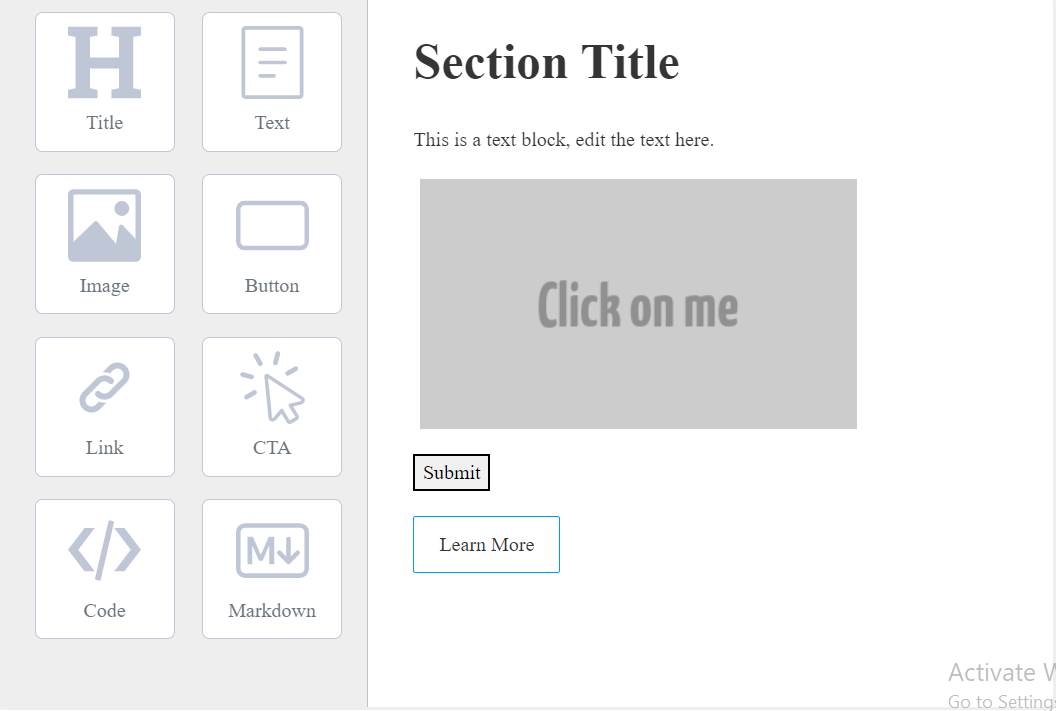
Froala will save your time and effort by providing an easy and intuitive way to implement your online document application. To make the Froala WYSIWYG editor user interface look like an online documents editor, you simply need to set the documentReady Froala API option to true. By doing this:

  • Froala will display only the most frequently used toolbar buttons for editing documents.
  • Froala reorder toolbar buttons to provide the best document editing experience.
  • The editing area’s default height will be increased to resemble a typical A4 document.

If you donโ€™t like the defaults, With Froala editor, you can change the theme, add more toolbar buttons, customize the buttons’ order, and extend functionality with custom plugins.

Is Froala editor compatible with Word and Excel?

Froala editor is compatible with Microsoft Word documents and Excel sheets. This enables the smooth transfer of content, retaining the same format, between these applications. This is made possible by Froalaโ€™s enhanced Microsoft Word and Excel Pasting Plugin, also called the Word Paste plugin.

Word content contained an excessive amount of unnecessary markup, making implementation of this feature challenging. Moreover, important information that doesnโ€™t come as HTML has to be parsed and converted appropriately for the browser to render it.

As a leading WYSIWYG editor, the Froala team accepted this challenge and worked hard to support Word markup. Furthermore, when Word images are pasted into the editor, we process them and upload them to your server in the same way as regular images.

In our comparisons with other WYSIWYG editors such as TinyMCE and CKEditor, we found that Froala preserved the original formatting of the content pasted from Microsoft Word and Excel better than any other editor.

Configuring Froala’s Enhanced Microsoft Word and Excel Pasting Plugin

With Froala’s Enhanced Microsoft Word and Excel Pasting Plugin, copying and pasting content from Microsoft Word or Excel into a WYSIWYG editor is easy and streamlined. It includes several options and events for customizing it to best suit your application. Let’s explore its configurations further.

Options

wordPasteModal

Set whether you want to display a modal to choose if you want to keep the pasted style or not.

wordPasteKeepFormatting

If you choose to not display the modal, you can specify here whether the editor will keep the pasted styles or not. By default, the editor will keep the styles.

wordDeniedTags

An array of HTML tags that will be removed altogether with their content when pasting content into the rich text editor from Word. For example, to remove links from the pasted content set this option to

new FroalaEditor('.selector', {

wordDeniedTags: ['a']

});

wordDeniedAttrs

An array of HTML attributes to be removed altogether with their content when pasting content into the rich text editor from Word. For example, to remove the id of the pasted elements set this option as

new FroalaEditor('.selector', {

wordDeniedAttrs: ['id']

});

wordAllowedStyleProps:

An array contains the allowed CSS properties to be used for tags when pasting from Word. by default it is set to allow the following properties

['font-family', 'font-size', 'background', 'color', 'width', 'text-align', 'vertical-align', 'background-color', 'padding', 'margin', 'height', 'margin-top', 'margin-left', 'margin-right', 'margin-bottom', 'text-decoration', 'font-weight', 'font-style', 'text-indent', 'border', 'border-.*']

Note: The Froala API offers additional options related to pasting content. These can impact how content is pasted from Word documents too. For instance, if you set the pastePlain API option to true, all pasted content is cleaned, regardless of the value of wordPasteKeepFormatting.

Letโ€™s look at the other pasting options that affect pasting content whether it is from Word or other sources.

pastePlain

Indicates whether the rich text editor should strip formatting when pasting content or not. In both cases, the content structure is preserved. It is set to ‘false‘ by default. This keeps the text formatting.

new FroalaEditor('.selector', {

ย ย pastePlain: true

});

Other options

The other options pasteDeniedTags, pasteDeniedAttrs, and pasteAllowedStyleProps are similar to wordDeniedTags, wordDeniedAttrs, and wordAllowedStyleProps respectively but they affect the content copied from any sources.ย 


Events

Events are callback functions that are triggered during the paste process. You can customize the editor’s behavior by handling these events in your application’s logic. ย In this section, we will explore all the events related to pasting content as each one is critical for customizing the process.

paste.before

This event occurs before the paste action is performed. This lets you modify pasted content before it’s inserted into the editor or add custom logic.

 newย FroalaEditor('.selector',ย {
   events: {

ย ย ย ย 'paste.before': function (original_event) {

ย ย ย ย ย ย // Do something here.

ย ย ย ย ย ย // this is the editor instance.

ย ย ย ย ย ย console.log(this);

ย ย ย ย }

ย ย }

});

You will receive the jQuery event object for the paste event (original_event) as the first parameter.ย 

For example, if we paste this โ€œFroala WYSIWYG editor is an easy yet powerful solution for reaching your goals.โ€œ into the editor, the first argument will beย 

{

paste: { target: p, clipboardData: DataTransfer }

bubbles: true

cancelBubble: false

cancelable: true

clipboardData: DataTransfer { dropEffect: "none", effectAllowed: "uninitialized", mozCursor: "auto", โ€ฆ }

composed: true

currentTarget: null

defaultPrevented: true

โ€‹eventPhase: 0

explicitOriginalTarget: <div class="fr-element fr-view" dir="auto" aria-disabled="false" spellcheck="true" contenteditable="true">

isTrusted: true

originalTarget: <p>

returnValue: false

srcElement: <p>

target: <p>

timeStamp: 114314

type: "paste"

<get isTrusted()>: function isTrusted()

<prototype>: ClipboardEventPrototype { clipboardData: Getter, โ€ฆ }

}

paste.beforeCleanup (clipboard_html)

The event is triggered after the content has been pasted into the Froala Rich Text Editor but before any clean action is performed.

new FroalaEditor('.selector', {

ย ย events: {

ย ย ย ย 'paste.beforeCleanup': function (clipboard_html) {

ย ย ย ย ย ย // Do something here.

ย ย ย ย ย ย // this is the editor instance.

ย ย ย ย ย ย console.log(this);

ย ย ย ย }

ย ย }

});

In this event, you will receive the clipboard-pasted HTML (clipboard_html) string as the first parameter.

For example, if we paste this โ€œFroala WYSIWYG editor is an easy yet powerful solution for reaching your goals.โ€œ into the editor, the first argument will be:

  • In case you copied it from not Word document
<html><body>

<!--StartFragment-->Froala WYSIWYG editor is an easy yet powerful solution for reaching your goals.<!--EndFragment-->
</body>
</html>
  • In case you copy it from a Word document
<html xmlns:o="urn:schemas-microsoft-com:office:office"

xmlns:w="urn:schemas-microsoft-com:office:word"

xmlns:m="http://schemas.microsoft.com/office/2004/12/omml"

xmlns="http://www.w3.org/TR/REC-html40">

<head>

<meta http-equiv=Content-Type content="text/html; charset=utf-8">

<meta name=ProgId content=Word.Document>

<meta name=Generator content="Microsoft Word 15">

<meta name=Originator content="Microsoft Word 15">

<link rel=File-List

href="file:///C:/Users/mostafa/AppData/Local/Temp/msohtmlclip1/01/clip_filelist.xml">

<!--[if gte mso 9]><xml>

 <o:OfficeDocumentSettings>

  <o:AllowPNG/>

 </o:OfficeDocumentSettings>

</xml><![endif]-->

<link rel=themeData

href="file:///C:/Users/mostafa/AppData/Local/Temp/msohtmlclip1/01/clip_themedata.thmx">

<link rel=colorSchemeMapping

href="file:///C:/Users/mostafa/AppData/Local/Temp/msohtmlclip1/01/clip_colorschememapping.xml">

<!--[if gte mso 9]><xml>

 <w:WordDocument>

  <w:View>Normal</w:View>

  <w:Zoom>0</w:Zoom>

  <w:TrackMoves/>

  <w:TrackFormaโ€ฆ

Note: you can modify the pasted content by returning a new string.

paste.afterCleanup (clipboard_html)

The event is triggered after the content has been pasted into the Froala Rich Text Editor and cleaned up. The pasted content will be replaced with the returned string if one is returned. This allows users to manipulate the pasted content before it becomes a part of the editor’s content.

new FroalaEditor('.selector', {

ย ย events: {

ย ย ย ย 'paste.afterCleanup': function (clipboard_html) {

ย ย ย ย ย ย // Do something here.

ย ย ย ย ย ย // this is the editor instance.

ย ย ย ย ย ย console.log(this);

ย ย ย ย ย // Return modified clipboard_html if needed.

ย ย ย ย ย ย return clipboard_html;

ย ย ย ย }

ย ย }

});

You will receive the cleaned HTML as the first parameter.

For example, if we paste this โ€œFroala WYSIWYG editor is an easy yet powerful solution for reaching your goals.โ€œ into the editor, the first argument will be:

  • In case you choose to clean the content
<p>Froala WYSIWYG editor is an easy yet powerful solution for reaching your goals.</p>
  • In case you choose to not clean the content
<p style="margin-top:0in;margin-right:0in;margin-bottom:8.0pt;margin-left:0in;line-height:107%;font-size:15px;font-family:&quot;Calibri&quot;,sans-serif;">Froala WYSIWYG editor is an easy yet powerful solution for reaching your goals.</p>

paste.after

This event is triggered after the paste action has been processed and the content has been inserted into the editor. It allows you to perform additional actions once the paste is complete. It doesnโ€™t have any parameters.

new FroalaEditor('.selector', {

ย ย events: {

ย ย ย ย 'paste.after': function () {

ย ย ย ย ย ย // Do something here.

ย ย ย ย ย ย // this is the editor instance.

ย ย ย ย ย ย console.log(this);

ย ย ย ย }

ย ย }

});

Paste Images from Word

Froala uploads images pasted from Word just like regular images. Since there are no specific API options or events for this, the pasting image process can be customized using general API options and events.

Image paste Options

pasteAllowLocalImages

Removes images that have a local path (file://) on paste. Enabling this option might result in having mixed content on HTTPS websites.

new FroalaEditor('.selector', {

ย ย pasteAllowLocalImages: true

});

ย imagePaste

Allows pasting images from clipboard.

new FroalaEditor('.selector', {

ย ย imagePaste: false

});

imagePasteProcess

Use default image settings for pasted images.

new FroalaEditor('.selector', {

ย ย imagePasteProcess: true

});

Image paste Events

image.beforePasteUpload (img)

Triggered before uploading a pasted image from clipboard to the server. The first parameter is the DOM element representing the image to be uploaded.

Note: Returning false in the handler assigned to the event will cancel the current action.

new FroalaEditor('.selector', {

ย ย events: {

ย ย ย ย 'image.beforePasteUpload': function (img) {

ย ย ย ย ย ย // Do something here.

ย ย ย ย ย ย // this is the editor instance.

ย ย ย ย ย ย console.log(this);

ย ย ย ย }

ย ย }

});

Demo

Take a look at the browser console to see the event results after pasting some content in the demo below

Conclusion

Implementing an online documents editor, such as Froala Editor is a powerful, time-saving solution. By properly configuring the editor, and adding the enhanced Microsoft Word and Excel Pasting Plugin, you can make it easier for users to compose and edit content in familiar formats, No more hassle of having to reformat text, lists, tables, and images copied from Word or Excel files. If you find anything that you believe should work differently, just reach our engineering team and weโ€™ll get it solved.

Overall, Froala is an excellent solution for building online documents, creating messaging applications, or any form that requires rich text editing capabilities with a modern and intuitive user interface. Give the Froala Editor a try today and elevate your document editor game!

Creating a Page Builder Using the Froala WYSIWYG Editor

Creating An Amazing Page Builder Using The Froala WYSIWYG Editor

In today’s digital era, every business needs to have its own website, blog, etc. In fact, people may doubt your legitimacy as a business if you don’t have a website. However, getting a professionally designed website can be costly, due to which many businesses opt to build a website by themselves. You can use a WYSIWYG HTML editor to ease web content creation. A WYSIWYG editor essentially allows you to easily create and manage HTML content without writing any code. However, people usually use a rich text editor or WYSIWYG editor for composing documents or creating simple, one-block content. For more complex websites, most developers today use a web page builder. A website page builder allows you to create beautiful and well-formatted websites quickly without the need to write a single line of code.

In this article, we’ll show you how you can convert the Froala WYSIWYG editor into an easy-to-use, drag-and-drop page builder.

What Is A Web Page Builder?


A page builder built using the Froala WYSIWYG editor

If you don’t know how to code and want to create a website for your business, you want something that doesn’t involve learning and writing code. If you spend a lot of time learning programming languages to create websites, you wouldn’t be able to focus on growing your business and meeting customer demands. This is where you need a page builder or drag-and-drop website builder. A website page builder comes with built-in templates, layouts/themes, and other elements you need to create a professional web page. It is essentially a tool that even nontechnical people can use to create websites without writing any code and reduce development time.

Should You Use WYSIWYG HTML Editors Or Page Builders?

A WYSIWYG Editor shows you how your content would look on a web browser. It allows you to create and edit web content quickly without writing any code. For example, you can use WYSIWYG editors to format text, add links, create tables, insert images and videos, add links, and more. However, most users prefer a WYSIWYG HTML editor for creating simple web pages and composing documents.

For creating professional, complex layouts and websites, drag-and-drop website builders are mostly used. You can use a page builder in your content management system, email marketing software, or any other application. Because of their ease of use, drag-and-drop page builders have become so popular, especially among small businesses.

Why Should You Use Froala WYSIWYG Editor To Create A Page Builder?


An efficient page builder built using Froala WYSIWYG editor

Froala is considered one of the best WYSIWYG HTML editors that offers great features and a clean UI (user interface). You can even use plug-ins to add new features to the editor. However, you can also convert it into an easy-to-use, drag-and-drop page builder thanks to its initialization modes features. By using Froala editor to create a page builder, you can combine the benefits of creating a website page builder from scratch and using an existing page builder. For example, when you create a page builder from scratch, you can customize it as per your requirements. However, using an existing page builder eliminates the need to write lengthy code from scratch.

Here are some key reasons to use Froala editor to create your page builder:

  • Froala offers a simple API with detailed documentation and flexible features to develop an efficient page builder that meets your requirements. When you use Froala to create your page builder, you can save a lot of time and effort as you don’t have to build every single component of your page builder from scratch.
  • It generates high-quality HTML code to minimize the issues associated with existing page builders.
  • Froala pricing plans are very budget-friendly. Additionally, it offers discounts for startups, which makes it a perfect option for creating your page builder.
  • Froala is also a perfect choice for those who wish to have both a WYSIWYG editor and a drag-and-drop page builder. As a result, you can get both editors using the same code.

How To Build A Page Builder Using Froala WYSIWYG Editor?

When you’re building a page builder, you need to create two sections: a toolbar and an editing area. To create these sections, open your HTML file and add the following code:

<div class="row"> 
  <div class="col col-1"> 
	<!-- Toolbar contains different block-types will go here --> 
</div> <div class="col col-2"> <!-- Editing Area --> <div id=โ€œediting-area"></div> </div> </div>

Creating The Toolbar

The toolbar of a page builder consists of several block types, such as:

  • Title Block
  • Text Block
  • Button
  • Image Block
  • Code Block
  • Link
  • CTA Block
  • Markdown Block

Using these blocks, you can quickly add a title, text, images, CTA, buttons (such as submit buttons), etc., to the editing area to create your website or web page.

Here is an example code for adding the title block to the toolbar of the page builder:

<li data-type="title" class="block-source float-left">
  <div class="text-center">
      <div>
          <svg version="1.1" id="Layer_1" xmlns="http://www.w3.org/2000/svg" xmlns:xlink="http://www.w3.org/1999/xlink" x="0px" y="0px" viewBox="0 0 122.88 120.26" style="enable-background:new 0 0 122.88 120.26" xml:space="preserve"><g><polygon points="0,14.54 0,0 49.81,0 49.81,14.54 36.93,17.03 36.93,51.7 85.98,51.7 85.98,17.03 73.1,14.54 73.1,0 85.98,0 110,0 122.88,0 122.88,14.54 110,17.03 110,103.31 122.88,105.79 122.88,120.26 73.1,120.26 73.1,105.79 85.98,103.31 85.98,70.3 36.93,70.3 36.93,103.31 49.81,105.79 49.81,120.26 0,120.26 0,105.79 12.8,103.31 12.8,17.03 0,14.54"/></g></svg>
       </div>
        <span class="text-center">Title</span>
   </div>
</li>

You can then use the following CSS code to modify the block style and format:

<style> 

html,body, .row{ 
  margin: 0; 
  padding: 0; 
  height: 100%; } 
.col{ float: left; 
}

.col-1{ 
  width: 22%; 
  height: 100%; 
  margin-right: 5%; 
  background-color: #eee; 
  border-right: 1px solid #c4c1c1; 
} 

.col-2{ width: 72%; 
  padding: 10px auto; 
} 

@media screen and (max-width: 676px) { 
  .col{ float: none 
  } 
  .col-1, .col-2{ 
    width: 100%; 
    height: auto; 
    border: none; 
    margin: 0; 
  } 
  .col-1{ 
    height:250px; 
  } 
} 

.text-center { 
  text-align:center 
} 

.block-source { 
  margin:0 0 18px 18px; 
  width:7rem; 
  height:7rem; 
  white-space:nowrap; 
  text-overflow:ellipsis; 
  background-color:#fff; 
  border:1px solid #bfc7d6; 
  -webkit-box-sizing:border-box; 
  box-sizing:border-box; 
  border-radius:6px; 
  display:-webkit-inline-box; 
  display:-ms-inline-flexbox; 
  display:inline-flex; 
  -webkit-box-pack:center; 
  -ms-flex-pack:center; 
  justify-content:center; 
  -webkit-box-align:center; 
  -ms-flex-align:center; 
  align-items:center; 
  color:#6c757d 
} 

.block-source:hover { 
  cursor:pointer; 
  border:1px solid #c6bbef; 
  -webkit-transform:translate(0); 
  transform:translate(0) 
} 

.block-source svg { 
  height:3.65rem; 
  width:3.65rem; 
  color:#bfc7d6; 
  fill:#bfc7d6 
} 

.block{ 
  margin: 20px 0; 
} 

</style>

When you add all the blocks and format them, your toolbar will look as follows:


Page builder UI

Adding Blocks To The Editing Area

The editing area will consist of all the blocks that the user chooses to add to the page. Hence, when a user clicks on a block in the toolbar, we need to:

  • Add an HTML element that corresponds to the selected block type in the editing area
  • Initialize the Froala editor on that element with the required options

To initialize the Froala editor, add the latest version of the Froala stylesheet inside the head:


<link rel="stylesheet" href="https://cdn.jsdelivr.net/npm/froala-editor@latest/css/froala_editor.pkgd.min.css">

Now, add the Froala latest version script before closing the body tag:

ย 
<script src="https://cdn.jsdelivr.net/npm/froala-editor@latest/js/froala_editor.pkgd.min.js" ></script>
ย 

Next, we have to add a click event listener to the Block Types. You can find the detailed tutorial on customizing each block type, adding the drag-and-drop editor functionality, and creating an amazing page builder with Froala here.

Do You Need To Test Your Web Page Builder?

Software testing

QA testing is an extremely important aspect of any software development project, including web apps and websites. With QA testing, we can ensure that we release high-quality software without any bugs or errors. In other words, software testing helps save time and costs and enhances the quality of software. For software testing, we need to write test cases related to functionality, performance, usability, and more. However, conducting and managing several different test cases manually can be time-consuming. As a result, most developers today use test management tools to organize, track, and manage test cases.

Which Is The Best Tool For Managing Test Cases For Your Page Builder?


TestRail Test Management Tool

If you’re looking for a robust test management tool, TestRail is the right option. TestRail is a powerful web-based test management tool that helps users to plan, organize, run, track, and manage test cases efficiently. TestRail also allows you to create agile test plans and streamline your testing processes to create high-quality software.

Here are the popular features of TestRail:

  • With TestRail, planning and running test cases is quick and easy. You can quickly start test runs and choose test cases based on powerful filters. Additionally, TestRailโ€™s advanced interface makes it easy to execute your tests and record results. You can also group, filter, and organize your results efficiently.
  • With TestRail, you can even link tests to defects and requirements in GitLab, Atlassian Jira, GitHub Issues, and more.
  • TestRail provides a single collaborative platform to track and monitor all of your test activities and quality metrics. It allows you to track tests for browsers, mobile devices, and more.
  • TestRail enables users to quickly generate traceability reports. For example, you can generate detailed reports for projects, plans, milestones, and runs. You can also compare the results of different test runs and milestones.
  • With TestRail, you can track the status and progress of testing in real-time.
  • TestRail can easily be integrated with many project management tools and automation testing tools, such as JIRA, Jenkins, and Selenium.
  • TestRail enables developers to efficiently organize reusable test cases in folders.

Frequently Asked Questions (FAQs)

ย 

What is the best free WYSIWYG editor?

Froala is a leading WYSIWYG HTML editor that offers impressive rich text editing features. For example, you can format text, insert rich media, add custom themes, and much more using the Froala editor.

What are the key features of the best WYSIWYG editors?

A good WYSIWYG HTML editor like Froala has a modern design and offers a wide range of impressive features, such as text formatting, inserting rich media, media management, auto-formatting, etc. A powerful WYSIWYG editor also seamlessly integrates with CMS and other apps and offers live preview options.

Can you convert a WYSIWYG HTML editor into a page builder?

Not all WYSIWYG editors can be converted into a page builder. However, you can convert Froala editor into an impressive page builder, thanks to its initialization modes features.

Learn more about TestRail and its features here.

Building a solid drag-and-drop web page builder using Froala

Froala Page builder
A developer building an amazing page builder using Froala WYSIWYG Editor Modern page builders have revolutionized the way we develop website pages. They enable non-technical users to quickly and easily create complex website pages that are responsive and scalable. Clients love page builders because they can create stunning web pages without requiring expensive development resources and lengthy development cycles. They provide the ability to quickly design and maintain pages without needing extensive coding experience or deep technical knowledge. Page builders are used in content management systems (CMS) like WordPress, and it is one of the reasons that makes WordPress so popular. Thatโ€™s because page builders make it easy for absolute beginners to build and maintain their website pages and blog posts. Page builders are also used on email management platforms like Mailchimp to enable users to easily create email templates without the need for HTML coding skills. Page builders are used in many cases under different names like โ€œtheme buildersโ€, โ€œtemplate buildersโ€, โ€œwebsite buildersโ€, or โ€œemail buildersโ€. If you are creating an application where users will need to write HTML code, then using a page builder will be the best solution. Page builders can help you retain your users while attracting new ones because of their top-notch user experience.

The difference between a classic editor (WYSIWYG editor) and a modern drag-and-drop editor

Usually, platforms implement two types of editors to eliminate the need for users to write any HTML or CSS code:
  1. ย A classic editor or standard WYSIWYG editor
  2. ย A drag-and-drop editor which divides the web page into rows, columns, and blocks, allowing users to easily create and maintain templates, edit each block’s content separately, and assemble template elements by dragging and dropping them into a new position.
Users tend to prefer classic editors for composing documents, messaging, or simple, one-block content; however, for constructing more complex, structured layouts like a web page, a drag-and-drop editor is typically used.

Should You Build a Custom Page Builder or Use an Existing One?

Before integrating a page builder into your product, it is important to consider whether you should create one from the ground up or utilize a readily available page builder. Doing thorough research into both options will help you make an informed decision. Utilizing an existing page builder is likely the best way to begin. There is no need to start from scratch when there are other tools available. However, it might be surprising to know that in some cases, creating a custom page builder is the right choice. While using an existing page builder eliminates the hassle and time associated with coding from scratch as the underlying code is already developed, creating a page builder from scratch can be beneficial in a number of ways. Firstly, it allows businesses to customize the page builder to exactly meet their requirements, which can be important in terms of making sure the page builder works with their existing website and other applications. Additionally, it provides businesses with full control over the design and functionality of their page builder, allowing them to tweak and adjust the interface and features as they see fit. It also avoids having to present users with an abundance of components and options that will not be used. Furthermore, creating a page builder from scratch can mitigate some of the issues associated with existing page builders. One of the most problematic issues is the creation of bloated HTML code that contains a large number of DOM nodes. This causes the issue of having an excessive DOM size that slows down your page performance. This issue can drive away website visitors. The generated HTML code could also be in a non-semantic format that can badly affect the SEO ranking of the page. In this article, we will demonstrate an intuitive solution to construct a page builder that combines the advantages of creating one from scratch and using an existing page builder while minimizing the drawbacks. A solution that uses Froala to build your page builder.  

Why should I use Froala to build a page builder?

By using Froala to create your page builder, you will be able to save a lot of time and effort that would otherwise be spent building every single component of your page builder from scratch. Additionally, Froala’s API offers powerful and flexible features that help develop a page builder that meets your exact specifications. Froala Editor also produces efficient and high-quality HTML code, allowing you to avoid the issues associated with existing page builders. Froala pricing plans are very cheap. Unlike other WYSIWYG editors, Froala doesn’t charge extra for premium features, number of users, or editor loads. Froala also offers discounts for startups. Moreover, Froala has a perpetual plan, allowing customers to purchase a release once and receive updates for one year after the purchase date. And they can use the last release they received forever. These reasons make Froala affordable despite its status as a premier and powerful editor, and this makes Froala a good starting point for building your page builder. Moreover, Froala is an ideal choice for those who want to have both a classic editor and a drag-and-drop page builder. With this solution, you can get the best of both editors using the same code, making your product codes more consistent and optimized. You may also be able to reduce the third-party libraries you are using, which in turn can result in your product running faster.

Can You Use a WYSIWYG Editor to Develop a Page Builder?

With the Froala WYSIWYG editor, you can develop a robust, fast, and elegant page builder that has various components. This is due to its unique initialization modes feature, which makes the editor behave differently depending on the element that it is initialized with.
Email created using Froala's page builder
A demonstration of using a custom page builder created using Froala editor for creating a professional email – no coding required!

How to build a page builder using Froala

We have a detailed guide that explains how to create a page builder using Froala. In that guide, you can see how easy it is to do so in a few steps. The guide will show you that you can build different types of blocks by simply changing the editor initialization options. In the guide, we explained how to create eight different blocks types using Froala: 1- Title Block 2- Text Block 3- Image Block 4- Button 5- Link 6- CTA Block 7- Code Block 8- Markdown Block You can look at Froalaโ€™s API options, methods, and events and start thinking about other blocks that Froala can create. Also, if you would like to add an option to one of the blocks, you can simply create a custom Froala button and assign the desired function to it. Furthermore, you can create a whole custom functionality by writing your own plugin to customize a block depending on your project details and requirements.

Conclusion

With its cost-effective, flexible, and customizable features, combined with its already existing powerful API, Froala provides a solution for developers looking to create a page builder from scratch with minimal effort. Froala is the only WYSIWYG editor that you can use to build both classic and modern page builders. Give it a try by starting your free trial today.
Let your community know if you enjoyed this post.

Integrating a WYSIWYG Editor with a Reliable and Lightning Fast File Uploading System

Integrating Froala WYSIWYG Editor with FIlestack

With more than a billion files uploaded to the web daily, itโ€™s important to include a reliable, fast, secure, and intelligent file upload system in your application.

Imagine you are using a WYSIWYG editor to create a web page or an email, and you are about to finish what you are doing. You just need to upload one last image or attach an important file. You click on the insert file button, select your file, and click on the upload button. Suddenly, the uploading process is stopped, and the upload fails.ย  We have all gone through this several times, and we know just how annoying it is. Today, we will learn about the reliable Filestack file uploading service and how to integrate it with the Froala editor. This will not just add more reliability to your editor but also a complete and powerful upload service to your editor. It will led to a seamless uploading experience that your users will enjoy.


Why Filestack?

The default uploading system included in most WYSIWYG editors handles uploading files using basic methods to just display the file inside the editor. In this setup, itโ€™s your task to handle saving the file onto your server. Most of these systems arenโ€™t reliable enough to be used in poor network conditions or in bad quality of service conditions.

The top WYSIWYG editor on the G2 for more than two years, Froala WYSIWYG editor, has one of the best file managers and uploading features. Moreover, it comes with free SDK libraries that support many server-side languages. These SDKs help you handle saving and deleting files to and from your server quickly and easily. Nevertheless, by integrating Filestack with Froala, you will get an even more powerful file uploading service.

Filestack Intelligent Ingestion

Filestack introduces the Intelligent Ingestion (FII) feature. It intelligently detects network conditions, device type, and browser then makes automated decisions on how best to chunk a file to ensure it uploads successfully. Tests show that Filestack is more reliable than other uploading services like Google Drive, Plupload, and jQuery File Uploader.

Filestack Content Ingestion

Filestack guarantees up to 10x faster uploads. Unlike the other uploading services, Filestackโ€™s Content Ingestion Network (CIN) uploads your file in two stages:

  1. The file is stored in the nearest Filestack Ingestion point-of-presence (POP), and a file URL (filelink) is generated almost immediately for your use.
  2. While you access the file, it is uploaded asynchronously to its final destination. A webhook is sent to you, notifying you that the file is stored properly, and your filelink automatically adjusts to point to the permanent cloud storage location.

This means that you do not have to wait until the file is stored in its final destination before using it in your application.

Filestack Integrated Storage Sources

It is worth mentioning that Filestack allows you to upload files from over 20 sources without any additional lines of code. When it comes to storing your files on the Filestack cloud storage service, all you need to do is set the storeTo parameter of the picker options.

//Code Example
const client = filestack.init(YOUR_API_KEY);

const options = {
   storeTo: {
     location: 'azure',
     path: '/site_uploads/'
   }
};

//Open file picker
client.picker(options).open();

Filestack Processing Engine

With the Filestack processing engine, you can transform various types of files, including images, documents, and videos. For instance, users will be able to apply filters, adjust image sizes, and perform many other image transformations. This will provide them with a rich in-app image editing experience.

Filestack Intelligence

And we canโ€™t ignore the intelligence you will add to your application when you integrate it with Filestack. With features like:

  • Copyright Detection
  • Phishing Detection
  • Image Safe for Work Detection (SFW)
  • Video SFW
  • Virus Detection

You can detect any suspicious or illegal content and block it before it is stored on your server.

If your business requires adding tags to uploaded images or videos, integrating Filestack into your application is your best bet. The โ€œImage Taggingโ€ and โ€œVideo Taggingโ€ Filestack features accurately detect related tags in your image or video. After detecting the tags, you can use them to automatically group and classify your files.

Filestack Workflows

With Filestack, you can set up your desired logic through a simple user interface and then apply it to the uploaded files by setting the workflow API option. You donโ€™t need to be a programmer to use it.

const client = filestack.init(YOUR_API_KEY);

//set your workflow
const options = {
   workflows: [YOUR_WORKFLOW_ID]
};

//open the file picker
picker = client.picker(options).open();

And Much More..

Filestack has hundreds of features that you will definitely find useful in your application. We canโ€™t cover all of them in a single blog post, so take some time to view all of Filestackโ€™s features here.


Many of Filestackโ€™s features are available for free. Take advantage of this right away.

How do I integrate Filestack with Froala?

The modular architecture of the Froala editor makes it easy to extend its functionality through plugins. Follow the steps below to create a custom plugin that uses Filestackโ€™s file picker to insert images into the Froala WYSIWYG editor:

  • Use the custom plugin guide to create a new Froala plugin called โ€œfilestackโ€
  • Add plugin options to allow users to enter their Filestack API and their desired Filestack options.
// Add options for your plugin.
FroalaEditor.DEFAULTS = Object.assign(FroalaEditor.DEFAULTS, {

ย ย ย ย //Allow users to set their Filestack options 
ย ย ย ย filestackOptions: {

ย ย ย ย ย ย  displayMode: 'overlay',

ย ย ย ย ย ย ย uploadInBackground: false,

ย ย ย ย ย ย ย //accept images only since we are using Filestack for inserting images to the editor.
ย ย ย ย ย ย ย accept: ["image/*"],
ย ย ย ย },

ย ย ย ย //Allow users to enter their Filestack API
ย ย ย ย filestackAPI: '',
});
  • Inside the plugin initialization method, verify that the user entered the Filestack API correctly
//Verify that the user entered the Filestack API credentials
if(editor.opts.filestackAPI === 0){
ย ย alert("The Filestack plugin is not active! You should set the filestackAPI option correctly.");
  return false;
}
  • We need to create a button that will open the Filestack file picker. Create a custom button following this guide.
/*First, create icon for the button. The icon will be the Filestack logo */
FroalaEditor.DefineIcon('filestackIcon', {SRC: 'https://i.ibb.co/YX5xjzw/Filestack-logo.png', ALT: 'Open Filestack file picker', template: 'image'});

/*Create a button with the name 'openFilePicker' */
FroalaEditor.RegisterCommand('openFilePicker', {

ย ย ย ย type: 'button',
ย ย ย ย icon: 'filestackIcon',
ย ย ย ย title: 'Open Filestack File Picker',
        
    //Set a function to be called when the button clicked
ย ย ย ย callback: function callback() {
    
    /* This button will be used to insert new images or to replace an existing image
    ** in case of doing a replace action, save the selected image so we can replace it later.
    */ 
    var selectedImage = this.image.get();

    //Init Filestack
    var client = filestack.init(this.opts.filestackAPI);

    /*
    ** Extend the filestack options to trigger the filestack plugin onUploadDone callback once the image is uploaded 
    ** We will define the onUploadDone method on the custom filestack plugin in the next step.
    */
    Object.assign(this.opts.filestackOptions, {
        //Set displayMode to 'overlay' to open the file picker with the minimum setup. Other modes require more steps to get the file picker visible when the openFilePicker button is clicked.
ย ย ย ย ย    displayMode: 'overlay',
ย ย ย ย ย ย ย  onUploadDone: (res) => {
ย ย ย ย ย ย ย ย ย ย //Save the caret position, to be able to insert images in the caret position
          this.selection.save();
 
          //Trigger the filestack plugin onUploadDone function
          this.filestack.onUploadDone(res, selectedImage);
ย ย ย ย ย ย ย ย },
    });

ย ย ย ย // Open file picker
    client.picker(this.opts.filestackOptions).open();

ย ย ย }

ย   plugin: 'filestack'
});
  • On the Filestack plugin, add the onUploadDone method to be executed when the image is uploaded successfully through Filestack
function onUploadDone(res, selectedImage){

ย ย ย ย //If an image was selected beforehand, remove it first.
    if( typeof selectedImage !== "undefined" ){
        editor.image.remove(selectedImage);
    }

    //Insert the new images into the editor
    if( typeof res.filesUploaded !== "undefined" ){
      for (const file of res.filesUploaded) {
           //Restore the caret position
ย ย ย ย ย ย ย ย ย ย ย editor.selection.restore();

           //Insert the uploaded image in the editor
ย ย ย ย ย ย ย ย ย ย ย editor.image.insert(file.url, false);
ย ย ย ย ย ย ย }
    }
}
  • Donโ€™t forget to make the onUploadDone method publicly accessible
ย ย return {
ย ย ย ย ย ย ย ย ย ย ย ย _init: _init,
ย ย ย ย ย ย ย ย ย ย ย ย onUploadDone: onUploadDone,
ย ย ย ย ย ย ย ย }
  • In the HTML page:
    • Include Froala stylesheet and script
    • Include Filestack script
    • Include the new Froala filestack plugin script
<head>
ย ย ย ย <meta charset="UTF-8">

ย ย ย ย <meta http-equiv="X-UA-Compatible" content="IE=edge">

ย ย ย ย <meta name="viewport" content="width=device-width, initial-scale=1.0">

ย ย ย ย <title>Froala-Filestack integration demo</title>

ย ย ย ย <!-- Froala Editor Stylesheet-->
ย ย ย ย <link href='https://cdn.jsdelivr.net/npm/froala-editor@latest/css/froala_editor.pkgd.min.css' rel='stylesheet' type='text/css' />
</head>

<body>

ย ย ย ย <!--Editor element-->
ย ย ย ย <div id="editor"></div>

ย ย ย ย <!-- Froala Editor JS-->
    <script type='text/javascript' src='https://cdn.jsdelivr.net/npm/froala-editor@latest/js/froala_editor.pkgd.min.js'></script>

ย ย ย ย <!-- Filestack JS-->
ย ย ย ย <script src="https://static.filestackapi.com/filestack-js/3.x.x/filestack.min.js" crossorigin="anonymous"></script>

ย ย ย ย <!-- Froala filestack plugin JS-->
ย ย ย ย <script type='text/javascript' src='froala-filestack-plugin.js'></script>

</body>
  • Finally, initialize Froala editor considering the following:
    • Include Froalaโ€™s Filestack plugin in the pluginsEnabled option
    • Include the new openFilePicker button in the toolbarButtons option and the imageEditButtons option
    • (optional) Set filestackOptions option based on your preferences
<script>

ย ย // init Froala Editor
ย ย new FroalaEditor('#editor',{

ย ย ย ย ย ย ย ย ย ย ย ย //Add openfilepicker button to the edit image popup buttons
ย ย ย ย ย ย ย ย ย ย ย ย imageEditButtons: ['openFilePicker', 'imageReplace', 'imageAlign', 'imageCaption', 'imageRemove', '|', 'imageLink', 'linkOpen', 'linkEdit', 'linkRemove', '-', 'imageDisplay', 'imageStyle', 'imageAlt', 'imageSize'],

ย ย ย ย ย ย ย ย ย ย ย ย //Add openfilepicker button to the toolbar buttons
ย ย ย ย ย ย ย ย ย ย ย ย toolbarButtons: {

ย ย ย ย ย ย ย ย ย ย ย ย ย ย ย 'moreText': {
ย ย ย ย ย ย ย ย ย ย ย ย ย ย ย ย   'buttons': ['bold', 'italic', 'underline', 'strikeThrough', 'subscript', 'superscript', 'fontFamily', 'fontSize', 'textColor', 'backgroundColor', 'inlineClass', 'inlineStyle', 'clearFormatting']
ย ย ย ย ย ย ย ย ย ย ย ย ย ย ย ย },
ย ย ย ย ย ย ย ย ย ย ย ย ย ย ย  'moreParagraph': {
ย ย ย ย ย ย ย ย ย ย ย ย ย ย ย ย   'buttons': ['alignLeft', 'alignCenter', 'formatOLSimple', 'alignRight', 'alignJustify', 'formatOL', 'formatUL', 'paragraphFormat', 'paragraphStyle', 'lineHeight', 'outdent', 'indent', 'quote']
ย ย ย ย ย ย ย ย ย ย ย ย ย ย ย ย },
ย ย ย ย ย ย ย ย ย ย ย ย ย ย ย ย 'moreRich': {
   ย ย ย ย ย ย ย ย ย ย ย ย ย ย ย ย 'buttons': ['openFilePicker', 'insertLink', 'insertImage', 'insertVideo', 'insertTable', 'emoticons', 'fontAwesome', 'specialCharacters', 'embedly', 'insertFile', 'insertHR']
ย ย ย ย ย ย ย ย ย ย ย ย ย ย ย ย },
ย ย ย ย ย ย ย ย ย ย ย ย ย ย ย ย 'moreMisc': {
   ย ย ย ย ย ย ย ย ย ย ย ย ย ย ย ย 'buttons': ['undo', 'redo', 'fullscreen', 'print', 'getPDF', 'spellChecker', 'selectAll', 'html', 'help'],
   ย ย ย ย ย ย ย ย ย ย ย ย ย ย ย ย 'align': 'right',
   ย ย ย ย ย ย ย ย ย ย ย ย ย ย ย ย 'buttonsVisible': 2
ย ย ย ย ย ย ย ย ย ย ย ย ย ย ย ย }
ย ย ย ย ย ย ย ย ย ย ย ย },

ย ย ย ย ย ย ย ย ย ย ย ย //Add filestack plugins to the enabled plugins array
ย ย ย ย ย ย ย ย ย ย ย ย pluginsEnabled: ['filestack', 'image', 'link'],

            /*
            ** To get your Filestack API, create a free Filestack account 
            ** https://dev.filestack.com/signup/free/
            */
ย ย ย ย ย ย ย ย ย ย ย ย filestackAPI: "**************",
ย ย ย });

</script>

Now, you will be able to upload images through Filestack and insert them in the Froala editor.


ย 
Automatically add captions to your images

You can use Filestacks’ artificial intelligence to automate many helpful tasks before inserting the images into the WYSIWYG editor. For example, in the following demo, we use Filestack to detect a related caption for the uploaded image and then insert the detected caption below the image automatically.


By Integrating Filestack with Froala, you will add a powerful uploading system to your WYSIWYG editor. It will make your editor even more robust with features ranging from advanced image processing to artificial intelligence-based processing. We assure you that with this integration, you can attend to every possible in-editor uploading need of your users. Besides, itโ€™s free. So why not try it now?


Sign Up Filestack Free


Sign up

Download the code by signing up for our newsletter

Sign up

Download the code by signing up for our newsletter

Note: By registering, you confirm that you agree to the processing of your personal data by Froala, Inc. - Froala as described in the Privacy Statement. Froala, Inc. - Froala is part of the Idera group and may share your information with its parent company Idera, Inc., and its affiliates. For further details on how your data is used, stored, and shared, please review our Privacy Statement.