Days
Hours
Minutes
Seconds
x
Skip to content

From Word to Froala in Seconds: Mastering Import from Word Plugin

Import from Word to Froala editor

The Import from Word Plugin lets users drag .docx files directly into the Froala Editor while preserving formatting and structure.ย 

This comprehensive guide is designed for developers, content managers, and web administrators who want to master the Import from Word Plugin. Whether you’re integrating Froala into a new project or enhancing an existing content management system, this article will walk you through every aspect of the plugin, from basic setup to advanced configurations and troubleshooting.

Import from Word document

Quick Start: Get It Working in 5 Minutes

Here’s what you need to see the plugin work:

<!DOCTYPE html>
<html>
<head>
  <meta charset="utf-8">
  <meta name="viewport" content="width=device-width, initial-scale=1.0">
  <link href="https://cdn.jsdelivr.net/npm/froala-editor@latest/css/froala_editor.min.css" rel="stylesheet">
  <style>
    body { font-family: Arial, sans-serif; padding: 20px; }
  </style>
</head>
<body>
  <h1>Import a Word Document</h1>
  <p>Drag a .docx file below or click the button to select one.</p>
  
  <div id="editor"></div>
  <!-- Mammoth.js handles the .docx conversion -->
  <script src="https://cdn.jsdelivr.net/npm/mammoth@1.11.0/mammoth.browser.js"></script>
  <!-- Froala Editor core -->
  <script src="https://cdn.jsdelivr.net/npm/froala-editor@latest/js/froala_editor.min.js"></script>
  <!-- Import from Word plugin -->
  <script src="https://cdn.jsdelivr.net/npm/froala-editor@latest/js/plugins/import_from_word.min.js"></script>
  <script>    
new FroalaEditor('#editor', {      
  // Allow .docx files only
  importFromWordFileTypesAllowed: ['docx'],
  // Set 5MB file size limit
  importFromWordMaxFileSize: 5 * 1024 * 1024
  // Enable drag-and-drop (enabled by default)
  importFromWordEnableImportOnDrop: true
});

  </script>
</body>
</html>

That’s it. Save this as an HTML file, open it in a browser, drag a Word document onto the editor. Watch the formatting transfer instantly.

If it worksโ€”and it willโ€”you’ve just experienced what the rest of this guide explains in detail. When you need to customize, add validation, or switch to server-side conversion, those options are all below.

What is the Import from Word Plugin?

The Import from Word Plugin is a specialized extension for the Froala Editor that enables direct import of Microsoft Word documents (.docx format) directly into the editor interface. At its core, this plugin bridges the gap between traditional document creation tools and modern web-based content management systems.

Core Functionality

The plugin’s primary function is to convert .docx files into HTML content that can be seamlessly integrated into the Froala Editor. This conversion process handles complex document structures, including text formatting, paragraph styles, lists, tables, images, and other elements that are commonly used in Word documents.

Key Benefits

  1. Direct Import: Users can import .docx files directly without needing to copy-paste content manually
  2. Format Preservation: Headings, lists, images, and other formatting elements transfer automatically
  3. Time Efficiency: Eliminates hours of manual reformatting work
  4. User-Friendly: Intuitive interface that requires minimal training
  5. Flexible Options: Supports both client-side and server-side conversion methods

Key Features and Capabilities

Seamless .docx File Import with Formatting Intact

The plugin excels at maintaining the original document’s visual integrity during the import process.

This ensures that the imported content maintains its professional appearance without requiring additional manual adjustments.

Dual Conversion Approach

A standout feature of the Import from Word Plugin is its flexible conversion architecture:

  1. Client-Side Conversion: Uses Mammoth.js library for browser-based processing
  2. Server-Side Conversion: Backend processing for larger files or enhanced security

This dual approach allows developers to choose the most appropriate method based on their specific requirements, whether prioritizing performance, security, or user experience.

Drag-and-Drop Functionality

The plugin includes intuitive drag-and-drop capabilities that enhance the user experience:

  • Direct File Drop: Users can drag .docx files directly onto the editor
  • Visual Feedback: Clear indication when files are over the editor area
  • Automatic Processing: Files are processed immediately upon dropping

This feature makes document import feel natural and integrated with the overall editing experience.

File Size and Type Restrictions

The plugin includes built-in controls to manage file uploads:

  • Size Limits: Configurable maximum file size to prevent server overload
  • Type Validation: Restrict import to specific file formats (primarily .docx)
  • User Feedback: Clear error messages for invalid or oversized files

These restrictions help maintain system performance and security while providing flexibility for different use cases.

Event-Driven Architecture

The plugin’s event system enables developers to hook into various stages of the import process:

  • Pre-Import Events: Validate files before processing begins
  • Post-Import Events: Modify or enhance imported content
  • Error Handling: Catch and manage conversion errors gracefully
  • Custom Workflows: Implement specialized business logic

This event-driven approach allows for highly customized implementations that can adapt to specific requirements.

Configuration Options

File Size Configuration

importFromWordMaxFileSize

Allow you to set the maximum allowed file size in bytes for Word document imports.

Default Value: 3 1024 1024 (3MB)

Implementation:

// Set maximum file size to 5MB

new FroalaEditor('#editor', {

ย ย importFromWordMaxFileSize: 5 * 1024 * 1024,

ย ย // other options...

});

Use Cases and Optimization Tips:

  1. Small Documents (1-2MB): Ideal for typical Word documents with text and basic images
  2. Medium Documents (2-5MB): Suitable for documents with moderate image content
  3. Large Documents (5-10MB): For complex documents with many images or embedded media
  4. Very Large Documents (10MB+): Consider server-side conversion for better performance

Best Practices for File Size Management:

  • Start with conservative limits and adjust based on user needs
  • Consider server capacity when setting size limits
  • Provide clear feedback to users about file size restrictions
  • Implement progress indicators for larger files
  • Consider compression for image-heavy documents
// Advanced configuration example

new FroalaEditor('#editor', {

ย ย importFromWordMaxFileSize: 8 * 1024 * 1024, // 8MB

ย ย // Add file size validation feedback

ย ย ย ย ย ย ย ย events: {

ย ย ย ย ย ย ย ย ย ย 'word.beforeImport': function (file) {

ย ย ย ย ย ย ย ย ย ย ย ย if (file.size > 5 * 1024 * 1024) {

ย ย ย ย ย ย ย ย ย ย ย ย ย ย this.events.focus();

ย ย ย ย ย ย ย ย ย ย ย ย ย ย alert('Large file detected. Processing may take longer...');

ย ย ย ย ย ย ย ย ย ย ย ย }

ย ย ย ย ย ย ย ย ย ย }

ย ย ย ย ย ย ย ย }

});

File Type Configuration

importFromWordFileTypesAllowed

An array of allowed file extensions for import functionality.

Default Value: [‘docx’]

Implementation:

// Allow multiple file types

new FroalaEditor('#editor', {

ย ย importFromWordFileTypesAllowed: ['docx', 'doc'],

ย ย // other options...

});

Conversion Method Configuration

importFromWordUrlToUpload

The URL of a server-side handler for conversion. If null, client-side conversion via mammoth.js is used.

Default Value: null

Implementation:

// Server-side conversion

new FroalaEditor('#editor', {

ย ย importFromWordUrlToUpload: '/api/convert-word',

ย ย // other options...

});

or set it dynamically

// Implementation with dynamic configuration

new FroalaEditor('#editor', {

ย ย importFromWordFileTypesAllowed: ['docx'],

ย ย ย ย ย ย ย ย importFromWordMaxFileSize: 20 * 1024 * 1024, // 20MB

ย ย ย ย ย ย ย ย events: {

ย ย ย ย ย ย ย ย ย ย 'word.beforeImport': function (file) {

ย ย ย ย ย ย ย ย ย ย // Dynamic conversion method selection


ย ย ย ย ย ย ย ย ย ย ย ย if (file.size > 5 * 1024 * 1024) {

ย ย ย ย ย ย ย ย ย ย ย ย ย ย this.opts.importFromWordUrlToUpload = getConversionMethod(file.size);

ย ย ย ย ย ย ย ย ย ย ย ย ย ย alert('Large file detected. Processing may take longer...');

ย ย ย ย ย ย ย ย ย ย ย ย } else {

ย ย ย ย ย ย ย ย ย ย ย ย ย ย this.opts.importFromWordUrlToUpload = null;

ย ย ย ย ย ย ย ย ย ย ย ย }

ย ย ย ย ย ย ย ย ย ย }

ย ย ย ย ย ย ย ย }

});

Drag-and-Drop Configuration

importFromWordEnableImportOnDrop

Whether to trigger the import process when a valid Word file is dropped into the editor.

Default Value: true

// Disable drag-and-drop import

new FroalaEditor('#editor', {

ย ย importFromWordEnableImportOnDrop: false,

ย ย // other options...

});

Plugin Methods

importFromWord.import(file)

Parameters:

  • file (object): Optional. The File object to be converted and imported.

Return Values: The method returns a Promise that resolves when the import is complete and rejects if an error occurs.

Behavior:

  • If no file is provided, opens the file selection dialog
  • If a file is provided, processes it directly
  • Triggers appropriate events before and after processing

Event Handling System

Pre-Import Events

word.beforeImport(file)

The word.beforeImport event is triggered just before the file processing begins, after the file has been selected but before any conversion or import operations start.

Event Parameters and Structure:

  • file: The File object containing the selected document
  • Event can return: false to cancel the import, or true/undefined to proceed

Use Cases for Pre-Import Validation:

File Size Validation:

events: {

ย ย 'word.beforeImport': function (file) {

ย ย ย ย const maxSize = 10 * 1024 * 1024; // 10MB

ย ย ย ย if (file.size > maxSize) {

ย ย ย ย ย ย return false; // Cancel import

ย ย ย ย }

ย ย ย ย return true; // Proceed with import

ย ย }

}

Post-Import Events

word.afterImport(html)

The word.afterImport event is triggered after the content has been successfully converted and inserted into the editor. This event fires only when the import process completes successfully.

Event Parameters and Structure:

  • html: The converted HTML content that was imported

HTML Content Handling: The event receives the complete HTML content that was imported, allowing for post-processing, validation, or modification before the user sees the content.

Custom Post-Processing Example:

Content Cleaning and Optimization:

events: {

ย ย 'word.afterImport': function (html) {

ย ย ย ย // Clean up Word-specific HTML artifacts

ย ย ย ย let cleanedHtml = html;

ย ย ย ย 

ย ย ย ย // Remove Word-specific metadata

ย ย ย ย cleanedHtml = cleanedHtml.replace(/<o:[^>]*>.*?<\/o:[^>]*>/gi, '');

ย ย ย ย cleanedHtml = cleanedHtml.replace(/<st1:[^>]*>.*?<\/st1:[^>]*>/gi, '');

ย ย ย ย 

ย ย ย ย // Remove empty paragraphs and spans

ย ย ย ย cleanedHtml = cleanedHtml.replace(/<p[^>]*>\s*&nbsp;\s*<\/p>/gi, '');

ย ย ย ย cleanedHtml = cleanedHtml.replace(/<span[^>]*>\s*&nbsp;\s*<\/span>/gi, '');

ย ย ย ย 

ย ย ย ย // Remove unwanted style attributes

ย ย ย ย cleanedHtml = cleanedHtml.replace(/style="[^"]*mso[^"]*"/gi, '');

ย ย ย ย 

ย ย ย ย // Update editor with cleaned content

ย ย ย ย this.html.set(cleanedHtml);

ย ย ย ย 

ย ย ย ย // Log the cleaning operation

ย ย ย ย console.log('Content cleaned after import');

ย ย }

}

Client-Side VS Server-Side

Client-Side Conversion via Mammoth.js

The plugin utilizes the Mammoth.js library for client-side conversion, a JavaScript library designed to convert .docx files to HTML directly within the browser environment. This approach provides several significant advantages for implementing document import functionality:

Key Advantages:

  • Reduced Server Load: Document processing occurs entirely within the user’s browser, eliminating the need for server-side resource allocation
  • Optimized Response Time: Eliminates file upload latency and server processing delays, delivering immediate conversion results
  • Enhanced User Experience: Users receive instantaneous feedback during the conversion process without waiting for server round-trips
  • Offline Functionality: Enables document import capabilities without requiring continuous server connectivity

Mammoth.js integration delivers enterprise-grade conversion reliability while maintaining optimal performance across contemporary browser environments.

Mammoth.js Implementation:

The following methods are available for including Mammoth.js in your project:

<!-- CDN Implementation -->

<script src="https://cdnjs.cloudflare.com/ajax/libs/mammoth/1.4.21/mammoth.browser.min.js"></script>

<!-- Alternative CDN Providers -->

<!-- jsDelivr -->
<script src="https://cdn.jsdelivr.net/npm/mammoth@1.4.21/mammoth.browser.min.js"></script>


<!-- Unpkg -->
<script src="https://unpkg.com/mammoth@1.4.21/mammoth.browser.min.js"></script>

Alternative Installation Methods:

// npm installation
npm install mammoth

// Yarn installation
yarn add mammoth

// Bower installation
bower install mammoth

// ES6 module import
import mammoth from 'mammoth';

// CommonJS implementation
const mammoth = require('mammoth');

Server-Side Conversion

For use cases where client-side conversion presents limitations, the plugin supports server-side processing through a dedicated backend service that handles .docx file conversion. This approach is recommended for:

  • Large Files: Documents exceeding browser memory constraints
  • Enhanced Security: Processing sensitive documents on secure infrastructure
  • Advanced Processing: Implementing specialized conversion requirements
  • Content Caching: Storing converted files for improved retrieval performance
  • Batch Operations: Processing multiple documents concurrently

Server-side conversion provides enterprise-level flexibility for applications requiring custom workflows or handling substantial document volumes.

Comparison Matrix: Client-Side vs Server-Side

Factor Client-Side (Mammoth.js) Server-Side
Performance Optimal for small files Optimal for large files
Security Client-based processing Secure server-based processing
Server Resources Minimal impact Higher resource utilization
File Size Limits Browser memory constraints Server capacity constraints
Customization Limited flexibility Full customization capabilities
Offline Support Yes No
Setup Requirements Requires Mammoth.js library Requires backend implementation

Conclusion

The Import from Word Plugin transforms how users move content from Word to web. Instead of the familiar ritualโ€”open file, select text, copy, switch tabs, paste, reformatโ€”users now drag a .docx directly into the editor and move forward. The formatting comes with it. No manual reconstruction. No lost hours.

Whether you opt for client-side speed via Mammoth.js or server-side control, the plugin handles the conversion intelligently. Configure it once, and the friction simply disappears.

Ready to implement? Start with the Basic Implementation Setup section above, test with a sample Word document, then configure the options that fit your use case.


Comparing the Page Break Feature in Froala and TinyMCE Editors

Page Break feature

Are you looking for the best rich text editor with a page break feature? Froala and TinyMCE, two leading rich text editors, handle this critical feature a bit differently. In this comparison, we’ll examine how each editor implements page breaks, evaluate their strengths and limitations, and help you determine which solution best fits your project requirements.

What Are Page Breaks and Why They Matter

Page breaks are essential formatting elements that allow users to divide documents into separate pages, improving readability and professional presentation for print output.

Definition and Use Cases

A page break is a formatting element that forces content to continue on a new page in a document. This is essential for applications that generate printable or exportable documents where layout control matters. Page breaks are commonly used in:

  • Invoice and report generation systems
  • Academic papers and research documents
  • Legal documents and contracts
  • Multi-page forms
  • Content management systems with print functionality

Importance in Document-Heavy Applications

For applications dealing with structured, professional documents, page breaks aren’t optionalโ€”they’re fundamental. Without proper page break support, users lose control over document layout, leading to unprofessional output and poor user experience. This is why evaluating page break implementations is crucial when selecting a rich text editor.

How Page Breaks Work in Froala & TinyMCE

Froala and TinyMCE implement the page break feature through a dedicated plugin.

The plugin is enabled and included in the toolbar configuration by default.

How Page Breaks Work in Froala

When Froalaโ€™s Page Break plugin is active, users see a page break button that inserts a <div class="fr-page-break"></div> element into the document. This approach uses CSS styling to render the visual representation of page breaks in the editor.

How Page Breaks Work in TinyMCE

When the TinyMCE “pagebreak” plugin is active, users see a page break button that inserts a <!-- pagebreak --> HTML comment into the document. Using HTML comments keeps the markup clean, but it has some drawbacks:

  • Less visual prominence in the editor compared to Froala
  • Styling options are more limited out-of-the-box
  • Requires custom CSS to render page breaks visually during print
  • HTML comment approach may be stripped by some content filters

Features and Capabilities

Froala V4.7.1 TinyMCE V8.2.3
HTML Representation <div class="fr-page-break"></div> <!-- pagebreak -->
Visual Representation pageBreak in Froala page Break in tinymce
Drag and Drop Reposition Yes Yes
Insert inside Tables No Yes
Toolbar Integration Simple one-click insertion via the toolbar button
Undo/Redo Support Full support for undoing and redoing page break insertions

Which Plugin is More Developer Friendly?

Selecting a rich text editor involves more than just featuresโ€”developer experience matters significantly. Let’s conduct a detailed technical comparison of Froala and TinyMCE’s page break implementations to help you assess which aligns better with your development workflow.

Basic Setup and Configuration

Both editors require initialization, but their approaches differ in clarity and complexity.

Froala’s Initialization:

new FroalaEditor('textarea', {

ย ย pluginsEnabled: ['pageBreak'],

ย ย toolbarButtons: ['pageBreak']

})

Froala uses a direct constructor pattern. You instantiate a new FroalaEditor object, passing your target element selector as the first parameter and a configuration object as the second. The configuration explicitly declares which plugins to enable (pluginsEnabled) and which buttons to display in the toolbar (toolbarButtons). This approach is straightforward and self-documentingโ€”developers immediately understand that the page break plugin is active and visible.

TinyMCE’s Initialization:

tinymce.init({

ย ย selector: 'textarea',ย  // change this value according to your html

ย ย plugins: 'pagebreak',

ย ย toolbar: 'pagebreak'

});

TinyMCE uses a static initialization method. The tinymce.init() function accepts a single configuration object where you specify the target selector, plugins to load, and toolbar items. While equally straightforward, TinyMCE’s method is slightly less object-oriented, treating the editor as a singleton service rather than an instantiated object.

Developer Perspective: Froala’s object-oriented approach is more intuitive for developers working with multiple editor instances, while TinyMCE’s method works well for simpler implementations. However, both are easy to understand and implement.

Configuration Options

Configuration options reveal how each editor allows developers to customize behavior. The differences here are notable.

Froala’s Options:

exportPageBreak: Boolean (Default: true)

Froala provides a single, focused configuration option: exportPageBreak. When set to false, page breaks are excluded from exported content across all formats (PDF, Word, Print). This is a clean, intention-driven approach. If you need to control page break export behavior, this option does exactly that without additional complexity.

TinyMCE’s Options:

TinyMCE offers two configuration options, providing finer-grained control:

pagebreak_separator: String (Default: ‘<!– pagebreak –>’)

This option allows you to customize the HTML comment marker used to represent page breaks. By default, TinyMCE uses <!– pagebreak –>, but developers can modify this to any custom string. This is useful when integrating with systems that expect different delimiters.

pagebreak_split_block: Boolean (Default: undefined)

When enabled, this option improves the user experience by making it easier to split block-level elements (like paragraphs or lists) with a page break insertion. This prevents awkward formatting where a page break might conflict with element boundaries.

Developer Perspective: TinyMCE offers more granular configuration options, giving developers greater flexibility for specialized use cases. However, Froala’s simpler option set may be preferable for projects that don’t require extensive customization. The choice depends on your project’s specific requirements.

Event Handling and Hooks

Event systems allow developers to execute custom logic when specific actions occur. This is where the implementations diverge significantly.

Froala’s Event System:

pageBreak.beforeInsert()

Froala provides a dedicated event: pageBreak.beforeInsert(). This event fires immediately before a page break is inserted into the editor. Developers can attach listeners to this event to run validation, logging, or modification logic.

Example implementation:

editor.on('pageBreak.beforeInsert', function(e) {

ย ย console.log('A page break is about to be inserted');

ย ย // Perform validation or custom logic here

});

This is direct and purpose-built for page break operations, making the developer’s intent clear.

TinyMCE’s Event System:

TinyMCE doesn’t provide page break-specific events. Instead, developers must use the broader command event system to intercept page break operations:

tinymce.init({

ย ย selector: 'textarea',

ย ย setup: function(editor) {

ย ย ย ย // Before any command executes

ย ย ย ย editor.on('BeforeExecCommand', function(e) {

ย ย ย ย ย ย if (e.command === 'mcePageBreak') {

ย ย ย ย ย ย ย ย // Logic before page break command execution

ย ย ย ย ย ย ย ย console.log('Page break command about to execute');

ย ย ย ย ย ย }

ย ย ย ย });

ย ย ย ย 

ย ย ย ย // After any command executes

ย ย ย ย editor.on('ExecCommand', function(e) {

ย ย ย ย ย ย if (e.command === 'mcePageBreak') {

ย ย ย ย ย ย ย ย // Logic after page break command execution

ย ย ย ย ย ย ย ย console.log('Page break command executed');

ย ย ย ย ย ย }

ย ย ย ย });

ย ย }

});

TinyMCE’s approach requires developers to:

  1. Use the setup function during initialization
  2. Listen for generic BeforeExecCommand and ExecCommand events
  3. Check the e.command property to identify if the event relates to a page break (‘mcePageBreak’)

This works reliably but requires more boilerplate code and conditional logic compared to Froala’s dedicated event.

Developer Perspective: Froala provides a cleaner, more intuitive event model with dedicated hooks. TinyMCE’s generic command system is powerful and flexible but requires more code to achieve the same result. For developers who need to frequently intercept page break operations, Froala has a clear advantage here.

Methods and Command Execution

Programmatically inserting page breaks is a common requirement. The two editors provide different mechanisms.

Froala’s Method:

editor.pageBreak.insert();

Froala exposes a direct method on the editor instance. Calling editor.pageBreak.insert() immediately inserts a page break at the cursor position. This is intuitiveโ€”the method name clearly indicates the action being performed.

TinyMCE’s Command:

tinymce.activeEditor.execCommand('mcePageBreak');

TinyMCE uses a command execution pattern. The execCommand() method is a generic function that accepts a command string (‘mcePageBreak’). TinyMCE maintains a registry of available commands, and mcePageBreak is the registered command identifier for page break insertion.

Detailed explanation of the TinyMCE approach:

  • tinymce.activeEditor refers to the currently active editor instance in the DOM
  • execCommand('mcePageBreak') queues the page break command for execution
  • The command is processed through TinyMCE’s command pipeline, potentially triggering event listeners

Developer Perspective: Froala’s approach is more explicit and self-documenting. A developer reading editor.pageBreak.insert() immediately understands the action. TinyMCE’s command string approach (‘mcePageBreak’) requires familiarity with the command registry or documentation lookup. For new developers, Froala’s method is more discoverable and easier to understand.

Summary: Developer Friendliness Comparison

Aspect Froala TinyMCE
Setup Complexity Object-oriented, multi-instance friendly Static method, singleton-oriented
Configuration Options Minimal, focused on export behavior More granular control available
Event System Dedicated page break events Generic command events requiring filtering
Programmatic Insertion Direct method calls Command string pattern
Learning Curve Shorterโ€”intent-driven naming Moderateโ€”requires understanding command patterns
Code Verbosity Less boilerplate required More boilerplate for event handling

Recommendation: If developer experience is a priority, particularly for teams working with page breaks frequently, Froala provides a more intuitive and straightforward API. Its dedicated methods and events reduce the need for conditional logic and command registry lookups. TinyMCE, however, remains a solid choice for developers who value flexibility and are comfortable with command-based architectures. Your choice should align with your team’s familiarity with these patterns and your project’s complexity requirements.

Scenarios Favoring Froala Over TinyMCE

Choose Froala if your project exhibits these characteristics:

  • Print-Heavy Applications: If your users frequently generate printed documents or PDFs with precise page layouts, Froala’s <div class="fr-page-break"></div> approach provides superior CSS styling control and visual prominence in the editor. Users see exactly how page breaks will appear in the final output.
  • Complex Document Workflows: Applications requiring intricate document structuresโ€”such as legal document generators, report builders, or academic paper editorsโ€”benefit from Froala’s robust page break implementation. The ability to drag-and-drop reposition page breaks streamlines the editing experience.
  • Branded Document Output: When documents must match corporate branding or specific visual styling, Froala’s CSS-based approach allows you to customize page break appearance (colors, icons, borders) more intuitively than HTML comments.
  • Object-Oriented Development Teams: Developers familiar with object-oriented patterns will find Froala’s instantiation model (new FroalaEditor()) more natural. This is especially valuable for teams building applications with multiple editor instances or complex state management.
  • Frequent Programmatic Manipulation: If your application needs to regularly insert, validate, or track page breaks through code, Froala’s dedicated methods (editor.pageBreak.insert()) and events (pageBreak.beforeInsert()) reduce boilerplate and improve code maintainability.
  • Export Control Requirements: Projects requiring granular control over whether page breaks appear in exported content benefit from Froala’s exportPageBreak configuration option, which cleanly handles this common requirement.

In summary: Froala excels in professionally managed document workflows where visual control and developer ergonomics matter most. Let’s try Froala Now.


State Management Patterns for Editor Components in React-Based LMS Platforms

state react pattern

If you’re building a Learning Management System (LMS) in React, youโ€™ve probably faced this annoying issue: you add a WYSIWYG editor, and suddenly it turns slow. You type, and suddenly the cursor jumps around or the editor re-renders for no reason.

And honestly, the issue isnโ€™t the editor itself; itโ€™s usually the way we handle its state.

WYSIWYG editors like Froala, TinyMCE, and Draft.js are great for creating content, but they come with their own internal state. When we try to sync that state with React (using Redux, Context, or even normal component state), things can get messy really fast.

This post covers simple, beginner-friendly patterns to integrate WYSIWYG editors into a React-based LMS without performance issues.

Key Takeaways

  • Initialise the editor only when needed so it doesnโ€™t re-render too much.
  • Use refs instead of controlled components to keep typing smooth.
  • Debounce state updates to prevent performance degradation during typing.
  • Load the editor after a user action (like clicking a button) instead of loading it immediately.
  • Keep the editorโ€™s content separate from other fast-changing app state to avoid slowdowns.

Understanding the Problem

Before we jump into solutions, letโ€™s first understandย whyย WYSIWYG editors can be tricky in React.

React works best withย controlled components, where it manages the state and updates it on every change. But WYSIWYG editors donโ€™t really work that way. They manage a lot of internal stuff on their own: cursor position, text selection, formatting, undo history, and more.

So when we try to make them fully controlled in React, every single keystroke triggers a React state update. That update causes a re-render, which then interferes with the editorโ€™s internal state.

And the result? Laggy typing, the cursor jumping around, and a very frustrated user experience.

Now that we know what causes the lag, letโ€™s look at how to set up a WYSIWYG editor properly before applying the patterns.

Getting Started with a WYSIWYG Editor in React

Before implementing the patterns below, you’ll need to install and set up the editor in your React project.

Installation

First, install the editor package in your React project:


npm install react-froala-wysiwyg --save


Basic Setup

Now add the following code toย src/components/SimpleEditor.jsxย to set up a simple editor in your React project:


// Import Editor styles and scripts
import "froala-editor/css/froala_style.min.css";
import "froala-editor/css/froala_editor.pkgd.min.css";
import FroalaEditorComponent from "react-froala-wysiwyg";

const SimpleEditor = () => {
  return (
    <FroalaEditorComponent
      tag="textarea"
      config={{
        placeholderText: "Start typing...",
        toolbarButtons: ["bold", "italic", "underline", "undo", "redo"],
        height: 300,
        width: 800,
        events: {
          contentChanged: function () {
            console.log("Content updated!");
          },
          initialized: function () {
            console.log("Editor is ready!");
          },
        },
      }}
    />
  );
};

export default SimpleEditor;


What these options mean:

  • tag: The HTML element the editor is built on (textareaย orย div).
  • placeholderText: What shows when the editor is empty.
  • toolbarButtons: Choose which toolbar buttons to show.
  • height: Sets the editorโ€™s height.
  • width: Sets the editorโ€™s width.
  • events: Lets you listen to things likeย contentChangedย orย initializedย so you can react to editor actions.

Now, import and use it in yourย App.jsxย file:


importย SimpleEditorย fromย './components/SimpleEditor';

functionย App() {
returnย <SimpleEditorย />;
}


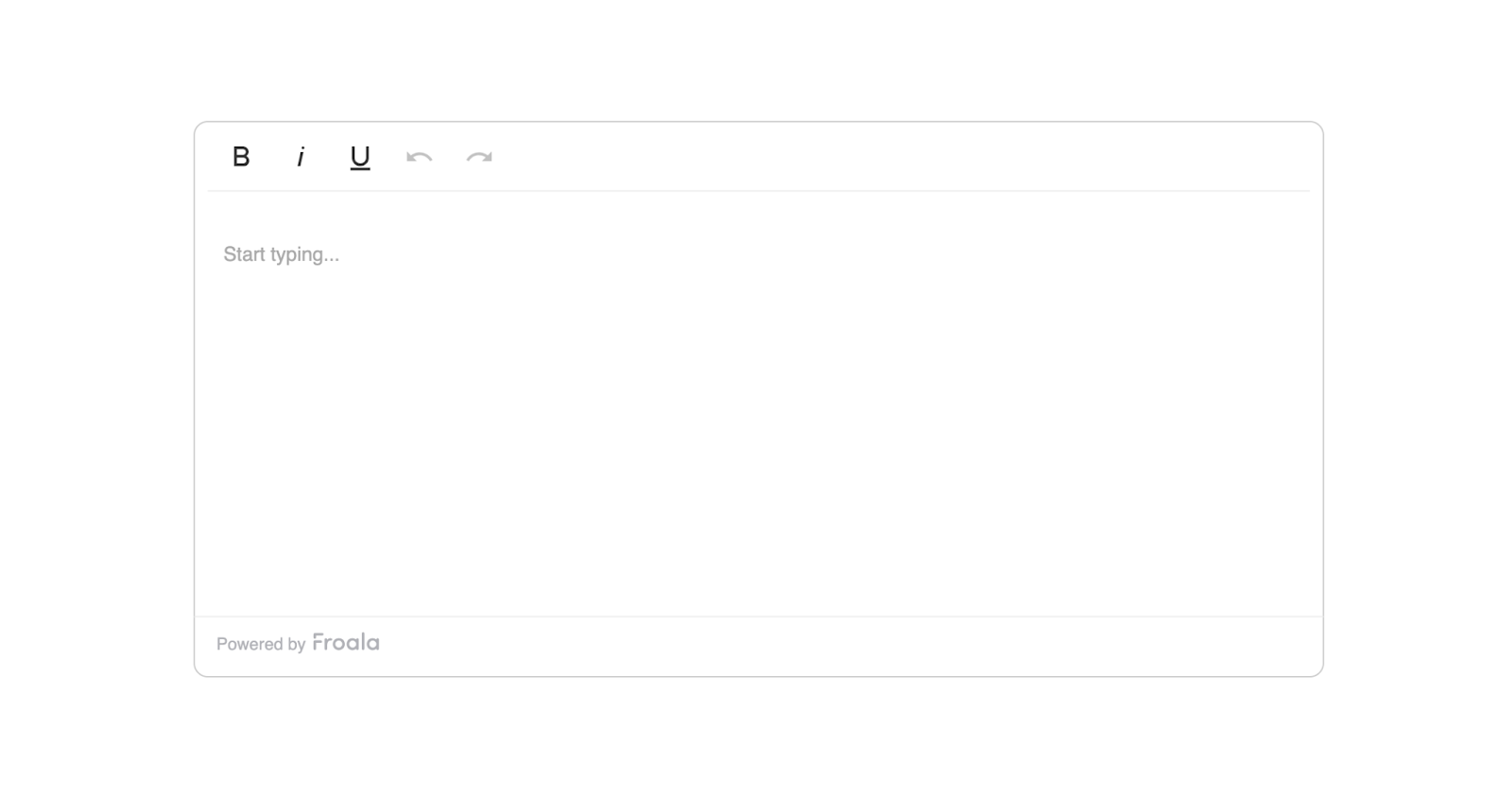
Hereโ€™s what it will look like:

froala editor

Now that you have the editor set up, letโ€™s look at different patterns to manage its state without hurting performance.

Pattern 1: Using Refs with Uncontrolled Editors (Simplest Approach)

The easiest way to work with a WYSIWYG editor in React is to treat it as an uncontrolled component.

Instead of syncing every keystroke with React, you just use a ref to access the content whenever you need it.

Create a new fileย src/components/LessonEditor.jsxย and add the following code inside it:


import React, { useRef, useState } from "react";
import FroalaEditorComponent from "react-froala-wysiwyg";

function LessonEditor() {
  const editorRef = useRef(null);
  const [isSaving, setIsSaving] = useState(false);

  const handleSave = async () => {
    // Get content only when needed
    const content = editorRef.current?.editor?.html?.get();
    setIsSaving(true);
    try {
      await saveToDatabase(content);
      alert("Lesson saved successfully!");
    } catch (error) {
      alert("Error saving lesson");
    }
    setIsSaving(false);
  };

  return (
    <div>
      <h2>Create Your Lesson</h2>
      <FroalaEditorComponent
        ref={editorRef}
        tag="textarea"
        config={{
          placeholderText: "Start writing your lesson content...",
          height: 400,
          width: 900,
        }}
      />
      <button
        onClick={handleSave}
        disabled={isSaving}
        style={{
          marginTop: "10px",
          padding: "10px 20px",
          fontSize: "16px",
          cursor: "pointer",
          backgroundColor: "#3c55c4ff",
          color: "white",
          border: "none",
          borderRadius: "5px",
        }}
      >
        {isSaving ? "Saving..." : "Save Lesson"}
      </button>
    </div>
  );
}

export default LessonEditor;


What this code does:

  • useRefย creates a reference to the editor so you can read its content whenever you want.
  • Reactย does notย try to manage the editorโ€™s internal state; the editor handles everything itself.
  • When the user clicksย Save, we grab the content using the ref and send it to the database.
  • While saving, the button showsย Savingโ€ฆย so the user knows something is happening.
  • This approach keeps typing smooth and removes the lag caused by constant re-renders.

Now import it wherever you want to show the editor:


import LessonEditor from './components/LessonEditor';

function App() {
  return <LessonEditor />;
}


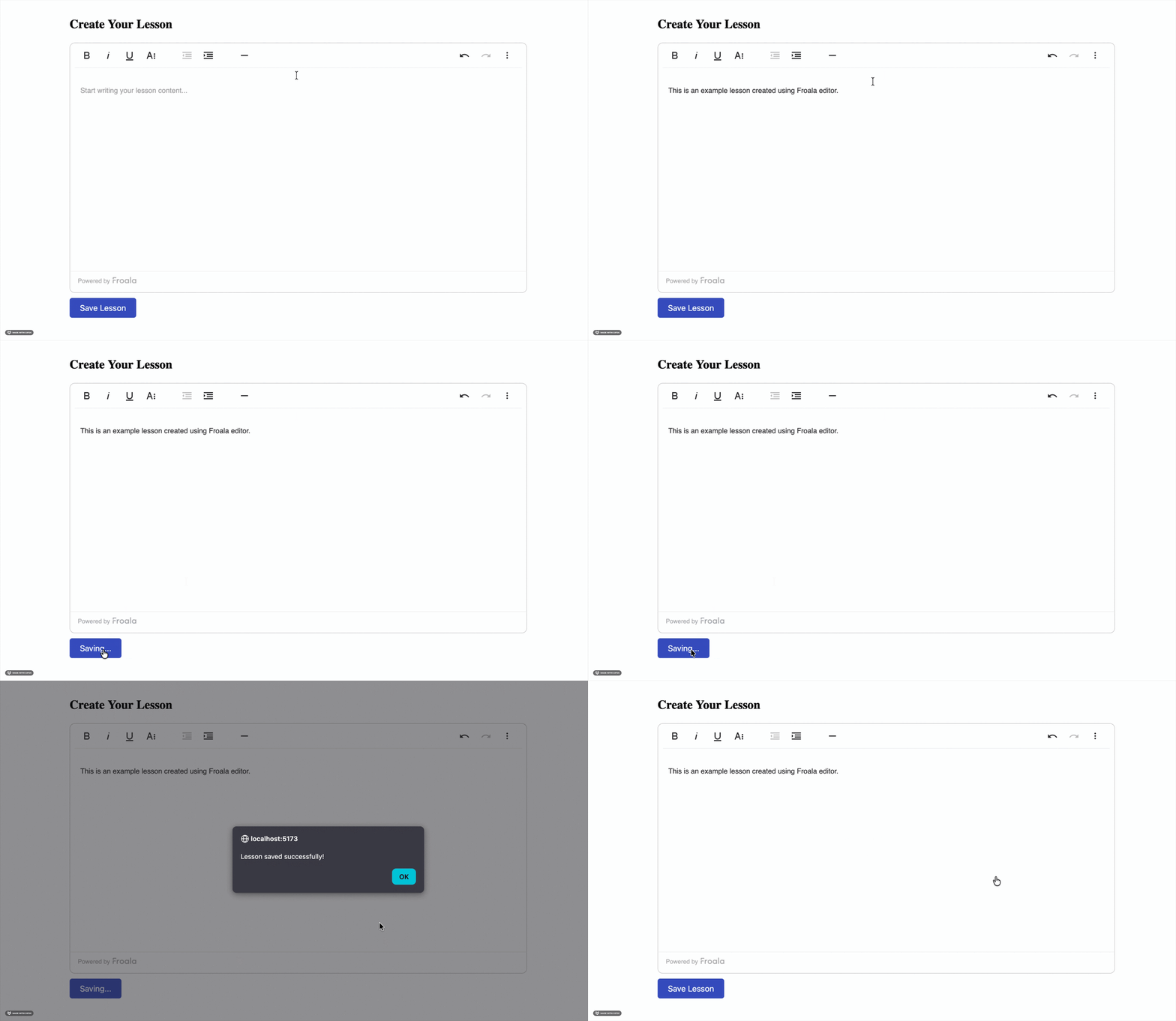
froala editor create lesson demo

Why this works:ย The editor keeps its own internal state, including cursor position, formatting, and undo history. Since React isnโ€™t watching every keystroke, nothing slows down. You only read the content when needed (like saving), which keeps your LMS fast and smooth.

This pattern works perfectly when you have a single editor. But what if your LMS page has multiple editors, like quizzes or modules? Thatโ€™s where Pattern 2 comes in.

Pattern 2: Lazy Initialisation with onClick

When you’re building LMS features, you might have multiple editors on the same page, like quiz questions, explanations, hints, etc.

Loading all editors at once can slow everything down.

A simple fix is to initialise the editor only when the user clicks on it.

This keeps your page fast and avoids unnecessary memory usage.

Create a new fileย src/components/QuizQuestionEditor.jsxย and add the following code inside it:


import React, { useState, useRef } from "react";
import FroalaEditor from "react-froala-wysiwyg";

function QuizQuestionEditor() {
  const [editorActive, setEditorActive] = useState(false);
  const editorRef = useRef(null);
  const [initialContent] = useState("");

  const activateEditor = () => {
    setEditorActive(true);
  };

  const handleSubmit = () => {
    if (editorRef.current) {
      const content = editorRef.current.editor.html.get();
      console.log("Question content:", content);
      // Submit to your backend
    }
  };

  return (
    <div>
      <h2>Quiz Question</h2>
      {!editorActive ? (
        <div
          onClick={activateEditor}
          style={{
            border: "1px solid #ccc",
            padding: "20px",
            borderRadius: "4px",
            cursor: "pointer",
            backgroundColor: "#f9f9f9",
          }}
        >
          Click to start writing your question...
        </div>
      ) : (
        <FroalaEditor
          ref={editorRef}
          tag="textarea"
          model={initialContent}
          config={{
            placeholderText: "Enter your quiz question here...",
            height: 400,
            width: 900,
          }}
        />
      )}
      <button
        onClick={handleSubmit}
        style={{
          marginTop: "10px",
          padding: "10px 20px",
          fontSize: "16px",
          cursor: "pointer",
          backgroundColor: "#3c55c4ff",
          color: "white",
          border: "none",
          borderRadius: "5px",
        }}
      >
        Submit Question
      </button>
    </div>
  );
}

export default QuizQuestionEditor;


What this code does:

  • The editor doesn’t load immediately. Instead, you show a placeholder box:ย โ€œClick to start writing your questionโ€ฆโ€
  • When the user clicks,ย editorActiveย becomesย true, and the editor finally loads.
  • The editorโ€™s content is accessed using a ref whenever you submit the question.
  • This avoids loading multiple heavy editors at once and is great for quiz creation pages.

Now import it wherever you want to show the editor:


importย QuizQuestionEditorย fromย './components/QuizQuestionEditor';

functionย App() {
returnย <QuizQuestionEditorย />;
}


Lazy loading of a Froala editor when the user clicks an input area

Benefits of this approach:

  • Faster initial page load.
  • Reduced memory usage (because editors load only when needed).
  • Better user experience when working with forms that contain multiple editors.

Lazy loading helps when you have many editors, but what if you also need autosave? Thatโ€™s where Pattern 3 comes in.

Pattern 3: Debounced Updates with Context API

Sometimes youย doย need the editorโ€™s content inside your app state, like when you want autosave.

But updating the state onย every keystrokeย will slow things down immediately.

A simple fix is to useย debouncing: wait a short time after the user stops typing before updating the state.

Create a new fileย src/components/AutoSaveEditor.jsxย and add the following code inside it:


import React, { useState, useRef } from "react";
import FroalaEditor from "react-froala-wysiwyg";

function QuizQuestionEditor() {
  const [editorActive, setEditorActive] = useState(false);
  const editorRef = useRef(null);
  const [initialContent] = useState("");

  const activateEditor = () => {
    setEditorActive(true);
  };

  const handleSubmit = () => {
    if (editorRef.current) {
      const content = editorRef.current.editor.html.get();
      console.log("Question content:", content);
      // Submit to your backend
    }
  };

  return (
    <div>
      <h2>Quiz Question</h2>
      {!editorActive ? (
        <div
          onClick={activateEditor}
          style={{
            border: "1px solid #ccc",
            padding: "20px",
            borderRadius: "4px",
            cursor: "pointer",
            backgroundColor: "#f9f9f9",
          }}
        >
          Click to start writing your question...
        </div>
      ) : (
        <FroalaEditor
          ref={editorRef}
          tag="textarea"
          model={initialContent}
          config={{
            placeholderText: "Enter your quiz question here...",
            height: 400,
            width: 900,
          }}
        />
      )}
      <button
        onClick={handleSubmit}
        style={{
          marginTop: "10px",
          padding: "10px 20px",
          fontSize: "16px",
          cursor: "pointer",
          backgroundColor: "#3c55c4ff",
          color: "white",
          border: "none",
          borderRadius: "5px",
        }}
      >
        Submit Question
      </button>
    </div>
  );
}

export default QuizQuestionEditor;


What this code does:

  • The editor fires aย contentChangedย event every time the user types.
  • But instead of updating the state instantly, we debounce it usingย setTimeout.
  • If the user keeps typing, the timer resets.
  • When they stop typing for 2 seconds, then:
  • The content is saved into global state (LessonContext)
  • The autosave request is sent to the backend
  • A small message shows when the lesson was last saved.

Now, wrap your app in theย LessonProvider:


import { LessonProvider, AutoSaveEditor } from './components/AutoSaveEditor';

function App() {
  return (
    <LessonProvider>
      <AutoSaveEditor />
    </LessonProvider>
  );
}


Froala editor with an autosave message showing the last saved time

Key points:

  • We debounce editor changes to avoid constant state updates.
  • Autosave feels fast but never slows down typing.
  • Using Context lets other components read the lesson content too.
  • Perfect for LMS dashboards with autosave, drafts, and live editing.

No matter which pattern you use, a few best practices can save you from unexpected performance issues.

Best Practices

Here are a few simple guidelines to keep your WYSIWYG editors fast, clean, and easy to manage in React, especially when you’re building LMS features.

  1. Initialise on demand: Donโ€™t load the editor until the user actually needs it. This really helps when you have multiple editors on a single page.
  2. Use refs for content access: Instead of making the editor fully controlled, use refs to access the content only when you need it.
  3. Add debouncing for state updates:ย If youโ€™re syncing editor content with state (like autosave), debounce it by 1โ€“2 seconds so youโ€™re not updating constantly.
  4. Keep editor state separate: Avoid mixing editor HTML with other UI state. Keep it separate from things like loading flags, filters, or user preferences.
  5. Clean up when the component unmounts: Always clear timers, intervals, or event listeners to avoid memory leaks.

And of course, there are a few easy mistakes that can undo all this good work. So now look at what to avoid.

Common Pitfalls

These are the mistakes that usually cause WYSIWYG editors to lag, re-render too much, or behave unpredictably in React. Avoiding them will make your editor setup much smoother.

  1. Making the editor fully controlled: Avoid using aย valueย prop that updates on every change. This forces React to re-render constantly, causing cursor jumps and laggy typing.
  2. Storing HTML in a frequently updated state: Donโ€™t mix editor content with state that updates often (like loading flags, validation, or UI filters). It leads to unnecessary re-renders.
  3. Not debouncing autosave: Saving to the backend on every character typed will crush your server and slow down the editor.
  4. Initialising too early: Loading all editors as soon as the page mounts wastes memory. Use lazy initialisation so the editor loads only when needed.
  5. Forgetting to clean up: Forgetting to clear timeouts, intervals, or listeners can cause memory leaks, especially in single-page applications like React apps.

Conclusion

Managing WYSIWYG editors in React doesnโ€™t have to be difficult. The main thing to remember is that these editors already handle a lot of their own internal state. When we try to control every update through React, things slow down, and typing becomes laggy.

By keeping the editor uncontrolled, using refs to read content, debouncing updates, and loading the editor only when needed, you can build fast, smooth LMS features without the usual headaches.

Start with the simplest pattern that fits your use case. You can always add more advanced logic later as your app grows. Just keep in mind: you donโ€™t need to over-optimise too early, but planning for performance from the beginning simply helps you avoid issues later.

Resources for Further Reading

What Makes a WYSIWYG Editor Developer-Friendly?

Developer-friendly WYSIWYG editor illustration showing clean HTML output, customization, and extensible editor components

A WYSIWYG editor lets users create content visually instead of writing raw HTML. What you see is what you get. On the surface, most editors look the same. A toolbar. A text area. Some formatting buttons.

But once you start integrating one into a real product, the differences show up fast. Some editors fight your codebase. Others generate messy HTML, slow down your app, or limit how much control you have. Thatโ€™s when โ€œeasy to useโ€ stops mattering, and โ€œeasy to work withโ€ becomes the real priority.

So what actually makes a WYSIWYG editor developer-friendly?

Itโ€™s not about flashy features or long toolbars. Itโ€™s about clean output, predictable behavior, performance, and flexibility. Itโ€™s about whether the editor fits into your stack without friction.

In this article, youโ€™ll break down the key traits that matter most to developers, and how to evaluate a WYSIWYG editor with long-term maintainability in mind.

Key takeaways

  • A developer-friendly WYSIWYG editor is easy to integrate and doesnโ€™t disrupt your existing stack.
  • Clean, predictable HTML output reduces long-term maintenance and styling issues.
  • Customization should be possible without forking or rewriting core editor code.
  • Lightweight performance matters for both user experience and Core Web Vitals.
  • Strong APIs, security controls, and good documentation make an editor easier to maintain as your product grows.

What does โ€œdeveloper-friendlyโ€ really mean?

A developer-friendly WYSIWYG editor doesnโ€™t slow you down. It fits into your existing stack without forcing workarounds or hacks. Setup feels straightforward, not fragile.

You get predictable behavior. The editor does what it promises and produces consistent results. You donโ€™t have to guess how it will behave in different browsers or environments.

Flexibility matters just as much. You can customize features, control output, and adapt the editor to your productโ€™s needs. It works with you, not against you.

Most importantly, it stays out of your way. A truly developer-friendly WYSIWYG editor lets you focus on building your product instead of fighting the editor itself.

Clean & predictable HTML output

HTML output is where many WYSIWYG editors fail developers. What looks fine in the editor can turn into bloated, inconsistent markup behind the scenes. That mess shows up later as styling bugs, broken layouts, or painful cleanup work.

A developer-friendly WYSIWYG editor produces clean, semantic HTML. Tags are predictable. Structure stays consistent. You donโ€™t have to inspect every block just to understand what was generated.

This matters long term. Clean HTML is easier to style, safer to store, and simpler to maintain. It also reduces security risks and improves performance across your app.

When an HTML WYSIWYG editor gives you control over output, your codebase stays healthy. You spend less time fixing content issues and more time shipping features that actually matter.

Customization without forking the editor

Every product has different content needs. A developer-friendly WYSIWYG editor lets you adapt those needs without rewriting the editor itself. You should be able to customize behavior, not fight defaults.

Toolbar configuration is a good starting point. You decide which buttons exist and which features stay hidden. Users see only what they need, and nothing more.

Extensibility matters even more. A solid plugin system lets you add custom buttons, commands, and workflows. You can enable or disable rich text editor features without touching core code.

When customization is built in, you avoid forks. Updates stay simple. Your editor evolves with your product instead of becoming technical debt.

Lightweight performance & fast load times

Performance matters more than it looks. A heavy editor can slow down page loads and hurt Core Web Vitals before users even start typing. Thatโ€™s a problem, especially in content-heavy apps.

A lightweight WYSIWYG editor keeps bundle size under control. You load only what you need, not an entire feature set by default. This makes a big difference for web-based WYSIWYG editors running in modern frontend stacks.

Fast load times also improve the developer experience. You spend less time optimizing around the editor and more time building features. Lazy loading and modular builds help keep things efficient.

When an editor respects performance, it fits naturally into your app. It feels fast, responsive, and invisible, in the best way.

Strong API & extensibility

A polished UI is nice, but APIs are what developers rely on. A developer-friendly WYSIWYG editor gives you a clear, well-documented API to control behavior programmatically. You shouldnโ€™t be limited to default actions.

Events, hooks, and callbacks make the editor predictable and flexible. You can listen for changes, intercept actions, or trigger custom logic when content updates. This is where real integration happens.

Extensibility also matters when your editor connects to other systems. File uploads, media libraries, CMS platforms, and workflows should plug in cleanly. A strong WYSIWYG editor API keeps everything connected without fragile hacks.

When extensibility is built into the core, the editor grows with your product. You stay in control as requirements evolve.

Framework & ecosystem compatibility

Modern apps donโ€™t live in isolation. Youโ€™re likely working with React, Vue, Angular, or a mix of frameworks. A developer-friendly WYSIWYG editor fits into these environments without friction.

Framework-agnostic support matters. You should be able to use the same editor across projects, even as your tech stack evolves. Tight coupling to a single framework creates long-term limits.

Integration should feel natural. Clear examples, predictable lifecycle handling, and clean state management make the editor easier to work with. This is especially important for frontend WYSIWYG editors embedded deep in complex apps.

When an editor respects your ecosystem, it becomes a reliable building block, not a special case you have to manage forever.

Security & content control

Rich text content can be risky if you donโ€™t control it. A WYSIWYG editor that allows unsafe markup can open the door to XSS attacks and data exposure. That risk grows as more users create content.

A developer-friendly WYSIWYG editor helps you stay in control. You can define allowed tags, sanitize output, and restrict what users are permitted to do. Security should be configurable, not bolted on later.

Content control matters too. Different users need different permissions. Editors should respect roles, limits, and workflows without custom patches.

When security is built into the editor, you protect both your users and your application. You also avoid last-minute fixes that slow development and create technical debt.

Documentation & developer experience (DX)

Good documentation saves hours of guesswork. A developer-friendly WYSIWYG editor explains how things work, not just what buttons exist. Setup steps should be clear from the first read.

Real examples make a big difference. You want to see how the editor behaves in real projects, not just isolated snippets. Clear API references help you move faster and avoid mistakes.

Developer experience also depends on maintenance. Regular updates, clear changelogs, and active support build trust over time. You know the editor wonโ€™t become a liability later.

When documentation is solid, the editor feels reliable. You spend less time searching for answers and more time building with confidence.

Choosing the right WYSIWYG editor for your project

There is no single WYSIWYG editor that fits every product. The right choice depends on how your app works and what your users actually need. Features alone shouldnโ€™t drive the decision.

Start with your use case. Consider content complexity, performance expectations, and how much control you need over output. Think about integrations, security requirements, and long-term maintenance.

Popularity can be misleading. An editor that looks powerful may create friction once you start customizing it. A developer-friendly WYSIWYG editor supports your workflow instead of dictating it.

When you evaluate editors through a developer lens, the right option becomes clearer. You choose a tool that grows with your product, not one you have to replace later.

Conclusion

A developer-friendly WYSIWYG editor is not defined by how many features it offers. Itโ€™s defined by how well it fits into your workflow. Clean output, strong APIs, performance, and control matter more than flashy tools.

When an editor respects your stack, security needs, and long-term goals, it becomes an asset instead of a burden. You spend less time fixing issues and more time building your product.

As you evaluate your options, focus on maintainability and flexibility. The right editor should support your growth todayโ€”and still make sense months or years down the line.

FAQs

What makes a WYSIWYG editor developer-friendly?

A developer-friendly WYSIWYG editor is easy to integrate, produces clean HTML, and offers strong customization options. It gives you control over output, performance, and security without forcing workarounds or forks.

Why does HTML output matter in a WYSIWYG editor?

Messy or inconsistent HTML creates long-term problems. Clean, predictable output makes styling easier, improves performance, and reduces security risks in content-driven applications.

Should developers prioritize features or flexibility when choosing a WYSIWYG editor?

Flexibility should come first. A rich feature set means little if the editor is hard to customize or maintain. Developers benefit more from extensibility, strong APIs, and predictable behavior than from extra buttons.

10 Best WYSIWYG Editors for Web Developers in 2026

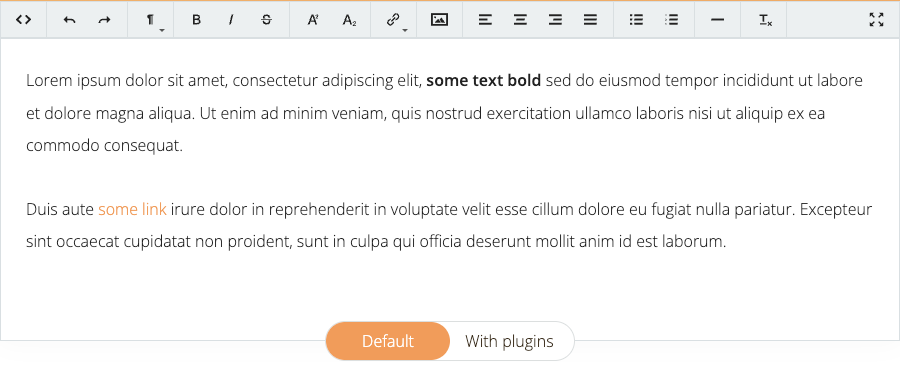
Illustration showing modern WYSIWYG editors and code interfaces used by web developers to create and edit rich content

Modern web applications rely on rich content experiences. From dashboards to CMS platforms, you need tools to make content creation fast and reliable. Thatโ€™s where the best WYSIWYG editors continue to play a key role in 2026.

WYSIWYG editors have transformed the way you create and edit content by showing you what you will get while working. They still produce clean HTML behind the scenes. For developers like you, this means fewer formatting issues, faster workflows, and better user experiences. For teams, it reduces friction between content creators and code.

In this guide, youโ€™ll find a practical WYSIWYG editor comparison covering the tools web developers use most today. You can explore how they differ, what theyโ€™re best suited for, and how to choose the right one for your project.

Key takeaways

  • The best WYSIWYG editors help you build rich content experiences faster without writing raw HTML. They reduce formatting errors and improve consistency across applications.
  • Not all WYSIWYG editors work the same way. Some focus on simplicity, while others offer deep customization, structured content models, or headless architectures.
  • Modern WYSIWYG editors integrate smoothly with frameworks like React, Vue, and Angular. This makes them suitable for component-driven and scalable web apps.
  • Open-source and commercial editors both have strengths. Your choice depends on support needs, maintenance effort, and long-term project goals.
  • The right editor is the one that fits your use case. Always evaluate based on your stack, users, and how much control you need over content.

What is a WYSIWYG editor?

A WYSIWYG editor, short for What You See Is What You Get, allows you to create content in a visual interface. It automatically generates the underlying HTML. Instead of writing raw markup, you can format text, add images, and structure content the same way it will appear on the page.

This is different from plain text or code editors where you need to change HTML and CSS manually. A WYSIWYG text editor removes that complexity and reduces formatting errors.

Today, WYSIWYG editors are widely used in content management systems, web apps, form builders, and any interface where non-technical users need to create structured content.

Why web developers still use WYSIWYG editors in 2026

Web developers still rely on WYSIWYG editors because they speed up content creation without sacrificing control. Your teams can build rich content experiences quickly while avoiding repetitive HTML work. This is especially valuable in content-heavy applications.

You can integrate modern WYSIWYG smoothly with frameworks like React, Vue, and Angular. They support modular architectures and custom configurations. This makes them suitable for todayโ€™s component-driven development.

Accessibility and collaboration also matter more than ever. A visual editor allows designers, marketers, and developers to work together efficiently while maintaining consistent, structured output.

How we evaluated the best WYSIWYG editors

To create a fair WYSIWYG editor comparison, each tool was evaluated using the same criteria. We looked at core editing features such as formatting options, media handling, and plugin support. These basics determine how flexible an editor is in real projects.

Framework compatibility was also important. Editors that integrate well with React, Vue, Angular, or plain JavaScript scored higher for modern workflows. We also considered customization options, bundle size, and performance.

Finally, we reviewed documentation quality, community support, and licensing models. This helps developers understand long-term maintenance and adoption costs.

10 best WYSIWYG editors for web developers in 2026

Here is my list of 10 best WYSIWYG editors for web developers in 2026. You can explore their key features, use cases, support for integration with different frameworks and pros & cons below:

1. Froala Editor

Froala HTML WYSIWYG editor screenshot

Froala is a modern and versatile HTML WYSIWYG editor designed with developers in mind. It focuses on clean output, performance, and flexibility rather than overwhelming users with unnecessary features. The editor produces well-structured HTML that works reliably across applications.

Key features include rich text formatting, media handling, extensible plugins, and strong security controls. It is lightweight, which helps keep bundle sizes small and load times fast.

  • Best for: content-heavy web apps and SaaS platforms.
  • Framework support: React, Vue, Angular, and plain JavaScript.
  • Pros: fast, clean output, highly customizable.
  • Cons: commercial licensing required.

2. TinyMCE

TinyMCE WYSIWYG editor

TinyMCE is one of the most widely used WYSIWYG editors on the web. It offers a familiar editing experience and a large ecosystem of plugins. Many developers recognize it from CMS platforms and enterprise applications.

Key features include extensive formatting tools, media embedding, and advanced plugin support. The editor is highly configurable, but heavier setups may require careful optimization.

  • Best for: enterprise content platforms and CMS-driven sites.
  • Framework support: React, Vue, Angular, and vanilla JavaScript.
  • Pros: mature ecosystem, strong documentation.
  • Cons: larger bundle size and premium features behind paid plans.

3. CKEditor

CKEditor - rich text editor

CKEditor is a powerful WYSIWYG editor known for its structured content model. It is often used in large-scale applications where consistency and control matter. The editor emphasizes clean markup and predictable behavior.

Key features include modular plugins, collaborative editing options, and strong content filtering. CKEditor is highly extensible, but setup can be more complex compared to lightweight editors.

  • Best for: enterprise apps and collaborative editing workflows.
  • Framework support: React, Vue, Angular, and plain JavaScript.
  • Pros: structured output, advanced collaboration features.
  • Cons: steeper learning curve and licensing considerations.

4. Quill

Quill - a lightweight, open-source WYSIWYG editor

Quill is a lightweight, open-source WYSIWYG editor built with a modern API. It focuses on simplicity and gives developers fine-grained control over content behavior. The editor uses a structured document model rather than raw HTML.

Key features include a clean core, customizable modules, and a powerful delta-based data format. Quill does not try to handle every use case out of the box, which keeps it flexible and fast.

  • Best for: custom editors and developer-driven interfaces.
  • Framework support: JavaScript, React, Vue, and Angular wrappers.
  • Pros: lightweight, open source, flexible API.
  • Cons: limited built-in UI features without customization.

5. Summernote

Summernote - open-source WYSIWYG editor

Summernote is a simple, open-source WYSIWYG editor designed for quick integration. It offers a clean interface that feels familiar to users who need basic rich text editing. The setup is straightforward and works well for smaller projects.

Key features include standard formatting tools, image uploads, and drag-and-drop support. Summernote is built on jQuery, which makes it easy to add to legacy systems but less ideal for modern frameworks.

  • Best for: small websites and legacy applications.
  • Framework support: jQuery-based environments.
  • Pros: easy setup, lightweight, open source.
  • Cons: limited modern framework support and extensibility.

6. TipTap

TipTap - a headless WYSIWYG editor

TipTap is a headless WYSIWYG editor built on top of ProseMirror. It gives developers full control over the UI while handling complex editing logic under the hood. This makes it a strong fit for highly customized interfaces.

Key features include a flexible extension system, collaborative editing support, and a schema-driven content model. Because it is headless, most of the visual layer must be built manually.

  • Best for: custom-rich editors and design-heavy applications.
  • Framework support: React, Vue, and vanilla JavaScript.
  • Pros: extremely flexible, modern architecture.
  • Cons: requires more development effort to implement.

7. Slate

Slate - highly customizable WYSIWYG editor framework

Slate is a highly customizable WYSIWYG editor framework built specifically for React. It gives developers full control over how content is structured, rendered, and edited. Slate acts more like a toolkit than a ready-made editor.

Key features include a flexible document model, React-first architecture, and complete control over editor behavior. This makes it possible to build unique editing experiences that go far beyond standard text formatting.

  • Best for: advanced, React-based custom editors.
  • Framework support: React only.
  • Pros: extremely flexible, full control over content logic.
  • Cons: requires significant setup and implementation effort.

8. Trumbowyg

Trumbowyg - open-source WYSIWYG editor

Trumbowyg is a minimal, open-source WYSIWYG editor focused on speed and simplicity. It avoids complex features in favor of a clean editing experience. This keeps the editor lightweight and easy to understand.

Key features include basic formatting tools, plugin extensions, and fast initialization. Trumbowyg is jQuery-based, which makes it suitable for older projects but less aligned with modern frameworks.

  • Best for: simple editing needs and lightweight projects.
  • Framework support: jQuery-based environments.
  • Pros: very lightweight, easy to integrate.
  • Cons: limited advanced features and modern framework support.

9. Editor.js

Editor.js free and open-source block-based WYSIWYG editor

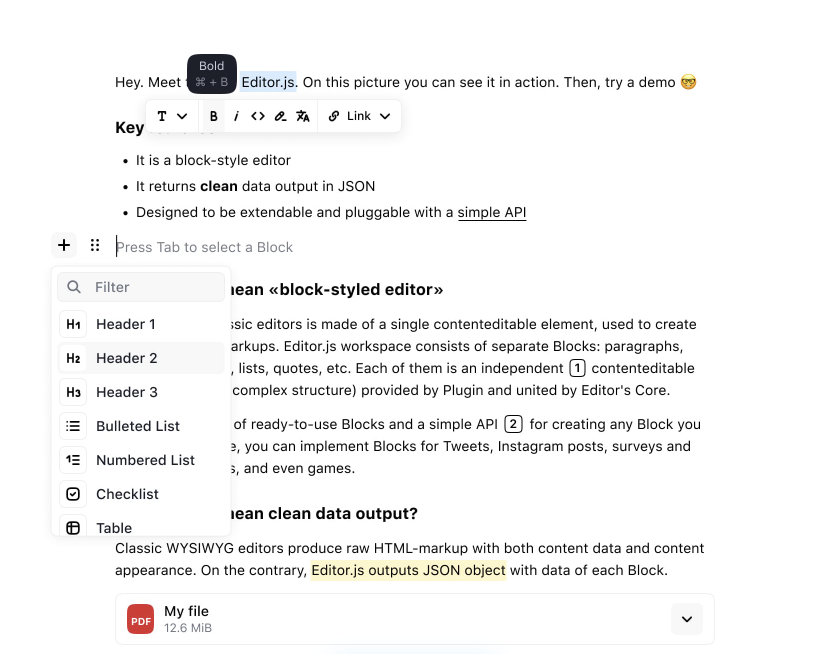
Editor.js is a free and open-source block-based WYSIWYG editor. It takes a different approach to content creation. Instead of editing free-flowing text, users build content using structured blocks like paragraphs, images, lists, and embeds. This makes content more predictable and reusable.

Key features include JSON-based output, modular block plugins, and clean separation between content and presentation. Editor.js focuses on data structure rather than visual styling.

  • Best for: content-driven apps and headless CMS setups.
  • Framework support: JavaScript with wrappers for React and Vue.
  • Pros: structured output, modern block-based editing.
  • Cons: limited traditional rich text formatting.

10. MediumEditor

MediumEditor inline WYSIWYG editor

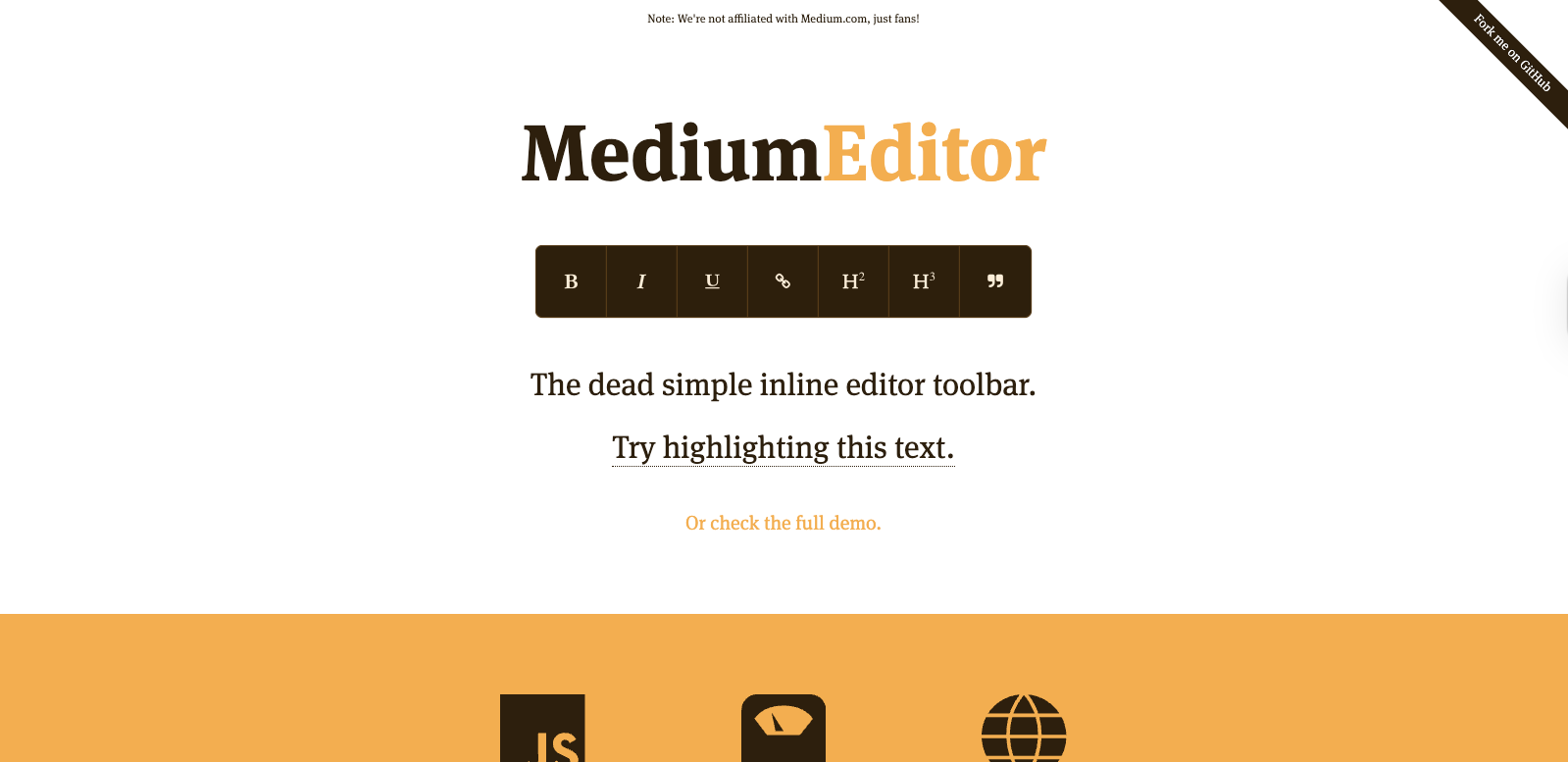
MediumEditor is a lightweight, inline WYSIWYG editor inspired by the editing experience on Medium. It focuses on simplicity and keeps the interface almost invisible while users write. The goal is to make content creation feel natural and distraction-free.

Key features include inline editing, basic formatting options, and minimal configuration. MediumEditor does not try to handle complex layouts or advanced content structures.

  • Best for: simple text editing and inline content experiences.
  • Framework support: plain JavaScript with community wrappers.
  • Pros: clean UX, very lightweight.
  • Cons: limited features and not ideal for complex editing needs.

Quick comparison table

The table below offers a high-level WYSIWYG editor comparison to help you spot key differences at a glance. It highlights licensing models, framework support, customization levels, and common use cases. Use this overview as a starting point before exploring each editor in detail and testing them within your own development environment.

Editor Open-source / Commercial Framework support Customization level Ideal use case
Froala Editor Commercial React, Vue, Angular, JS High Content-heavy web apps
TinyMCE Hybrid React, Vue, Angular, JS High CMS and enterprise platforms
CKEditor Hybrid React, Vue, Angular, JS High Structured enterprise content
Quill Open source JS, React, Vue Medium Custom lightweight editors
Summernote Open source jQuery Lowโ€“Medium Small or legacy projects
TipTap Open core React, Vue, JS Very high Custom editor experiences
Slate Open source React Very high Advanced React-based editors
Trumbowyg Open source jQuery Low Simple editing needs
Editor.js Open source JS, React, Vue Medium Block-based content systems
MediumEditor Open source JavaScript Low Inline text editing

Conclusion

There is no single editor that fits every project or team. Each option in this list serves a different purpose, depending on how much control, structure, and flexibility you need. The best choice depends on your application, your users, and your long-term maintenance goals.

Before committing, itโ€™s worth testing a few editors in real scenarios. Look at how they integrate with your stack, how they handle content, and how easy they are to extend. A thoughtful evaluation will help you choose a WYSIWYG editor that supports both your current needs and future growth.

FAQs

What is the best WYSIWYG editor for web developers?

There is no universal best option. The right WYSIWYG editor depends on your project requirements, framework, and level of customization needed. Some editors focus on simplicity, while others are built for complex, structured content.

Are open-source WYSIWYG editors good enough for production use?

Yes, many open-source WYSIWYG editors are production-ready. However, they may require more customization and maintenance compared to commercial tools. Support, updates, and long-term stability should be considered.

Can WYSIWYG editors be used with modern JavaScript frameworks?

Most modern WYSIWYG editors support frameworks like React, Vue, and Angular. Some are framework-specific, while others offer wrappers or SDKs. Always check integration options before choosing an editor.

Froala V5.0.0 Release: Code Snippets, Word Imports, and More

Froala V5.0.0

Froala V5.0.0 introduces two major features: code snippet insertion with syntax highlighting, and direct Word document import with formatting preserved. This release also includes table handling improvements and updated styling defaults.

Code Snippet Feature Overview

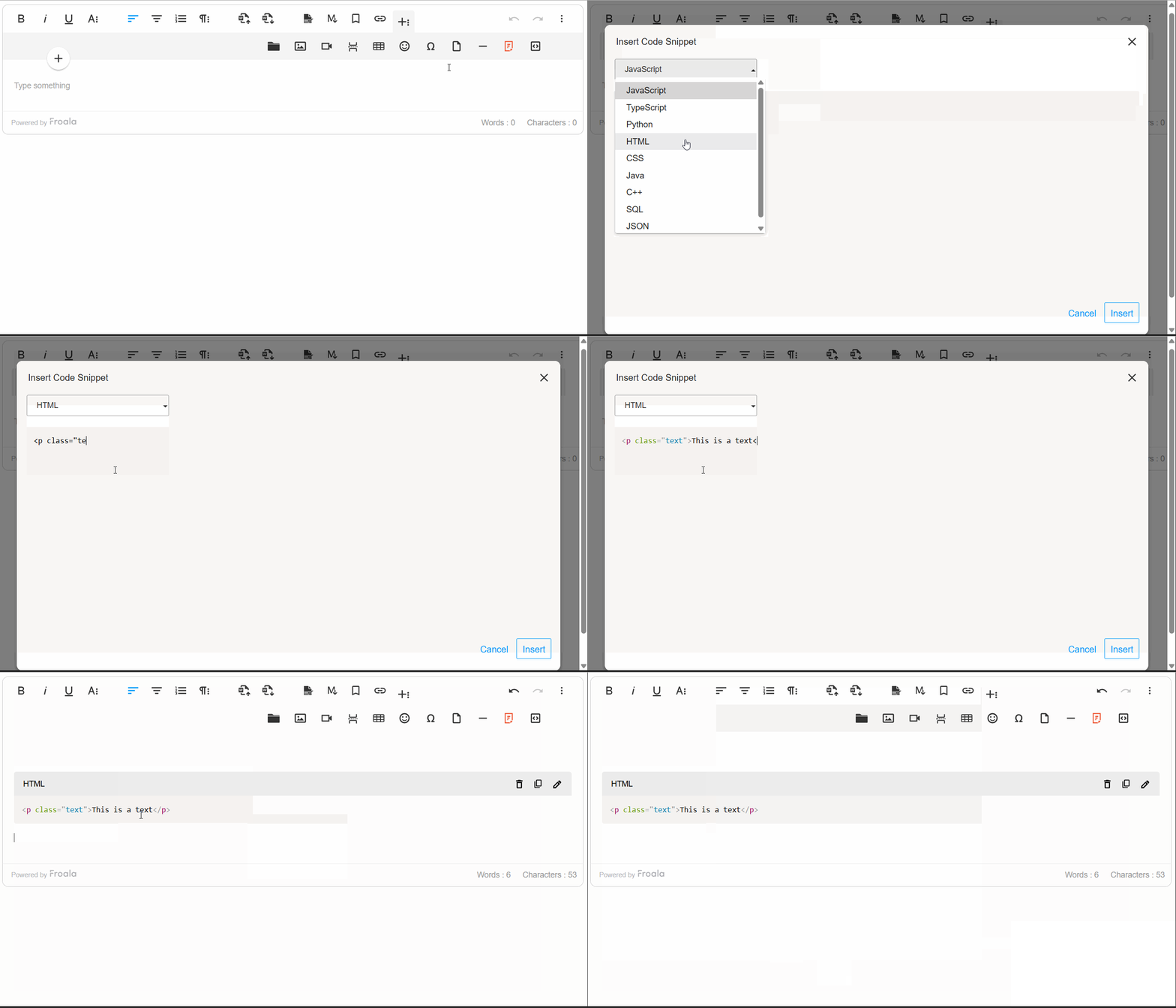
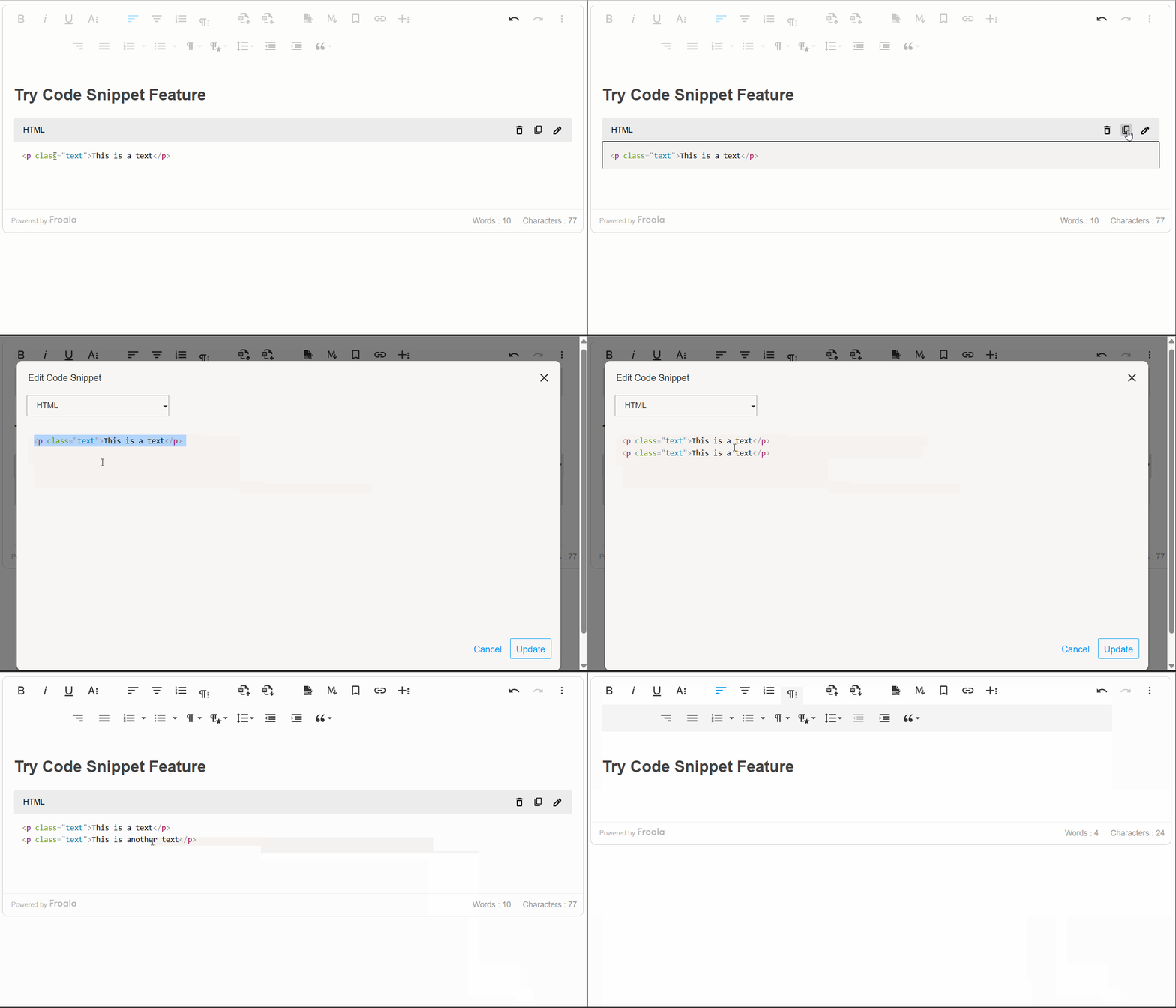
The Code Snippet plugin adds syntax-highlighted code blocks to your editor. Supports JavaScript, Python, HTML, CSS, TypeScript, Java, C++, SQL, and JSON. Works across Chrome, Firefox, Edge, and Safari.

code snippet insertion

Inserting Code Snippets

Click the “Insert Code Snippet” button in the toolbar to open the code entry modal. Select a programming language from the dropdown and paste or write your code. Syntax highlighting applies automatically.

Code Block Rendering

Code snippets are rendered in a monospace font within styled <pre> and <code> blocks, ensuring precision and consistency. The plugin intelligently preserves indentation and line breaks, maintaining the exact formatting developers intended. By default, code blocks are read-only, protecting formatting integrity while allowing users to view and reference code effortlessly.

Edit, Remove, and Copy with Ease

Use the Code Snippet toolbar to edit, remove, or copy code blocks. The “Copy to Clipboard” button copies the code with formatting intact.

code snippet edit

Developer Control and Customization

Froala V5.0.0 provides a comprehensive set of options, methods, and events that give developers programmatic control over the code snippet feature.

The plugin configuration options allow developers to customize the code snippet feature according to their needs. Whether you want to limit available programming languages, set a default language preference, or tailor the feature to your specific workflow, these settings give you complete control over the code snippet behavior.

Additionally, there are methods for code snippet insertion, updating, and display. These methods enable you to integrate code snippet functionality seamlessly into your custom workflows and automate code block management.

Moreover, the Code Snippet plugin exposes powerful events that allow you to hook into the code insertion lifecycle. These events enable you to implement custom validation, analytics tracking, and dynamic code processingโ€”giving you fine-grained control over how code snippets are handled within your editor. By leveraging these events, you can build sophisticated workflows that align with your application’s specific requirements and user needs.

new FroalaEditor('.selector', {
  codeSnippetLanguage: {
    'JavaScript': 'javascript',
    'Python': 'python',
    'Ruby': 'ruby',
    'Go': 'go',
    'Rust': 'rust'
  },
  codeSnippetDefaultLanguage: 'Python',
  events: {
    'codeSnippet.beforeInsert': function (code) {
  
      // Add a comment to all code snippets
      return '// Auto-generated comment\n' + code;
    },
    'codeSnippet.afterInsert': function (code) { 
   
      console.log('Code snippet inserted:', code);

    }

}, function () {
  // Call the method inside the initialized event.
  this.codeSnippet.insert('console.log("Hello World");', 'JavaScript');

});

Import from MS Word Feature Overview

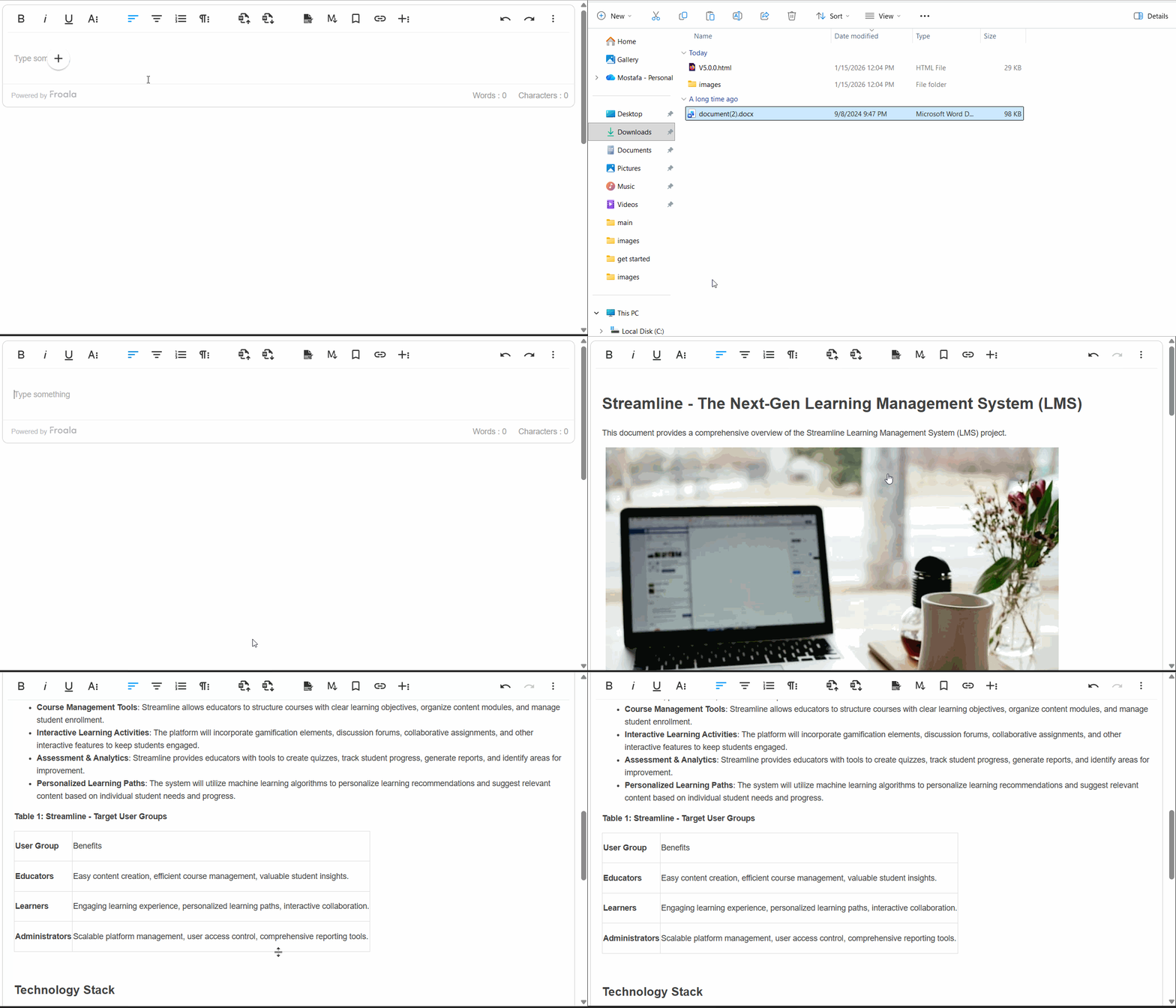
Another powerful addition to Froala V5.0.0 is the ability to seamlessly import content from Microsoft Word documents into the editor while preserving formatting, styles, and structure. This feature simplifies the transition for users who draft content in Word, ensuring compatibility and reducing the need for manual adjustments, enhancing productivity and usability across platforms.

Import from word

Why This Enhancement Matters

Content creators often work in Microsoft Word due to its familiarity and advanced formatting capabilities. However, moving that polished content into a web editor typically requires tedious manual adjustmentsโ€”reformatting text, recreating tables, repositioning images, and reapplying styles. The Import from MS Word feature solves this problem entirely, allowing users to upload Word documents and have all their work instantly available in the editor, exactly as intended.

How It Works

Importing Word documents is remarkably simple. Users click the “Import from Word” button on the toolbar, select their .doc or .docx file, and the editor handles the rest. The plugin even supports drag-and-drop importing, allowing users to simply drag Word files directly into the editor for instant importโ€”making the process as intuitive as possible.

Comprehensive Content Preservation

The Import from MS Word feature preserves virtually every element of your Word document:

Text & Formatting: All text formatting is maintained exactly as authored. Headings and paragraphs retain their structure and hierarchy, ensuring your document’s visual organization remains intact.

Lists: The plugin imports lists with complete accuracy, preserving indentation and hierarchy.

Images & Media: Embedded images imported directly into the editor.

Styling & Links: Inline styles such as font color, background color, and text highlights are preserved. Hyperlinks remain functional, allowing your content to maintain its interconnectedness.

Enterprise-Grade Performance

The plugin is engineered to handle real-world document sizes efficiently. It processes large, complex documents, importing smoothly and quickly without freezing the editor or degrading performance.

Robust Error Handling

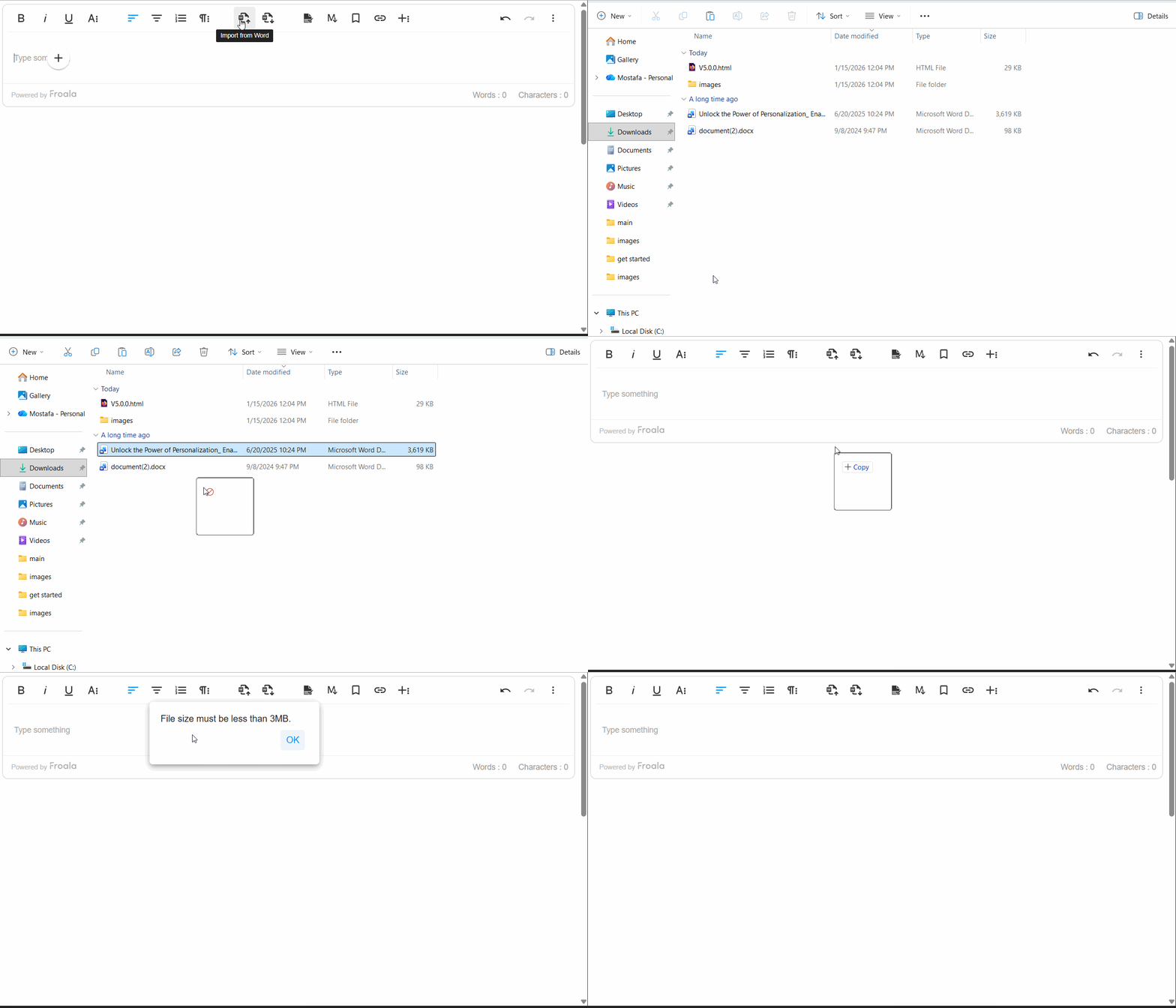
The feature includes intelligent error management. For example, if a Word file size is larger than what specified, users receive a clear, helpful error message explaining the issue.ย 

word Import error

Developer Control & Customization

Froala V5.0.0 provides developers with comprehensive control over the Import from MS Word feature through powerful configuration options, methods, and events:

Configuration Options

importFromWordMaxFileSize โ€“ Control the maximum allowed file size (default: 3 MB). Adjust this setting based on your infrastructure and user needs.

importFromWordFileTypesAllowed โ€“ Specify which Word file formats are accepted (default: [‘.docx’]). Enable support for legacy .doc files if required.

importFromWordUrlToUpload โ€“ Provide your own server endpoint for processing Word file uploads, giving you complete control over file handling and storage.

importFromWordEnableImportOnDrop โ€“ Enable or disable drag-and-drop import functionality (default: true). Disable this if you want to restrict imports to the toolbar button only.

Methods

editor.importFromWord.import() โ€“ Programmatically trigger a file selection dialog, or pass a file object directly to import without user interaction. This enables integration with custom file pickers and automation workflows.

Events

word.beforeImport โ€“ Hook into the import lifecycle before processing begins. Use this event to validate files, track analytics, or perform custom preprocessing.

word.afterImport โ€“ Trigger custom logic after import completes successfully. Implement post-import workflows, update UI elements, or notify other systems that new content has been added.

Import from MS Word Overall

The Import from MS Word feature transforms how teams collaborate and manage content. By eliminating manual reformatting, preserving document fidelity, and providing developers with extensive customization options, this enhancement makes Froala V5.0.0 an even more powerful choice for organizations relying on Microsoft Word in their content workflows. Whether you’re a content creator seeking convenience or a developer building sophisticated workflows, this feature delivers tangible value and productivity gains.

Table Enhancements

Froala V5.0.0 brings meaningful improvements to table editing and management, making it easier for content creators to work with tables while giving developers finer control over table behavior and styling.

Smarter Line Break Handling in Table Cells

Tables are essential for organizing data and content, but managing text wrapping within cells can be tricky. Froala V5.0.0 introduces the retainLineBreaksInCellsOnWrap option, which gives you control over how line breaks are handled when cell content wraps to multiple lines.

What This Means for You

By default, Froala now retains line breaks within table cells when content wraps (retainLineBreaksInCellsOnWrap: true). This is particularly useful for content creators who intentionally format their cell content with line breaks for readability and structureโ€”think of lists, multi-line labels, or formatted addresses within a table. Your carefully structured formatting is now preserved exactly as you intended.

If you prefer the behavior where line breaks are removed during wrapping, you can simply disable this feature by setting retainLineBreaksInCellsOnWrap to false. This flexibility ensures Froala adapts to your specific workflow and content requirements.

Real-World Example

Imagine you’re creating a product comparison table with detailed descriptions in each cell. You might want product features listed on separate lines within a cell for clarityโ€”without line breaks being automatically stripped, your formatting stays intact, resulting in a cleaner, more professional-looking table.

Cleaner Table Styling Defaults

Froala V5.0.0 refines how table styling defaults are applied, giving you more control and preventing unnecessary styling overhead.

What Changed

Two table styling configurations have been updated with improved defaults:

  • tableDefaultBorderWidth โ€“ Now defaults to an empty string () instead of a predefined value
  • tableDefaultBorderStyle โ€“ Now defaults to an empty string () instead of a predefined value

Why This Matters

Previously, Froala suggested default border widths and styles for new tables. While this provided a starting point, it sometimes resulted in unwanted styling being automatically appliedโ€”particularly when you wanted complete design flexibility or preferred to apply your own CSS styling.

By changing these defaults to empty strings, Froala now takes a “blank slate” approach: new tables created without enforcing any specific border styling. This means:

โœ“ More Design Freedom โ€“ You have complete control over table appearance from the start

โœ“ Cleaner HTML โ€“ Less unnecessary inline styling clutters your code

โœ“ Better CSS Integration โ€“ Tables integrate seamlessly with your site’s stylesheet without style conflicts

โœ“ Consistent Branding โ€“ Apply your own design system directly through CSS rather than fighting against defaults

For Content Creators

You’ll notice that newly created tables now appear with minimal or no visible borders by default. Don’t worryโ€”borders are easy to add! Using the table toolbar, you can quickly apply border styles that match your content needs. This approach empowers you to design tables intentionally rather than inheriting styling you didn’t ask for.

For Developers

These changes simplify table integration into custom applications. With no default border styling applied, you have complete freedom to:

  • Apply your own border styling via CSS frameworks (Bootstrap, Tailwind, etc.)
  • Maintain consistent table appearance across your application.
  • Avoid CSS specificity conflicts with default styles

If you need the old behavior where borders are suggested by default, you can easily restore it by explicitly setting these configuration options in your Froala initialization.

Result: Tables That Work the Way You Do

These table enhancements reflect Froala’s commitment to balancing powerful functionality with user control. Whether you’re preserving intentional formatting within cells or designing tables with complete styling freedom, Froala V5.0.0 adapts to your workflow rather than imposing rigid defaults. Your tables, your way.

Much Moreโ€ฆ

This release includes additional improvements and bug fixes. See the complete changelog for details.

How Can I Update?

Update to Froala WYSIWYG Editor 5.0.0 today and experience enhanced editing features and improvements.

Check our getting-started guide to know how to download the latest Froala Editor release and how to include it in your project based on your preferred method.

Try The Latest Froala Editor

Explore a variety of examples that demonstrate the functionality of the Froala HTML Editor.

Support and Feedback

We are dedicated to always offering the best possible experience for all our users. We believe this release, meant to enhance TypeScript support, is a stepping stone towards that commitment. We encourage you to try this improved TypeScript support and give us your valuable feedback. Your input is crucial for delivering continuous enhancement and meeting your evolving needs. Thank you for being a valuable part of our vibrant and growing community.We would like to hear what you think of the latest release! Join us on our GitHub Community to chat with our product manager, developers, and other members of the Froala team.

Change Log

Please visit the release notes for a complete list of changes.

Technical Questions

If you have a technical question, you can check whether we have already answered it in our help center. If not, contact our Support team.

Elevate Your Delphi Web Application with Seamless Rich Text Editing: Mastering Froala TMS Web Core Integration

logo, icon

As a Delphi developer, you know the importance of building modern, responsive web applications with a great user experience. The TMS WEB Core framework is a powerful tool for creating such apps, but what if you need a robust WYSIWYG (What-You-See-Is-What-You-Get) editor for your content management features?

No worries, the TMS WEB Core framework has a WEB Component for integrating Froala, a powerful WYSIWYG Editor, allowing Delphi web applications to seamlessly incorporate rich text editing capabilities and enhance user experience.

In this step-by-step guide, we’ll walk you through the simple process of integrating the Froala editor into your TMS WEB Core Delphi applications. By leveraging the power of Froala and the flexibility of TMS WEB Core, you can deliver a high-quality content management solution within your Delphi web projects.

Key Takeaways

  • TMS WEB Core makes modern Delphi web apps possible, and integrating a WYSIWYG editor like Froala significantly improves content editing and user experience.
  • Froala integrates seamlessly with TMS WEB Core through the TMSwebFroalaEditor component, minimizing setup time and reducing custom JavaScript work.
  • The integration supports both classic and inline editing modes, giving developers flexibility to tailor the editor experience to different use cases.
  • Froala is lightweight yet feature-rich, offering advanced formatting, media handling, and extensibility without compromising performance.
  • This guide provides a practical, step-by-step integration path, including setup, demo usage, and source code insights to help you implement Froala confidently in real projects.

Why Use the TMS WEB Core Framework?

The TMS WEB Core framework is the foundation of an exciting new and modern way for creating web client applications from Delphi using a component-based framework. Some key benefits of using TMS WEB Core include:

  • Cross-platform compatibility: TMS WEB Core allows you to create web applications that can run on a variety of platforms, including Windows, macOS, and Linux.
  • Rapid development: The framework provides a wealth of pre-built components and tools, enabling you to quickly build and deploy feature-rich web applications.
  • Seamless integration: TMS WEB Core integrates seamlessly with other Delphi technologies, such as the Froala WYSIWYG Editor, allowing you to create a cohesive and efficient development ecosystem.
  • Modern web standards: The framework is built on the latest web technologies, ensuring your applications are up-to-date and provide an optimal user experience.
  • The TMS WEB Core web client application is open to work with different server technologies. This includes but is not limited to Embarcadero RAD Server, Node.js, ASP.NET Core microservices.

Why Integrate Froala Editor with TMS WEB Core?

The Froala WYSIWYG HTML Editor is a lightweight WYSIWYG HTML editor. However, it is a feature-rich, customizable editor that allows users to easily format text, insert images, and more, all without needing to write HTML code.

Some key benefits of this integration include:

  • Intuitive WYSIWYG editing experience for your users
  • Extensive customization options to match your app’s branding and design
  • Robust feature set including table manipulation, responsive video embedding, and more
  • Seamless integration with the TMS WEB Core framework for a cohesive user experience

Froala TMS Web Core Integration Guide

The TMS WEB Core offers the TMSwebFroalaEditor WEB Component that simplifies the Froala Editor integration with TMS WEB Core framework. The integration process is straightforward, allowing you to quickly set up the Froala editor, saving a lot of development time and effort.

Integrate the Froala WYSIWYG Editor into your TMS WEB Core Delphi application using the TMSwebFroalaEditor component by following these steps:

Step 1: Install the RAD Studio IDE

As a Delphi developer, you may already be using RAD Studio. If not, we recommend installing it. RAD Studio is an advanced IDE for rapidly and visually building high-performance platform-native apps for Windows, Linux, iOS, macOS and Android from a single codebase.

Step 2: Install the TMS WEB Core Framework

The TMS WEB Core is a framework for creating modern web applications in Delphi. You can download and install the latest version of the framework from the official TMS Software website. Download the version compatible with your RAD Studio. The integration requires TMS WEB Core version 1.2.3.0 or newer.

Step 3: Install the TMSwebFroalaEditor Component

    1. Download and install the TMSwebFroalaEditor component from the TMS Software website.Froala Editor TMS WEB Core component
  1. Extract the downloaded ZIP file: it contains the following folders:
    • The “Component Library Source” folder,
    • The “Core Source” folder.
    • The “Demo” folder.
  2. Add the Library path: Add the “Core Source” folder path to the TMS WEB library path (RAD Studio: Tools > Options > TMS WEB > Library Path). Restart RAD Studio afterwards to ensure changes are applied.
  3. Install the package file “TMSWEBFroalaEditor”:
    1. Open the "Component Library Source/TMSWEBFroalaEditor.dpk" package file in the Rad Studio.
    2. This package requires the TMSWEBCorePkgLibDXE11.dcp library. Update this line if you are using a different TMS WEB Core version.
    3. Compile the package: Right-clicking on the package in the Project Manager and selecting “Compile”.
    4. Install the package: Right-clicking on the package in the Project Manager and selecting “Install”. Now you are ready to use the component in your project.

Step 4: Play with the Demo

The demo illustrates displaying the Froala Editor within your TMS WEB Core Delphi application. To run it, you need to do the following steps:

    1. Open the Demo Project: Locate the "Demo/FroalaEditor.dpk" package file in the downloaded ZIP folder and open it in your RAD Studio IDE.
    2. Include Froala Editor: Open โ€œIndex.htmlโ€œ file. Note, the code assumes you will download the Froala Editor files and host them on your server. However, you can replace the local Froala stylesheet and JavaScript links with CDN links so we donโ€™t need to download it.ย 
      <link href='https://cdn.jsdelivr.net/npm/froala-editor@latest/css/froala_editor.pkgd.min.css' rel='stylesheet' type='text/css' />
      
      <script type='text/javascript' src='https://cdn.jsdelivr.net/npm/froala-editor@latest/js/froala_editor.pkgd.min.js'></script>

      ย 

    1. Understand the Demo Structure: The demo project likely consists of several files, including:
      • FroalaEditor.dpr: The main project file.
      • FroalaEditorForm.pas: The main form file, which contains the Froala Editor component and other UI elements.
    2. Run the Demo: To run the demo application, simply click the “Run” button in your RAD Studio IDE. This will compile and launch the demo, allowing you to interact with the Froala Editor integrated into the TMS WEB Core application.
    3. Inspect the Code: Once the demo is running, you can inspect the code to understand how the TMSWEBFroalaEditor component is being used. This can provide valuable insights and help you integrate the Froala Editor into your own TMS WEB Core projects.

Understanding the Source Code

By exploring the demo, you’ll get a better understanding of how to use the TMSWEBFroalaEditor component and integrate the Froala Editor into your own TMS WEB Core Delphi applications. The demo serves as a helpful starting point and reference for your own implementation.

For instance, to setup your own Froala Editor, do the following

  • Declare an external function so we can use Object Pascal to create the Editor Object.
  • Create an object that links the Froala Editor events with the WEB Core event handlers.
  • Initialize the Froala Editor
var  
  FEvents: TJSObject;  
  FFroalaEditor: TJSObject;  
  function froalaEditor(s: string; jsObject: TJSObject): TJSObject; overload; external name 'new FroalaEditor';  
  
begin  
    FEvents := new([  
     'contentChanged', @HandleChanged,  
     'initialized', @HandleLoaded,  
     'focus', @HandleStartEdit,  
     'blur', @HandleEndEdit  
     ]);  
  
    FFroalaEditor := froalaEditor('div#' + ElementID,   new([  
      'toolbarInline', false,  
      'events', FEvents  
      ]));  
end;

Froala WYSIWYG HTML Editor Modes

Note the demo offers two ways to use the Froala Editor:

Classic: This is the default behavior.

Froala classic editor

Inline: Show the Editor toolbar upon content selection.

Connect any TWebLabel to the TWebFroalaEditor component to instantly make it editable in the browser.

WebLabel1.EventStopPropagation := [];  
WebFroalaEditor1.Visible := False;  
WebFroalaEditor1.InlineEditing := True;  
WebFroalaEditor1.Editor := WebLabel1;

Froala inline editor

By now, you have learned how to easily add a powerful, customizable WYSIWYG editing experience to your TMS WEB Core Delphi applications, providing your users with an intuitive and efficient way to manage content.

Live Demo

A live demo of the Froala editor integration is available at https://download.tmssoftware.com/tmsweb/demos/froalaeditor/. Explore the editorโ€™s rich text editing capabilities and view the corresponding HTML code and triggered web core event handlers below the editor.

Conclusion

In this guide, we’ve walked through the seamless process of integrating the Froala Editor into your TMS WEB Core Delphi applications. By leveraging the powerful TMSwebFroalaEditor component, you can quickly add rich text editing capabilities to your web applications.

Integrating Froala WYSIWYG HTML Editor with TMS WEB Core allows Delphi developers to create modern, responsive web apps with an intuitive WYSIWYG interface for managing content. With features like inline editing, table manipulation, and responsive video embedding, the Froala Editor provides a top-notch user experience that will delight your end-users.

With the steps outlined in this guide, you now have the knowledge and tools to integrate the Froala Editor into your own TMS WEB Core Delphi projects. By incorporating this powerful integration, you can deliver exceptional content management capabilities and take your Delphi web applications to new heights.

Get started today and elevate your Delphi web development with the TMS WEB Core Froala Editor integration!ย 

FAQs

What is TMS web Core?

TMS WEB Core is a Delphi-based framework for building modern, responsive web applications. It allows developers to create cross-platform web apps using Object Pascal while leveraging standard web technologies like HTML, CSS, and JavaScript, without needing to learn a new programming language.

Does Froala work natively with TMS WEB Core?

Yes. Froala integrates smoothly with TMS WEB Core using the TMSwebFroalaEditor component, allowing Delphi developers to add rich text editing without manually wiring complex JavaScript logic.

Can I use Froala in both classic and inline editing modes with TMS WEB Core?

Yes. The Froala Editor supports both classic and inline modes when used with TMS WEB Core, giving you flexibility to choose how and where content becomes editable in your Delphi web application.

Do I need to host Froala files locally when using TMS WEB Core?

No. While you can host Froala assets locally, you may also use the Froala CDN to load the editorโ€™s CSS and JavaScript files, which simplifies setup and speeds up development.

How to Use Bootstrap: Set Up and Customize in Your Project

Responsive web design layout showing how to use Bootstrap to build modern, mobile-friendly websites across desktop, tablet, and smartphone screens.

Bootstrap is one of the most popular frameworks for building responsive and modern web applications. It’s extensive, modern, and easy to learn, making it suitable for beginners and experts alike.

In this guide, you’ll learn how to use Bootstrap, from installing it through different ways to customizing it to your liking.

You’ll also explore how Bootstrap helps boost developer productivity, including its various UI components, quick setup, and compatibility with modern browsers.

Additionally, you’ll learn about React Bootstrap, a reimplementation of Bootstrap components using React. This open-source, community-maintained project is an alternate way of implementing Bootstrap in React. It’s not official Bootstrap, but it’s perfect for React apps.

Illustration showing how to use Bootstrap to build responsive web layouts across desktop, tablet, and mobile devices.

When developing modern websites and applications, you should also consider using tools that go well with one another. Froala is an HTML editor that synergizes well with Bootstrap. It consists of an intuitive, SEO-friendly, and already responsive interface in addition to powerful editing tools.

Key takeaways

  • Bootstrap makes responsive design easier by offering pre-built UI components, a powerful grid system, and mobile-first styles that work across devices.ย 
  • You can install Bootstrap in multiple waysโ€”via CDN, compiled files, or NPMโ€”depending on your project setup and performance needs.ย 
  • Learning how to use Bootstrap effectively means understanding its components, helpers, utilities, and customization options rather than relying on default styles.ย 
  • Bootstrap is highly customizable using CSS variables, custom CSS, and Sass, allowing you to align the framework with your brandโ€™s colors, fonts, and layout.ย 
  • For modern workflows, Bootstrap integrates well with tools like React Bootstrap and editors such as Froala, helping you build faster, cleaner, and more maintainable web applications.

Before learning how to use Bootstrapโ€ฆ

You might want a refresher on its different components, as well as how to install Bootstrap. If you’re already familiar with these, skip to the next section, where you’ll explore customizing Bootstrap CSS.

Prerequisites & assumptions

Before diving into how to use Bootstrap, this guide assumes the following:

  • Bootstrap version: All examples use Bootstrap 5.x (specifically 5.3+). Class names, utilities, and JavaScript behavior may differ in earlier versions.
  • Project setup: Examples apply to plain HTML projects, as well as React apps using tools like Create React App (CRA), Vite, or similar bundlers.
  • Node.js (optional): If you install Bootstrap via NPM or use Sass, youโ€™ll need Node.js v16 or higher and NPM installed.
  • Compiled files: โ€œCompiled Bootstrap filesโ€ refer to the prebuilt, minified CSS and JavaScript bundles provided by Bootstrap. These are ready to use and do not require a build step.
  • Basic web knowledge: You should be comfortable with basic HTML, CSS, and JavaScript to follow along smoothly.

Understanding Bootstrapโ€™s UI components

To use Bootstrap for building responsive web apps and mobile-first styles, you make use of pre-designed, customizable UI components.

These are essentially themes or styles that you apply to plain HTML elements via the class attribute.

Once the page loads, Bootstrap will then style and design your elements according to the contents of their class attributes.

For example, you can turn a common div element into a navbar by appending the “navbar” class to it. To expand the navbar on larger screen sizes, add “navbar-expand-lg.” If you want a darker theme to it, add the “bg-dark” (as of version 5.x) class.

You can even use different styling classes for one element. Think of these components as makeup or accessories for your elements. Mix and match or use them however you like to beautify and standardize the site contents.

Ultimately, they should make your site look better and consistent across different CSS media queries or screens, including mobile devices.

Each Bootstrap CSS UI component has a specific purpose. Some are for layout, while others are for theming, form design, and individual element styling.

The Bootstrap documentation pages categorize them into the following:

Layout

These are the components that deal with organizing the DOM elements to ensure that the site contents have visual structure and responsiveness.

These usually act as styling for div elements containing elements of their own. Layout concepts include the grid system, full-width containers (which wraps site contents), and breakpoints.

Content

Content components are global styling settings for text, images, tables, and more. This means that by using content components, you can set Bootstrap’s basic styling throughout your plain JS or React projects.

For example, you can use the “img-fluid” class across your images to make them responsive without having to touch CSS properties.

Forms

As the name suggests, this type of component is responsible for styling form elements and input fields.

These UI components include text fields, floating labels, textareas, radio buttons, checkboxes, select fields, and validation classes.

Components

What the Bootstrap docs categorize as “components” refers to pre-built UI components that come with built-in styling and interactivity (e.g., hover or popover events).

Each specific component already has Bootstrap’s consistent styling and JavaScript functionality. However, you can also modify these further using utilities, helpers, and even custom CSS.

These include the bulk of Bootstrap’s components: buttons, navbars, cards, carousels, list groups, and a lot more. Bootstrap’s UI components also include JavaScript plugins such as modals, tooltips, popovers, and collapsibility.
When learning how to use Bootstrap, it's vital to understand how its components work and interact with one another. This image presents a few of these components used together to create a responsive and presentable design.

Helpers

Helpers refer to smaller classes that perform a single function. You usually use these together with other Bootstrap components.

Examples of helpers include colored links, specific component positioning (e.g., “fixed-top,” “sticky-bottom”), text truncation, visually hidden elements (for assistive technologies), and some others.

Utilities

Utilities are general-purpose styling classes for HTML elements. Unlike helpers, they have a broader, more global scope, allowing you to control styling like colors, spacing, and typography. Like helpers, they usually go together with other classes or components.

Examples of Bootstrap utilities include margins, padding, text colors, flex options, shadows, borders, sizing, and more.

Now that you’ve had a refresher, it’s time to install Bootstrap.

Installing Bootstrap

There are different methods for installing the Bootstrap CSS and JS files. Here, you’ll discover some of the most popular ones.

Via compiled Bootstrap CSS and JS

You can install Bootstrap by downloading its ready-to-use codes that include both compiled and minified Bootstrap CSS bundles and JavaScript plugins.

Note that this method does not include documentation, source files, or optional JS dependencies like Popper.

Install Bootstrap via compiled CSS and JavaScript. Include the files that you need in your JS or React app’s folder afterwards. Whether you’re using React or a non-framework setup, the steps for this method are generally the same.

Via the Bootstrap CDN

A quick alternative installation method for Bootstrap is by using the Bootstrap CDN. This method allows you to call a cached version of Bootstrap in your plain JS or React application.

This helps you get started faster and more easily. To add the framework through Bootstrap CDN, include the following code in your index.html file:

<head>
<!--other head items-->
...
<!--Bootstrap 5 CSS-->
<link 	href="https://cdn.jsdelivr.net/npm/bootstrap@5.3.3/dist/css/bootstrap.min.css" rel="stylesheet" integrity="sha384-QWTKZyjpPEjISv5WaRU9OFeRpok6YctnYmDr5pNlyT2bRjXh0JMhjY6hW+ALEwIH" crossorigin="anonymous">
</head>

<body>
<!--other body items-->
<!--Bootstrap 5 JavaScript-->
<script src="https://cdn.jsdelivr.net/npm/bootstrap@5.3.3/dist/js/bootstrap.bundle.min.js" integrity="sha384-YvpcrYf0tY3lHB60NNkmXc5s9fDVZLESaAA55NDzOxhy9GkcIdslK1eN7N6jIeHz" crossorigin="anonymous"></script>
</body>

This gives you the latest delivered version. You can also specify which version of Bootstrap you want in your project by replacing the version number.

If you need interactive components such as tooltips or popovers without using the bundled JavaScript file, you can install Popper explicitly.

Via package manager

The last installation method is installing Bootstrap using NPM. To use this approach, you need Node.js (v16+) and NPM installed.

Open your CLI, navigate to your project directory, and run:

npm install bootstrap@5.3.3

This installs Bootstrap 5.3.3 into the node_modules folder, making it available for JavaScript and React-based projects.

When do you need Popper?

If you plan to use interactive components like tooltips, popovers, or dropdowns without the bundled JavaScript file, install Popper explicitly:

npm install @popperjs/core

For most projects, this extra step is not required. If you import Bootstrapโ€™s bundled JavaScript file, Popper is already included:

import 'bootstrap/dist/css/bootstrap.min.css';
import 'bootstrap/dist/js/bootstrap.bundle.min.js';

This is the recommended setup for React, Vite, and modern JavaScript workflows.

After installation, youโ€™ll see Bootstrap listed in your package.json dependencies.

"dependencies": {
  "bootstrap": "^5.3.3",
  "react": "^18.3.1",
  "react-dom": "^18.3.1"
}


If you’re not using a framework, you’ll generally include the Bootstrap files in your HTML pages, similar to the code below.

<head>
<!--other head items-->
...
<!--Bootstrap 5 CSS-->

<!--If you installed Bootstrap via NPM, use the "node_modules" directory. Otherwise, replace "node_modules" with the path to your Bootstrap CSS-->
<link rel="stylesheet" href="node_modules/bootstrap/dist/css/bootstrap.min.css">

</head>

<body>
<!--other body items-->
<!--Bootstrap 5 JavaScript-->
<script src="node_modules/bootstrap/dist/js/bootstrap.bundle.min.js"></script>
</body>

With this, you should have the ability to use Bootstrap’s components throughout your HTML page (and other pages that use it).

On the other hand, for a React app, import Bootstrap by adding the following code to your “src/index.js” file:

import 'bootstrap/dist/css/bootstrap.min.css';

import "bootstrap/dist/js/bootstrap.bundle.min";

This allows you to use Bootstrap components throughout your React app. Now, let’s dive into styling and customizing your projects using Bootstrap’s grid system and other components.

Bootstrap 5 vs Bootstrap 4: Key differences to know

If youโ€™re coming from Bootstrap 4, a few important changes in Bootstrap 5 can affect how you set up and use the framework:

  • No jQuery dependency
    Bootstrap 5 completely removes jQuery. All JavaScript plugins now use plain JavaScript, reducing bundle size and improving performance.
  • Popper is bundled by default
    In Bootstrap 5, bootstrap.bundle.min.js already includes Popper. You donโ€™t need to install or import it separately for tooltips, popovers, or dropdowns.
  • Separate JS files still exist
    If you prefer more control, Bootstrap 5 also provides individual JavaScript files without Popper. This is useful when you want to manage dependencies manually or reduce bundle size.

These changes make Bootstrap 5 easier to integrate into modern JavaScript frameworks and simpler to use in plain HTML projects.

Basic customization

To understand Bootstrap’s customization capabilities, let’s look into using its grid layout system, color styling, and font styling.

How to use Bootstrapโ€™s grid system

The grid system is a way of laying out HTML elements in terms of rows and columns. By doing so, you ensure that each component containing elements is properly displayed with respect to each other.

Each row takes up its parent’s entire width and has a total of 12 columns, which you can divide in any way you like. For example, if you want three equal-sized columns for a row, you have to change their size to 4 (3 columns x 4 column size = 12 total columns).

On the other hand, each column can have one or more rows. You can also nest these rows and columns together.

Now, let’s test it out by creating a page with a few rectangles. Try creating some rows and dividing them into columns of varying widths. To discern them from each other, add some background colors as well.

To get started, open your file (in this case, index.html) and add the following code:

<!DOCTYPE html>
<html lang="en">

<head>
  <meta charset="UTF-8" />
  <meta http-equiv="X-UA-Compatible" content="IE=edge" />
  <meta name="viewport" content="width=device-width, initial-scale=1.0" />

  <title>How to Use Bootstrap</title>

  <!-- Bootstrap 5.3.3 CSS -->
  <link
    href="https://cdn.jsdelivr.net/npm/bootstrap@5.3.3/dist/css/bootstrap.min.css"
    rel="stylesheet"
    integrity="sha384-QWTKZyjpPEjISv5WaRU9OFeRpok6YctnYmDr5pNlyT2bRjXh0JMhjY6hW+ALEwIH"
    crossorigin="anonymous"
  />
</head>

<body>
  <div class="container-fluid bg-light vh-100">
    <div class="row h-25">
      <div class="col border border-danger text-center">col-12</div>
    </div>

    <div class="row h-25">
      <div class="col-md-6 border border-danger text-center">col-6</div>
      <div class="col-md-6 border border-danger text-center">col-6</div>
    </div>

    <div class="row h-25">
      <div class="col-md-8 border border-danger text-center">col-8</div>
      <div class="col-md-2 border border-danger text-center">col-2</div>
      <div class="col-md-2 border border-danger text-center">col-2</div>
    </div>

    <div class="row h-25">
      <div class="col-md-2 border border-danger text-center">col-2</div>
      <div class="col-md-2 border border-danger text-center">col-2</div>
      <div class="col-md-2 border border-danger text-center">col-2</div>
      <div class="col-md-2 border border-danger text-center">col-2</div>
      <div class="col-md-2 border border-danger text-center">col-2</div>
      <div class="col-md-2 border border-danger text-center">col-2</div>
    </div>
  </div>

  <!-- Bootstrap 5.3.3 JS bundle (includes Popper) -->
  <script
    src="https://cdn.jsdelivr.net/npm/bootstrap@5.3.3/dist/js/bootstrap.bundle.min.js"
    integrity="sha384-YvpcrYf0tY3lHB60NNkmXc5s9fDVZLESaAA55NDzOxhy9GkcIdslK1eN7N6jIeHz"
    crossorigin="anonymous"
  ></script>
</body>
</html>

First, add Bootstrap (in this case, through Bootstrap CDN). Next up, create a div element with the class “container-fluid,” which wraps site contents in a full-width container.

If you prefer something narrower than a full-width container, use “container” instead.

We also add the “bg-light” and “vh-100” classes to the wrapper. The former is simply for adding a touch of color, while the latter makes the container span the entire height of the screen.

Afterwards, create four rows of equal height (“h-25” allows a row to take up a fourth, or 25%, of the parent element’s height).

Finally, create as many as twelve columns for each row. How you divide it is up to you, but in the example above, you have:

  • 1-column row: The first row only has one column. You can use either “col” or “col-12” to allow a column to take up the entire width of the row.
  • 2-column row: The second row has two equal-length columns. Hence, each column has the “col-md-6” class.
  • 3-column row (unequal lengths): The third row has three columns of varying sizes. The first one is longer (8 columns long), while the other two have an equal length of 2. How you divide the row is up to you, but the total columns per row should be 12.
  • 6-column row: The fourth row has six columns of size 2.

To better discern the columns, add a border to each of them by appending the “border border-danger” classes.

The “border” (as the name suggests) class adds a border to an element, while the “border-danger” one adds Bootstrap’s red theme color to it.

Run the application, and you should see the following screen:
A sample application powered by Bootstrap. This screen contains 4 rows with different columns each. All columns have a reddish border color from Bootstrap's border-danger class.

Now, let’s try customizing Bootstrap’s default colors and fonts with some custom CSS.

How to customize colors and fonts

You can override Bootstrap’s default settings with custom CSS and Bootstrap 5.

Bootstrap 5 defines prebuilt CSS variables (–bs-*) for colors, typography, spacing, and more. These variables make overriding Bootstrap styles easier without modifying Bootstrap’s core files.

Overriding these CSS variables changes all elements that use Bootstrap’s default styles to follow your theme, colors, and fonts.

For instance, create a CSS file, include it in your HTML, and insert the following lines of code:

:root {
    --bs-light: #eeeeee;
    --bs-danger: #01a4f9;
    --bs-body-font-family: 'Roboto', sans-serif;
}

.bg-light {
    background-color: var(--bs-light) !important;
}

.border-danger {
    border-color: var(--bs-danger) !important;
}

The code above defines some CSS variables (e.g., –bs-light) for changing the colors of the “light” and “danger” properties. Moreover, it also changes the default font into “Roboto.”

Note that the colors this code is using are significantly different from the default (whitish gray to slightly darker gray, red to light blue).

Afterwards, the code uses these CSS variables for the “background-color” and “border-color” properties. Now, if you run the application, you should see:
In our grid example, the border color has changed into a lighter shade of blue. Additionally, the background color is now a darker gray, and the font family is different.

In addition to colors and fonts, you can also use CSS to customize buttons, navbars, forms, dropdown menu, and other components by using the “!important” keyword. This overrides Bootstrap’s default properties.

In summary, to integrate your color scheme and typography, define CSS variables to change the default colors and fonts to your theme’s. Afterwards, you can use these variables across your CSS file together with the “important” keyword.

Now, let’s move into the more advanced Bootstrap customization techniques.

Advanced customization techniques

If you want to go beyond basic CSS customization for Bootstrap, you should try using both Bootstrap JS plugins and Sass.

JS plugins add a bit of animation and interactivity to your components, improving the UX. Sass, on the other hand, provides a more organized way of customizing styles, making it perfect for theming.

Modifying Bootstrap components with Sass

Sass (Syntactically Awesome Stylesheets) is a CSS preprocessor that allows you to write cleaner styles more efficiently. The Bootstrap framework is built on Sass, which means that you can easily customize its components and styles to match your needs.

The best part is you don’t have to manually override styles using CSS like we did in the previous section.

Note: Sass requires that you get the entire library using NPM or local installation. Bootstrap Sass won’t work if you’re using the CDN.

Let’s start setting up Sass. First, go to your project directory and run the following line:

npm install -g sass

This command installs the Sass compiler in your directory, allowing you to use Sass commands.

Afterwards, create a new folder in your root and name it “scss” or something similar. In this new folder, create a file called “custom.scss.”

Here, you’re creating your own stylesheet that imports Bootstrap instead of modifying Bootstrap’s core files. This is because Bootstrap does not recommend modifying its core files.

Open your “custom.scss” file and add the following lines:

$light: #eeeeee;
$danger: #28a745;

$font-family-base: 'Roboto', sans-serif !default;

@import "../node_modules/bootstrap/scss/bootstrap";

Here, you’re defining new colors for the “light,” “danger,” and “font-family-base” CSS properties. This step is similar to what you did in the previous section, albeit easier. This code also uses a different “danger” color from earlier.

Lastly, import the Bootstrap components at the end of the SCSS file. Bootstrap recommends importing only what you need, but for simplicity, the code above imports the entire library.

Afterwards, in your CLI, move up to the “scss” folder and run the following line:

sass custom.scss custom.css

This command essentially tells the Sass compiler to compile our “custom.scss” file into CSS, specifically with the filename “custom.css.” Afterwards, you should see the newly generated “custom.css” file in your “scss” folder.

For the next step, since you’re creating your own stylesheet that imports Bootstrap, you won’t need the Bootstrap CSS link in your HTML file anymore. In your index.html, replace the head contents with:

<head>
    <meta charset="UTF-8" />
    <meta http-equiv="X-UA-Compatible" content="IE=edge" />
    <meta name="viewport" content="width=device-width, initial-scale=1.0" />

    <title>Sample Bootstrap App</title>
    <!--<link rel="stylesheet" href="node_modules/bootstrap/dist/css/bootstrap.min.css">-->
    <!--<link href="styles.css" rel="stylesheet">-->
    <link rel="stylesheet" href="scss/custom.css">
</head>

Note that the previous links (to the Bootstrap files and the custom stylesheet) are now commented so that you can use the new CSS file that you compiled from SCSS beforehand.

Run the application, and you should see the following changes:
After creating an SCSS file, compiling it into CSS, and using it, we are able to achieve the same effect of customizing Bootstrap, but in an easier manner.

Using Bootstrapโ€™s JavaScript Plugins

Bootstrap provides different JavaScript plugins to add interactivity and animation to your projects. These JS plugins include:

  • Modal: These are pop-up dialogs that you can use to display information, policies or terms of use, and forms. These usually include a title, body, and footer.
  • Tooltips & Popovers: Plugins that show additional information on mouse hover (tooltips) or click (popovers). These can have either only text or a pair of title and text.
  • Toast: Use these when you want to display stylized notifications easily. These also typically include a header and a body.
  • Collapse: Plugins that create toggleable elements. These keep the application looking clean, hiding and showing elements that could clutter the display on smaller screens.
  • Carousel: These are responsive image sliders. They usually come with a title, body, image, and a pair of “next” and “previous” buttons for going through the media files.

Let’s try using a tooltip and popover. In your index.html file, pick any column from any row and add the following lines of code:

<button type="button" class="btn btn-danger text-white" data-bs-container="body" data-bs-toggle="popover" data-bs-placement="top" data-bs-content="This popover appears at the top of the button.">
     Click Me!
</button>

<button type="button" class="btn btn-info text-white" data-bs-toggle="tooltip" data-bs-placement="right" data-bs-title="This tooltip appears at the right side of the button.">
     Hover over me!
</button>

This code adds two buttons: one for triggering the popover event and another for the tooltip event. Specify the type of data toggle using the “data-bs-toggle” property, then specify the placement of the tooltip and popover.

Afterwards, after the Bootstrap script near the bottom of the body, add the following lines:

<script>
        const popoverTriggerList = document.querySelectorAll('[data-bs-toggle="popover"]');
        const popoverList = [...popoverTriggerList].map(popoverTriggerEl => new bootstrap.Popover(popoverTriggerEl));

        const tooltipTriggerList = document.querySelectorAll('[data-bs-toggle="tooltip"]');
        const tooltipList = [...tooltipTriggerList].map(tooltipTriggerEl => new bootstrap.Tooltip(tooltipTriggerEl));
</script>

What this code does is initialize both the popover and tooltip trigger lists, enabling them for the page. Run the application to see the two new buttons that show a tooltip when hovered and a popover when clicked:
This image demonstrates Bootstrap's popover and tooltip components. It shows two buttons: one for displaying a popover on click and another for displaying a tooltip on hover.

These components are already cool, but you can take it up a notch by customizing them further using data attributes and JavaScript.

For example, you can use data attributes to change the behavior of the popover button, shown in the code below:

<button type="button" class="btn btn-danger text-white"
     data-bs-container="body"
     data-bs-toggle="popover"
     data-bs-placement="top"
     data-bs-config='{"animation": false, "delay": {"show": 500, "hide": 100}}'
     data-bs-content="This popover appears at the top of the button.">Click Me!</button>

This removes Bootstrap’s default animation for the popover. Instead, it will show the popover after 500ms without the fade-in effect. Note that to use the “data-bs-config,” you need to modify your popover and tooltip script into something like:

document.addEventListener("DOMContentLoaded", function () {
    const popoverTriggerList = document.querySelectorAll('[data-bs-toggle="popover"]');

    popoverTriggerList.forEach((popoverTriggerEl) => {
        const config = JSON.parse(popoverTriggerEl.getAttribute("data-bs-config"));
        new bootstrap.Popover(popoverTriggerEl, config);
    });

    const tooltipTriggerList = document.querySelectorAll('[data-bs-toggle="tooltip"]');
    tooltipTriggerList.forEach((tooltipTriggerEl) => {
        new bootstrap.Tooltip(tooltipTriggerEl);
    });
});

On the other hand, you can use JavaScript to change the behavior of the plugins. For instance, to dynamically update the tooltip options, replace the tooltip script with:

document.addEventListener("DOMContentLoaded", function () {
            const tooltipTriggerList = document.querySelectorAll('[data-bs-toggle="tooltip"]');

            tooltipTriggerList.forEach((tooltipTriggerEl) => {
                const tooltip = new bootstrap.Tooltip(tooltipTriggerEl);

                tooltipTriggerEl.addEventListener("mouseenter", function () {
                    tooltip.setContent({ '.tooltip-inner': "New Tooltip Text!" });
                    tooltip.update();
                });
            });
});

This code dynamically replaces the contents of the tooltip on DOM load.

That’s all we need to discuss in this article about using Bootstrap’s most common features. But before you go, why not talk about another suitable Bootstrap implementation for React apps?

Common Bootstrap errors & how to fix them

Even when you know how to use Bootstrap, a few common setup issues can cause components to break or behave unexpectedly. Here are the most frequent problems developers run into, and how to fix them quickly.

1. Tooltips or popovers not working

Problem: Tooltips, popovers, or dropdowns donโ€™t appear when expected.
Cause: Bootstrapโ€™s JavaScript plugins require manual initialization.
Fix: Ensure you initialize them after the DOM loads:

document.addEventListener("DOMContentLoaded", function () {

ย ย document.querySelectorAll('[data-bs-toggle="tooltip"]').forEach(

ย ย ย ย el => new bootstrap.Tooltip(el)

ย ย );

});

Also confirm youโ€™re using bootstrap.bundle.min.js, which includes Popper.

2. JavaScript imported twice

Problem: Modals open twice, animations behave oddly, or console warnings appear.
Cause: Bootstrap JS is loaded more than once (e.g., via CDN and NPM).ย 

Fix: Import Bootstrap JavaScript only onceโ€”either:

  • via CDN or
  • via NPM/bundler (import ‘bootstrap/dist/js/bootstrap.bundle.min.js’)

Never mix both approaches in the same project.

3. Missing Popper (older Bootstrap versions)

Problem: Dropdowns or popovers fail in Bootstrap 4 or earlier.
Cause: Popper.js is required but not included.
Fix:

  • For Bootstrap 5: Always use bootstrap.bundle.min.js (Popper included).
  • For Bootstrap 4: Add Popper manually before Bootstrap JS.

4. Styles not applying as expected

Problem: Bootstrap classes appear correct, but styles donโ€™t apply.
Cause: Custom CSS overrides Bootstrap unintentionally.
Fix:

  • Check CSS load order (Bootstrap first, custom CSS after).
  • Avoid overusing !important.
  • Use Bootstrap utility classes before writing custom overrides.

5. Components not responsive

Problem: Layout breaks on mobile or tablet screens.
Cause: Missing viewport meta tag or incorrect grid usage.
Fix: Ensure this tag exists in your <head>:

<meta name="viewport" content="width=device-width, initial-scale=1">

Also, verify correct breakpoint classes (col-md-*, col-lg-*, etc.).

React Bootstrap: an alternative for React apps

Bootstrap, as it is, works well with React apps. But if you want something that works more like React, then you should consider using React Bootstrap. Let’s quickly explore what it is and what makes it different below.

What is React Bootstrap?

React Bootstrap is a popular front-end framework from an open-source community. Although not officially from the Bootstrap team, it is perfect for React apps because it doesn’t rely on direct DOM manipulation.

Instead, it’s built on React components, ensuring better compatibility with React’s virtual DOM and state management. So, instead of using syntax like “<button class=’btn btn-primary’>…,” you would use something like “<Button variant=’primary’>Primary</Button>.”

Key differences between traditional and React Bootstrap

  • Component-based Approach: React Bootstrap provides pre-built React components like <Button> and <Form> instead of using HTML and class-based Bootstrap components.
  • No jQuery Dependency: Bootstrap 4 required jQuery for some interactive features. Bootstrap 5 removes this dependency and uses plain JavaScript instead. On the other hand, React Bootstrap relies on React itself, reducing unnecessary dependencies.
  • Better Integration with React Apps: React Bootstrap components support props, state management, and lifecycle methods, allowing more flexibility to ensure proper rendering.

Best practices for using Bootstrap

Using Bootstrap is easy, even if you are a beginner. However, beginner or not, developers should always research and consider the best practices when using Bootstrap. By doing so, you can avoid future headaches like security breaches, obsolescence, and performance issues.

Here are two important things to consider for Bootstrap:

Keep Bootstrap updated

Regularly updating Bootstrap ensures access to the latest features, performance improvements, and security patches. Outdated versions may have vulnerabilities or lack support for modern web standards.

Just be sure to check the documentation pages first before updating to the latest. Bootstrap could change some syntax on their next update, possibly breaking some existing code if not thoroughly checked. For example, “text-start” and “text-end” used to be “text-left” and “text-right” a few years ago.

Optimize Bootstrap for performance

  • Minimize CSS and JS files: Use only the necessary Bootstrap components by customizing builds. You can also use other third-party tools to help remove unused styles.
  • Use only necessary components: As briefly stated earlier, instead of importing the entire Bootstrap library, import individual components to reduce bundle size and improve loading times.

Conclusion

And that’s it! You now have some basic understanding of how Bootstrap works. Additionally, youโ€™re now equipped to customize it to suit your applications.

Experimenting with different customization options will help tailor Bootstrap to specific project needs.

So, how do you find Bootstrap so far? Did you play around with the different components and customization settings? Share your experiences and tips on using Bootstrap in the comments!

FAQs

1. How do beginners start learning how to use Bootstrap?

Beginners can start learning how to use Bootstrap by adding it via the Bootstrap CDN and experimenting with the grid system, utility classes, and common components like buttons and cards.

2. Do I need JavaScript to use Bootstrap effectively?

No. You can use Bootstrapโ€™s layout, grid, and styling features without JavaScript. JavaScript is only required for interactive components like modals, tooltips, and dropdowns.

3. What is the best way to customize Bootstrap for real projects?

For simple projects, custom CSS and CSS variables are enough. For larger projects, using Bootstrap with Sass via NPM provides better control and scalability.

Discover the Best HTML Code Generator for Web Development

HTML code generator illustration showing a code editor icon with brackets and settings gear, representing automated HTML generation for web development

HTML code generators have helped web developers speed up their development cycles since their emergence. By providing a user-friendly interface to generate HTML code, they are able to significantly lessen manual coding. Many of these tools function as a WYSIWYG editor, allowing users to create and edit web pages visually without needing to write extensive code.

A visual representation of an HTML code generator.

Thus, businesses, developers, and even non-technical hobbyists have chosen to rely on these HTML generators or integrate them into their workflow.

If you’re planning to find the best HTML code generator that suits your needs, then read on below. In this guide, you’ll see some key features to look for in these generators, as well as a list featuring the best of them. Additionally, you’ll explore how you can quickly integrate one in your projects.

Key Takeaways

  • HTML code generators speed up development by reducing repetitive manual coding and enabling visual or assisted HTML creation.
  • Not all generators are the sameโ€”some focus on WYSIWYG editing, while others behave more like IDEs or desktop site builders.
  • The best HTML code generator depends on your workflow, project size, and whether you prioritize visual editing, clean output, or deep customization.
  • Features like syntax highlighting, templates, and cross-browser compatibility are essential for producing reliable, maintainable code.
  • Generated HTML should always be reviewed to ensure semantic structure, accessibility, security, and long-term maintainability.

  • Modern generators integrate easily into existing workflows, whether through online tools, CDN-based editors, package managers, or standalone applications.

What is an HTML Code Generator?

Whenever we build webpages, we write HTML code using text editors and view the result through a browser. Let’s call this “traditional coding.”

HTML code generators, on the other hand, allow developers to use a visual or text-based interface to generate code.

For example, a user can type on the generator’s text editor, select the text, and click some buttons (e.g., bold and italics). Afterwards, the generator will convert the editor’s contents (e.g., <strong><em>Some text</em></strong>) into HTML code. The way generators display the HTML code might differ, but the end result should be the same.

With these features, HTML generators help developers reduce or skip some basic coding, allowing them to focus on other important parts like optimization, security, and analysis.

Key Features to Look for in an HTML Code Generator

Nowadays, code generators come with plenty of features. Most of these are standard and essential, while others have more niche or specific uses. Here are four important features that the best HTML code generators should contain:

User-friendly Interface

This might appear obvious or simple at first glance, but the truth is that some generators prioritize other things over a polished user interface. Without proper layouts, organization, accessibility, customization, and a clean, modern look, a feature-rich code generator would turn into a difficult, counterintuitive tool.

So, for efficiency (and for not straining your eyes), choose a generator that looks and feels intuitive and seamless.

Auto-completion and Syntax Highlighting

Auto-completion and syntax highlighting are integral parts of every development process because of how they reduce issues, ensure clean code, and provide convenience.

The former automatically suggests code when you type in the editor, possibly reducing human errors (such as typos). Additionally, it helps cut time when writing repetitive code. On the other hand, syntax highlighting helps you identify syntax errors or inconsistencies in the editor.

Code Snippets and Templates

The code snippets feature contributes greatly to the rapid development of web pages. It allows developers to use pre-written codes and insert or paste them directly into projects.

Templates provide developers with a fixed yet customizable web page design and features. They serve as a good foundation for a project, especially for those who want a quick start.

In case youโ€™re looking for ways to visualize code snippets or animate them in various ways, you can look at tools like Snappify.

Cross-browser Compatibility

Browsers may display HTML code differently. That’s why you usually test the look and feel of your web pages across different browsers before deploying them.

The same goes for HTML generators. When looking for the right one for your use case, you should pick that which already has cross-browser compatibility.

Top HTML Code Generators Available Today

There are many HTML generators available, each with its own strengths and weaknesses. Here’s a list of some of the best options you can consider:

1. Froala Editor

Froala, a WYSIWYG editor that also functions as an HTML code generator. The image shows two screens, one with the user interface and the other with the generated HTML code from the editor's code view feature.

Froala is a WYSIWYG editor (think drag-and-drop, rich-text editing, and image handling) that also contains code generation features. With over 100 features, it’s a tool that you can use for code generation, blog sites, web content creation, and more.

Features

  • Rich text and formatting features (e.g., Markdown, basic styling, tables, etc.)
  • Code Mirror integration for converting visual elements into code
  • Integration with Codox.io for collaboration and real-time editing features
  • Advanced file uploading and transformations
  • Lightweight (50 KB gzip core) and fast (about 40 ms initialization)

Pros

  • High degree of customization
  • A responsive, accessible, cross-browser, and cross-platform WYSIWYG editor that also supports SEO optimization
  • Easy integration with different front-end frameworks like React and server-side tools like PHP
  • Free trial with full features

Cons

  • No code templates exist at the moment.

Suitable for: Professionals and businesses that need a powerful, customizable, and light HTML editor and generator

2. Bootstrap Studio

An sample image that shows Bootstrap Studio's HTML code generator and IDE.

This is a desktop application that leverages the Bootstrap framework to create responsive web pages. It primarily offers several drag-and-drop components to assemble these web pages. Compared to other generators, this feels like more of a full-fledged IDE for web design.

Features

  • Bootstrap framework support (several versions are available)
  • Drag-and-drop editing for rapid development
  • Real-time preview of web page designs across different devices and screen widths (like a hot reload for page design)
  • Pre-made templates and components
  • Fonts and icons are available

Pros

  • Great for responsive web design
  • A good degree of customization
  • Easy to learn
  • Intuitive and clean IDE UI

Cons

  • Might seem too heavy for simpler or specific HTML code generation requirements

Suitable for: Web page designers or developers who feel more comfortable with drag-and-drop IDEs

3. CoffeeCup HTML Editor

This image shows the UI of CoffeeCup's HTML editor, particularly the tag highlighting feature.

CoffeeCup’s HTML editor offers dozens of useful tools for building web pages, prioritizing development speed and convenience.

Features

  • Code completion for convenience and reducing typographical errors
  • Tag highlighting for knowing where each tags (e.g., div) start and end
  • Template downloader
  • Components library
  • Free trial is available

Pros

  • Good syntax highlighting and auto-completion features
  • Lets you get started easily
  • Good file structure organization
  • Great for developers and designers who are already familiar with non-visual IDEs

Cons

  • The IDE’s UI looks clean but might seem less modern compared to others
  • There’s a free trial, but there’s no online HTML code generator demo available

Suitable for: Developers who are more comfortable with manual coding but want a little automation features and convenience

A table of comparison that summarizes the information above.

How to Choose the Right HTML Code Generator for Your Needs

With many available options to generate HTML code, you should consider the following factors:

Project Requirements

Are you building a full website, or are you looking to quickly generate HTML code? Do you need many features or just specific ones? Are compliance, security, clean layouts, SEO, and performance important for you? How about scalability?

Team Size

If you’re working solo, you can opt for a simple, easy-to-use, and possibly free tool to generate HTML code. On the other hand, small and larger teams might benefit from more robust tools, especially those with collaboration features.

Budget

Some HTML code generators are free or have a perpetual plan option. Others require a subscription. Better ones offer all of the aforementioned. Choose a tool that aligns with your budget constraints.

Remember that before you fully commit, you should test out the tools with either a free trial or a live demo. You can then gauge whether the features align with your needs and workflow.

Integrating an HTML Code Generator into Your Workflow

You can use HTML code generators in several ways. Here are some examples that demonstrate how you can integrate them into your workflow:

Online HTML code generators

If you just need a quick and accessible start to your projects, you can use online HTML generators. These include online HTML editor demos and even AI-powered LLMs like ChatGPT. To get started, visit the site of your preferred online editor.

Web app integration

You can also integrate these generators into applications (e.g., internal apps or apps for your users). For example, you can install Froala Editor by either downloading its files as a ZIP, using the CDN, or using package managers like NPM.

After you have the editor’s files (or if you’re using CDN), you can then import them into your project directly like the following lines:

<!--Import via CDN-->
<link href='https://cdn.jsdelivr.net/npm/froala-editor@latest/css/froala_editor.pkgd.min.css' rel='stylesheet' type='text/css' /><script type='text/javascript' src='https://cdn.jsdelivr.net/npm/froala-editor@latest/js/froala_editor.pkgd.min.js'></script>

Once you have them, you’re ready to initialize the editor and enable your application’s users to generate HTML.

As separate desktop applications

Lastly, you can download or purchase full IDEs with code generation features. This method would probably require the most effort and resources but might also come with the most features. Hence, you must ensure that you can maximize the use of these features should you get such a code generator.

Conclusion

In web development, you can supplement your current tech stack with a tool that can generate HTML code. This speeds up the layout design and development process while possibly reducing errors.

Before you start implementing, it is worth noting that neither traditional coding nor HTML generators is better than the other. Furthermore, you should always review generated code to be safe.

To find the best one for you, check each of the best HTML code generators out (demos, free trials, etc.). In the end, the answer will depend on your project needs, development style, pacing, and budget.

FAQs

How to generate code for HTML?

You can generate HTML code by writing it manually in a text editor, using an HTML code generator or WYSIWYG editor, or through AI tools. HTML generators allow you to design visually or use templates, then automatically convert your input into structured HTML code.

Can ChatGPT create HTML?

Yes, ChatGPT can generate HTML code based on prompts you provide. Itโ€™s useful for creating layouts, components, forms, and sample markup. However, the generated code should always be reviewed and tested before use in production.

Can AI write HTML code?

Yes, AI tools can write HTML code efficiently, especially for common layouts and components. While AI speeds up development, developers should still validate the output for correctness, accessibility, performance, and security.

Are HTML code generators good for SEO?

Yes, HTML code generators can be good for SEO if they produce clean, semantic HTML. To get the best results, developers should review generated code to ensure proper heading structure, accessible markup, optimized images, and minimal unnecessary elements.

Do HTML code generators replace manual coding?

No, HTML code generators do not fully replace manual coding. They are best used to speed up layout creation and repetitive tasks, while developers still refine, optimize, and secure the generated code for production use.

Adding Rich Text Editor Support For Contact Form 7 WordPress Plugin

rich-text editor for contact form 7

Would you like to allow users to submit formatted content through your Contact Form 7 forms instead of plain text? This guide explains step-by-step how you can integrate a rich-text editor for Contact Form 7 using the Froala WordPress content editor.

What Is Contact Form 7?

Contact Form 7 is one of the most popular form-building plugins used by millions of WordPress websites worldwide. It’s incredibly reliable and powerful for creating simple to advanced forms.

Contact form 7

But there’s one limitationโ€”its default text area fields only allow plain text submissions. This means users can’t include HTML tags like bold text, italics, headings, or any other visually appealing formatting.

That’s where adding a rich text editor like Froala can greatly improve the user experience and allow your forms to accept visually engaging, formatted submissions.

Why Add a WordPress Content Editor to Contact Form 7?

By adding a rich text editor field, you’ll significantly enhance your user’s experience. Contributors to your forms will now be able to easily provide complex content using the wordpress editor. Instead of receiving boring plain text submissions, you’ll get nicely formatted messages including headings, bold text, italicized text, and lists.

This improvement can make submissions easier to read, more organized, and visually appealing, potentially boosting your engagement and conversion rates. Your WordPress site and your email communications will both look more professional and polished.

Creating a Rich Text Editor Field for Contact Form

Let’s get started! Follow these easy steps to add the feature to your form:

Step 1: Setting Up Your Contact Form

  • In your WordPress dashboard, navigate to Contact Form 7 under the plugins menu.
  • Either create a new form or select an existing contact form to edit.
  • You might already have something like this in your form template:
<label> Your name
    [text* your-name autocomplete:name] </label>

<label> Your email
    [email* your-email autocomplete:email] </label>

<label> Subject
    [text* your-subject] </label>


[submit "Submit"]

Step 2: Adding a Rich Text Editor Field for Contact Form

Now let’s add the new Froala-powered rich text editor field:

  • Click on the “textarea” button to insert a new field.

rich text wordpress content editor

  • In the “Field name” input, provide a unique identifier such as “message“.
  • In the “Class attribute” input, add a class name you’ll use later to reference the field in the Froala initialization code. A simple example is “editor“.
  • Your inserted tag will look like this:
[textarea message class:editor]

Insert text area field

  • Click “Insert Tag“, and your form template will now include this new field for complex content submission.
  • Save your updated contact form.

Initializing Froala Rich Text Editor on Your Form

You’re almost there! Next, you’ll need to set up your form emails to handle HTML content properly.
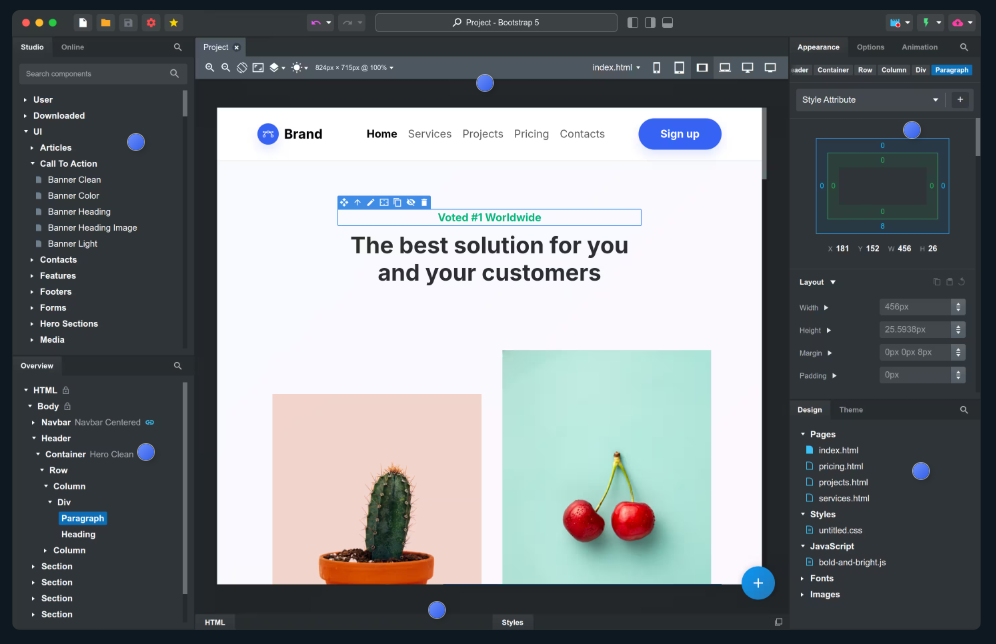
Step 3: Configuring Email Submission with HTML Tags

  • In your Contact Form 7 settings, click the “Mail” tab.
  • Ensure you’ve checked “Use HTML content type“. This setting allows your submissions to include HTML tags and maintain their formatting.
  • Also, ensure the “message” field is referenced in your “Message body“.
contact form email setup
  • Click “Save” and copy the generated shortcode provided by Contact Form 7.

Step 4: Embedding Your Contact Form into a WordPress Page

To display your new rich text-enabled form, embed the shortcode into one of your WordPress pages:

  • Open the page editor for your desired page.
  • Paste your shortcode where you want the form to appear:

Error: Contact form not found.

Insert contact form shortcode
  • Click “Publish” or “Update” to make the page live on your WordPress site.

Step 5: Adding the Froala WordPress Content Editor to the Form Page

Now, you’ll add the Froala rich text editor resources directly to your page. Simply include the Froala CDN link and initialization script:

Add these CDN references to your page or site’s HTML head:

<link href='https://cdn.jsdelivr.net/npm/froala-editor@latest/css/froala_editor.min.css' rel='stylesheet' />
<script src='https://cdn.jsdelivr.net/npm/froala-editor@latest/js/froala_editor.min.js'></script>

Then initialize the Froala editor on your textarea field using the class name “editor“:

<script> document.addEventListener('DOMContentLoaded', function() { new FroalaEditor('.editor'); }); </script>
rich text editor for contact form 7

After adding this code snippet, save and publish your page.

Safety & Validation: Handling Rich Text Submissions Securely

While adding a rich text editor for Contact Form 7 improves usability, itโ€™s important to handle formatted content safely. Allowing HTML input introduces new considerations around validation, sanitization, and storage.

Here are a few best practices to follow:

Limit Allowed HTML Tags

Not all HTML tags should be accepted from user submissions. Limit input to safe formatting elements such as <strong>, <em>, <ul>, <ol>, <li>, and <p>. Avoid allowing scripts, inline styles, or embedded media unless absolutely necessary.

WordPress provides built-in functions for sanitizing user input. To learn more about best practices, refer to the official WordPress sanitization documentation

Sanitize Output Before Displaying or Sending

Always sanitize rich text content before displaying it on your site or including it in emails. This helps prevent XSS attacks and malformed HTML from breaking layouts.

If youโ€™re using the submission content in email notifications, ensure that HTML output is properly escaped or filtered to maintain consistent formatting across email clients.

Decide How HTML Should Be Stored or Emailed

Before going live, decide whether rich text submissions should be:

  • Stored as raw HTML
  • Sanitized HTML
  • Converted to plain text for email delivery

For many use cases, sanitizing and sending HTML emails works well. For others, such as support forms or internal tools, converting submissions to clean, readable text may be safer and more reliable.

Taking a few extra steps to validate and sanitize user input ensures your rich text forms remain both powerful and secure.

Testing Your New Rich Text Contact Form

Now it’s time to test your implementation:

  • Open your published page in a browser.
  • You should now see your contact form with the Froala rich text editor field instead of the plain textarea.

rich-text editor for contact form 7

  • Enter test values and experiment by formatting your message with headings, bold, italics, and more.
  • Submit your form and verify the formatted HTML content appears correctly in your email inbox.

rich-text editor for contact form 7 submitted

Improving Your WordPress Submissions with Complex Content

With Froala integrated, your website visitors can now submit visually rich and complex content directly through your forms. This simple upgrade drastically improves the readability and organization of form responses. It also enhances your overall communications, making them look professional and polished.

No more monotonous plain text submissionsโ€”each submission now comes beautifully formatted and ready for immediate use, perfect for your next post.

Conclusion

By following this straightforward, step-by-step guide, you’ve successfully added a powerful rich text editor to your Contact Form 7 forms. With Froala powering your form submissions, your website’s user experience is significantly enhanced, allowing for detailed, structured, and engaging responses.

This simple yet impactful integration transforms the way your website visitors interact with your forms, providing a much-improved WordPress experience. Now go ahead and enjoy the benefits of beautifully formatted submissions!

FAQs

Can Contact Form 7 support a rich text editor?

Yes. While Contact Form 7 only supports plain text fields by default, you can add a rich text editor for Contact Form 7 by integrating a third-party editor like Froala. This allows users to submit formatted content such as bold text, headings, lists, and more.

Is it safe to use a rich text editor in Contact Form 7?

Yes, as long as you follow proper security practices. When using a rich text editor for Contact Form 7, itโ€™s important to limit allowed HTML tags, sanitize user input, and validate output before displaying or emailing submissions. WordPress provides built-in sanitization functions to help handle formatted content safely.

Will rich text formatting appear correctly in Contact Form 7 emails?

It can. To ensure formatting is preserved, you must enable the HTML content type in Contact Form 7โ€™s Mail settings. Once enabled, formatted submissions created using a rich text editor will appear correctly in email notifications, provided the HTML is properly sanitized.