

Pros and Cons of Using Bootstrap with Rich Text Editors for Front-End Development
Bootstrap has become one of the most popular front-end frameworks in web development. Its ready-to-use components, responsive grid system, and strong documentation make it a go-to solution for developers building modern, mobile-first interfaces. But as UI needs evolve, especially with content-heavy apps and dashboards, many teams find themselves integrating rich text editors into their Bootstrap-powered projects.
So, what are the actual Bootstrap pros and cons, particularly when you’re working with advanced features like WYSIWYG editors? In this article, we’ll break it down clearly—exploring the benefits, challenges, and best practices of using Bootstrap in front-end development alongside rich text editing tools.
Why Bootstrap Remains a Go-To Framework
Bootstrap continues to be a trusted choice for front-end developers for several good reasons:
Responsiveness
Bootstrap’s grid system is designed for mobile-first development, making it easy to build layouts that adapt to any screen size. Whether you’re creating a dashboard or a blog, the responsive behavior ensures your content—including editors—works seamlessly on desktop and mobile alike.
Pre-built Components
From modals and alerts to navbars and forms, Bootstrap comes with a rich library of ready-made UI components. These are easy to customize and integrate, reducing the time needed to build common features like input forms or even a basic Bootstrap content editor container.
Grid System
The powerful 12-column grid makes layout management predictable and flexible. This becomes especially useful when integrating a responsive text editor in Bootstrap, allowing you to structure your editing interface alongside toolbars, sidebars, or preview panes without breaking your layout.
Developer-Friendly Documentation
Bootstrap’s documentation is clear, thorough, and packed with real examples. This is helpful not only for getting started but also when trying to troubleshoot or enhance more complex UI features, such as rich text editor components.
Together, these benefits explain why Bootstrap is often the foundation for scalable front-end projects that require both stability and flexibility—especially when building web apps that rely on editable content.
Where Bootstrap Falls Short (Cons)
While Bootstrap is undeniably powerful, it’s not without its limitations—especially when paired with complex components like WYSIWYG editors.
Heavy/Monolithic CSS
Bootstrap’s core CSS can become bloated, especially if you’re only using a fraction of its components. This adds unnecessary weight to your app and can negatively affect load time—something to consider when embedding interactive elements like a Bootstrap editor plugin.
Customization Complexity
Customizing Bootstrap beyond its default styles often requires overriding variables or writing lots of custom CSS. This becomes especially tricky when adapting the look and feel of embedded tools like a WYSIWYG editor for Bootstrap 5, which may not align with Bootstrap’s styling conventions out of the box.
JavaScript Conflicts
Bootstrap relies on JavaScript for many of its interactive components, which can lead to conflicts with third-party plugins—especially rich text editors that also use dynamic toolbars, modals, or dropdowns.
Incompatibility with Modern Component-Based Frameworks
Although Bootstrap can be used with frameworks like React or Vue, it doesn’t always play well with their component-driven architecture. Developers may find themselves juggling two different paradigms, making it harder to integrate Bootstrap text editor plugins that depend on tightly coupled DOM manipulations.
Despite these drawbacks, many teams continue using Bootstrap by carefully choosing their integrations and selectively loading only what they need. Still, it’s essential to weigh these cons when choosing the right stack for content-rich web apps.
Integrating Rich Text Editors with Bootstrap
- Despite its wide range of UI components, Bootstrap doesn’t ship with a built-in rich text editor. This is because Bootstrap focuses on layout, responsiveness, and reusable components—not content editing features. Developers looking to add rich text functionality must integrate a third-party editor that complements Bootstrap’s structure.
- Some of the most popular choices include Froala, Quill, CKEditor, and TinyMCE. These editors offer flexible APIs and sleek interfaces, but integrating them into Bootstrap layouts can require some tweaking—especially when handling toolbars, modals, or responsive behavior.
- For example, if you’re building a Bootstrap content editor or form with WYSIWYG input, you’ll want to ensure proper compatibility with Bootstrap’s grid system, modal layers, and form styling. Fortunately, many editors offer plugins or themes tailored for Bootstrap WYSIWYG editor use cases.
- Whether you’re embedding a rich text editor in Bootstrap or managing Bootstrap text editor integration for a larger app, the key is ensuring both visual alignment and interaction consistency across components.
Code Example: Adding Froala Rich Text Editor to a Bootstrap Form
Froala is a powerful and modern WYSIWYG editor for Bootstrap 5 with advanced formatting tools, image handling, and responsive layout support. Let’s walk through how to add a rich text editor in Bootstrap using Froala.
Step-by-Step Instructions
Step 1: Get Froala’s Required Files
Froala is a commercial editor but provides a free trial. You can use their CDN to test it.
Include the following in the <head>:
<!-- Bootstrap CSS -->
<link href="https://cdn.jsdelivr.net/npm/bootstrap@5.3.0/dist/css/bootstrap.min.css" rel="stylesheet">

<!-- Froala Editor CSS -->
<link href="https://cdn.jsdelivr.net/npm/froala-editor@4.0.14/css/froala_editor.pkgd.min.css" rel="stylesheet">
And just before closing your </body> tag, add these:
<!-- jQuery (required by Froala) -->
<script src="https://cdnjs.cloudflare.com/ajax/libs/jquery/3.6.0/jquery.min.js"></script>

<!-- Froala Editor JS -->
<script src="https://cdn.jsdelivr.net/npm/froala-editor@4.0.14/js/froala_editor.pkgd.min.js"></script>
Step 2: Add Your Bootstrap Form
Add a Bootstrap form with a textarea you want to convert into the Bootstrap content editor.
<!-- Bootstrap Form with Froala Editor -->
<form>
  <div class="mb-3">
    <label for="post-title" class="form-label">Post Title</label>
    <input type="text" class="form-control" id="post-title" placeholder="Enter title">
  </div>

  <div class="mb-3">
    <label for="post-content" class="form-label">Post Content</label>
    <!-- This textarea will be replaced by Froala WYSIWYG editor -->
    <textarea id="post-content"></textarea>
  </div>

  <button type="submit" class="btn btn-primary">Publish</button>
</form>
Important Notes:
- Use an id like #post-content so it’s easy to target with JavaScript when initializing Froala.
- The structure is fully responsive thanks to Bootstrap classes like form-control and mb-3.
Step 3: Initialize Froala on the Textarea
Now that your form and <textarea> are ready, it’s time to turn that plain text box into a full-featured Froala WYSIWYG editor.
Add the following JavaScript block just before the closing </body> tag or inside a script file:
<!-- Froala JS Initialization -->

<script>
  document.addEventListener('DOMContentLoaded', function () {
    new FroalaEditor('#post-content', {
      height: 300,
      placeholderText: 'Start writing your content here...',
      toolbarButtons: [
        'bold', 'italic', 'underline', '|', 'formatOL', 'formatUL', 'insertLink', 'insertImage', 'html'
      ]
    });
  });
</script>
How it works:
- The script waits for the page to load (DOMContentLoaded) before initializing the editor.
- Froala finds the element with #post-content and replaces it with the editor UI.
- Any text you type into the editor will still live inside the original <textarea> behind the scenes.
Step 4: Submit Form with Froala Content
One of Froala’s key advantages is its built-in synchronization with the underlying <textarea>. When a user submits the form, the editor automatically updates the <textarea> with the current content—no additional code needed.
How it works:
- Froala binds to the <textarea> with id=”post-content”.
- On submission, the content is sent using the name=”content” field.
- On the backend (e.g., PHP, Node.js, Python), you can retrieve it just like any regular form value.
This seamless integration ensures you can safely handle rich text input without any manual syncing.
Step 5: View Submitted Content on the Server
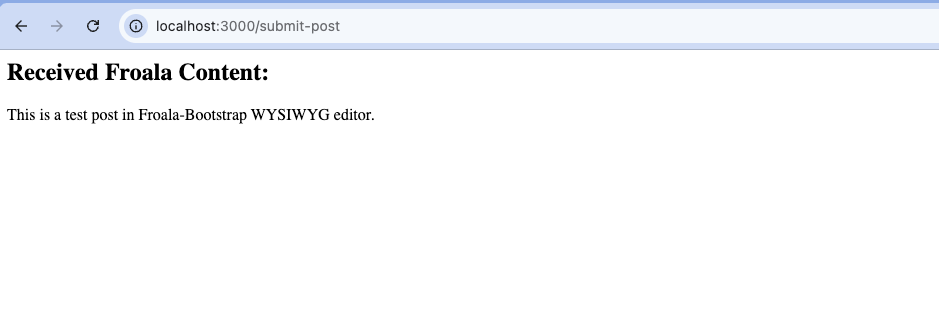
Once your form is submitted, you’ll want to verify that the Froala editor’s content is correctly reaching your backend. Here’s how to do that with a simple Node.js + Express server.
Backend Example (Node.js + Express)
Inside your project’s root, create a backend directory and add a server.js file with the following code:
const express = require('express');
const bodyParser = require('body-parser');
const cors = require('cors');

const app = express();
const PORT = 3000;

// Middleware
app.use(cors()); // Enable CORS for communication with frontend
app.use(bodyParser.urlencoded({ extended: true }));
app.use(bodyParser.json());

// Route to receive Froala form submission
app.post('/submit-post', (req, res) => {
  const content = req.body.content;
  console.log('Received content from Froala:', content);

  res.send(`<h2>Received Froala Content:</h2><div>${content}</div>`);
});

// Start server
app.listen(PORT, () => {
  console.log(`Backend server running at http://localhost:${PORT}`);
});
Explore the full example and learn how to run it locally in this GitHub repository.
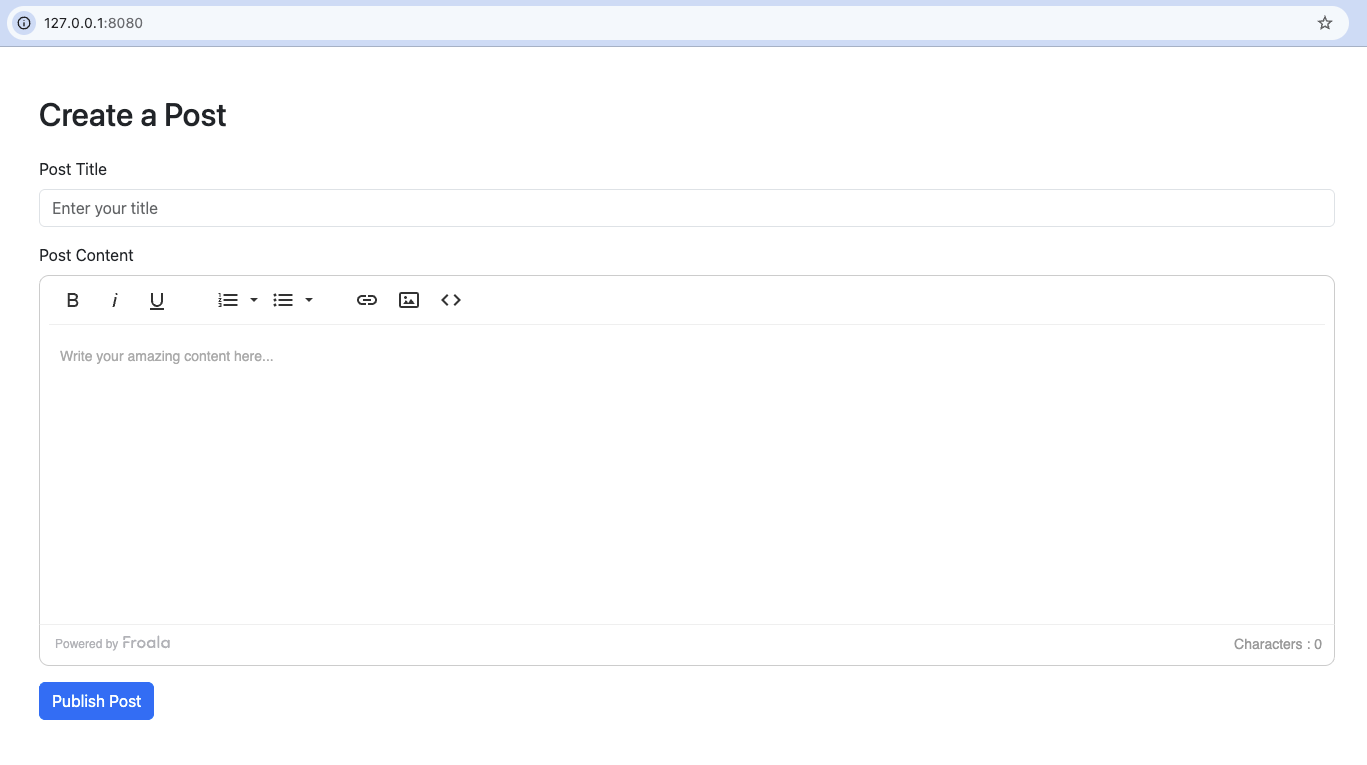
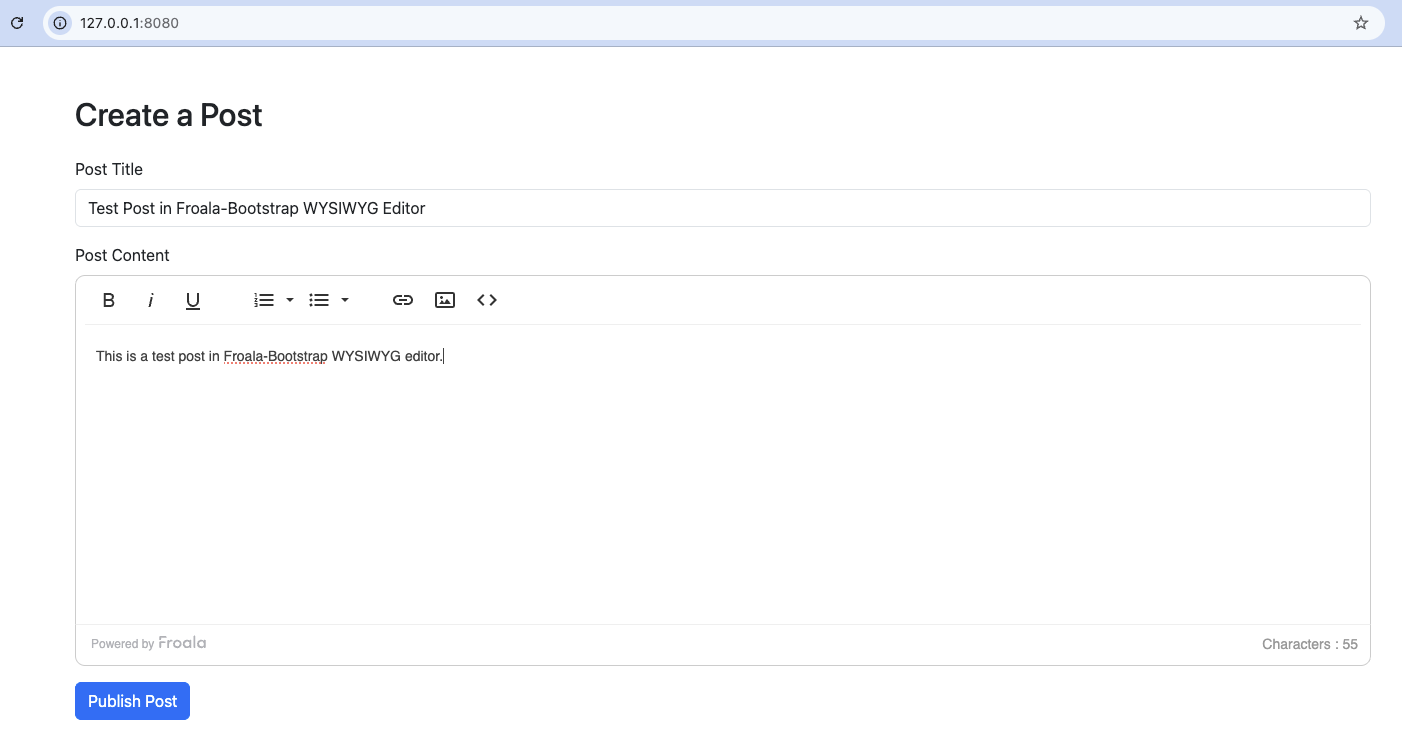
Output:
You can see the output below in the browser after launching the HTML script.

Why Froala Works Great with Bootstrap
- It integrates perfectly into Bootstrap forms
- Responsive by default
- Clean UI that doesn’t conflict with Bootstrap styles
- Great choice for a Bootstrap editor plugin when you want a premium feel
When to Consider Alternatives to Bootstrap
While Bootstrap is incredibly versatile, it’s not always the best fit for every project. Here are a few scenarios where you might want to explore other options:
- Single-page applications (SPAs) built with modern frameworks like React, Vue, or Svelte may benefit from lighter, more component-driven styling systems.
- Performance-critical sites that need minimal CSS and JavaScript may find Bootstrap too heavy.
- Design-first projects that rely on custom design systems or strict branding guidelines may prefer a utility-first framework like Tailwind CSS or a completely custom solution.
- Always weigh the trade-offs—Bootstrap speeds up development but may introduce limitations in design flexibility or bundle size.
Conclusion
Bootstrap remains a reliable and flexible framework for building responsive web forms and integrating powerful tools like Froala.
- It’s a solid choice for many use cases, especially for developers who want to build quickly with a consistent UI.
- Integrating editors like Froala may involve some setup, but with the right approach, it’s entirely manageable.
- We recommend starting simple, ensuring mobile responsiveness, and testing across multiple browsers and devices to catch any edge cases early.
Ready to build faster with Bootstrap and Froala?
Start integrating rich text editing into your next project and streamline your content workflows today.
FAQs
What are the advantages and disadvantages of Bootstrap?
Pros:
- Mobile-friendly and responsive by default
- Speeds up development with pre-built UI components
- Consistent design and strong documentation
Cons:
- Can feel heavy for small projects
- Customization may require overriding default styles
- Many Bootstrap sites look similar without extra styling
Is Bootstrap worth it in 2025?
Yes, Bootstrap is still worth using in 2025—especially for rapid prototyping, admin dashboards, and responsive layouts. It’s well-maintained, easy to integrate, and ideal for developers who want a reliable front-end framework without building everything from scratch. However, for highly customized UIs or modern JavaScript apps, lightweight alternatives may be better.
How do I integrate a WYSIWYG editor into a Bootstrap form?
To integrate a WYSIWYG editor like Froala into a Bootstrap form:
- Include Froala’s CSS and JS files via CDN or NPM.
- Create a standard <textarea> inside your Bootstrap form layout.
- Initialize Froala using JavaScript, targeting the textarea’s ID (e.g., #post-content).
- On submission, Froala automatically syncs the rich text content with the textarea, so it can be handled like any regular form field on the backend.
This setup helps you build clean, responsive forms with rich content editing, ideal for blogs, CMS dashboards, or admin panels.




No comment yet, add your voice below!