
Set Up a Custom Visual HTML Text Editor in 5 Easy Steps with a No-Code Tool

Setting up a custom WYSIWYG HTML text editor can seem challenging, especially if you’re not comfortable with coding. Many users want their editor to match their workflow, design, and feature needs—but creating one from scratch often feels too complex. With Froala’s Customizer tool, however, you can build a tailored editor in just a few clicks, without writing a single line of code.
In this guide, we’ll walk you through the simple, five-step process of creating a custom HTML text editor using Froala. By the end, you’ll have a fully personalized editor that saves development time, improves usability, and supports a smoother content creation workflow.
Why Choose Froala?
Froala is a powerful WYSIWYG HTML text editor designed to be both flexible and user-friendly. Whether you need:
- A basic text editor for comments or quick notes
- Or a feature-rich content management tool for professional projects
Froala has the tools to meet your needs.
Key reasons to choose Froala for building a custom HTML text editor:
- No-code customization: Use the Froala Customizer tool to set up your editor without writing a single line of code.
- Faster setup: Build a fully tailored editor in minutes, rather than coding one from scratch.
- Complete flexibility: Adjust toolbar buttons, plugins, and layout to create the perfect editing experience.
- User-friendly: Works for both developers and non-technical users who want more control.
Access the Froala Customizer
To get started, head over to the Froala Customizer. This user-friendly interface allows you to customize every aspect of the Froala Editor, from toolbar buttons to interface language.
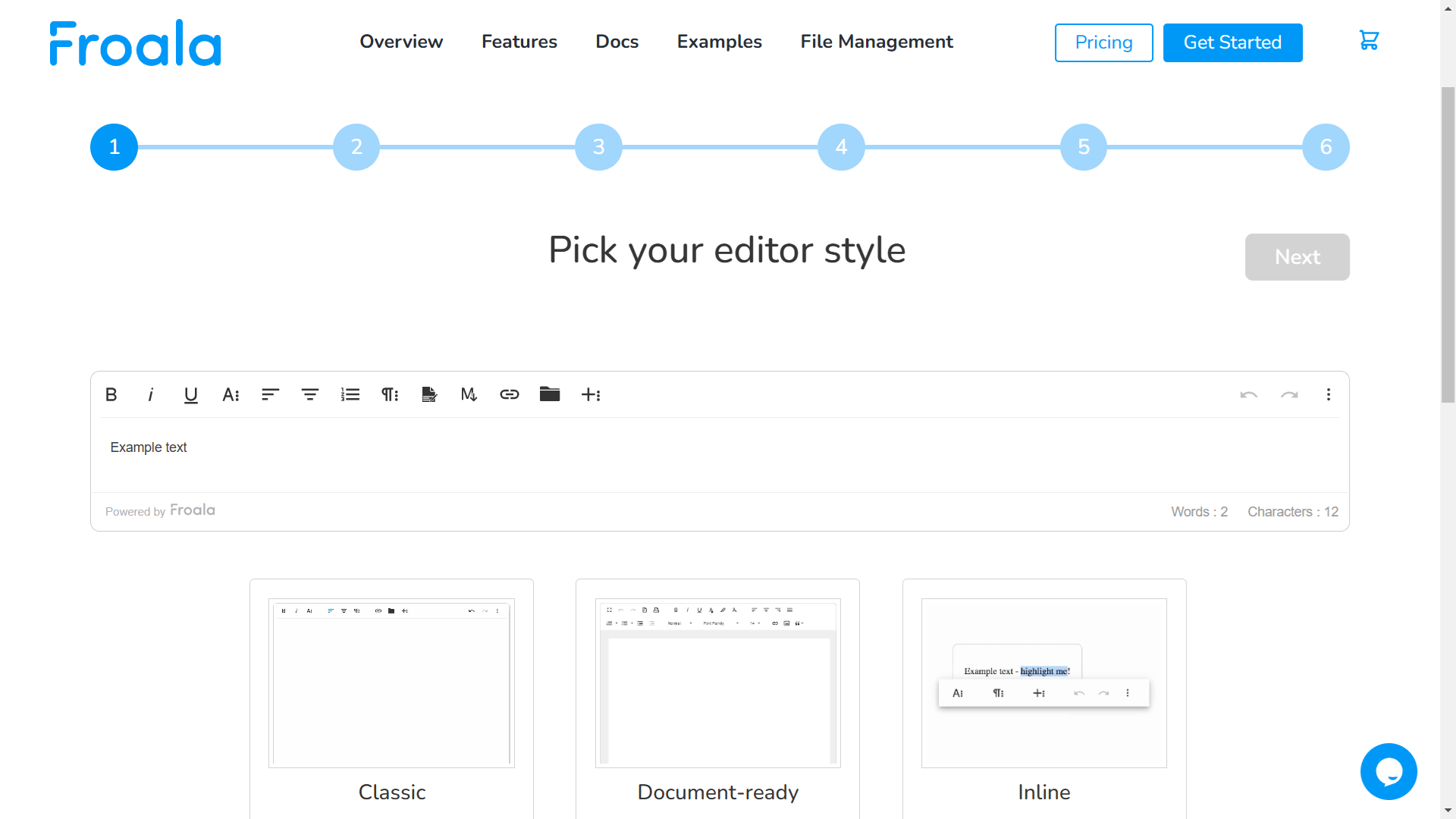
Step 1: Select Your Editor Preset
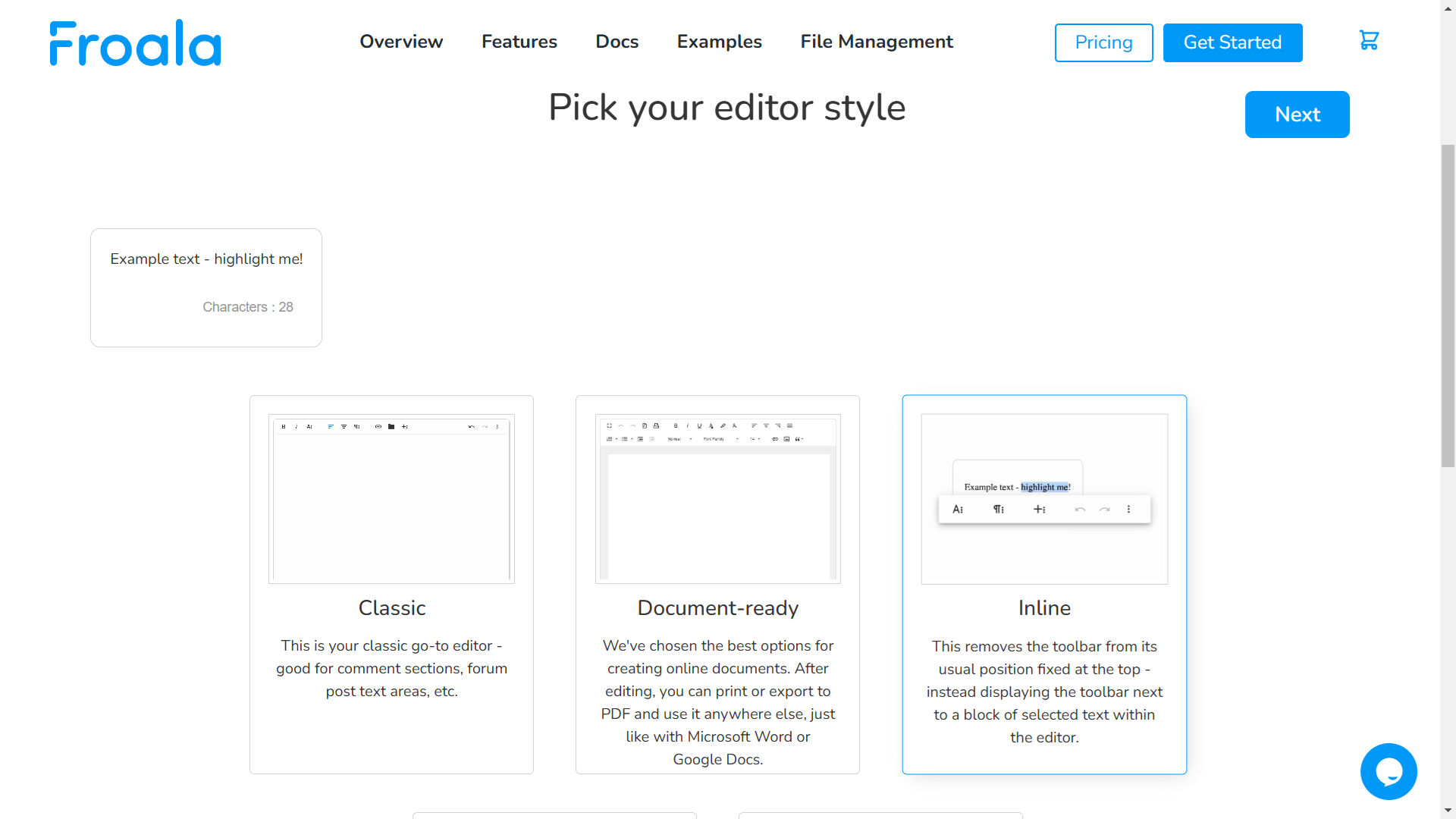
To set up your custom text editor, first choose an editor preset from the five available options, each of which has a brief description. Read more details on the differences between modes here.
Froala offers five editor presets, each designed for different use cases:
- Classic: A go-to option for simple text areas like blog comments, forum replies, or feedback forms.
- Document-ready: Optimized for creating online documents with export/print capabilities, similar to Microsoft Word or Google Docs.
- Inline: Moves the toolbar next to the selected text block, instead of fixing it at the top, making it ideal for inline content editing in CMS platforms.
- Edit in pop-up: Great for short text edits. Clicking text opens a small pop-up editor for quick, single-line editing.
- Full Page: Provides full control with HTML, HEAD, BODY tags, and DOCTYPE declaration—best for building complete HTML pages.
Understanding these differences helps you choose the right starting point before customizing your custom HTML text editor further.
After selecting a preset, a demo will be shown. Take a moment to review the options and see how it looks. Click “Next” once you’ve found your preferred option.
Step 2: Customize Features
Froala Text Editor provides a comprehensive range of options, from basic formatting tools to advanced features such as image and video insertion. These features are delivered through plugins, creating a powerful, modular architecture.
In this step, Froala’s Customizer also allows you to configure advanced features, such as file upload options, language settings, and more. Depending on your needs, you can enable or disable these features to create a tailored editing experience. This allows you to customize the editor’s functionality and appearance without any coding knowledge.
For example, expand the “General” tab and select the “height” option. A text field will appear where you can enter a value, like “300”. Just like that, you’ve customized the editor’s height.
As you make changes, you’ll see all your selected options listed under “Selected options.” This makes it easy to review your customizations before moving on.
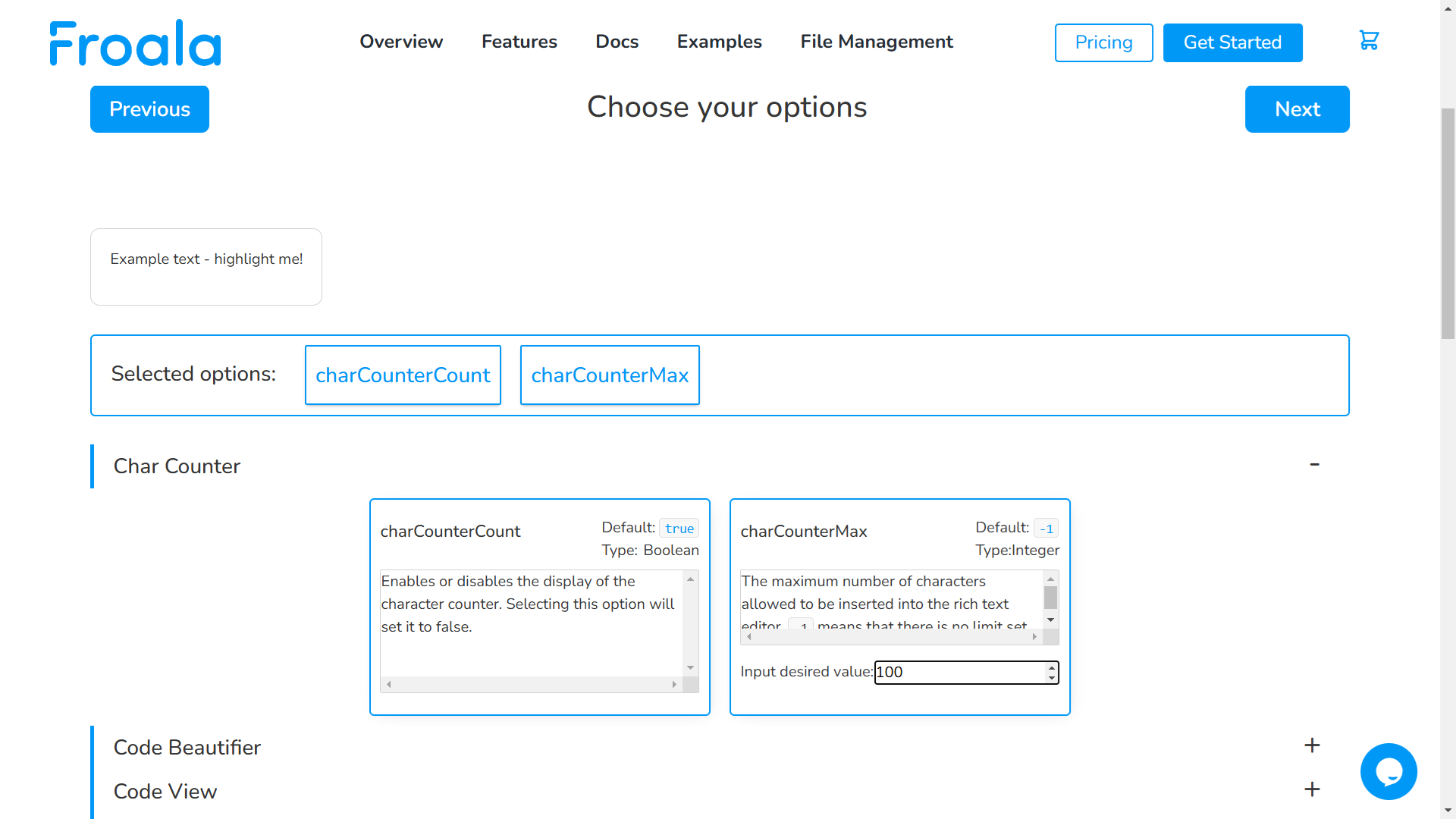
Once you’re satisfied, click “Next” to continue setting up your custom text editor.
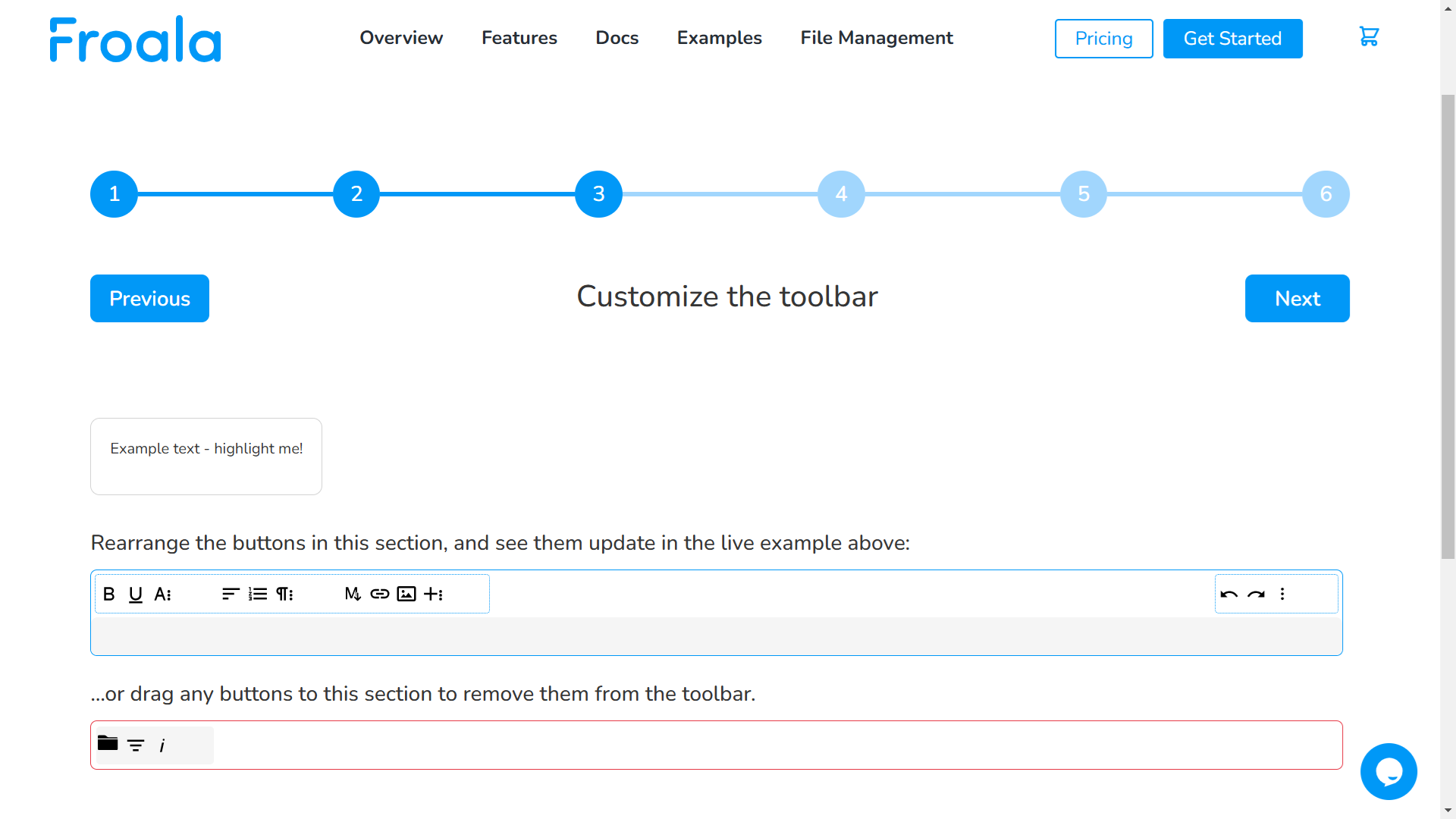
Step 3: Customize Toolbar
Once you’ve selected the features you want to include, you can customize the toolbar layout. Drag and drop the buttons to arrange them in the desired order. You can also add, remove, or group buttons as needed to create a streamlined and intuitive interface for your users.
Step 4: Customize The Editor Interface Language
The final step in setting up your custom text editor is to select the language for the editor interface. Froala supports over 35 languages, allowing you to choose the one that best suits your users’ needs. Simply select the desired language from the dropdown menu, and the editor’s buttons, tooltips, and other interface elements will be displayed in that language.
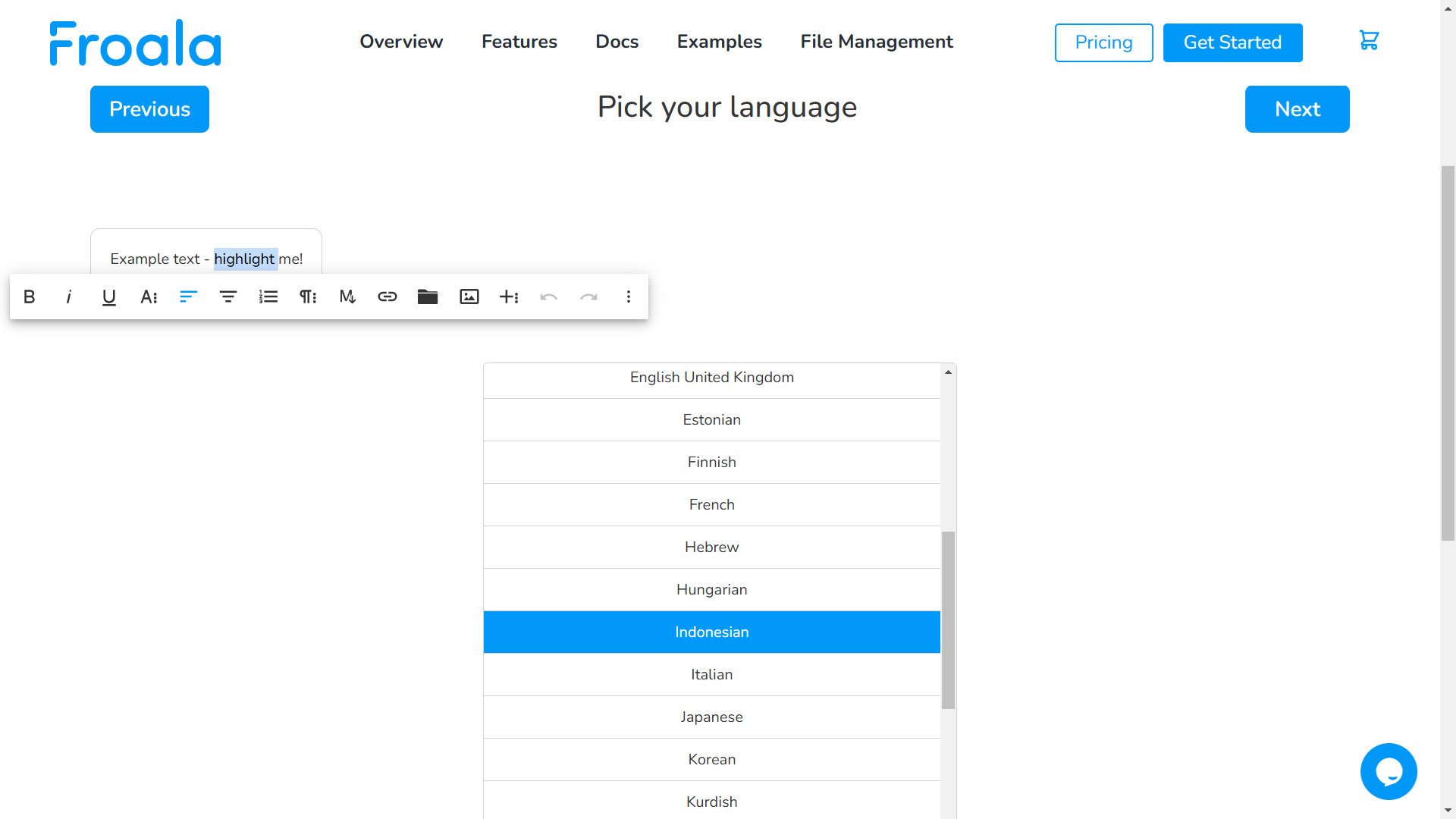
For Right-To-Left languages, the editor toolbar buttons will automatically adjust to display from right to left.
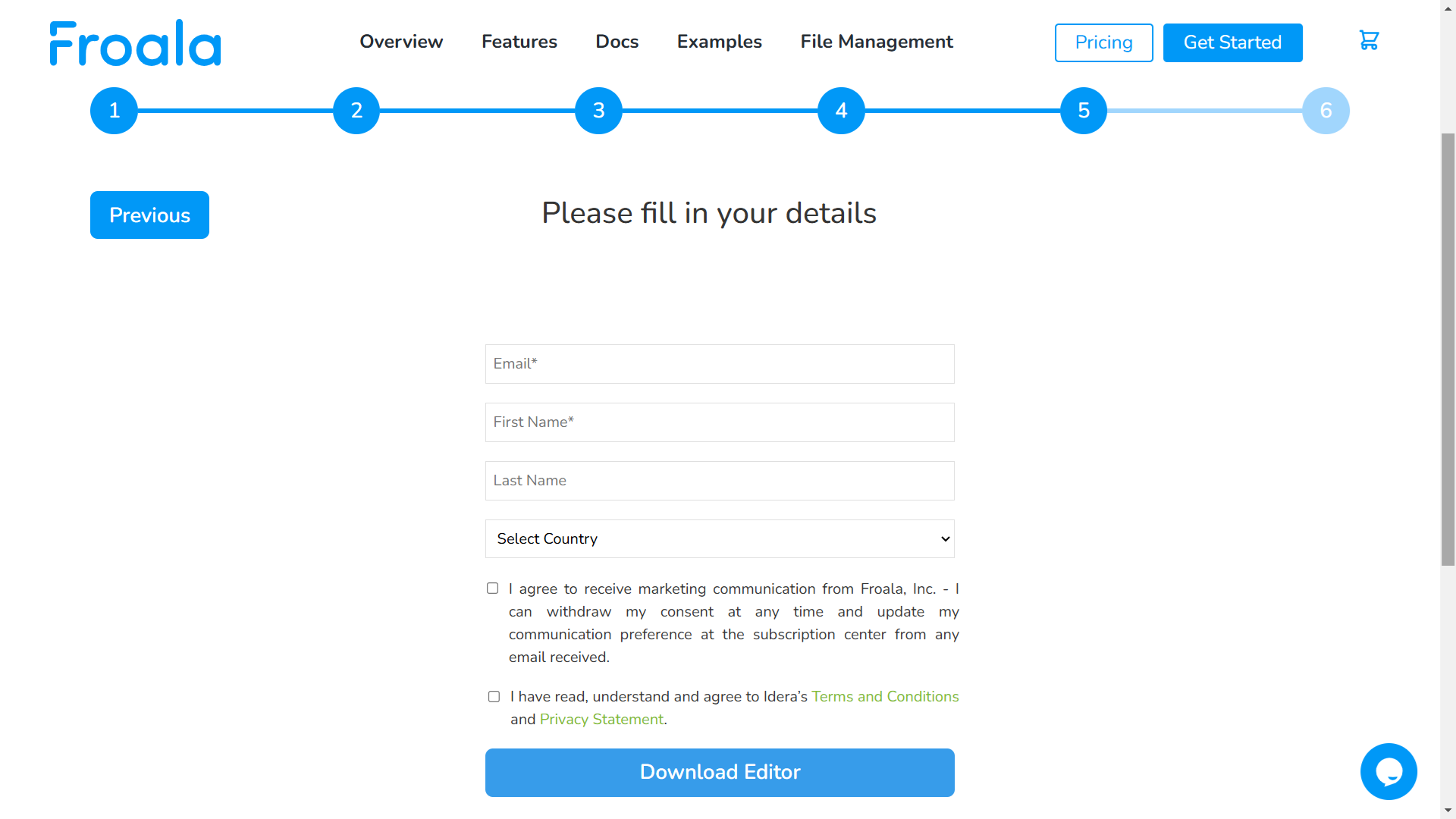
Step 5: Download Your Custom Code
By reaching this step, you have completed all the customization steps. Fill the displayed form and click “Download” to download the custom Froala Editor code.
Extract the downloaded folder, and you will find the HTML, CSS, and JavaScript code for your custom text editor in the index.html file. This code can then be integrated into your website or application, enabling your users to utilize the tailored text editor you’ve created.
The Froala Customizer makes it easy to iterate on your design, so you can continue refining the editor as your needs evolve. With this no-code tool, you can quickly and easily build a custom text editor that perfectly fits your project requirements.
Pro Tips for Building a Custom HTML Text Editor with Froala
Based on real-world usage, here are some best practices when using Froala’s Customizer tool:
- Enable autosave: Helps prevent content loss during editing.
- Limit toolbar options for focus: Too many buttons can overwhelm users. Keeping only essential formatting tools improves usability.
- Use inline mode for collaboration apps: Inline editing feels more natural when users need to edit directly inside a page.
- Set height constraints: Define a minimum editor height for consistency across devices.
- Test performance with plugins: Only enable plugins you actually need; disabling unused ones keeps the editor fast.
Troubleshooting Common Issues with Your Custom HTML Text Editor
Even with Froala’s no-code setup, you might run into a few small challenges when integrating your custom HTML text editor into your site or app. Below are common issues and detailed steps to fix them:
Editor Not Loading Properly
Issue: The editor doesn’t appear on the page or remains blank.
Resolution:
- Confirm that you’ve included both Froala CSS and JS files in your HTML.
- These should be linked correctly in the <head> and before the closing </body> tag.
- Ensure the file paths are accurate and accessible (especially if you’re hosting locally).
- Wrap your editor inside a container <div> with a defined height/width to avoid rendering issues.
Issue: Some buttons are missing or not appearing in the toolbar.
Resolution:
- Go back to the Froala Customizer and make sure the corresponding plugins are enabled.
- For example, the “Insert Image” button requires the image plugin to be active.
- After generating the code, open your index.html and verify the list of included plugins and buttons.
Language Not Updating
Issue: You selected a different language in the Customizer, but the editor still shows English.
Resolution:
- Make sure the correct language JS file (e.g., fr.js, es.js) is loaded in your HTML.
- The language option in your config should match the loaded file.
- Example:
language: 'fr'
And include:
<script src="js/languages/fr.js"></script>
Learn more about Froala language support.
Unexpected Layout or Style Issues
Issue: The editor’s layout breaks or doesn’t match the preview from the Customizer.
Resolution:
- Conflicts may arise from external CSS (e.g., Bootstrap, Tailwind, custom global styles).
- Wrap the editor in a class or container like:
<div class="froala-wrapper">
  <!-- editor code -->
</div>
- Use scoped CSS or isolate Froala’s styles using iframe: true if needed.
- Always define a min-height and width for the editor container to ensure visibility.
Download Not Working
Issue: After customization, clicking “Download” doesn’t generate the custom editor package.
Resolution:
- Ensure your browser allows file downloads and pop-ups from the Froala site.
- Double-check that you filled in all required form fields (like email or project name).
- Try using a different browser or clearing your cache if the button is unresponsive.
- You can also use the “Preview Code” option to manually copy and test.
Bonus Tip: Enable Developer Tools
Use browser dev tools (Inspect Element → Console/Network tab) to debug:
- Missing files (404 errors)
- JS syntax errors
- Plugin load failures
Need More Help?
Explore Froala’s comprehensive documentation for advanced setup tips and plugin configurations.
Froala Pricing Considerations: Free vs. Paid Features
While the Froala Customizer tool is free to use for building and downloading your custom HTML text editor, some features you enable during customization may require a Froala license to work in production.
Free Usage Includes:
- Building and previewing editors using the Customizer
- Downloading the generated HTML/CSS/JS code
- Using core formatting features and UI customization
Paid Features May Include:
- Advanced plugins like real-time collaboration, Markdown support, or file uploads
- Commercial use rights and white-labeling
- Priority support and feature updates
- Integrations with Filestack, image hosting, and cloud storage
For full details, review Froala’s pricing plans to determine what license you need based on your project type—personal, open-source, or commercial.
Conclusion
By using the Froala Customizer, you can create a custom text editor that perfectly fits your needs, all without writing a single line of code. This powerful tool allows you to easily configure the editor’s toolbar, appearance, and advanced features, saving you valuable time and resources.
This no-code tool makes the Froala setup process incredibly easy, as the generated code is ready-to-use and requires minimal setup. This means you can have your custom text editor up and running in no time, without the need for extensive development work.
Whether you’re a content creator, a web developer, or simply someone who wants a more personalized editing experience, the Froala Customizer is an excellent choice. Give it a try today and see how it can streamline your text editing workflow.
FAQs
What is a custom HTML text editor, and why should I use one?
A custom HTML text editor lets you tailor features, toolbar options, and design to match your project’s needs, improving usability and workflow.
Can I build a custom HTML text editor without coding?
Yes. With Froala’s no-code Customizer tool, you can configure and download a ready-to-use editor in just a few steps—no coding skills needed.
How does Froala’s Customizer compare to other no-code editor tools?
Unlike many editors, Froala offers plugin-level control, real-time previews, and lightweight, production-ready code, making it highly efficient for developers and non-developers.





No comment yet, add your voice below!