

How to transform your LMS with a React WYSIWYG HTML editor, part 2
Last time, we explored how to make a simple but powerful LMS using a React WYSIWYG HTML editor. This tool not only enhances the user experience for LMS applications but also simplifies content creation for whoever needs it. In the previous article, we built our application using React and used Froala to create the contents of a course’s chapter. Moreover, we delved into the file upload and transformation features of the natively integrated Filestack file picker. If you missed our previous discussion, check out our article on creating the React WYSIWYG HTML editor-powered LMS. In this part, we’ll dive deeper into how Froala works. Specifically, we’ll load the content that we saved in Part 1 back to the editor from SQL Server.
Key takeaways
- Building from the code in Part 1, we added a new PHP file as well as a new component for loading the contents of a chapter.
- We also edited FroalaComponent so that it now loads an initial content.
- Loading previously saved content back to Froala Editor on a React application takes little time and effort.
- Loaded content will appear exactly as they were saved, ensuring integrity and clarity within your LMS.
- You can load Filestack-stored content together with the editor or independently from it.
Recap: Part 1 of building the React WYSIWYG HTML editor
In Part 1, we created a React application called demo-lms. We also had five components, which handled loading and saving courses, loading and saving chapters, and initializing the editor. For the FroalaEditor component, we also initialized Filestack by creating a free Filestack account and including the API key in the editor config. Finally, we created some endpoints for fetching and saving data from and to SQL Server using PHP. Now, we’ll load the contents of a chapter back to the React application and into the editor.
Understanding the data flow: From SQL Server to React
Note that in our chapter table, we have a column for a chapter’s ID, title, description, contents, publishing date, and an optional URL for a Filestack upload. To display these, we would have to write PHP code and load them via a simple SELECT query. From there, we will fetch the data from our React application with the chapter ID as the parameter and set the result as an object. That leaves us with assigning each property of the object to a DOM element. Ready to start?
Loading uploaded content into your React WYSIWYG HTML editor
Creating the API endpoint for fetching content
First, let’s create our new PHP file and name it getChapterById.php. Inside it, paste the following code:
<?php
    header('Access-Control-Allow-Origin: http://localhost:3000');
    header("Access-Control-Allow-Methods: GET, POST, OPTIONS");
    header("Access-Control-Allow-Headers: Content-Type, Authorization");
    header("Content-Type: application/json");
    if ($_SERVER['REQUEST_METHOD'] === 'OPTIONS') {
        header("HTTP/1.1 200 OK");
        exit();
    }
    include "connection.php";

    if (isset($_GET["chapterId"])) {
        $chapterId = $_GET["chapterId"];

        $query = "SELECT chapter_title, chapter_description, chapter_content, chapter_img_url, date_published FROM chapter WHERE chapter_id = ?";
        $params = array($chapterId);
        $stmt = sqlsrv_query($conn, $query, $params);

        if($stmt === false){
            http_response_code(500);
            echo json_encode(["error" => "Failed to query the database."]);
            exit;
        }

        $chapter = sqlsrv_fetch_array($stmt, SQLSRV_FETCH_ASSOC);

        if($chapter){
            echo json_encode($chapter);
        }
        else{
            http_response_code(404);
            echo json_encode(["message" => "Chapter not found"]);
        }

        sqlsrv_free_stmt($stmt);
        sqlsrv_close($conn);
    }
    else{
        echo json_encode(["message" => "Chapter ID not provided"]);
    }
?>
This file looks a lot like the other ones we created in Part 1, except we’re now getting the chapter details from the chapter table. Don’t forget to configure your headers to prevent CORS errors. Furthermore, in a real application, you would want to have proper input and error handling, as well as more security measures than just query parameterization. After creating the PHP file, let’s move back to the front end.
Loading the content on the front end
To load the saved content back to the application, let’s first edit our current App.js and include these lines:
// other imports
import ChapterDetails from './components/ChapterDetails'


function App() {
  return (
    <Router>
      <Routes>
        ...other routes from Part 1 go here
        <Route path="/chapterDetails/:courseId/:chapterId" element={<ChapterDetails />} />
      </Routes>
    </Router>
  );
}
We’ve added an extra import for the ChapterDetails component, which we’ll create shortly, and another route to load the new component. Afterwards, we’ll want our users to navigate to the new components from the Chapters view. To do that, insert the following button to the DOM:
<Link to={`/chapterDetails/${course.course_id}/${chapter.chapter_id}`}>
     <button>Details</button>
</Link>
This button allows users to navigate to the new component with the course and chapter IDs as the parameters. The next thing we have to do is create our ChapterDetails.jsx component and add the code below:
import React, { useState, useEffect } from 'react';
import { useParams } from 'react-router-dom';
import { Link } from 'react-router-dom';
import FroalaComponent from './FroalaComponent';

function ChapterDetails() {
  const { courseId, chapterId } = useParams();
  const [chapter, setChapter] = useState(null);

  // Fetch details for the chapter
  const fetchChapterDetails = async () => {
    const response = await fetch(`http://localhost:8081/demo-lms-backend/getChapterById.php?chapterId=${chapterId}`);
    const data = await response.json();
    setChapter(data);
  };

  useEffect(() => {
    fetchChapterDetails();
  }, [chapterId]);

  if (!chapter) {
    return <p>Loading chapter details...</p>;
  }

  const handleSetChapterContent = (content) => {
    console.log("Chapter content set:", content);
  };

  return (
    <div>
      <h1>Chapter Details</h1>
      <Link to={`/chapters/${courseId}`}>
        <button>Back to Chapters</button>
      </Link>

      <div >
          <div className="chapter-card">
            <h3>{chapter.chapter_title}</h3>
            <p>{chapter.chapter_description}</p>
            <FroalaComponent initialContent={chapter.chapter_content} setChapterContent={handleSetChapterContent} />
            <p>This is how the Filestack URL will appear if stored separately in the database: <a href={chapter.chapter_img_url}>{chapter.chapter_img_url}</a></p>
            <p>Date Published: {chapter.date_published ? new Date(chapter.date_published.date).toLocaleDateString() : 'N/A'}</p>
          </div>
      </div>
    </div>
  );
}

export default ChapterDetails;
Here are a few things that we should note:
- We’re also importing FroalaComponent here to load the editor.
- Pass the chapterId parameter to the backend to retrieve the data. In a real LMS, you might want to pair that with the courseId if your primary key consists of both IDs.
- We initialize our FroalaComponent with an initialContent property this time. This allows the editor to display content once initialized. Thus, we pass chapter.chapter_content as the parameter.
After creating our new component, let’s populate the React WYSIWYG HTML editor with the chapter’s contents.
Populating the React WYSIWYG HTML editor with the fetched content
To populate the editor, we need to edit FroalaComponent by adding the initialContent property that we used in the previous step. Replace:
function FroalaComponent({ setChapterContent, setChapterImage}) {
     ...
}
With:
function FroalaComponent({ setChapterContent, setChapterImage, initialContent}) {
     ...
}
Afterwards, replace
<FroalaEditorComponent tag='textarea' config={config} />
With:
<FroalaEditorComponent tag='textarea' config={config} model={initialContent} />
And we’re done! You should now see the chapter details, including its contents, when clicking the “Details” button on a chapter card. The following images demonstrate the new additions to our sample LMS:
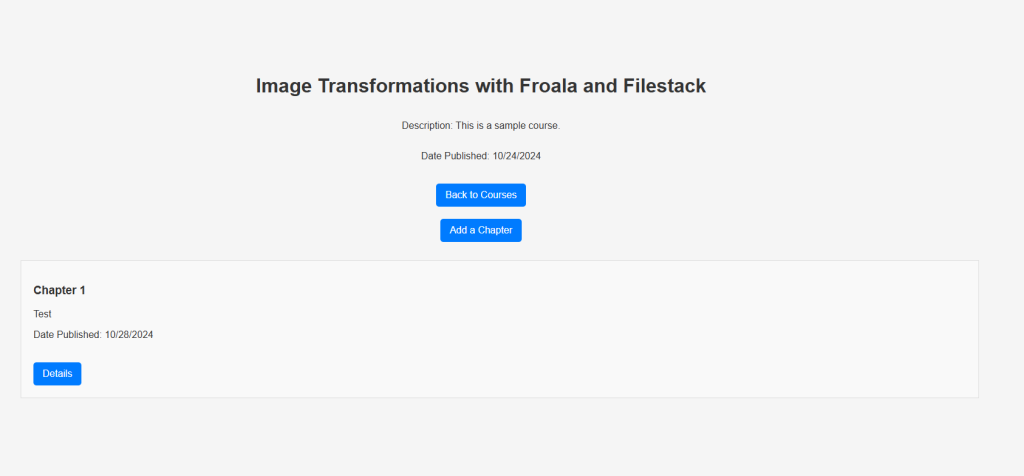
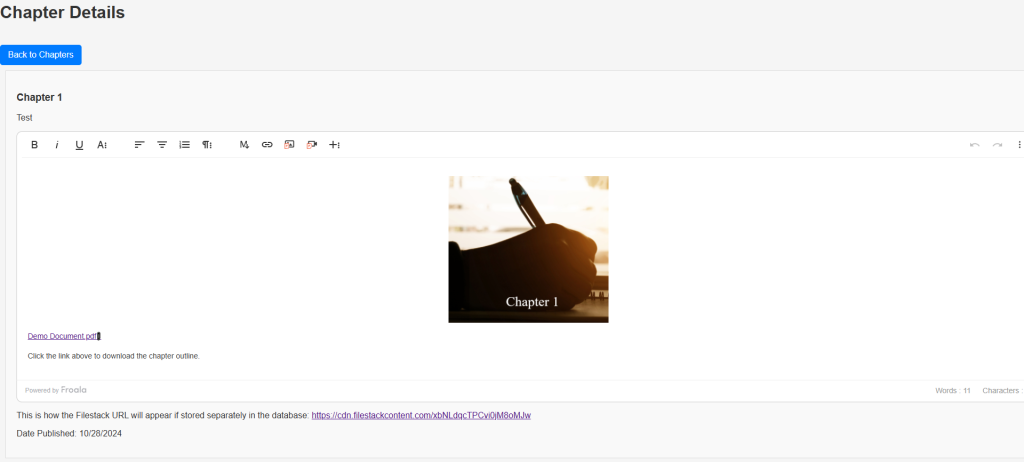
In the “Chapter Details” view, you’ll see a button for going back to the course details as well as the chapter’s title, description, contents, and publishing date. Additionally, you’ll see that you can load contents uploaded using Filestack on the editor itself or separately. Below the editor, we loaded the URL for a document (“Demo Document.pdf) after a sentence. This shows Filestack’s flexibility, giving you control over how you want to display or download your data. After clicking either the “Demo Document.pdf” link on the editor or the Filestack CDN link below, you’ll see the following:
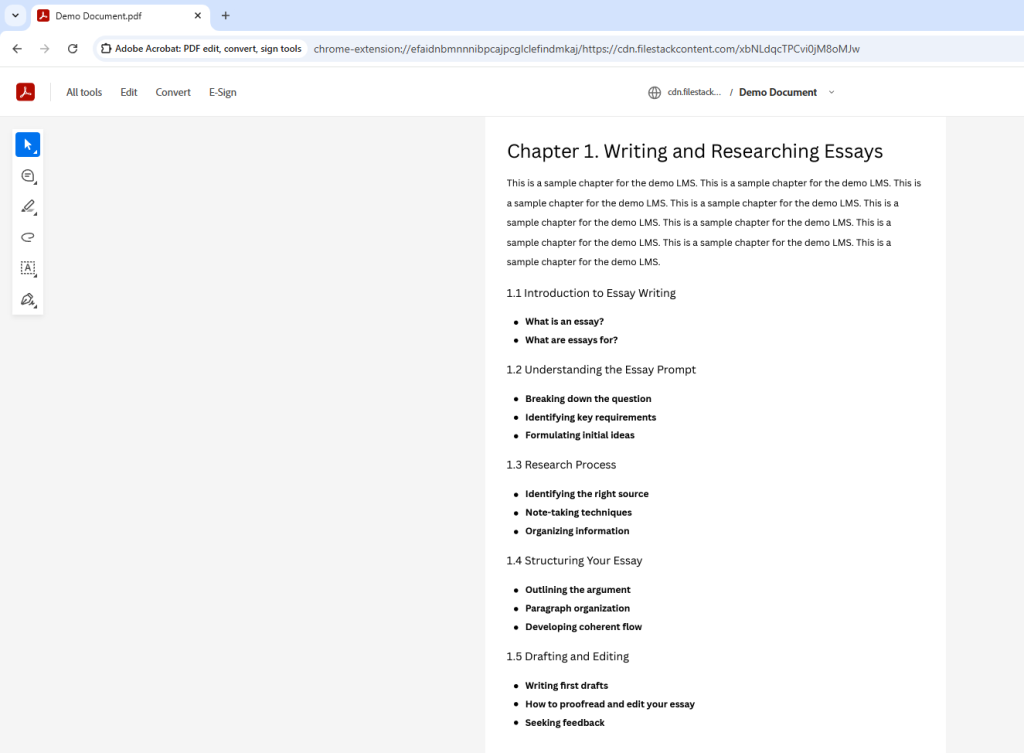
Now, we’ve discovered how we can load contents using Filestack CDN, React, and Froala for our sample LMS. That’s another step closer to having an exceptional editing tool with file upload and transformation capabilities within your LMS!
Looking ahead: Next steps in transforming your LMS
In this second part of our LMS journey, we explored how to load saved content from SQL Server into our React WYSIWYG HTML editor. We created a new component and API endpoint and updated the old ones as well. By adding and editing a few lines of code, we were able to fetch the contents of a course chapter and accurately display them into the editor. In Part 3, we will discuss additional functionalities, including editing the content within the Froala editor. Additionally, we’ll try out the other transformation features of Filestack. See you again soon!
Get your Filestack API here for free.





No comment yet, add your voice below!